

Creating a Microsoft 365 Copilot agent (a custom AI assistant within Microsoft 365 Copilot) can dramatically streamline workflows. These agents are essentially customised versions of Copilot that combine specific instructions, knowledge, and skills to perform defined tasks or scenarios[1]. The goal here is to build an agent that multiple team members can collaboratively develop and easily maintain – even if the original creator leaves the business. This report provides:
- Step-by-step guidelines to create a Copilot agent (using no-code/low-code tools).
- Best practices for multi-user collaboration, including managing edit permissions.
- Documentation and version control strategies for long-term maintainability.
- Additional tips to ensure the agent remains robust and easy to update.

Step-by-Step Guide: Creating a Microsoft 365 Copilot Agent
To build your Copilot agent without code, you will use Microsoft 365 Copilot Studio’s Agent Builder. This tool provides a guided interface to define the agent’s behavior, knowledge, and appearance. Follow these steps to create your agent:
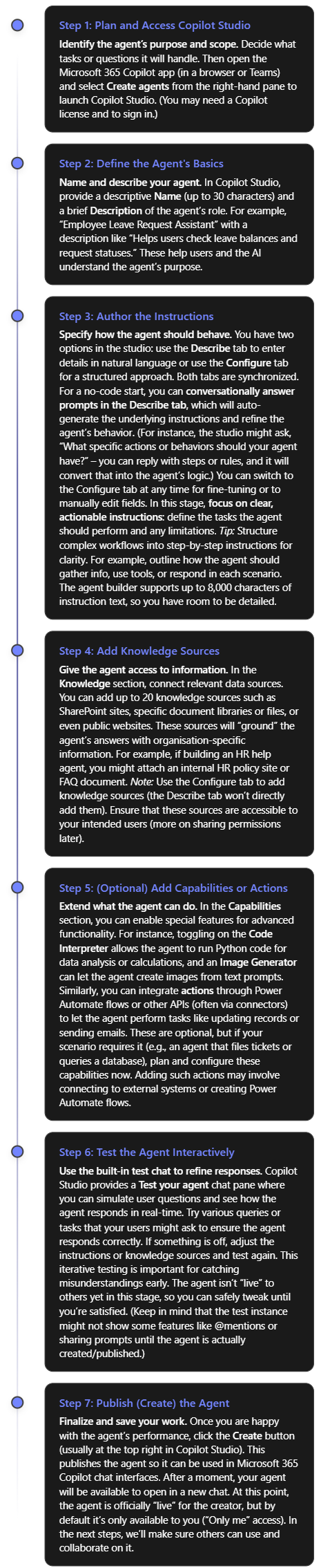
As a result of the steps above, you have a working Copilot agent with its name, description, instructions, and any connected data sources or capabilities configured. You built this agent in plain language and refined it with no code required, thanks to Copilot Studio’s declarative authoring interface[2].
Before rolling it out broadly, double-check the agent’s responses for accuracy and tone, especially if it’s using internal knowledge. Also verify that the knowledge sources cover the expected questions. (If the agent couldn’t answer a question in testing, you might need to add a missing document or adjust instructions.)
Note: Microsoft also provides pre-built templates in Copilot Studio that you can use as a starting point (for example, templates for an IT help desk bot, a sales assistant, etc.)[2]. Using a template can jump-start your project with common instructions and sample prompts already filled in, which you can then modify to suit your needs.
Collaborative Development and Access Management
One key to long-term maintainability is ensuring multiple people can access and work on the agent. You don’t want the agent tied solely to its creator. Microsoft 365 Copilot supports this through agent sharing and permission controls. Here’s how to enable collaboration and manage who can use or edit the agent:
- Share the Agent for Co-Authoring: After creating the agent, the original author can invite colleagues as co-authors (editors). In Copilot Studio, use the Share menu on the agent and add specific users by name or email for “collaborative authoring” access[3]. (You can only add individuals for edit access, not groups, and those users must be within your organisation.) Once shared, these teammates are granted the necessary roles (Environment Maker/Bot Contributor in the underlying Power Platform environment) automatically so they can modify the agent[3]. Within a few minutes, the agent will appear in their Copilot Studio interface as well. Now your agent effectively has multiple owners — if one person leaves, others still have full editing rights.
- Ensure Proper Permissions: When sharing for co-authoring, make sure the colleagues have appropriate permissions in the environment. Copilot Studio will handle most of this via the roles mentioned, but it’s good for an admin to know who has edit access. By design, editors can do everything the owner can: edit content, configure settings, and share the agent further. Viewers (users who are granted use but not edit rights) cannot make changes[4]. Use Editor roles for co-authors and Viewer roles for end users as needed to control access[4]. For example, you may grant your whole team viewer access to use the agent, but only a smaller group of power users get editor access to change it. (The platform currently only allows assigning Editor permission to individuals, not to a security group, for safety[4].)
- Collaborative Editing in Real-Time: Once multiple people have edit access, Copilot Studio supports concurrent editing of the agent’s topics (the conversational flows or content nodes). The interface will show an “Editing” indicator with the co-authors’ avatars next to any topic being worked on[3]. This helps avoid stepping on each other’s toes. If two people do happen to edit the same piece at once, Copilot Studio prevents accidental overwrites by detecting the conflict and offering choices: you can discard your changes or save a copy of the topic[3]. For instance, if you and a colleague unknowingly both edited the FAQ topic, and they saved first, when you go to save, the system might tell you a newer version exists. You could then choose to keep your version as a separate copy, review differences, and merge as appropriate. This built-in change management ensures that multi-author collaboration is safe and manageable.
- Sharing the Agent for Use: In addition to co-authors, you likely want to share the finished agent with other employees so they can use it in Copilot. You can share the agent via a link or through your tenant’s app catalog. In Copilot Studio’s share settings, choose who can chat with (use) the agent. Options include “Anyone in your organization” or specific security groups[5]. For example, you might initially share it with just the IT department group for a pilot, or with everyone if it’s broadly useful. When a user adds the shared agent, it will show up in their Microsoft 365 Copilot interface for them to interact with. Note that sharing for use does not grant edit rights – it only allows using the agent[5]. Keep the sharing scope to “Only me” if it’s a draft not ready for others, but otherwise switch it to an appropriate audience so the agent isn’t locked to one person’s account[5].
- Manage Underlying Resources: If your agent uses additional resources like Power Automate flows (actions) or certain connectors that require separate permissions, remember to share those as well. Sharing an agent itself does not automatically share any connected flow or data source with co-authors[3]. For example, if the agent triggers a Power Automate flow to update a SharePoint list, you must go into that flow and add your colleagues as co-owners there too[3]. Otherwise, they might be able to edit the agent’s conversation, but not open or modify the flow. Similarly, ensure any SharePoint sites or files used as knowledge sources have the right sharing settings for your team. A good practice is to use common team-owned resources (not one person’s private OneDrive file) for any knowledge source, so access can be managed by the team or admins.
- Administrative Oversight: Because these agents become part of your organisation’s tools, administrators have oversight of shared agents. In the Microsoft 365 admin center (under Integrated Apps > Shared Agents), admins can see a list of all agents that have been shared, along with their creators, status, and who they’re shared with[1]. This means if the original creator does leave the company, an admin can identify any orphaned agents and reassign ownership or manage them as needed. Admins can also block or disable an agent if it’s deemed insecure or no longer appropriate[1]. This governance is useful for ensuring continuity and compliance – your agent isn’t tied entirely to one user’s account. From a planning perspective, it’s wise to have at least two people with full access to every mission-critical agent (one primary and one backup person), plus ensure your IT admin team is aware of the agent’s existence.
By following these practices, you create a safety net around your Copilot agent. Multiple team members can improve or update it, and no single individual is irreplaceable for its maintenance. Should someone exit the team, the remaining editors (or an admin) can continue where they left off.
Documentation and Version Control Practices
Even with a collaborative platform, it’s important to document the agent’s design and maintain version control as if it were any other important piece of software. This ensures that knowledge about how the agent works is not lost and changes can be tracked over time. Here are key practices:
- Create a Design & Usage Document: Begin a living document (e.g. in OneNote or a SharePoint wiki) that describes the agent in detail. This should include the agent’s purpose, the problems it solves, and its scope (what it will and won’t do). Document the instructions or logic you gave it – you might even copy the core parts of the agent’s instruction text into this document for reference. Also list the knowledge sources connected (e.g. “SharePoint site X – HR Policies”) and any capabilities/flows added. This way, if a new colleague takes over the agent, they can quickly understand its configuration and dependencies. Include screenshots of the agent’s setup from Copilot Studio if helpful. If the agent goes through iterations, note what changed in each version (“Changelog: e.g. Added new Q\&A section on 2025-08-16 to cover Covid policies”). This documentation will be invaluable if the original creator is not available to explain the agent’s behavior down the line.
- Use Source Control for Agent Configuration (ALM): Treat the agent as a configurable solution that can be exported and versioned. Microsoft 365 Copilot agents built in Copilot Studio actually reside in the Power Platform environment, which means you can leverage Power Platform’s Application Lifecycle Management (ALM) features. Specifically, you can export the agent as a solution package and store that file for version control[6]. Using Copilot Studio, create a solution in the environment, add the agent to it, and export it as an unzip-able file. This exported solution contains the agent’s definition (topics, flows, etc.). You can keep these solution files in a source repository (like a GitHub or Azure DevOps repo) to track changes over time, similar to how you’d version code. Whenever you make significant updates to the agent, export an updated solution file (with a version number or date in the filename) and commit it to the repository. This provides a backup and a history. In case of any issue or if you need to restore or compare a previous version, you can import an older solution file into a sandbox environment[6]. Microsoft’s guidance explicitly supports moving agents between environments using this export/import method, which can double as a backup mechanism[6].
- Implement CI/CD for Complex Projects (Optional): If your organisation has the capacity, you can integrate the agent development into a Continuous Integration/Continuous Deployment process. Using tools like Azure DevOps or GitHub Actions, you can automate the export/import of agent solutions between Dev, Test, and Prod environments. This kind of pipeline ensures that all changes are logged and pass through proper testing stages. Microsoft recommends maintaining healthy ALM processes with versioning and deployment automation for Copilot agents, just as you would for other software[7]. For example, you might do initial editing in a development environment, export the solution, have it reviewed in code review (even though it’s mostly configuration, you can still check the diff on the solution components), then import into a production environment for the live agent. This way, any change is traceable. While not every team will need full DevOps for a simple Copilot agent, this approach becomes crucial if your agent grows in complexity or business importance.
- **Consider the Microsoft 365 *Agents SDK* for Code-Based Projects:** Another approach to maintainability is building the agent via code. Microsoft offers an Agents SDK that allows developers to create Copilot agents using languages like C#, JavaScript, or Python, and integrate custom AI logic (with frameworks like Semantic Kernel or LangChain)[8]. This is a more advanced route, but it has the advantage that your agent’s logic lives in code files that can be fully managed in source control. If your team has software engineers, they could use the SDK to implement the agent with standard dev practices (unit testing, code reviews, git version control, etc.). This isn’t a no-code solution, but it’s worth mentioning for completeness: a coded agent can be as collaborative and maintainable as any other software project. The SDK supports quick scaffolding of projects and deployment to Copilot, so you could even migrate a no-code agent to a coded one later if needed[8]. Only pursue this if you need functionality beyond what Copilot Studio offers or want deeper integration/testing – for most cases, the no-code approach is sufficient.
- Keep the Documentation Updated: Whichever development path you choose, continuously update your documentation when changes occur. If a new knowledge source is added or a new capability toggled on, note it in the doc. Also record any design rationale (“We disabled the image generator on 2025-09-01 due to misuse”) so future maintainers understand past decisions. Good documentation ensures that even if original creators or key contributors leave, anyone new can come up to speed quickly by reading the material.
By maintaining both a digital paper trail (documents) and technical version control (solution exports or code repositories), you safeguard the project’s knowledge. This prevents the “single point of failure” scenario where only one person knows how the agent really works. It also makes onboarding new team members to work on the agent much easier.
Additional Tips for a Robust, Maintainable Agent
Finally, here are additional recommendations to ensure your Copilot agent remains reliable and easy to manage in the long run:
- Define a Clear Scope and Boundaries: A common pitfall is trying to make one agent do too much. It’s often better to have a focused agent that excels at a specific set of tasks than a catch-all that becomes hard to maintain. Clearly state what user needs the agent addresses. If later you find the scope creeping beyond original intentions (for example, your HR bot is suddenly expected to handle IT helpdesk questions), consider creating a separate agent for the new domain or using multi-agent orchestration, rather than overloading one agent. This keeps each agent simpler to troubleshoot and update. Also use the agent’s instructions to explicitly guard against out-of-scope requests (e.g., instruct it to politely decline questions unrelated to its domain) so that maintenance remains focused.
- Follow Best Practices in Instruction Design: Well-structured instructions not only help the AI give correct answers, but also make the agent’s logic easier for humans to understand later. Use clear and action-oriented language in your instructions and avoid unnecessary complexity[9]. For example, instead of a vague instruction like “help with leaves,” write a specific rule: “If user asks about leave status, retrieve their leave request record from SharePoint and display the status.” Break down the agent’s workflow into ordered steps where necessary (using bullet or numbered lists in the instructions)[9]. This modular approach (goal → action → outcome for each step) acts like commenting your code – it will be much easier for someone else to modify the behavior if they can follow a logical sequence. Additionally, include a couple of example user queries and desired responses in the instructions (few-shot examples) for clarity, especially if the agent’s task is complex. This reduces ambiguity for both the AI and future editors.
- Test Thoroughly and Collect Feedback: Continuous testing is key to robustness. Even after deployment, encourage users (or the team internally) to provide feedback if the agent gives an incorrect or confusing response. Periodically review the agent’s performance: pose new questions to it or check logs (if available) to see how it’s handling real queries. Microsoft 365 Copilot doesn’t yet provide full conversation logs to admins, but you can glean some insight via any integrated telemetry. If you have access to Azure Application Insights or the Power Platform CoE kit, use them – Microsoft suggests integrating these to monitor usage, performance, and errors for Copilot agents[7]. For example, Application Insights can track how often certain flows are called or if errors occur, and the Power Platform Center of Excellence toolkit can inventory your agent and its usage metrics[7]. Monitoring tools help you catch issues early (like an action failing because of a permissions error) and measure the agent’s value (how often it’s used, peak times, etc.). Use this data to guide maintenance priorities.
- Implement Governance and Compliance Checks: Since Copilot agents can access organisational data, ensure that all security and compliance requirements are met. From a maintainability perspective, this means the agent should be built in accordance with IT policies (e.g., respecting Data Loss Prevention rules, not exposing sensitive info). Work with your admin to double-check that the agent’s knowledge sources and actions comply with company policy. Also, have a plan for regular review of content – for instance, if one of the knowledge base documents the agent relies on is updated or replaced, update the agent’s knowledge source to point to the new info. Remove any knowledge source that is outdated or no longer approved. Keeping the agent’s inputs current and compliant will prevent headaches (or forced takedowns) later on.
- Plan for Handover: Since the question specifically addresses if the original creator leaves, plan for a smooth handover. This includes everything we’ve discussed (multiple editors, documentation, version history). Additionally, consider a short training session or demo for the team members who will inherit the agent. Walk them through the agent’s flows in Copilot Studio, show how to edit a topic, how to republish updates, etc. This will give them confidence to manage it. Also, make sure the agent’s ownership is updated if needed. Currently, the original creator remains the “Owner” in the system. If that person’s account is to be deactivated, it may be wise to have an admin transfer any relevant assets or at least note that co-owners are in place. Since admins can see the creator’s name on the agent, proactively communicate to IT that the agent has co-owners who will take over maintenance. This can avoid a scenario where an admin might accidentally disable an agent assuming no one can maintain it.
- Regular Maintenance Schedule: Treat the agent as a product that needs occasional maintenance. Every few months (or whatever cadence fits your business), review if the agent’s knowledge or instructions need updates. For example, if processes changed or new common questions have emerged, update the agent to cover them. Also verify that all co-authors still have access and that their permissions are up to date (especially if your company uses role-based access that might change with team reorgs). A little proactive upkeep will keep the agent effective and prevent it from becoming obsolete or broken without anyone noticing.
By following the above tips, your Microsoft 365 Copilot agent will be well-positioned to serve users over the long term, regardless of team changes. You’ve built it with a collaborative mindset, documented its inner workings, and set up processes to manage changes responsibly. This not only makes the agent easy to edit and enhance by multiple people, but also ensures it continues to deliver value even as your organisation evolves.
Conclusion: Building a Copilot agent that stands the test of time requires forethought in both technology and teamwork. Using Microsoft’s no-code Copilot Studio, you can quickly create a powerful assistant tailored to your needs. Equally important is opening up the project to your colleagues, setting the right permissions so it’s a shared effort. Invest in documentation and consider leveraging export/import or even coding options to keep control of the agent’s “source.” And always design with clarity and governance in mind. By doing so, you create not just a bot, but a maintainable asset for your organisation – one that any qualified team member can pick up and continue improving, long after the original creator’s tenure. With these steps and best practices, your Copilot agent will remain helpful, accurate, and up-to-date, no matter who comes or goes on the team.
References
[1] Manage shared agents for Microsoft 365 Copilot – Microsoft 365 admin
[2] Use the Copilot Studio Agent Builder to Build Agents
[3] Share agents with other users – Microsoft Copilot Studio
[4] Control how agents are shared – Microsoft Copilot Studio
[5] Publish and Manage Copilot Studio Agent Builder Agents
[6] Export and import agents using solutions – Microsoft Copilot Studio
[7] Phase 4: Testing, deployment, and launch – learn.microsoft.com
[8] Create and deploy an agent with Microsoft 365 Agents SDK
 CIAOPS