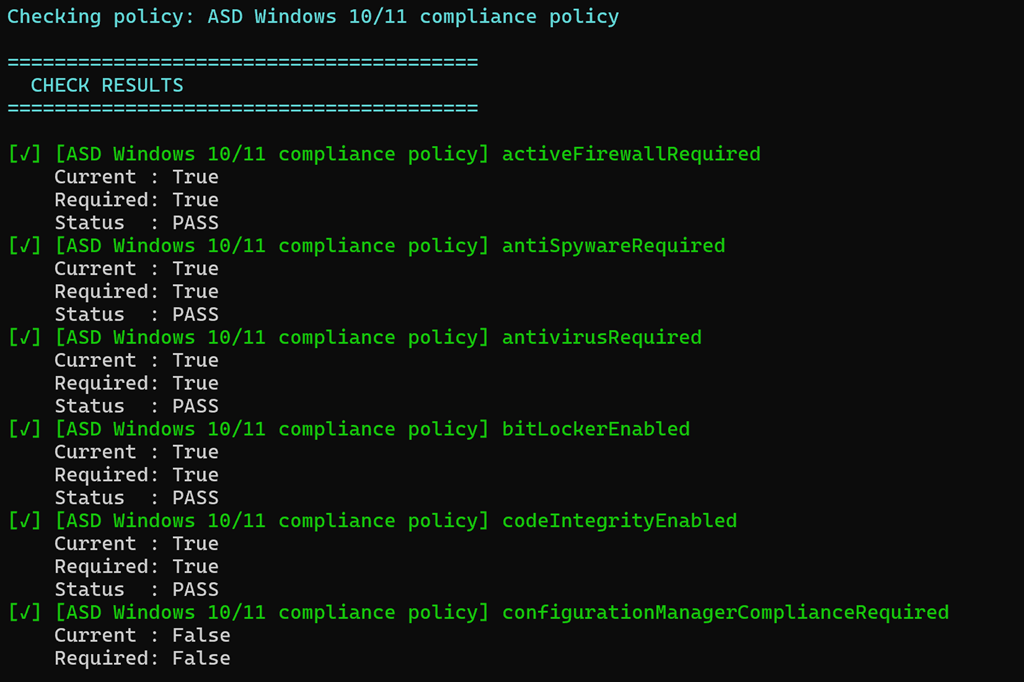
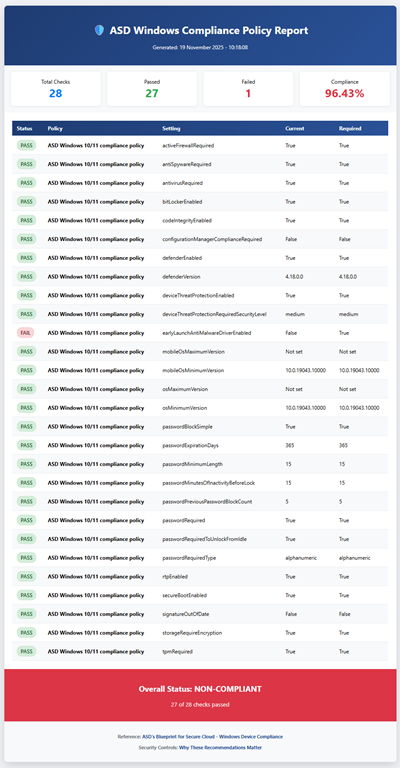
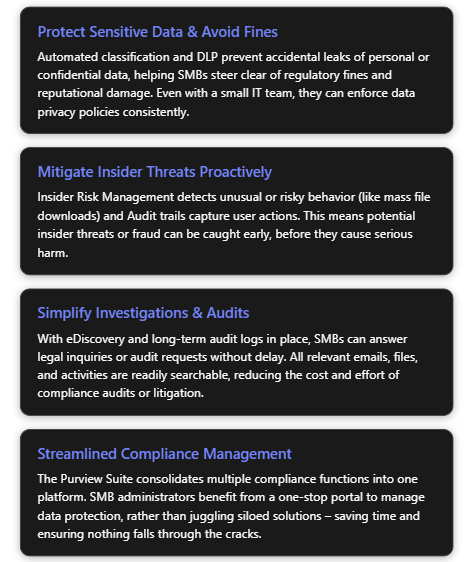
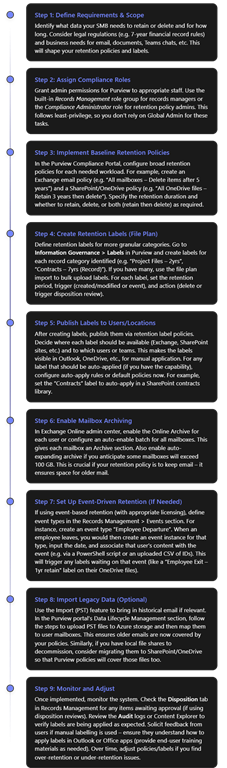
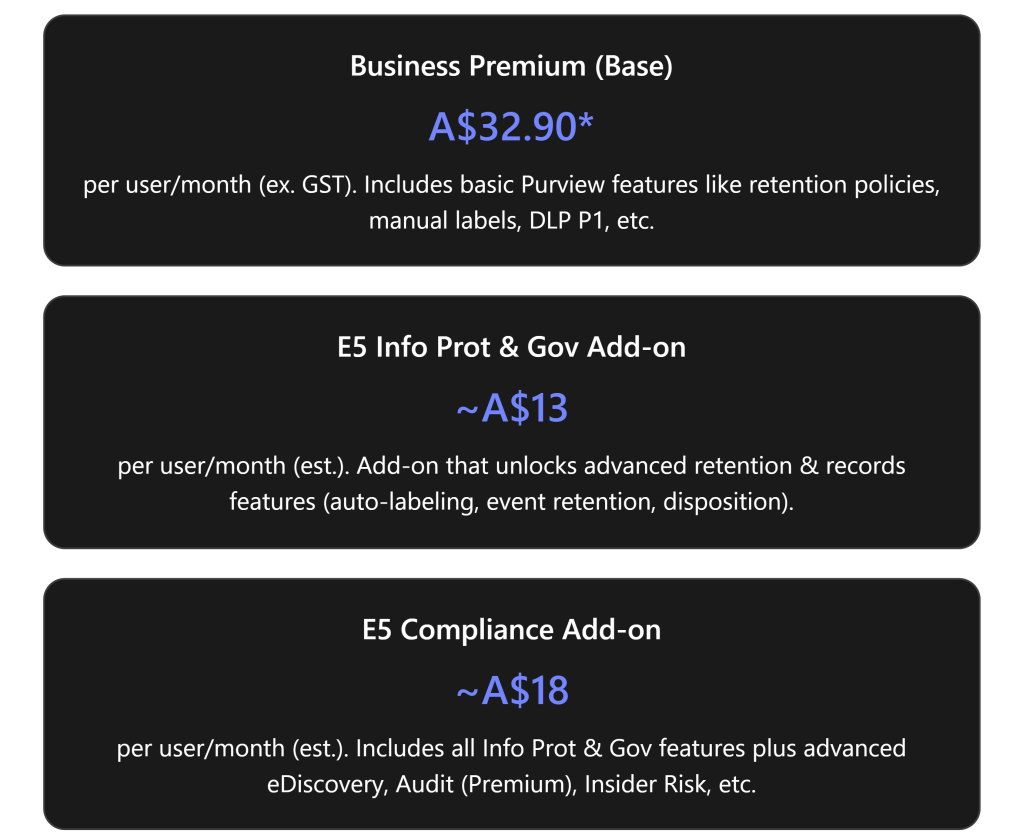
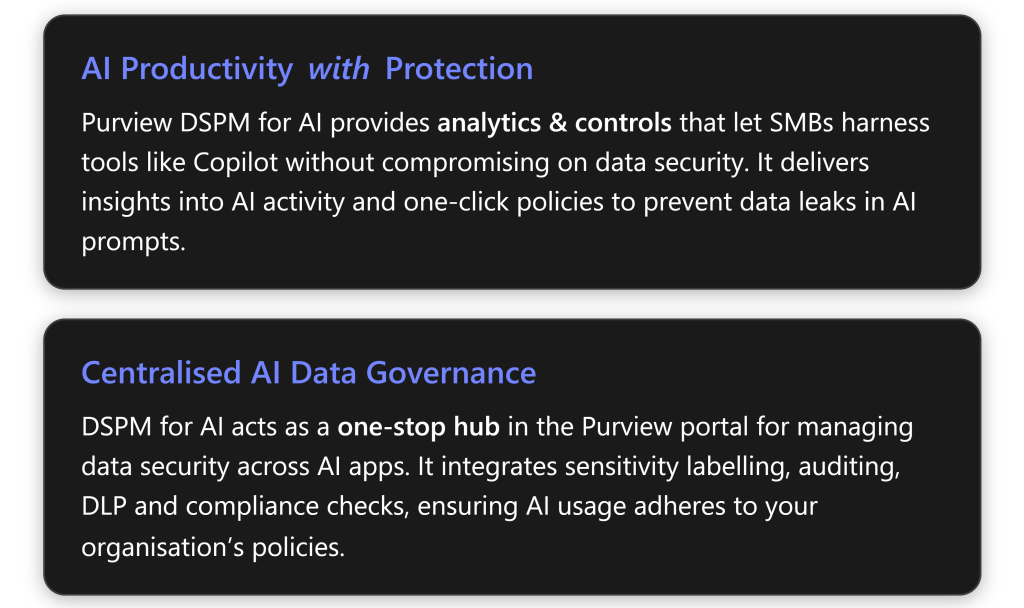
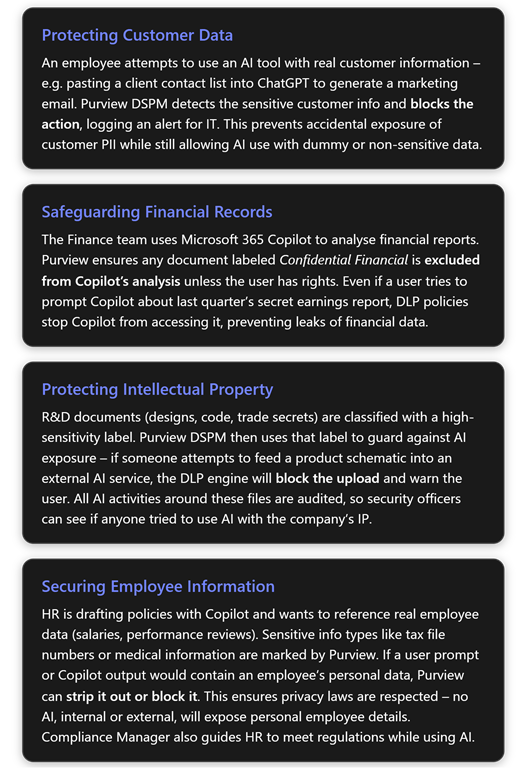
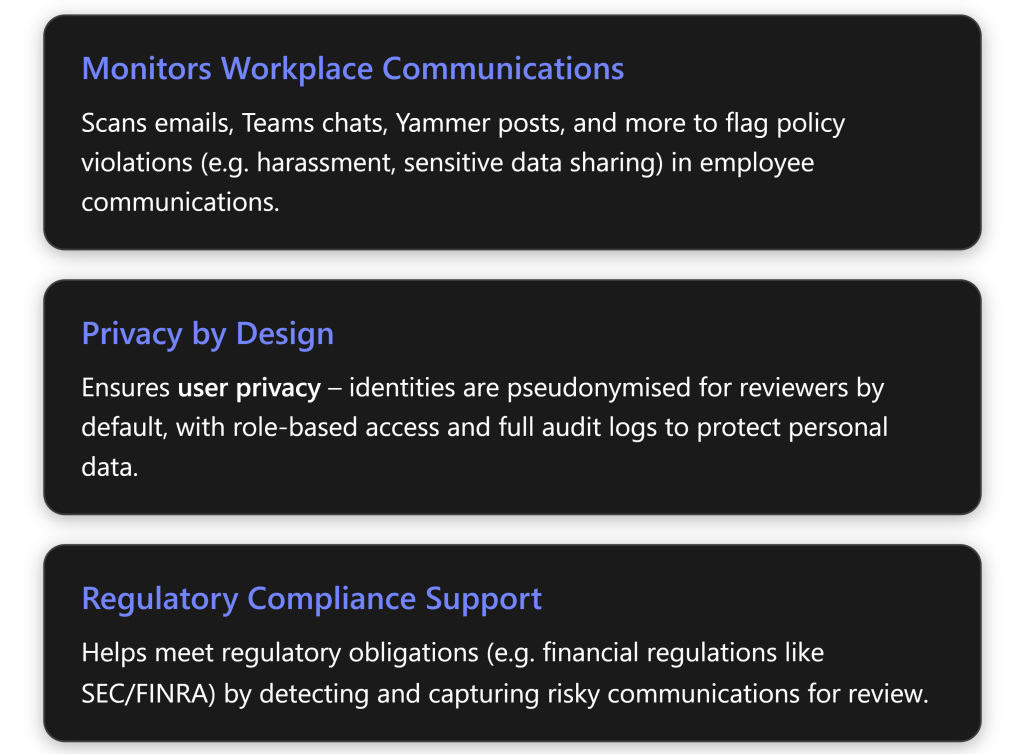
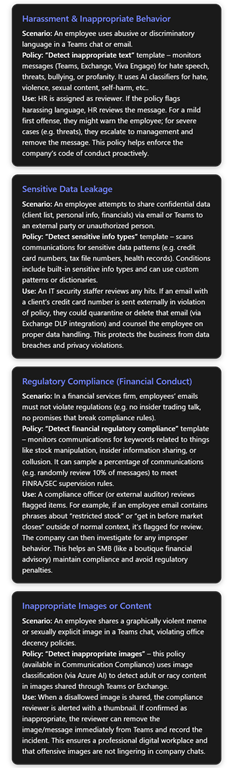
that reads the online JSON file (or uses a local version if you want to use that) and compares the recommended ASD settings to those in your own Intune environment. Note, the script makes NO CHANGES to your environment, it simply reads the current settings.
It then produces the console output you see above and a HTML report like this:
Overview: What is Microsoft Purview Audit (Premium)?
Microsoft Purview Audit is a unified logging solution that captures user and admin activities across Microsoft 365 services, enabling organizations to track security events, investigate incidents, and meet compliance obligations[1]. Audit (Standard) refers to the baseline auditing features included by default in Microsoft 365 plans, while Audit (Premium) is an enhanced auditing tier providing longer log retention, advanced event insights, and custom retention policies beyond the standard offering[1][1]. In practice, Audit (Standard) gives you searchable audit logs for the last 180 days of activities, whereas Audit (Premium) extends that retention to 1 year (or more with add-ons) and logs additional detailed events (like when a user reads an email or searches content) useful for deeper forensic analysis[1][1].
For small and medium-sized businesses (SMBs) using Microsoft 365 Business Premium, Audit (Standard) is already enabled by default – no setup or licensing is needed to start recording basic audit logs[1]. Administrators can search these logs (e.g. who accessed a file, deleted a SharePoint item, or logged into Teams) to monitor user activity and verify policies. However, out-of-the-box Business Premium only includes Audit (Standard) capabilities. Audit (Premium) features are not included in Business Premium by default and require additional licensing (as detailed below)[2]. Upgrading to Audit (Premium) can be extremely valuable for an SMB: it provides a full year of audit history (instead of 6 months), the ability to retain certain logs up to 10 years, and captures high-value events that help investigate insider risks or security incidents more effectively[1][1].
In summary, Microsoft Purview Audit (Premium) is an advanced auditing solution tailored for organizations with heightened security or compliance needs. It builds upon Audit (Standard) by offering longer log retention, richer analytics, and granular policy control[1]. For an SMB already on Business Premium, enabling Audit (Premium) means bringing enterprise-grade audit and forensics capabilities into your environment – useful for scenarios like in-depth insider threat investigations, detailed tracking of data access, and meeting strict regulatory audit requirements.
Audit (Standard) vs Audit (Premium): Key Differences
Audit (Premium) includes all the functionality of Audit (Standard) and adds important enhancements. The table below compares their features, availability, and licensing:
Capability
Audit (Standard)
Audit (Premium)
Included by default?
Yes – enabled by default for all Microsoft 365 organisations[1]. No extra setup needed.
Partially – available only for licensed users (e.g. those with an E5 or add-on). Requires enabling Advanced Auditing for those users[2].
Audit log retention (default)
180 days (6 months) for all activities[1]. ⃣ (Pre-Oct 2023: was 90 days, now extended to 180) [1]
1 year for core workloads (Exchange, SharePoint, OneDrive, Entra ID) by default[1]; 180 days for other services unless extended.
Extended retention options
None beyond 180 days. (Logs expire after 6 months)
Yes – can retain logs up to 1 year via custom policies. Up to 10 years with an add-on license for specific users[1][1].
Custom audit retention policies
Not available. All activities use default retention.
Available. Create policies to retain certain audit records longer (e.g. by service, user, or activity) up to 1 year (or 10 years with add-on)[1][1].
“Intelligent” audit events (detailed insights)
Not included. Only standard events logged.
Included. Logs detailed events like when emails are read/accessed, replied or forwarded, and when users perform searches[1]. These insights help investigate insider actions (e.g. mass document access)[3].
Audit log search tools
Yes – same tools in Purview portal, PowerShell (Search-UnifiedAuditLog), Graph API, CSV export[1][1].
Yes – uses the same search interfaces as Standard. (Premium just ensures more data is available to search, for a longer period.)
Office 365 Management API access
Yes – baseline access (throttled at standard rate)[1].
Yes – higher bandwidth access (roughly double the API throughput for faster log export)[1]. Useful if exporting logs to SIEM.
Licensing – Business Premium
Included in Microsoft 365 Business Premium (and all M365 plans) with no additional cost[1].
Not included in Business Premium by default. Requires an add-on or upgrade (e.g. Purview Suite or E5 Compliance add-on) to license Audit (Premium) features[2].
Licensing – Enterprise
Included in E1/E3 plans (Standard only).
Included in E5 plans out of the box[4]. Also available with E3 + add-ons (e.g. Microsoft 365 E5 Compliance or E5 eDiscovery & Audit)[5].
*⃣ Note: The default retention for Audit (Standard) was extended from 90 to 180 days in late 2023[1]. All organisations now get six months of audit history without needing E5. Audit (Premium) further extends this to one year for certain services by default, with options for more.
As shown above, the main advantages of Audit (Premium) for an SMB are the longer retention period (12 months) and additional audit data that can be crucial in investigations (for example, the ability to see if a user merely read a file or email, not just that they accessed it)[1]. Audit (Standard) is sufficient for basic admin tracking and recent activity checks, but if you need to investigate incidents over a longer term or require detailed logs for compliance, Audit (Premium) is essential. In particular, regulated industries or scenarios involving potential insider misuse will greatly benefit from the extra visibility and history that Audit (Premium) provides.
Licensing Audit (Premium) in a Business Premium Environment
Microsoft 365 Business Premium includes Audit (Standard) for all users by default, but does not include Audit (Premium) features on its own[2]. To get Audit (Premium) capabilities in an SMB environment with Business Premium, you will need to augment your licensing. Here are the ways to access Audit (Premium) and how each maps to Australian pricing (AUD):
Microsoft Purview Suite Add-on for Business Premium: Introduced in September 2025, this is a new add-on designed for SMBs on Business Premium. For approximately A$15 per user/month (roughly US$10) you can add the Purview Suite, which unlocks Audit (Premium) along with other Microsoft Purview compliance features (like eDiscovery Premium, Insider Risk Management, Information Protection, etc.)[3][3]. The Purview Suite add-on is limited to tenants with 25–300 users (same scope as Business Premium) and offers a cost-effective way to get E5-level compliance capabilities without upgrading fully to E5. Licensing note: The Purview Suite is purchased through your Microsoft 365 admin center or partner as an add-on SKU and requires that all users who need Audit Premium (or other Purview features) have the add-on assigned.
Microsoft 365 E5 Compliance Add-on (or E5 eDiscovery and Audit Add-on): Prior to the Purview Suite bundle, the common way to get advanced auditing on non-E5 plans was to purchase an E5 Compliance add-on. This add-on similarly provides Audit (Premium) rights (as well as the full suite of E5 Compliance features) to users on an E3 or Business Premium plan[5]. The pricing is in the same ballpark, roughly A$18–20 per user/month for the compliance add-on (the Microsoft 365 E5 Compliance license is listed at ~A$216 per user/year in Australia, i.e. about A$18 per month). Functionally, if you have Business Premium + the E5 Compliance add-on for a user, that user will have Audit (Premium) logging enabled (after activating the Advanced Auditing service plan as described later). Similarly, Microsoft offers a more targeted E5 eDiscovery and Audit add-on (which is a subset just focusing on those features). Any of these E5-level add-ons will meet the requirement for Audit Premium.
Microsoft 365 E5 license: A full Microsoft 365 E5 subscription per user includes Audit (Premium) by default[4]. However, E5 is a much more expensive plan (roughly A$80–$90+ per user/month in Australia for the full suite) and is generally outside the budget or seat limit of most SMBs. If an organisation already has some E5 licenses (or the older Office 365 E5) for key users, those users automatically get Audit Premium capability (e.g. audit log retention for their activities goes to 1 year). For an SMB with Business Premium, adopting E5 licenses wholesale is usually not cost-effective; hence the introduction of the SMB-focused add-ons above.
Microsoft Defender and Purview Suite Bundle: For completeness, Microsoft also offers a bundled add-on that combines the Purview Suite and the Defender Suite for Business Premium for around A$22–23 per user/month (US$15)[3]. This includes Audit (Premium) (via the Purview portion) as well as advanced security (via Defender for Endpoint P2, Defender for Office 365 P2, etc.). SMBs that need both advanced compliance and security could opt for this bundle to save costs. However, if your primary goal is enabling Audit (Premium) and related compliance features, the standalone Purview Suite add-on is sufficient.
In summary, an SMB on Business Premium will require an add-on license to use Audit (Premium). The most straightforward path in 2025 is to obtain the Microsoft Purview Suite for Business Premium add-on, which is tailored for organisations of your size and offers the advanced auditing capability at a relatively affordable price point[3]. Each user who needs their activities retained for a year or to generate premium audit events should be assigned the add-on. Once licensed appropriately, those users’ actions will be recorded under the Audit (Premium) tier. (Users without the add-on will continue to be covered only by Audit Standard logs.)
Tip: If you want to try out Audit (Premium) before committing to additional licenses, Microsoft offers a 90-day free trial of Microsoft Purview solutions (which can enable E5 Compliance features like advanced audit during the trial)[2]. This can be activated from the Purview compliance portal trials hub and is a good way to evaluate the benefits (e.g. see if the additional audit log data is valuable for your organisation) before purchase.
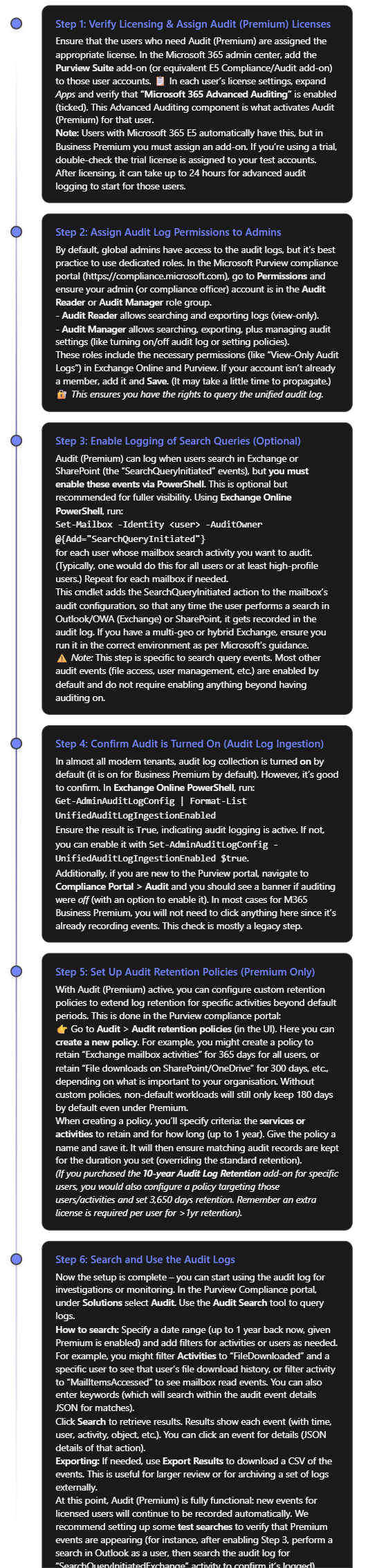
Step-by-Step: Setting Up Microsoft Purview Audit (Premium)
Enabling Audit (Premium) in your Business Premium environment involves a few configuration steps. Below is a step-by-step guide to set up and use Audit (Premium) effectively, assuming you have already acquired the necessary licenses (e.g. Purview add-on or trial):
Note: If you ever need to disable Audit (Premium) or auditing generally (for example, in rare cases for troubleshooting), you can turn off audit log ingestion using the PowerShell command in Step 4 with $false. However, this is not recommended in production as it means you will stop capturing activity logs. In almost all cases, keep auditing enabled at all times for security and compliance continuity.
At this stage, you have set up Audit (Premium) in your Business Premium environment. You should have: the proper licenses in place, appropriate admin permissions, extended audit events (like search logs and mailbox reads) enabled, and custom retention policies (if needed) configured. Now you can leverage these logs to strengthen your organisation’s security monitoring and compliance reporting. In the next section, we’ll discuss how to use these audit logs effectively in common SMB scenarios like detecting insider threats, preventing data leaks, and fulfilling regulatory requirements.
Effective Use Cases for SMBs Using Audit (Premium)
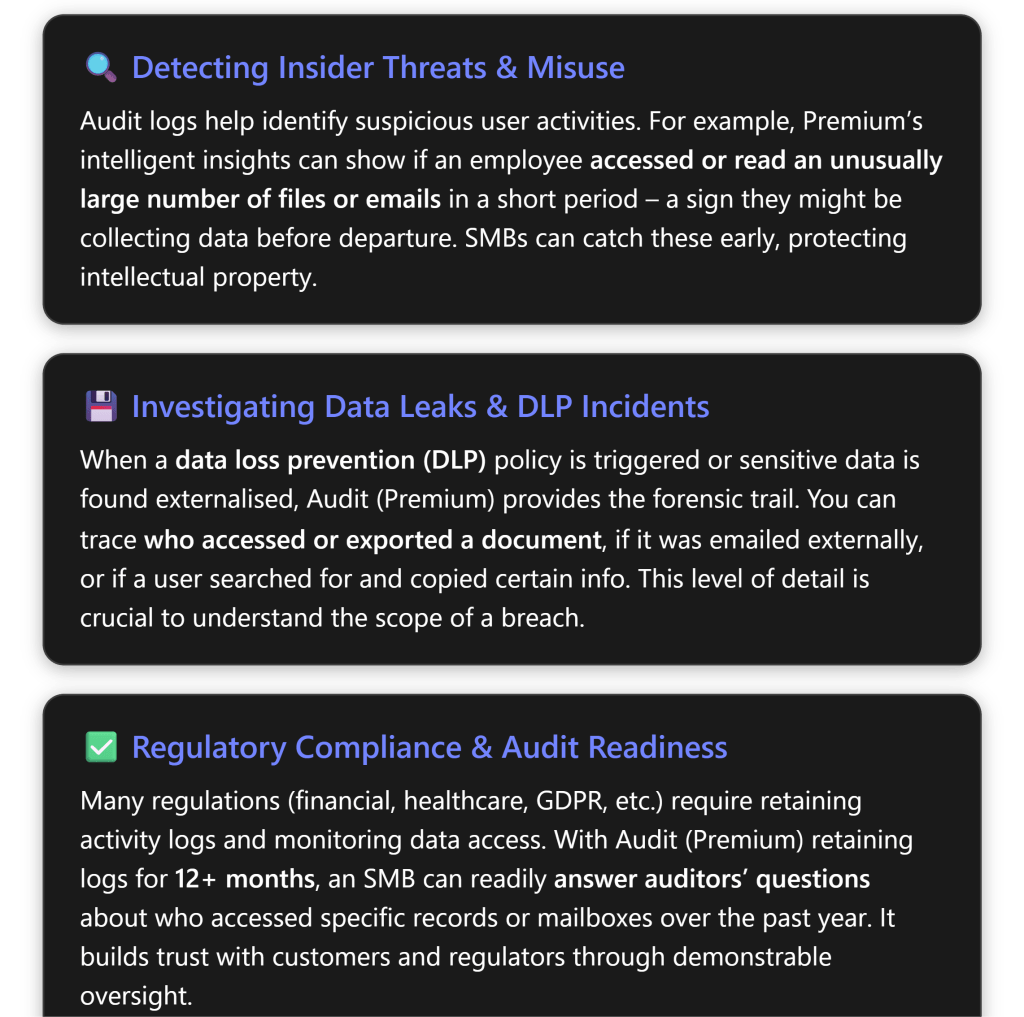
Microsoft Purview Audit (Premium) equips SMBs with powerful capabilities that were once the domain of large enterprises. Here are some key use cases and scenarios where Audit (Premium) can be especially valuable for a Business Premium organisation:
Insider Risk Detection and User Activity Monitoring
Insider threats are a concern for organisations of all sizes. Whether it’s a disgruntled employee or simply an honest employee taking company data home out of misunderstanding, Audit (Premium) can be a critical tool for detection. In an SMB, IT staff can use audit logs to monitor tell-tale signs of risky behavior:
Mass download or access of files: With standard audit, you could see file download events, but only for 180 days. Audit (Premium) ensures you have a full year of file access records. If an employee is leaving and suddenly downloads hundreds of files from SharePoint or OneDrive, you’ll catch that in the logs. You can even set up an alert policy (in the Compliance portal’s Alert section) to notify you of unusual download activity. For example, if user X downloads >N files in an hour, trigger an alert. The audit data (file names, timestamps) will help confirm if they took sensitive information.
MailItemsAccessed (Premium insight): This is a special Audit (Premium) log that records when emails in a mailbox are read/accessed, even by the mailbox owner. Why is this useful? Imagine a scenario where an attacker compromises a user’s email account. They quietly read through the mailbox looking for valuable info. In standard audit logs, if the attacker didn’t send or delete anything, you might not have a clear trail. MailItemsAccessed, however, would show that a large number of emails were opened/read at odd hours[6][6]. This can be an early indicator of compromise or misuse. SMBs can utilize this to detect if, say, a terminated employee’s mailbox was accessed after departure or if a delegated admin is snooping on others’ emails.
Search queries: As enabled in the setup, Audit (Premium) can log what content a user searched for in Exchange or SharePoint. This can be useful in insider investigations – for instance, if an employee was searching SharePoint for “salary data” or other sensitive info before a leak. It’s a niche signal, but in certain cases provides insight into user intent. Insider Risk Management (as a higher-level tool) uses many of these audit signals to score risk, but even without IRM, an admin can manually look at audit logs for such patterns.
Privileged user monitoring: Audit logs also track admin actions (e.g., an admin downloading a mailbox via eDiscovery, or changing a configuration). With longer retention, you can periodically review admin activity. In an SMB, IT admins wear many hats – but it’s good practice to have oversight. For example, you could search the audit log for “Added mailbox permission” or “File deleted” activities over the last year to ensure no unauthorised or unexplained changes were made. This helps with separation-of-duties even in a small IT team.
By actively reviewing these logs or setting up alerts, an SMB can spot internal issues early – before they become major incidents. Microsoft Purview Audit (Premium) essentially provides an “activity DVR” for your organisation: you can rewind and see exactly what a user did, which is invaluable for both deterrence and investigation.
Data Loss Prevention and Forensic Investigations
When it comes to data leaks or policy violations, Audit (Premium) proves its worth by providing a detailed audit trail:
Suppose your company has set up Data Loss Prevention (DLP) policies (available in Business Premium for Exchange/SharePoint/OneDrive). If a DLP policy flags an attempted sharing of sensitive information (e.g. someone tried to email out a list of customer credit card numbers, which was blocked), you can use audit logs to investigate further. The audit log would show the “DLP rule match” event as well as the user’s subsequent activities. Did they attempt another method to send the data? Did they save it to a personal device? Audit logs will show file access, print events (if recorded by Windows and fed into audit logs via AIP), etc., giving a full picture around the incident.
In case of a confirmed data breach or cyber-incident, time is of the essence to understand what happened. Audit (Premium) lets you triage and scope incidents effectively. For example, if a rogue third-party application was discovered (perhaps a user installed an OAuth app that siphoned data), you can search audit logs for activities that app performed or what the user did under its influence. If ransomware hit your SharePoint, audit logs can show which files were mass-deleted or encrypted and by which account. With 1-year retention, you might find the initial entry point which could have been many months ago (some breaches aren’t discovered until long after the fact). Without Audit (Premium), those older breadcrumbs might be gone.
Forensic detail: Audit (Premium) records include useful information such as IP addresses, user agents, object details, etc., for each event[5]. After an incident, you can export relevant logs and hand them to forensic analysts or authorities. For example, after a suspected insider data theft, you could export all audit events of that user for the last 12 months – giving a timeline of their activities (file downloads, email sent, USB device insertions if those were captured by Defender and fed to audit, etc.). This can serve as evidence if needed and guide your response (e.g., which systems to secure or which partners to notify).
One thing to note is that Audit (Premium) isn’t a real-time blocking tool – it’s investigatory. For proactive protection, you’d rely on things like DLP policies, Defender for Cloud Apps (for anomaly detection), etc. But the audit logs are the backbone of investigating any alerts those systems raise. They often answer the questions “what exactly happened?” and “when and who did it?”. For an SMB, having this level of detail can be the difference in confidently handling an incident or being in the dark.
Compliance, Audit Trails, and Reporting
For organisations subject to compliance standards or client security assessments, Audit (Premium) provides assurance that you have robust audit trails in place:
Regulatory audits: If you need to comply with standards like HIPAA, ISO 27001, or various government regulations, auditors may ask for proof of controls. Audit logs can demonstrate controls like data access governance. For example, under GDPR, you should be able to trace who accessed personal data. With Audit (Premium), if a European customer exercises their right to know who accessed their data, you could query the audit log for any access events related to that data over the last year. Many SMBs struggle with these requests, but having the audit log makes it feasible. It shows a commitment to transparency and control.
Retention requirements: Some industries require logs to be kept for longer than 6 months. If you fall under such a rule (or your customers contractually require it), enabling Audit (Premium) is necessary. Moreover, the 10-year audit log retention (with add-on) might be relevant for, say, financial services or healthcare where legal proceedings or investigations can occur years later. SMBs like accounting firms or clinics, for instance, might consider using the 10-year retention for certain high-risk user accounts. Audit (Premium) allows you to meet these needs, whereas without it you’d have to implement an external log archive solution.
Internal audits and policy compliance: Even outside formal regulation, an organisation may have internal policies (“we review admin access every year” or “we ensure only authorised people accessed Project X files”). Audit logs are how you verify and report on these. With the ability to export to CSV and analyze in Excel or Power BI, you can generate internal audit reports. For example, you might periodically review all “File accessed” events on a confidential SharePoint site to ensure only the intended team accessed it. If someone outside the team shows up in the logs, that’s a flag to investigate permissions. Audit (Premium) giving 12 months of data means you can do a thorough annual review, not just a snapshot of recent activity.
Legal eDiscovery synergy: Often, when there’s litigation, you perform eDiscovery (searching across mailboxes and documents for relevant content). Audit logs complement this by showing audit trails of content. E.g., if a legal case questions whether a document was seen by certain people at a certain time, the audit log can confirm access. Interestingly, Microsoft’s eDiscovery (Premium) (also included in the Purview Suite add-on) can leverage audit logs to track views/edits of content. So, Audit (Premium) feeds into a stronger eDiscovery process. For an SMB, this level of preparedness can save a lot of time and cost if a legal situation arises.
In essence, Audit (Premium) helps SMBs operate with enterprise-level diligence. You can confidently answer “Who did what, when, and how” for most actions in your Microsoft 365 environment, even up to a year ago or more. This instills confidence not only within your security team but also for any external parties evaluating your IT controls.
Best Practices for Audit Policy Configuration and Usage
Enabling Audit (Premium) is powerful, but to get the most value (and avoid being overwhelmed by data), consider these best practices for configuring and using your audit logs:
🌳 Define clear audit retention policies: Don’t just blindly keep everything for one year. Decide which activities are most critical to retain longer. For example, Exchange, SharePoint, OneDrive, and Azure AD logs are already kept 1 year by default with Audit Premium[1]. You might not need to extend all other activities to 1 year. Perhaps extend Teams chat audit events or Power BI events if those are important, but maybe you don’t need year-long logs for, say, Sway or Yammer. Tailor the retention policies (Step 5 in setup) to balance useful data vs. clutter. Also, keep in mind storage – although Microsoft stores audit logs in the cloud and it’s not in your tenant data quota, extremely large volumes can affect export and search speed. So retain what you need for compliance/forensics, not just everything.
🔒 Limit and monitor access to audit logs: Audit logs contain sensitive information (they can reveal user activities, email subjects, file names, etc.). Only assign the Audit Reader/Manager roles to trusted personnel. In a small business, this might just be the IT manager or security officer. Consider enabling Multi-Factor Authentication on those accounts (as you should for all admins). Microsoft Purview doesn’t currently generate alerts for audit log access, but you as an admin could manually audit the auditors – e.g., check if someone outside the expected roles ran an audit search (that itself is an auditable event). This ensures privacy and security of the audit data itself.
📊 Use tools to analyze the logs: The Purview portal search is great for interactive queries, but for deeper analysis use export and other tools. For instance, export a month of logs to CSV and use Excel PivotTables or Power BI to spot trends (failed logins over time, most accessed files, etc.). There are also Microsoft Graph APIs to programmatically retrieve audit events, which could feed into a SIEM like Microsoft Sentinel or a custom dashboard[1]. If your SMB uses Sentinel or another security monitoring solution, configuring the Office 365 Management Activity API to pull your audit logs is a good idea[1]. With Audit Premium, you have higher API bandwidth, meaning such integrations will run more smoothly[1]. This way, you can get automated anomaly detection on top of your audit data.
🚦 Set up alert policies for critical events: Within the Compliance portal, under Alerts (or in the older Security & Compliance Center under Alert policies), you can define rules that trigger alerts based on audit events. Common ones to create:
Alert when an admin privilege is granted (e.g., someone added to a role group).
Alert when mass deletion of files occurs.
Alert on eDiscovery searches or content exports (to catch any misuse of those tools).
Alert on downgrading audit or disabling the log (if someone tried to turn off auditing, you want to know immediately). Many default alerts exist (like suspicious logins via Azure AD), but custom ones for these audit events can significantly improve your security oversight.
📆 Periodic audit reviews: Make audit log review a routine. For example, monthly spot checks on different areas: one month review sharing activities on OneDrive, next month review mailbox access logs, etc. In a small business, dedicating a couple of hours per month to this can help you catch issues proactively. It’s like doing an internal audit continuously. You may rarely find issues, but when you do, you’ll be glad you looked. Plus, it familiarizes your team with the logs, so in a crisis you’re already comfortable with the data format and tools.
✍️ Document and communicate audit practices: Let your users know, at least in broad terms, that activities are logged for security and compliance. This can be part of an IT policy users accept. It creates a deterrent effect for malicious behavior (“my actions might be traced”) and also assures well-meaning employees that the company is keeping track in case something goes wrong (“if someone accessed my account, it would be recorded”). Of course, be mindful of privacy laws – in some jurisdictions, you must disclose if you monitor employee communications. Microsoft Purview Audit is generally considered a security log, but transparency is still a good practice.
🤝 Combine Audit with other Purview solutions: If you have invested in the Purview Suite, you likely have tools like Insider Risk Management (IRM), Communication Compliance, etc. These tools use signals from audit logs but provide a layer of AI or policy-driven analysis on top. For example, IRM can create risk scores if an employee downloads a lot of files (as seen in audit logs) and also resigns (HR insight). It might then automatically flag that user. While our focus is audit logs, remember to explore these additional Purview features – they can amplify the value of your auditing by proactively identifying risks using the same data. For an SMB, even a simple policy in Communication Compliance (like flagging rude or threatening language internally) might be beneficial; and audit logs would be the evidence when investigating those flags.
Stay updated on new audit log capabilities: Microsoft occasionally expands auditing functionality. For instance, in late 2023 and early 2024, they made more audit log types available to Standard that were previously Premium-only (increasing the baseline logs all customers get)[6][6]. And they continue to add new event types as Microsoft 365 services evolve (e.g., new collaboration features might generate new kinds of audit records). Keep an eye on the Microsoft 365 Roadmap or TechCommunity blogs for announcements related to Purview Audit. This ensures you’re aware of any new logs you might want to incorporate or new settings to configure. For example, if Microsoft enables some new audit event (like Teams message reactions logging) you might need to adjust retention policies or decide if it’s useful to you.
By following these best practices, you’ll maintain an efficient and secure auditing process. Microsoft Purview Audit (Premium) can significantly strengthen your security posture and compliance readiness, but it should be managed deliberately. The goal is to have the right data, in the right hands, retained for the right amount of time.
Conclusion
Microsoft Purview Audit (Premium) brings enterprise-grade auditing to organisations of all sizes – and with the recent availability of compliance add-ons for Microsoft 365 Business Premium, SMBs can now leverage these advanced capabilities without a full E5 licensing upgrade. By enabling Audit (Premium) in your Business Premium environment, you gain a longer memory of events (crucial for investigations that surface months later) and deeper insight into user behaviors (crucial for detecting insider risks and misuses). This investment helps an SMB to proactively identify security issues, thoroughly investigate incidents or anomalies, and confidently meet compliance obligations with a detailed audit trail[5][1].
In practical terms, after following the setup steps, you will have a robust system where virtually every important action in Microsoft 365 – whether it’s a file read, an email sent, a permission changed, or a login attempt – is being recorded and retained for analysis. The combination of Business Premium’s security features and Purview’s Audit (Premium) gives you a comprehensive view of your digital workplace activities.
Remember that technology is just one part of the equation: ensure your team knows how to use these audit tools (consider Microsoft’s free training modules on Purview Audit) and integrate audit review into your IT processes. With that in place, your small or mid-sized business can enjoy many of the same benefits that large enterprises count on to secure and govern their data – all while using familiar Microsoft 365 interfaces and tools.
By prioritising audit and compliance now, you are not only reducing the risk of incidents but also putting your organisation in a position of strength – able to demonstrate accountability and respond to challenges swiftly. Microsoft Purview Audit (Premium) is a powerful ally in that journey, and with careful setup and use, it will significantly enhance your organisation’s security and compliance maturity.
Microsoft Purview eDiscovery (Premium) is an advanced electronic discovery tool in Microsoft 365 that provides an end-to-end workflow for internal and external investigations. It enables organisations to identify, preserve, collect, review, analyse, and export electronic information from across Microsoft 365 (Exchange emails, SharePoint/OneDrive files, Teams chats, etc.) for legal or compliance purposes[1]. This solution builds upon the basic eDiscovery features that come with Microsoft 365 Business Premium (also known as Core eDiscovery or eDiscovery (Standard)), adding powerful capabilities such as dedicated cases, custodian management, legal hold notifications, review sets, and analytics with machine learning. In this report, we’ll explain what Purview eDiscovery (Premium) offers, how to set it up and use it effectively in a small or medium-sized business (SMB), and how it fits into the Microsoft 365 Business Premium licensing. All prices are provided in Australian dollars (AUD), and the content is tailored for an SMB already using Microsoft 365 Business Premium.
Overview of Microsoft Purview eDiscovery (Premium)
Microsoft Purview eDiscovery (Premium) (formerly Advanced eDiscovery) is part of the Microsoft Purview compliance suite. It is designed to facilitate legal discovery and investigations by providing a one-stop solution within Microsoft 365. Key features and benefits include:
Why is this important for an SMB? Even smaller organisations must occasionally respond to legal matters – such as employee disputes, client litigation, or regulatory inquiries. Purview eDiscovery (Premium) brings enterprise-grade eDiscovery capabilities to your business without requiring you to export data out of Microsoft’s secure cloud until necessary. It ensures that if you are ever faced with an investigation or lawsuit, you can respond quickly and defensibly by collecting exactly the information needed (and nothing more) and preserving its integrity. The advanced tools (like machine learning analysis) can be especially helpful for SMBs who may not have large legal teams – by automating part of the review, the tool can help a small team find the important needles in the haystack of emails and files.
Note: Microsoft Purview eDiscovery (Premium) is an upgrade to the standard eDiscovery capabilities that are already available in Microsoft 365. In Microsoft’s lineup of eDiscovery solutions: Content Search (basic searching across data), Core eDiscovery (Standard) (cases, legal hold, basic search/export), and eDiscovery (Premium) (full advanced suite) – the Premium offering is the most feature-rich[1][1]. Business Premium includes the Standard eDiscovery features by default, as we discuss next.
Licensing Considerations and Comparisons (Business Premium vs E5)
Before enabling eDiscovery (Premium), it’s critical to understand the licensing requirements, especially since our scenario is an SMB on Microsoft 365 Business Premium. Microsoft 365 plans differ in which eDiscovery features are included:
Microsoft 365 Business Premium – includes Core eDiscovery (Standard) features. This means you get Content Search, the ability to create eDiscovery cases, place content on hold, and export data[1][1]. In fact, Business Premium (like the comparable Office 365 E3 plan) includes Exchange Online Plan 2, which provides mailbox archiving and litigation hold capabilities out-of-the-box. However, eDiscovery (Premium) is not included in Business Premium; it requires additional licensing. Business Premium, being an SMB-focused plan (up to 300 users), is limited to standard compliance tools like basic eDiscovery, audit, retention, sensitivity labels, etc.[2].
Microsoft 365 E5 (Enterprise) – includes eDiscovery (Premium) by default (along with all E5 advanced compliance features). If a business has M365 E5 or Office 365 E5 licenses for its users, those users can utilise the full advanced eDiscovery capabilities[1]. E5 is an enterprise-grade plan (no user limit) that adds all the advanced compliance, security, and analytics features on top of E3. For SMBs, E5 may be beyond needs and budget, but it’s the plan where eDiscovery Premium is bundled.
Add-On Licensing (E5 Compliance or eDiscovery & Audit) – Microsoft offers the advanced compliance features as add-ons so that organisations on lower plans (like Business Premium or E3) can get eDiscovery (Premium) without migrating everyone to E5.[2] Two common add-ons:
Microsoft 365 E5 Compliance – this add-on includes eDiscovery (Premium), plus other compliance features like Advanced Audit, Records Management, Communication Compliance, etc. It essentially lights up the entire Purview compliance suite for a user. This add-on can be added to a user licensed with Business Premium (or E3)[2].
Microsoft 365 E5 eDiscovery and Audit – a more targeted add-on that includes just the eDiscovery (Premium) and Advanced Audit capabilities (without some of the other E5 Compliance features). This is often a slightly lower-cost way to get eDiscovery Premium for specific users[2]. This can also be added on top of Business Premium or E3 licenses for those users who need advanced eDiscovery.
In our SMB scenario, since the company is already on Business Premium, you have two main options to gain eDiscovery (Premium) features: either upgrade certain users to an E5 plan, or (more cost-effectively) purchase the E5 Compliance or E5 eDiscovery\&Audit add-on for those users. Typically, you would buy the add-on for each user who will be a custodian (i.e. whose mailbox and data you need to search in a case) or who will actively use the eDiscovery Premium tools. Microsoft licensing requires that any user whose content is being processed with eDiscovery (Premium) (e.g. placed on hold and added to a review set) must be licensed for it[1]. In practice, you might start by licensing a small number of users (perhaps your IT admin or compliance officer and any employees likely to be involved in legal matters) with the add-on, rather than all 300 users.
The table below compares the relevant plans and costs, focusing on eDiscovery:
Core eDiscovery (Standard) – Content Search across M365, create cases, place holds, basic search and export.[2]Advanced eDiscovery (Premium) not included.
Up to 300 users. Great built-in compliance basics (audit log, retention, DLP, etc.), but no AI analytics or custodian management without add-ons.
Adds eDiscovery (Premium) – Full advanced eDiscovery capabilities (custodian management, review sets, analytics) plus Advanced Audit and other compliance features.
Attach this to Business Premium users who need advanced eDiscovery. More affordable than full E5; can pick specific users (e.g. IT, HR, Legal).
Microsoft 365 E5 (full suite)
~AU$78.30 (per user)3
eDiscovery (Premium) included (also includes all E5-level security & compliance features, e.g. Defender, Insider Risk, etc.).
Unlimited users. Expensive for SMB; typically not necessary if only compliance is needed – an add-on is usually preferred for SMBs.
*Pricing is approximate per-user, in Australian dollars (excluding GST). Microsoft prices are subject to change and may vary by provider or term.\ 1 AU$32.90 user/month is the annual subscription price for Business Premium, billed per year (approx AU$394.8/year). Monthly commitment pricing may be slightly higher. [3]\ 2 AU$216 per user/year noted for E5 Compliance in an Australian vendor listing[4] (~$18/month). Microsoft does not always list add-on prices publicly, but this is in the correct range.\ 3 AU$78.30 is a referenced price for Microsoft 365 E5 plan. This likely corresponds to the base price per month per user (approx $861/year) for the full E5 plan in Australia.
What does this mean for our SMB? Since you already have Business Premium, you do not need to upgrade everyone to E5. The most cost-effective approach is to identify which users will be involved in eDiscovery cases and assign an add-on license to those individuals. For example, you might purchase 5x E5 Compliance add-on licenses and assign them to: the Global admin or IT manager who will run eDiscovery, your HR manager in case of employee investigations, your CEO or legal counsel, etc. This way, if any of these people’s data needs to be put on hold or analysed, or if they need to perform the investigation, you’re properly licensed. (Other users not licensed can still have their data searched using Core eDiscovery if needed, but they cannot be added as custodians in an advanced case or have their content analysed with the advanced tools without license compliance issues.)
Additionally, Microsoft offers a 90-day trial of the full Purview compliance features for up to 25 users[1]. This trial can be used if you want to evaluate eDiscovery (Premium) or if you have a one-off urgent need (for instance, an unexpected legal case) and prefer to try the capabilities before committing to purchase. Keep in mind after 90 days the trial ends, so for ongoing needs an add-on is required.
Enabling and Setting Up eDiscovery (Premium)
Once the appropriate licenses are in place for the necessary users, you can proceed to enable and configure eDiscovery (Premium) in your Microsoft 365 tenant. The setup involves granting permissions, adjusting some settings, and then using the eDiscovery tools to create cases and perform investigations. Below is a step-by-step guide tailored for an SMB admin:
Step 1: Verify Licensing Prerequisites\ Ensure that any user who will either manage eDiscovery cases or be a custodian in a case has the right license. In a Business Premium environment, this typically means assigning the Microsoft 365 E5 Compliance add-on (or the more targeted E5 eDiscovery and Audit add-on) to those users[1]. For example, if Jane Doe (HR Manager) will run eDiscovery searches and you plan to collect data from John Smith (an employee under investigation), both Jane and John should have the add-on. This licensing step is crucial for the eDiscovery (Premium) features to be accessible in the Purview portal and to comply with Microsoft’s requirements. (If you attempt to add an unlicensed user as a custodian in a Premium case, the system may not stop you, but you would be out of compliance – so do this right before proceeding.)
Step 2: Assign eDiscovery Permissions\ By default, even a global admin cannot access eDiscovery (Premium) cases until permissions are assigned. As an admin, go to the Microsoft Purview compliance portal (Compliance Center) and add the relevant users to the eDiscovery Manager role group[4]. There are two main roles:
eDiscovery Manager – can create and manage cases, add custodians, perform searches, etc. Members of this role group will actually conduct eDiscovery operations.
eDiscovery Administrator – (optional) can access all cases in the organisation (typically reserved for compliance officers or very high-level oversight).
For a small business, you might simply add yourself (IT admin) and perhaps one other trusted individual (like a compliance manager or legal advisor) as eDiscovery Managers. This will give you the ability to create cases and use all eDiscovery (Premium) functions[4]. (You can do this under Compliance Portal > Permissions > eDiscovery Manager: add users as Members.)
Step 3: Configure Global eDiscovery Settings (Optional)\ Microsoft Purview eDiscovery (Premium) has a few tenant-wide settings you might want to configure. The primary one is Attorney-Client Privilege (ACP) detection. If your investigations might involve communications with attorneys, you can enable the ACP detection model: this uses machine learning to flag documents that likely contain attorney-client privileged information[4]. Enabling it involves uploading a list of your organisation’s attorney emails so the system knows what correspondents might be lawyers. This step is optional – not enabling it won’t prevent using eDiscovery, it only means you won’t get automated privilege tagging. As an SMB, you might skip this unless you have in-house counsel or frequent legal communications. If needed, you can turn it on later via Compliance Portal > eDiscovery (Premium) > Settings.
Additionally, verify that certain enterprise applications required for eDiscovery are active in your tenant (they usually are enabled by default). These include “ComplianceWorkbenchApp” and “MicrosoftPurviewEDiscovery” among others[4]. In most cases, you won’t need to touch this, but if someone had previously disabled any Purview apps, you’d re-enable them in Azure AD’s Enterprise Applications settings.
Step 4: Create a New eDiscovery (Premium) Case\ With permissions in place, you can now create a case. In the Purview Compliance portal, navigate to eDiscovery > eDiscovery (Premium). Click “Create case” and give it a name and description (e.g., “Employee Separation – John Smith – Sept 2025”). This sets up a secure container for all the eDiscovery activities related to that matter. Only users added as case members (which initially will be you, since you created it) can access the case data. Once the case is created, you’ll enter the case dashboard which has several tabs: Data Sources, Holds, Collections, Review Sets, Analytics, Exports, etc.
Step 5: Add Custodians (Data Sources) and Apply Holds\ Identify the people (and/or teams or sites) that are relevant to the case – these are your custodians. In our example, if investigating John Smith’s communications, John is a custodian. Go to the “Data Sources” or “Custodians” section of the case and add the user accounts, SharePoint sites, or Teams you need to include[1]. When you add a person as a custodian, eDiscovery (Premium) will automatically detect all content locations associated with that user (their Exchange mailbox, OneDrive, Teams chats, etc.).
After adding custodians, set up a Legal Hold on their content locations (Exchange mailbox, OneDrive, SharePoint sites, etc.)[1]. In the Holds tab within the case, create a hold, give it a name, and choose the custodians or specific locations to preserve. You can optionally narrow the scope (for example, only hold items from after a certain date or only specific keywords), but generally for a legal hold you preserve everything for that user during the relevant time frame. Placing content on hold ensures that even if the user deletes emails or files, or if retention policies would normally purge data, the content is preserved immutably for the case’s duration[1]. In an SMB, you might not have elaborate deletion policies, but it’s still wise to apply a hold so nothing relevant can disappear.
If required, you can also add non-custodial data sources – for example, if you need to collect data from a SharePoint site or mailbox that isn’t tied to a specific user/custodian (like a shared mailbox or public folder), you can add those separately in eDiscovery (Premium).
Step 6: (Optional) Send Notifications to Custodians\ One feature of eDiscovery (Premium) is the ability to manage custodian communication. If your legal team requires that custodians (employees) are notified that they must not delete anything related to the case, you can use the built-in notification workflow[1]. This will send an email to the user (using a template you can customise) saying, for example, “You are on legal hold for case XYZ – here are instructions…”. The system can track who has acknowledged the notice and even send reminders or escalate if someone doesn’t respond. For a small company, this formal process might or might not be needed – often HR or management will inform the person directly if appropriate. But if you do use it, it ensures a documented trail that John Smith was told to preserve data. You can manage these under the Communications or Notices section within the case (depending on the UI updates).
Step 7: Search for Relevant Content (Collections)\ Now comes the discovery part – finding the data you need. Under Collections (or Search in some interface layouts), create a search query within the case. You can search across all custodians added to the case or specific ones, and across various content types: Exchange email, SharePoint documents, OneDrive files, Teams chats, etc., all in one go[1]. Use keywords, phrases, and query conditions to narrow down the results. For example, if we are looking for emails John Smith sent to a specific client about “Project X”, we might add query parameters like: keywords: "Project X" AND sender: john.smith@ourcompany.com AND recipient: client@partner.com. You can also use conditions like date ranges, specific SharePoint site paths, message types, etc. The interface provides filters to help build these. After running the search, eDiscovery will show statistics – e.g. “500 items found, 300 from Exchange, 200 from OneDrive” – so you can gauge if your query is on target[1]. You can refine the query as needed to reduce or expand results.
Once satisfied, save the search and then collect the data. “Collection” in eDiscovery (Premium) essentially means copying the responsive content into the case’s Review Set for analysis. When you initiate a collection, the system will copy all the items that matched your query from their live locations into a secure Azure storage area associated with the case[1]. Importantly, this does not remove or alter the originals (they remain in mailbox, etc., and also on hold); it’s just making a static copy for us to review. You can choose to collect all results or only a sample, and you can have multiple searches/collections per case (e.g. one search for emails, a separate one for Teams chats, etc., each added to the review set).
Step 8: Review and Analyse Collected Data\ Now switch to the Review Sets tab of the case. Here you’ll see one or more review sets (create a new one if the wizard hasn’t already). In most cases, a single review set per case is used, containing all collected content. In the review set, you can view and triage the documents and communications that were collected. The interface provides a document viewer and query builder: you can filter items by custodian, date, keyword, or other metadata. You can also apply tags to mark items (for example, tag some as “Relevant”, “Privileged”, or “Irrelevant”) to organise your review.
This is where advanced analytics come into play, making the review process more efficient:
You can enable Threading to group email conversations, so you see whole threads instead of duplicate individual messages[1].
Use Near-Duplicate Detection to have the system find documents that are very similar (perhaps different versions of the same file).
Leverage Predictive Coding (Training): you review and tag a set of documents (marking which are relevant to your case), then you can have the system train a machine learning model to predict relevance for the remaining documents[1]. This can help prioritize which documents to review next – a big time-saver if you have thousands of items. In a small case, you might not need this, but it’s there for larger data sets.
Keyword Statistics and Analytics: eDiscovery Premium will show you things like the top keywords, email senders, etc., in the review set. It can also flag anomalies or hidden content (for example, if an email had an encoded attachment that wasn’t indexed before, advanced indexing helps surface that[1]).
During review, you might decide some search results were noise. You can refine your searches and perform additional collections, or you can simply tag and filter out irrelevant items. The goal is to narrow down to the truly important materials.
Step 9: Export Data for External Use\ After reviewing, you will likely need to export the data (e.g. to provide to a requesting party, or to load into a legal review tool for outside counsel). In the Exports section of the case, you can create an export job. You’ll choose which review set (and optionally which filters or tags) to include in the export. You can output everything or only items tagged “Relevant”, for instance.
Microsoft provides a couple of export options:
Download via Browser: The system prepares the data (staging it in Azure Blob storage) and then you download a compressed package with the results. This can include the original files/emails, plus metadata and load files (CSV/Excel or format for eDiscovery review platforms). Email messages can be exported as PST or individual MSG files, documents in their native format, etc. You’ll also get a report summarising the export.
Export to Azure Storage: You can directly export the data to a customer-provided Azure Blob Storage container[1]. This is useful if the data set is huge (many GBs) or if you want to directly transfer it to another environment. You would specify an Azure storage SAS URL, and eDiscovery will copy the data there instead of you downloading it. This is often used by larger enterprises, but an SMB might simply use the download method for convenience.
Once exported, verify the data and reports. The audit log in Microsoft 365 will have records of the searches, holds, and export actions performed, which is good for compliance traceability.
Step 10: Close or Manage the Case\ After the investigation is concluded, you can close the eDiscovery case (which lifts any holds placed via that case, allowing normal data lifecycle to resume). Typically, you’d only close it once you’re sure all legal duties to preserve are complete. You can also keep the case open for future if it’s an ongoing matter. Microsoft allows you to keep multiple cases and they don’t count against any quota (though there are limits like each case can hold up to a certain number of custodians, etc., but an SMB is unlikely to hit those limits). It’s good practice to document in the case notes what was done, for future reference. Keep exported data in a secure location as needed by your legal/compliance policy.
The above steps represent a full lifecycle of using eDiscovery (Premium) in an SMB scenario. Not every case will require every step (for example, minor internal searches might not require hold notices or predictive coding), but the setup ensures you have the capability ready.
Policy Configuration: Holds, Retention, and Permissions
The term “policy configuration” in the context of eDiscovery primarily refers to how you preserve and manage data for discovery. We’ve touched on legal holds configured within eDiscovery cases – these are essentially case-specific preservation policies. A few additional points on policies and configuration for effective eDiscovery:
Retention Policies vs. eDiscovery Holds: As a Business Premium subscriber, you likely have some Microsoft Purview Data Lifecycle Management capabilities (like retention policies). A retention policy (outside of eDiscovery) might, for example, say “Keep all Exchange email for 7 years.” If such a policy exists, it ensures data is available for eDiscovery, but it’s broad. An eDiscovery hold is more targeted – e.g. “Preserve John Smith’s mailbox and OneDrive indefinitely for this legal case.” It’s worth reviewing your retention policies in the Purview Data section. For SMBs, many simply rely on default (which is to keep everything until deleted by user). We recommend enabling at least basic default retention for critical data if possible (so that if a user deletes something, it’s still recoverable). However, even without that, once you know of an issue, applying an eDiscovery hold will override deletions[1]. Decide based on your compliance needs if you want proactive retention policies configured (this can complement eDiscovery by reducing risk of losing data before a hold is placed).
Holds Scope and Performance: When configuring holds in a case, be mindful of scope. Holding an entire mailbox is simplest (and ensures nothing slips through), but it also means a lot of data might be preserved that is irrelevant (e.g. personal emails, unrelated projects). In eDiscovery (Premium) you have the option to apply query-based holds (e.g. only items with certain keywords). Use this carefully – if you know precisely the date range or keywords of interest, a narrower hold can reduce noise. But if unsure, it’s safer to hold more broadly to avoid accidentally allowing deletion of a relevant item. Also note that too many wide holds could impact storage (held data is retained in the Recoverable Items of Exchange, for instance). In an SMB, this is rarely a problem unless you’re tight on mailbox storage or have many lengthy cases.
Roles and Access Control: We already set up the eDiscovery Manager roles. As a best practice, limit the number of people with eDiscovery permissions. The ability to search through all company communications is powerful and sensitive. In a small business, maybe only one or two admins should have that capability[4]. If you have a separate security or compliance officer, use the role groups to segregate duties (e.g. IT admin can prepare data, but perhaps only the HR manager or an external lawyer actually reviews the content). Such role segregation can help maintain confidentiality. Microsoft also offers an audit log of eDiscovery activities, so any searches or data access are recorded.
eDiscovery Case Settings: Within each case, you can configure some settings, such as adding case members (if you want to allow, say, an external legal counsel who has a Microsoft account to review the case, or multiple internal reviewers). You might also configure search indexes re-indexing for custodians (the system does this automatically – it’s called Advanced Indexing – where it reprocesses any unindexed items when you add a custodian[1], so that nearly all content becomes searchable). Not much needs manual config here, just be aware it happens.
Monitor Compliance Center: After enabling eDiscovery Premium, keep an eye on the Microsoft Purview Compliance Center home or reports. Business Premium gives you access to Compliance Manager and audit logs. You’ll find an overview of alerts or any issues. If an eDiscovery search is too broad (returning many results) or if someone without permission tries to access a case, you could get alerts. It’s a good habit to check the Compliance portal regularly, even when you’re not actively doing eDiscovery, to ensure things like audit logging are enabled (which they usually are by default in M365)[5].
Effective Use of eDiscovery (Premium) in an SMB: Best Practices and Use Cases
Implementing eDiscovery (Premium) in a smaller organisation requires some planning and process to get the best results. Below are common use cases for eDiscovery in SMBs, followed by best practice recommendations to ensure you use the tool effectively and stay compliant.
These scenarios show that even in a smaller business, eDiscovery capabilities are valuable – they enable you to react promptly to serious issues or requirements. To make the most of eDiscovery (Premium) and avoid pitfalls, consider the following best practices:
Plan Licensing Strategically: Don’t overpay for licenses you don’t need, but ensure coverage for key individuals. Identify ahead of time who would spearhead an investigation (IT admin, HR, etc.) and which user data is most likely to be subject to discovery (executives, managers). License those with the E5 Compliance add-on in advance if possible. This way, if an incident arises, you’re ready to go. Remember that if you only occasionally need eDiscovery Premium features, you could opt to start a 90-day trial during an incident[1] – but use that option carefully (one trial per tenant) and track when it expires.
Prepare with Retention Policies: As mentioned, having a baseline retention policy for email and files can be a lifesaver. For example, setting Exchange Online to retain all emails for at least 1 year (even if deleted by user) means you have a one-year safety net to discover issues after the fact. Business Premium allows configuring such retention at no extra cost. This isn’t directly part of eDiscovery, but it complements it by ensuring data exists to be discovered. Avoid overly aggressive deletion policies on mail or Teams that could thwart your ability to investigate – or if you have them for compliance (say, deleting Teams chats after 30 days for privacy), be aware you’d need to act quickly with eDiscovery holds in an incident.
Act Quickly When Issues Arise: The sooner you create an eDiscovery case and place holds after learning of a potential issue, the better. Once a legal trigger (like a threat of litigation or a formal complaint) is known, promptly put relevant content on hold. This prevents any accidental or intentional deletion. Even if you’re not yet sure of scope, it’s better to hold a few extra mailboxes than to lose data. eDiscovery (Premium) can scale down to even a single mailbox case – it’s fine to use it for small matters.
Use Search Filters to Reduce Noise: SMB data sets might be smaller, but you also might not have staff to sift through hundreds of irrelevant items. Take advantage of the search query options. For instance, limit the date range to when the incident occurred, or filter to only communications with certain domains (like the customer’s domain in a client dispute). The goal is to make the review set as focused as possible, so your small team can manage the review. The analytics features (threading, deduplication) will help cull duplicates automatically, so enable them.
Leverage Tagging and Queries in Review: Develop a simple tagging scheme when reviewing documents, even if it’s just you doing it. For example, tag items as “Relevant” versus “Irrelevant”, and perhaps “Privileged” if some communications involve a lawyer. This will help if you need to hand off to someone else or revisit the case later. You can quickly filter on tags to collect what needs to be exported. It also provides documentation of what you considered relevant, which is useful if questions come up later.
Protect Sensitive Information: While conducting eDiscovery, you might come across very sensitive data (personal info, confidential contracts, etc.). Ensure that the case access is limited to only those who need to know. For instance, if you’re investigating an executive, maybe don’t add a junior IT person as a case member unless necessary. The content in eDiscovery is not visible to others by default – only case members – so maintain that discipline. Also, when exporting data, handle it securely (use encryption if sending to external counsel, etc.).
Audit and Document the Process: After a case, record what steps were taken. Microsoft’s audit log will automatically have entries for searches run, holds placed, and exports[6]. You can download these audit entries for the case if needed, or at least note the export report. This creates a defensible documentation that your SMB performed discovery properly (should it ever be challenged in legal proceedings). In small orgs, it’s easy to be informal, but when legal matters are involved, formality pays off.
Stay Updated on Features: Microsoft Purview is evolving. New features (or UI changes) might appear, especially as Microsoft retired the “classic” eDiscovery earlier and is all-in on the new Purview interface[1]. Keep an eye on Microsoft 365 Message Center and Purview blog updates. For example, Microsoft might roll out new analytics or support for new data types (like Viva Engage/Yammer content, which is now included[1]). Being aware ensures you can make use of improvements that could benefit an SMB (perhaps making eDiscovery easier or more automated).
Consider Training or Drills: It may sound excessive for a small business, but it’s worth doing a dry run of an eDiscovery case. For instance, imagine a scenario (an employee departure with possible IP theft) and try using eDiscovery Standard or Premium to retrieve related emails/files. This practice run will make you comfortable with the interface before a high-stakes situation occurs. Microsoft Learn has free modules on using Purview eDiscovery which can guide you through the process in a tutorial manner (those resources refer to “Advanced eDiscovery” – which is the earlier name for eDiscovery Premium).
By following these best practices, an SMB can effectively use Microsoft Purview eDiscovery (Premium) to its advantage – minimising the impact of legal or compliance inquiries and responding to them with confidence. You will be leveraging enterprise-grade tools to protect your small business, which is exactly the promise of Microsoft 365 Business Premium: bringing advanced capabilities in a cost-effective package for smaller organisations.
Licensing Summary & Conclusion
To recap, Microsoft Purview eDiscovery (Premium) is a powerful tool for electronic discovery that is available to Business Premium customers through an add-on or upgrade. Business Premium includes the essentials (Standard eDiscovery) such as content search and hold, which may suffice for basic needs. But when deeper investigation capability is needed – like managing custodians, running AI-driven analyses, and handling complex legal workflows – eDiscovery (Premium) provides those features[1][1]. We’ve outlined how to set it up step-by-step, from licensing and permissions to case creation and exporting results, with a focus on practicality in an SMB setting.
In terms of cost, an SMB already on Business Premium can enable eDiscovery (Premium) for a subset of users at roughly AU$18 per user/month via the E5 Compliance add-on[4], rather than paying ~AU$78 per user for a full E5 license. This makes advanced compliance affordable and scalable to your needs – you pay only for the employees who need these capabilities. Given that Business Premium users have many compliance features (like audit logging, DLP, sensitivity labels) included[7][8], adding eDiscovery Premium fills one of the few gaps in Business Premium when it comes to compliance tools.
In conclusion, Microsoft 365 Business Premium plus Purview eDiscovery (Premium) gives small and medium businesses a robust ability to respond to legal and regulatory challenges. By following the guidance on setup and best practices, your organisation can ensure that if a situation arises – whether it’s an internal investigation or external litigation – you can handle it in a defensible, efficient manner using tools built into your Microsoft 365 environment. This not only saves potential costs of outsourcing eDiscovery, but also keeps your sensitive data under your control during the discovery process.
Microsoft Purview Customer Key is an advanced encryption feature that lets organisations bring their own encryption keys to Microsoft 365. It adds a customer-managed layer of encryption for data at rest across services like Exchange Online, SharePoint, OneDrive, Teams, and Windows 365, on top of the platform’s standard BitLocker and service-side encryption[1][1]. In a small-to-medium business (SMB) scenario using Microsoft 365 Business Premium as the base license, implementing Customer Key can strengthen data protection and compliance – but it requires careful setup, the right licensing, and ongoing management. This report explains what Customer Key is, how it works, how to set it up and use it effectively in an SMB, and compares relevant licensing (with all prices in Australian dollars).
What is Microsoft Purview Customer Key?
Microsoft Purview Customer Key is a “Bring Your Own Key” encryption solution for Microsoft 365. It allows an organisation to provide and control the root encryption keys used to encrypt data-at-rest in Microsoft’s datacenters[1]. In practical terms, you generate or supply cryptographic keys (via Azure Key Vault) and configure Microsoft 365 to use them for encrypting your data (Exchange mailboxes, SharePoint/OneDrive files, Teams chats, etc.) on top of the platform’s built-in encryption.
Key points:
Extra layer of encryption: All Microsoft 365 customer data is already encrypted at rest using methods like BitLocker and Distributed Key Manager. Customer Key adds a customer-managed layer of encryption on top[1]. This means even if someone had physical access to Microsoft’s storage, they would need your keys to decrypt the content. It’s important to note that Customer Key is not designed to keep Microsoft’s services from accessing data – you still allow Microsoft to use the keys to deliver functionality (search, spam filtering, etc.)[1]. Instead, it’s there to meet compliance requirements for key ownership and control.
Services covered: Customer Key can encrypt data across Exchange Online (mailboxes), SharePoint Online, OneDrive for Business, Teams (chat messages and related content), and Windows 365 Cloud PC disks[1][1]. In effect, almost all major M365 workloads can be covered. (It doesn’t apply to on-premises servers or certain online services like Viva Engage or Planner which aren’t supported[1].) You create encryption policies to specify which data to encrypt with your keys (more on this in the policy section).
Compliance and control: By controlling the encryption keys, your organisation meets strict regulatory demands (common in finance, healthcare, government, etc.) for controlling data encryption. You can demonstrate that only your organisation (via your key management) can ultimately unlock the data[1]. It also means you have a “kill switch” — if you revoke or delete your keys, the data encrypted with them becomes unreadable (Microsoft calls this cryptographic deletion)[1]. For example, if you end a contract and need to ensure data is wiped, or if a security event demands immediate locking down of data, you could revoke access to keys to render the cloud-stored data inaccessible.
Azure Key Vault integration: The keys themselves are stored in Azure Key Vault (or Azure Dedicated HSM). You maintain two independent Azure Key Vaults (in two separate Azure subscriptions) each containing a key. Microsoft 365 always uses both keys (one primary, one secondary) so that if one is lost or inaccessible, the other can still decrypt data[2]. The keys never leave your vault; Microsoft services call Azure Key Vault to use them (wrap/unwrap operations) when needed. Because of this design, if you remove the keys or if the Azure subscription is terminated, the data in Microsoft 365 cannot be decrypted by anyone[1].
Customer Key vs. Customer Lockbox: It’s worth noting the difference between Customer Key and Customer Lockbox (another Purview feature often mentioned with compliance). Customer Lockbox controls support access to content (it forces Microsoft support engineers to get your approval before accessing any of your content). Customer Key, on the other hand, controls encryption keys for data at rest. They address different aspects of data protection.
Licensing Requirements and Options
To use Customer Key, your organisation must have the appropriate Microsoft 365 licensing. It is an advanced feature primarily meant for E5-level compliance customers. The Microsoft documentation explicitly states that Microsoft 365 and Office 365 plans which include the Customer Key feature are:
Office 365 E5 – (enterprise plan with full security/compliance)
Microsoft 365 E5 – (enterprise bundle including O365 E5 + Windows + EMS)
Microsoft 365 E5 Compliance add-on – (the add-on suite for compliance & information protection)
Microsoft 365 E5 Information Protection & Governance add-on – (a subset of E5 Compliance focused on info protection)
Microsoft 365 Security and Compliance for F1/F3 (Frontline Workers) – (special SKUs for frontline if applicable)
(Earlier Office 365 Advanced Compliance SKUs also supported it historically)
Business-oriented SMB plans on their own do not include Customer Key. Microsoft 365 Business Premium (BP) on its own does not offer Customer Key, as it lacks the advanced compliance bundle[2]. However, Microsoft introduced new add-on options in 2025 to bridge this gap for SMBs:
E5 Compliance Add-on for Business Premium: As of late August 2025, Business Premium customers (up to 300 users) are eligible to purchase the Microsoft 365 E5 Compliance add-on to get the same advanced compliance features available to E5 enterprises[3]. This add-on includes Purview Information Protection, Data Loss Prevention, eDiscovery Premium, Insider Risk Management – and critically, it includes Customer Key as part of the Information Protection & Governance features. This is a big change, since previously (earlier in 2025) Business Premium wasn’t an eligible base for Customer Key and similar features[4][4]. Now an SMB can extend their Business Premium with the compliance add-on rather than upgrading fully to E5.
E5 Information Protection & Governance Add-on: Microsoft also offers a smaller add-on focused just on the information protection and governance features (which would include Customer Key) for enterprise customers (often attached to E3 plans). In practice, the E5 Compliance add-on is more comprehensive (it bundles the Info Protection & Governance plus other compliance tools) and Microsoft is positioning that as the go-to for Business Premium. So, an SMB will likely consider the E5 Compliance suite as the way to get Customer Key on top of Business Premium, rather than the narrower Info Protection add-on (which historically targeted E3 commercial customers).
The table below compares license options relevant to Customer Key, including indicative pricing in Australia (AUD) and whether Customer Key is included:
Plan or Add-on
Purview Customer Key?
Price (AUD)*
Notes
Microsoft 365 Business Premium
❌ Not included
AU$32.90 per user/month1
Base SMB plan (up to 300 users) with core security & compliance, but excludes advanced Purview features like Customer Key.
+ E5 Compliance Add-on (for Business Premium)
✔️ Included via add-on
+ ~AU$20 per user/month2
Adds the Microsoft 365 E5 Compliance suite to Business Premium, enabling Customer Key and other advanced Purview features.
Office 365 E3 / Microsoft 365 E3
❌ Not included
AU$53.30 per user/month3
Enterprise plan without E5’s advanced compliance. Needs add-ons (E5 Compliance or Info Prot) to get Customer Key.
Office 365 E5 / Microsoft 365 E5
✔️ Included
AU$81.90 per user/month3
Enterprise plan with full compliance capabilities. Customer Key is included out-of-the-box.
Microsoft 365 E5 Compliance Add-on (for E3 or eligible plans)
✔️ Included
AU$~20 per user/month2
Adds full Purview compliance suite to E3 (or now Business Premium). Similar content as BP + E5 Compliance above.
*Prices exclude GST. 1Annual commitment pricing. 2Approximate add-on price (E5 Compliance is about US$12 ≈ AU$18; UK pricing ~£8, some AU partners quote ~$23). 3Enterprise price with annual commitment.
Licensing summary: If you are an SMB on Business Premium and you need Customer Key, the practical path is to purchase the Microsoft 365 E5 Compliance add-on for your users. This elevates those users’ compliance capabilities to E5 level (so they also get things like Unlimited Audit (Audit Premium), Insider Risk Management, etc. in addition to Customer Key[4][4]). Ensure that every user/mailbox you plan to encrypt with Customer Key has the required license. For example, if you apply Customer Key to all mailboxes, essentially all those mailbox users must have the add-on or an E5 license. (Shared mailboxes don’t need separate licenses as long as the user mailboxes meet requirements[1].)
Add-on vs Full E5? From a cost perspective, Business Premium (AU$32.90) + E5 Compliance add-on (~AU$20) comes to roughly AU$53 per user/month, which is significantly cheaper than full M365 E5 (AU$81.90)[5][5]. You don’t get everything E5 includes (for example, E5 Compliance add-on doesn’t include Power BI Pro or voice features), but for pure compliance needs, the add-on covers the bases. This is a cost-effective route for an SMB to use Customer Key without an enterprise plan. Keep in mind Business Premium is capped at 300 users; beyond that, you’d be in enterprise licensing territory anyway.
Step-by-Step Setup of Customer Key for an SMB
Enabling Customer Key is a multi-step process that involves preparation in Azure and configuration in Microsoft 365. Below is a step-by-step guide tailored for an SMB administrator:
Important Warnings: Microsoft emphasizes using extreme caution with Customer Key administration because errors can have tenant-wide impact[2]. For example, do not delete or expire your keys. If both keys are deleted (and past recovery period) or become unavailable, all data encrypted by them is effectively gone forever. Likewise, rotating (rolling) keys must be done by adding new keys and updating the policy, not by deleting old keys until new ones are in effect. Always follow Microsoft’s guidance for key rotation and retirement to avoid data loss. It’s wise to test the process in a non-production environment if possible.
Additionally, plan for continuity: The requirement for two keys in two vaults is to ensure that if one key is accidentally removed or one Azure subscription is compromised, the other key still keeps data accessible[2]. Make sure your IT staff understands the split responsibility and have processes to coordinate any key changes. Enforce strict RBAC – e.g., no single admin should casually have rights to delete both keys.
Configuring Policies and Using Customer Key Effectively
Once Customer Key is set up, you will mainly interact with it through Data Encryption Policies (DEPs). Using it effectively means aligning the encryption policies with your data protection needs and maintaining the keys/policies properly over time.
Data Encryption Policy Configuration
When configured, a Data Encryption Policy ties together your Azure Key Vault keys with specific data in Microsoft 365. Here’s a breakdown of the policy types and how an SMB might use them:
Encryption Policy Type
Scope & Data Covered
Use in an SMB Scenario
Multi-Workload DEP (Tenant-wide)
This policy encrypts data across multiple Microsoft 365 workloads for all users in the tenant. It covers: Exchange Online mailboxes (unless a mailbox has its own DEP) Teams content (chats in 1:1, group, meeting chats; Teams meeting recordings stored in Teams; Teams chat attachments and media) Microsoft Purview Information Protection metadata (e.g. Exact Data Match hashes) Other service data like Cortana suggestions, some Copilot interactions, etc. Note: It does not cover SharePoint/OneDrive files (those need a separate policy).
For most SMBs, you will create one multi-workload DEP and assign it to the whole tenant. This ensures that all mailboxes and Teams chats are encrypted with your keys. It’s the broadest and simplest approach – one policy protecting most data. After setup, all new emails and Teams messages are encrypted with Customer Key automatically, and existing data is re-encrypted in background. This meets general compliance needs for data-at-rest across communications.
Mailbox-specific DEP (Exchange Online)
An encryption policy applied to specific mailbox(es). You can create up to 50 of these in a tenant. When a mailbox has a mailbox-specific DEP, it uses that DEP’s keys instead of the tenant-wide policy keys. You might use this to segregate encryption for different sets of users. (Each mailbox can only have one DEP at a time.)
SMBs might not need this at all unless you have a particular reason to use different keys for different mailboxes. One example: a subset of mailboxes contain highly sensitive data (e.g. HR or executive emails) and you want the ability to revoke their key without affecting everyone else. In that case, you could issue a separate key and policy for those mailboxes. Generally, if one key/policy covers your compliance needs, you can skip mailbox-specific policies. They are more common in larger enterprises with complex segregation needs.
SharePoint DEP (SharePoint Online/OneDrive)
This policy encrypts files and content stored in SharePoint sites and OneDrive for Business. You can have one SharePoint DEP per geo (for multi-geo tenants) or just one per tenant if you operate in a single region. All files in SharePoint/OneDrive will be encrypted with the two keys you specify.
Even SMBs should create a SharePoint DEP to cover files. For a single-geo SMB tenant, you will create one SharePoint encryption policy and activate it. This ensures your SharePoint documents, OneDrive files, Teams files (since Teams files are stored in SharePoint) are all protected by your keys. After enabling, any document at rest in SharePoint/OD4B is encrypted using your Customer Key. Without this, your Exchange and Teams data might be encrypted by Customer Key, but files would still be using Microsoft-managed keys – so for full coverage, implement the SharePoint DEP too.
When planning policy assignment, lean towards simplicity: most small organisations will use one tenant-wide multi-workload policy and one SharePoint/OneDrive policy. That covers everything with two sets of keys (often you’d actually use the same two physical keys for both policies, which is fine – you’ll just register them twice, once in the Exchange policy, once in SharePoint). Only consider mailbox-specific policies if you have a distinct need (they add complexity – e.g. tracking which user is on which key).
After enabling, verify that new data is being encrypted. You can send a test email and then use Exchange PowerShell to check that the mailbox has an encryption policy applied. Similarly, upload a file to SharePoint and use the admin portal to confirm encryption status. In normal operation, Customer Key is transparent to end-users and admins – things like search, eDiscovery, DLP, etc., continue to work normally (Microsoft’s services request the key when needed behind the scenes). The main visible difference is in compliance admin centers where it will show that customer-managed keys are used.
Effective Use and Best Practices
To use Customer Key effectively in an SMB, consider the following guidelines and scenarios:
Formalize Key Management Procedures: Treat your Customer Keys as crown jewels. Develop an internal process for managing them – who can access Azure Key Vault, how and when keys would be rotated, and under what circumstances you would revoke keys. Microsoft does not require frequent rotation (in fact, frequent rotation is not necessary and could be disruptive if not done carefully). If you do rotate (e.g. annually), you’ll generate new keys and update policies to use the new keys (while keeping old keys until all data is re-wrapped). Always backup keys before changes. Document these steps so that if IT personnel change, the incoming team can manage the encryption without mishap.
Monitor Key Expiry and Status: As noted, keys should have no expiration. However, configure Azure Monitor alerts for your Key Vault to alert if a key is accidentally set with an expiry or if a key is deleted. Azure will have soft-delete enabled (90 days), so you have a safety net if someone mistakenly deletes a key – but you must notice it and restore it within that retention. It’s wise to periodically verify that both your primary and secondary keys are in good standing (not expired, not scheduled for deletion).
Leverage “cryptographic deletion” carefully: One powerful aspect of Customer Key is the ability to render data permanently unreadable by revoking your keys. For example, some organisations in highly regulated industries might choose to revoke keys if they detect a certain kind of breach, essentially locking down data. In an SMB context, a scenario might be contract termination or legal requirement to purge data – rather than relying on Microsoft’s deletion, you could revoke the keys to ensure data is inaccessible (Microsoft calls this a Customer Key data purge path[1] – after revocation, Microsoft deletes its copy of the encryption key (the service’s availability key), making the encrypted data undecipherable). Use this ability with extreme caution: it’s irreversible unless you resume key access. If you do need to intentionally purge, follow Microsoft’s procedure (usually, you would open a support request to confirm data purge after key revocation to satisfy compliance).
Combine with other Purview controls: Customer Key is one piece of a broader data protection strategy. It works well in tandem with Sensitivity Labels and Data Loss Prevention (DLP). For example, you might use sensitivity labels to classify and protect content (with rights management), and at the service level, Customer Key ensures the stored data is encrypted with your keys. The presence of Customer Key is mostly opaque to those other features (they function normally), but having it in place gives an extra assurance that even if a file is not individually protected by a label, it’s still encrypted at rest by your key. Continue to enforce least privilege access, strong identity security (MFA, etc.), and DLP policies to prevent leaks – Customer Key does not prevent data leaks by itself; it only secures stored data.
Licensing compliance: If you add or remove users in your organisation, remember the licensing aspect. Any user whose mailbox or files are protected via Customer Key should be licensed appropriately (e.g., if you hire new employees into a department whose mailbox is under a Customer Key policy, assign them the E5 Compliance add-on license as part of onboarding). Microsoft’s licensing docs indicate that if a user isn’t properly licensed but the data encryption policy is applied, it could be a violation of terms. In practice, the technical system doesn’t instantly block encryption, but you want to stay in compliance and also ensure support entitlement if issues arise.
Testing and drills: In an SMB, it’s rare to have to rotate or recover keys, but it is worth testing these in a non-production setting. If you have a demo tenant or even within your tenant a pilot (with a test mailbox and a test key policy), try performing a key rotation (e.g., add a new key version and updating the DEP to use it) to get familiar. Also, simulate a recovery: take a vaulted key backup, delete a key (then recover it from soft delete or via backup) to ensure your team knows the procedure. This can pay dividends in a crisis scenario.
Finally, keep an eye on Microsoft’s documentation and announcements. Customer Key, being a part of Microsoft Purview, can evolve. For instance, Microsoft might extend Customer Key to cover new workloads in the future or provide admin center tooling to simplify management (today it’s a bit PowerShell-heavy). As an SMB, leverage the Microsoft 365 Compliance Center which now has sections for Customer Key – it provides guidance and status in the UI for the setup process. The UI can tell you, for example, if your keys are properly configured, and it can initiate some of the steps (like enabling SharePoint encryption).
Conclusion
Microsoft Purview Customer Key empowers organisations – including SMBs on Business Premium – to control their own encryption keys for data in Microsoft 365, offering an advanced level of compliance and data sovereignty. In an SMB scenario, implementing Customer Key must be done with planning and precision: you need the right licensing (Business Premium with an E5 Compliance add-on, or equivalent), two Azure Key Vaults with carefully managed keys, and the know-how to create encryption policies and maintain them. The effort is non-trivial, but the payoff is strong control over your data’s confidentiality.
For a Business Premium customer in Australia, the cost to enable Customer Key would include the licensing upgrade (~AU$20 extra per user/month for the compliance add-on) and minor Azure costs (Key Vault charges of only a few dollars per month for HSM key storage and operations)[2][6]. With these in place, an SMB can achieve a level of data protection comparable to large enterprises, ensuring that even within Microsoft’s cloud, your data is under your own key.
Small and medium-sized businesses (SMBs) today face increasingly sophisticated cyber threats and complex data regulations[1][2]. Microsoft 365 Business Premium already provides a secure productivity foundation for SMBs – including Office apps, Teams, device management, and baseline security like Defender for Business[2]. However, until recently, achieving enterprise-grade compliance and data protection meant costly upgrades to enterprise licenses. To bridge this gap, Microsoft introduced the Microsoft Purview Suite as an add-on to Business Premium, bringing advanced compliance, risk, and data governance capabilities “without the enterprise price tag.”[2] This report details the features included in the Purview Suite for Business Premium, how an SMB can effectively use them, and why they provide real value to a typical SMB.
Business Premium Baseline vs. Purview Suite Add-on
Microsoft 365 Business Premium (base subscription) includes some core compliance capabilities, but with limitations. Out-of-the-box, Business Premium provides Microsoft Purview Information Protection (sensitivity labels and classification) and Office 365 Data Loss Prevention (DLP) policies for Exchange, SharePoint, and OneDrive[3]. It also offers basic eDiscovery for content search and simple legal hold, and basic audit logs (90-day retention) in the compliance portal[3]. These features are useful for controlling information in Microsoft 365 apps – for example, an SMB admin can apply a sensitivity label to mark a document as “Confidential” or set a DLP rule to prevent emails with credit card numbers from leaving the organisation[3]. However, advanced compliance features are not included in the base plan – endpoint DLP (monitoring files on devices), auto-labeling of content, advanced auditing, and insider risk tools all require higher-tier licensing[3].
By contrast, the Purview Suite for Business Premium is a comprehensive compliance add-on (approximately $10 per user/month) that unlocks Microsoft’s E5-level compliance and data governance features for Business Premium subscribers[4][5]. In essence, this add-on brings the full Microsoft Purview capabilities – comparable to what large enterprises get with Microsoft 365 E5 Compliance – into the SMB realm. Key additions include: advanced Information Protection & Governance, Insider Risk Management, Communication Compliance, eDiscovery (Premium), Audit (Premium), and more[4]. The table below highlights the difference between Business Premium’s built-in compliance features and those enabled by the Purview Suite:
Table 1. Key Compliance Features: Business Premium vs. Purview Suite
Compliance Feature
Business Premium (Base)
+ Purview Suite Add-on
Data Loss Prevention (DLP)
✔️ DLP for Exchange email, SharePoint, OneDrive[3]. No Teams chat or device-based DLP.
✔️ DLP across M365 (incl. Teams chats) and on endpoints (Windows devices)[1][4] – preventing sensitive data leaks via any channel.
✔️ Auto-classification of sensitive content using AI and templates; enforce encryption with Microsoft Purview Message Encryption; bring your own key via Customer Key for email/data encryption[2][2].
Insider Risk Management
❌ Not included.
✔️ Insider Risk Management dashboards and policies to detect suspicious activities (e.g. mass file downloads) by users and alert admins[2]. Privacy controls built-in to protect user identities during investigation.
Communication Compliance
❌ Not included.
✔️ Communication Compliance to monitor and flag internal communications (Teams, email) for harassment, sensitive info sharing, or policy violations[2] – useful for HR and compliance oversight.
Records & Data Lifecycle
✔️ Basic retention policies for email and files (manual setup)[2].
✔️ Advanced Records Management capabilities: classify files as official records, apply retention or deletion with event-based triggers and disposition reviews[2]. Ensures data is kept or disposed according to policy.
✔️ eDiscovery (Premium) – full case management, legal hold, Teams conversation threading, relevance analytics, and export tools for legal investigations[2]. Simplifies responding to lawsuits or internal investigations.
Audit Logging
✔️ Standard audit logs (90 days of log retention) for user/activity tracking.
✔️ Audit (Premium) – extended audit logs retained for 1 year with more detailed events (e.g. document read/access events)[2]. Critical for forensic investigations and compliance audits.
Compliance Manager
✔️ Access to Compliance Manager (basic level) with some assessments.
✔️ Full Microsoft Purview Compliance Manager suite with detailed regulation templates and improvement actions tracking[4]. Helps manage GDPR, HIPAA, ISO 27001 and other compliance requirements in one portal.
Notes: Business Premium includes Azure Information Protection Plan 1 (for manual labels) but not Plan 2 features like auto-labeling[5]. The Purview Suite effectively activates the Microsoft 365 E5 Compliance suite (Information Protection & Governance, Insider Risk, eDiscovery & Audit) on top of Business Premium[5][5]. These add-ons are available only to customers with Business Premium and are limited to 300 users (matching the SMB seat cap)[5][5].
Key Purview Suite Features and Effective SMB Use Cases
With the Purview Suite enabled, an SMB gains a broad set of tools to protect data, manage risks, and demonstrate compliance. Below, we explain each major feature area in detail and illustrate how it can be used in an SMB environment:
1. Information Protection & Data Loss Prevention (DLP)
What it is:Information Protection in Microsoft Purview allows organisations to classify and label data based on sensitivity. Labels (such as “Public”, “Confidential”, or “Highly Sensitive”) can be applied manually by users or automatically by the system, and can enforce encryption or access restrictions. Data Loss Prevention policies monitor and prevent the sharing of sensitive information across email, cloud storage, Teams chats, and even on endpoints.
How it helps: This is fundamental for compliance with data protection regulations (like GDPR or HIPAA) and for safeguarding intellectual property. For example, using Purview’s auto-labeling, an SMB can configure rules to automatically detect personal identifiers (like NI numbers or credit card data) in documents and emails and tag them as sensitive[2]. Once labeled, the data carries protections wherever it goes – “a ‘security tag’ stays attached to a document whether it’s stored in OneDrive, shared in Teams, or emailed outside the company”[2]. Policies tied to these labels can block oversharing of sensitive files, ensuring that, say, a file tagged “Confidential – Finance” can only be accessed by the finance team and not emailed externally[2][2].
Purview DLP extends these protections. It runs in the background to stop sensitive information from being shared with unauthorised people[2]. In practice, an SMB can enable templates (Microsoft provides many built-in sensitive info types, e.g. UK National Insurance number, credit card, health record, etc.) so that if an employee tries to email out a client’s personal data or copy it to a USB drive, the DLP policy will warn or block the action. This greatly reduces the likelihood of accidental data breaches. Even Microsoft Teams chats are covered – if someone tries to post confidential customer info in a Teams channel, the message can be prevented from sending (with a notice to the user) under a DLP rule.
Additional benefits: The Purview Suite also adds Microsoft Purview Message Encryption and Customer Key features. Message Encryption allows an SMB to send encrypted emails to any recipient (even outside the organisation) such that only the intended recipient can read it[2]. This is useful when sharing sensitive info with external partners or clients. Customer Key gives the business control over the encryption keys used for Microsoft 365 data, an extra layer of control often needed for strict regulatory compliance[2] (e.g. some finance or legal firms might require holding their own keys for data stored in cloud services). For an SMB dealing with confidential client data, these capabilities provide peace of mind that their emails and files are secure both inside and outside Microsoft’s cloud.
SMB use case example:A small medical clinic (50 staff) must comply with HIPAA privacy rules. Using Purview Information Protection, they label all files containing patient health information as “PHI – Highly Sensitive”. The labels auto-apply encryption, so even if a file is stolen or forwarded, it remains encrypted. DLP policies detect any attempt to email or Teams-chat those files outside the clinic’s domain and block it, preventing accidental leaks. The clinic’s admin also uses Customer Key to manage their own encryption keys for added control over patient data security. This way, even a modest-sized business can enforce data handling rules on par with large hospitals, avoiding compliance violations and costly data breaches.
2. Insider Risk Management & Communication Compliance
What it is:Insider Risk Management (IRM) in Purview uses behavioural analytics to identify risky activities by users within the organisation. It aggregates signals from across Microsoft 365 (file downloads, email forwarding, DLP alerts, etc.) to detect patterns that might indicate a potential insider threat – for example, an unhappy employee exfiltrating data before resignation. Communication Compliance is a related feature that specifically scans internal communications (Teams, Outlook email, Yammer) for policy violations such as harassment, sensitive data sharing, or other misconduct.
How it helps: Together, these tools enable an SMB to spot internal problems early and take action before they escalate. For instance, Microsoft Purview IRM can automatically flag when “an employee [is] downloading large volumes of files before leaving the company”[2] or if someone suddenly starts accessing files they never normally use. The system can generate an alert or case for a designated reviewer (e.g. the IT admin or an HR manager) to investigate. This is extremely valuable for SMBs who often have small IT/security teams – rather than manually combing logs, the tool surfaces suspicious behavior for them. Privacy controls ensure that these investigations don’t unnecessarily expose employees’ personal data; for example, usernames can be pseudonymised until a certain risk threshold is met[2], maintaining trust while enabling oversight.
With Communication Compliance, even without a dedicated compliance officer, an SMB can automatically monitor workplace communications for issues. Suppose a company has a policy against sharing customer credit card numbers in chat – a compliance policy can detect if anyone types a 16-digit number in Teams and flag it. Or, for HR purposes, it can detect profanity or harassment signals in messages, helping the business ensure a respectful workplace. These capabilities help SMBs meet obligations to prevent hostile work environments and protect confidential information in communications. If an issue arises (say, an allegation of harassment or a leak of confidential info via chat), the company already has a system in place to capture and review relevant communications, which is crucial evidence for internal investigations or legal proceedings.
SMB use case example:The owner of a 100-person design agency is concerned about employees taking client designs with them if they leave to a competitor. With Insider Risk Management, the owner sets up a policy to watch for massive file downloads or multiple deletions. Shortly after an engineer gives two weeks’ notice, Purview generates an alert: the employee downloaded an unusually high number of files and saved them to a personal cloud drive. The alert prompts the owner to intervene early, preventing potential IP theft[2]. In another scenario, Communication Compliance flags a series of messages in which a manager used inappropriate language toward a staff member. The HR team is alerted and can address the issue before it worsens, demonstrating the company’s proactive stance against harassment. These examples show how even without a large security staff, SMBs can effectively mitigate insider risks and uphold policies using Purview’s analytics.
3. Records & Data Lifecycle Management (Data Governance)
What it is:Records Management and Data Lifecycle features in Purview help organisations intelligently retain or delete information in accordance with laws and internal policies. This includes retention labels/policies (to keep data for a set period or indefinitely) and disposition rules (to review and approve deletion of important records). In essence, it is about governing the life cycle of data – from creation to disposal – to meet regulatory and business requirements.
How it helps: Many SMBs struggle with data governance – deciding what data to keep, for how long, and ensuring old or irrelevant data is properly disposed of. Purview’s capabilities give SMBs a framework to automate these decisions. For example, an SMB in a legal or financial field might be required to retain certain documents for 7 years. With Purview, they can apply a retention label (say “Finance – 7yr Retention”) to relevant folders or SharePoint sites. All content with that label will be retained for the specified period, overriding user deletions. Conversely, they might have a policy to delete emails that are older than 3 years to reduce liability. A policy can be set to auto-delete or archive such items, ensuring the company isn’t inadvertently hoarding data longer than allowed.
Purview’s Records Management goes further by letting you declare specific documents as “records” – meaning they are locked from editing or deletion. This is useful for preserving final contract documents or official meeting minutes that must remain unaltered for compliance. Disposition review workflows can be enabled so that when the retention period expires, a manager is notified to approve the deletion or extension of the record. All these actions are logged, providing an audit trail that the SMB can show regulators or auditors to prove compliance with data retention laws[2].
This level of automation and oversight is of real value to SMBs. It reduces the manual burden on staff to clean up files or ensure everyone is following policy. It also lowers risk – data that should be deleted isn’t accidentally kept forever (which could be a liability in a breach), and data that must be retained won’t be prematurely lost. For regulated SMBs (e.g., an accounting firm adhering to IRS or HMRC rules, or a government contractor following data retention regulations), these tools help avoid hefty fines by systematically enforcing the rules. Even for less regulated businesses, having good data hygiene saves storage costs and streamlines operations.
SMB use case example:A small investment advisory firm needs to comply with financial regulations that client records be kept for at least 6 years. They use Purview’s data lifecycle management to auto-tag all client correspondence and reports with a 6-year retention label[2]. This ensures even if an employee tries to delete an old email or document, it stays preserved until the retention period lapses. The system then flags it for disposition, and a compliance officer reviews and approves its deletion. At the same time, they have a policy to purge emails that are not client-related after 2 years, which Purview executes automatically. In their annual compliance audit, the firm can show auditors reports from Compliance Manager and Records Management demonstrating that all required data is retained and old data properly disposed of – giving a level of assurance (and proof) that would be hard to achieve manually in a small organisation.
4. eDiscovery (Premium) and Audit (Premium)
What it is:Microsoft Purview eDiscovery (Premium) is an advanced tool for legal discovery and internal investigations. It allows you to create cases, search across mailboxes, Teams, SharePoint, etc., apply legal hold to preserve data, and then review, tag, and export content responsive to a case. Microsoft Purview Audit (Premium) extends the standard audit logging by capturing more detailed user activity events and retaining audit logs for up to a year.
How it helps: These features ensure an SMB is “investigation-ready”[2]. In the event of a legal dispute, regulatory inquiry, or a serious internal incident, the company can respond quickly and thoroughly. With eDiscovery Premium, an SMB’s IT admin or legal delegate can centrally search all relevant data (emails, documents, chat history) related to a matter, without needing to involve expensive external consultants. They can place a legal hold on a former employee’s mailbox and OneDrive as soon as litigation is anticipated, stopping any deletion of content[2]. They can then review the collected data using built-in filters and analytics (for example, find all emails in a certain date range that contain a specific client name) and export the results for their lawyers. This is the same eDiscovery capability that large enterprises use; with the Purview add-on, a 50-person company gets it right inside their Microsoft 365 portal.
For internal investigations, eDiscovery is just as useful. Suppose there’s an internal fraud suspicion or an HR investigation – the tool allows a small HR or IT team to gather all necessary communications and files quietly and preserve evidence, rather than relying on ad-hoc forwarding of emails. Audit (Premium), on the other hand, is like a detailed activity log that can be critical in forensic analysis. Standard Microsoft 365 auditing might tell you that “User A deleted file X” but only retains such an event for 90 days. With Audit Premium enabled, audit records are kept for 365 days and include many more events (like when someone reads a file or replies to a message)[2]. For an SMB, this means if they discover a problem or receive an legal notice months after an incident, they can still retrieve the log data to understand what happened. It also means having evidence to demonstrate compliance or to trace the chain of events in a security incident.
SMB use case example:A 25-person architecture firm receives a client allegation that a staff member deleted important project files. With Audit (Premium), the firm’s IT admin can pull up a log showing exactly which files were deleted, when, and by whom, even if the event happened 8 months ago[2]. The audit reveals the files were actually deleted by a different user by mistake, helping resolve the dispute. In another scenario, a small retail company faces a wrongful dismissal lawsuit and must present employee communications as evidence. With eDiscovery Premium, the company quickly initiates a case, puts the ex-employee’s emails and Teams chats on hold, and searches across their data for any mentions related to the case. They export the relevant messages and documents to provide to their legal counsel[2]. Without Purview, an SMB might have to hire external eDiscovery services or might risk not finding all the needed information in time. By using the Purview suite, they not only save cost and effort, but also ensure no critical data slips through the cracks during an investigation[2].
5. Compliance Manager and Additional Tools
What it is:Microsoft Purview Compliance Manager is a dashboard and toolset that maps Microsoft 365’s controls to various regulatory requirements. It provides assessments for standards like GDPR, ISO 27001, PCI-DSS, etc., letting organisations track their compliance status and receive guidance on improving. Each action in Compliance Manager is a recommended control (for example, “Enable DLP for GDPR Article 32”) that can be checked off once implemented, contributing to an overall compliance score.
How it helps: For SMBs without dedicated compliance specialists, Compliance Manager serves as a virtual checklist and consultant. It translates complex regulations into a set of actionable tasks. An SMB can select relevant regulatory templates (e.g. GDPR if they handle EU personal data, or perhaps UK Cyber Essentials, or CCPA for California customers) and the tool will list out what they should do in Microsoft 365 to meet those requirements[4]. Many actions are technical (like configuring labels, DLP, MFA, etc.), which align well with the Purview and security features at their disposal. The Compliance Manager will also show what controls Microsoft covers (for cloud infrastructure) and what the customer needs to cover. Over time, the SMB can improve their compliance score in the dashboard, which quantifies their progress. This is very useful evidence for audits or even to show clients that the company takes compliance seriously.
Consider an SMB consulting firm aiming for ISO 27001 certification. Compliance Manager can provide the framework of controls needed and track that the firm has, say, set up an incident response plan, enabled required security features, done staff training, etc. It essentially centralises compliance project management. Additionally, since Compliance Manager is part of Purview, it integrates with the other features – as the SMB implements a DLP policy or creates a retention label, those can automatically satisfy certain compliance controls in the assessments.
Other supporting tools included in Purview Suite (and worth noting) are Microsoft Purview Data Map and Content Explorer which give insights into where sensitive data lives in your organisation, and Sensitivity Label analytics (through Purview reports) that show how labels and DLP are being used. While more auxiliary, these help an SMB discover their data landscape – for example, finding files containing personal data that they weren’t aware of, so that appropriate labels/policies can be applied.
Overall, Compliance Manager and related insights tools ensure that an SMB not only has the capabilities to protect and govern data, but also the visibility and guidance to use those capabilities effectively in pursuit of compliance.
Practical Use Cases for SMBs and Purview Solutions
SMBs in various industries can benefit from Purview Suite features in concrete ways. The table below summarizes some practical scenarios and how the Purview tools address them, providing value beyond what the base Business Premium offers:
Table 2. Common SMB Challenges vs. Purview Suite Solutions
SMB Challenge or Scenario
Purview Feature(s) Utilized
Benefit to the Business
Protecting personal data under regulations (e.g. GDPR, HIPAA) – The company handles customers’ personal information and must prevent leaks or improper access.
Sensitivity Labels and Encryption; DLP Policies (including auto-detection of PII)[2][2]; Customer Key for encryption control[2].
Ensures data privacy and compliance: Automatically classifies and protects personal data so it’s only accessible by authorised people. Prevents accidental sharing of sensitive info (e.g. blocking emails with credit card numbers)[2]. Helps avoid regulatory fines by enforcing GDPR/HIPAA rules through technology rather than relying on employee diligence.
Insider data theft or unauthorised access – A staff member might intentionally or unintentionally take sensitive files (intellectual property, client lists) out of the company.
Insider Risk Management analytics and alerts[2]; Audit (Premium) logs of file activities[2]; Endpoint DLP blocking files copied to USB or personal cloud[1].
Mitigates internal risks: Detects risky behavior early (e.g. bulk file downloads before an employee resigns) and notifies management[2]. Blocks common exfiltration routes (like copying files to flash drives). Detailed audit trails help investigate and prove if data was accessed or exported, acting as a deterrent and forensic tool.
Inappropriate or non-compliant communications – Need to ensure employees follow conduct policies and no confidential data is shared in chat.
Communication Compliance policies scanning Teams and Exchange chats[2]; DLP for Teams chat content.
Enforces compliant communication: Flags harassment, sensitive data sharing, or other violations in messages so management can intervene early[2]. Supports a respectful workplace culture and protects the company by addressing issues (like insider trading discussions or client data sent over chat) proactively.
Legal inquiry or investigation response – The business receives a legal hold notice or needs to gather records for a lawsuit/internal audit.
eDiscovery (Premium) case management, legal hold, content search[2]; Audit (Premium) for historical user actions[2].
Streamlined investigations: Allows the SMB to quickly find all relevant emails, documents, and chats across M365 and preserve them in-place[2]. Saves time and cost compared to outsourcing eDiscovery. Comprehensive log data (1 year) means critical evidence from months ago is available[2], increasing the chance of a successful response to legal or compliance inquiries.
Data retention and lifecycle requirements – The business must keep certain records for X years and clean out data that’s no longer needed.
Retention & Records Management policies with automatic deletion or retention[2]; Disposition review workflow.
Automated data governance: Ensures the company consistently complies with retention laws (e.g. deleting customer data after 7 years) without manual effort. Reduces storage bloat and risk by purging old data on schedule. Provides proof of compliant data handling if audited, via reports and audit trails[2].
As shown above, the Purview Suite’s features align closely with real-world challenges SMBs face in protecting data and meeting compliance obligations. In each scenario, having these tools in place can mean the difference between a minor issue and a major incident (or penalty). They bring a level of control and insight that smaller organisations typically lack, thereby significantly reducing risk.
Licensing and Cost Considerations
For SMBs evaluating the Purview Suite, cost and licensing are important factors. The Purview Suite for Business Premium is an add-on license that requires each user to also have a Business Premium subscription. Microsoft prices this compliance suite at roughly $10 USD per user/month (in addition to the $22 for Business Premium)[4][6]. There is also a combined Defender + Purview Suite bundle for $15 user/month that includes both the security and compliance add-ons, which is a further discount if an organisation needs both sets of capabilities[4][4]. All these add-ons are capped at 300 users, the same limit as Business Premium itself[5]. (Notably, Microsoft requires a minimum of 25 seats for these add-ons[2], so very small clients might need to purchase for 25 users even if, say, only 10 users are on Business Premium.)
Compared to other Microsoft 365 licensing options, the Purview Suite add-on is cost-effective for what it delivers. To get equivalent compliance features without this add-on, an SMB would typically have to upgrade to Microsoft 365 E5 or buy a bundle like “E5 Compliance” for each user. Microsoft 365 E5 (which includes the full Purview feature set along with advanced security and other tools) is priced at about $57 per user/month – nearly double the cost of Business Premium + Purview Suite (~$32). In other words, Business Premium + Purview (~$32) gives you the compliance power of E5 Compliance, at ~40% lower cost than a full E5 license[2]. Moreover, it avoids the need to transition to an Enterprise agreement; you can stay on the Business Premium (SMB) platform. Table 3 provides a quick comparison:
Table 3. Pricing and Plan Comparison
Plan / License
Key Compliance Features
Cost (USD)
Microsoft 365 Business Premium (Base)
Basic compliance included (manual labels, Exchange/SharePoint DLP, basic eDiscovery, 90-day audit)[3]. Suitable starting point for security & productivity.
+ Purview Suite Add-on (Business Premium with advanced compliance)
All Microsoft Purview features (Information Protection & auto-labeling, DLP across all channels, Insider Risk, Communication Compliance, Records Mgmt, eDiscovery & Audit Premium)[4][4]. Requires Business Premium as a prerequisite.
Includes advanced compliance (equivalent to Purview Suite) and advanced security, analytics, etc. No 300-seat limit (enterprise scale).
~$57 user/month
Pricing note: The above costs are indicative list prices as of 2025. Volume discounts or regional pricing may vary. The Purview Suite and Defender Suite add-ons were introduced in September 2025[5], so they are relatively new offers – positioned to give Business Premium customers a cheaper route to E5 capabilities.[4] Microsoft cites savings of ~47% compared to buying equivalent compliance features standalone, and up to ~68% savings when opting for the combined Defender+Purview bundle[1][2].
In summary, from a licensing standpoint, the Purview Suite add-on is highly compelling for SMBs who need these capabilities. It avoids the jump to expensive enterprise plans, and one can choose the compliance add-on, the security add-on, or both, depending on the business’s priorities (data protection vs. threat protection, or both)[4]. It’s also flexible – if an organisation outgrows the 300-user limit, they can transition to enterprise plans over time (Microsoft allows some grace for exceeding 300 users mid-term, but recommends moving to E3/E5 as you scale beyond SMB limits)[5][5]. For most typical SMBs under 300 employees, however, Business Premium plus Purview Suite will cover their needs at a fraction of the enterprise cost.
Why Purview Suite is Valuable to a Typical SMB
Traditional thinking might be that advanced compliance and risk management tools are only for big enterprises with dedicated compliance departments. Microsoft Purview Suite for Business Premium challenges that notion by tailoring enterprise-grade capabilities to SMB needs and constraints[2]. Here are key reasons a typical SMB should consider this add-on and the tangible value it provides:
Stronger Data Protection & Regulatory Compliance: Every business, large or small, is responsible for protecting sensitive data. Regulations like GDPR do not exempt small companies – in fact, SMBs can face devastating fines or reputational damage from a data breach. Purview Suite gives an SMB the ability to know exactly where their sensitive data is and control how it’s used. Features like auto-labeling and DLP act as an automated safety net against human error, which is a leading cause of data leaks. By ensuring that personal data isn’t mishandled, and by retaining the proper records, an SMB can confidently demonstrate compliance to regulators and customers[2][2]. This level of data governance can be a competitive advantage, as clients increasingly want assurance that their data is safe.
Internal Risk Reduction and Proactive Oversight: Small businesses often operate on trust, but risky insider behavior or simple staff mistakes can and do happen. Without tools like insider risk detection or communication monitoring, a lot can go unnoticed until it’s too late. The Purview Suite essentially gives an SMB an early warning system for internal risks – something that was previously out of reach without a security operations team. Stopping an insider-caused breach or catching a compliance issue early can save a company from financial loss and legal troubles. Even the presence of these controls can act as a deterrent (employees knowing that unusual downloads are flagged, for example, may be dissuaded from taking data). Ultimately, it helps foster a culture of accountability and security within the organisation.
Efficiency in Legal and Compliance Workflow: When an SMB without eDiscovery tools faces a lawsuit or audit, they often have to scramble – manually searching Outlook mailboxes, asking employees to forward emails, etc., which is inefficient and unreliable. With Purview eDiscovery, SMBs can respond to legal requests with the same rigor as a large enterprise, but without hiring extra personnel or consultants[2]. Everything needed (search, hold, export) is in one place, reducing turnaround time and ensuring nothing important is overlooked[2]. The Audit log improvements likewise mean an SMB can investigate incidents in-depth on their own. This self-service ability in compliance matters can translate to significant cost savings (avoiding external legal discovery costs) and better outcomes (since the company can find exonerating or relevant evidence quickly).
Integrated Solution (Less Complexity): SMB IT teams wear many hats. Introducing multiple point solutions for DLP, for archiving, for monitoring, etc., could increase complexity and management overhead. The Purview Suite, however, is integrated into the Microsoft 365 platform that the business already uses. The compliance center is unified – one login to manage labels, DLP, risk, eDiscovery, etc. – and the tools work together (for example, a single label can both encrypt a file and apply a retention period). This integration is invaluable for lean teams. It means no separate servers or third-party services to maintain, and it leverages the cloud intelligence Microsoft provides (like continually updated sensitive info detection, AI for classification). In short, Purview allows a small organisation to achieve a robust compliance posture without adding a lot of operational burden[4].
Enterprise-Level Assurance for Clients and Partners: Having Purview Suite features in place can be a selling point or requirement in some industries. For instance, a small law firm could win more corporate clients if it can demonstrate that it uses the same caliber of data protection tools as those clients do. In some cases, cyber insurance providers, customers, or partners may ask what data security measures an SMB has – being able to cite DLP, encryption, insider risk controls, etc., can positively impact those evaluations. Essentially, it lets an SMB say: “We operate with the same compliance standards as a Fortune 500, using Microsoft’s top-tier solutions”[2]. That builds trust and could open doors to opportunities that might otherwise be risky for a small company.
Future-Proofing (AI and Beyond): Looking ahead, SMBs adopting new technology like AI-driven cloud services also need to guard against new risks (for example, employees feeding confidential data into AI chatbots). Microsoft Purview is evolving to address these scenarios too – for example, integration with Defender for Cloud Apps can reveal if users are uploading sensitive data to unapproved AI apps[2]. By establishing a strong data governance foundation with Purview now, SMBs set themselves up to safely leverage tools like Microsoft 365 Copilot (the AI assistant that uses your organisation’s data). Well-defined labels and DLP policies mean Copilot will only access information that is allowed and won’t expose confidential data in its responses[1][1]. In short, Purview helps ensure that as the business grows and adopts new tools, its data remains well-managed and protected.
Bottom Line: For a typical SMB, the Microsoft Purview Suite add-on brings tangible, real-world benefits that go well beyond tick-box compliance. It helps protect the business’s crown jewels (its data), reduces the likelihood of costly incidents (breaches, lawsuits, fines), and does so in a way that is manageable for small IT teams and affordable for small-business budgets[2][2]. In an environment where SMBs are expected to meet many of the same data protection standards as large enterprises, Purview provides an equaliser – enabling “the same level of compliance and data protection as large enterprises but simplified for smaller teams and tighter budgets.”[2] By considering this add-on to their Microsoft 365 Business Premium subscription, SMBs can significantly elevate their compliance and risk management stance, turning what could be a vulnerability into a strength for the organisation.
Microsoft Purview’s Data Lifecycle Management (DLM) and Records Management solutions provide a comprehensive toolkit to help organisations keep the data they need and delete the data they don’t – critical for meeting regulatory requirements and managing information in Small and Medium-sized Businesses (SMBs)[1]. This report details the full range of features offered by these solutions, how to set them up and use them effectively in an Australian SMB context, and the licensing options (and costs in AUD) for Microsoft 365 Business Premium customers. Practical examples are included to illustrate common use cases like email retention policies, protecting sensitive documents, and automated labelling.
Features and Capabilities of Purview DLM and Records Management
Microsoft Purview Data Lifecycle Management focuses on broad retention and deletion policies for Microsoft 365 data, ensuring your organisation “keeps what you need and deletes what you don’t”[1]. Microsoft Purview Records Management builds on this by managing high-value or regulated content as formal records, with stricter controls and tracking[1]. Below is a comprehensive overview of their capabilities:
Data Lifecycle Management (Retention and Archiving)
Retention Policies (across Microsoft 365) – Create organisation-wide or location-specific retention policies to automatically retain or delete data at scale[1]. A single policy can cover multiple workloads (Exchange email, SharePoint sites, OneDrive, Teams chats, Viva Engage/Yammer, etc.) so that content is kept for a required period or removed when it’s no longer needed. These policies apply at the service or container level (mailbox, site, etc.), ensuring all items in those locations inherit the retention settings[1]. For example, an SMB could apply a 7-year retention policy to all Exchange mailboxes to meet record-keeping rules. (Note: For Teams messages, Business Premium supports retention ≥30 days by policy[2].)
Retention Labels (for exceptions) – In addition to broad policies, you can use retention labels for more granular control as exceptions. A retention label is applied to individual items (a specific document or email) and travels with that item, even if moved across locations[1]. Labels can have their own retention period and action (retain or delete), overriding any general policy. For instance, most content might be covered by a 3-year policy, but you could label certain files as “Keep 7 Years” individually. (Basic manual labelling is included in Business Premium[3] – advanced auto-labeling requires additional licensing, discussed later.)
Mailbox Archiving (Online Archive) – Archive mailboxes provide additional storage for email beyond the primary 50 GB mailbox. Business Premium includes Exchange Online Plan 2 capabilities, meaning each user gets a 50 GB archive mailbox and the option to enable auto-expanding archiving up to 1.5 TB[2]. This effectively gives users a long-term email storage solution separate from their active inbox. Admins can enable the archive for users in the Exchange admin center; once enabled, older emails can be moved automatically via retention or manually by the user to the archive folder. Archive mailboxes ensure older emails are retained without cluttering the main mailbox.
Inactive Mailboxes – When an employee leaves, you can retain their mailbox content without paying for an active license by leveraging inactive mailboxes. This is achieved by placing a retention policy (or hold) on the mailbox before the user’s account is removed; once the user license is removed, Exchange converts it to an inactive mailbox that preserves the data as per the policy[1]. Administrators and compliance officers can still search and access this mailbox data for compliance or legal needs[1]. For example, an SMB can retain ex-employee John’s emails for 7 years after departure by ensuring a retention policy covers his mailbox; after John’s account is deleted, his mailbox remains searchable as inactive. (No extra licence is required for inactive mailboxes, but only content covered by a retention policy or hold is kept.)
Importing PST Files – Purview DLM includes an import service for PSTs to help bring legacy email data into Exchange Online[1]. SMBs often have old Outlook PST archives on network drives; using the PST Import feature, you can upload these files (via network upload or drive shipping) and ingest emails into designated mailboxes or archives. This ensures historical emails are now governed by retention policies and searchable. This is useful during migration or to consolidate compliance data. (Business Premium users have rights to use the PST import service since it’s part of Exchange Plan 2 functionality[1].)
Records Management (Retention Labels & Records Lifecycle)
Retention Labels & Item-Level Retention – At the core of Records Management are retention labels that you create and configure with specific retention periods and actions. These can be published for users to manually apply in Outlook, SharePoint, OneDrive, etc., or applied by default to certain locations (e.g. a SharePoint library)[4][4]. Retention labels support flexible schedules – you can base retention on when an item was created or last modified, or even when a custom event occurs (see below)[5]. They also define what happens after the period: deletion, retention (do nothing), or even a review before deletion. Importantly, labels can be configured to mark content as a record or regulatory record (this adds controls; see next points). Publishing and using retention labels allows a consistent retention strategy at the item level, complementing broader policies[1]. For example, an “HR Record – 7 years” label could be applied to specific employee files, irrespective of where they reside. (Business Premium supports creating and publishing retention labels for manual use[3], while certain advanced settings noted below require additional licensing[2].)
Marking Items as Records – A retention label can be configured to declare content as a record. When an item is labelled as a record, certain actions on that item are blocked or restricted to preserve its integrity[5][5]. For example, if a SharePoint document or an email is marked as a record, users cannot delete it and, depending on settings, might be prevented from editing its content or metadata while the record label is in effect[5]. All modifications are logged for audit purposes[5]. This helps ensure important documents (legal, financial, etc.) remain unaltered and are retained for the required period. An SMB might use this for contracts or policy documents that must remain unchanged. By default, records in SharePoint/OneDrive can be unlocked by a Records Manager (to allow edits) and then relocked – this is called record versioning[5][5]. (Record declaration via labels requires an advanced compliance license – see Licensing section – as it’s not available with just Business Premium[2].)
Regulatory Records – A regulatory record is a special (more strict) type of record for the most sensitive needs. If a label is set as a regulatory record, nobody – not even a global administrator – can remove that label or delete the content before the retention period ends[5]. The retention period on such a label becomes locked (you cannot reduce it once set)[5]. This provides an immutable retention hold, often needed for certain regulated data. For example, in an industry where law mandates certain data must be absolutely undeletable for 7 years, a regulatory record label can enforce that. (Because of its irreversible nature, this option is disabled by default and must be enabled via PowerShell if needed[5]. Regulatory record labels also cannot be auto-applied and must be manually published and applied[5]. Using regulatory records requires E5-level licensing.)
File Plan & Label Management – Purview provides a File Plan interface to manage retention labels in bulk. It lets you import a spreadsheet of retention schedule details to create multiple labels at once, each with metadata like category, department, etc., and you can export the plan for analysis or documentation[1]. This is especially useful if your organisation already has a records retention schedule (e.g., from a policy document) – you can mirror that in Purview. The file plan also allows adding descriptive info to each label (like a reference to legal citation, record category, etc.) for tracking regulatory requirements[1]. An SMB with a simple retention schedule might not need bulk import, but a file plan can still document what each label is for. (The file plan import/export capability is considered an advanced feature – available with E5 compliance licensing[2].)
Event-Based Retention – With Records Management, retention can be triggered by real-world events. An admin can define an event type (e.g. “Employee Departure” or “Contract Closed”) and then, when such an event is registered in the system with a date and associated items, it will start the retention period for those items[5]. For example, you might have documents labeled to retain for 5 years after an employee leaves. When the employee leaves and an “Employee Departure” event is triggered for that person, all items tagged to that employee can start their 5-year countdown from that date. Common event scenarios include employee leaving, contract expiration, or project end. Event-based retention ensures the clock starts at a meaningful time rather than at creation or modification of the content[5]. (This feature requires advanced licensing – not available with just Business Premium[2]. It’s typically used alongside retention labels and events must be managed in the Purview portal.)
Disposition Reviews and Proof of Deletion – At the end of a retention period, instead of auto-deleting content sight unseen, Purview can require a disposition review. This means designated reviewers (e.g. a records manager or content owner) get to manually approve the deletion of each item labeled for review[1]. They can examine the content and decide to delete it, extend retention, or re-label it. This is especially helpful for records where human judgment is needed before disposal. All items that are deleted (whether via automatic expiration or after a review) are logged, and Purview provides proof of disposition – an audit trail showing what was deleted and when[1][5]. This proof can be exported for compliance evidence[5]. For example, an SMB in finance could have a disposition review for all client files prior to deletion, to ensure no required records are mistakenly purged. (Disposition review capability is an E5-level feature; Business Premium users would need an add-on to use it[2].)
Automatic Application of Labels – Rather than relying only on users to apply labels, Purview can auto-classify content and apply retention labels based on conditions. There are three main methods:
Sensitive info detection: e.g. automatically tag any document containing a credit card number or tax file number with a “Financial Data – Retain 7 Years” label.
Keyword or query-based: e.g. auto-apply a label to items containing specific keywords (like “Confidential” or project codes), or to specific content types or metadata properties.
Trainable classifiers: using AI models to identify content by concept (for example, a classifier that recognises resumes/CVs or contracts and applies a relevant label). Auto-labeling greatly eases policy enforcement – ensuring items are labeled even if users forget. For instance, you could configure Purview to automatically label any email with an attachment containing personal data as a record to be retained for compliance. However, these auto-labeling features require advanced licensing (Microsoft 365 E5 Compliance or the E5 Information Protection & Governance add-on)[2]. Business Premium includes the ability to create and use retention labels manually[3], but auto-apply (by sensitive info, keywords, or classifiers) is unlocked only with the add-on[2]. Auto-applying by default to all content in a location (e.g. default label for a SharePoint library) also falls under this requirement[2].
Monitoring and Analytics – Purview provides some monitoring tools for retention. In the Records Management section, you can see the label usage across your tenant and track items pending disposition, etc. Additionally, Activity Explorer (in the Data Classification section of Purview) can show label application events. These help admins ensure policies are in effect. (These are available with appropriate permissions; some advanced analytics might need higher SKUs, but basic audit of label actions is present with any retention usage[5].)
How These Features Work Together
In practice, Data Lifecycle Management features (like broad retention policies, email archive, etc.) are used to establish baseline data governance for all users, while Records Management features (retention labels, records, disposition) are used for specific content that needs special handling. For example, an SMB might use a retention policy to delete all emails older than 5 years (general cleanup) and use retention labels to mark certain emails (like executive correspondence or legal notices) to be retained for 10 years as records despite the general policy.
It’s important to note that retention policies and retention labels can coexist. If both apply to an item, the most retentive action wins (content won’t be deleted before the longest retention period applicable). Also, if something is marked as a record, that takes precedence and prevents deletion until the record schedule is up. This layered approach gives flexibility: use broad policies for general compliance, and labels for exceptions or special categories.
Setting Up Purview Compliance (Records & Retention) in an SMB
Implementing Microsoft Purview’s retention and records capabilities in an SMB environment involves a series of steps to configure the policies, labels, and ensure compliance processes are in place. Below is a step-by-step guide for setup and effective use, from planning through to monitoring:
Step 1: Define Requirements. Start by documenting retention requirements. This includes legal mandates (for example, Australian tax law might require keeping financial records for 7 years, and email records could fall under discovery rules) as well as business needs (e.g. “we want to delete old Teams chats after 1 year to reduce clutter unless flagged as record”). Classify the types of data you have and decide how long each type should be kept. Tip: It’s often better to involve leadership or compliance officers in this discussion to ensure the retention schedule aligns with business policy.
Step 2: Assign Compliance Roles. Next, ensure the right people have access to set up and manage Purview features. It’s recommended not to use the global admin account for day-to-day records management. Instead, add your responsible users to the Records Management role group or Compliance Administrator role in the Purview portal[4][6]. The Records Management role group grants the ability to manage retention labels, records, disposition, etc. (including adaptive scopes and disposition reviews)[4]. If someone should only view records info and not change it, use the View-Only roles (e.g. View-Only Record Management)[4]. For general retention policies without record functionalities, the Retention Management role would suffice[6]. In an SMB, this might just be one or two people (e.g. the IT admin and perhaps a compliance officer). Setting these roles up ensures audit accountability (actions are tracked under those roles) and limits risk.
Step 3: Implement Baseline Retention Policies. With requirements set, create broad Retention Policies in Purview for each type of location:
Go to Data Lifecycle Management > Retention policies in the Purview compliance portal.
Add a new policy, give it a name and description (e.g. “All Exchange Mailboxes – 7yr retain, then delete”).
Choose locations: you can target All or specific locations/users for Exchange email, SharePoint sites, OneDrive, Teams (chats or channel messages), etc., as needed.
Set the retention period (a number of days, months, or years, or choose “Forever” if no deletion is to occur). For example, 7 years = 2555 days.
Choose the action: e.g. “Retain items for 7 years, then delete permanently” or “Only delete items older than 7 years” or “Only retain (don’t delete after)” depending on your scenario. (Retain+delete means items are kept for at least 7 years and auto-deleted after; Delete only means items older than 7 years are purged even if not retained before, and Retain only means keep for 7 years then do nothing – user could delete after that point.)
If using advanced scopes (available with E5 add-on), you could create adaptive scope policies (for instance, apply a policy to all users in Department = X). But for most SMB scenarios, static scopes (all or select list of locations) are used. Business Premium supports static includes/excludes for policies[2].
Save the policy and let it deploy (can take up to 1 day to fully take effect across all content).
For example, you might configure:
Email: Retain all Exchange Online mail for 7 years and then delete. This means even if a user deletes an email, it’s preserved in a hidden Recoverable Items store until the 7 years are up (ensuring compliance), and at 7 years, the service will purge it[1].
SharePoint/OneDrive: Retain content for 5 years after last modification, then delete. This would clean up old files five years after they were last edited, which might suit an SMB’s data lifecycle.
Teams: Perhaps, if no compliance need to keep chats, you might just delete Teams messages after 1 year (no retention). Note: As mentioned, Teams chat retention policies for <30 days aren’t available for Business Premium (shorter periods require enterprise licenses)[2], but 30 days or more is fine. Many SMBs choose 1 year or more for Teams if they retain at all, due to these limitations and to preserve conversation history for a while.
Step 4: Create Retention Labels (and File Plan). Now address the more specific needs via retention labels:
In the Purview portal, go to Records Management > File plan (Labels). You can create labels one by one here or import a CSV file with multiple label definitions if you planned them externally.
For each retention label, define the name (e.g. “Legal Hold – 10yr record”, “General Docs – 3yr”), a description for admins and users (so it’s clear when to use it), and the retention settings.
Choose if the label will mark the item as a record or regulatory record (if you have advanced licensing and truly need regulatory-level immutability).
Set the retention duration (finite number or “Never delete” if it should be kept indefinitely).
Set when the retention period begins: either when the content was created, last modified, or when an event is triggered (if using event-based retention)[5].
Select the action after period: delete the content automatically, or trigger a disposition review (for a human to decide at that time)[1]. If neither, you can just have the label indicate “ensure it’s retained for at least X years” without auto-deletion.
(Advanced) Optionally, configure what happens after deletion – e.g. you can have it auto-apply a different label after deletion (relabeling), but this is a niche scenario and requires higher licensing.
If using the file plan import, fill in the template with all labels and their settings and import in bulk[1].
Once labels are created, you might organise them in the file plan with categories or reference IDs if useful, but that’s optional metadata for administrative ease.
For SMBs, you might only need a handful of labels. Example set: – “Standard Record – 7 years”: marks as record, 7-year retention from creation, auto-delete, with disposition review enabled (so someone checks before final deletion). – “Financial Record – 7 years (Regulatory)”: marks as regulatory record (for things like tax or financial statements that must not be altered), 7-year retention from year-end, auto-delete without review. – “Transient – 1 year delete”: not a record, just a label to tag data that should purge sooner (could be applied to trivial files or communications). – “Permanent”: perhaps a label for things that should be kept indefinitely until manually reviewed (retain only, no deletion). Use sparingly – “keep forever” can be risky unless truly needed.
Step 5: Publish and Apply Labels. After defining labels, they must be published so they become usable:
Create a Retention label policy (in Records Management > Label policies). Add the labels you want to deploy, then choose the locations: you can select all Exchange mailboxes, or specific SharePoint sites, etc., or even specific users’ OneDrives or specific Microsoft 365 Groups. For broad deployment, you might publish to “All” for simplicity (so the label is available everywhere content lives)[4].
Once published (this can take up to a day to appear to end users), users will see these labels in the Compliance or Retention settings of Outlook, SharePoint, OneDrive, or Office apps (depending on the app, they might appear under File -> Info for documents, or in Outlook’s Assign Policy menu).
If you have labels you want automatically applied and you have the license for it:
Set up an auto-labeling policy (under Records Management or Information Governance, “Auto-apply retention label”). Here you choose a label and define the conditions (specific words, a built-in sensitive info type like “Credit Card Number”, or choose a trainable classifier if one is prepared)[2].
Alternatively, to auto-apply by location, you can configure default label on a SharePoint document library or to all content in an Exchange folder. For SharePoint libraries, this is done in the library’s settings (requires that the label is published to that site). For Exchange default folder (like default for Inbox), this can be done via PowerShell or the Compliance portal’s label policy settings. Both are considered “auto-application” methods that require the advanced license as well[2].
Make sure to inform users (if relevant) about how to manually apply labels. Typically, for SharePoint/OneDrive, users can right-click a document > Details pane > Apply label; in Outlook, they can assign retention labels to emails if you enable that in Outlook’s compliance settings.
Step 6: Enable Archive Mailboxes. In the Exchange Admin Center (EAC), check under Recipients > Mailboxes for each user that the Archive is enabled. For Business Premium, the archive mailbox feature is available[2], but it may not be auto-on. You can multi-select mailboxes and click “Enable archive” to turn it on for all. Once enabled:
Optionally enable auto-expanding archiving (via PowerShell or the Purview portal’s Exchange settings). This allows mailboxes to grow beyond 100 GB by automatically adding additional storage as needed[2].
Ensure your users are aware of how the archive works – by default, nothing moves to archive automatically unless you use a Retention Tag (an older Exchange feature) or a retention policy that explicitly moves items to archive after X days. Purview retention policies do not move emails to archive (they only delete/not delete). If you want messages to move to archive after, say, 2 years, you must configure an MRM policy with an archive tag (this is separate from Purview retention and configured in Exchange’s Messaging Records Management). Many organisations skip this – archive is often used as user-driven storage or for auto copying old mail via Microsoft’s Default Archive and Retention policy (which by default moves mail >2 years to archive). Verify or adjust those settings in Exchange if needed[6][6].
With archiving enabled, if your retention policy is “delete after 7 years”, users can still offload older emails to archive (which is still subject to the retention policy) but at least their primary mailbox stays smaller. Inactive mailbox functionality also relies on the mailbox having had retention in place (with archive, it preserves everything in primary + archive).
Step 7: (Advanced) Configure Event-Based Retention. If you decided some content should start the clock based on events like employee leaving or contract closure, set up event types:
In Purview’s Records Management > Events, create a new Event Type (e.g. “Employee Departure”). Provide a description and perhaps link it to a particular retention label if that label will use this event.
Ensure your retention label from Step 4 is configured to start on that event.
When an actual event happens (say Alice leaves on Oct 1, 2025), you need to trigger the event. This can be done by going to the Events page, creating a new Event instance for “Employee Departure”, date = Oct 1, 2025, and add references to Alice’s content (likely her mailbox or OneDrive URL). You can also do bulk via PowerShell if multiple items. After submission, the service marks those items so that their retention period starts counting from Oct 1, 2025.
From then, those items will behave as per their label (e.g. retain 3 years from that date, then delete).
If using this for many users frequently (like every time someone leaves), it can be a bit of overhead without automation – larger organisations integrate HR systems to call the compliance API, but SMBs might handle events manually on a case-by-case basis.
Step 8: Import Legacy Data (if needed). Many SMBs migrating to Microsoft 365 have old data silos:
To import PST files: In Purview > Data Lifecycle Management > Import, use Network upload for PST. This provides an Azure Storage SAS URL to upload PSTs. You upload them (e.g. using Azure Storage Explorer or AzCopy tool). Then you use the Import wizard to map each PST to a target mailbox (either to the primary mailbox or archive of a user). Once you finalize, Microsoft will ingest those PSTs into the mailboxes[6].
After import, those emails become part of Exchange Online and your retention policies will include them (e.g. if you imported 10-year-old emails and your policy deletes after 7 years, those older-than-7 emails might get deleted soon after import unless you adjust policies for them – consider that in planning).
For old documents (if coming from file servers), you might manually migrate them to SharePoint/OneDrive libraries and then apply appropriate retention labels/policies to those libraries.
The goal is to bring all important data under Purview management, so you’re not leaving things out and uncategorised.
Step 9: Monitor and Refine. With everything deployed:
Regularly check the Disposition tab in Records Management if you configured any labels with disposition review. This will list files or emails whose retention period ended and are pending approval for deletion. Reviewers can go in, inspect content, and approve or postpone deletions. Ensure this process is followed so records don’t sit indefinitely awaiting review.
Use audit logs to verify retention actions. For instance, you can search the Unified Audit Log for events like ”Retention label applied” or ”Record deleted”.
Spot-check that users are indeed seeing the labels. Go into a few SharePoint sites or Exchange mailboxes and verify the labels appear in the UI.
Over time, gather feedback: Are any important items getting deleted too soon? (If so, you may need to prolong retention or ensure those items get a special label.) Are you keeping too much redundant data? (Maybe shorten a policy if storage or legal considerations warrant.)
Also ensure new content locations are covered – e.g. if a new SharePoint site is created and your policy was not set to “All sites” but specific ones, you’ll need to update it or change scope.
By following these steps, an SMB can methodically configure Microsoft Purview to manage data lifecycle and records in line with its needs. The key is to start with broad strokes (policies) then refine with labels where needed. This hybrid approach ensures compliance (nothing important is lost) while also enabling data minimisation (old stuff is cleaned up when permitted).
Licensing Considerations and Pricing (AUD)
Microsoft 365 Business Premium includes core compliance features, but some of the advanced capabilities of Purview Records Management require additional licensing. Below we outline what is included in Business Premium versus what requires an upgrade or add-on, and provide a comparison of licensing options relevant to retention and records management. All prices are in Australian dollars (AUD) and are per user per month (estimated retail costs).
Pricing notes:A$32.90 is the approximate price per Business Premium licence per month (excluding GST) as of early 2024[7]. The add-on prices (~A$13 and ~A$18) are approximate conversions/estimates based on typical Microsoft USD pricing ($8–$12 USD) and available Australian pricing info, as Microsoft’s MSRP in AUD can vary. These add-ons are purchased on top of Business Premium for only those users who need the capabilities.
Included with Business Premium: Microsoft 365 Business Premium covers many standard compliance features out-of-the-box. For data retention, a Business Premium user already has rights to:
Exchange Online Archiving (Plan 2) – i.e. 50GB archive mailbox and auto-expand up to 1.5TB[2] (this is part of the Exchange license within Business Premium).
Core retention policies – You can create organisation-wide or location-based retention policies covering Exchange, SharePoint, OneDrive, Teams, etc. Business Premium (like Office 365 E3) allows these baseline policies[2][3].
Manual retention labels – You can create and publish retention labels for users to manually apply, and use them to enforce retention or deletion (except the settings that specifically need E5). Basic label usage is included[3].
In-place records management (basic) – Essentially, you can implement a rudimentary records management by instructing users to not delete certain content and using retention policies to protect it. However, the explicit “Declare as record” functionality via label is not active without E5.
Data Loss Prevention (DLP) for emails & files – (Though not our focus here, note that Business Premium includes DLP for Exchange, SharePoint, OneDrive – this complements retention by preventing improper sharing of info[3].)
Sensitivity Labels (AIP P1) – Again tangential, but Business Premium includes sensitivity labels (without auto-label) which is separate from retention labels but often used in the same Purview portal for classifying data.
In short, Business Premium provides retention policies and manual labeling – the fundamental tools to implement a retention strategy[3]. What it lacks are the more automated and advanced governance capabilities (which are typically reserved for E5 Compliance or the add-on).
Add-On: Microsoft 365 E5 Information Protection & Governance – This is a specific add-on licence that “offers the same information protection and governance capabilities as E5 Compliance, but at a lower cost” (it excludes things like eDiscovery, Audit, Insider Risk)[3]. By adding this to a Business Premium user, you unlock Purview’s advanced retention and records management features, namely:
Auto-apply retention labels based on sensitive info or keywords[2].
“Priority” retention policies (to override other policies in special cases)[2].
For an SMB, the most relevant of these are auto-labeling, record immutability, event triggers, and disposition – all enabled by this add-on. The E5 Info Protection & Governance add-on is generally cheaper than the full E5 Compliance; as of 2023 its global list price was about US$8 user/month (versus US$12 for E5 Compliance), which we’ve estimated around A$12–13.
Add-On: Microsoft 365 E5 Compliance – This is a superset that includes all compliance features: everything in Info Prot & Gov plus things like Insider Risk Management, Communication Compliance, eDiscovery (Premium), Audit (Premium), Customer Key, etc. If an SMB also needs those (which is less common unless in highly regulated industry or legal proceedings heavy), they might opt for the full E5 Compliance. Price is roughly ~A$17–18 per user/month (ex GST) in Australia for commercial customers (it can be purchased as an add-on to Business Premium or Office 365 E3, etc.)[8]. It requires that the user already has a base licence (which Business Premium satisfies).
For the scope of Records Management and Data Lifecycle, either the E5 Compliance or the E5 Information Protection & Governance add-on will give the needed features. The Info Prot & Gov add-on is more cost-effective if you don’t need the other fluff. Microsoft documentation notes that many customers are unaware of the IP\&G add-on, but it can “reduce costs by about $5 per month per license” for the same retention features[3].
Below is a feature-by-feature breakdown of what Business Premium offers versus what the E5 Compliance add-on provides, specifically for Purview retention and records functions:
Table: Purview Retention/Records features in Business Premium vs E5 Compliance Add-on. (✔ = available, ❌ = not available)
Key Takeaways:
With Business Premium alone, you can do a lot: implement retention policies and use retention labels manually. This covers fundamental compliance needs for many SMBs (e.g. keep email 7 years, allow manual tagging of a few records).
By adding the E5 Information Protection & Governance or E5 Compliance add-on for specific users (e.g. those managing records or those mailboxes that need auto-classification), you gain the automation and stricter record controls. This is often worth it if your regulatory environment is complex or you have a high volume of content to manage.
If you only need one or two features (like just auto-labeling), you still have to purchase the whole add-on – Microsoft doesn’t sell these capabilities standalone. However, you can choose to license just a subset of users. Only users who ”benefit from the service” need to be licensed[2]. For example, if only the compliance officer is doing disposition reviews, and records labels are applied tenant-wide (affecting all mailboxes), technically all mailboxes with a record label benefit from Records Management features, so Microsoft’s guidelines suggest those users should be licensed. It can be a grey area, but generally for compliance features, if a user’s content is subject to an advanced policy (like auto-label or record), that user should have the add-on. In practice, some SMBs license just the admin and a few key users, but formally one should license everyone whose data is being governed by those advanced features[2].
Finally, Microsoft offers a 90-day free trial of Purview add-ons for up to 25 users[4]. It’s a great way for an SMB to test out auto-labeling, event retention, etc., before deciding to purchase the add-on. You can activate this trial in the Compliance admin center (look for the Purview solutions trial banner).
Practical Examples and Use Cases for SMBs
To illustrate how Microsoft Purview’s Records Management and Data Lifecycle features can be used in a small or mid-sized business, here are a few common scenarios:
Managing Email Records (Compliance with Law): An Australian accounting firm with 20 staff uses Exchange Online (via Business Premium) and is obligated under tax law to retain correspondence for 7 years. They configure a 7-year Exchange retention policy to cover all mailboxes[1]. This means if an accountant accidentally deletes an email about a client’s tax return, the email remains in the recoverable items for 7 years and can be produced if needed. After the 7 years, Exchange auto-deletes it, so the firm isn’t keeping data longer than necessary. They also enable online archives for all users to ensure mailbox size isn’t an issue over that period. In practice, this has made compliance automatic – users continue using email normally, and the system transparently takes care of retention. If a legal discovery request arises, the admin can search the mailboxes knowing even deleted mails within 7 years will be available.
Securing Important Documents as Immutable Records: A construction company often deals with multi-year projects and legal contracts. They use SharePoint to store project documents. For each new project, the project contract and blueprint files are labeled as records using a retention label (e.g. “Project Contract – 6yr Record”). Once applied, no one at the company can delete those files or alter their contents[5]. Employees can still read them and even update minor metadata if allowed, but the critical content is locked. After 6 years (starting from project completion date, set via an event trigger), a records manager will get a notification in the Purview portal to review the contract file. Only upon approval will the document be deleted, and a proof of deletion is logged. This process protects the documents from tampering – which is crucial if there’s a future dispute about what was agreed in the contract – and it also means the company isn’t holding onto contracts indefinitely. They have a defensible deletion process after 6 years, reducing storage and liability.
Cleaning Up Chat Data: A 50-person tech startup uses Microsoft Teams heavily for daily communication. Not all those chats need to live forever (and they could pose a risk if kept). With Business Premium, they set a Teams retention policy to delete Teams channel messages and chat messages after 1 year. They chose 1 year since Business Premium allows ≥30 days for Teams retention[2] and they figured one year is enough history for any practical business need. Now, any Teams message older than 365 days is automatically removed. Users see a notice if they scroll back in a chat that older messages have been deleted due to policy. This keeps their Teams environment more performant and minimizes old irrelevant messages. They combine this with a policy that SharePoint (where files shared in Teams channels reside) retains files for 3 years, ensuring that any file shared isn’t lost too soon. Essentially, routine conversation is cleaned up, while important files or discussions can be saved separately if needed.
Automated Labelling of Sensitive Files: A small law firm deals with sensitive case files in Word and PDF format. They created a trainable classifier in Purview to detect “legal case files” based on samples, or they could simply use a query (Subject: Case# OR contains words like 'Privileged'). With the E5 Compliance add-on, they set up an auto-label policy: any document in their SharePoint or OneDrive that matches the pattern of a legal case file is automatically tagged with a “Legal – Retain 10 years” label and marked as a record. Now lawyers don’t have to remember to tag each file; if a paralegal creates a new file and it has indicators of being a case document, within a day or so, Purview will label it. This label prevents premature deletion – even if someone tried to delete it, retention will keep it for the period. It also helps the firm demonstrate to clients that their data management is strict. (Before using auto-label, they often relied on manual practice which was hit-or-miss. Now it’s consistent.)
Lifecycle for Employee Data (Event-based): A human resources consulting company needs to purge personal data when it’s no longer needed. They keep employee data for 2 years after an employee leaves, per their data retention policy. They use event-based retention to manage this: All employee files in a particular SharePoint folder (“Alumni Records”) are labeled “Former Employee – 2yr”. The retention is configured to start when an “Employee Departure” event is triggered for that employee. When an employee leaves, the HR manager goes into Purview > Events, triggers “Employee Departure” for that person effective on their leave date. Now all documents related to that employee (which are labeled accordingly) will be retained for exactly 2 years from that date, then subject to deletion. Purview will list them for disposition, and the HR manager can approve deletion knowing the policy was to keep for 2 years. This ensures the company isn’t holding personal data longer than allowed, aiding GDPR-like compliance and saving space. Without event-based capability, they would have to calculate dates manually or keep a spreadsheet – the system now automates it. (This requires the add-on for the event trigger functionality.)
Proving Compliance via Disposition Logs: A medical clinic (SMB with 15 staff) must delete certain health records 8 years after a patient’s last visit. They tag those in Teams or SharePoint with appropriate labels. When the time comes, they use disposition review to double-check and then delete the records. Purview then provides a disposition report (CSV or Excel) that lists each item deleted, with its label and date[5]. The clinic’s compliance officer downloads this report annually and files it. If ever audited by health regulators, they can produce this report as evidence that, for example, “All patient records from 2015 were indeed disposed of in 2023 as per our policy.” This kind of audit trail is something they never had when using shared folders on a server – it adds confidence and transparency to their data lifecycle management.
Each of these scenarios demonstrates how Purview’s tools can be applied in a practical, business-centric way. For SMBs, the strategy is often to start simple (broad strokes like email retention) and progressively layer on more controls (like records and auto-labeling) as needed. Microsoft Purview’s integration into Microsoft 365 means even smaller organisations can leverage enterprise-grade compliance features – tailoring them to ensure regulatory peace of mind without onerous manual processes.
References:
The information and best practices above were based on Microsoft’s official documentation and licensing guidance, including Microsoft Learn articles on Purview Records Management[5][1] and Data Lifecycle Management[1], as well as the Microsoft 365 licensing guide for security & compliance[2][2]. Pricing references were drawn from Australian price lists and partner sources[7][3]. All feature descriptions correspond to capabilities as of September 2025. Always consult the latest Microsoft documentation for updates, especially since Purview features (and licensing) evolve regularly.
Securing Data in the Age of AI – Features, Setup, Policies, Licensing & Use Cases
Introduction
Adopting generative AI tools like Microsoft 365 Copilot and ChatGPT brings powerful productivity gains, but also new data security challenges[1]. Organisations need not choose between productivity and protection – Microsoft Purview’s Data Security Posture Management (DSPM) for AI is designed to let businesses embrace AI safely[2]. This solution provides a central dashboard in the Purview compliance portal to secure data for AI applications and proactively monitor AI use across both Microsoft and third-party AI services[2]. In an SMB environment, where IT teams are lean, Purview DSPM for AI offers ready-to-use policies and insights to balance the benefits of AI with robust data governance[1][2].
Overview of DSPM for AI Features
Microsoft Purview’s DSPM for AI builds on existing data protection capabilities (like information protection and DLP) with AI-specific monitoring and controls. Key features include:
Sensitivity Labelling: Integrates with Microsoft Purview Information Protection to classify and label data (e.g. Confidential, Highly Confidential)[1]. Labeled content is respected by AI tools – for example, admins can prevent Copilot from processing documents tagged with certain sensitivity labels[3]. This ensures that AI systems handle data according to its sensitivity level.
Auditing & Activity Logs: Leverages Purview’s unified audit to capture AI-related activities[3]. All interactions with AI (prompts, responses, file accesses by Copilot, etc.) can be logged and reviewed. Auditing is enabled by default in Microsoft 365; once Copilot licenses are assigned, AI interaction events (including prompt and response text) start appearing in the audit logs and DSPM reports[2][3].
Data Classification & Discovery: Automatically discovers and classifies sensitive information across your data estate. DSPM for AI performs real-time data classification of AI interactions[1] – for example, if a user’s Copilot prompt or ChatGPT query contains credit card numbers or customer PII, Purview will detect those sensitive info types. This continuous classification provides insight into what sensitive data is being accessed or shared via AI[1].
Risk Identification & Assessment: Identifies potential data exposure risks (e.g. oversharing or policy violations) related to AI usage. Purview runs a weekly Data Risk Assessment on the top 100 SharePoint sites to flag if sensitive data in those sites might be over-exposed or shared too broadly[2]. It surfaces vulnerabilities – for instance, detecting if a confidential file is open to all employees or if an AI app accessed unusually large volumes of sensitive records[2][1]. These risk insights allow proactive remediation (such as tightening permissions or adding encryption).
Access Permissions Evaluation: DSPM for AI evaluates how AI apps access data and who has access to sensitive information. It correlates sensitivity of data with its access scope to find oversharing – e.g. if an AI is pulling data from a SharePoint site that many users have access to, that could indicate unnecessary exposure[2]. By analyzing permissions and usage patterns, Purview can recommend restricting access or applying labels to secure content that AI is touching.
Proactive Monitoring & Alerts:Real-time monitoring detects when users interact with AI in ways that break policy[1]. Purview DSPM includes one-click, ready-to-use policies that automatically watch for sensitive data in AI prompts and trigger protective actions[2][1]. For example, if an employee tries to paste sensitive text into an AI web app, a DLP policy can immediately warn or block them[3]. This immediate detection and response helps stop data leaks as they happen, not after the fact. Administrators also get alerts and actionable insights on potential incidents (e.g. a spike in AI usage by one user might flag a possible data dump)[1].
Policy Recommendations & One-Click Policies: The DSPM for AI dashboard provides guided recommendations to improve your security posture[2]. It can suggest enabling certain controls or creating policies based on your environment. In fact, Microsoft provides preconfigured “one-click” policies covering common AI scenarios[2]. With a single activation, you can deploy multiple policies – for instance, to detect sensitive info being shared with AI, to block Copilot from processing labeled confidential data, or to monitor risky or unethical AI use[3][3]. These default policies (which can later be tweaked) accelerate the setup of robust protections even for small IT teams.
Compliance and Regulatory Support: Purview DSPM for AI is built with compliance in mind, helping SMBs uphold regulations like GDPR, HIPAA, or Australian Privacy laws even when using AI. It integrates with Microsoft Compliance Manager to map AI activities to regulatory controls[2]. For example, it provides a template checklist for “AI regulations” so you can ensure you have the proper auditing, consent, and data handling measures in place for using AI[2]. It also supports features like retention policies and records management for AI-generated content, and can capture AI interactions for eDiscovery in case of audits or legal needs[3]. In short, it extends your compliance program to cover AI usage, with continuous monitoring and recommendations to maintain compliant data handling and storage practices[2].
These features work together to ensure AI applications adhere to your organisation’s security policies and regulatory standards[1]. With DSPM for AI, an SMB gains visibility into how tools like Copilot, ChatGPT, or Google’s Gemini are accessing and using company data, and the means to prevent misuse or leakage of sensitive information in those AI interactions[1].
Deployment and Configuration in an SMB Environment
Setting up Microsoft Purview DSPM for AI in a small or mid-size business involves enabling the feature, meeting a few prerequisites, and then configuring policies to suit your needs. Below is a step-by-step guide for SMBs to get started and use DSPM for AI effectively.
Step-by-Step Setup Instructions
Step 1: Prepare Licensing and Admin Access. First, verify that your Microsoft 365 tenant has the appropriate licenses for the features you plan to use (see Licensing section below for details). At minimum, Business Premium includes core Purview features like sensitivity labels and DLP[4], but advanced AI-specific capabilities (like content capture and insider risk analytics) require the Purview compliance add-on or an E5 licence[5]. Ensure you are assigned a role with compliance management permissions (e.g. Compliance Administrator) in Entra ID (Azure AD), since DSPM for AI is managed from the Purview compliance portal[2].
Next, double-check that Unified Audit Logging is enabled for your organisation. In new Microsoft 365 tenants, auditing is on by default, but it’s worth confirming via the Compliance Center settings[2]. Audit data is crucial because many DSPM for AI insights (like Copilot prompt/response logs) rely on audit events being recorded[3].
Step 2: Enable Auditing (if needed) and Onboard Devices. In the Purview portal (https://compliance.microsoft.com), navigate to Solutions > DSPM for AI[2]. The overview page will list any prerequisites not yet met. If audit is off, turn it on following Microsoft’s instructions (this may take a few hours to take effect)[2].
For monitoring third-party AI websites, you need to set up endpoint monitoring: this means onboarding user devices to Purview and deploying the Purview browser extension. Onboard devices – typically Windows 10/11 PCs – via the Microsoft Purview compliance portal or Microsoft Defender for Endpoint, so that they can report activity to Purview[3]. Onboarded devices allow Purview’s Endpoint DLP to inspect content users might copy to external apps. Then deploy the Purview browser extension (available for Edge and Chrome) to those devices[2]. This extension lets Purview detect when users visit or use known AI web services. It’s required for capturing web activities like someone pasting text into ChatGPT in a browser[3]. On Microsoft Edge, you may also need to set an Edge policy to activate the DLP integration[3]. For example, once devices and the extension are in place, Purview can detect if a user tries to input a credit card number into an AI site and trigger a DLP action[3].
Step 3: Access DSPM for AI and Activate One-Click Policies. With prerequisites done, go to the DSPM for AI page in the Purview portal. Ensure “All AI apps” view is selected to get a comprehensive overview[2]. You’ll see a “Get started” section listing immediate actions. Microsoft provides built-in one-click policies here to jump-start your AI protection[2]. For instance, an “Extend your insights” button will create default policies to collect information on users visiting third-party AI sites and detect if they send sensitive info there[2]. Click through each recommended action – such as enabling AI activity analytics, turning on AI DLP monitoring, etc. – and follow the prompts to activate the corresponding policies.
Behind the scenes, these one-click steps deploy multiple Purview policies across different areas (DLP, Insider Risk Management, Communication Compliance, etc.) pre-configured for AI scenarios[3]. For example, activating “Extend your insights” will create:
a DLP policy in Audit mode that discovers sensitive content copied to AI web apps (covering all users)[3], and
an Insider Risk Management policy that logs whenever a user visits an AI site[3].
Similarly, other recommended one-click actions will set up policies like “Detect risky AI usage” (uses Insider Risk to flag users with potentially risky prompts or AI interactions)[3], or “Detect unethical behavior in AI apps” (a Communication Compliance policy that looks at AI prompt/response content for things like sensitive data or code-of-conduct violations)[3]. Each policy is created with safe defaults, usually initially in a monitoring (audit) mode. You can review and fine-tune them later. Allow about 24 hours after enabling for these policies to start gathering data and populating the DSPM for AI dashboards[2].
Step 4: Configure Sensitivity Labels and AI-specific DLP Rules. A crucial part of protecting data in AI is having a data classification scheme in place. If your organisation hasn’t defined sensitivity labels, DSPM for AI can help you create a basic set quickly[2]. Under the recommendations, there may be an option like “Protect your data with sensitivity labels” – selecting this will auto-generate a few default labels (e.g. Public, General, Confidential, Highly Confidential) and publish them to all users, including enabling auto-labeling on documents/email using some standard patterns[2]. You can accept these defaults or customise labels as needed (e.g. creating labels specific to customer data or HR data). Make sure to also configure label policies (to assign labels to users/locations) and consider auto-labeling rules for SharePoint/OneDrive content if you have the capability – auto-labeling requires the advanced Information Protection (available with the Purview add-on/E5)[5]. Even without auto-classification, users can manually apply these labels in Office apps to tag sensitive content.
Next, set up targeted DLP policies for AI scenarios. The one-click setup in Step 3 already created some base DLP policies in audit mode (for monitoring AI usage)[3]. You should now add or adjust preventive DLP rules according to your risk tolerance. Two important examples:
DLP for Copilot: In Purview’s DLP policy section, you can create a policy scoped to the “Microsoft 365 Copilot” location (a new location type)[6]. Configure this policy to detect your highest sensitivity labels or specific sensitive info types, and set the action to “block Copilot” from accessing or outputting that content[3][6]. Microsoft has introduced the ability to block Copilot from processing items (emails, files) that bear certain sensitivity labels[3]. For example, you might specify that anything labeled Highly Confidential or ITAR Restricted is not allowed to be used by Copilot. This means if a user asks Copilot about a document with that label, Copilot will be unable to include that data in its response[3]. (Internally, Copilot will skip or redact such content rather than risk exposing it.) Enabling this type of DLP rule ensures sensitive files or emails stay out of AI-driven summaries.
DLP for Third-Party AI (Web): Create or edit a DLP policy to cover endpoint activities in browsers. Microsoft provides a template via DSPM for AI (the “Fortify your data security” recommendation) that you may have enabled, which includes a policy to block sensitive info from being input into AI web apps via Edge[3]. If not already active, define a new DLP policy with the Endpoint location (which covers Windows 10/11 devices that are onboarded to Purview) and specifically target web traffic (Purview DLP can filter by domain or category of site). You can use Microsoft’s managed list of “AI sites” (which includes popular generative AI services like chat.openai.com, Bard, etc.) as the trigger. The policy condition should look for sensitive info (e.g. built-in sensitive info types like credit card numbers, tax file numbers, health records, or any data classified with your sensitive labels). Set the action to block or block with override. For example, you might block outright if it’s highly sensitive (like >10 customer records), or allow the user to override with justification for lower sensitivity cases. This ensures that if an employee attempts to paste confidential text into, say, ChatGPT, the content will be blocked before leaving the endpoint[3]. In fact, with Adaptive Protection (an E5 feature), the policy can automatically apply stricter controls to high-risk users – e.g. if a user is already flagged as an insider risk, the DLP will outright block the action, whereas a low-risk user might just see a warning[3].
After setting up these policies, use the Purview “Policies” page under DSPM for AI to verify all are enabled and healthy[2]. You can click into each policy (it will take you to the respective solution area in Purview) to adjust scope or rules. For instance, during initial testing you might scope policies to a few pilot users or exclude certain trusted service accounts. Over time, refine the policies: add any custom sensitive info types unique to your business (like project codes or proprietary formulas) and tweak the blocking logic so it’s appropriately strict without hampering legitimate work.
Step 5: Monitor AI Usage Reports and Refine as Needed. Once DSPM for AI is running, the Purview portal will start showing data under the Reports section of DSPM for AI[2]. Allow at least 24 hours for initial data collection. You will then see insightful charts, for example: “Total AI interactions over time” (how often users are engaging with Copilot or other AI apps), “Sensitive interactions per AI app” (e.g. how often sensitive content appears in ChatGPT vs. Copilot), and “Top sensitivity labels in Copilot” (which labels are most commonly involved in Copilot queries)[1][1]. These reports help identify patterns – for instance, if Highly Confidential data is appearing frequently in AI prompts, that might signal users are attempting to use AI with very sensitive info, and you may need to educate them or tighten policies.
Regularly review the Recommendations section on the DSPM for AI dashboard as well[2]. Purview will surface ongoing suggestions. For example, it may suggest running an on-demand data risk assessment across more SharePoint sites if it detects possible oversharing, or recommend enabling an Azure OpenAI integration if you deploy your own AI app. Each recommendation comes with an explanation and often a one-click action to implement it[2]. SMBs should treat these as a guided checklist for continuous improvement.
Also utilize Activity Explorer (within Purview) filtered for AI activities[2]. Here you can see log entries for specific events like “AI website visit”, “AI interaction”, or DLP triggers[3]. For example, if a DLP policy was tripped by a user’s action, you’ll see a “DLP rule match” event with details of what was blocked[3]. You might discover, say, a particular department frequently trying to use a certain AI tool – insight that could inform training or whitelisting a corporate-approved AI solution.
Continuously refine your configuration: if you find too many false positives (blocks on benign content), adjust the DLP rules or train users on proper procedures (e.g. using anonymised data in prompts). If you find gaps – e.g. an AI service not covered by the default list – you can add its URL or integrate it via Microsoft Defender for Cloud Apps (to extend visibility). Purview DSPM for AI is an ongoing program: as your business starts using AI more, periodically update your sensitivity labels taxonomy, expand policies to new AI apps, and leverage compliance manager assessments to ensure you meet any new regulations or internal policies for responsible AI use[2].
Policy Configuration for Microsoft 365 Copilot and Third-Party AI Tools
A core strength of Purview DSPM for AI is that it extends your data protection policies directly into AI scenarios. Here we provide specific guidance on configuring policies for Microsoft 365 Copilot and for external AI applications in an SMB context.
Protecting Data Used by Microsoft 365 Copilot: By design, Copilot abides by Microsoft 365’s existing security framework. It will only access data that the requesting user has permission to access, and it respects sensitivity labels and DLP policies[2][6]. Admins can create explicit policies to control Copilot’s behavior:
Sensitivity Label-based Restrictions: Use Purview DLP to create a rule that targets the Copilot service. In the DLP rule, set a condition like “If content’s sensitivity label is X, then block Copilot from processing it.” Microsoft’s new DLP feature (in Preview mid-2025, GA by Aug 2025) allows detection of sensitivity labels in content that Copilot might use[6]. When such a label is found, Copilot is automatically denied access to that item[6]. For example, if an email is labeled Privileged (using a sensitivity label), a DLP policy can ensure that Copilot will not read or include that email in response to a prompt[6]. This configuration is done in the Purview Compliance Portal under Data Loss Prevention by choosing ‘Microsoft 365 Copilot’ as a policy location and specifying the sensitive labels or data types to act on[6]. Notably, Microsoft has made it such that you don’t need a Copilot license to set up these protective policies – any organization can create Copilot-targeted DLP rules to prepare in advance[6] (though of course Copilot will only be active if you have purchased it).
Data Type-based Restrictions: In addition to labels, consider using sensitive info types. For instance, you might want to prevent Copilot from ever revealing personally identifiable information (PII) like tax file numbers or health record numbers. You can configure a DLP policy: If Copilot’s output would include data matching ‘Australian Tax File Number’ or ‘AU Driver’s License Number’, then block it. This is essentially treating Copilot as another channel (like email or Teams) where DLP rules apply. In practice, Copilot won’t include that content in its responses if blocked – the user might see a message that some content was excluded due to policy.
Retention/Exposure Controls: Leverage Purview’s Retention and Records policies for Copilot interactions if needed. For example, if your industry regulation requires that certain data not be maintained, you can set a retention label to auto-delete Copilot chat content after X days. Also, if using Security Copilot or Copilot in Fabric, enabling the recommended Purview collection policy captures their prompts and responses for compliance auditing[3].
After configuring these, test Copilot’s behavior: e.g., label a document as Secret and try asking Copilot about it with a user account. You should find Copilot refuses or gives a generic answer if policies are correctly in place. Over time, review Copilot-related DLP events in Purview reports to see if it attempted to access something blocked – this indicates your policies are actively protecting data.
Policies for Third-Party AI Tools (e.g. ChatGPT, Bard, etc.): Third-party AI apps are outside the Microsoft 365 ecosystem, so policies focus on monitoring and preventing sensitive data from leaving your environment:
Endpoint DLP for AI Websites: As discussed in the setup, configure Endpoint DLP rules to cover major AI sites. Microsoft Purview comes with a built-in list of “supported AI sites”[2] (this includes OpenAI’s ChatGPT, Google Bard, Claude, Microsoft Bing Chat, etc.). You can use this list in your DLP conditions so that the rule triggers when any of those sites are detected. The policy can be in block mode or user override mode. For SMBs, a common approach is to warn/justify – i.e. when an employee tries to paste corporate data into ChatGPT, show a warning: “This action may expose sensitive data. Are you sure?” The user can then either cancel or proceed with justification, and the event is logged[3]. High-risk or highly sensitive cases should be outright blocked and logged. Purview’s one-click “Block sensitive info from AI apps in Edge” policy uses exactly this approach, targeting a set of common sensitive info types (financial info, IDs, etc.) and blocking those from being submitted to AI web apps via Edge[3]. You can customize the sensitive info types and message per your needs. For example, you might add keywords unique to your company (like project codenames) to the policy to ensure those cannot be shared with external AI.
Insider Risk Management (IRM): For an SMB with an E5 Compliance/Purview add-on, Insider Risk Management policies can complement DLP. An IRM policy can watch for patterns that suggest risky behavior, even if individual DLP rules weren’t violated. For AI, Microsoft provides a template “Detect risky AI usage” – this looks at prompt and response content from Copilot and other AI and if a user is frequently attempting to input or extract large amounts of sensitive data, it raises their risk level[3]. It essentially correlates multiple AI interactions over time. If an employee starts copy-pasting client lists into various AI tools, IRM might flag that user for a potential data leakage risk, prompting further investigation or mitigation (like removing their access to certain data). While setting up IRM can be complex (requires defining risk indicators, etc.), the preset AI-focused policy simplifies it for you. SMBs should consider enabling it if they have the license, as it provides an additional safety net beyond point-in-time DLP rules.
Communication Compliance: Another advanced feature (in E5/Purview suite) is Communication Compliance, which can now analyze AI-generated content. For instance, a policy can detect if employees use inappropriate or regulated content in AI prompts or outputs[3]. Microsoft’s default “Unethical behavior in AI apps” policy looks for sensitive info in prompts/responses, which can catch things like attempts to misuse AI for illicit activities or to share confidential data inappropriately[3]. In an SMB, this could be used to ensure employees aren’t, say, asking an AI to generate harassing language or to divulge another department’s secrets. While not directly a data protection in the sense of preventing data loss, it does enforce broader usage policies and can be part of a responsible AI governance approach.
Cloud App Security (optional): If your organisation uses Microsoft Defender for Cloud Apps (formerly MCAS), you can leverage its Shadow IT discovery and app control features alongside Purview. Defender for Cloud Apps can identify usage of various AI SaaS applications in your environment (by analyzing log traffic from firewalls/proxies or directly via API if using sanctioned apps). You could combine this with Purview DLP by using Cloud Apps’ capability to route session traffic through a conditional access app control, enabling real-time monitoring of what users upload to AI web apps. This is more of an advanced setup, but the Purview DSPM dashboard might highlight to you which AI apps are most accessed by your users[1], helping you focus your Cloud App Control policies accordingly.
In summary, for Microsoft 365 Copilot, focus on label-based and content-based DLP policies and let Copilot’s compliance integration handle the rest. For third-party AI tools, rely on Endpoint DLP to police what data leaves your endpoints, and consider Insider Risk and Communication Compliance for broader oversight. Microsoft has provided templates for all these – by reviewing the pre-created DSPM for AI policies in your portal, you can see concrete examples of configurations for each scenario and adjust them to fit your organisational policies[3][3].
Licensing and Pricing Considerations
Implementing Purview DSPM for AI touches on several Microsoft 365 services, so it’s important to understand licensing. Small and mid-sized businesses often use Microsoft 365 Business Premium, and Microsoft now offers add-ons to bring advanced Purview capabilities to that tier without requiring full Enterprise E5 licenses. Below we compare what features different licenses provide and the respective costs (prices are per user, per month, in Australian dollars):
Covers the enterprise basics similar to Business Premium: Purview Information Protection P1 and standard DLP (cloud), retention, basic Audit (90 days), Core eDiscovery. Does **not** include Insider Risk or advanced analytics. M365 E3 is roughly analogous to Business Premium in compliance features; the main differences are in device management and security (E3 lacks some features Business Premium has, and vice versa).
~AU$50–55** (est.)
Microsoft 365 E5
Includes the full range of Purview compliance & security features. For data protection, that means Information Protection P2, Auto-labeling, **Endpoint DLP**, Insider Risk, Communication Compliance, Advanced eDiscovery, long-term audit, Compliance Manager, and DSPM for AI – all **built-in**. No add-ons needed (E5 covers both what the Defender and Purview suites offer)[7](https://diamondit.com.au/microsoft-security-addons/). M365 E5 effectively gives the same capabilities an SMB would get by combining Business Premium + the Defender and Purview add-ons[7](https://diamondit.com.au/microsoft-security-addons/).
~AU$85–90** (est.)
Pricing Notes: Microsoft 365 Business Premium has a list price around A$30.20 per user/month in Australia (excluding GST). The newly introduced Purview Suite add-on for Business Premium is priced at US$10, which is roughly AU$15 per user/month[5]. (Similarly, a Defender security add-on is US$10 ~AU$15, or both bundled for US$15 ~AU$22.50.) These add-ons are available as of September 2025 and can be applied to up to 300 users (the Business Premium tenant limit)[5][5]. By comparison, an M365 E5 license that natively includes all Purview features costs about US$57 (~AU$88) per user/month, so for many SMBs it’s far more economical to keep Business Premium and add Purview rather than jumping to E5. In fact, Microsoft quotes that the combined Defender+Purview add-on (at ~$22 AUD) provides roughly a 68% cost saving versus buying equivalent E5 licenses or individual products[8][8].
Feature Availability by License: In practical terms, if you have Business Premium without add-ons, you can still use Purview DSPM for AI in a limited capacity. You will be able to see the DSPM for AI page and get some insights (since you do have basic DLP and labeling). For example, you can label data and apply DLP to Copilot to restrict labeled content[4][6]. However, certain features will not fully function: the one-click policies that leverage Insider Risk or Communication Compliance won’t do anything without those licenses. You also won’t be able to capture the actual prompt/response content from Copilot or other AI (content capture for eDiscovery requires the collection feature which is part of E5). Essentially, Business Premium gives you foundational protection, but the Purview add-on (or E5) is needed for the “full” DSPM for AI experience – including the fancy dashboards of AI usage and the advanced policies for insider risk and content capture[5][1].
For many SMBs, the sweet spot is Business Premium + Purview Suite add-on. This combination unlocks all the E5 compliance capabilities at a fraction of the cost of an E5 license, while allowing the organisation to stay within the 300-user SMB licensing model. It means your Business Premium users get enterprise-grade tools like auto-labeling (which can automatically label or encrypt documents that Copilot might access), advanced DLP actions on endpoints (to stop data going to unsanctioned AI), and insight into AI usage trends – all integrated in the same Microsoft 365 admin experience[5][5].
(Note: The above prices are approximate and current as of 2025. Australian pricing may vary slightly based on exchange rates and whether billed annually or monthly. GST is typically not included in listed Microsoft prices. Always check with Microsoft or a licensing partner for the latest local pricing.)
Example SMB Use Cases and Benefits
To illustrate how Microsoft Purview DSPM for AI can protect a small/medium business’s data, here are several common use cases and how the features come into play:
Use Case 1: Protecting Customer Data. Imagine a sales manager tries to use ChatGPT to draft a proposal and copies in a list of customer names and phone numbers. This action could leak personally identifiable information (PII). With Purview DSPM for AI, the moment the manager attempts to paste that data into the ChatGPT site, the Endpoint DLP policy kicks in. For example, it might detect the pattern of phone numbers or customer names marked as sensitive and immediately block the transfer in the browser[3]. A notification would pop up on the manager’s screen explaining that company policy prevents sharing such data with external apps. In the Purview portal, an alert or event log is generated showing that “Sensitive info (Customer List) was blocked from being shared to chat.openai.com”. The manager is thus prevented from inadvertently exposing customer data, fulfilling the company’s privacy commitments. Later, the IT admin sees this event in the DSPM report, and can follow up to ensure the manager uses a safer approach (perhaps using anonymised data with the AI). In essence, Purview acted as a last line of defense to keep customer data in-house[3].
Use Case 2: Safeguarding Financial Records. A mid-sized investment firm (say 50 employees) uses Business Premium and has started deploying Microsoft 365 Copilot to employees. The CFO is using Copilot to get summaries of financial spreadsheets. Purview’s sensitivity labels have been applied to certain highly sensitive financial documents – e.g. the quarterly financial statement is labeled Highly Confidential. When the CFO (or anyone) tries to ask Copilot “Summarize the Q4 Financial Statement,” Copilot checks if it’s allowed to use that document. Thanks to a DLP policy we set (Copilot location blocking that label), Copilot will refuse, perhaps responding with “I’m sorry, I cannot access that content.” The CFO’s request is not fulfilled, which is exactly the intended outcome: that report is too sensitive to feed into any AI. Meanwhile, less sensitive data (like aggregated sales figures labeled “Internal”) might be allowed. Additionally, Purview’s auditing logs record that Copilot attempted to access a labeled item and was blocked[3]. If needed, later on the compliance officer can show auditors that “Even our AI assistants cannot touch certain financial records,” demonstrating strong controls. This scenario shows how DSPM for AI prevents accidental exposure of financial data via AI while still letting Copilot be useful on other data.
Use Case 3: Protecting Intellectual Property (IP). Consider a small engineering firm that has proprietary CAD designs and source code. They classify these files under a label “Trade Secret – No AI”. They also worry about developers using public coding assistants (like GitHub Copilot or ChatGPT) and potentially pasting in chunks of internal code. With Purview, they enable a policy to detect their code patterns (they could even use a custom sensitive info type that matches code syntax or specific project keywords). If a developer tries to feed a snippet of secret code into an AI code assistant in the browser, Purview can intercept that and block it. On the flip side, if the company builds its own secure AI (maybe using Azure OpenAI), they can register it as an “enterprise AI app” in Purview – and Purview DSPM will capture all prompts and outputs from that app for audit[3][3]. That means if any IP is used within that internal AI, it’s still tracked and remains within their controlled environment. Overall, the firm gets to leverage AI for boosting developer productivity on non-secret stuff, while ensuring trade secrets never slip out via AI.
Use Case 4: Securing Employee Information. A human resources team might use Copilot in Microsoft Word to help draft salary review documents or summarise employee feedback. These documents naturally contain highly sensitive personal data. Purview’s role here is twofold: it can automatically classify and label such content (e.g. detect presence of salary figures or personal IDs and apply “Confidential – HR Only” label), and it can enforce policies so that AI cannot misuse it. For instance, an admin can configure that the label “Confidential – HR Only” is in Copilot’s blocked list[3]. So even if an HR staff member tries to use Copilot on a file containing an employee’s medical leave details, Copilot will not process it. Furthermore, if the HR person tries to share any text from that file to an outsider or to a different AI, DLP would intervene. Compliance Manager in Purview also helps here by providing regulatory templates – e.g. if under GDPR, the company should limit automated processing of personal data, the tool will remind the admins of requirements and suggest controls to put in place[2]. Thanks to these measures, the company can confidently use AI internally for HR efficiency while maintaining compliance with privacy laws and keeping employee data safe.
In all these scenarios, Microsoft Purview DSPM for AI acts as a safety harness – it gives SMBs the visibility and control needed to embrace modern AI tools responsibly. By leveraging sensitivity labels, DLP, and intelligent monitoring, even smaller organisations can enforce “our data stays protected, no matter if it’s a person or an AI accessing it.”[1][1] The result is that SMBs can benefit from AI-driven productivity (be it drafting content, analyzing data, or assisting customers) with assurance that confidential information won’t slip through the cracks. Purview DSPM for AI essentially brings enterprise-grade data governance into the AI era, allowing SMBs to innovate with AI securely and in compliance[5][1].
Microsoft Purview Communication Compliance is an insider risk and compliance solution that helps organisations detect and remediate problematic communications within Microsoft 365[1]. It evaluates text and images in employee communications across email (Exchange Online), chat (Microsoft Teams), communities (Viva Engage/Yammer), and even supported third-party platforms (like WhatsApp or others via connectors)[2]. The goal is to foster a safe, compliant workplace by automatically flagging messages that violate internal policies or regulatory requirements – for example, harassing or threatening language, the sharing of sensitive confidential information, or communications that suggest regulatory breaches[1].
Key features: Communication Compliance uses a combination of machine learning classifiers and keyword matching to identify potential issues in messages[2]. It comes with built-in policy templates (for common scenarios like harassment, sensitive data leaks, etc.) and can also be customised to an organisation’s needs. Notably, the solution is “privacy by design” – user identities are hidden (pseudonymised) from compliance reviewers by default, and strict role-based access controls ensure only authorised investigators can review flagged content[1][3]. All reviewer actions (like reading a message or removing it) are logged in audit trails for accountability[1]. If a policy violation is confirmed, authorized reviewers can take remediation actions directly, such as removing an inappropriate message from Teams or notifying the sender’s manager about the misconduct[2]. Overall, the tool helps SMBs enforce their code of conduct and prevent small issues from growing into serious legal or compliance problems[3].
In the sections below, we’ll cover how to set up Communication Compliance in a Microsoft 365 environment step by step, outline common policies and effective usage tips (with examples like detecting harassment and data leaks), compare licensing options and costs in AUD for SMBs, and provide best practices for configuring policies and managing the review process.
Step-by-Step Setup in an SMB Environment
Setting up Communication Compliance in Microsoft 365 involves preparing your environment with the right licenses and permissions, then creating policies in the Purview compliance portal. The following steps assume you are an IT administrator or compliance officer for an SMB using Microsoft 365:
Tip: Before deploying company-wide, consider testing your policy on a small group. For example, create a pilot policy for the IT department to ensure the settings catch the intended content without overwhelming reviewers with false positives. You can refine dictionaries or severity thresholds, then expand the policy’s scope to all users.
By the end of this setup, you will have Communication Compliance actively monitoring the chosen communications in your SMB tenant. Next, we’ll look at how to use and manage these policies effectively on an ongoing basis.
Using Communication Compliance Effectively
Once policies are in place, the day-to-day value comes from how well the organisation manages the alerts and acts on them. Here’s how to use Communication Compliance in practice, along with common policy examples and use cases relevant to SMBs:
Alert Review and Remediation Workflow
When a message (or series of messages) triggers a Communication Compliance policy, it generates an alert in the Purview Compliance portal. Reviewers (the persons assigned in the policy) will be able to see these alerts in the Communication Compliance dashboard. Key aspects of the review process:
Alert details: An alert will show the policy that was triggered, the number of message hits, the severity, and other metadata. Reviewers can drill into the alert to see the actual content that was flagged. User identities in the content are masked by default (you might see usernames as “User1,” “User2,” etc.) to reduce bias[3]. A reviewer with sufficient privilege can de-pseudonymise the usernames if needed (typically after determining the issue is real and needs escalation).
Reviewing content: The reviewer reads the flagged communication in its context. For example, if an alert flagged a Teams chat message with a certain offensive phrase, the system will show a snippet of that chat conversation. This helps the reviewer understand the context (was it truly harmful or just joking banter, etc.). The system may also indicate which condition was matched – e.g. it might tag that a message matched the “Harassing language” classifier or contained a credit card number, etc., to help the reviewer understand why it was flagged.
Decision and action: The reviewer must then decide what to do:
If the content is a false positive or benign, they can mark the alert as “Resolved – no issues”. (They would typically add a note, e.g. “Flagged phrase was used out of context, not a policy violation.”)
If the content violates policy, the reviewer takes appropriate action. Communication Compliance provides built-in remediation actions:
Remove message: For Microsoft Teams chats or Yammer posts, the reviewer can delete the offending message from the user chat/channel directly from the interface[2]. (The user is notified that their message was removed due to a policy).
Notify user or manager: The reviewer can send a notification email to the person who sent the message, and/or that person’s manager, describing that the message was found to violate policy and what next steps are (this notice can be a gentle warning for first-time minor offenses, for example).
Escalate: If the issue is serious, the reviewer might escalate the case – for example, forwarding details to HR or legal department. If your organisation also uses Insider Risk Management, the reviewer can flag the user or incident for further investigation under that system (Communication Compliance can integrate with Insider Risk Management to share signals)[4].
Resolve with other remediation: Sometimes the action is outside the tool – e.g., a coaching conversation with the employee. The reviewer can still mark the alert as “Resolved” and note that HR will follow up offline.
Case management: Communication Compliance allows the reviewer to group related items into a case if needed (especially in regulated scenarios where a formal case file is needed, similar to eDiscovery cases). For SMB use, you might not need formal cases for each alert, but the option is there to bundle multiple related messages or continue tracking an ongoing investigation.
Continuous Improvement: As reviewers resolve alerts, they should flag if a particular policy is generating too many false positives or if users find creative ways to circumvent detection. For example, if employees start using code words to harass each other (to evade known keywords), the compliance team might need to add those to keyword dictionaries. Conversely, if harmless messages are frequently flagged, adjust the policy to be less sensitive (or refine the keyword list).
Common Policy Scenarios and Examples
Communication Compliance can address a variety of communication risks. Here are some common policies – likely relevant to SMBs – and how they work in practice:
Other scenarios: Microsoft also provides a “Conflict of interest” policy template aimed at preventing communication between two groups that should stay separate (for example, to enforce information barriers between a sales team and a procurement team during a tender). This template typically flags communications if members of Group A and Group B are in the same thread[4]. However, note that for strict separation, Information Barriers (a separate feature) can be configured to technically block such communications outright[5]. Communication Compliance in this case acts as a backstop or monitoring tool in case some channels aren’t covered by information barriers.
Additionally, a new capability in Teams and Viva Engage allows users to report messages they find inappropriate. When enabled, users can click “Report inappropriate content” on a Teams message, which submits it to Communication Compliance for review[4]. These user-reported incidents are collected under a special policy in Communication Compliance (with AI classifiers helping to categorise the reported content)[4]. This feature can greatly augment automated policies – especially in SMBs where the volume of messages is lower, empowering employees to flag issues helps the compliance team catch things that automated policies might miss (like subtle context or new slang). We recommend training your staff on how to use the Teams “report” feature and fostering a culture where people are comfortable reporting misconduct.
Ongoing Management
To use Communication Compliance effectively, treat it as an ongoing program, not a “set and forget” tool. Some tips for SMBs:
Regularly check the Compliance dashboard – Ensure assigned reviewers have a schedule (daily or weekly, depending on alert volume) to review new alerts promptly. Delayed responses diminish the value of catching issues early.
Leverage the reports – The Purview Compliance portal provides overview dashboards and detailed reports of policy matches over time[1]. These can highlight trends, like a spike in attempts to send sensitive data, or recurring harassment issues in a particular team, etc. Use these insights to inform management – e.g., maybe the company needs a reminder training on harassment if there are many instances being flagged.
Adjust policies as needed – As your business grows or regulations change, you may need to update who is covered by policies or add new ones. For instance, if your SMB enters a new industry or starts handling health data, you might introduce a HIPAA-related communication compliance policy. Microsoft continually updates classifiers (and adds new sensitive info types or AI models), so keep an eye on the Communication Compliance release notes for improvements that you can take advantage of.
Next, we will look at the licensing requirements for Communication Compliance and how SMBs can obtain these capabilities in a cost-effective way, including a comparison of Microsoft 365 plans.
Licensing and Pricing (AUD) for SMBs
Because Communication Compliance is an advanced feature, it’s only included in certain Microsoft 365 plans or add-ons. SMBs have a few options to license it. Below is a comparison of plans relevant to small and mid-sized businesses, their capabilities with respect to Purview compliance, and approximate pricing in Australian dollars (AUD):
Available Licensing Options:
Microsoft 365 Business Premium – Aimed at SMBs (up to 300 users). This plan includes all Office apps and many security features, and some baseline compliance features (like Office 365 DLP, information protection labels, and basic eDiscovery)[6]. However, it does not include Microsoft Purview Communication Compliance or other advanced Purview solutions by default[6]. Business Premium users can add certain functionality via add-ons (see below).
Microsoft 365 E3 – An enterprise plan (no user limit) that includes Office apps and standard enterprise security/compliance features. Like Business Premium, E3 on its own does not include Communication Compliance – it provides core compliance (DLP, retention, eDiscovery Standard, etc.) but not the Insider Risk solutions[6]. To get Communication Compliance, an E3 customer would need to purchase an add-on such as “E5 Compliance” or “Insider Risk Management” for the relevant users.
Microsoft 365 E5 – The top-tier Microsoft 365 plan. E5 includes Communication Compliance natively, along with the full suite of Purview compliance features (Insider Risk Management, Advanced eDiscovery, Audit (Premium), Records Management, etc.) and all advanced security features. Essentially, E5 gives you everything – but at a higher cost. Many larger organisations choose E5 for its breadth. SMBs may consider it if they have high compliance requirements and budget.
Purview Add-ons – Microsoft offers add-on licenses that extend the capabilities of lower-tier plans without requiring a full upgrade to E5. Key add-ons:
Microsoft 365 E5 Compliance – This add-on includes the entire set of E5 compliance features (Information Protection & Governance, Communication Compliance/Insider Risk, eDiscovery & Audit) for a user. It can be added to Business Premium, E3, or even Office 365 plans. If an SMB only needs the compliance features (and not the E5 security features), this is a cost-effective route. Pricing: roughly A$18 per user/month (≈A$216 per user/year) for this add-on in Australia[5].
Microsoft 365 E5 Insider Risk Management – a more focused (and slightly cheaper) add-on that specifically includes Insider Risk Management and Communication Compliance features[7][7]. This could be an option if you don’t need the full compliance suite. (For example, you might pair this with Business Premium to get just the insider risk solutions).
Microsoft 365 E5 Information Protection & Governance – includes labeling, encryption, DLP, records management (but not Communication Compliance, since that falls under the Insider Risk category). This is more for advanced data protection without the comm surveillance piece.
It’s important to note that any user whose communications are being monitored, or who is performing reviews, must be licensed for the feature[8]. In practice, this means if you apply a Communication Compliance policy to all employees, all those employees need a license that covers it (either via E5 or an add-on). If only a subset of users are monitored (say, just the finance department), only those users need the advanced compliance license. Reviewers also need a license. You don’t have to license users who are completely outside the scope of any Communication Compliance policies.
Below is a summary table comparing the plans:
Plan / Add-on
Purview Compliance Features
Includes Comm. Compliance?
Price (AUD)
Microsoft 365 Business Premium
– Office apps, EMS security (Defender for Business, etc.) – Basic compliance: data classification, DLP (Office 365), retention, eDiscovery (standard).
No. Lacks advanced Purview solutions like Communication Compliance, Insider Risk, Advanced Audit.
~A$36.19 per user/month
Microsoft 365 E3
– Office apps, EMS (Azure AD P1, etc.) – Compliance: Includes all Business Premium features plus mail archiving, legal hold, SharePoint and Teams audit/search, etc. – Lacks advanced AI-driven compliance tools.
No. (Requires add-on for Comm. Compliance).
~A$58.63 per user/month
Microsoft 365 E5
– All E3 features plus: Advanced Compliance: Communication Compliance, Insider Risk Mgmt, Advanced eDiscovery, Audit (1yr retention), Records Mgmt. Advanced Security: Defender for Endpoint, Defender for O365 P2, Azure AD P2, etc. Phone System, Audio Conferencing.
Yes. Fully included (Communication Compliance and all Purview features are active).
~A$90.09 per user/month
M365 E5 Compliance Add-on
– Adds all E5 Compliance suite to lower plans: Communication Compliance, Insider Risk Advanced eDiscovery, Audit (Premium) Records management, Information Protection (auto-labeling, etc.) (Does not include E5 security features)
Yes. (When combined with, e.g., E3 or Biz Premium, it lights up Comm. Compliance features).
~A$18.00 per user/month
1Approximate per-user monthly price, based on Australian commercial pricing (annual commitment). Actual prices may vary slightly by provider; e.g., one Australian partner lists Business Premium at A$36.19 and E5 at A$90.09[2]. These may be ex-GST.\ 2A$216 per user/year, as listed for an annual license[5].
In summary, SMBs with Business Premium can access Communication Compliance by either upgrading specific users to an E5 plan or more economically by adding the E5 Compliance add-on for those users. For instance, a 100-person company might license 5 HR and IT staff with E5 Compliance add-ons (so they can monitor all communications) and the rest remain on Business Premium. SMBs with E3 (perhaps those who’ve outgrown the 300 user cap of Business Premium) can do similarly – purchase E5 Compliance add-ons for the users that need these capabilities, or consider full E5 for broadest coverage.
If you are unsure, Microsoft does offer a 90-day trial of Purview Compliance features for up to 25 users[1]. This is a great way for an SMB to pilot Communication Compliance (and other features like Insider Risk Management) to assess its value before committing to the additional licensing cost.
Best Practices for Configuration and Review Workflows
Implementing Communication Compliance effectively requires more than just technology – it involves process and policy decisions. Here are some best practices for SMBs to get the most value while respecting employee trust:
Align Policies with Company Culture and Risk: Tailor your communication compliance policies to the actual risks and culture of your organisation. For example, if your company has a zero-tolerance stance on harassment, ensure your policies for offensive language are comprehensive. If you handle sensitive client data, focus on data leakage policies. Avoid overly broad surveillance that isn’t warranted – monitor what matters most to your business’s compliance and ethical requirements.
Be Transparent with Employees: It’s generally advisable (and legally prudent in many jurisdictions, including Australia) to have an acceptable use policy that notifies employees that their communications may be monitored for compliance purposes. Transparency helps maintain trust. Emphasise that these tools exist to protect the company and employees from risks (like a hostile work environment or inadvertent data breaches), not to snoop on personal matters. In an Australian context, employee privacy laws allow monitoring with proper purpose and employee notification, so make sure to document this in your employee handbook or IT policy.
Limit Access – Need to Know: Only a small, designated team should have access to Communication Compliance results. Typically, this might be HR and a compliance officer, or an IT security lead. Because the content can be sensitive (personal conversations, etc.), minimise the number of eyes on it. Use the role-based access controls – e.g., only members of the “Compliance Investigators” role group can review messages[1]. Having too many people with access could both violate privacy principles and increase the risk of internal leaks or gossip. Always uphold the principle that privacy is protected except when a genuine compliance concern justifies escalation.
Tune for Signal over Noise: When first enabling a policy, you might get a lot of alerts – not all will be true issues. It’s important to fine-tune policies to reduce false positives. Leverage the classifier confidence levels (if available) or add exclusion keywords if needed. For example, innocent phrases can sometimes trigger a harassment policy (e.g., the word “shoot” in “shoot me an email” could technically trigger a violence classifier). If you see these patterns, update the policy to refine the logic (such as excluding certain contexts or words). Microsoft’s AI models will also learn and improve – you can provide feedback by marking things as false positives which helps the system adapt over time.
Regular Reviewer Training: Ensure the people reviewing the alerts know how to interpret and handle them. They should be familiar with company policies (HR and compliance guidelines) so they can judge whether something truly constitutes a violation. For instance, distinguishing between a joke and harassment can be subtle – context is key. Reviewers should also know the remediation steps: e.g., how to remove a Teams message, how to notify a user properly, and when to involve higher authorities. Microsoft provides documentation and even certification training for compliance features, which can be useful if the stakes are high (though in a small business, on-the-job training and clear internal procedures may suffice).
Workflow Integration: Define what happens after a reviewer flags something as a real issue. Do they notify HR formally? Do they create a case file? SMBs might not have a formal compliance committee, but you should decide, for example: “If a serious harassment incident is detected, HR will handle disciplinary action as per our policies. If a data leak is detected, IT will immediately contain it (like blocking that email) and we’ll inform the client if required by law.” Having these procedures in place ensures that the tool actually triggers effective responses and isn’t just generating alerts that no one follows up on.
Balance Monitoring with Trust: Communication Compliance is a powerful tool – but use it responsibly. Avoid the temptation to over-monitor. For example, it’s usually not productive to flag every instance of casual swearing between teammates as an “HR incident” if that’s part of the office culture in harmless ways. You might set the harassment policy to catch direct insults or slurs rather than every profanity. This way, employees don’t feel overly policed for minor things, and when an alert does come, it’s taken seriously. In short, calibrate the policies so that they catch truly problematic behavior and ignore the trivial.
Periodic Policy Reviews and Audits: Schedule a regular review (say, every quarter) of your Communication Compliance setup:
Check if the policies are still aligned with any new regulations or internal policy changes.
Review metrics: How many alerts per policy? False positive rate? Use these to adjust thresholds.
Ensure all licensed users still need to be covered – e.g., if someone left the company or changed roles, update your scopes.
Consider if new communication channels being adopted (maybe your org starts using a new third-party app – you might ingest that via a connector into Purview so it’s also monitored).
Combine with Other Purview Solutions: Communication Compliance is one piece of a broader compliance strategy. SMBs should also take advantage of related tools:
Data Loss Prevention (DLP): While Communication Compliance can catch data leaks after the fact, DLP policies (in Exchange, Teams, etc.) can prevent or block sensitive info from being sent in the first place. Use DLP and Communication Compliance together – DLP to block obvious policy violations in real-time, and Communication Compliance to review more nuanced or contextual issues that slip past DLP.
Insider Risk Management: If you have E5 add-ons, Insider Risk Management can correlate communication signals with other signals (like file downloads, odd user activity) to flag high-risk patterns (e.g., an employee who is about to quit and is behaving suspiciously). A Communication Compliance alert (like someone emailing themselves a client list) can increase an insider risk score. For an SMB, this might be overkill, but for those dealing with very sensitive data, it’s worth exploring.
Compliance Manager & Audit: Use Compliance Manager to track your overall compliance posture and improvement actions. Use Audit (Standard/Premium) to search log data if you need to investigate how a particular incident happened beyond the communication itself.
Document and Communicate Outcomes: When Communication Compliance does surface a real issue and it’s dealt with, consider if there’s a lesson for the wider organisation. For instance, if several people were flagged for discussing confidential project details in a public Teams channel, maybe send a gentle company-wide reminder about information handling guidelines (without naming anyone, of course). The tool’s purpose is partly preventive – but educating users will amplify its effectiveness by reducing incidents in the first place.
By following these best practices, an SMB can effectively use Microsoft Purview Communication Compliance to maintain a professional and secure communications environment. The end result is a workplace where employees are protected from harassment, sensitive data is protected from slipping out, and the organisation stays on the right side of compliance requirements – all without unduly infringing on privacy or trust. With the right licensing in place[6] and a thoughtful implementation, even a smaller organisation can benefit from the same level of oversight and protection that large enterprises enjoy with Microsoft’s compliance solutions.
References: All information in this report was gathered from Microsoft’s official documentation and licensing guides, as well as industry sources, to ensure accuracy and relevance for an Australian SMB context. Microsoft Learn documentation on Communication Compliance[1][4], Microsoft’s service descriptions and licensing FAQs[2][6], and expert commentary were used throughout to provide a comprehensive overview. Pricing information was referenced from Australian Microsoft 365 partners and Microsoft’s own pricing disclosures[2][5] (all prices are in AUD). Please consult with a Microsoft licensing specialist for the latest pricing and compliance requirements, as these can change over time.