

SharePoint Online provides robust features for recovering accidentally deleted files and retaining content for a defined period. This guide offers step-by-step instructions for restoring deleted files (user-level and admin-level recovery) and explains how to maximize the retention period for deleted files in SharePoint Online. References to official Microsoft documentation and best practices are included.
Overview of SharePoint Online File Deletion and Retention
-
Two-Stage Recycle Bin: When you delete a file from a SharePoint document library, it is not immediately erased. It first goes to the Site Recycle Bin (First-Stage Recycle Bin), where site members with edit permissions can restore it. If the item is removed from the first stage (either manually or by emptying the recycle bin), it moves to the Site Collection Recycle Bin (Second-Stage Recycle Bin)[1][2]. Only site collection administrators (or site owners with appropriate rights) can access the second-stage recycle bin to restore items.
-
Default Retention Period (93 Days): SharePoint Online retains deleted items for 93 days from the time of deletion, covering both recycle bin stages[1][2]. This means an item stays in the first-stage recycle bin unless removed, and if removed it stays in the second-stage for the remainder of the 93-day period. After 93 days (or if an item is deleted from second-stage), the item is permanently deleted and cannot be recovered through the UI[1].
-
Backup and Support: Even after the 93-day window, Microsoft maintains backups of all SharePoint content for an additional 14 days beyond deletion. During this period, a SharePoint administrator can contact Microsoft Support to request restoration of content (this is typically an all-or-nothing site or library restore, not individual files)[3][4].
-
Retention Policies: The 93-day recycle bin retention is fixed by Microsoft and cannot be altered per tenant settings[5]. However, organizations can employ Microsoft Purview retention policies or retention labels to preserve content longer (even after deletion) by storing copies in a hidden Preservation Hold Library[5]. We will discuss this in the retention section.
I. Recovering a Deleted File in SharePoint Online
Recovering deleted files involves checking the recycle bins and possibly using admin tools. Below are the detailed steps for user-level recovery (first-stage recycle bin) and admin-level recovery (second-stage recycle bin), along with alternative recovery methods.
1. User-Level Recovery (First-Stage Recycle Bin)
End-users or site members with at least Edit permissions can restore files from the first-stage recycle bin of a SharePoint site. Use the following steps to recover a file from the SharePoint site Recycle Bin:
-
Navigate to the SharePoint Site: Go to the SharePoint site where the file was originally located. If the file was deleted via Microsoft Teams (from a channel’s Files tab), click “Open in SharePoint” from the Files tab to open the corresponding SharePoint site[2].
-
Open the Recycle Bin: On the SharePoint site, find the Recycle Bin. In modern team sites, the recycle bin is usually listed on the left-hand Quick Launch menu. If you don’t see “Recycle bin” there, go to Site Contents (gear icon > Site Contents), then click Recycle Bin at the top right of the Site Contents page[2][6]. (If the recycle bin is not visible due to site template differences, you can also append
/_layouts/15/RecycleBin.aspxto the site URL to access it[7].) -
Locate the Deleted File: In the Recycle Bin, items are listed with details like the filename, original location, and deletion date. Scroll or page through to find the file you want to restore. (Note: The recycle bin does not have a search or filter function, so you may need to look manually or sort by column headings if available[7].)
-
Select the File: Click the checkbox next to the file (or files) you wish to recover[2]. You can select multiple items if needed.
-
Restore the File: Click the Restore button. A confirmation or brief message will indicate the item has been restored[2]. The file will be returned to its original location (the same document library and folder from which it was deleted)[2]. If the original folder no longer exists (e.g. it was deleted), SharePoint will automatically re-create the folder and then restore the file into that folder[2].
-
Verify Restoration: Go back to the document library or location where the file originally resided to ensure the file has reappeared. The file should now be back in place with all its metadata and version history intact.
Important Notes (User-Level Recovery):
- If you do not see the file in the first-stage recycle bin, it might have been deleted from there (thus moving to second-stage) or the 93-day period may have lapsed. In that case, proceed to the admin-level recovery steps below[2].
- You can restore any supported item (files, list items, entire libraries, etc.) as long as its “parent” still exists. For example, you cannot restore a file if its parent library was deleted without first restoring the library itself[2].
- When a file is restored, all its versions come back. However, if a file with the same name currently exists in the restore location, SharePoint will restore the deleted file with a number appended to its filename to avoid overwrite[2].
2. Admin-Level Recovery (Second-Stage Recycle Bin)
If a deleted file is not in the first-stage recycle bin (perhaps someone emptied the recycle bin or deleted that specific item from it), the file will be in the second-stage recycle bin. Recovery from the second-stage recycle bin requires Site Collection Administrator privileges (typically a SharePoint admin or the site owner in SharePoint Online).
Follow these steps to restore from the second-stage recycle bin:
-
Access the Second-Stage Recycle Bin: Go to the site’s Recycle Bin page (follow steps in the first-stage recovery to get to the Recycle Bin interface). Scroll to the bottom of the Recycle Bin page and click the link for “Second-stage recycle bin” (it may also be labeled as “Site Collection Recycle Bin”)[4][4].
- Alternatively, from the site, go to Settings (gear icon) > Site Settings > under Site Collection Administration, click Recycle Bin[4]. Then at the bottom, click “Second-stage recycle bin.”
-
Find the File: In the second-stage recycle bin, you’ll see items that were deleted from the first-stage. Locate the file you want to recover. (As with the first stage, there is no search function; you may have to navigate through the list.)
-
Select and Restore: Check the box next to the file(s) and click Restore. The item will be restored to its original location, just as it would from the first-stage bin[4][4]. You may receive a confirmation message.
-
Verify Restoration: Check the original site library to ensure the file has been restored successfully.
Important Notes (Admin-Level Recovery):
- Only users with site collection admin or owner permissions can access the second-stage recycle bin. If you don’t have these permissions, you’ll need to contact your SharePoint administrator for assistance[4].
- Items in the second-stage recycle bin still count toward the overall 93-day retention. They will be permanently removed after 93 days from original deletion date if not restored[1]. Also, administrators can manually purge items from the second-stage, which will permanently delete them[1].
- If the file is not present in the second-stage recycle bin either, it means it has been permanently deleted (retention expired or it was purged). In such cases, proceed to additional recovery options below.
3. Additional Recovery Options and Best Practices
In some situations, you may need alternative methods to recover content or mitigate deletion:
-
Version History (File Restore): If a file was not deleted but was overwritten or corrupted, you can restore a previous version. Go to the document library, right-click the file (or click the ellipsis … next to it), and choose Version History, then select a prior version to restore[3]. This is useful if the file exists but in an unwanted state.
-
Restore an Entire Library (Site Level Restore): SharePoint Online (and OneDrive) offers a feature to restore an entire document library to a prior state. If a large number of files were deleted or changed (for example, due to ransomware or bulk accidental deletion), a site owner can go to Settings > Restore this library (or in OneDrive, Restore your OneDrive) and choose a date in the past 30 days to roll back the library. This will undo all changes made in that period. (Note: This is available for the last 30 days of activity.)
-
Microsoft Support (Beyond 93 Days): As noted, Microsoft keeps backups for 14 days beyond permanent deletion. If a critical file was lost and the 93-day period has passed, a tenant administrator can open a support ticket with Microsoft within that 14-day backup window[3][4]. Microsoft can perform a site or site collection rollback to recover content. This is a last resort and will restore the entire site (or a large scope of data) to a prior state, so use caution and timing (recent changes to other content could be lost).
-
PowerShell and Advanced Tools: For admins comfortable with PowerShell, SharePoint Online Management Shell provides cmdlets like
Restore-SPODeletedSitefor sites and scripts to enumerate recycle bin contents or restore items. For example, admins can use PowerShell to search the recycle bin for specific filenames (since the UI lacks a search filter)[7]. Ensure you have the SharePoint Online Management Shell and appropriate permissions if using these methods. -
Check OneDrive Recycle Bin (if applicable): If the file was in a user’s OneDrive (or a SharePoint site connected to Teams), remember that OneDrive has a similar two-stage recycle bin with the same 93-day retention. The recovery process is analogous.
II. Maximizing the Deleted File Retention Period in SharePoint Online
By default, deleted files are retained for 93 days in SharePoint Online’s recycle bins[1]. This retention period is set by Microsoft and cannot be changed for the recycle bin itself[5]. However, there are methods to ensure that content can be retained for longer periods or preserved to meet compliance requirements. Below are strategies to maximize or extend retention of deleted files:
1. Understanding the 93-Day Retention Limit
-
Fixed Retention: Every item deleted in SharePoint Online follows the 93-day retention rule. The clock starts when the item is first deleted from its library[2]. Whether it stays in first-stage or moves to second-stage, the total time is 93 days from deletion. After that, SharePoint’s automatic purge will permanently remove the item[1]. This policy is the same across all tenants and cannot be configured or lengthened on the service level[5]. Similarly, it’s not possible to shorten it either – it’s a fixed safety net provided by the service.
-
Site Deletion: The same 93-day principle applies to deleted SharePoint sites and Microsoft 365 Groups-connected sites (though group-connected resources like mailboxes have different retention)[8]. SharePoint sites deleted by admins can be restored within 93 days from the SharePoint admin center by a global or SharePoint admin[8].
-
Storage Impact: Items in the first-stage recycle bin do count against site storage quota, but items in second-stage do not[4]. The second-stage recycle bin can hold up to 200% of the site quota by default, beyond which oldest items get purged automatically[4]. This is usually not a user concern, but admins should be aware that extremely large volumes of deleted data could cause older deletions to drop out sooner if that quota is exceeded[4].
2. Extending Retention with Compliance Policies
Since the recycle bin timeline cannot be directly increased, Microsoft Purview Compliance features are the key to retaining content longer:
-
Retention Policies: An admin can create a retention policy for SharePoint Online that covers specific site collections or the whole tenant. For example, a policy could state “retain SharePoint content for 5 years.” When such a policy is in place, if a user deletes a file, behind the scenes SharePoint will keep a copy in a hidden folder called the Preservation Hold Library for the duration of the retention period[5]. This means the user-facing recycle bin might purge the item after 93 days, but the content is still preserved for compliance purposes. It can be accessed by compliance officers or eDiscovery tools, or restored by removing the policy.
-
How to implement: A global or compliance admin navigates to the Microsoft Purview Compliance Portal (Microsoft 365 compliance center), creates a new retention policy, and targets the desired SharePoint sites or content. You can specify a time period (e.g., 7 years) to retain content. Once published, any deletion in those locations will trigger the preservation hold, thereby “extending” the recoverability of the content beyond 93 days[5]. (The content is retained but not visible to end users; recovery would be via compliance or admin actions.)
-
Reference: Microsoft’s documentation “Learn about retention for SharePoint and OneDrive” provides in-depth details on how retention policies work with SharePoint content[5]. In short, retention ensures a copy of the file as it existed at deletion time is kept, regardless of user deletion.
-
-
Retention Labels: Alternatively, you can use retention labels (applied to libraries, folders, or documents) which can trigger similar preservation. For instance, a label could be applied to important documents that instructs SharePoint to keep the content for a certain number of days/years after deletion.
-
Limitations: Retention policies do not change the user experience of the recycle bin. Users won’t see an item beyond 93 days in the recycle bin UI, but admins could retrieve the content via eDiscovery or by removing the policy (whereby the item reappears). Also, retention policies need planning – only enable them if you truly need the data retained (they can increase storage usage because SharePoint will keep copies of deleted or edited items).
-
Example Best Practice: If your organization has critical libraries where data loss is unacceptable, apply a retention policy for those libraries/sites. This way, even if something is deleted and 93 days pass, you have, say, a one-year cushion in the Preservation Hold library. Note: Users with site permissions generally cannot access the Preservation Hold library; it’s meant for compliance scenarios.
3. Microsoft 365 Backup and Third-Party Solutions
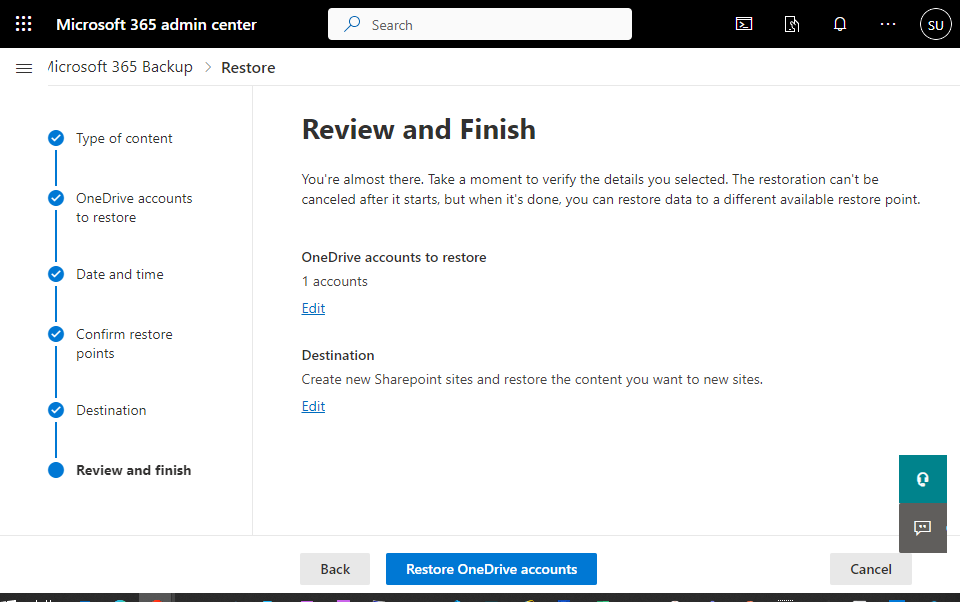
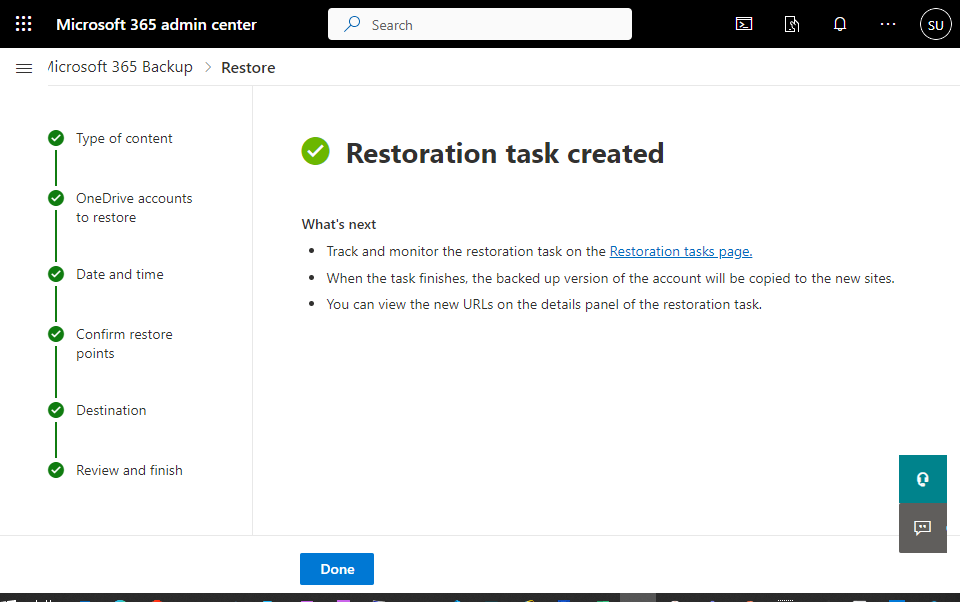
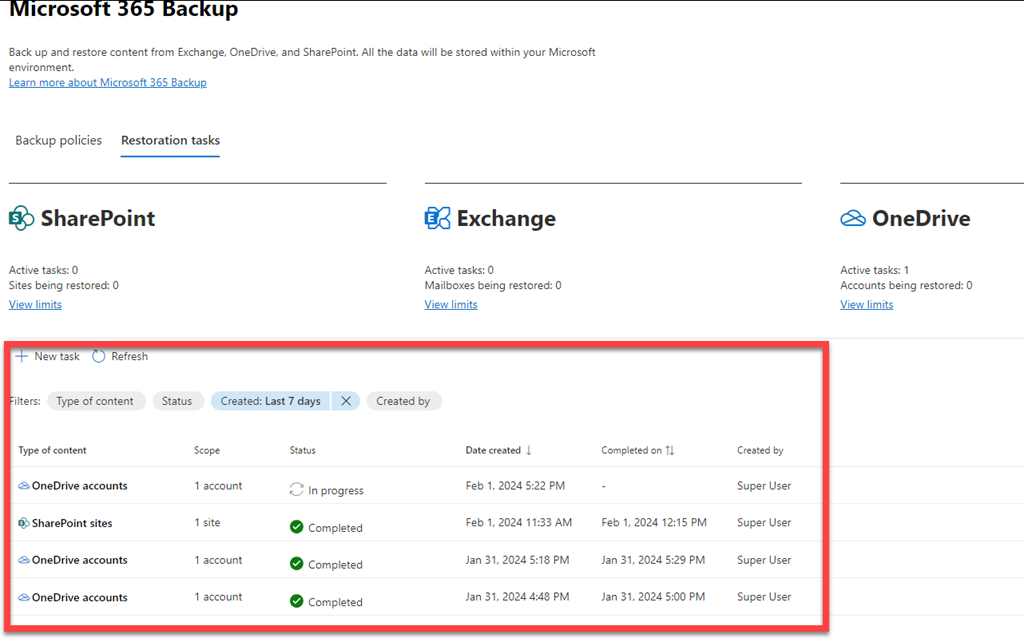
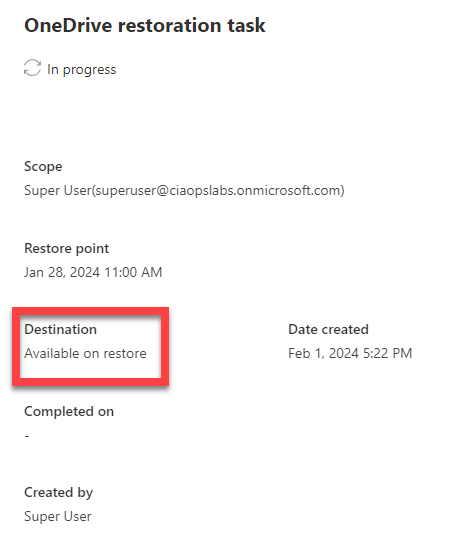
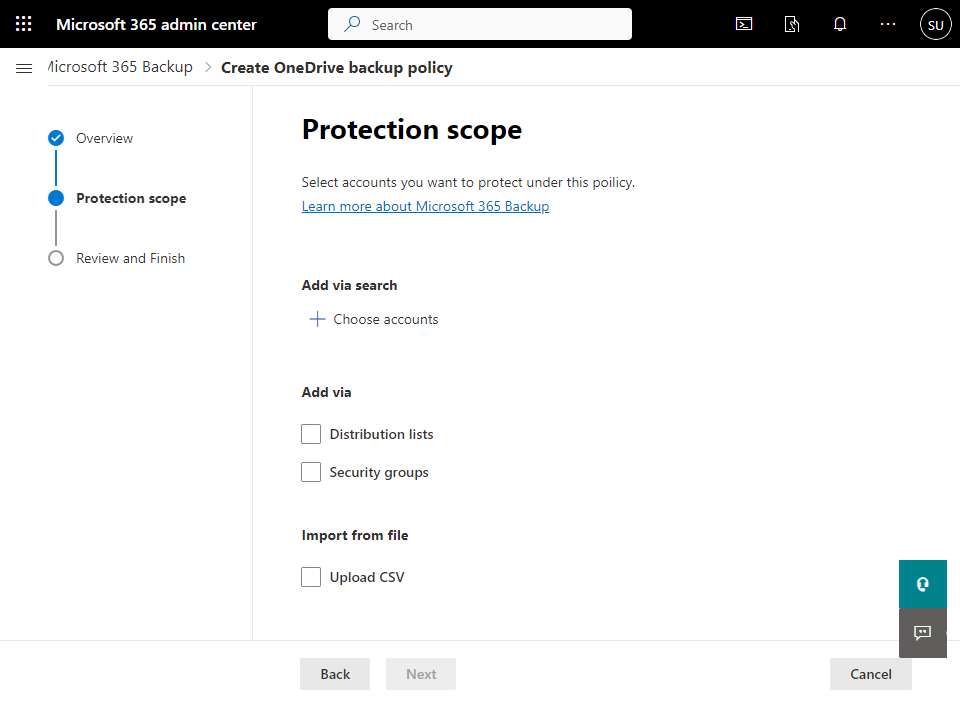
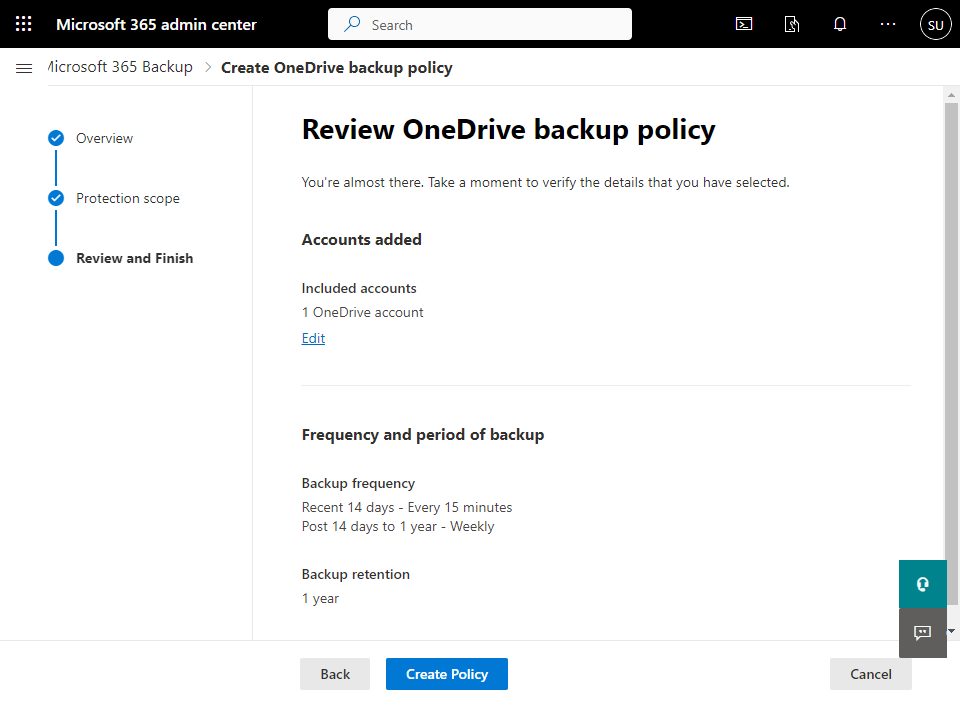
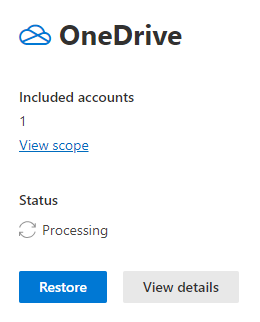
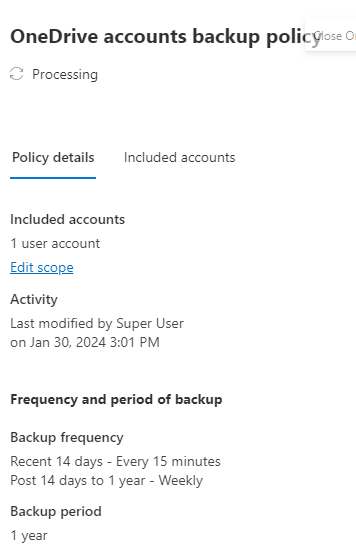
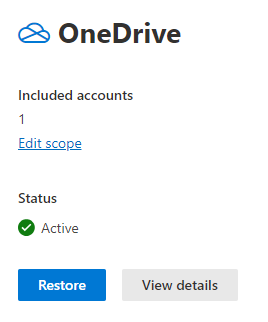
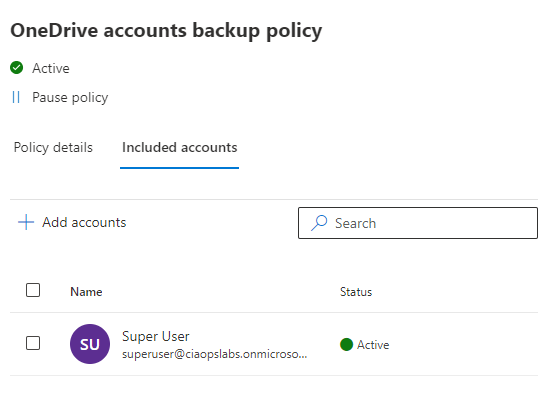
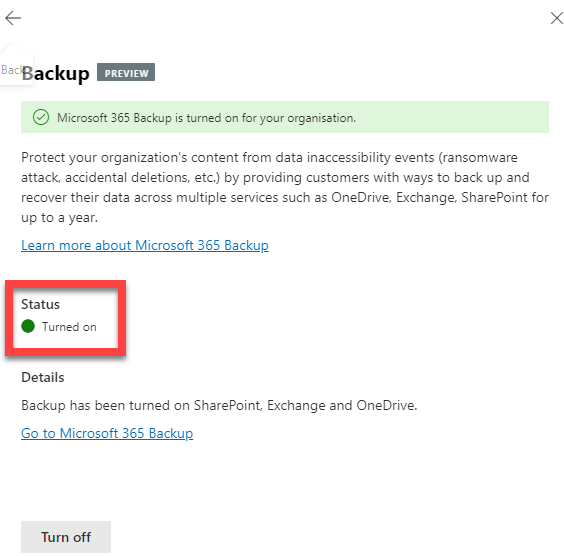
Microsoft has introduced Microsoft 365 Backup solutions (and there are third-party backup services) that can provide point-in-time restoration beyond what recycle bin offers. According to Microsoft, the upcoming Microsoft 365 Backup service will offer longer protection times and faster recovery for scenarios like ransomware or accidental deletions[4]. If maximizing retention and rapid recovery is a priority, organizations might consider these backup solutions for an additional layer of protection beyond the default mechanisms.
- Third-Party Backups: Many organizations use third-party cloud backup services to continuously backup SharePoint Online content. These services let you restore items long past 93 days without needing to involve Microsoft support or retention holds. Evaluate this based on business needs and compliance rules.
III. Best Practices for File Recovery and Retention
To minimize data loss and ensure smooth recovery of files, consider the following best practices:
-
Enable Version History: Versioning is enabled by default in SharePoint Online libraries (usually retaining the last 500 versions of a file)[6]. This means if a file is accidentally modified or an unwanted change is made, you can restore an earlier version without needing to recover from deletion. Always leave versioning on, and instruct users to use version history when needed.
-
User Training and Awareness: Educate users about the SharePoint Recycle Bin. Many users might not know that they can self-restore deleted files within the site. Ensure they know how to access the Recycle Bin and the 93-day limit so that they act promptly if they need to recover something[7][1]. Also, encourage users to notify IT immediately if they can’t find something – waiting too long could push the item beyond retention.
-
Regular Audit of Recycle Bins: Site owners or administrators should periodically review recycle bin content, especially second-stage, for any large or accidental deletions. This can help catch issues before the retention period expires. While there’s no built-in alert for recycle bin events, admins can use audit logs or PowerShell scripts to identify bulk deletions.
-
Retention Policies for Critical Data: Implement retention policies for content that must be retained (for legal, compliance, or business continuity reasons)[5]. This ensures that even if users delete files, copies are preserved. Be mindful to balance retention with storage and privacy considerations.
-
Avoid Disabling Recycle Bin: In SharePoint Server (on-premises) it’s possible to disable the recycle bin or reduce retention, but in SharePoint Online this is managed by Microsoft and should always be available. Ensure any on-prem environment you might have mirrors the Online approach for consistency – keep at least a 30-day recycle bin if using SharePoint Server[4].
-
Using the Admin Center for Sites: If entire sites or collections are deleted, remember that SharePoint admin center provides a UI to restore them (within 93 days)[8]. Restore of a site will also restore its contents. This is an admin task but is far easier than needing to request a backup restore from Microsoft.
-
Backup Important Data: For absolutely critical information, consider maintaining your own backups. While SharePoint’s retention and Microsoft’s backups cover most scenarios, having an export or backup of certain libraries (for example, via a scheduled PowerShell script or third-party tool) could provide extra peace of mind.
-
Monitor Preservation Hold (if using retention): If you use retention policies, monitor the Preservation Hold library for growth. Items here count against storage and will remain until the retention period expires. Ensure your storage quotas are sufficient if you are retaining a lot of deleted data for long periods.
Conclusion
SharePoint Online offers a multi-layered safety net for recovering deleted files: the two-stage recycle bin gives users and admins a straightforward way to restore content within 93 days[1], and additional features like version history and library restore help address inadvertent changes. To maximize retention, organizations should leverage retention policies and understand Microsoft’s fixed 93-day recycle bin window[5]. By following the steps and best practices outlined above, you can confidently recover lost files and ensure that important content remains protected for as long as needed, thereby preventing data loss in your SharePoint Online environment.
References
[1] How do I Restore accidently deleted files from sharepoint
[2] Restore items in the recycle bin that were deleted from SharePoint or …
[3] How to recover missing, deleted or corrupted items in SharePoint and …
[4] Restore deleted items from the site collection recycle bin
[5] Change recycle bin retention Sharepoint Online – Microsoft Q&A
[6] Using the SharePoint Recycle Bin – Complete Guide – LazyAdmin
[7] How to recover deleted files in SharePoint – Microsoft Community














 CIAOPS