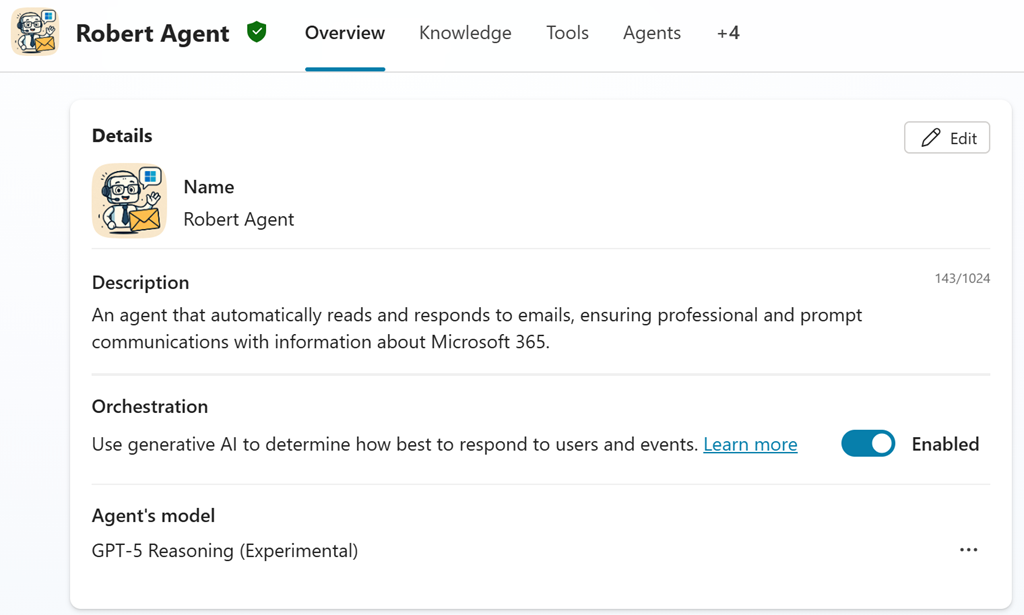
I have now upgraded Robert.Agent to use GPT5 deep reasoning as you can see above.
All you need to do is send an email to robert.agent@ciaops365.com with your M365 question in the BODY of the email and you should get a reply to that question in a few minutes. Remember, deep reasoning models take longer to products results.
It is also important to note with Robert.Agent:
1. Each email is treated as a separate conversation. Robert.Agent has no ‘memory’ of any previous email you may have sent. Thus, treat each email you send as a single unique response or session.
2. Robert.Agent has normal Exchange Online security protection. This means, if the email you send looks like spam (i.e. no subject, signature, bad grammar and spelling, etc) then you won’t get a response.
Try the upgraded Robert.Agent out and let me know what you think.
In this video, I walk you through exactly how I upgraded my Copilot Studio agent to harness the power of GPT-5! If you’ve been stuck with GPT-4 and want to access the latest AI features, watch as I show you the full process—from navigating the Power Platform Admin Center, creating a new environment with early release features, to switching your agent’s model to GPT-5. I share practical tips, licensing requirements, and everything you need to know to get ahead with cutting-edge AI in Copilot Studio. Don’t miss out on unlocking the future of AI for your projects!
Here are 10 ready-to-use prompts you can ask your ASD-aligned security agent to tackle the most common SMB security issues in Microsoft 365 Business Premium tenants. Each prompt is engineered to:
Align with the ASD Secure Cloud Blueprint / Essential Eight and ACSC guidance
Use only features available in M365 Business Premium
Produce clear, step-by-step outcomes you can apply immediately
Avoid E5-only capabilities (e.g., Entra ID P2, Defender for Cloud Apps, Insider Risk, Auto-labelling P2, PIM)
Tip for your agent: For each prompt, request outputs in this structure: (a) Current state → (b) Gaps vs ASD control → (c) Recommended configuration (Business Premium–only) → (d) Click-path + PowerShell → (e) Validation tests & KPIs → (f) Exceptions & rollback.
Prompt: “Assess our tenant’s MFA and sign-in posture against ASD/ACSC guidance using only Microsoft 365 Business Premium features. Return: (1) Conditional Access policies to enforce MFA for all users, admins, and high-risk scenarios (without Entra ID P2); (2) exact assignments, conditions, grant/ session controls; (3) block legacy authentication; (4) break-glass account pattern; (5) click-paths in Entra admin portal and Exchange admin centre; (6) PowerShell for disabling per-user MFA legacy and enabling CA-based MFA; (7) how to validate via Sign-in logs and audit; (8) exceptions for service accounts and safe rollback.”
Prompt: “Create Intune compliance and configuration baselines for Windows/macOS/iOS/Android aligned to ASD/ACSC using Business Premium. Include: (1) Windows BitLocker and macOS FileVault enforcement; (2) OS version minimums, secure boot, tamper protection, firewall, Defender AV; (3) jailbreak/root detection; (4) role-based scope (admins stricter); (5) conditional access ‘require compliant device’ for admins; (6) click-paths and JSON/OMA-URI where needed; (7) validation using device compliance reports and Security baselines; (8) exceptions for servers/VDI and rollback.”
4) BYOD Data Protection (App Protection / MAM-WE)
Prompt: “Design BYOD app protection for iOS/Android using Intune App Protection Policies (without enrollment), aligned to ASD data protection guidance. Deliver: (1) policy sets for Outlook/Teams/OneDrive/Office mobile; (2) cut/copy/save restrictions, PIN/biometrics, encryption-at-rest, wipe on sign-out; (3) Conditional Access ‘require approved client app’ and ‘require app protection policy’; (4) blocking downloads to unmanaged locations; (5) step-by-step in Intune & Entra; (6) user experience notes; (7) validation and KPIs (unenrolled device access, selective wipe success).”
5) Endpoint Security with Defender for Business (EDR/NGAV/ASR)
Prompt: “Harden endpoints using Microsoft Defender for Business (included in Business Premium) to meet ASD controls. Return: (1) Onboarding method (Intune) and coverage; (2) Next-Gen AV, cloud-delivered protection, network protection; (3) Attack Surface Reduction rules profile (Business Premium-supported), Controlled Folder Access; (4) EDR enablement and Automated Investigation & Response scope; (5) threat & vulnerability management (TVM) priorities; (6) validation via MDE portal; (7) KPIs (exposure score, ASR rule hits, mean time to remediate).”
6) Patch & Update Strategy (ASD: Patch Apps/OS)
Prompt: “Produce a Windows Update for Business and Microsoft 365 Apps update strategy aligned to ASD Essential Eight for SMB. Include: (1) Intune update rings and deadlines; (2) quality vs feature update cadence, deferrals, safeguards; (3) Microsoft 365 Apps channel selection (e.g., Monthly Enterprise); (4) TVM-aligned prioritisation for CVEs; (5) rollout waves and piloting; (6) click-paths, policies, and sample assignments; (7) validation dashboards and KPIs (patch latency, update compliance, CVE closure time).”
7) External Sharing, DLP & Sensitivity Labels (ASD: Data Protection)
Prompt: “Lock down external sharing and implement Data Loss Prevention using Business Premium (no auto-labelling P2), aligned to ASD guidance. Deliver: (1) SharePoint/OneDrive external sharing defaults, link types, expiration; (2) guest access policies for Teams; (3) Purview DLP for Exchange/SharePoint/OneDrive—PII templates, alerting thresholds; (4) user-driven sensitivity labels (manual) for email/files with recommended taxonomy; (5) transport rules for sensitive emails to external recipients; (6) step-by-step portals; (7) validation & KPIs (external sharing volume, DLP matches, label adoption).”
8) Least Privilege Admin & Tenant Hygiene (ASD: Restrict Admin)
Prompt: “Review and remediate admin privileges and app consent using Business Premium-only controls. Provide: (1) role-by-role least privilege mapping (Global Admin, Exchange Admin, Helpdesk, etc.); (2) emergency access (‘break-glass’) accounts with exclusions and monitoring; (3) enforcement of user consent settings and admin consent workflow; (4) risky legacy protocols and SMTP AUTH usage review; (5) audit logging and alert policies; (6) step-by-step remediation; (7) validation and KPIs (admin count, app consents, unused privileged roles).”
9) Secure Score → ASD Gap Analysis & Roadmap
Prompt: “Map Microsoft Secure Score controls to ASD Essential Eight and generate a 90‑day remediation plan for Business Premium. Return: (1) Top risk-reducing actions feasible with Business Premium; (2) control-to-ASD mapping; (3) effort vs impact matrix; (4) owner, dependency, and rollout sequence; (5) expected Secure Score lift; (6) weekly KPIs and reporting pack (including recommended dashboards). Avoid recommending E5-only features—offer Business Premium alternatives.”
10) Detection & Response Playbooks (SMB-ready)
Prompt: “Create incident response playbooks using Defender for Business and Defender for Office 365 for common SMB threats (phishing, BEC, ransomware). Include: (1) alert sources and severities; (2) triage steps, evidence to collect, where to click; (3) auto-investigation actions available in Business Premium; (4) rapid containment (isolate device, revoke sessions, reset tokens, mailbox rules sweep); (5) user comms templates and legal/escalation paths; (6) post-incident hardening steps; (7) validation drills and success criteria.”
Optional meta‑prompt you can prepend to any of the above
“You are my ASD Secure Cloud Blueprint agent. Only recommend configurations available in Microsoft 365 Business Premium. If a control typically needs E5/P2, propose a Business Premium‑compatible alternative and flag the limitation. Return exact portal click-paths, policy names, JSON samples/PowerShell, validation steps, and KPIs suitable for SMBs.”
Here’s a detailed breakdown to help you decide when to use Microsoft 365 Copilot (standard) versus a dedicated agent like Researcher or Analyst, especially for SMB (Small and Medium Business) customers. This guidance is based on internal documentation, email discussions, and Microsoft’s public announcements.
Uses Microsoft Graph to access your tenant’s data securely.
Best for lightweight tasks and real-time assistance
Researcher Agent
Designed for deep, multi-step reasoning.
Gathers and synthesizes information from emails, files, meetings, chats, and the web.
Produces structured, evidence-backed reports with citations.
Ideal for market research, competitive analysis, go-to-market strategies, and client briefings.
Analyst Agent
Thinks like a data scientist.
Uses chain-of-thought reasoning and can run Python code.
Ideal for data-heavy tasks: forecasting, customer segmentation, financial modeling.
Can analyze data across multiple spreadsheets and visualize insights.
SMB-Specific Considerations
Licensing: SMBs using Microsoft 365 Business Premium can access Copilot, but Researcher and Analyst require Copilot licenses and are part of the Frontier program.
Security: Business Premium includes tools like eDiscovery, audit logging, and data loss prevention to monitor Copilot usage and protect sensitive data.
Deployment: SMBs should ensure foundational productivity setup, data structuring, and AI readiness before deploying advanced agents.
Simple Guidance for SMBs
Start with M365 Copilot Chat for daily tasks, onboarding, and quick answers.
Use Researcher when you need a comprehensive answer that spans multiple data sources and includes citations.
Use Analyst when you need to analyze or visualize data, especially for strategic planning or reporting.
To deploy Microsoft 365 Copilot, including the Researcher and Analyst agents, in small and medium-sized businesses (SMBs), you’ll need to follow a structured approach that balances licensing, governance, security, and user enablement. Here’s a detailed breakdown based on internal documentation, email guidance, and Microsoft’s official resources.
Deployment Overview for SMBs
1. Licensing Requirements
To use Microsoft 365 Copilot and its advanced agents:
Base License: Users must have one of the following:
Microsoft 365 Business Premium
Microsoft 365 E3 or E5
Office 365 E3 or E5
Copilot Add-on License: Required for access to tenant data and advanced agents like Researcher and Analyst. This license costs approximately \$360/year per user.
2. Agent Availability and Installation
Microsoft provides three deployment paths for agents:
Agent Type
Who Installs
Examples
Governance
Microsoft-installed
Microsoft
Researcher, Analyst
Admins can block globally
Admin-installed
IT Admins
Custom or partner agents
Full lifecycle control
User-installed
End users
Copilot Studio agents
Controlled by admin policy
Researcher and Analyst are pre-installed and pinned for all users with Copilot licenses.
Admins can manage visibility and access via the Copilot Control System in the Microsoft 365 Admin Center.
3. Security and Governance for SMBs
Deploying Copilot in SMBs requires attention to data access and permission hygiene:
Copilot respects existing permissions, but if users are over-permissioned, they may inadvertently access sensitive data.
Use least privilege access principles to avoid data oversharing.
Leverage Microsoft 365 Business Premium features like:
Microsoft Purview for auditing and DLP
Entra ID for Conditional Access
Defender for Business for endpoint protection
4. Agent Creation with Copilot Studio
For SMBs wanting tailored AI experiences:
Use Copilot Studio to build custom agents for HR, IT, or operations.
No-code interface allows business users to create agents without developer support.
Agents can be deployed in Teams, Outlook, or Copilot Chat for seamless access.
5. Training and Enablement
Encourage users to explore agents via the Copilot Chat web tab.
Use Copilot Academy and Microsoft’s curated learning paths to upskill staff.
Promote internal champions to guide adoption and gather feedback.
✅ Deployment Checklist for SMBs
Step
Action
1
Confirm eligible Microsoft 365 licenses
2
Purchase and assign Copilot licenses
3
Review and tighten user permissions
4
Enable or restrict agents via Copilot Control System
Microsoft 365 Copilot serves as your AI-powered assistant across Office apps and Teams, helping with everyday tasks through a conversational chat interface. In contrast, the Copilot Research Agent is a specialized AI mode for deep, multi-step research that can comb through vast amounts of data (both your enterprise data and web) to produce comprehensive, evidence-backed reports. Choosing the right tool will ensure you get the best results for your needs. Below, we break down the strengths, ideal use cases, and examples for each, as well as when not to use one versus the other.
Overview of the Two Copilot Modes
M365 Copilot Chat (Standard Copilot): This is the default Copilot experience integrated into Microsoft 365 apps (such as Teams, Outlook, Word, etc.). It provides quick, near real-time responses in a conversational way[1]. Copilot Chat can draft content, answer questions, summarize information, and help with tasks in seconds using the context you provide or your work data via Microsoft Graph[2]. It’s like an AI assistant always available in-app to help you “work smarter” on everyday tasks.
Copilot Research Agent (Researcher Mode): This is an advanced reasoning agent for in-depth research. It uses a more powerful, iterative reasoning process to handle complex, multi-step queries that require analyzing multiple sources. The Research agent will take longer (often a few minutes per query) to gather information from across emails, chats, meetings, documents, enterprise systems, and even the web, then synthesize a thorough answer[1][3]. The output is usually a well-structured report or detailed response with sources cited for verification[1][1]. In short, Researcher acts like a diligent analyst digging through all data available to answer your question with high accuracy and detail – albeit with a slower response time than standard Chat.
Key Differences at a Glance
Aspect
M365 Copilot Chat (Standard)
Copilot Research Agent (Researcher)
Response Speed
Near-instant answers (usually seconds). Optimized for real-time use so you can get quick help while working.
Slower, deep processing (often 3–6 minutes for a full response). It spends more time reasoning, gathering and verifying information.
Complexity Handling
Basic to moderate complexity. Great for straightforward or single-step questions and tasks. It can use context but generally handles one prompt at a time without extensive planning.
High complexity, multi-step reasoning. Designed for complex questions that require breaking down into sub-tasks, looking up multiple sources, and synthesising findings. Performs chain-of-thought planning and iterative research.
Data Scope
Immediate context + relevant enterprise data. Can tap into your recent emails, files, chats if needed (via Graph) to give an answer, but typically focuses on the content at hand (e.g., the document or thread you’re viewing).
Broad enterprise and external data. Securely searches across emails, documents, meeting transcripts, chat history, and even external connectors or web sources as needed. It will “search everywhere” to ensure no relevant info is missed.
Typical Output
Brief replies or edits. E.g., a paragraph answering your question, a list of bullet points, a draft email or document section. The style is often concise and may not always cite sources (it’s more like a quick assistant).
Detailed reports or comprehensive answers. Often provides a structured report with sections, detailed explanations, and inline citations to sources for fact-checking. It resembles what an analyst’s researched memo might look like.
Interaction Style
Conversational and interactive. You can have a back-and-forth with Copilot Chat, ask follow-ups instantly, or refine the output. It’s meant for real-time collaboration while you work.
Task-focused sessions. The Research agent might ask clarifying questions up-front then deliver a final report. It’s less about continuous chat and more about digging for answers, though you can still follow up with additional questions (each may invoke a new deep research cycle).
Limitations
May not fully answer very broad or data-heavy queries. It uses faster reasoning, which can sometimes mean less depth or context. Complex multi-source questions might get summary-level answers or require you to prompt multiple times.
Not ideal for trivial or time-sensitive queries. Because it takes longer and uses intensive resources (often even limited to a certain number of uses per month), it’s overkill for simple tasks. You wouldn’t use Researcher for a one-line answer or tiny task you needed immediately.
When to Use M365 Copilot Chat (with Examples)
Use Copilot Chat for day-to-day productivity tasks, especially when you need a quick, on-the-fly response or assistance within the flow of work. Here are the best use cases and examples:
Quick Summaries of Single Sources: When you want a fast summary of a specific item (an email thread, document, or meeting). For example, “Summarise this email chain for me” – Copilot Chat can instantly pull out the key points from a long email conversation[2]. Or in Teams, you might ask, “What were the main action items from the meeting I missed?”, and it will recap the meeting recording or chat for you in seconds. This is ideal for catching up on information without reading everything yourself.
Drafting and Composing Content: Copilot Chat excels at generating initial drafts and content ideas quickly. If you need to write something, you can instruct Copilot to draft it for you, then you refine it. For instance, you could say: *“Draft an email to
In this video, I explore the incredible capabilities of the new analyst agent included with a full license of Microsoft 365 Copilot. Join me as I demonstrate how to add and utilize this powerful tool to analyze data logs, spreadsheets, and security information. Watch as I walk through the process of exporting audit logs from Microsoft Teams, uploading them into the analyst agent, and generating insightful Python scripts for detailed data analysis. Whether you’re a seasoned data analyst or new to data analysis, this video will show you how to leverage the analyst agent to simplify and enhance your data processing tasks. Don’t miss out on discovering how this tool can transform your approach to data analysis!
Here is a video tutorial showing you how to create an agent using Copilot Studio that is published into a Microsoft Teams channel. In this case, the billing is via consumption linked to an Azure subscription. Just remember it takes a few hours for the agent to start responding to requests.
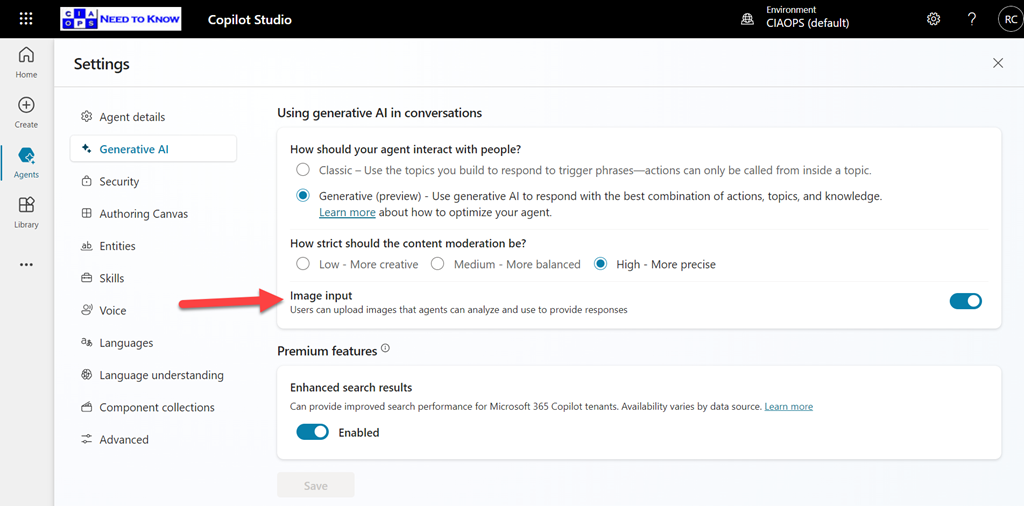
A while back, I built an agent that I published into Teams to provide answers to technical questions on the Microsoft Cloud. I have always been super impressed by the results I get from it, but now, as you see above, it can also interpret images!
You need to enable the Image Input option in Settings for your agent as shown above, and of course, don’t forget to again publish your agent so the updates flow into Teams.
What is even more impressive, is that if you look at the error screen at the top of the page you’ll notice that it isn’t even in English and Copilot has extracted the text from the image, interpreted it and answered in English in Teams. Impressive!





 CIAOPS