Roadmap to Mastering Microsoft 365 Copilot for Small Business Users

Overview: Microsoft 365 Copilot is an AI assistant integrated into the apps you use every day – Word, Excel, PowerPoint, Outlook, Teams, OneNote, and more – designed to boost productivity through natural-language assistance[1][2]. As a small business with Microsoft 365 Business Premium, you already have the core tools and security in place; Copilot builds on this by helping you draft content, analyze data, summarize information, and collaborate more efficiently. This roadmap provides a step-by-step guide for end users to learn and adopt Copilot, leveraging freely available, high-quality training resources and plenty of hands-on practice. It’s organized into clear stages, from initial introduction through ongoing mastery, to make your Copilot journey easy to follow.


Why Use Copilot? Key Benefits for Small Businesses

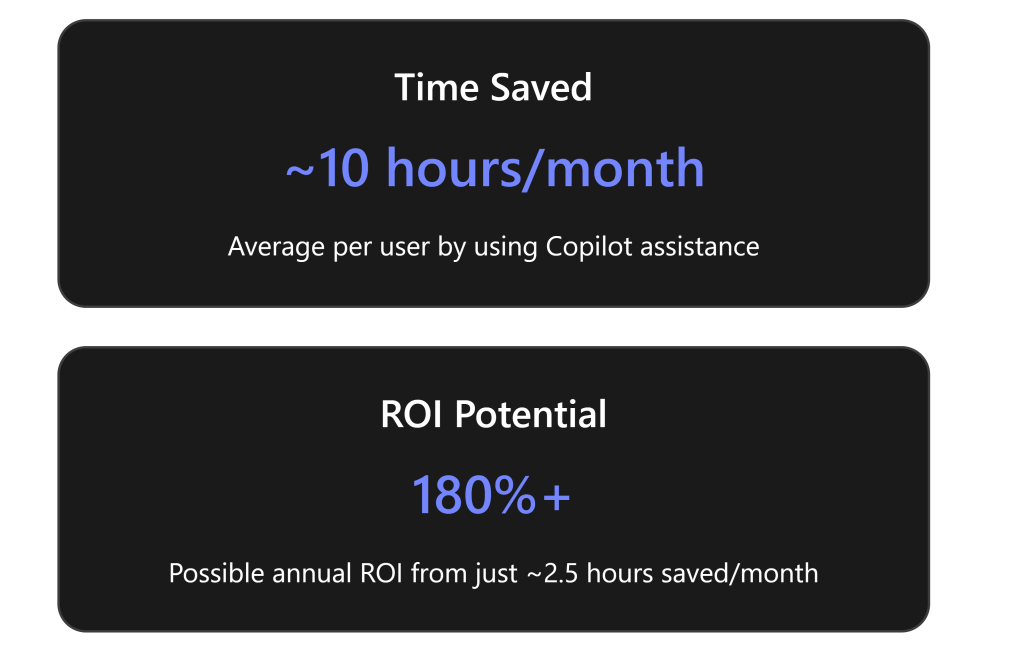
Boost Productivity and Creativity: Copilot helps you get things done faster. Routine tasks like writing a first draft or analyzing a spreadsheet can be offloaded to the AI, saving users significant time. Early trials showed an average of ~10 hours saved per month per user by using Copilot[1]. Even saving 2.5 hours a month could yield an estimated 180% return on investment at typical salary rates[1]. In practical terms, that means more time to focus on customers and growth.

Work Smarter, Not Harder: For a small team, Copilot acts like an on-demand expert available 24/7. It can surface information from across your company data silos with a simple query – no need to dig through multiple files or emails[1]. It’s great for quick research and decision support. For example, you can ask Copilot in Teams Chat to gather the latest project updates from SharePoint and recent emails, or to analyze how you spend your time (it can review your calendar via Microsoft 365 Chat and suggest where to be more efficient[1]).

Improve Content Quality and Consistency: Not a designer or wordsmith? Copilot can help create professional output. It can generate proposals, marketing posts, or slides with consistent branding and tone. For instance, you can prompt Copilot in PowerPoint to create a slide deck from a Word document outline – it will produce draft slides complete with imagery suggestions[3]. In Word, it can rewrite text to fix grammar or change the tone (e.g., make a message more friendly or more formal).

Real-World Example – Joos Ltd: Joos, a UK-based startup with ~45 employees, used Copilot to “work big while staying small.” They don’t have a dedicated marketing department, so everyone pitches in on creating sales materials. Copilot in PowerPoint now helps them generate branded sales decks quickly, with the team using AI to auto-edit and rephrase content for each target audience[3][3]. Copilot also links to their SharePoint, making it easier to draft press releases and social posts by pulling in existing company info[3]. Another challenge for Joos was coordinating across time zones – team members were 13 hours apart and spent time taking meeting notes for absent colleagues. Now Copilot in Teams automatically generates meeting summaries and action items, and even translates them for their team in China, eliminating manual note-taking and translation delays[3][3]. The result? The Joos team saved time on routine tasks and could focus more on expanding into new markets, using Copilot to research industry-specific pain points and craft tailored pitches for new customers[3][3].

Enhance Collaboration: Copilot makes collaboration easier by handling the busywork. It can summarize long email threads or Teams channel conversations, so everyone gets the gist without wading through hundreds of messages. In meetings, Copilot can act as an intelligent notetaker – after a Teams meeting, you can ask it for a summary of key points and action items, which it produces in seconds[3]. This ensures all team members (even those who missed the meeting) stay informed. Joos’s team noted that having Copilot’s meeting recaps “changed the way we structure our meetings” – they review the AI-generated notes to spot off-topic tangents and keep meetings more efficient[3].

Maintain Security and Compliance: As a Business Premium customer, you benefit from enterprise-grade security (like data loss prevention, MFA, Defender for Office 365). Copilot inherits these protections[2]. It won’t expose data you don’t have access to, and its outputs are bounded by your organization’s privacy settings. Small businesses often worry about sensitive data – Copilot can actually help by quickly finding if sensitive info is in the wrong place (since it can search your content with your permissions). Administrators should still ensure proper data access policies (Copilot’s powerful search means any overly broad permissions could let a user discover files they technically have access to but weren’t aware of[4]). In short, Copilot follows the “trust but verify” approach: it trusts your existing security configuration and won’t leak data outside it[2].


Roadmap Stages at a Glance

Below is an outline of the stages you’ll progress through to become proficient with Microsoft 365 Copilot. Each stage includes specific learning goals, recommended free resources (articles, courses, videos), and hands-on exercises.

Each stage is described in detail below with recommended resources and action steps. Let’s dive into Stage 1!


Stage 1: Introduction & Setup

Goal: Build a basic understanding of Microsoft 365 Copilot and prepare your account/applications for using it.

  1. Understand What Copilot Is: Start with a high-level overview. A great first stop is Microsoft’s own introduction:
    • Microsoft Learn – “Introduction to Microsoft 365 Copilot” (learning module, ~27 min) – This beginner-friendly module explains Copilot’s functionality and Microsoft’s approach to responsible AI[5]. It’s part of a broader “Get started with Microsoft 365 Copilot” learning path[5]. No prior AI knowledge needed.
    • Microsoft 365 Copilot Overview Video – Microsoft’s official YouTube playlist “Microsoft 365 Copilot” has short videos (1-5 min each) showcasing how Copilot works in different apps. For example, see how Copilot can budget for an event in Excel or summarize emails in Outlook. These visuals help you grasp Copilot’s capabilities quickly.
  2. Check Licensing & Access: Ensure you actually have Copilot available in your Microsoft 365 environment. Copilot is a paid add-on service for Business Premium (not included by default)[1][1].
    • How to verify: Ask your IT admin or check in your Office apps – if Copilot is enabled, you’ll see the Copilot icon or a prompt (for instance, a Copilot sidebar in Word or an “Ask Copilot” box in Teams Chat). If your small business hasn’t purchased Copilot yet, you might consider a trial. (Note: As of early 2024, Microsoft removed the 300-seat minimum – even a company with 1 Business Premium user can add Copilot now[1][1].)
    • If you’re an admin, Microsoft’s documentation provides a Copilot setup guide in the Microsoft 365 Admin Center[6]. (Admins can follow a step-by-step checklist to enable Copilot for users, found in the Copilot Success Kit for SMB.) For end users, assuming your admin has enabled it, there’s no special install – just ensure your Office apps are updated to the latest version.
  3. First Look – Try a Simple Command: Once Copilot is enabled, try it out! A good first hands-on step is to use Copilot in one of the Office apps:
    • Word: Open Word and look for the Copilot () icon or pane. Try asking it to “Brainstorm a description for our company’s services” or “Outline a one-page marketing flyer for [your product]”. Copilot will generate ideas or an outline. This lets you see how you can prompt it in natural language.
    • Outlook: If you have any lengthy email thread, try selecting it and asking Copilot “Summarize this conversation”. Watch as it produces a concise summary of who said what and any decisions or questions noted. It might even suggest possible responses.
    • Teams (Business Chat): In Teams, open the Copilot chat (often labeled “Ask Copilot” or similar). A simple prompt could be: “What did I commit to in meetings this week?” Copilot can scan your calendar and chats to list action items you promised[1]. This is a powerful demo of how it pulls together info across Outlook (calendar), Teams (meetings), and so on.
    Don’t worry if the output isn’t perfect – we’ll refine skills later. The key in Stage 1 is to get comfortable invoking Copilot and seeing its potential.
  4. Leverage Introductory Resources: A few other freely available resources for introduction:
    • Microsoft Support “Get started with Copilot” guide – an online help article that shows how to access Copilot in each app, with screenshots.
    • Third-Party Blogs/Overviews: For an outside perspective, check out “Copilot for Microsoft 365: Everything your business needs to know” by Afinite (IT consultancy)[1][1]. It provides a concise summary of what Copilot does and licensing info (reinforcing that Business Premium users can benefit from it) with a business-oriented lens.
    • Community Buzz: Browse the Microsoft Tech Community Copilot for SMB forum, where small business users and Microsoft experts discuss Copilot. Seeing questions and answers there can clarify common points of confusion. (For example, many SMB users asked about how Copilot uses their data – Microsoft reps have answered that it’s all within your tenant, not used to train public models, etc., echoing the privacy assurances.)

✅ Stage 1 Outcomes: By the end of Stage 1, you should be familiar with the concept of Copilot and have successfully invoked it at least once in a Microsoft 365 app. You’ve tapped into key resources (both official and third-party) that set the stage for deeper learning. Importantly, you’ve confirmed you have access to the tool in your Business Premium setup.


Stage 2: Learning Copilot Basics in Core Apps ️‍♀️

Goal: Develop fundamental skills by using Copilot within the most common Microsoft 365 applications. In this stage, you will learn by doing – following tutorials and then practicing simple tasks in Word, Excel, PowerPoint, Outlook, and Teams. We’ll pair each app with freely available training resources and a recommended hands-on exercise.

Recommended Training Resource: Microsoft has created an excellent learning path called “Draft, analyze, and present with Microsoft 365 Copilot”[7]. It’s geared toward business users and covers Copilot usage in PowerPoint, Word, Excel, Teams, and Outlook. This on-demand course (on Microsoft Learn) shows common prompt patterns in each app and even introduces Copilot’s unified Business Chat. We highly suggest progressing through this course in Stage 2 – it’s free and modular, so you can do it at your own pace. Below, we’ll highlight key points for each application along with additional third-party tips:

  1. Copilot in Word – “Your AI Writing Assistant”:
    • What you’ll learn: How to have Copilot draft content, insert summaries, and rewrite text in Word.
    • Training Highlights: The Microsoft Learn path demonstrates using prompts like “Draft a two-paragraph introduction about [topic]” or “Improve the clarity of this section” in Word[7]. You’ll see how Copilot can generate text and even adjust tone or length on command.
    • Hands-on Exercise: Open a new or existing Word document about a work topic you’re familiar with (e.g., a product description, an internal policy, or a client proposal). Use Copilot to generate a summary of the content or ask it to create a first draft of a new section. For example, if you have bullet points for a company About Us page, ask Copilot to turn them into a narrative paragraph. Observe the output and edit as needed. This will teach you how to iteratively refine Copilot’s output – a key skill is providing additional instructions if the initial draft isn’t exactly right (e.g., “make it more upbeat” or “add a call-to-action at the end”).
  2. Copilot in Excel – “Your Data Analyst”:
    • What you’ll learn: Using Copilot to analyze data, create formulas, and generate visualizations in Excel.
    • Training Highlights: The Learn content shows examples of asking Copilot questions about your data (like “What are the top 5 products by sales this quarter?”) and even generating formulas or PivotTables with natural language. It also covers the new Analyst Copilot capabilities – for instance, Copilot can explain what a complex formula does or highlight anomalies in a dataset.
    • Hands-on Exercise: Take a sample dataset (could be a simple Excel sheet with sales figures, project hours, or any numbers you have). Try queries such as “Summarize the trends in this data” or “Create a chart comparing Q1 and Q2 totals”. Let Copilot produce a chart or summary. If you don’t have your own data handy, you can use an example from Microsoft (e.g., an Excel template with sample data) and practice there. The goal is to get comfortable asking Excel Copilot questions in plain English instead of manually crunching numbers.
  3. Copilot in PowerPoint – “Your Presentation Designer”:
    • What you’ll learn: Generating slides, speaker notes, and design ideas using Copilot in PowerPoint.
    • Training Highlights: The training path walks through turning a Word document into a slide deck via Copilot[7]. It also shows how to ask for images or styling (Copilot leverages Designer for image suggestions[1]). For example, “Create a 5-slide presentation based on this document” or “Add a slide summarizing the benefits of our product”.
    • Hands-on Exercise: Identify a topic you might need to present – say, a project update or a sales pitch. In PowerPoint, use Copilot with a prompt like “Outline a pitch presentation for [your product or idea], with 3 key points per slide”. Watch as Copilot generates the outline slides. Then, try refining: “Add relevant images to each slide” or “Make the tone enthusiastic”. You can also paste some text (perhaps from the Word exercise) and ask Copilot to create slides from that text. This exercise shows the convenience of quickly drafting presentations, which you can then polish.
  4. Copilot in Outlook – “Your Email Aide”:
    • What you’ll learn: Composing and summarizing emails with Copilot’s help in Outlook.
    • Training Highlights: Common scenarios include: summarizing a long email thread, drafting a reply, or composing a new email from bullet points. The Microsoft training examples demonstrate commands like “Reply to this email thanking the sender and asking for the project report” or “Summarize the emails I missed from John while I was out”.
    • Hands-on Exercise: Next time you need to write a tricky email, draft it with Copilot. For instance, imagine you need to request a payment from a client diplomatically. Provide Copilot a prompt such as “Write a polite email to a client reminding them of an overdue invoice, and offer assistance if they have any issues”. Review the draft it produces; you’ll likely just need to tweak details (e.g., invoice number, due date). Also try the summary feature on a dense email thread: select an email conversation and click “Summarize with Copilot.” This saves you from reading through each message in the chain.
  5. Copilot in Teams (and Microsoft 365 Chat) – “Your Teamwork Facilitator”:
    • What you’ll learn: Using Copilot during Teams meetings and in the cross-app Business Chat interface.
    • Training Highlights: The learning path introduces Microsoft 365 Copilot Chat – a chat interface where you can ask questions that span your emails, documents, calendar, etc.[7]. It also covers how in live Teams meetings, Copilot can provide real-time summaries or generate follow-up tasks. For example, you might see how to ask “What did we decide in this meeting?” and Copilot will generate a recap and highlight action items.
    • Hands-on Exercise: If you have Teams, try using Copilot in a chat or channel. A fun test: go to a Team channel where a project is discussed and ask Copilot “Summarize the key points from the last week of conversation in this channel”. Alternatively, after a meeting (if transcript is available), use Copilot to “Generate meeting minutes and list any to-do’s for me”. If your organization has the preview feature, experiment with Copilot Chat in Teams: ask something like “Find information on Project X from last month’s files and emails” – this showcases Copilot’s ability to do research across your data[1]. (If you don’t have access to these features yet, you can watch Microsoft Mechanics videos that demonstrate them, just to understand the capability. Microsoft’s Copilot YouTube playlist includes short demos of meeting recap and follow-up generation.)

Additional Third-Party Aids: In addition to Microsoft’s official training, consider watching some independent tutorials. For instance, Kevin Stratvert’s YouTube Copilot Playlist (free, 12 videos) is excellent. Kevin is a former Microsoft PM who creates easy-to-follow videos on Office features. His Copilot series includes topics like “Copilot’s new Analyst Agent in Excel” and “First look at Copilot Pages”. These can reinforce what you learn and show real-world uses. Another is Simon Sez IT’s “Copilot Training Tutorials” (free YouTube playlist, 8 videos), which provides short tips and tricks for Copilot across apps. Seeing multiple explanations will deepen your understanding.

✅ Stage 2 Outcomes: By completing Stage 2, you will have hands-on experience with Copilot in all the core apps. You should be able to ask Copilot to draft text, summarize content, and create basic outputs in Word, Excel, PowerPoint, Outlook, and Teams. You’ll also become familiar with effective prompting within each context (for example, knowing that in Excel you can ask about data trends, or in Word you can request an outline). The formal training combined with informal videos ensures you’ve covered both “textbook” scenarios and real-world tips. Keep note of what worked well and any questions or odd results you encountered – that will prepare you for the next stage, where we dive into more practical scenarios and troubleshooting.


Stage 3: Practice with Real-World Scenarios

Goal: Reinforce your Copilot skills by applying them to realistic work situations. In this stage, we’ll outline specific scenarios common in a small business and challenge you to use Copilot to tackle them. This “learn by doing” approach will build confidence and reveal Copilot’s capabilities (and quirks) in day-to-day tasks. All suggested exercises below use tools and resources available at no cost.

Before starting, consider creating a sandbox environment for practice if possible. For example, use a copy of a document rather than a live one, or do trial runs in a test Teams channel. This way, you can experiment freely without worry. That said, Copilot only works on data you have access to, so if you need sample content: Microsoft’s Copilot Scenario Library (part of the SMB Success Kit) provides example files and prompts by department[8]. You might download some sample scenarios from there to play with. Otherwise, use your actual content where comfortable.

Here are several staged scenarios to try:

  1. Writing a Company Announcement: Imagine you need to write an internal announcement (e.g., about a new hire or policy update).
    • Task: Draft a friendly announcement email welcoming a new employee to the team.
    • How Copilot helps: In Word or Outlook, provide Copilot a few key details – the person’s name, role, maybe a fun fact – and ask it to “Write a welcome announcement email introducing [Name] as our new [Role], and highlight their background in a warm tone.” Copilot will generate a full email. Use what you learned in Stage 2 to refine the tone or length if needed. This exercise uses Copilot’s strength in creating first drafts of written communications.
    • Practice Tip: Compare the draft with your usual writing. Did Copilot include everything? If not, prompt again with more specifics (“Add that they will be working in the Marketing team under [Manager]”). This teaches you how adding detail to your prompt guides the AI.
  2. Analyzing Business Data: Suppose you have a sales report in Excel and want insights for a meeting.
    • Task: Summarize key insights from quarterly sales data and identify any notable trends.
    • How Copilot helps: Use Excel Copilot on your data (or use a sample dataset of your sales). Ask “What are the main trends in sales this quarter compared to last? Provide three bullet points.” Then try “Any outliers or unusual changes?”. Copilot might point out, say, that a particular product’s sales doubled or that one region fell behind. This scenario practices analytical querying.
    • Practice Tip: If Copilot returns an error or seems confused (for example, if the data isn’t structured well), try rephrasing or ensuring your data has clear headers. You can also practice having Copilot create a quick chart: “Create a pie chart of sales by product category.”
  3. Marketing Content Creation: Your small team needs to generate marketing content (like a blog post or social media updates) but you’re strapped for time.
    • Task: Create a draft for a blog article promoting a new product feature.
    • How Copilot helps: In Word, say you prompt: “Draft a 300-word blog post announcing our new [Feature], aimed at small business owners, in an enthusiastic tone.” Copilot will leverage its training on general web knowledge (and any public info it can access with enterprise web search if enabled) to produce a draft. While Copilot doesn’t know your product specifics unless provided, it can generate a generic but structured article to save you writing from scratch. You then insert specifics where needed.
    • Practice Tip: Focus on how Copilot structures the content (it might produce an introduction, bullet list of benefits, and a conclusion). Even if you need to adjust technical details, the structure and wording give you a strong starting point. Also, try using Copilot in Designer (within PowerPoint or the standalone Designer) for a related task: “Give me 3 slogan ideas for this feature launch” or “Suggest an image idea to go with this announcement”. Creativity tasks like slogan or image suggestions can be done via Copilot’s integration with Designer[1].
  4. Preparing for a Client Meeting: You have an upcoming meeting with a client and you need to prepare a briefing document that compiles all relevant info (recent communications, outstanding issues, etc.).
    • Task: Generate a meeting briefing outline for a client account review.
    • How Copilot helps: Use Business Chat in Teams. Ask something like: “Give me a summary of all communication with [Client Name] in the past 3 months and list any open action items or concerns that were mentioned.” Copilot will comb through your emails, meetings, and files referencing that client (as long as you have access to them) and generate a consolidated summary[1]. It might produce an outline like: Projects discussed, Recent support tickets, Billing status, Upcoming opportunities. You can refine the prompt: “Include key points from our last contract proposal file and the client’s feedback emails.”
    • Practice Tip: This scenario shows Copilot’s power to break silos. Evaluate the output carefully – it might surface things you forgot. Check for accuracy (Copilot might occasionally misattribute if multiple similar names exist). This is a good test of Copilot’s trustworthiness and an opportunity to practice verifying its results (e.g., cross-check any critical detail it provides by clicking the citation or searching your mailbox manually).
  5. ✅ Meeting Follow-Up and Task Generation: After meetings or projects, there are often to-dos to track.
    • Task: Use Copilot to generate a tasks list from a meeting transcript.
    • How Copilot helps: If you record Teams meetings or use the transcription, Copilot can parse this. In Teams Copilot, ask “What are the action items from the marketing strategy meeting yesterday?” It will analyze the transcript (or notes) and output tasks like “Jane to send sales figures, Bob to draft the email campaign.”[3].
    • Practice Tip: If you don’t have a real transcript, simulate by writing a fake “meeting notes” paragraph with some tasks mentioned, and ask Copilot (via Word or OneNote) to extract action items. It should list the tasks and who’s responsible. This builds trust in letting Copilot do initial grunt work; however, always double-check that it didn’t miss anything subtle.

After working through these scenarios, you should start feeling Copilot’s impact: faster completion of tasks and maybe even a sense of fun in using it (it’s quite satisfying to see a whole slide deck appear from a few prompts!). On the flip side, you likely encountered instances where you needed to adjust your instructions or correct Copilot. That’s expected – and it’s why the next stage covers best practices and troubleshooting.

✅ Stage 3 Outcomes: By now, you’ve applied Copilot to concrete tasks relevant to your business. You’ve drafted emails and posts, analyzed data, prepared for meetings, and more – all with AI assistance. This practice helps cement how to formulate good prompts for different needs. You also gain a better understanding of Copilot’s strengths (speed, simplicity) and its current limitations (it’s only as good as the context it has; it might produce generic text if specifics aren’t provided, etc.). Keep a list of any questions or odd behaviors you noticed; we’ll address many of them in Stage 4.


Stage 4: Advanced Tips, Best Practices & Overcoming Challenges

Goal: Now that you’re an active Copilot user, Stage 4 focuses on optimizing your usage – getting the best results from Copilot, handling its limitations, and ensuring that you and your team use it effectively and responsibly. We’ll cover common challenges new users face and how to overcome them, as well as some do’s and don’ts that constitute Copilot best practices.

Fine-Tuning Your Copilot Interactions (Prompting Best Practices)

Just like giving instructions to a teammate, how you ask Copilot for something greatly influences the result. Here are some prompting tips:

  • Be Specific and Provide Context: Vague prompt: “Write a report about sales.” ➡ Better: “Write a one-page report on our Q4 sales performance, highlighting the top 3 products by revenue and any notable declines, in a professional tone.” The latter gives Copilot a clear goal and tone. Include key details (time period, audience, format) in your prompt when possible.
  • Iterate and Refine: Think of Copilot’s first answer as a draft. If it’s not what you need, refine your prompt or ask for changes. Example: “Make it shorter and more casual,” or “This misses point X, please add a section about X.” Copilot can take that feedback and update the content. You can also ask follow-up questions in Copilot Chat to clarify information it gave.
  • Use Instructional Verbs: Begin prompts with actions: “Draft…,” “Summarize…,” “Brainstorm…,” “List…,” “Format…”. For analysis: “Calculate…,” “Compare…,” etc. For creativity: “Suggest…,” “Imagine…”.
  • Reference Your Data: If you want Copilot to use a particular file or info source, mention it. E.g., “Using the data in the Excel table on screen, create a summary.” In Teams chat, Copilot might allow tags like referencing a file name or message if you’ve opened it. Remember, Copilot can only use what you have access to – but you sometimes need to point it to the exact content.
  • Ask for Output in Desired Format: If you need bullet points, tables, or a certain structure, include that. “Give the answer in a table format” or “Provide a numbered list of steps.” This helps Copilot present information in the way you find most useful.

Microsoft’s Learn module “Optimize and extend Microsoft 365 Copilot” covers many of these best practices as well[5][5]. It’s a great resource to quickly review now that you have experience. It also discusses Copilot extensions, which we’ll touch on shortly.

⚠️ Copilot Quirks and Limitations – and How to Manage Them

Even with great prompts, you might sometimes see Copilot struggle. Common challenges and solutions:

  • Slow or Partial Responses: At times Copilot might take longer to generate an answer or say “I’m still working on it”. This can happen if the task is complex or the service is under heavy use. Solution: Give it a moment. If it times out or gives an error, try breaking your request into smaller chunks. For example, instead of “summarize this 50-page document,” you might ask for a summary of each section, then ask it to consolidate.
  • “Unable to retrieve information” Errors: Especially in Excel or when data sources are involved, Copilot might hit an error[1]. This can occur if the data isn’t accessible (e.g., a file not saved in OneDrive/SharePoint), or if it’s too large. Solution: Ensure your files are in the cloud and you’ve opened them, so Copilot has access. If it’s an Excel range, maybe give it a table name or select the data first. If errors persist, consider using smaller datasets or asking more general questions.
  • Generic or Off-Target Outputs: Sometimes the content Copilot produces might feel boilerplate or slightly off-topic, particularly if your prompt was broad[1]. Solution: Provide more context or edit the draft. For instance, if a PowerPoint outline feels too generic, add specifics in your prompt: “Outline a pitch for our new CRM software for real estate clients” rather than “a sales deck.” Also make sure you’ve given Copilot any unique info – it doesn’t inherently know your business specifics unless you’ve stored them in documents it can see.
  • Fact-check Required: Copilot can sometimes mix up facts or figures, especially if asking it questions about data without giving an authoritative source. Treat Copilot’s output as a draft – you are the editor. Verify critical details. Copilot is great for saving you writing or analytical labor, but you should double-check numbers, dates, or any claims it makes that you aren’t 100% sure about. Example: If Copilot’s email draft says “we’ve been partners for 5 years” and it’s actually 4, that’s on you to catch and correct. Over time, you’ll learn what you can trust Copilot on vs. what needs verification.
  • Handling Sensitive Info: Copilot will follow your org’s permissions, but it’s possible it might surface something you didn’t expect (because you did have access). Always use good judgment in how you use the information. If Copilot summarizes a confidential document, treat that summary with the same care as the original. If you feel it’s too easy to get to something sensitive, that’s a note for admins to tighten access, not a Copilot flaw per se. Also, avoid inputting confidential new info into Copilot prompts unnecessarily – e.g., don’t type full credit card numbers or passwords into Copilot. While it is designed not to retain or leak this, best practice is to not feed sensitive data into any AI tool unless absolutely needed.
  • Up-to-date Information: Copilot’s knowledge of general world info isn’t real-time. It has a knowledge cutoff (for general pretrained data, likely sometime in 2021-2022). However, Copilot does have web access for certain prompts where it’s appropriate and if enabled (for example, the case of “pain points in hospitals” mentioned by the Joos team, where Copilot searched the internet for them[3]). If you ask something and Copilot doesn’t have the data internally, it might attempt a Bing search. It will cite web results if so. But it might say it cannot find info if it’s too recent or specific. Solution: Provide relevant info in your prompt (“According to our Q3 report, our revenue was X. Write analysis of how to improve Q4.” – now it has the number X to work with). For strictly web questions, you might prefer to search Bing or use the new Bing Chat which is specialized for web queries. Keep Copilot for your work-related queries.
✅ Best Practices for Responsible and Effective Use

Now that you know how to guide Copilot and manage its quirks, consider these best practices at an individual and team level:

  • Use Copilot as a Partner, Not a Crutch: The best outcomes come when you collaborate with the AI. You set the direction (prompt), Copilot does the draft or analysis, and then you review and refine. Don’t skip that last step. Copilot does 70-80% of the work, and you add the final 20-30%. This ensures quality and accuracy.
  • Encourage Team Learning: Share cool use cases or prompt tricks with your colleagues. Maybe set up a bi-weekly 15-minute “Copilot tips” discussion where team members show something neat they did (or a pitfall to avoid). This communal learning will speed up everyone’s proficiency. Microsoft even has a “Microsoft 365 Champion” program for power users who evangelize tools internally[8] – consider it if you become a Copilot whiz.
  • Respect Ethical Boundaries: Copilot will refuse to do things that violate ethical or security norms (it won’t generate hate speech, it won’t give out passwords, etc.). Don’t try to trick it into doing something unethical – apart from policy, such outputs are not allowed and may be filtered. Use Copilot in ways that enhance work in a positive manner. For example, it’s fine to have it draft a critique of a strategy, but not to generate harassing messages or anything that violates your company’s code of conduct.
  • Mind the Attribution: If you use Copilot to help write content that will be published externally (like a blog or report), remember that you (or your company) are the author, and Copilot is just an assistant. It’s good practice to double-check that Copilot hasn’t unintentionally copied any text verbatim from sources (it’s generally generating original phrasing, but if you see a very specific phrase or statistic, verify the source). Microsoft 365 Copilot is designed to cite sources it uses, especially for things like meeting summaries or when it retrieved info from a file or web – you’ll often see references or footnotes. In internal documents, those can be useful to keep. For external, remove any internal references and ensure compliance with your content guidelines.
Looking Ahead: Extending Copilot

As an advanced user, you should know that Copilot is evolving. Microsoft is adding ways to extend Copilot with custom plugins and “Copilot Studio”[2]. In the future (and for some early adopters now), organizations can build their own custom Copilot plugins or “agents” that connect Copilot to third-party systems or implement specific processes. For instance, a plugin could let Copilot pull data from your CRM or trigger an action in an external app.

For small businesses, the idea of custom AI agents might sound complex, but Microsoft is aiming to make some of this no-code or low-code. The Copilot Chat and Agent Starter Kit recently released provides guidance on creating simple agents and using Copilot Studio[7][7]. An example of an agent could be one that, when asked, “Update our CRM with this new lead info,” will prompt Copilot to gather details and feed into a database. That’s beyond basic usage, but it’s good to be aware that these capabilities are coming. If your business has a Power Platform or SharePoint enthusiast, they might explore these and eventually bring them to your team.

The key takeaway: Stage 4 is about mastery of current capabilities and knowing how to work with Copilot’s behavior. You’ve addressed the learning curve and can now avoid the common pitfalls (like poorly worded prompts or unverified outputs). You’re using Copilot not just for novelty, but as a dependable productivity aid.

✅ Stage 4 Outcomes: You have strategies to maximize Copilot’s usefulness – you know how to craft effective prompts, iterate on outputs, and you’re aware of its limitations and how to mitigate them. You’re also prepared to ethically and thoughtfully integrate Copilot into your work routine. Essentially, you’ve leveled up from a novice to a power user of Copilot. But the journey doesn’t end here; it’s time to keep the momentum and stay current as Copilot and your skills continue to evolve.


Stage 5: Continuing Learning and Community Involvement

Goal: Ensure you and your organization continue to grow in your Copilot usage by leveraging ongoing learning resources, staying updated with new features, and engaging with the community for support and inspiration. AI tools evolve quickly – this final stage is about “learning to learn” continually in the Copilot context, so you don’t miss out on improvements or best practices down the road.

Stay Updated with Copilot Developments

Microsoft 365 Copilot is rapidly advancing, with frequent updates and new capabilities rolling out:

  • Follow the Microsoft 365 Copilot Blog: Microsoft has a dedicated blog (on the Tech Community site) for Copilot updates. For example, posts like “Expanding availability of Copilot for businesses of all sizes”[2] or the monthly series “Grow your Business with Copilot”[3] provide insights into newly added features, availability changes, and real-world examples. Subscribing to these updates or checking monthly will keep you informed of things like new Copilot connectors, language support expansions, etc.
  • What’s New in Microsoft 365: Microsoft also publishes a “What’s New” feed for Microsoft 365 generally. Copilot updates often get mentioned there. For instance, if next month Copilot gets better at a certain task, it will be highlighted. Keeping an eye on this means you can start using new features as soon as they’re available to you.
  • Admin Announcements: If you’re also an admin, watch the Message Center in M365 Admin – Microsoft will announce upcoming Copilot changes (like changes in licensing, or upcoming preview features like Copilot Studio) so you can plan accordingly.

By staying updated, you might discover Copilot can do something today that it couldn’t a month ago, allowing you to continually refine your workflows.

Leverage Advanced and Free Training Programs

We’ve already utilized Microsoft Learn content and some YouTube tutorials. For continued learning:

  • Microsoft Copilot Academy: Microsoft has introduced the Copilot Academy as a structured learning program integrated into Viva Learning[9]. It’s free for all users with a Copilot license (no extra Viva Learning license needed)[9]. The academy offers a series of courses and hands-on exercises, from beginner to advanced, in multiple languages. Since you have Business Premium (and thus likely Viva Learning “seeded” access), you can access this via the Viva Learning app (in Teams or web) under Academies. The Copilot Academy is constantly updated by Microsoft experts[9]. This is a fantastic way to ensure you’re covering all bases – if you’ve followed our roadmap, you probably already have mastery of many topics, but the Academy might fill in gaps or give you new ideas. It’s also a great resource to onboard new employees in the future.
  • New Microsoft Learn Paths: Microsoft is continually adding to their Learn platform. As of early 2025, there are new modules focusing on Copilot Chat and Agents (for those interested in the more advanced custom AI experiences)[7]. Also, courses like “Work smarter with AI”[7] and others we mentioned are updated periodically. Revisit Microsoft Learn’s Copilot section every couple of months to see if new content is available, especially after major Copilot updates.
  • Third-Party Courses and Webinars: Many Microsoft 365 MVPs and trainers offer free webinars or write blog series on Copilot. For example, the “Skill Up on Microsoft 365 Copilot” blog series by a Microsoft employee, Michael Kophs, curates latest resources and opportunities[7]. Industry sites like Redmond Channel Partner or Microsoft-centric YouTubers (e.g., Mike Tholfsen for education, or enterprise-focused channels) sometimes share Copilot tips. While not all third-party content is free, a lot is – such as conference sessions posted on YouTube. Take advantage of these to see how others are using Copilot.
  • Community Events: Microsoft often supports community-driven events (like Microsoft 365 Community Days) where sessions on Copilot are featured. These events are free or low-cost and occur in various regions (often virtually as well). You can find them via the CommunityDays website[8]. Attending one could give you live demos and the chance to ask experts questions.
‍♀️ Connect with the Community

You’re not alone in this journey. A community of users, MVPs, and Microsoft folks can provide help and inspiration:

  • Microsoft Tech Community Forums: We mentioned the Copilot for Small and Medium Business forum. If you have a question (“Is Copilot supposed to be able to do X?” or “Anyone having issues with Copilot in Excel this week?”), these forums are a good place. Often you’ll get an answer from people who experienced the same. Microsoft moderators also chime in with official guidance.
  • Social Media and Blogs: Following the hashtag #MicrosoftCopilot on LinkedIn or Twitter (now X) can show you posts where people share how they used Copilot. There are LinkedIn groups as well for Microsoft 365 users. Just be mindful to verify info – not every tip on social media is accurate, but you can pick up creative use cases.
  • User Groups/Meetups: If available in your area, join local Microsoft 365 or Office 365 user groups. Many have shifted online, so even if none are physically nearby, you could join say a [Country/Region] Microsoft 365 User Group online meeting. These groups frequently discuss new features like Copilot. Hearing others’ experiences, especially from different industries, can spark ideas for using Copilot in your own context.
  • Feedback to Microsoft: In Teams or Office apps, the Copilot interface may have a feedback button. Use it! If Copilot did something great or something weird, letting Microsoft know helps improve the product. During the preview phase, Microsoft reported that they adjusted Copilot’s responses and features heavily based on user feedback. For example, early users pointing out slow performance or errors in Excel led to performance tuning[1]. As an engaged user, your feedback is valuable and part of being in the community of adopters.
Expand Copilot’s Impact in Your Business

Think about how to further integrate Copilot into daily workflows:

  • Standard Operating Procedures (SOPs): Update some of your team’s SOPs to include Copilot. For example, an SOP for creating monthly reports might now say: “Use Copilot to generate the first draft of section 1 (market overview) using our sales data and then refine it.” Embedding it into processes will ensure its continued use.
  • Mentor Others: If you’ve become the resident Copilot expert, spread the knowledge. Perhaps run a short internal workshop or drop-in Q\&A for colleagues in other departments. Helping others unlock Copilot’s value not only benefits them but also reinforces your learning. It might also surface new applications you hadn’t thought of (someone in HR might show you how they use Copilot for policy writing, etc.).
  • Watch for New Use Cases: With new features like Copilot in OneNote and Loop (which were mentioned as included[1]), you’ll have even more areas to apply Copilot. OneNote Copilot could help summarize meeting notes or generate ideas in your notebooks. Loop Copilot might assist in brainstorming sessions. Stay curious and try Copilot whenever you encounter a task – you might be surprised where it can help.
Success Stories and Case Studies

We discussed one case (Joos). Keep an eye out for more case studies of Copilot in action. Microsoft often publishes success stories. Hearing how a similar-sized business successfully implemented Copilot can provide a blueprint for deeper adoption. It can also be something you share with leadership if you need to justify further investment (or simply to celebrate the productivity gains you’re experiencing!).

For example, case studies might show metrics like reduction in document preparation time by X%, or improved employee satisfaction. If your organization tracks usage and outcomes, you could even compile your own internal case study after a few months of Copilot use – demonstrating, say, that your sales team was able to handle 20% more leads because Copilot freed up their time from admin tasks.

Future-Proofing Your Skills

AI in productivity is here to stay and will keep evolving. By mastering Microsoft 365 Copilot, you’ve built a foundation that will be applicable to new AI features Microsoft rolls out. Perhaps in the future, Copilot becomes voice-activated, or integrates with entirely new apps (like Project or Dynamics 365). With your solid grounding, you’ll adapt quickly. Continue to:

  • Practice new features in a safe environment.
  • Educate new team members on not just how to use Copilot, but the mindset of working alongside AI.
  • Keep balancing efficiency with due diligence (the human judgment and creativity remain crucial).

✅ Stage 5 Outcomes: You have a plan to remain current and continue improving. You’re plugged into learning resources (like Copilot Academy, new courses, third-party content) and community dialogues. You know where to find help or inspiration outside of your organization. Essentially, you’ve future-proofed your Copilot skills – ensuring that as the tool grows, your expertise grows with it.


Conclusion

By following this roadmap, you’ve progressed from Copilot novice to confident user, and even an internal evangelist for AI-powered productivity. Let’s recap the journey:

  • Stage 1: You learned what Copilot is and got your first taste of it in action, setting up your environment for success.
  • Stage 2: You built fundamental skills in each core Office application with guided training and exercises.
  • Stage 3: You applied Copilot to practical small-business scenarios, seeing real benefits in saved time and enhanced output.
  • Stage 4: You honed your approach, learning to craft better prompts, handle any shortcomings, and use Copilot responsibly and effectively as a professional tool.
  • Stage 5: You set yourself on a path of continuous learning, staying connected with resources and communities to keep improving and adapting as Copilot evolves.

By now, using Copilot should feel more natural – it’s like a familiar coworker who helps draft content, crunch data, or prep meetings whenever you ask. Your investment in learning is paid back by the hours (and stress) saved on routine work and the boost in quality for your outputs. Small businesses need every edge to grow and serve customers; by mastering Microsoft 365 Copilot, you’ve gained a powerful new edge and skill set.

Remember, the ultimate goal of Copilot is not just to do things faster, but to free you and your team to focus on what matters most – be it strategic thinking, creativity, or building relationships. As one small business user put it, “Copilot gives us the power to fuel our productivity and creativity… helping us work big while staying small”[3][3]. We wish you the same success. Happy learning, and enjoy your Copilot-augmented journey toward greater productivity!

References

[1] Copilot for Microsoft 365: Everything your business needs to know

[2] Expanding Copilot for Microsoft 365 to businesses of all sizes

[3] Grow your Business with Copilot for Microsoft 365 – July 2024

[4] Securing Microsoft 365 Copilot in a Small Business Environment

[5] Get started with Microsoft 365 Copilot – Training

[6] Unlock AI Power for Your SMB: Microsoft Copilot Success Kit – Security …

[7] Skill Up on Microsoft 365 Copilot | Microsoft Community Hub

[8] Microsoft 365 Copilot technical skilling for Small and Medium Business …

[9] Microsoft Copilot Academy now available to all Microsoft 365 Copilot …

From Skepticism to Success: Overcoming Apprehension Towards AI in Your Team

bp1

Introduction

Artificial Intelligence is rapidly becoming a co-pilot in our daily work lives. Microsoft 365 Copilot – an AI-powered assistant integrated into familiar apps like Word, Excel, PowerPoint, Outlook and Teams – promises to help businesses achieve more with less effort[1]. For small and medium-sized businesses (SMBs), Copilot can be a game-changer, automating tedious tasks, generating insights, and freeing teams to focus on high-value work. Yet, embracing AI is as much a cultural journey as a technical one. Many teams greet these tools with caution or even skepticism, worried about job security, trustworthiness of AI outputs, or simply how it will change the way they work. In fact, a recent survey found 45% of CEOs say their employees are resistant or even hostile to AI in the workplace[2]. Likewise, over a third of workers fear that AI could replace their jobs[3]. These apprehensions are understandable – and addressable.

This post will explore how SMBs can transition “from skepticism to success” with AI by leveraging Microsoft 365 Copilot. We’ll cover what Copilot does and its benefits, identify the common fears teams have, and outline strategies to build a pro-AI culture that encourages engagement. By tackling the human side of AI adoption – through transparency, training, leadership and small wins – your organisation can turn apprehension into enthusiasm, ensuring AI tools like Copilot are embraced as helpful teammates rather than feared as threats. The end result? A confident, AI-literate workforce and a business reaping the productivity rewards of modern technology.


Microsoft 365 Copilot: What It Is and Why It Matters for SMBs

Microsoft 365 Copilot is an AI assistant woven into the Microsoft 365 suite. It pairs with the apps your team already uses every day – Word, Excel, PowerPoint, Outlook, Teams, and more – to help with content creation, data analysis, and workflow automation[1]. Rather than being a separate tool, Copilot lives alongside your documents, emails and chats, ready to generate suggestions or handle tasks via simple prompts. For example, you can ask Copilot in Word to draft a document or summarise a report, have Copilot in Excel analyse a dataset for trends, use Copilot in Outlook to condense a long email thread, or even have Copilot in Teams recap key points from a meeting[1]. It’s powered by advanced large language models (like GPT-4) that are securely connected to your organisation’s data (through the Microsoft Graph). Importantly, Copilot respects your existing permissions and privacy – it will only draw on content the user already has access to, so no one sees data they shouldn’t[1]. In short, Copilot brings the smarts of generative AI directly into the workflow of your business, acting as an ever-ready co-worker that never tires of the drudge work.

Key capabilities of Microsoft 365 Copilot include:

  • Content Generation & Editing: Drafting emails, documents, presentations and more from a brief prompt. Copilot can produce personalised email drafts in seconds, help rewrite text in different tones, or generate slides from a document outline[4][4]. This means a marketing proposal or customer response that once took hours can be prepared in a fraction of the time.

  • Intelligent Summarisation: Understanding and distilling information. It can digest a long report or a lengthy email chain and give you the key points instantly[4]. Copilot will summarise meetings or chats to ensure team members who missed a discussion can catch up quickly[1]. In an SMB where people wear multiple hats, not everyone has time to read every document – Copilot helps ensure nothing important slips through the cracks.

  • Data Analysis & Insights: Acting like a junior data analyst. Copilot can identify trends in sales numbers, generate charts, or answer questions about data in Excel (e.g. “Which product line grew the fastest this quarter?”)[4]. By discerning patterns and visualising data, it helps teams make informed decisions without needing a full-time data scientist[4].

  • Creative Brainstorming: Serving as a creative partner. When you’re stuck writer’s block or need fresh ideas, Copilot can offer alternative phrasing, generate brainstorming lists, or suggest creative content angles[4]. For instance, it might propose five social media post ideas for an upcoming product launch, jumpstarting your marketing creativity.

  • Workflow Automation & Collaboration: Smoothing collaboration and routine processes. Copilot can translate documents on the fly, assist with project management by summarising action items, and even help co-author content in real-time[4]. By integrating with tools like Planner and Teams, it can remind you of deadlines or draft status updates. Routine tasks – from scheduling meetings to preparing meeting agendas – can be accelerated with AI assistance.

Why Copilot is a boon for SMBs: Small and mid-sized businesses often have limited resources and people juggle multiple roles. Copilot effectively gives your team a versatile “extra pair of hands” that can tackle the grunt work and augment everyone’s skills. Mundane tasks (formatting a document, drafting a routine email, compiling data) get offloaded to AI, so your employees can focus on strategic, customer-facing, or creative endeavors. This translates to time saved and higher quality output. In Microsoft’s early trials, SMB leaders reported using Copilot led to a 12% faster time-to-market for new products and services, on average[5] – a significant efficiency boost. Real-world small businesses are already seeing concrete gains: one startup construction firm found that Copilot let their team write customer proposals 6× faster, enabling them to chase more opportunities and revenue[5]. Another software company cut the time their customer success team spent on data analysis by 75% using Copilot, meaning they could provide clients with insights far more quickly[5]. These examples show how, when effectively used, Copilot can amplify a small team’s productivity and even open up new business capacity.


Benefits of AI Assistance for Small Teams

Let’s summarise some of the key benefits Microsoft 365 Copilot can deliver to an SMB – essentially, why overcoming AI skepticism is worth it. Below are several high-impact advantages and how they help small businesses punch above their weight:

  • Operational Efficiency & Time Savings: Copilot excels at automating repetitive, time-consuming tasks. It can generate drafts, translate text, or sift information in seconds[4], liberating employees from hours of grunt work. For example, instead of manually combing through a 50-page report, an employee can ask Copilot for the key takeaways. This frees up time for strategic work or client engagement[4]. In a small business where “everyone does everything,” these hours gained are gold.

  • Enhanced Communication & Content Quality: Crafting compelling emails, presentations, or marketing copy is easier with Copilot as a writing assistant. It can suggest more impactful wording, adjust tone and language, and even provide creative ideas for content[4]. The result is polished, persuasive communications without needing a dedicated copywriter. Whether it’s a sales proposal or a social media post, Copilot helps ensure the message lands with clarity and resonance[4].

  • Data-Driven Decision Making: The phrase “we’re too small for business intelligence” no longer applies. Copilot acts as a data analyst by highlighting trends, generating summaries and visualisations from raw data[4]. It can turn a dump of sales numbers into a neat report of trends and anomalies. This capability means even SMBs can quickly derive actionable insights from their data to guide decisions on marketing strategy, inventory, budgeting and more[4]. In short, AI helps leadership make informed choices backed by data, not gut feel.

  • Seamless Collaboration: Copilot can improve teamwork by making information sharing and co-authoring smoother. It facilitates real-time collaboration – for instance, translating messages between languages instantly or consolidating feedback from multiple team members into one document[4]. Everyone stays on the same page (sometimes literally, if Copilot is helping maintain a single source-of-truth document). This reduces miscommunication and project delays. A more collaborative environment fuels innovation and boosts overall productivity[4], as people spend less time coordinating and more time creating.

  • Customer Experience and Responsiveness: AI assistance isn’t just inward-facing – it also helps improve how you serve customers. With Copilot’s help, customer queries can be answered faster and more consistently. For example, Copilot can draft personalized replies to customer emails or even power an intelligent chatbot on your website. Microsoft’s Copilot technology enables personalised customer experiences by analysing customer data to tailor product recommendations and messages to each individual[4]. This kind of personal touch at scale can deepen customer engagement and boost conversion rates[4]. Moreover, Copilot can help deliver speedy customer service – automating common support interactions and providing employees with quick summaries of a customer’s issue, which leads to faster resolution. The outcome is happier customers who get timely, relevant attention, helping SMBs stand out against larger competitors[4].

  • Innovation & Growth Opportunities: By handling routine tasks, Copilot gives small teams more breathing room to think big. Employees can redirect their effort to brainstorming new products, refining services, or improving processes. In some cases, AI can even contribute directly to innovation – for instance, suggesting prototype designs or generating variations of an idea to spark creativity[4]. Small businesses can iterate quicker: using Copilot to rapidly mock up concepts, gather feedback, and refine solutions accelerates the innovation cycle[4]. This agility helps SMBs grow and differentiate in the market.

Bottom line: The benefits of Copilot go beyond just doing the same work faster – it enables qualitatively better work and new capabilities for small teams. Reports of productivity gains (like faster sales proposals or reduced analysis time) are tangible, but there’s also improved quality, consistency, and creative output that are hard to measure but very much felt. However, to unlock these benefits, employees first need to be willing and able to use the AI tools at their disposal. That brings us to the crux of the matter: overcoming the initial skepticism and fears that often accompany the introduction of AI in a team.


Why the Skepticism? Common Apprehensions About AI in Teams

Despite the clear advantages, it’s normal for team members to have reservations when AI tools like Copilot are first introduced. Change can be unsettling, and AI – often perceived as a “black box” or as a technology that might upend jobs – tends to trigger specific anxieties. Understanding these common apprehensions is the first step to addressing them. Here are the primary concerns employees (and managers) may have:

  • “Will AI take my job?” – Job Security Fears: The most visceral fear is that adopting AI will make one’s role redundant. Many employees worry that if Copilot can draft documents or answer questions, perhaps management will find them less valuable or consider cutting positions. This apprehension is widespread; in one survey, 38% of workers feared AI might replace their jobs[3]. The anxiety is often fuelled by media narratives of automation and by not understanding how AI will be applied. In an SMB, where employees often have deep, multi-year experience in their roles, the idea of a newcomer (especially a non-human one) encroaching on their responsibilities can understandably cause resistance.

  • Lack of Trust in AI Outputs (Quality & Accuracy): Even if employees aren’t afraid of losing their job to AI, they might not trust the work the AI produces. Will Copilot’s email draft accidentally convey the wrong message or tone? Could an AI-generated analysis be incorrect or miss a nuance that a human would catch? There’s a concern that using AI could introduce errors, embarrassments, or even compliance risks. This skepticism is healthy to a degree – AI is not infallible – but if it’s not addressed, people may reject the tool outright or only use it at bare minimum, negating its value. Trust is also about understanding: if the AI’s process is a mystery, users might hesitate to rely on it for anything important.

  • Skills Gap & Fear of the Unknown: For some team members, especially those less tech-savvy, there’s a worry that “I don’t know how to use this AI”. They might feel intimidated by the new tool, unsure what to ask it or how to interpret its responses. This can lead to a general sense of inadequacy or fear of looking foolish. Surveys have shown that workforce skills gaps are a major barrier in AI adoption – many organisations find their employees aren’t prepared to leverage AI tools effectively[2]. If not proactively trained, staff may stick to old manual ways simply because they’re comfortable and certain doing so, rather than venturing into unfamiliar AI-assisted workflows.

  • Change Fatigue or Cultural Resistance: Sometimes the pushback isn’t about AI per se but change in general. “We’ve always done it this way” – introducing AI might upend established processes and routines. Employees who have honed their way of working might feel frustrated or threatened having to alter it. There can also be generational or cultural differences in openness to new tech; some may see using AI as an unwanted disruption or even as a gimmick. If previous tech rollouts were handled poorly, the workforce might carry residual cynicism (“Here comes another shiny tool from management that will fade away”). Without proper change management, even a great AI tool can meet a wall of indifference or quiet sabotage.

  • Privacy and Ethical Concerns: Team members might worry about how data is used by AI. Questions arise like: “Will Copilot expose confidential information from our files?” or “Is our data safe, or will it be used to train some external AI model?” Especially if the business handles sensitive client data or operates in a regulated industry, these worries are valid. Employees might also have ethical questions – for example, is it right to have AI draft content that a client might think a human wrote? There may be a concern about loss of the human touch in work products or interactions, which some team members value highly.

  • ROI Doubts and Leadership Skepticism: On the management side (especially in very small businesses where the owner is involved in tech decisions), there can be skepticism about whether the promised benefits will really materialise. Will the team actually save time, or will they struggle with the tool? Is the cost (Microsoft 365 Copilot is a paid add-on in many cases) justified? If leadership is lukewarm or unsure, that vibe often trickles down to employees as well – resulting in half-hearted adoption. In some industries, leaders have noted they’re not sure if AI will deliver a strong return on investment, or if it’s just a hype train [6]. Such uncertainty can make the whole organisation reluctant to commit to using AI enthusiastically.

Acknowledging these concerns openly is crucial. They are not signs of stubbornness or inability, but natural human responses to something new. In fact, studies have found that organisations which address trust, change management, and skill gaps head-on are far more successful in AI adoption than those that don’t[2][2]. So, how can an SMB leader or team lead turn things around – easing these fears and encouraging the team to give Copilot a real chance? The answer lies in a thoughtful change strategy focused on people, outlined next.


Building a Pro-AI Culture: From Apprehension to Engagement

Successfully integrating AI into your team isn’t just about installing a new tool – it’s about fostering a culture and mindset that embraces innovation. The goal is to evolve from initial wariness (“Why is this AI here?”) to a point where AI is a welcomed collaborator (“How did we ever live without it!”). This cultural shift doesn’t happen automatically; it requires deliberate leadership and employee engagement efforts. The encouraging news: with the right approach, even a skeptical team can become enthusiastic adopters. Companies that prioritise their people in the AI rollout – through training, transparency and support – reap the benefits, whereas those that neglect the human factor often “miss out,” as one tech leader put it[2][2].

Below are key strategies to overcome AI apprehension and encourage engagement, tailored for SMB teams. Think of these as the building blocks of an AI-friendly culture:

1. Lead with Leadership and Vision

Change starts at the top. Active, visible leadership support for AI adoption is vital to set the tone. Leaders and managers should communicate a clear vision of why the organisation is implementing Copilot and how it will help both the business and employees. Emphasise that adopting AI is a strategic move to stay competitive and lighten employees’ loads, not just a fad. Crucially, leaders must also walk the talk: use Copilot and AI tools openly yourself to solve real problems. When team members see their boss drafting an email with Copilot or proudly sharing an AI-generated report (and crediting the AI for assistance), it sends a strong message that “we’re in this together” and that trying the tool is encouraged. Microsoft’s adoption experts advise that leaders practice the “ABC” of engagement – Active, consistent participation; Building coalitions of support among other influencers; and Communicating directly with employees about the change[7]. In an SMB, this could mean the business owner or team leads frequently talking about AI in meetings, sharing success stories, and addressing concerns in person. Also consider appointing an executive sponsor for the AI rollout (in a small business this might be the owner or a tech-savvy manager) who is accountable for its success and keeps the momentum going[7]. The core idea is that leadership’s attitude will be mirrored by the team – if you demonstrate optimism, curiosity and commitment regarding Copilot, your team is far more likely to give it a sincere try.

2. Foster Transparent Communication

Transparency is the foundation of trust. One of the worst things a company can do is spring AI on employees with little explanation. Instead, initiate an open dialogue from day one. Clearly **explain what Copilot is going to do in your workplace and what it *will not***[3]. Address the elephant in the room by stating outright that Copilot *is a tool to enhance roles, not replace them*[3]. For example: “Copilot will help automate drafting and research tasks so that *you* can spend more time on creative and client-facing work. We are not reducing headcount because of this – we want everyone to uplevel their work with AI, not lose their jobs.” Laying out specific use cases helps employees see where they fit in this new picture (e.g. “Copilot might take care of first draft of the weekly newsletter, but Jane will always review and add the personal touch she does so well”).

It’s also important to invite questions and discussions. Set up forums or regular check-ins where the team can voice worries: “How will my performance be evaluated when using AI?” “What if Copilot makes a mistake – who is accountable?” and so on. When employees feel heard, their anxiety diminishes. Some organisations hold AMA (Ask Me Anything) sessions about AI, or create an internal FAQ document that addresses common queries. Anonymous feedback channels (like a quick pulse survey) can allow people to express concerns they might be shy to say publicly[3]. As you answer these questions, be honest about uncertainties but also share evidence or assurances where possible. For instance, if people worry about data security, explain that Copilot inherits Microsoft 365’s robust security and compliance measures – it won’t expose data to anyone without proper access, and all interactions are encrypted and privacy-compliant[7]. If people wonder about AI accuracy, clarify that employees are expected to review AI outputs and that it’s a learning process for both humans and AI.

A powerful stat underlining transparency: 75% of employees said they’d feel more excited about AI if their organisation openly communicated its plans for the technology[3]. In practice, this means share your roadmap: “This quarter, we’ll pilot Copilot in the marketing team for content creation and in finance for report generation. Next quarter we plan to roll it out company-wide, assuming things go well. Here’s how we’ll gather feedback and decide next steps…”. When people see a plan and know what to expect, the mysteriousness of AI fades. In a culturally diverse or geographically dispersed team, ensure this communication is happening across the board so no one feels left in the dark. Ultimately, open communication – frank talk about AI’s purpose, progress, and guardrails – will help ease fears and build buy-in[3][3].

3. Invest in Training and AI Literacy

The old adage “knowledge dispels fear” holds very true for AI. Often, the difference between an employee who’s anxious about Copilot and one who’s eager is just exposure and understanding. By upskilling your team to be more AI-literate, you empower them to use Copilot confidently and reduce their apprehension. Start with the basics: offer training sessions that introduce what Copilot is, demonstrate how to use it in day-to-day tasks, and outline best practices. Hands-on workshops are ideal – let employees actually try prompting Copilot in a safe environment. For example, run a fun exercise like “use Copilot to draft a birthday message to a client” or “have Copilot create a 5-slide overview of one of our products” so everyone gets familiar with the mechanics. The emphasis should be on learning by doing; research indicates the best way to build comfort with AI is to let people experiment with it in low-stakes situations[8]. This could mean setting up an internal sandbox or encouraging staff to practice with non-critical tasks where any mistakes are easily corrected and won’t harm the business[8].

Make training relevant to roles and workflows. An accountant might get training on using Copilot to reconcile budgets in Excel, while a salesperson learns how to have Copilot draft a proposal email. When training is tailored, people see the immediate value for their job, which increases motivation to learn[8]. Also highlight current AI features they might not realise they’re already using – for instance, many employees don’t notice that Outlook suggesting replies or Teams auto-generating meeting transcripts are AI-driven features already in their world[8]. Showing these examples can elicit “aha!” moments and make AI feel less alien.

Encourage a mindset that AI is a skill to be learned, not a magic box. Teach practical essentials like how to craft effective prompts (e.g. “If Copilot’s answer isn’t what you need, try wording your request differently or providing more context”), how to review and refine AI outputs, and how to integrate those outputs into their work product smoothly[8]. It’s also useful to train on where human judgment is still required: for instance, “Copilot can draft an analysis, but you should verify the numbers and ensure conclusions make sense.” By delineating AI’s strengths and limits, you reinforce that employees’ expertise is still critical, alleviating the fear of “AI doing everything.”

One study by SAP found that employees with higher AI literacy (knowing how to use and understand AI) were far more optimistic and far less fearful about AI’s role at work[8][8]. In other words, investing in education directly combats apprehension. The same study identified structured training and an AI-literate culture as core strategies for successful adoption[8]. So, consider various forms of learning: formal courses, peer training (more on that next), and continuous learning resources. Some organisations create an internal AI knowledge base or leverage Microsoft’s Copilot learning resources (like the “Copilot Prompt Gallery” or “Skilling Center”)[1]. Also, stay patient – not everyone will become an AI whiz overnight. Provide ongoing support (maybe a drop-in “Copilot Q&A hour” each week) and recognise that making your workforce comfortable with AI is a gradual but immensely rewarding process. When employees feel competent using Copilot, they’ll view it as an enabler rather than a threat[3][3].

4. Empower Champions and Peer-to-Peer Learning

Leverage the power of your people to drive AI adoption from within. In any team, there will be early adopters – those who are naturally curious about Copilot or quick to see its potential. Identify and empower these “AI champions” across different departments or units[3]. An AI champion is a go-to person who can advocate the use of Copilot, help teammates with questions, and share success stories of how they used it. For example, if one sales rep discovers a great way to use Copilot to generate tailored pitches, that person can become the Copilot champion for the sales team, showing others how it’s done. By formally acknowledging these influencers (even just calling them out in a meeting as “our Copilot Champion”), you give them license to spend time helping others get on board.

Champions make adoption a grassroots, collaborative effort rather than only a top-down mandate[3]. Colleagues may be more comfortable admitting confusion or skepticism to a peer than to a boss. Champions can address concerns in real time (“I was nervous about the data quality too, but here’s how I double-check Copilot’s work, it’s actually been fine”) and can demonstrate the tool in the context of actual team tasks. This peer assistance can rapidly convert fence-sitters when they see someone at their same level succeeding with the AI. In addition, consider creating a Champions Community – essentially a group (virtual or in-person) where the AI champions from each team regularly meet to swap tips, troubleshoot issues, and coordinate adoption efforts[3]. This cross-pollinates ideas (the marketing champion might share a Copilot use case that the finance champion can also try, for instance) and builds a support network that multiplies the impact of training. It also ensures champions keep learning themselves and stay ahead of the curve as Copilot evolves[3].

Beyond designated champions, foster general peer learning and knowledge sharing about AI. Encourage teams to explore Copilot together during meetings or brainstorming sessions. One effective approach is to give small groups a challenge like “In our next team meeting, each person share one thing you tried with Copilot and what the result was.” This makes experimenting a shared experience and perhaps a fun competition. Leaders can “spotlight early adopters” by having them demo their use cases to the whole team[8]. For example, an admin assistant who mastered using Copilot to schedule and summarise meetings can present that workflow to everyone. Such peer-driven showcases make AI learning contagious, as colleagues often trust the experiences of their peers. In addition, set up internal channels or chats (e.g. a Teams channel called #copilot-tips) where anyone can post quick tips, ask questions (“Has anyone used Copilot for Excel formulas? Got weird results, any advice?”), and share small victories[8]. Recognise and celebrate those wins (a simple emoji reaction or a shout-out from a manager for a good tip shared) to reinforce positive usage. This way, AI adoption becomes woven into the social fabric of the organisation – people learn from and motivate each other, and no one feels alone in figuring it out.

5. Start Small, Show Wins, and Manage Change Gradually

Trying to do everything with AI at once can overwhelm your team. A smarter strategy is to start with a pilot or a few targeted use cases that are likely to succeed, then build on that success. Pick an area of your business where Copilot can address a clear pain point – for example, if report writing is a bottleneck, focus the initial AI use there. Alternatively, start with a volunteer team or a specific project that is enthusiastic about experimenting. By containing the scope initially, you make the change feel manageable. Importantly, set tangible goals or metrics for this pilot (“reduce time spent on weekly status reports by 30%” or “each support agent uses Copilot for at least 2 customer emails per day”) and track progress[6]. When the goals are met, publicise that outcome company-wide: “In Q1, the support team’s Copilot trial helped cut their average email response time from 4 hours to 2 hours – fantastic job, team!”. Early “quick wins” are crucial to winning over skeptics. They provide proof that AI can deliver value without causing chaos, turning abstract benefits into concrete results your employees can appreciate.

At the same time, practice good change management discipline for the broader rollout[3]. Treat the introduction of Copilot like any other significant organisational change: plan it, communicate it, support it, and iterate on it. Ensure every team member knows the timeline (when training will happen, when they’re expected to start using Copilot, etc.) so it doesn’t feel sudden or disjointed. Provide resources (job aids, cheat sheets for writing prompts, a point of contact for questions) to smooth the transition. Involve employees in the process – for instance, after the pilot, gather feedback and incorporate it into the next phase. If an employee says, “Copilot’s suggestions often miss our product terminology,” perhaps update the AI’s prompts or provide it with a glossary, and let the team know you acted on their input. This inclusion makes people feel they have some control and influence, rather than feeling that AI is being “forced” on them[3].

Also, be upfront about potential challenges and how you plan to address them (we’ll discuss common challenges and mitigations in the next section). By acknowledging things like “We know the AI won’t be perfect – there will be errors, and that’s why we require human review of all Copilot outputs for now,” you set realistic expectations and avoid disillusionment. Effective change management means continuously communicating, training, and adjusting: it could take weeks or months for the new workflows with AI to stabilise, so maintain support throughout. If you notice adoption is lagging in one department, have a focus session with them to understand why – maybe they need more role-specific examples or a refresher training. On the flip side, if another group is excelling, consider increasing the challenge for them (perhaps integrating Copilot into more complex tasks) to keep them engaged and show others what’s possible.

The key is a phased, empathetic rollout: introduce AI gradually, celebrate the early successes, learn from the stumbles, and keep expanding. This approach builds confidence at each step. As one expert noted about lagging industries in AI, companies can incorporate AI at a pace they are comfortable with, ideally using modular solutions that integrate with existing systems so you don’t have to overhaul everything at once[6]. Microsoft 365 Copilot fits that bill – it slots into tools you already use, meaning you can adopt it incrementally (maybe start with Outlook and Word, then later in Excel and Teams, etc.). By managing the change thoughtfully, you transform the narrative from “AI is a disruptive threat” to “AI is an evolving tool we’re mastering together.”

6. Address Concerns, Reinforce Positives, and Keep Communication Open

Even with all the above measures, some level of concern might linger – and new questions will arise as people begin using Copilot in earnest. Maintaining open communication channels throughout the adoption process is critical. Encourage team members to continuously share their experiences – what they love, what frustrates them, where they need help. Regular check-ins (for example, a weekly 15-minute stand-up dedicated to “Copilot learnings”) can keep a pulse on morale and usage. If someone voices a worry (“I’m still not comfortable trusting Copilot to draft client emails”), don’t brush it aside. Dig into why – perhaps they had a specific bad output – and work through it. You might pair them with a champion to shadow how they use Copilot for that task, or refine an approach together.

At the same time, reinforce the positives. Each time a milestone is hit or a success story emerges, acknowledge it. This could mean sharing user testimonials internally: e.g. “Our HR manager, Alice, said Copilot helped her create a job description in 10 minutes, a task that used to take an hour!” This not only celebrates Alice (making her feel great and others curious), but it underlines that the tool is making a difference. You could also share external stories for inspiration – for instance, how a similar company or competitor benefited from AI, to show it’s becoming the norm. Microsoft frequently publishes case studies of small businesses leveraging Copilot effectively; circulating one or two of these can build confidence that “if they can do it, so can we.” (Recall the examples earlier: proposals 6× faster at a construction firm, analysis time cut 75% at a software company[5] – powerful anecdotes that can motivate your team to aim for similar gains.)

Make sure to tackle any setbacks constructively. If an AI-generated error occurs (maybe Copilot misunderstood something and an incorrect figure went out in a report), treat it as a learning opportunity rather than a fiasco. Discuss openly what went wrong and how to prevent it (perhaps adjusting validation procedures or tweaking how prompts are given). This ties back to transparency and trust – showing that the company is aware of issues and addressing them will actually increase trust over time. It proves to skeptics that management is not blindly pushing AI but is committed to deploying it responsibly.

Lastly, keep reminding everyone that the ultimate goal is a partnership between AI and humans. As one blog nicely put it, it’s the people behind the technology who truly drive innovation[3]. The AI is a tool – a powerful one, but still a tool – and the human team is in the driver’s seat for how it’s used. Encourage a culture where using Copilot is seen as a smart way to work (not cheating or cutting corners), and where not using available tools might actually be seen as a missed opportunity. By normalising AI as an everyday helper, over time it becomes an accepted part of the workflow. The initial drama fades, and what was once novel (“I can’t believe a robot is helping write our newsletter!”) becomes routine (“Time to run this draft by Copilot and see if we missed anything”). That’s when you know skepticism has truly turned to success – when AI is simply embedded in how your team operates, to the point that one day you can’t imagine working without it.


Real-World Success Stories: From Apprehension to Advantage

To bring all these recommendations to life, let’s look at a few brief case studies of SMBs that embraced AI tools like Copilot and reaped the rewards. These examples illustrate how addressing cultural barriers and adopting AI prudently can yield impressive outcomes:

  • ICG Construction – Winning More Business with AI: ICG, a small construction startup, was initially skeptical about whether AI could help in such a “hands-on” industry. They started by using Microsoft 365 Copilot in their sales team, specifically to draft customer proposals. Early training and a pilot round showed the sales reps that Copilot could produce solid first drafts of proposals, which they could then refine. The result: the team managed to write proposals six times faster than before, dramatically shortening their sales cycle[5]. Because reps spent far less time per proposal, they could pursue more opportunities and increase revenue without adding headcount. Seeing these wins, the company’s leadership and staff became enthusiastic about expanding Copilot to other documentation tasks. What began as a small experiment quickly turned into a competitive advantage for ICG, easing their skepticism as tangible success rolled in.

  • PKSHA Software – Faster Insights, Happier Clients: PKSHA, a software development firm (SMB-sized), had consultants who were cautious about relying on AI for data analysis – would it really understand their complex datasets? Through careful onboarding and by assigning an internal AI champion, they introduced Copilot to assist the customer success team in analysing client usage data and support tickets. Copilot could rapidly crunch through logs and highlight common issues or trends. Over a short period, PKSHA reported that Copilot reduced the time spent on data analysis by 75% for that team[5]. This meant their consultants could provide insightful recommendations to customers far more quickly[5]. The customers noticed the faster responses and improved answers, leading to higher satisfaction. Internally, the success team – once wary that an “algorithm” might not grasp nuance – became strong advocates for Copilot after seeing how it augmented (not diminished) their ability to serve clients.

  • IDT (Innovative Defense Tech) – Embracing AI in a Traditional Field: IDT is a small-to-mid-sized defense contracting business – a sector known for caution and strict standards. Initially, one might expect high skepticism here, yet IDT’s leadership took a forward-looking approach. They rolled out Microsoft 365 Copilot company-wide as one of the first in their industry, pairing the deployment with robust change management. They established clear guidelines (e.g. always review AI outputs, don’t feed it classified info) to address employees’ security concerns and set up an “AI Council” internally to guide adoption. The results were highly encouraging across various functions – from program management to software development – with teams reporting faster workflows and new efficiencies[5]. The Chief Information and Operations Officer, Rob Hornbuckle, noted that AI like Copilot held “tremendous potential for enhancing our capabilities” and saw it as key to accelerating delivery of solutions to their client (the Department of Defense)[5]. IDT’s example underscores that even in organisations where initial skepticism may be strong, a proactive and well-supported AI strategy can turn resistance into excitement. Their employees, seeing leadership’s commitment and the positive early outcomes, became eager to continue expanding Copilot’s use.

These stories share a common thread: a focus on specific, measurable improvements and an inclusive rollout. The teams didn’t adopt AI blindly – they paired it with training, oversight, and leadership backing, which melted away skepticism. Each organization addressed their team’s questions (be it speed, quality, or security), demonstrated quick value, and thus earned buy-in for broader AI engagement. SMBs can take a cue from these cases – start where AI can visibly help, involve and support your people, and success will breed more success.


Potential Challenges and How to Mitigate Them

Integrating AI like Copilot into workflows is not without its challenges. It’s important to be realistic about these and plan mitigations so that initial enthusiasm isn’t derailed by unforeseen issues. Here are some common challenges SMBs may face when adopting AI, along with strategies to address them:

  • Initial Productivity Dip: As with any new tool, there may be a learning curve where things take a bit longer before they get faster. In the first few weeks of using Copilot, employees might spend extra time figuring out how to phrase prompts or double-checking AI outputs. This can be frustrating if not anticipated. Mitigation: Set expectations that an initial adjustment period is normal. Encourage the team that this is an investment – like training a new employee, you put in time now to reap efficiency later. Provide “just in time” support (e.g. have an expert on call to help with queries in real-time during the first week of use). Celebrate small improvements to show momentum. Most importantly, continue reinforcing training and sharing tips/tricks so the learning curve smooths out quickly. Employees will soon hit the inflection point where using Copilot becomes second nature and the productivity gains kick in.

  • AI Mistakes or Inaccurate Outputs: Copilot can occasionally get things wrong – perhaps misinterpreting a request or generating irrelevant content. If users encounter mistakes without a plan, they might lose trust in the tool. Mitigation: Implement an approach of human oversight for all AI-generated content, especially early on. For example, if Copilot writes an email draft, the user must review and edit it before sending (which is likely company policy anyway). Teach users how to improve outputs by refining prompts or giving more context, rather than giving up after a bad result. For critical calculations or data-driven answers, ensure a human cross-verifies with source data. Over time, as Copilot learns your organisation’s content and users learn to use it better, the error rate should drop. Also, capture errors as learning moments – if Copilot consistently errs in a particular scenario, feed that back to Microsoft (through the feedback tools) and adjust how you use it in that case. Building a repository of “known quirks” and their workarounds internally can help teammates avoid common pitfalls. By maintaining this safety net of review and feedback, you prevent occasional AI slip-ups from undermining the whole initiative.

  • Data Security and Privacy Concerns: As noted, people may worry about sensitive data being mishandled by AI. While Microsoft 365 Copilot is designed with enterprise-grade security (it honours all your existing permissions, identity and compliance rules[7]), these features need to be communicated and utilised properly. Mitigation: Work with your IT admin (or whoever manages M365) to configure Copilot settings in line with your privacy requirements. Educate employees on what is safe to ask Copilot and what is not – for example, you might forbid using Copilot for drafting documents that contain client personal data, if that’s an internal rule, or reassure them that anything they do in Copilot stays within your tenant’s boundary. It may help to show official info (Microsoft’s documentation) about Copilot’s privacy and security measures[7] to build confidence. Also, reinforce that Copilot is not training on your prompts/data in a way that others can see – a fear some have due to hearing about public AI models. In summary, keep data governance tight and transparent: demonstrate that you’ve done due diligence to keep the organisation safe while using AI. If any compliance workflow is required (maybe logging AI-generated content for audit), implement that from the start so employees know the rules of the road.

  • Over-Reliance and Skill Atrophy: On the flip side of not adopting AI enough, there’s the risk of relying on it too much. If employees start blindly accepting Copilot’s outputs without critical thought, errors can slip through. Or people might lose certain skills (like writing or basic analysis) if they never practice them, which could be problematic if the AI is unavailable. Mitigation: Encourage a balanced approach. Make it clear that Copilot is an assistant, not a replacement for understanding. Perhaps institute a checklist like “For any major document, at least one human other than the author must review the Copilot-generated content” to ensure a second pair of eyes. Keep training staff on domain fundamentals and don’t neglect those in favour of only AI tool training. You could even run occasional drills: “What if Copilot was down? Can we still complete this task?” to ensure resilience. By fostering an attitude of augmented intelligence (AI + human together) rather than full automation, you keep your team’s skills sharp and judgement in the loop.

  • Integration with Existing Processes: While Copilot integrates seamlessly within Microsoft 365, it still requires fitting into your specific business processes. There might be some awkwardness at first: e.g. how does AI-generated content get incorporated into your document management or who “owns” a piece of content drafted by AI. Mitigation: Adapt your processes incrementally. If you have a content approval workflow, include a step for “Copilot draft completed” before human edits. Define roles: perhaps the first draft of a report is now by Copilot (operated by a junior analyst) and the senior analyst’s job starts at review/redraft stage. Making these process adjustments explicit avoids confusion (“Do I write from scratch or wait for Copilot?”). Also, document best practices as they emerge: “Use Copilot for initial research, but use our template for final formatting,” etc. The more your internal SOPs and checklists incorporate AI usage, the more it becomes a streamlined part of how you operate. Additionally, leverage the fact that modern AI solutions like Copilot are modular – you don’t need to rip out anything, just plug it in where it adds value[6]. This compatibility means you can refine how it fits step by step, without major system overhauls.

  • Ongoing Evolution and Keeping Up: AI tools are evolving rapidly. Microsoft will keep updating Copilot with new features and improvements. A challenge for any company is to keep pace with these changes and continuously adapt. Mitigation: Designate someone (or a small team) to stay up-to-date on Copilot updates and AI trends relevant to your work. Perhaps your champions or IT lead can follow the Microsoft 365 Copilot blogs and share a quick summary of “what’s new” with the rest of the team every month. Treat AI proficiency as an ongoing journey – incorporate new Copilot capabilities into your training sessions or team meetings. By cultivating a culture of continuous learning (which, by the way, is good beyond just AI), your team will remain agile and benefit from the latest improvements rather than lag behind.

In summary, no implementation is flawless – expect a few bumps when rolling out AI, but none of them are show-stoppers if proactively managed. By foreseeing these challenges and addressing them with clear plans (much of which we’ve already discussed: training, policies, oversight, etc.), you will prevent small issues from snowballing. Many modern tools, Copilot included, are built to integrate and support users, so with good practices the transition can be smooth. As one logistics tech leader pointed out regarding AI adoption: all concerns are “valid, but also highly solvable”[6]. With that mindset, you approach challenges not with dread but with problem-solving confidence – a hallmark of a successful AI-empowered team.


Conclusion: Embracing an AI-Ready Culture

Adopting Microsoft 365 Copilot in a small or mid-sized business is more than installing a new feature; it’s cultivating a culture that embraces innovation, learning, and collaboration between humans and AI. We began with a team’s skepticism – worries about job security, trust, and change. We end, hopefully, with a vision of that same team transformed: leveraging Copilot to work smarter, feeling empowered by new skills, and relieved that many tedious tasks are a thing of the past. The journey from apprehension to enthusiasm is achievable by focusing on the human factors: strong leadership advocacy, open communication, hands-on training, peer support, gradual change management, and continuous feedback.

The benefits for those who make this journey are significant. SMBs that effectively integrate Copilot are seeing faster results, better customer service, and more innovative output, as illustrated by the case studies. They also future-proof their workforce; in a world where AI proficiency is increasingly important, they are building an AI-literate organisation ready to compete and adapt. A study found that employees with higher AI literacy are far less likely to feel fear or distress about AI and more likely to see its positive potential[8] – precisely the kind of mindset shift we foster with the strategies discussed. In turn, those employees drive meaningful returns for the business, creating a virtuous cycle of improvement[8].

Culturally, what emerges is a team that’s not just using AI, but actively engaging with it – experimenting, sharing insights, and continually finding new ways to improve work through Copilot. They’ve learned that AI is not here to replace them, but to support and elevate them in their roles. By addressing fears head-on and giving people the tools and knowledge to succeed, the organisation builds trust in the technology. And with trust comes adoption, with adoption comes results, and with results the initial skepticism naturally fades away.

A year or two ago, your employees might have been saying, “I’m not sure about this AI stuff.” With the right approach, you might soon hear them saying, “I can’t imagine doing my job without AI now – it’s like a teammate.” When your workforce reaches that stage of confidence and comfort, you have truly gone from skepticism to success. Not only will your business be enjoying the tangible benefits (from time saved to happier customers), but you’ll have a team that’s more agile, empowered, and excited about the future. And ultimately, it’s that human enthusiasm and creativity – supercharged by AI – that will drive your organisation forward.

In the end, the cultural aspect boils down to recognising that technology adoption is a people journey. By investing in your team’s understanding, addressing their concerns with empathy, and celebrating progress, you create a positive environment for AI engagement. The narrative shifts from one of fear to one of opportunity. As one change management insight put it: engaged employees are 2.6× more likely to fully support a successful AI transformation[7]. In other words, bring your people along and they will bring the transformation to life. Microsoft 365 Copilot can be a powerful ally for your SMB – and with your team on board, it will indeed take you from skepticism to success in the era of AI. Here’s to embracing Copilot and watching your team soar. [3]

References

[1] What is Microsoft 365 Copilot? | Microsoft Learn

[2] Nearly half of CEOs say employees are resistant or even hostile to AI

[3] Overcoming Employees’ AI Anxiety in the Workplace – United States

[4] Benefits of Microsoft 365 Copilot for Small Business Owners

[5] New Copilot enhancements help small and medium-sized businesses …

[6] Addressing AI Skepticism In The Logistics Industry – Forbes

[7] Microsoft 365 Copilot for Small and Medium Business – Microsoft Adoption

[8] 3 Strategies For Building An AI-Literate Organization

Measuring the Success of Teams Adoption

bp1

Adopting Microsoft Teams is not a one-time event – it’s a continuous process that requires ongoing measurement of usage and engagement to ensure long-term success[1]. Organizations need to track key metrics that indicate how well Teams has been embraced by users and how effectively it’s improving collaboration. In this report, we outline the tools available for tracking Teams adoption, detail how these tools measure usage, engagement, and effectiveness, and highlight best practices for leveraging these insights. We also discuss integration, case studies, cost considerations, privacy, challenges, and future trends in Teams adoption analytics.

Tools for Tracking Teams Adoption Metrics

Organizations have access to a range of tools and methods to monitor Microsoft Teams adoption. These include built-in analytics in Microsoft 365, specialized Microsoft services for broader insights, and third-party solutions for advanced analysis. The table below provides an overview of the most commonly used tools and their capabilities:

Tool or Method Description & Scope Key Metrics & Features
Teams Admin Center Analytics Built-in reporting in Microsoft Teams Admin Center for service admins. Focused on Teams-specific usage data. Active Users (unique users active in a period), Chat and Channel Activity (number of messages in chats vs. team channels), File Sharing (files shared in Teams), Meetings Held (count of meetings and call duration), Device/Client Usage (users on desktop, mobile, etc.). Provides 7-day, 28-day, and up to 90-day views for usage trends. Requires Teams Admin or Global Admin role for access.
Microsoft 365 Usage Analytics (Power BI) A Power BI-driven analytics solution in the Microsoft 365 Admin Center that consolidates adoption data across M365 services. Pre-built Adoption Dashboard with 12 months of data. Shows Enabled vs. Active Users, First-Time vs. Returning Users for each product. Includes Teams-specific reports (active users, messages, meetings) in context of other tools (Exchange, SharePoint, etc.), and comparisons of communication methods (Teams vs. email, etc.). Allows pivoting by department, location, or organization via Azure AD attributes for segmenting adoption by region or team.
Microsoft Adoption Score (Productivity Score) An organizational insights tool in M365 Admin Center focused on how people use the tools, formerly known as Productivity Score. Gives a score out of 100 in categories like Communication, Meetings, Content Collaboration, Teamwork, and Mobility. Measures how effectively Teams features are used (e.g. frequency of channel vs. chat use, use of video in meetings) in the context of productivity. Provides trend insights over 28-day and 180-day periods and suggests actionable recommendations to improve usage. Data is aggregated at the org level for privacy.
Viva Insights (Workplace Analytics) Advanced analytics platform (enterprise license) that analyzes work patterns and collaboration at scale. Aggregates Teams usage with other collaboration data (email, calendar) to measure employee engagement and well-being. Tracks hours spent in Teams meetings, after-hours collaboration, network size, response times. Provides insights on manager effectiveness, organizational cliques, and potential burnout. Uses de-identified, aggregated data with privacy safeguards. Useful for measuring the effectiveness of collaboration.
Third-Party Analytics Tools External solutions offering specialized Microsoft Teams adoption analytics. Examples: SWOOP Analytics, tyGraph, Syskit, Clobba. Provide deeper analysis beyond native reports. Includes network interaction maps, sentiment analysis, benchmarking, identification of top influencers or champions. Can find inactive teams for cleanup and highlight under-utilized features or departments. Often include rich visual dashboards and custom reports; require separate licensing. Many integrate with Microsoft Graph/API and allow data export.
Custom Solutions (Graph API & PowerShell) Do-it-yourself methods using Microsoft Graph APIs or PowerShell scripts to gather Teams usage data. Microsoft Graph provides endpoints for Teams activity counts. Organizations can query these and build custom dashboards (e.g., in Excel or Power BI). PowerShell scripts can retrieve Teams and Office 365 audit logs to count usage metrics. Offers flexibility but requires technical effort and maintenance.

Key Insight: The most commonly used tools for tracking Teams adoption are the built-in Microsoft 365 analytics (Admin Center reports and Usage Analytics dashboards) because they’re readily available and included with Microsoft 365 subscriptions. For deeper insights or specific organizational needs, companies turn to specialized tools like Adoption Score for guidance[5] or third-party analytics for advanced features[7].

How These Tools Measure Usage, Engagement, and Effectiveness

Understanding what to measure is as important as the tools themselves. Below we break down how the above tools capture usage, engagement, and effectiveness metrics for Teams:

  • Usage Metrics: Usage generally refers to how many people are using Teams and how often. All native analytics focus heavily on usage:
    • Active Users: Microsoft’s reports track the number of active users in Teams over a period (e.g. daily or monthly active users)[3]. An active user is typically defined as a user who performed any Teams activity (such as sending a message, joining a call, or uploading a file) in the timeframe. This metric indicates the breadth of adoption – a growing active user count means more people in the organization are embracing Teams.
    • Active Teams & Channels: The Teams Admin Center shows how many Teams (team workspaces) have been used actively and how many channels are active within those teams[2]. This reveals whether people are engaging in team-based collaboration or if many teams are lying dormant.
    • Device/Platform Usage: Usage reports also break down which platforms people use (Windows, Mac, mobile, web)[2]. This helps ensure Teams is accessible and adopted across device types (for example, heavy mobile usage might indicate frontline worker adoption).
    • Enabled vs. Active Users: Microsoft 365 Usage Analytics provides context by comparing how many users have Teams available (licensed/enabled) versus how many actually use it[4]. A large gap here might signal adoption issues. It also highlights first-time users and returning users, showing whether new people are trying Teams and if initial users continue to use it over time[4].
  • Engagement Metrics: Engagement looks at how deeply and frequently people use Teams features. It’s not just about logging in, but about active collaboration:
    • Chat and Channel Message Activity: Teams generates metrics on the volume of messages sent in private chats versus team channel discussions[3]. High chat activity indicates one-on-one or small group engagement, whereas high channel activity indicates broader team collaboration. For example, one analysis found that on average 28 times more chat messages than channel messages were sent, as many users rely heavily on 1:1 chats[8]. Monitoring this balance helps identify if users are fully leveraging team channels or defaulting to private chats.
    • Meetings and Calls: All tools measure how many meetings are organized or attended, and sometimes the total minutes spent in Teams meetings[2]. A rise in Teams meetings (versus old audio call systems or in-person meetings) can show increasing reliance on Teams for communication. Metrics might include the number of video conferences, screen sharing usage, and audio/video minutes consumed. Engagement in meetings can also be gauged by whether video is turned on or how many people join on time (some advanced tools or Viva Insights track such details to assess engagement level in meetings).
    • File Collaboration: Teams is often used to share and co-edit files via SharePoint/OneDrive. Usage analytics track how many files are shared or edited within Teams[3]. Many files shared indicates that Teams is being used as a collaboration hub rather than just a chat app. This is a strong engagement indicator, as it shows users are working together on content.
    • Use of Apps and Features: Metrics like App Usage reports show which Teams apps or integrations are being used and how often[9]. For instance, if a third-party polling app or Planner tabs are widely used, that reflects deeper engagement and adoption of the platform’s capabilities. Similarly, features such as @ mentions, reactions, and gifs could be tracked by certain tools to gauge interactive engagement. The Teams App Usage report in the admin center helps identify how many teams are actively using added apps, which can reflect advanced use of Teams beyond just core features[2].
    • Frequency and Duration of Use: Beyond counts of activities, some tools consider frequency (e.g., average number of Teams interactions per user per day) and duration (time spent in Teams). For example, Viva Insights can show if employees are spending large portions of their day in meetings or after-hours messaging, which speaks to engagement but also raises effectiveness questions.
  • Effectiveness Metrics: Effectiveness is more qualitative – it asks whether Teams is improving collaboration and productivity. This is harder to measure directly, but tools provide proxies:
    • Productivity and Collaboration Scores: Microsoft’s Adoption/Productivity Score approximates effectiveness by scoring how well the organization is using collaborative features of M365. In the context of Teams, high scores in Communication or Teamwork categories mean employees are effectively using tools like Teams for their intended purpose (e.g., substituting email with Teams chats, or collaborating in shared documents rather than working in silos)[5][5]. A rising score over time suggests improved effective use (for example, more people using channels instead of siloed conversations).
    • Cross-Tool Usage Patterns: Microsoft 365 Usage Analytics includes a Communication report that compares usage of Teams vs. email vs. Yammer (Viva Engage)[4]. If Teams adoption is effective, one might expect to see email usage decrease or level off as Teams usage increases, indicating Teams is replacing less efficient communication methods. A shift in how people communicate (from old tools to Teams) is a sign of effective adoption.
    • Qualitative Feedback and User Sentiment: While not captured by usage stats, gauging effectiveness often involves collecting user feedback. Many organizations use surveys or polls to measure user satisfaction with Teams and whether it’s helping them work better. This is a critical complement to quantitative data: Microsoft recommends using end-user satisfaction surveys alongside usage metrics to fully measure adoption success[1][5]. For example, users can be asked if Teams has made communication easier or if it saves them time. High satisfaction and positive anecdotal evidence (like “we’ve cut our project email traffic by 50% thanks to Teams”) indicate effective adoption in terms of business value.
    • Outcomes and KPIs: Some organizations define specific success indicators for Teams, such as faster project completion times, reduced internal email volume, or higher attendance in virtual meetings. Tracking these outcomes before and after Teams rollout can measure effectiveness. While no single tool will give “project completion time” from Teams, combining data (e.g., reduction in email threads, quicker decision-making in chats) can point to improved productivity. Workplace Analytics (Viva Insights) can correlate collaboration patterns with outcomes like employee engagement or work-life balance, which speaks to the effectiveness of collaboration practices facilitated by Teams[5].
    • Benchmarking and Best Practices: Effectiveness can also be relative. Third-party analytics (like SWOOP or tyGraph) often provide benchmarks or industry comparisons. For instance, SWOOP’s benchmarking report identified traits of high-performing “digital teams” (like optimal team size and balance of channel vs chat usage)[8][8]. By comparing an organization’s metrics to such benchmarks, one can judge effectiveness. If your metrics align with those of top performers (e.g., most Teams have 5-8 members actively collaborating in channels), it suggests your Teams adoption is hitting best-practice effectiveness. Conversely, if you discover (through these tools) that 97% of your Teams are under-utilizing the platform’s capabilities – a statistic observed globally during 2020-21 analyses[8] – it flags an opportunity to improve effectiveness through training or change management.

In summary, usage metrics tell how many and how often, engagement metrics tell how deeply, and effectiveness metrics hint at how well Teams is contributing to productive collaboration. By using a combination of these, the tools paint a comprehensive picture of Teams adoption success.

Best Practices for Using Adoption Tracking Tools

Simply having data isn’t enough; organizations need to use these tools strategically. Below are best practices to effectively track and drive Teams adoption using the available metrics:

  • Combine Quantitative and Qualitative Data: Use metrics as a guide, but gather user feedback for context. For example, if the data shows low channel usage, a quick survey or focus group might reveal that users are unsure when to use channels versus chat. Microsoft advocates pairing usage stats with user satisfaction surveys to get a full picture[1]. Quantitative data will impress stakeholders, but qualitative insights from employees explain the “why” behind the numbers[5].
  • Define Clear Adoption KPIs: Establish what success looks like early on. Common KPIs include percentage of active users (adoption rate), average messages or meetings per user per week (engagement level), or reduction in use of legacy tools (effectiveness/ROI). Having targets (e.g., “80% of staff active in Teams weekly by Q4”) gives you something to measure against and helps rally efforts around improving the numbers.
  • Track Metrics Over Time: Trending is more important than one-time numbers. Use the tools to monitor how key metrics evolve month over month. The Microsoft 365 adoption content pack and Admin Center reports allow for 30-day, 90-day, or 180-day trend views[5]. Look for positive trends (upward adoption) and plateaus or dips which might indicate a need for intervention. Consistently review the data (say, in a monthly adoption review meeting) to ensure the adoption curve is moving in the right direction.
  • Segment the Data: Break down adoption metrics by department, region, or role to find pockets of strong or weak adoption. Tools like Adoption Score now enable group-level segmentation using Azure AD attributes (e.g., by department or country)[6], and the Power BI analytics include filters for location and department[4]. This helps identify, for example, that Sales is using Teams heavily, but Engineering is lagging. You can then target the lagging groups with additional training or support. Benchmark internally: compare departments or business units to encourage a healthy competition for adoption.
  • Identify and Support Champions: Use your metrics to spot “power users” or highly active teams, as they can be your Teams champions. For instance, if one team has exceptionally high engagement (lots of channel collaboration and file sharing), leverage them to share best practices with others. Some third-party analytics explicitly highlight top influencers in Teams whom you can enroll as adoption advocates[7]. Nurturing a Champions program accelerates peer-driven adoption.
  • Focus on Under-Utilized Features: If the data shows certain features are barely used (e.g., very low number of Teams app usages or few channel meetings), incorporate these insights into your training programs. The fact that most teams under-use many of Teams’ capabilities[8] suggests training should go beyond basics. Run workshops or tips campaigns on features like @mentions, file co-editing, or task management in Teams. Driving breadth of feature usage improves the overall effectiveness of the platform and increases the value users get from it.
  • Communicate Success and Insights: Share adoption dashboards with leadership and stakeholders to demonstrate progress and business value. Also share tailored insights with end-users; for example, Microsoft’s Adoption Score now enables sending organizational messages with usage tips directly to users based on insights[6]. If the data shows a particular behavior can improve (say, more channel conversations), you might send a tip to users about benefits of using channels. Celebrating milestones (e.g., “We hit 90% active usage this quarter!”) and showcasing improvements (like how Teams reduced meeting times or email volume) will reinforce continued adoption.
  • Maintain Data Privacy and Trust: When sharing or acting on usage data, ensure you preserve privacy. Microsoft’s tools purposely aggregate data (Adoption Score provides org-level metrics only, not individual user scores[6]) and offer options to anonymize user-level information in reports[2]. Utilize these features to comply with privacy regulations and to avoid a “Big Brother” perception among employees. Be transparent about why you’re measuring usage – i.e., to improve the tool and support users, not to micro-monitor individuals. This will encourage honest usage and survey feedback.
  • Leverage Microsoft’s Adoption Resources: Microsoft provides a wealth of adoption guidance (such as the official FastTrack program and Adoption Guides). For eligible Microsoft 365 customers, FastTrack services are available at no extra cost to help plan and execute adoption strategies[10]. Additionally, training resources on Microsoft Learn, community calls, and the Tech Community can help IT admins learn how to use analytics tools effectively. Ensuring your IT team is well-trained on interpreting the data is crucial – misreading metrics can lead to wrong conclusions, so invest in learning how each metric is defined and what it signifies.

By following these best practices, organizations can not only collect data on Teams adoption but also translate that data into meaningful actions that drive improvement. Remember that adoption is an ongoing cycle – measure, learn, and iterate.

Integration with Other Systems and Tools

Integrating Teams adoption metrics with other systems can enrich insights and streamline workflows. Here are ways integration plays a role:

  • Microsoft 365 Integration: The adoption tools themselves integrate with Azure Active Directory and other services. For example, Microsoft 365 Usage Analytics ties in Azure AD attributes (like Department, Location) to your usage data[4], enabling pivoting and filtering of Teams adoption by these fields. This built-in integration helps correlate usage with organizational structure (e.g., which department has higher adoption).
  • Business Intelligence Platforms: Many organizations pull Teams usage data into central BI or reporting platforms. The Power BI adoption reports are essentially an integration — they combine data from Exchange, SharePoint, Teams, etc., into one model. You can further extend this by connecting Power BI to other data sources (like HR data or performance data). For example, combining Teams usage with project completion metrics could reveal how Teams usage correlates with faster project delivery.
  • Graph API and Data Warehousing: Microsoft Graph APIs allow exporting detailed telemetry of Teams (and other 365 services). Companies often build custom solutions where Graph data is fed regularly into a data warehouse or analytics platform. This allows melding Teams adoption data with other enterprise data. For instance, you could integrate with your HR system to see if new hires adopt Teams faster (perhaps due to modern orientation) or integrate with your IT helpdesk to see if support ticket volume drops as Teams adoption rises (indicating users have fewer issues).
  • Third-Party Analytics Integration: Third-party tools frequently provide connectors or APIs to integrate their insights elsewhere. Some, like Clobba or Syskit, integrate with IT dashboards or even Microsoft Power Platform solutions for customized alerts (e.g., alert IT if a critical department’s Teams usage drops week-over-week). They may also draw data from multiple sources (Teams, Exchange, telephony systems) to give a unified view of communications.
  • Communications and Workflow Tools: Integration isn’t just for data analysis; it’s also for acting on data. If an analytics tool flags low Teams activity in a department, integration with email or Teams itself can automate outreach — for example, automatically sending a Teams message to that department’s manager with a heads-up and links to training (some of this concept is present in Adoption Score’s organizational messages feature[6]). Likewise, integration with Microsoft Teams as a platform means you can embed adoption dashboards as a tab in a Teams channel for ongoing visibility.
  • Security and Compliance Systems: It’s also important to integrate adoption tracking with compliance. Ensuring that as Teams usage grows, policies are being followed is key. Some analytics tools feed data to compliance dashboards (e.g., if Teams usage spikes, are there corresponding spikes in DLP alerts or file sharing externally?). While not an adoption metric per se, it ensures that increased usage remains within guardrails.

Effective integration ensures that adoption data doesn’t live in a silo. It becomes part of the broader IT and business intelligence ecosystem, allowing richer analysis (like linking adoption to business outcomes) and faster response (like triggering support for groups with low uptake). Most of the Microsoft-provided tools are already designed to work within the M365 ecosystem, and with a bit of development or third-party products, organizations can achieve a seamless flow of adoption information across their systems.

Case Studies and Examples of Successful Tracking

Real-world examples illustrate how tracking tools and metrics translate to business value:

  • Humana’s Teams Adoption Benchmarking: In a global benchmarking study by SWOOP Analytics, healthcare company Humana (along with others like Cricket Australia and New Zealand Post) emerged as having “digital super teams”[8]. These organizations had high Teams adoption and effective collaboration patterns – for example, teams working mostly in open channels with a clear purpose. By analyzing Teams data, they identified common successful practices (e.g., optimal team sizes, active use of channels over email). This data-driven approach allowed them to replicate best practices across other teams, knowing what “good” looks like. It showcases the value of benchmarking: Humana could trust that their Teams usage was delivering productivity because it matched or exceeded peer benchmarks in the SWOOP report.
  • Internal Adoption Dashboard at a Global Bank: (Hypothetical example based on common scenarios) A global bank rolled out Teams to replace an aging chat system. They used the Microsoft 365 Usage Analytics Power BI dashboard to track adoption post-rollout. Early on, the dashboard showed only 40% of employees were active in Teams and that one region (Europe) lagged significantly behind others. By integrating Azure AD data, the bank discovered that certain departments in Europe were still heavily using email. In response, they launched targeted training and enabled a few enthusiastic users as champions in those departments. Over the next quarter, they watched the active user rate climb to 75% and saw Teams chat messages per user double, while internal emails in that region dropped by 30%. These metrics, drawn from the adoption tracking tools, were presented to leadership as evidence that the investment in training paid off. Within six months, the organization achieved near-100% adoption, and qualitative surveys showed employees felt communication was faster and easier – aligning the numbers with positive sentiment.
  • Manufacturing Co. and Productivity Score: A manufacturing firm focused on frontline workers used Microsoft Productivity Score (Adoption Score) to assess how well Teams was being used on the factory floor. The score revealed low usage in the “Mobility” and “Communication” categories, indicating that many frontline staff weren’t engaging via the Teams mobile app or were still relying on phone calls. Using this insight, the company equipped floor supervisors with tablets and ran a campaign on using Teams for daily briefings. Over a 3-month period, their Productivity Score’s communication metric rose significantly, reflecting that more messages and calls were happening through Teams than before[5]. Additionally, by the next survey, frontline workers reported better access to information. This case underlines how a focused metric (score category) guided an intervention, and subsequent improvements in that metric confirmed the success of the change.
  • Education Sector – Using Viva Insights: A university that adopted Teams for faculty and student collaboration wanted to ensure it was actually reducing workloads (a key promise of the new tool). They used Viva Insights to look at collaboration patterns. Insights showed faculty were still spending extensive evening hours responding to communications, meaning their work-life balance hadn’t improved despite Teams introduction. Recognizing this, the university provided training on Teams features like setting quiet hours and scheduling messages, and encouraged using Teams channels for FAQs to reduce repetitive queries. In the next semester, Viva Insights metrics indicated a 25% drop in after-hours messaging among faculty, suggesting a healthier pattern. This qualitative improvement, backed by data, demonstrated that effective adoption isn’t just about usage quantity, but smarter usage. Teams data helped pinpoint an issue and track the impact of remediation.

Each of these examples underscores a common theme: when organizations actively measure adoption and act on the findings, they can tangibly improve collaboration and realize the full value of Teams. Whether through built-in dashboards or advanced analytics, having the data allows for informed decisions and success stories like the above.

Cost and Licensing Considerations

When choosing tools to track Teams adoption, it’s important to consider licensing and cost:

  • Built-in Microsoft 365 Tools: The reporting and analytics features in the Teams Admin Center and Microsoft 365 Admin Center are included with your Microsoft 365 subscription at no additional cost. If your organization has a license that includes Teams (e.g., Microsoft 365 E3/E5, Office 365 suites, etc.), you already have access to usage reports and the Adoption Score dashboard. Microsoft Adoption Score (Productivity Score) is available to all commercial customers by default[6], and it’s accessible in the admin center as part of the service. In short, the basic tools to track usage and adoption are part of what you’re already paying for with Microsoft 365.
  • Power BI Adoption Analytics: The Microsoft 365 Usage Analytics app (the successor to the content pack) in Power BI is also free to use for customers (though you need at least a Power BI Pro license to load the app and share dashboards). Often, organizations have some Power BI licensing in place; if not, there might be a nominal cost for those licenses. The data itself comes with the subscription – Power BI is just the visualization layer.
  • Viva Insights / Workplace Analytics: This is an add-on in many cases. For example, “Viva Insights (Workplace Analytics)” is included in Microsoft 365 E5 or can be purchased as a separate add-on for other license levels. This means there is an extra cost if your organization is not already licensed for it. Given its advanced capabilities, it tends to be a premium feature usually justified for large enterprises focusing on employee experience.
  • Third-Party Analytics Solutions: Tools like SWOOP, tyGraph, Clobba, or Syskit are third-party products that require their own subscriptions or licenses. The cost models vary – some charge per user, others by total seats or an annual subscription for the organization. For instance, a third-party might have tiered pricing based on number of tracked users or a flat yearly fee for the software. These costs are in addition to your Microsoft 365 licensing. When considering such tools, factor in not just the software cost but also deployment and possibly consulting services to set up and interpret the data. Many of these vendors do offer free trials or pilot programs, which is a good way to evaluate ROI before committing.
  • Custom Build Costs: If you decide to develop a custom solution (using Graph API, custom Power BI, etc.), the “tools” (APIs, Power BI free desktop) are provided by Microsoft at no cost, but there are labor and maintenance costs. You’ll need developer time to create and regularly update the solution. This might be viable for organizations with strong internal IT analytics teams but could be more expensive in man-hours than using pre-built solutions for others.
  • Support and Training: While not a direct “tool” cost, consider the investment in training staff to use these analytics tools. Microsoft provides documentation and community support for free, and FastTrack assistance is included for eligible customers[10]. However, advanced uses (like Power BI customization or third-party tool setup) might incur training or consulting costs. Some third-party vendors bundle a certain level of support and onboarding in their pricing.
  • Value vs. Cost: One way to justify whichever costs you incur is to tie it back to value. For example, if a third-party tool costs $X per year, can it help boost adoption by Y% or identify inefficiencies to eliminate, saving Z dollars in productivity? Often the cost of measuring adoption is small compared to the investment in the platform itself and the potential gains from full adoption. Remember that under-utilized technology is wasted investment – a modest spend on analytics can ensure you’re getting the most out of your much larger spend on Microsoft Teams licensing.

In summary, Microsoft provides robust adoption tracking capabilities at no extra cost as part of its ecosystem, which should be the first stop for most organizations. Additional spending on premium or third-party analytics should be weighed against the complexity of your needs and the value of deeper insights for your adoption goals.

Privacy and Security Considerations

Tracking usage data must be balanced with respecting user privacy and maintaining security. Here are key considerations and how tools address them:

  • User-Level Privacy: Microsoft’s adoption analytics are designed with privacy in mind. Adoption Score (Productivity Score) deliberately does not expose individual user data, focusing only on aggregated organization-level metrics[6]. This prevents the tool from becoming a surveillance mechanism. Similarly, Microsoft 365 Usage Analytics by default aggregates or anonymizes usernames after a certain period. Admins have an option in Microsoft 365 admin settings to anonymize user-level information in all usage reports (this setting has been enabled by default since 2021)[2]. If privacy is a concern in your region (as it often is under GDPR in Europe, for example), you should ensure this anonymization is turned on, so reports show data like “User1, User2” instead of actual names.
  • Data Security: The data these tools use is stored in Microsoft’s cloud and protected by enterprise-grade security measures. When using Power BI adoption reports, for instance, the data is pulled from Microsoft 365’s secure backend into Power BI’s secure service – it’s not going to a third-party. However, if you export data (say via Graph API to a CSV or connect a third-party app), you become responsible for securing that exported data. Treat it as sensitive information: store it in secure locations, limit access to it, and transmit it securely.
  • Third-Party Vendors: If you engage third-party analytics tools, scrutinize their privacy and security measures. Typically, these tools will require access to your tenant data (via an app registration or admin consent). Ensure the vendor complies with certifications (ISO 27001, SOC 2, etc.) and data protection laws. Reputable vendors will clearly document what data they collect and how they use/store it. Prefer solutions that don’t export identifiable data outside your environment, or that allow hosting data in-region to meet compliance. For example, some on-premises or private cloud deployment options might be available if cloud security is a concern.
  • Compliance and Retention: Consider your company’s data retention and auditing policies. Teams usage data is often subject to internal policies (like how long you keep audit logs). The analytics tools generally use aggregated data – for instance, the adoption Power BI content has 12 months of history. Decide if you need to archive reports or data beyond that for year-over-year comparisons or compliance. If yes, plan a secure storage for it. Also, ensure that your use of adoption data aligns with your organization’s acceptable use policies – employees should be informed (perhaps via an updated privacy notice or policy) that their usage of company tools will be monitored in aggregate form to improve services.
  • Avoiding Personal Judgment: Enforce a culture that this data is for improving technology and support, not for evaluating individual performance. One risk of any analytics is managers misusing them to berate or micro-manage employees (e.g., “I see you only sent 2 messages in Teams today, why so low?”). This not only harms trust but could be illegal in some jurisdictions. By keeping data mostly at a group level and coupling it with training rather than punishment, you mitigate this risk. Adoption Score’s approach to only show org-level metrics is actually a safeguard in this sense[6].
  • Security of Tools Access: Only appropriate roles should have access to these adoption metrics. The Teams Admin Center reports are accessible to admins (Global Admin, Teams Service Admin) by design[3]. Limit those roles to the right people. If you publish adoption dashboards via Power BI, consider who the audience is – an “Executive Summary” might be fine for leadership, but detailed data might be restricted to the adoption team or IT. Use Power BI’s security features or SharePoint permissions (if exporting to Excel) accordingly.
  • Data Accuracy vs. Privacy Filters: Note that if you do enable user anonymization, it might limit some analysis (you can’t see, for instance, who your top 10 power users are by name – just that such and such number of users did X). This is usually fine for measuring overall adoption, but be aware when interpreting data that some detail is masked intentionally. That’s a worthwhile trade-off for privacy in many cases.

By paying attention to privacy and security, you ensure that your adoption measurement program is ethical, compliant, and sustainable. Maintaining employee trust in how you use their usage data will keep the focus on improvement rather than intrusion.

Challenges and Limitations in Tracking Adoption

While these tools are powerful, organizations may face certain challenges and limitations when measuring Teams adoption:

  • Incomplete Adoption vs. Usage Metrics: A key limitation is that high usage doesn’t automatically equal effective adoption. For example, your analytics might show nearly 100% active users, but a deeper look (or a third-party analysis) might reveal shallow usage – perhaps everyone is using Teams, but only for basic chat, and not tapping into collaborative channels or advanced features. Indeed, studies have found the majority of Teams instances are underutilized in terms of advanced capabilities[8]. This means you could be “green” on adoption metrics but still not realizing full value. It’s a limitation of metrics that they need correct interpretation; supplementing with effectiveness measures and qualitative checks is necessary (as discussed earlier).
  • Defining Meaningful Metrics: Organizations can struggle with what to measure. The tools provide a lot of data points, but choosing the right ones matters. For instance, number of teams created is a metric – but is it meaningful for adoption success? 500 new Teams created could actually indicate sprawl rather than true adoption. So, a challenge is focusing on metrics that align with your success definition (active users, active channels, etc.) and not getting lost in vanity metrics. This requires clarity in the adoption strategy and sometimes guidance from Microsoft or experts on which metrics map to business outcomes.
  • Data Silos and Multiple Tools: If you use multiple analytics tools (say, the admin center for quick checks, Power BI for deep dives, and a third-party for extra analysis), you might find slight discrepancies between reports. This can happen due to different data refresh cycles or definitions. For example, Microsoft’s admin center might update daily, while a Power BI report might refresh weekly. Or “active user” in one context might mean “did any activity” and in another “sent a message”. These inconsistencies can cause confusion. The limitation here is on the tools side – being aware of how each report defines metrics and the timing is crucial so you compare apples to apples.
  • License and Data Access Limits: Some detailed data (like Viva Insights) might only be accessible if you have certain licenses, limiting smaller organizations’ ability to measure more nuanced aspects. Additionally, guest users or external users might be excluded or treated differently in metrics – if you collaborate with guests in Teams, note that adoption metrics often focus on internal user activities. This is a limitation if part of your success criteria is engaging guests or partners (you may need custom tracking for that).
  • Behavioral Changes are Hard to Attribute: Another challenge is tying the metrics to specific initiatives. Say you run a training program in March and your Teams usage jumps in April – was it because of the training or because a new project forced people onto Teams? Correlation is easy to see, but causation is hard to prove. This means adoption teams have to use a bit of detective work and judgment, possibly correlating multiple data points (e.g., training attendance records plus usage data) to infer what drove the change.
  • Adoption vs. Satisfaction: It’s possible to have high adoption but user frustration if the tool isn’t used well. For instance, everyone might be using Teams, but if they’re overwhelmed by notifications or find it chaotic, they might be unhappy. The standard metrics won’t reveal this directly. That’s why including user satisfaction surveys or sentiment analysis (if available) is important. It’s a limitation that purely usage-based metrics don’t capture sentiment or efficiency (someone could spend 2 hours in Teams a day but half of that might be wasted time in poorly run meetings).
  • Technical Glitches and Data Delays: Occasionally, the data gathering itself can have issues. There have been times when the Office 365 reports or the content pack had delays or bugs (for example, data not updating for certain days). These technical limitations are usually resolved by Microsoft quickly, but during such times, you might not fully trust the data. Having a backup plan (like checking raw data via PowerShell if a dashboard seems off) might be necessary.
  • Change in Metrics Over Time: Microsoft may update or change metrics definitions as the product evolves (in fact, the shift from “Productivity Score” to “Adoption Score” involved some rebranding and feature changes[6]). New features in Teams also introduce new things to track (e.g., when Teams added third-party app integrations, “App usage” became a new metric). It’s a challenge for adoption tracking in that it’s a moving target – you need to stay updated on what’s being measured and adapt your tracking plan accordingly. Keeping an eye on Microsoft 365 roadmap or tech community announcements (like the one for Adoption Score updates[6]) is a good practice so you aren’t caught off guard by a metric behaving differently.
  • User Reluctance and Data Fear: On the human side, if employees know their usage is being tracked, they might have concerns (even if data is aggregate). This can lead to reluctance in fully embracing the platform, ironically. It’s more of a change management challenge, but it’s worth noting: part of driving adoption is also communicating why measuring adoption helps them (e.g. “we track usage to identify where to improve training or the system, not to pry into your work”). Without that reassurance, tracking itself can become a perceived limitation.

By recognizing these challenges, an organization can address them proactively: interpret metrics wisely, keep context in mind, and communicate openly. No tool is perfect, but used well, they still greatly aid in guiding a successful adoption journey.

Ensuring Accurate and Reliable Data

To get the most out of adoption metrics, you need confidence in the data’s accuracy. Here’s how organizations can ensure the data they base decisions on is sound:

  • Understand Metric Definitions: As emphasized earlier, clarity on what each metric means is foundational. Consult Microsoft’s documentation for definitions of metrics in reports. For example, know the exact criteria for “active user” (often any activity in the service) or “active channel” (a channel that had at least one message in the period). When everyone from IT to management speaks the same language about the metrics, it avoids misinterpretation. Microsoft’s support pages and Learn articles (for instance, references that detail how usage is measured in the admin center) are good resources to share with your team.
  • Validate with Multiple Sources: Cross-verify critical metrics with multiple tools if possible. If the Teams Admin Center report says you have 5,000 active users this month, check the Microsoft 365 Usage Analytics or even run a PowerShell command to retrieve active user count to see if it aligns. They may not match exactly due to timing differences, but they should be in the same ballpark. If not, investigate the discrepancy – perhaps one report is filtered differently. Using Power BI, you can even expose the raw data tables behind metrics for deeper verification. By triangulating data, you ensure reliability.
  • Regular Data Refresh and Consistency: Make sure your data sources are updating as expected. Power BI adoption reports typically update monthly for the prior month’s data (with daily data for last 30 days in some views). The Teams admin center has daily updates. If you’re using these, build a routine: e.g., refresh or check the Power BI dashboard on the 5th of each month once the previous month’s data is finalized. If using Graph API/PowerShell, set up a scheduled job to pull data consistently (say every week). Consistency in data collection timing ensures comparability. Document your processes so it’s clear how and when data is captured.
  • Account for External Factors: Be aware of events that can skew data and account for them in analysis. For instance, if a major holiday or company shutdown happened in a month, active usage might dip – not because adoption fell, but because people were out. Similarly, if a pandemic or sudden switch to remote work occurs (as many saw in 2020), usage might spike abnormally. Mark these events on your charts or reports, so viewers know the context. This helps maintain trust that the adoption program is on track despite expected anomalies.
  • Clean Up and Normalize Data: Ensure that system accounts or test users are filtered out of your usage data if they’re not real usage. Some organizations have service accounts that might log into Teams or generate activity (for example, a bot user). These could inflate usage counts. The admin center typically focuses on licensed human users, but with Graph API or certain reports you might need to exclude accounts that aren’t actual people. Also, consider normalization: if comparing departments, you might look at active users as a percentage of total users in that department (to fairly compare a 50-person department vs a 200-person department). That extra calculation yields more reliable insights about relative adoption.
  • Monitor Data Quality Over Time: If you notice any sudden unexplained drop or spike in a metric that doesn’t correlate with an event or action, dig deeper. It could be a data issue. Microsoft’s services occasionally have delays – check the Microsoft 365 admin message center for any known issues with reporting. If you suspect a bug (for example, one month’s data didn’t include some subset of users), you can raise a support ticket with Microsoft. Don’t blindly trust data if it defies reason – validate it.
  • Security and Permissions Integrity: Ensure the accounts used to gather data have the right permissions. If a custom script suddenly loses access (maybe a password changed or token expired), it might silently stop updating your dataset. Regularly verify that your data pipelines (whether manual or automated) are running. It might help to assign a dedicated service account for data gathering with a stable credential (taking care to secure it well).
  • Training for Data Interpreters: Make sure those who analyze and present the data are trained not just in using the tool but also in basic data analysis practices. Misinterpretation can lead to false conclusions (e.g., confusing correlation with causation, or not understanding margin-of-error for metrics with small sample sizes). Having someone with analytics expertise involved can improve reliability in how insights are drawn. In some cases, engaging a data analyst or an adoption specialist who’s seen lots of similar data can help sanity-check your findings.
  • Use of Benchmarks: Use benchmarks (internal or external) as a reality check. If your internal adoption rate shows 95%, but all similar companies you know of hover around 75-85%, question if 95% is real or if perhaps how you count “active” differs. Conversely, if you think 60% active usage is “good” but benchmark says best practice is 90%, you might recalibrate your targets. Reliable data also means relevant data – benchmarks help ensure you’re measuring up in a meaningful way and not settling for less due to misjudging the numbers.
  • Iterate and Improve Metrics: As you learn from the data, you might find certain metrics more insightful than others. Continuously refine your dashboard to focus on what matters. Maybe you started tracking “Teams created” but found “Teams with at least 5 active members” was a better metric for healthy collaboration. It’s an iterative process to get to the most accurate indicators of success for your organization. Be willing to adjust your metrics and reconfigure your tools accordingly.

By taking these steps, you greatly improve the integrity of your adoption tracking. Accurate and reliable data builds trust – when stakeholders trust the numbers, they’ll trust the recommendations that follow from them, which is crucial for driving action on Teams adoption.

Future Trends and Developments in Adoption Tracking

The landscape of measuring collaboration tool adoption is evolving, and Microsoft Teams is at the forefront of this evolution. Here are some future trends and developments to watch for:

  • **Enhanced *Adoption Score* Capabilities:** Microsoft is continually expanding the Adoption Score feature set. Recent updates introduced capabilities like Group-Level Aggregates (to segment adoption data by teams, departments, etc.) and Organizational Messages to act on insights[6][6]. We can expect further enhancements, such as more granular metrics or additional categories. For example, a future addition might be a category for “Hybrid Work Effectiveness” combining several metrics. Also, as the tool is now generally available to all customers[6], feedback from broad usage might drive new features focused on common customer demands.
  • Experience Insights and Quality Metrics: Microsoft’s preview of Experience insights hints at a future where adoption metrics are tied with user experience quality[6]. This includes factors like performance issues, call quality, etc. We foresee a convergence where adoption success isn’t just counted by usage, but also by user experience indicators (latency, error rates, device performance). If Teams runs poorly on certain networks or devices, adoption can suffer; hence measuring and improving such experience metrics is part of adoption. Expect integrated dashboards that combine usage with quality of service metrics in one view for IT.
  • AI-Driven Insights and Recommendations: Artificial intelligence will play a bigger role. Microsoft already uses AI to suggest actions in Adoption Score (e.g., “Send a tip to users who haven’t tried feature X”). Going forward, AI could analyze your organization’s usage patterns and automatically highlight anomalies (“Team A collaborates mostly in one huge group chat, unlike others – maybe they need a Team created”) or predict outcomes (“If trend continues, you’ll reach 100% adoption in 2 months, but channel use might stay low”). AI could also personalize training: for instance, identify users who might benefit from learning a specific feature based on their usage patterns.
  • Cross-Platform and Tool Integration: Organizations often use multiple collaboration tools (even if Teams is primary, some departments might use Slack, Zoom, etc.). Future adoption tracking might need to account for multi-tool environments. Third-party management platforms are already looking at combined analytics. In the future, we might see unified adoption scorecards that include data from various tools to give a complete picture of digital collaboration. Microsoft’s focus will of course be on its stack, but large enterprises will push for insights that place Teams in context with everything else (perhaps via partnerships or Graph API expansions).
  • Deeper Employee Engagement Metrics: There’s a growing trend of measuring not just usage but how collaboration impacts employee engagement, innovation, and well-being. Viva Insights is a step in that direction. In coming years, expect metrics like “network diversity” (how broadly people collaborate outside their immediate team), “focus time vs. collaborative time” balance, or “responsiveness” to become mainstream measures of how tools like Teams are changing work culture. These go beyond adoption into behavioral science, but the lines will blur as tools provide more sophisticated analysis of how work gets done.
  • Benchmarking and Industry Insights: As more organizations track adoption, data aggregators (perhaps anonymized) can provide industry benchmarks. We might see Microsoft (or partners) release periodic benchmark reports akin to what SWOOP did, leveraging the massive dataset of Teams usage across companies. This helps customers know where they stand – e.g., what’s the average Teams message per user per week in financial industry vs. tech industry. Microsoft’s Tech Community has already highlighted some global stats[8]; this could become more formalized and accessible.
  • Real-Time Dashboards and Alerts: Currently, most adoption data is close to real-time but not streaming. Future tools might offer more real-time monitoring of collaboration usage. For example, an IT admin might see live metrics during a company-wide event (“500 users are in Teams meetings right now, which is a 20% increase from yesterday at this time”). Real-time could also mean setting thresholds that trigger alerts – if active users drop below a certain percentage this week, the system could flag it immediately. This proactivity can help address issues (technical or adoption-related) faster.
  • Integration with Business Outcomes: There’s likely to be more effort to tie collaboration metrics to business performance metrics. Through data integration, one could envision a scenario where an executive dashboard not only shows Teams adoption metrics but correlates them with, say, sales figures or project delivery timelines. Future developments might bring templates or services that help link these data sets. For instance, if higher Teams usage in the sales department correlates with higher sales closure rates, that’s a powerful story – tools might begin to surface such correlations automatically.
  • Simplified, Storytelling Reports: As adoption tracking becomes standard practice, the focus will shift from raw data to storytelling. Expect more narrative and insight-generation in the tools. Microsoft could add features that automatically generate a short narrative summary of your adoption (“Your organization’s Teams usage grew 10% this quarter, driven by increase in mobile app usage. Department X showed the most growth after their training in July.”). This saves time for adoption specialists and makes it easier to communicate to non-technical stakeholders.
  • Privacy-Preserving Analytics: With growing regulations and employee expectations, future tools will likely offer even more refined privacy controls. Possibly giving users themselves insight into their own usage patterns privately (like the personal Viva Insights does) to encourage self-improvement, while ensuring organizational roll-ups can’t drill into an individual without consent. Differential privacy techniques might be used to allow rich org analytics without risking individual identification. Microsoft’s continued emphasis on privacy in Adoption Score[6] suggests this will remain a priority, possibly with new features that allow organizations to customize the balance of insight vs. privacy according to their policies.

In conclusion, the future of tracking Teams adoption is moving towards more intelligent, integrated, and human-centric analytics. The goal will be not only to see if people are using the tools, but to understand the quality of their collaboration and its impact on the organization’s success. By staying attuned to these trends, organizations can evolve their adoption measurement practices and continue to derive maximum value from Microsoft Teams as it becomes ever more ingrained in the way we work.


References: The information in this report was compiled from Microsoft documentation, tech community discussions, and industry analyses to provide a comprehensive overview of tools and practices for measuring Teams adoption[2][3][5][6][8]. Each point is supported by these sources to ensure accuracy and relevance in guiding your Teams adoption strategy.

References

[1] How do you measure adoption success? | Microsoft Community Hub

[2] Microsoft Teams analytics and reporting

[3] Microsoft Teams usage report breakdown – Syskit

[4] About Microsoft 365 usage analytics – Microsoft 365 admin

[5] Measuring the Effectiveness of your Microsoft Teams Adoption Strategy

[6] What’s new with Adoption Score and Experience insights in the Microsoft …

[7] Microsoft Teams – SWOOP Analytics

[8] World’s largest analysis of Microsoft Teams reveals top habits of …

[9] Microsoft Teams Analytics: monitor and leverage your data – Powell Software

[10] Microsoft 365 Adoption – Get Started

Developing Engagement and Adoption of Microsoft Teams in a Small Business

bp1

Introduction
Implementing Microsoft Teams in a small business can transform how employees communicate and collaborate. However, successful adoption requires careful planning, leadership support, and a focus on people and culture. Rolling out Teams isn’t just a technical deployment – it involves driving a change in work habits and making Teams the central hub of your organisation’s daily workflows
[1]. In a small business (typically under 100 users), you have the advantage of close-knit teams and agility, which you can leverage to quickly build enthusiasm for Teams. Below, we outline specific strategies and key steps to boost engagement and make Microsoft Teams the center of your small organisation.


1. Secure Leadership Buy-In and Set a Vision

Engage your leaders as champions for Teams from the start. Executive sponsorship is critical for any new tool adoption. Have a senior leader (owner, CEO or principal) endorse the move to Teams and articulate the vision for how it will improve the business. This sponsor should communicate the purpose and benefits of Teams to all staff – for example, faster decision-making, less email, and better support for remote work. Leadership should not only talk about using Teams, but actively use it daily, setting an example for everyone[2][3]. Microsoft’s adoption best practices highlight the importance of recruiting executive sponsors who can promote the change and encourage others to get on board[3]. When employees see management embracing Teams (posting updates, responding in Teams instead of email), they’ll be more inclined to follow. Establish a clear vision: e.g. “We’re adopting Teams to centralise our communication and collaborate more effectively as we grow.” This vision creates a sense of purpose and urgency for adoption.

2. Plan the Rollout with Clear Goals

Don’t launch Teams without a plan. Create an adoption plan that defines success criteria, timeline, and responsibilities. Start by setting measurable goals: for example, “Within 3 months, 90% of internal communications should occur in Teams channels, and daily active use of Teams should reach at least 80% of employees”. Defining such success metrics up front will guide your efforts and let you track progress[4]. Microsoft recommends establishing what success looks like in terms of user adoption and business outcomes[4]. Identify a project leader or “Teams success owner” – someone in the company responsible for driving the adoption plan[3]. This person (or small task force) will coordinate training, gather feedback, and monitor usage. Include milestones in your plan: for instance, Month 1: Teams pilot and setup; Month 2: Company-wide launch; Month 3: Review usage metrics and collect feedback. Having a clear plan and goals ensures you’re not just introducing Teams and hoping for the best, but actively managing the change.

3. Identify Use Cases Relevant to Your Business

Technology adoption is most successful when it addresses real business needs. Identify the specific scenarios and workflows in your small business where Teams can add value, and focus on those first[5][4]. For example, if project coordination is a pain point, use Teams to create a Project channel for sharing updates and files in one place. If your sales team travels often, use Teams chat and mobile app to keep them connected. By targeting a few high-impact use cases, you give employees a clear answer to “Why should I use Teams?” rather than leaving it abstract. Microsoft’s guidance for small businesses is to define an experience you want to improve that aligns with your business needs, then use Teams to address it[5]. Common use cases for Teams in small organisations include:

  • Team/Department Communication: Replace long email threads with Teams channels (e.g. a “Marketing” channel for campaign discussions).

  • Project Collaboration: Create a Team for each key project, so members can chat, share documents, and track tasks (integrating Planner or To Do).

  • Remote Meetings and Client Calls: Use Teams Meetings for virtual meetings with staff and customers, consolidating conferencing in one tool.

  • File Sharing and Co-Authoring: Store important documents in Teams (via SharePoint) so everyone works off the same files with version control.

By prioritizing a couple of these scenarios at launch, you demonstrate quick wins. For each use case, communicate the benefit (e.g. “Use the Project X channel so all notes and files are in one place – no more digging through emails.”). This alignment with real needs will drive organic adoption because Teams is solving daily problems, not just adding another app.

4. Line Up Stakeholders and Champions

Involve key stakeholders and enthusiastic users early on. In a small business, this might include team leads, IT staff (if any), or tech-savvy employees from different departments. These people will act as your champions – they’ll help promote Teams and assist their peers. Microsoft’s adoption literature suggests empowering champions who can model the new way of working and support their colleagues[3]. Identify a handful of “power users” – those who are quick to adopt new tech – and include them in an early pilot or planning session[2]. For example, invite them to start using Teams a couple of weeks before the official launch, so they can learn the ropes and populate some channels with content. Encourage these champions to share tips, answer questions, and generally cheerlead the platform[2]. Having internal advocates across the organisation creates peer influence: others are more likely to try Teams when they see their coworker using it effectively.

Also line up any other stakeholders needed for a smooth rollout, such as your IT support (even if external) to configure settings or HR/communications to help announce the change. In a partner-developed 7-step adoption guide, the first step is to “line up stakeholders” – from an executive sponsor to project lead and helpdesk coordinator[4]. Ensuring everyone knows their role in the Teams rollout will make the deployment cohesive. With a group of engaged stakeholders and champions in place, you have a built-in support network to drive engagement.

5. Configure Teams and Start with a Pilot (if feasible)

Before company-wide deployment, take time to set up the Teams environment tailored to your organisation. This includes creating Teams and channels structure, setting permissions, and integrating key apps. For a small business, you might start with a few core teams (one per department or project) and a standard channel setup (e.g. a “General” channel for each team plus additional channels for specific topics or workflows). Populate Teams with initial content – add some files, wikis, or notes relevant to that team. A populated, organised workspace invites employees to engage, whereas an empty Teams environment can confuse new users.

If your organisation is around, say, 50–100 people, you may consider a short pilot phase: roll out Teams to a small group first, such as the champions or one department, to test your configuration and gather feedback[2]. This pilot group can validate that Teams is set up in a user-friendly way and help spot any issues (for example, permissions errors or missing features) before the full launch. They essentially become early adopters who can demonstrate success to others. In very small businesses (e.g. 10–20 people), a formal pilot might not be necessary – but you can still have an informal trial with a few users to build familiarity.

During this setup phase, ensure essential technical preparations are done: everyone has Teams installed on their devices, accounts are licensed and enabled, and any needed policies (like external access settings, meeting policies) are configured. By the time you’re ready to launch company-wide, Teams should be ready for use with no technical blockers. Having a well-configured environment and a few experienced users will make the broader introduction go much more smoothly[2].

6. Launch with Training and Communication

When you roll out Teams to all employees, support it with effective training and clear communication. Don’t assume people will just “figure it out” – provide guidance to build confidence. Start by announcing the launch via email or a kickoff meeting, explaining why the company is moving to Teams and the expected benefits (reiterating the vision from leadership). Emphasize that this is the new central way to communicate and collaborate.

Provide hands-on training opportunities: Consider a live demo session (in-person or via a Teams meeting) to show basic features: how to post messages, tag colleagues, share a file, join a meeting, etc. Encourage questions and even do a live Q&A. Additionally, leverage Microsoft’s free training resources – for example, interactive workshops or the Microsoft Learn portal – which are readily available for Teams users[3]. You can curate a list of short tutorial videos or create a quick “Teams how-to” guide focusing on the common tasks relevant to your staff. The goal is to make sure everyone knows how to get started on Day 1. Microsoft’s End User Adoption Guide suggests creating a training plan and accessing available training resources to ensure users are prepared[3].

Customize training to your workflows if possible. Show scenarios employees will actually encounter: “Here’s how we’ll use Teams to submit weekly reports” or “Here’s how to @mention the warehouse team for a quick question.” This makes training immediately relevant. It can also help to train in small groups (department by department) so you can address specific use-case questions and use the language of their daily work[2].

At launch, also provide a support mechanism. Let everyone know who they can ask for help (e.g. our champion users, or a specific point person). You might set up a “Teams Help” channel where people can post questions as they begin using the platform. As communications experts advise, a strong communications and training plan is a key part of driving adoption[4]. By educating users and making help readily available, you reduce frustration and accelerate the comfort level with Teams.

7. Foster a Teams-Centric Culture (Encourage Adoption Behaviors)

Training alone isn’t enough – you need to encourage new habits so that using Teams becomes the norm. This is where company culture and day-to-day practice come in. Encourage employees to default to Teams for communication. A useful tactic (borrowed from Microsoft’s own Teams adoption team) is to “bring every conversation back to Teams.” If someone emails you a question that could have been a chat, reply in Teams or gently nudge them to continue the discussion there. If they stop by your desk for a status update, follow up by posting it in the relevant Teams channel. By always redirecting interactions to Teams, you signal that “Teams is where our conversations live”[6]. Soon, people will realize that Teams is the best way to reach colleagues – because that’s where everyone is engaged[6].

Another specific strategy: use @mentions to draw people into Teams. For example, instead of waiting for Bob to check a channel, type @Bob in a message so Bob gets a notification. This both alerts him and pulls him into the Teams dialogue. Users tend to respond to seeing their name highlighted, and it trains them to keep an eye on Teams notifications[6]. Over time, they’ll form the habit of checking Teams frequently, knowing important mentions or information will be there.

Celebrate and reinforce the behavior you want. If a team reaches a milestone of “no internal emails for a week, all comms in Teams,” call that out and applaud it. Consider fun incentives: perhaps a friendly contest for which team can most increase their Teams usage or share a success story of a problem solved thanks to Teams collaboration. Make it part of the routine to use Teams in meetings (e.g. during staff meetings, pull up the Teams channel and walk through updates posted there). The more you integrate Teams into everyday work rituals, the more it becomes ingrained.

Remember that building a new culture takes time and consistency. Lead by example (especially champions and leaders) – always use Teams yourself, even if it feels easier to shoot a quick email like you used to. Over a few weeks, these practices will catch on and the company mindset will shift to “Teams first” for collaboration.

8. Make Teams the Hub of All Work

To truly make Microsoft Teams the center of your organisation, integrate it into all key workflows and replace fragmented tools. The idea is to turn Teams into the “single pane of glass” where employees find everything they need to do their jobs[5]. Here are specific strategies to achieve this:

  • Conduct meetings via Teams: Schedule all meetings as Teams meetings (in Outlook, always click “Teams Meeting” for invites) so that joining happens in Teams by default[6]. This ensures that even if some attendees are remote, everyone meets on one platform. It also saves the hassle of separate dial-ins and makes it easy to share recordings or chat follow-ups in the meeting thread. Making Teams your standard meeting solution reinforces its central role.

  • Share and store files in Teams: Encourage staff to upload files to Teams (into the relevant channel) instead of emailing attachments. Files shared in Teams are available to everyone in that team and appear in the Files tab, creating a central file repository[6]. This way, documents aren’t lost in individual inboxes; they’re accessible and editable by the group. Over time, employees will know “to find a file or collaborate on a document, go to Teams.” It also provides version control and eliminates duplicate copies.

  • Bring other apps and workflows into Teams: Take advantage of Teams’ ability to integrate apps. Many apps your organisation already uses (OneNote, Planner, Trello, GitHub, Adobe, etc.) can be added as tabs in Teams or connected via integrations[6]. For example, if you use a task management tool, pin it as a tab so people manage tasks without leaving Teams. If you track customer leads in an Excel sheet, put that Excel in a Teams channel tab. By consolidating tools within Teams, employees spend less time switching contexts. Microsoft calls this “consolidating the tools you use most in a single pane of glass” – an advantage of Teams for SMBs[5]. In a small business, even simple workflows like approvals or forms can be moved into Teams via Power Automate or Forms apps, making Teams a process hub as well.

  • Use Teams for cross-company announcements and information: Instead of bulletin boards or all-company emails, use a Team (or the General channel of a company-wide Team) to post announcements, policy updates, or kudos. This turns Teams into the central source of truth for company news. Employees learn to check Teams (or Activity feed) for updates rather than relying on email or separate portals.

  • Invite external partners into Teams when appropriate: If you work closely with clients or contractors, consider using Teams’ guest access to bring them into specific teams or channels. This can consolidate external collaboration into the same interface, further making Teams the core platform. (Do this with security in mind – only in dedicated channels and with proper access controls).

In summary, whenever someone asks “Where do I find this?” or “How do I do that process?”, the answer should increasingly be “In Teams.” By having all conversations, meetings, documents, and apps in Teams, you create a true digital workspace. When employees see that “Teams is where the action is,” they naturally gravitate towards it[6]. This step is vital to cement Teams as not just another tool, but the central hub of work in your organisation.

9. Measure Adoption and Celebrate Successes

As you implement these strategies, keep an eye on adoption metrics to gauge progress. In Office 365’s admin center, you can find usage reports for Microsoft Teams – for instance, number of active users, messages posted, or meetings held. Track these metrics against the goals you set earlier. For example, if your goal was 80% active usage and you’re only at 50%, you know to intensify your efforts or identify barriers. Microsoft even provides an Adoption Score dashboard to help monitor user engagement with its services[7]. Regularly reviewing metrics like how many teams are created, how frequently channels are used, or how many chats vs. emails are sent can quantify the cultural shift.

Equally important, gather qualitative feedback. Talk to employees or send a quick survey about their experience with Teams. Are there any challenges or hesitations? What do they find most helpful about Teams? This feedback can highlight success stories to amplify, as well as areas needing adjustment or additional training. For instance, you might discover one department is lagging – perhaps they need a refresher session or haven’t found a compelling use for Teams yet.

When you start seeing positive results – celebrate them. Share success stories across the company. For example: “The Support team reduced their email volume by 60% last month by moving conversations to Teams[3], leading to faster response times for customers – great job!” Or, “Our first fully virtual All-Hands meeting on Teams had 100% attendance and lots of great questions in the chat – thank you for making it a success.” This kind of recognition reinforces the value of Teams and motivates continued use[3]. It also helps skeptics see real evidence of improvement.

Finally, be ready to iterate on your adoption strategy. Use the data and feedback to adjust your approach. If certain features of Teams are underutilized (e.g. no one is using the Planner tab you added), maybe users need more awareness of it or it’s not the right fit – and that’s okay. Continuously refine the setup, training, and policies around Teams to better suit how your employees actually work. Adoption is an ongoing process, not a one-time project[2][3]. By measuring and iterating, you ensure Teams truly becomes embedded in your organisation’s way of working for the long run.

10. Address Challenges and Support Users

During the adoption journey, you’ll likely encounter some challenges – that’s normal. The key is to address issues proactively and support your users through the change. Common challenges in a small business Teams rollout include: initial resistance to change (“why can’t I just email like I always have?”), confusion about how to do certain tasks in Teams, or simply forgetting to use Teams in the hustle of work. Here’s how to tackle them:

  • Handle resistance with empathy and clarity: Some employees, especially those used to certain routines, may be hesitant. Listen to their concerns – they might say Teams feels overwhelming or they don’t see the benefit. Respond by acknowledging the learning curve, then highlighting how Teams will specifically help them (for example, “I know it’s new, but using Teams means you won’t have to juggle dozens of emails anymore, which I think will save you time”). Reinforce that this is a company priority, backed by leadership. Often, demonstrating patience and providing one-on-one help for the first few weeks can convert resisters as they start to experience the advantages.

  • Provide ongoing help and resources: Even after initial training, keep learning materials available. Create a FAQ document or a Tips & Tricks channel on Teams itself for users to browse. When someone asks a question like “How do I do X in Teams?”, answer it (or have a champion answer) in that public FAQ channel so others can learn too. Encourage a culture where no question is silly – better to ask than to abandon the tool. Microsoft’s support site and community forums are rich with “how to” guidance; surface the most relevant Q&As to your team. Essentially, make sure nobody feels stuck or unsupported as they adapt.

  • Enforce gently, encourage strongly: In some cases, you might need to set expectations that certain communication must happen in Teams. For instance, you could establish a policy that internal team updates won’t be sent via email anymore. Then if someone sends an email to five colleagues that should’ve been a Teams post, politely reply in Teams and tag those people, modeling the correct behavior. Over time, these gentle nudges and the natural phase-out of old methods will reduce backward steps. Tie this with positive reinforcement – praise teams or individuals who exemplify the desired behavior (as noted in the previous section).

  • Be open to feedback and adapt: Perhaps a part of Teams truly isn’t working well for your business – for example, maybe you tried having a Team for every tiny client project and employees found it confusing to switch between so many. If users raise such issues, be willing to adjust your strategy or structure. Simplify the channel layout, or provide additional training on how to manage notifications. Showing that you’re responsive to challenges will increase overall buy-in. It tells your people that adoption is a two-way street: you expect them to make the effort, but you’re also listening and making improvements for them.

By actively managing these challenges, you prevent small hurdles from derailing the whole initiative. In a small business, you have the advantage of close communication – use that to troubleshoot issues quickly. Provide lots of encouragement and never punish mistakes in usage (everyone is learning). With solid support, even initially reluctant users will gradually feel more comfortable and embrace Teams as the new normal.

11. Ensure Security and Governance (Keep Data Safe)

While driving adoption, don’t overlook security and governance considerations. Small businesses may not have dedicated IT security staff, but it’s still important to protect your data and manage Teams properly. The good news is that Microsoft Teams, as part of Microsoft 365, comes with enterprise-grade security and compliance features by default. All data in Teams (messages, files, attachments) is encrypted in transit and at rest[8], and the platform meets numerous industry standards for security. This means you can confidently make Teams your central workspace without compromising on data protection.

That said, implement a few sensible practices:

  • Control external access: If you plan to collaborate with external users (guests) in Teams, decide on a policy. Perhaps only specific Teams or channels will include guests, and only after admin approval. This way, you prevent accidental exposure of internal information. In Teams admin settings (or Microsoft 365 admin), you can toggled guest access on/off or restrict what guests can do. For a small company, you might allow external guests for specific client projects but disable them company-wide otherwise for simplicity.

  • Manage Teams membership and data: Since Teams can become a hub of valuable information, ensure you have a process for offboarding users (e.g., when an employee leaves, promptly remove or block their Office 365 account so they no longer access Teams). It’s wise to periodically review who has access to which Team, especially if you have sensitive business information in certain channels. Teams also inherits your Microsoft 365 data governance policies – for example, if you have retention policies for email, extend those to Teams chats and files as needed[9].

  • Educate users on good security hygiene: Remind employees that the same common-sense security rules apply on Teams as elsewhere. For instance, they shouldn’t share passwords or sensitive personal data in Teams channels that aren’t secure. If you have private channels for management or HR topics, ensure they know what should be discussed there versus in public channels. Teaching them to use features like private chats for one-to-one sensitive conversations or tagging content with sensitivity labels if you use them can be helpful. Luckily, Teams provides a safe environment compared to shadow IT (like personal chat apps or unmonitored email), so by channeling work into Teams you’re likely improving security overall (less company info floating in personal texts or drives).

  • Leverage built-in compliance tools if needed: If your industry has compliance requirements (even SMBs might need to retain communications for legal reasons), know that Office 365 Compliance Center can archive Teams messages, and you can perform content searches or legal holds on Teams data just like email. This may be more relevant as you grow, but it’s good to be aware from the start that Teams can be managed in a compliant way as part of Microsoft 365[9].

In summary, making Teams the center of your organisation doesn’t mean taking risks with data. With proper settings and user awareness, Teams can actually enhance your security posture while users collaborate fluidly. Small businesses using Microsoft 365 Business Premium, for example, get advanced security features (like data loss prevention and multifactor authentication enforcement) that extend to Teams. Ensure MFA is enabled for your users – that alone dramatically improves account security for Teams and all apps. By building a secure foundation, users and management will feel comfortable embracing Teams widely.

12. Provide Ongoing Support and Evolve

Adoption is not a one-time event – it’s an ongoing journey. After the initial rollout and surge of usage, keep the momentum by providing continuous support, updates, and improvements. Here are final strategies to sustain engagement:

  • Keep training and learning ongoing: As Teams introduces new features or as your business processes change, update employees regularly. For instance, if Microsoft releases a useful new feature (like an improved whiteboard or breakout rooms in meetings), highlight it in your Teams Tips channel or a short demo video. This not only educates users but shows that Teams is continuously getting better, giving them more reasons to use it. You might hold “lunch and learn” sessions every few months focusing on advanced Teams tips once basics are mastered. Microsoft offers free live training events and webinars for new features – share these with your team or even attend together[5]. An ethos of continuous learning will help employees get the most out of Teams over time.

  • Refresh the champions network: Over time, some of your champions may change roles or new enthusiastic users may emerge. Keep the champions group active – perhaps convene them quarterly to discuss how adoption is going and to gather their insights. Encourage champions to mentor any new hires on using Teams from day one, so newcomers immediately adopt the established collaboration style.

  • Expand Teams’ usage to new areas: After initial success with core scenarios, look for other business activities that you can bring into Teams. For example, if you haven’t yet, consider using Teams for voice calls (with Teams Phone) to unify all communications. Or integrate a simple workflow like expense approvals using a Forms tab or Power Automate. This continuous expansion should always be driven by needs – ask teams, “What’s a tedious process we might simplify via Teams?” Then pilot a solution. By iterating and expanding, you maintain a sense that Teams is growing with your business and always adding value.

  • Monitor and adjust governance as needed: As usage grows, periodically review if your Teams structure is still optimal. You might find you need to re-organize some channels or archive ones that are no longer active (Teams allows archiving of old teams). Keep things clean and intuitive – this might mean establishing some guidelines, e.g., a naming convention for new Teams or a rule to avoid duplicate team creation. In a small business, governance can be lightweight, but a little tidiness goes a long way in sustaining user friendliness.

  • Recognize and reward continued use: Don’t stop celebrating successes. Over the long term, you might measure bigger outcomes – e.g., increased customer satisfaction or faster project delivery – that tie back to better collaboration through Teams. When you hit those business outcomes, acknowledge Teams’ role and credit your employees’ effective use of it. This reinforces that adopting Teams wasn’t just an IT whim; it was a strategic move that is paying off for everyone.

  • Leverage Microsoft and community resources: Microsoft’s ecosystem provides a wealth of support for customers adopting Teams – from the Tech Community forums (where other small businesses share tips) to blogs announcing new features, and the SMB Champions community[5]. Stay plugged into these resources yourself or assign someone to be the “Teams SME” who keeps an eye on updates. This will help you bring in best practices and keep your organisation’s use of Teams fresh and optimized.

By continuously supporting your users and adapting to their needs, you ensure that Teams remains a productive, engaging environment rather than “just another app.” Over time, as employees come and go and as work evolves, your proactive approach will keep the level of Teams engagement high. In a sense, the goal is that Teams becomes an ingrained part of your company’s DNA – much like email or phones, but far more collaborative. When that happens, you’ll truly have made Teams the center of your small organisation.


Conclusion:
Adopting Microsoft Teams in a small business setting involves a multi-faceted approach: strong leadership support, a clear rollout plan with defined goals, user training, cultural change, and ongoing reinforcement. By following the strategies above – from engaging executive sponsors and identifying the right use cases, to encouraging everyday Teams usage habits and integrating workflows – you can drive high engagement with Teams. The result will be a more connected, communicative organisation where knowledge flows freely and people collaborate effectively whether they are in the office or remote. Microsoft Teams will naturally become the central hub of work, as employees discover that it’s the go-to place to get things done together. With careful planning and a people-first approach, even a small company can achieve big gains in productivity and teamwork through successful Teams adoption
[1]. Keep measuring progress, listening to feedback, and nurturing the change. Over time, your small business will not only have adopted Teams – it will have embraced a more modern, efficient way of working that can scale as you grow.

References

[1] Microsoft Adoption Guide

[2] Microsoft Teams Adoption Strategy: 5 Critical Considerations

[3] Microsoft 365 User Adoption Guide

[4] 7 Step Guide to Onboarding Customers

[5] Microsoft Teams for small and medium businesses

[6] Get people to join you in Microsoft Teams – Microsoft Support

[7] Microsoft 365 Videos

[8] Why Microsoft Teams Presentation

[9] Modern-Work-Plan-Comparison-SMB

Getting beyond just emails with Microsoft 365

bp1

Getting employees to move beyond the familiar (email, basic file storage) requires a thoughtful and multi-faceted strategy. Simply *having* the tools isn’t enough; you need to address awareness, skill, motivation, and integration.

Here’s an effective strategy broken down into actionable steps:

Phase 1: Assessment & Planning

  1. Understand the “Why”:

    • Survey/Interviews: Talk to employees (or a representative sample). Why aren’t they using other tools? Common reasons include:

      • Lack of awareness (don’t know what’s available).

      • Lack of understanding (don’t know how to use them).

      • Lack of perceived value (don’t see the benefit over current methods).

      • Lack of time to learn.

      • Resistance to change (“Email works fine for me”).

      • No clear expectation or direction from leadership.
    • Identify Pain Points: Ask what their biggest daily frustrations or time-wasters are (e.g., finding documents, managing tasks, collaborating on reports, endless email chains). This helps you map M365 tools to solve their actual problems.

    • Analyze Current Usage (if possible): Use the Microsoft 365 admin center reports to get baseline data on which services are being used, even minimally.
  2. Identify High-Impact Use Cases & Target Tools:

    • Don’t try to push everything at once. Based on the pain points identified, select 2-3 tools or features with the highest potential impact. Examples:

      • Problem: Endless internal email chains, difficulty tracking conversations. Solution: Microsoft Teams (Chat, Channels).

      • Problem: Difficulty managing team tasks or small projects. Solution: Microsoft Planner (integrated into Teams).

      • Problem: Version control chaos, difficulty collaborating on documents. Solution: SharePoint/Teams file storage with co-authoring & version history (moving beyond personal OneDrive).

      • Problem: Repetitive manual tasks (e.g., approvals, notifications). Solution: Simple Power Automate flows.

      • Problem: Collecting feedback or simple data. Solution: Microsoft Forms.
    • Define Clear Scenarios: Instead of saying “Use Teams,” say “Use Teams chat for quick internal questions instead of email,” or “Use the ‘Project Alpha’ Team channel for all discussions and file sharing related to that project.”

Phase 2: Execution & Engagement

  1. Secure Leadership Buy-in & Role Modeling:

    • This is CRUCIAL. If managers and leaders aren’t using the tools, employees won’t either.

    • Brief leadership on the strategy and the business benefits (efficiency, collaboration, knowledge sharing).

    • Encourage leaders to actively use the target tools (e.g., post announcements in Teams, manage their team tasks in Planner, share files via SharePoint/Teams links).
  2. Targeted Communication & Awareness Campaign:

    • Focus on “What’s In It For Me?” (WIIFM): Communicate the benefits to the employee, not just the features. (e.g., “Spend less time searching for files,” “Reduce email clutter,” “Collaborate easier with your team”).

    • Use Multiple Channels: Emails, intranet posts, team meeting announcements, short videos, posters.

    • Showcase Success Stories: Highlight teams or individuals who are already using the tools effectively.

    • Regular Tips & Tricks: Send out short, actionable tips related to the target tools/use cases.
  3. Provide Practical, Contextual Training:

    • Variety of Formats: Offer different learning styles – live workshops (virtual or in-person), short recorded video tutorials, quick reference guides (QRG), lunch-and-learn sessions.

    • Scenario-Based: Train on how to accomplish specific tasks relevant to their jobs using the tools (e.g., “How to co-author a report in Teams,” “How to manage your project tasks with Planner”), not just abstract feature overviews.

    • Keep it Short & Focused: Micro-learning is often more effective than long, overwhelming sessions.

    • Leverage Microsoft Resources: Point employees to Microsoft Learn, built-in help features, and templates.
  4. Integrate Tools into Existing Workflows:

    • Identify specific business processes where the new tools can replace older, less efficient methods.

    • Example: Mandate that all documents for a specific team project must be stored and collaborated on within the designated Team/SharePoint site, not emailed as attachments.

    • Example: Set up a Planner board for a recurring team process and make it the standard way to track progress.

    • Make it the path of least resistance over time.
  5. Establish Champions & Support Systems:

    • Identify “Champions”: Find enthusiastic early adopters in different departments. Provide them with extra training and empower them to help their colleagues. Recognize their efforts.

    • Provide Clear Support Channels: Make it easy for employees to ask questions – a dedicated Teams channel, help desk support, regular Q&A sessions.

    • Create a Resource Hub: A simple SharePoint page or Teams tab with links to training materials, FAQs, guides, and champion contacts.

Phase 3: Reinforcement & Iteration

  1. Gamification & Incentives (Optional but can be effective):

    • Introduce friendly competitions or challenges related to tool usage (e.g., “Team with the best-organized SharePoint site,” “Most helpful answer in the Q&A channel”).

    • Offer small rewards or recognition for participation or achieving milestones.
  2. Gather Feedback & Measure Progress:

    • Regularly check usage statistics in the M365 admin center.

    • Conduct follow-up surveys or quick polls to gauge understanding and satisfaction.

    • Ask champions and managers for qualitative feedback.

    • Track whether the initial pain points are being addressed.
  3. Iterate and Expand:

    • Based on feedback and results, refine your approach. What’s working? What’s not?

    • Once adoption of the initial target tools improves, gradually introduce new tools or more advanced features, following the same principles.

    • Don’t stop communicating and training – adoption is an ongoing process.

Key Principles:

  • Start Small & Focused: Don’t overwhelm people.

  • Focus on Value & Problem Solving: Answer the “WIIFM”.

  • Make it Easy: Provide clear guidance, training, and support.

  • Lead by Example: Leadership involvement is non-negotiable.

  • Be Persistent & Patient: Change takes time.

By implementing this structured approach, focusing on employee needs and benefits, and providing ongoing support, you can significantly increase the adoption and effective use of the powerful tools within Microsoft 365 Business Premium.

An approach to Copilot implementation in SMB

image

A common misconception I find with SMB customers is the belief that they need Copilot for every user in their organisation. This therefore makes Ai adoption inside the business prohibitively expensive, especially, as currently Copilot requires an annual commitment.

A better approach is to identify the one or two users inside a business who would benefit the most from Copilot and give them licenses. Of course the question then becomes, which users? The secret to answering that question is to firstly identify the things that Copilot does well and match that to those requiring those features inside a business.

So what does Copilot do well? I would suggest that AI in general does three things really well that users can benefit from. The first is creating new material. That is taking a blank page or document and creating a new document based on the corpus of information already inside a tenant. The second thing that Copilot does well is summarise information. Copilot can take particularly dense document and web pages and provide a summary of the most important points. The final point where Copilot really shines in my books is summarising meetings in Teams.

Once we know what he tool does well, we can then match to business needs. A good example maybe those inside a business that have a need to create new marketing or sales material. Rather than having to always create this material from scratch Copilot could assist in this creation process by utilising existing material. Jobs that involve working with detailed product documentation or contracts may also be an avenue where Copilot can lighten the load by quickly summarising information. Finally, many businesses using Microsoft Teams daily for meeting with staff and with customers, so having an AI generated summary of the meeting along with tasks and follow ups could be real time saver.

Importantly, Copilot is a tool and the best utilisation of any tool is to place in the hands of people who will benefit the most from what the tool can do to help them get their work done. Unfortunately, I’ve seen Copilot assigned to users based on ego (aka, “I have have AI”) who never actually use it in their daily process and thus fail to appreciate the huge benefits and time saving it can provide.

So rather than seeing Copilot for Microsoft 365 as an ‘everyone’ license initially try and identify those users in a business who will gain the most benefits from what teh tool is really good at doing and give them the license and train them on how o get the most from it. I would suggest this provide the real productivity benefits of Copilot for Microsoft 365 to the whole business allowing additional licensed to be added over time.

There is however an alternate strategy that can be adopted to buying individual Copilot licenses for a select group of users. Many are not aware that you now tied Copilot Studio to an Azure PAYG subscription (I have previously written about this concept with the Power Platform)and use this to develop an agent that can be published into Microsoft Teams so that all users can benefit directly from Copilot. Stay tuned for an upcoming article on how you can do just that.

Adoption with fun and astronomy

A while back I detailed how to schedule a Dilbert comic to appear daily in a Microsoft Teams channel:

Adoption with fun

Sadly, Dilbert has moved behind a paywall which means that process no longer works. As such, I have been searching for a suitable replacement and have settled on the Astronomy Picture of the Day from NASA.

The basic concept from the Dilbert process is the same. This process also requires a premium Power Automate connector, which you can easily configure using with either a Power Platform Premium license or using Power Platform PAYG configuration with Azure which I have shown previously.

image

The starting process is to create a new Scheduled Cloud Flow and select the time when you wish that Flow to execute.

image

You will then need to add a HTTP action as shown above. This is a premium connection mentioned previously. This HTTP action will need to use a GET method for the URI:

https://api.nasa.gov/planetary/apod?api_key=DEMO_KEY

image

Open that URI in a new browser tab and you should see some JSON information returned as shown above. Copy all of this.

image

Next add the Parse JSON action to the Flow. Then select the Generate from sample button at the bottom of this action as shown above.

image

Paste the text obtained from browser window previously in here and select Done.

image

Ensure you have the Body option selected in the Content area as shown above.

image

Next, add the Post message in a chat or channel as shown above. Add the appropriate Team and Channel. Then in the Message area select the </> icon in the top right to enable HTML editing.

image

Complete the formatting any way you wish but this is what I used:

<br><h1>Space Image of the day</h1>
<p><b>@{body(‘Parse_JSON’)?[‘title’]}</b><br><br>
<img src = “@{body(‘Parse_JSON’)?[‘hdurl’]}”><br><br>
@{body(‘Parse_JSON’)?[‘explanation’]}</p>

Basically, I’m going to display a heading, then the title, high definition image and explanation (from the returned result).

The result when the Flow runs is:

image

and when the imaged is clicked on, you see something like:

image

Remember, the whole idea here is to encourage people to regularly visit the Team in questions and hopefully drive more engagement of the environment.

Need to Know podcast–Episode 291

After Microsoft cloud news and updates I talk about the importance of OneDrive for Business as an initial step in a successful cloud migration process.

You can listen directly to this episode at:

https://ciaops.podbean.com/e/episode-291-updates/

Subscribe via iTunes at:

https://itunes.apple.com/au/podcast/ciaops-need-to-know-podcasts/id406891445?mt=2

The podcast is also available on Stitcher at:

http://www.stitcher.com/podcast/ciaops/need-to-know-podcast?refid=stpr

Don’t forget to give the show a rating as well as send me any feedback or suggestions you may have for the show.

This episode was recorded using Microsoft Teams and produced with Camtasia 2022.

Brought to you by www.ciaopspatron.com

Resources

@directorcia

@directorcia@twit.social

Join my shared channel

CIAOPS merch store

Become a CIAOPS Patron

CIAOPS Blog

YouTube edition of this podcast

ACSC Annual Cyber Threat Report, July 2021 to June 2022

ACSC Exercise in a box

Manage exclusions for Microsoft Defender for Endpoint and Microsoft Defender Antivirus

Azure AD Certificate-based Authentication (CBA) on Mobile

Introducing preview access to Microsoft Syntex document processing and more

Microsoft Teams Adoption

What’s new for Microsoft Whiteboard – November 2022

Build connections with Games for Work, a new Microsoft Teams app

Organizational messages for Windows 11 now in public preview

Easily launch an Instant Poll in Teams meetings to engage with your audience & collect feedback

A framework for file migrations to Microsoft 365