Blocking USB devices on Windows with an Intune Device Configuration profile

There are a number of ways to block USB storage devices using Intune. You can also complete:

Blocking USB devices on Windows with an Intune Endpoint Security policy

The following method is very similar but uses a Device Configuration profile.

image

Navigate to https://endpoint.microsoft.com and select Device from the menu on the left as shown above.

Then, select Windows on the right.

image

Select Configuration profiles from the menu on the left as shown.

image

Select Create profile.

Then select the Platform as Windows 10 and later.

Select the Profile type as Templates.

From the list of templates select Administrative Templates.

Select Create in the bottom right.

image

Give the policy a meaningful name and description.

Select Next to continue.

image

Select Computer configuration.

Then enter the following into the Search box ‘prevent installation of devices’ and Search.

Typically, the first item returned will be ‘Prevent installation of devices not described by any other policy. Select this.

Select the option Enabled.

Select OK.

Select Next to continue.

image

Assign the policy to a group. Here it is being assigned to all Windows devices.

Select Next to continue.

image

You will now see a summary. Ensure the Configuration settings has the above set before selecting the Create button to complete the policy.

image

You can also review these settings at any time by simply selecting the policy in the list and viewing its details as shown above.

image

You now need to wait until the policy is deployed successfully to devices. You can check the status of this by viewing the Device status for the policy as shown above.

Screenshot 2023-03-20 145033

If you now try and plug in an unknow USB storage device you may see the above warning. In other cases, you will see no warning but USB device storage will be blocked.

Some points to remember:

1. The above policy is only designed for Windows 10 and above

2. The above policy won’t prevent USB storage devices that have already been used on an endpoint. These need to be removed from the device manager on the device to be blocked in future.

3. Some USB devices that don’t appear as storage devices in fact have a small amount of storage on them (for video and projector drivers for example). These will also be blocked.

Blocking USB devices on Windows with an Intune Endpoint Security policy

There are a number of ways to block USB devices using Intune. The following method uses an Endpoint Security Policy.

image

Navigate to https://endpoint.microsoft.com and select Endpoint security from the menu on the left as shown above.

Then select Attack surface reduction from the options that appear on the right as shown above.

image

Select Create policy.

Select Platform as Windows 10 and later as shown.

Select Profile as Device Control as shown.

Select Create in the bottom right.

image

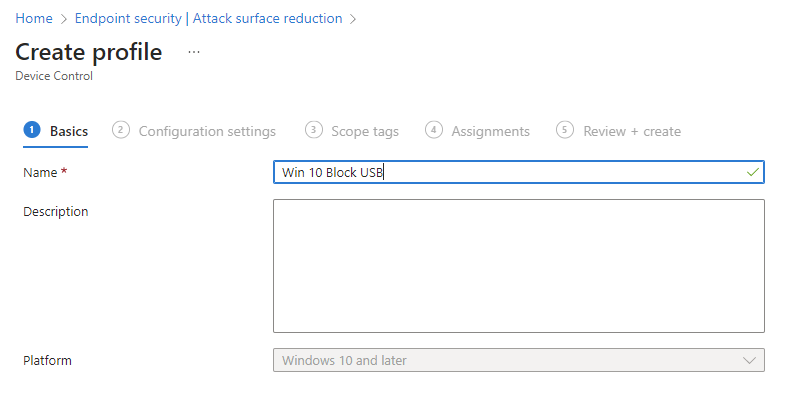
Give the policy a meaningful name and description.

Select Next to continue.

image

Under the System > Device Installation > Device Installation Restrictions heading locate the Prevent installation of removable devices item and set this to Enabled as shown above.

Select Next to continue.

image

Scroll down the list of available settings to locate the Device Control section as shown. To prevent ANY new USB from installing ensure this option is set to Not configured.

Select Next to continue.

image

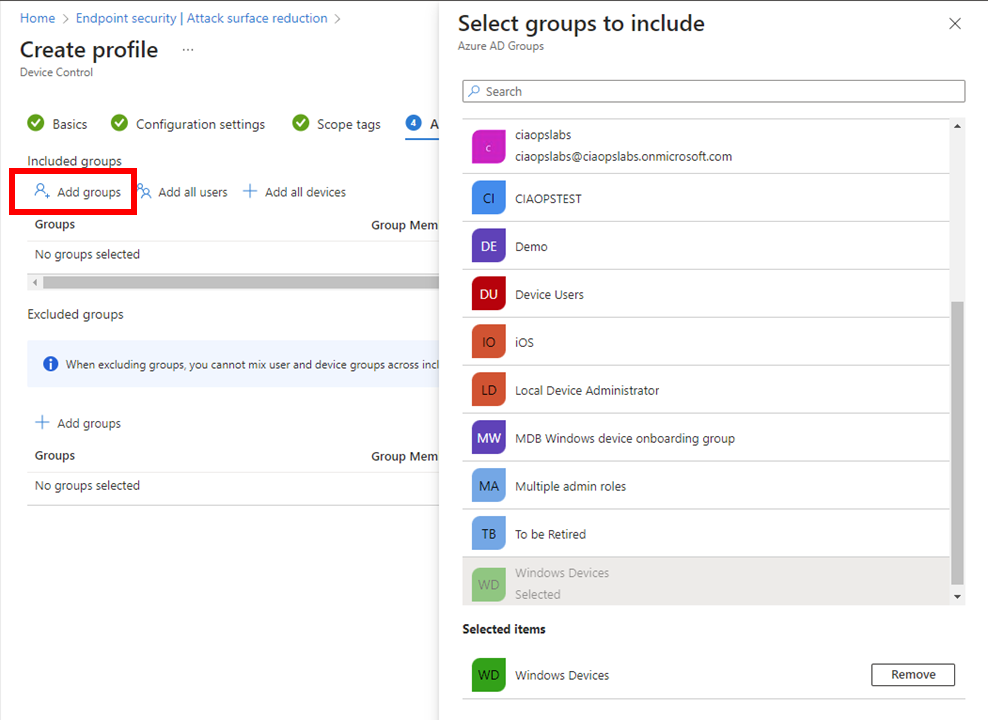
Assign the policy to a group. Here it is being assigned to all Windows devices.

Select Next to continue.

image

On the summary screen, expand the Administrative Templates option as shown. In here you should see that Prevent installation of removable devices is set to Enabled.

Select Create.

image

The created policy should now be listed as shown above. Click on it to view.

image

When the policy has been successfully applied to the devices the policy was assigned to you should see the status of devices as shown above.

Select View report button.

image

You should now see all the listed that have this policy applied to them as shown above.

Screenshot 2023-03-20 145033

If you now try and plug in an unknow USB storage device you may see the above warning. In other cases, you will see no warning but USB device storage will be blocked.

Some points to remember:

1. The above policy is only designed for Windows 10 and above

2. The above policy won’t prevent USB storage devices that have already been used on an endpoint. These need to be removed from the device manager on the device to be blocked in future.

3. Some USB devices that don’t appear as storage devices in fact have a small amount of storage on them (for video and projector drivers for example). These will also be blocked.
4. You can create exceptions to this policy via the device id if you wish.

Need to Know podcast–Episode 299

In this episode I take a stroll through Microsoft Compliance manager and highlight some important features that you should consider taking advantage of. In the news and updates I share information about the new Microsoft Co-pilot services and how that brings the power of AI and Chat GPT to the full suite of Microsoft 365 services.

You can listen directly to this episode at:

https://ciaops.podbean.com/e/episode-299-compliance-manager/

Subscribe via iTunes at:

https://itunes.apple.com/au/podcast/ciaops-need-to-know-podcasts/id406891445?mt=2

The podcast is also available on Stitcher at:

http://www.stitcher.com/podcast/ciaops/need-to-know-podcast?refid=stpr

Don’t forget to give the show a rating as well as send me any feedback or suggestions you may have for the show.

This episode was recorded using Microsoft Teams and produced with Camtasia 2022.

Brought to you by www.ciaopspatron.com

Resources

@directorcia

@directorcia@twit.social

Join my shared channel

CIAOPS merch store

Become a CIAOPS Patron

CIAOPS Blog

YouTube edition of this podcast

Introducing Microsoft 365 Copilot – your copilot for work

Introducing Microsoft 365 Copilot—A whole new way to work

Introducing Microsoft 365 Copilot — your copilot for work

Build solutions faster with Microsoft Power Platform and next-generation AI

Configuring BitLocker via Microsoft Intune settings catalog

Announcing support of the new Microsoft Store apps during Windows Autopilot

Playlists, offline viewing and more in Stream (on SharePoint)

XDR attack disruption in action – Defending against a recent BEC attack

Microsoft is named a Leader in the 2022 Gartner® Magic Quadrant™ for Endpoint Protection Platforms

CIAOPS Need to Know Microsoft 365 Webinar – March

laptop-eyes-technology-computer

Join me for the free monthly CIAOPS Need to Know webinar. Along with all the Microsoft Cloud news we’ll be taking a look at Daa protection in Microsoft 365

Shortly after registering you should receive an automated email from Microsoft Teams confirming your registration, including all the event details as well as a calendar invite.

You can register for the regular monthly webinar here:

March Webinar Registrations

(If you are having issues with the above link copy and paste – https://bit.ly/n2k2303

The details are:

CIAOPS Need to Know Webinar – March 2023
Tuesday 28th of March 2023
11.00am – 12.00am Sydney Time

All sessions are recorded and posted to the CIAOPS Academy.

The CIAOPS Need to Know Webinars are free to attend but if you want to receive the recording of the session you need to sign up as a CIAOPS patron which you can do here:

http://www.ciaopspatron.com

or purchase them individually at:

http://www.ciaopsacademy.com/

Also feel free at any stage to email me directly via director@ciaops.com with your webinar topic suggestions.

I’d also appreciate you sharing information about this webinar with anyone you feel may benefit from the session and I look forward to seeing you there.

Need to Know podcast–Episode 298

In this episode I look at the recommended best practices for managing your emergency access or ‘break glass; accounts in Microsoft 365. In the news we welcome the arrival of the Intune Suite and major update to Windows 11. Listen along for all the details.

You can listen directly to this episode at:

https://ciaops.podbean.com/e/episode-298-break-glass/

Subscribe via iTunes at:

https://itunes.apple.com/au/podcast/ciaops-need-to-know-podcasts/id406891445?mt=2

The podcast is also available on Stitcher at:

http://www.stitcher.com/podcast/ciaops/need-to-know-podcast?refid=stpr

Don’t forget to give the show a rating as well as send me any feedback or suggestions you may have for the show.

This episode was recorded using Microsoft Teams and produced with Camtasia 2022.

Brought to you by www.ciaopspatron.com

Resources

@directorcia

@directorcia@twit.social

Join my shared channel

CIAOPS merch store

Become a CIAOPS Patron

CIAOPS Blog

YouTube edition of this podcast

The Microsoft Intune Suite fuels cyber safety and IT efficiency

Introducing a big update to Windows 11 making the everyday easier including bringing the new AI-powered Bing to the taskbar

Total Identity Compromise: DART lessons on securing Active Directory

Skilling snack: Intro to Azure Active Directory

Defender for Endpoint(MDE): Integrate with Compliance & Conditional Access Policy

Mitigate risks with application block in Defender Vulnerability Management

SharePoint Roadmap Pitstop: February 2023

Microsoft is named a Leader in the 2022 Gartner® Magic Quadrant™ for Endpoint Protection Platforms

Manage emergency access accounts in Azure AD

Exchange Online Spam Filters

This video provides an introduction to Exchange Online Spam policies. particularly Inbound and Outbound policies plus Connect Filter Policies. You’ll see how to view the existing policies, make changes to these policies as well as create new ones using the Microsoft 365 Security Administration console.

Need to Know podcast–Episode 297

In this episode I do a quick overview of the differences between Windows 365 Business, Enterprise and Azure Virtual Desktop (AVD) and how they can be used inside a business. You’ll also get the latest news and updates from the Microsoft cloud.

You can listen directly to this episode at:

https://ciaops.podbean.com/e/episode-297-windows-365-and-avd/

Subscribe via iTunes at:

https://itunes.apple.com/au/podcast/ciaops-need-to-know-podcasts/id406891445?mt=2

The podcast is also available on Stitcher at:

http://www.stitcher.com/podcast/ciaops/need-to-know-podcast?refid=stpr

Don’t forget to give the show a rating as well as send me any feedback or suggestions you may have for the show.

This episode was recorded using Microsoft Teams and produced with Camtasia 2022.

Brought to you by www.ciaopspatron.com

Resources

@directorcia

@directorcia@twit.social

Join my shared channel

CIAOPS merch store

Become a CIAOPS Patron

CIAOPS Blog

YouTube edition of this podcast

Reinventing search with a new AI-powered Microsoft Bing and Edge, your copilot for the web

Introducing the New Post-delivery Activities Report in Microsoft Defender for Office 365

Yammer is evolving to Microsoft Viva Engage with new experiences rolling out today

Automate your alert response actions in Microsoft 365 Defender

Microsoft Defender – Monthly news – February 2023

Expanding support for Attack surface reduction rules with Microsoft Intune

Introducing Adaptive Protection in Microsoft Purview—People-centric data protection for a multiplatform world