Subscribing a Sparkfun ThingPlus ESP32-S2 WROOM to Adafruit IO

I have now been able to successfully publish temperature data from a ESP32-S2 device to Adafruit IO as I detailed here:

https://blog.ciaops.com/2023/05/31/connecting-a-sparkfun-thingplus-esp32-s2-wroom-to-adafruit-io/

The next thing I want to achieve is to ‘push’ data down to the device from the Adafruit IO web site.

The starting point for this is to create a new feed in Adafruit IO. You’ll find how to do that here:

https://learn.adafruit.com/adafruit-io-basics-feeds/overview

To inject data into this feed I’ll need to create a Dashboard in Adafruit IO. You can find out about doing that here:

https://learn.adafruit.com/adafruit-io-basics-feeds/overview

In my case, I’ll add an ON/OFF button to the dashboard and connect that button to the feed I just created.

image

This will basically inject the text values ON and OFF into the feed, which I’ll then read on my device and take action.

The code looks similar to last time but now:

Adafruit_MQTT_Subscribe onoffbutton = Adafruit_MQTT_Subscribe(&mqtt, AIO_USERNAME “/feeds/onoffbutton”);

You’ll see that I define a variable using the Subscribe method.

while (subscription = mqtt.readSubscription(2000)) {

Serial.println(F(“Received button data”));

if (subscription == &onoffbutton) {

Serial.print(F(“Got: “));

String ledstatus = (char *)onoffbutton.lastread;

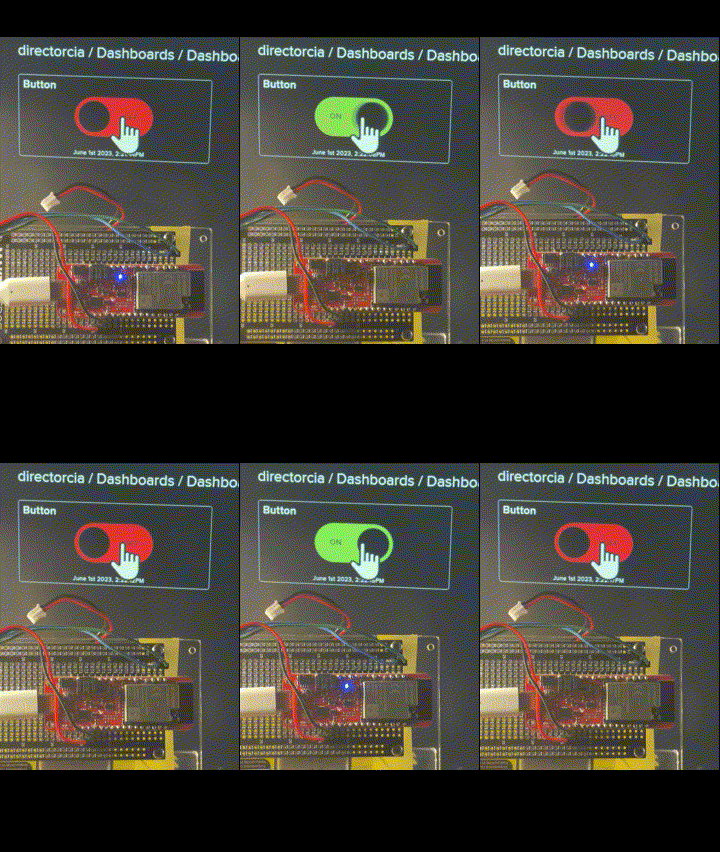
The core of the program on the device is the statement starting above that reads from the feed, and if contains a value, it then takes an action. In this case, I look for the text ON or OFF in the feed and then take the appropriate action with the inbuilt LED on the device.

The result looks like:
switchled

You’ll find the code at:

https://github.com/directorcia/Azure/blob/master/Iot/ESP32-S2/IO-Adafruit-Subscribe/main.cpp

So using Adafruit IO I’ve able to pretty easily send information to a dashboard and receive information from a dashboard. I now need to have a look at sending data from Azure to the device but I’m in no rush to do that just yet as I figure it will take a bit of work. I think my next project will trying to use the device to control some motors and add ‘motion’ to my project.

Stay tuned for more.

CIAOPS Need to Know Microsoft 365 Webinar – June

laptop-eyes-technology-computer

Join me for the free monthly CIAOPS Need to Know webinar. Along with all the Microsoft Cloud news we’ll be taking a look at SharePoint Lists.

Shortly after registering you should receive an automated email from Microsoft Teams confirming your registration, including all the event details as well as a calendar invite.

You can register for the regular monthly webinar here:

June Webinar Registrations

(If you are having issues with the above link copy and paste – https://bit.ly/n2k2306

The details are:

CIAOPS Need to Know Webinar – June 2023
Friday 30th of June 2023
11.00am – 12.00am Sydney Time

All sessions are recorded and posted to the CIAOPS Academy.

The CIAOPS Need to Know Webinars are free to attend but if you want to receive the recording of the session you need to sign up as a CIAOPS patron which you can do here:

http://www.ciaopspatron.com

or purchase them individually at:

http://www.ciaopsacademy.com/

Also feel free at any stage to email me directly via director@ciaops.com with your webinar topic suggestions.

I’d also appreciate you sharing information about this webinar with anyone you feel may benefit from the session and I look forward to seeing you there.

Connecting a Sparkfun ThingPlus ESP32-S2 WROOM to Adafruit IO

After my previous success getting data into Azure IoT Central I now wanted a way to send data the other way. That is to the device from the cloud. However, I could see this being a challenge if I continued to use Azure as my cloud endpoint. What I really needed was something simpler to help me better understand the core communication concepts.

With this in mind I discovered:

https://learn.adafruit.com/

that is much easier to use to do the basic stuff I wanted.

I therefore went to Adafruit IO and created a free account. This will then give you access to:

https://io.adafruit.com/

I then needed to create a ‘Feed’ into which the data from my device would be sent so that it could then appear in the Adafruit IO console. You can follow these instructions to create a ‘Feed’:

https://learn.adafruit.com/adafruit-io-basics-feeds/overview

image

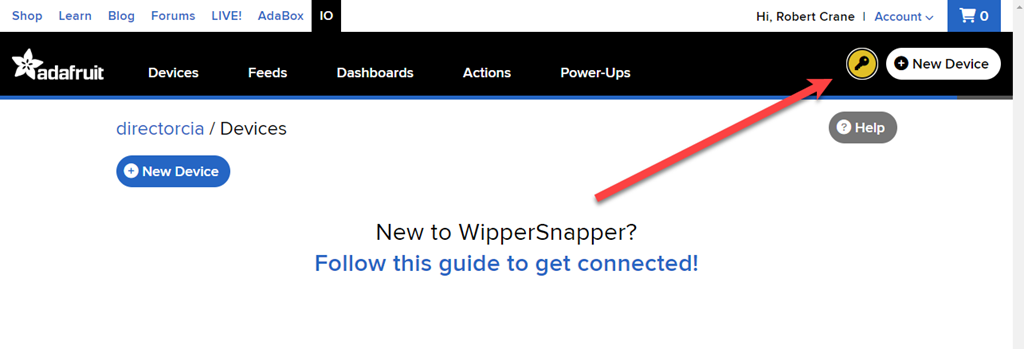
To get the credentials you’ll need to connect to the feed you just created you’ll need to select the ‘key’ icon in the top right of the window as shown above to reveal the details.

image

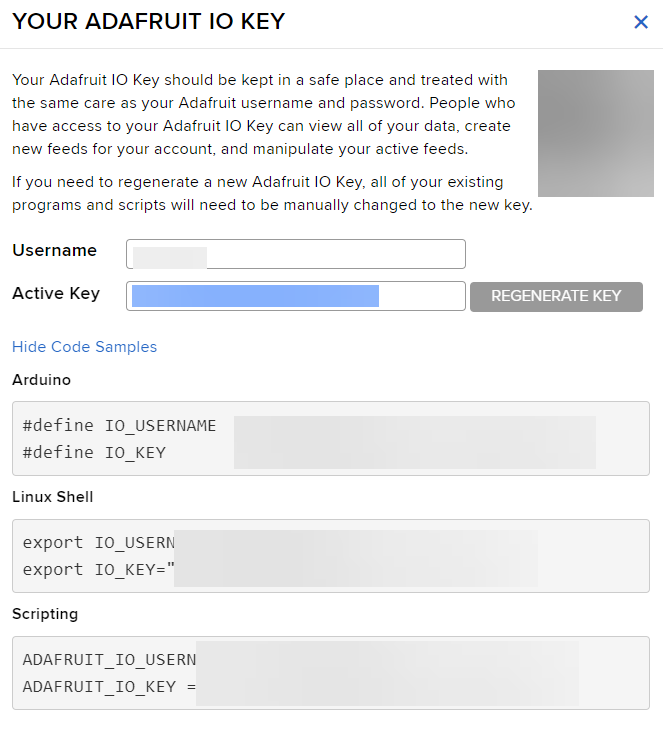
You should see a dialog like that shown above with your Active key. It is also handy to grab the sample code displayed below.

You’ll need the following headers/libraries in your code:

#include <Arduino.h>
#include <WiFi.h>
#include <Adafruit_MQTT.h>
#include <Adafruit_MQTT_Client.h>

you’ll also need to define a few things:

#define AIO_SERVER “io.adafruit.com”
#define AIO_SERVERPORT 1883
#define AIO_USERNAME “<Adafruit IO user name>
#define AIO_KEY “<Your Active key>
#define WLAN_SSID “<Your WiFi name>
#define WLAN_PASS “<Your Wifi password>

You’ll need to enter your own values for the last few to suit your own environment.

Next, you need to connect to the feed you created using:

// Setup the MQTT client class by passing in the WiFi client and MQTT server and login details.


Adafruit_MQTT_Client mqtt(&client, AIO_SERVER, AIO_SERVERPORT, AIO_USERNAME, AIO_KEY);

Adafruit_MQTT_Publish feed= Adafruit_MQTT_Publish(&mqtt, AIO_USERNAME “/feeds/<Your feed name>”);

The feed variable here is where you will ‘publish’ data to be sent to the Adafruit IO console. The main loop running on the device will then contain something like this:

if (!feed.publish(ciaaht_getTemp())) {
Serial.println(F(“Failed”));}
else {
Serial.println(F(“Success”));}

which in essence, publishes data to the feed you created. In my case, I’m feeding in temperatures data via the function ciaaht_getTemp() which get the temperature from the DHT20.

There is a little bit more to it than that, but all the code is here:

https://github.com/directorcia/Azure/tree/master/Iot/ESP32-S2/IO-Adafruit-Publish

including the custom temperature sensor functions code I created previously.

image

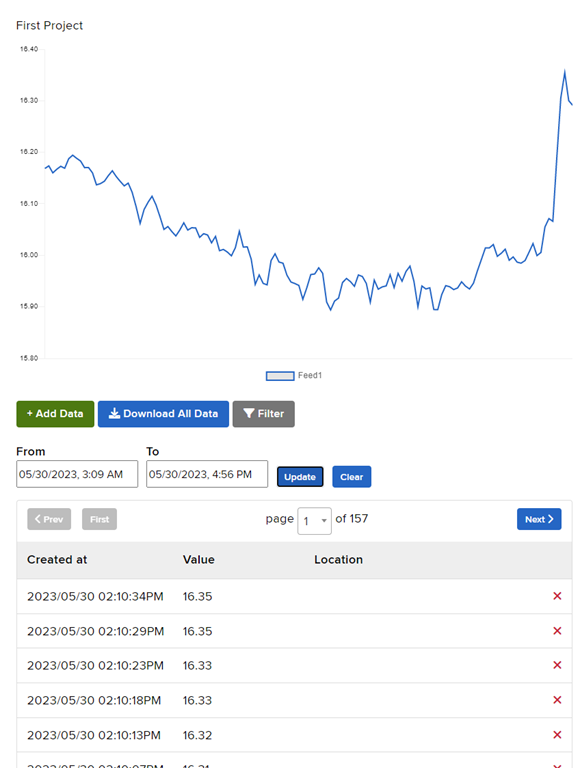
With the code now uploaded to the ESP-32 I was able to see the data appearing in my feed in Adafruit IO as shown above. You’ll also see in my code that I used the on board LED as kind of indicator to let me know if things were working. A visual debugger if you like.

As you can see, getting data into Adafruit IO is much, much easier than into Azure IoT Central and I understand why that is and I’d suggest people start with Adafruit IO before moving to Azure. There is far less code with Adafruit IO making far easier to debug and understand.

With this now working and displaying temperature from my sensor, it is time to try and now send data to the device to control it from the cloud. Look out for that update coming soon!

Need to Know podcast–Episode 303

Join me for all the news an updates from Microsoft Build as well as a look at the Microsoft Package Manager, Winget.

This episode was recorded using Microsoft Teams and produced with Camtasia 2023.

You can listen directly to this episode at:

https://ciaops.podbean.com/e/episode-303-winget/

Subscribe via iTunes at:

https://itunes.apple.com/au/podcast/ciaops-need-to-know-podcasts/id406891445?mt=2

The podcast is also available on Stitcher at:

http://www.stitcher.com/podcast/ciaops/need-to-know-podcast?refid=stpr

Don’t forget to give the show a rating as well as send me any feedback or suggestions you may have for the show

Brought to you by www.ciaopspatron.com

Resources

@directorcia

@directorcia@twit.social

Join my shared channel

CIAOPS merch store

Become a CIAOPS Patron

CIAOPS Blog

YouTube edition of this podcast

Microsoft Build

Microsoft Build Book of News

Expanding IT value in Windows 11 Enterprise and Intune

Windows 365 boot

Announcing new Windows 11 innovation, with features for secure, efficient IT management and intuitive user experience

Microsoft Mesh: Transforming how people come together in the modern workplace

Bringing the power of AI to Windows 11 – unlocking a new era of productivity for customers and developers with Windows Copilot and Dev Home

Hardening Windows Clients with Microsoft Intune and Defender for Endpoint

Cyber Signals: Shifting tactics fuel surge in business email compromise

Automatically disrupt adversary-in-the-middle (AiTM) attacks with XDR

Use the winget tool to install and manage applications

Winstall.app

Wingetui

Introduction to Exchange Online Protection

This video is the technical session from my May 2023 Need to Know webinar that focuses on helping people understand Microsoft 365. The aim is to help viewers get an overview of how Exchange Online Protection secures their environment and where they can go to made additional adjustments if required.

The session was recorded using Microsoft Teams.

You can find the slide deck for this session here – https://www.slideshare.net/directorcia/may-2023-ciaops-need-to-know-webinar

Get Teams Meeting Attendees via PowerShell and the Microsoft Graph

Here’s a handy way to get a list of attendees in Microsoft Teams using PowerShell. I have uploaded the script to do this here:

https://github.com/directorcia/Office365/blob/master/tms-attend-get.ps1

Before you run the script you’ll need to have the Graph PowerShell module installed.

image

You’ll also need to set some variable values for your own environment in the script. You can do this by locating $tenantid in the script as shown above, and setting that to your own tenant URL. Then find $meetingjoinurl and set that to the URL for that meeting. Finally, set $useremail to the email address of the user who created the meeting.

image

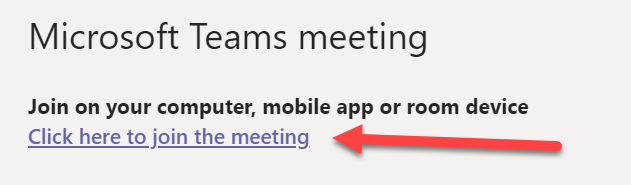
The meeting URL is the link people selected to join the meeting as shown above. You’ll also find it in the configuration for the meeting.

image

With all those settings updated, when you run the script it should look something like shown above. The script will connect to the Microsoft Graph with the scopes required to read the meeting details. You may be requested to login to the tenant and then potentially consent to these scopes during the connection phase. The required scopes are:

OnlineMeetingArtifact.Read.All
OnlineMeetings.Read

The script will get the GUID of the creator of the meeting from the email you specified followed by the meeting id from the meeting join link you specified, then the report id for that meeting and finally the report details for the meeting. It will then display the email address (if recorded) of attendees as shown above.

Of course, you can just download the CSV meeting report from the Teams page I know, but this process will be first step in eventually using Power Automate to get meeting attendees and send them an automatic follow up after the meeting. Stay tuned for details on that coming soon. This is simply proof of concept and a handy option if you do indeed just want to use PowerShell to get a list of meeting attendees.