Script to create EntraID reset app

After a recent incident, I decided that it would be a good idea to have an EntraID app that I could use to re-enable a users inside a tenant if I needed. I have previously detailed how to do this manually:

Create an EntraID app to allow user enablement

I’ve now created a script you can use to accomplish this which you will find here:

https://github.com/directorcia/Office365/blob/master/eid-resetapp-set.ps1

Let me walk your through its operation:

You’ll need to ensure the Microsoft Graph PowerShell module is installed in your environment.

The new EntraID app will be called ‘Reset’ by default but you can change that by changing the variable $appname in the script.

The first thing the script will do is connect to the Microsoft Graph using the appropriate scopes or permissions. Typically you will need to login to your tenant with an administrator account because an new EntraID app needs to be created.

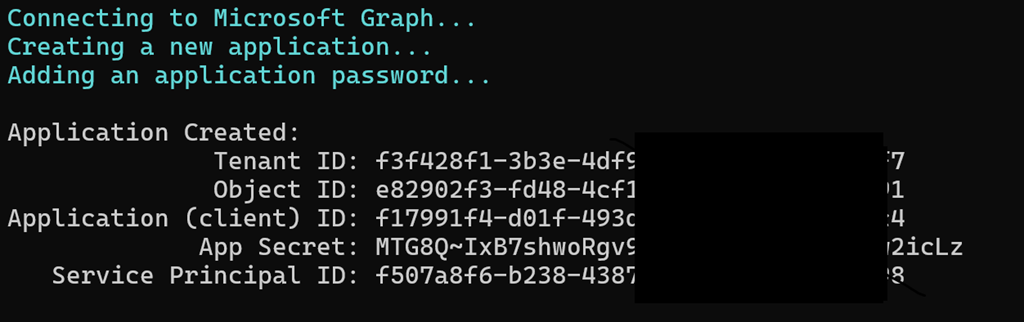
Next, the script will use the new-mgapplication command to create a new EntraID app in your environment. It will then use the add-mgapplicationpassword command to set a password for that app.

image

The script will now display all the important details about the EntraID app just created on the screen which you need to record for later use. Again, write this stuff down!

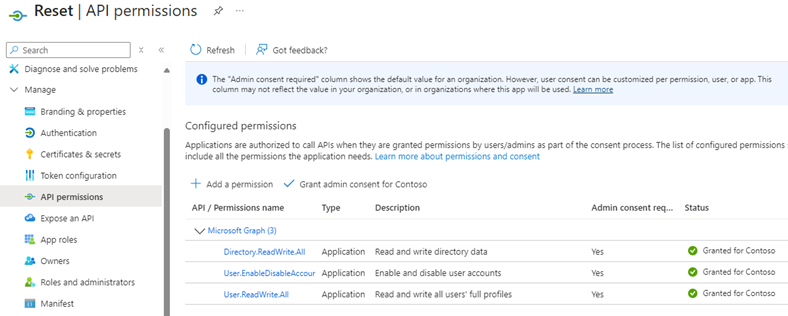
The script will now build the appropriate API permissions required for the EntraID app which are:

– User.EnableDisableAccount.All

– User.ReadWrite.All

– Directory.ReadWrite.All

These are required by the update-mguser command detailed here:

https://learn.microsoft.com/en-us/powershell/module/microsoft.graph.users/update-mguser?view=graph-powershell-1.0#description

The script now uses the command update-mgapplication to add these API permissions to the new EntraID app.

image

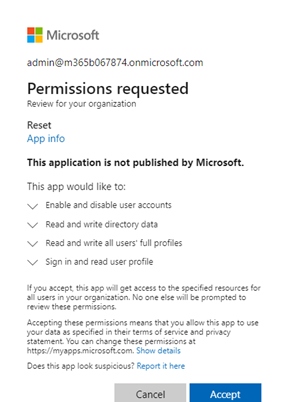
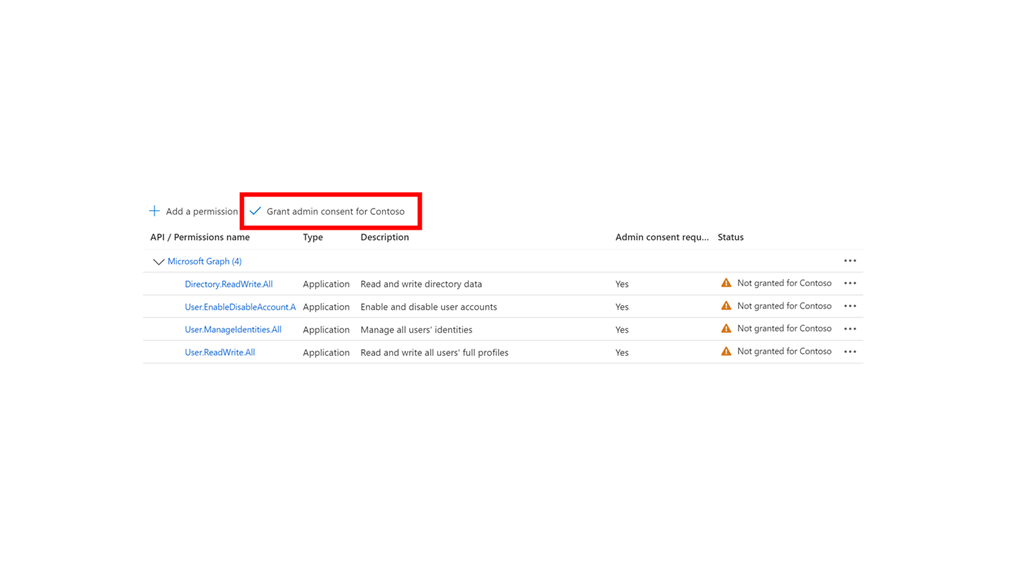
It then builds a consent URL and copies that to the clipboard. This consent URL you will need to past into a browser and click Accept. The consent URL is also displayed on the screen so you can copy and paste from there if needed.

I have not been able to get this consent function working inside my script. I aim to keep working on that but for now you’ll need to use the browser to consent to the permissions. If anyone know how to do this please let me know as I can’t get it to work.

image

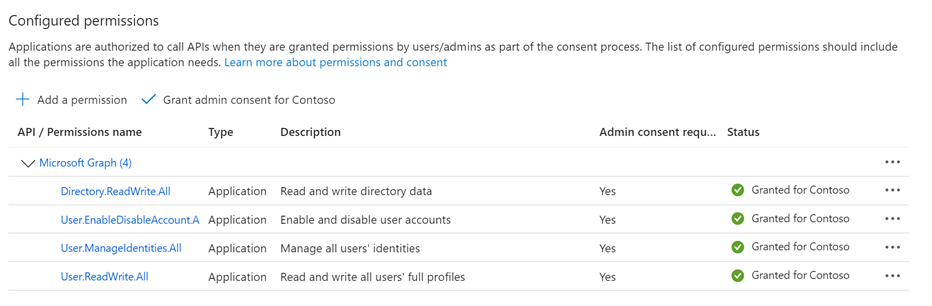
If you look inside your EntraID application you should now see one called ‘Reset’ with the appropriate API permissions consented to as shown above.

The completed script output should look like:

image

You should now be able to follow these instructions:

Using PowerShell to allow user enablement

to gain access if needed to enable a user, but don;t forget to save the credentials that this script produces for later use.

CIAOPS Brief 20241005

image

What is Microsoft Entra (and why use it)? –

https://techcommunity.microsoft.com/t5/apps-on-azure-blog/what-is-microsoft-entra-and-why-use-it/ba-p/4262826

Install apps for your business –

https://www.youtube.com/watch?v=qfUYWKEAtBk

Microsoft starts paying publishers for content surfaced by Copilot –

https://techcrunch.com/2024/10/01/microsoft-starts-paying-publishers-for-content-in-copilot/

Level Up Your Security Skills with the New Microsoft Sentinel Ninja Training! –

https://techcommunity.microsoft.com/t5/microsoft-sentinel-blog/level-up-your-security-skills-with-the-new-microsoft-sentinel/ba-p/4260106

Microsoft Defender XDR Monthly news – October 2024 –

https://techcommunity.microsoft.com/t5/microsoft-defender-xdr-blog/monthly-news-october-2024/ba-p/4258305

Cybersecurity Awareness Month: Securing our world—together –

https://www.microsoft.com/en-us/security/blog/2024/10/01/cybersecurity-awareness-month-securing-our-world-together/

Windows 11, version 24H2 security baseline –

https://techcommunity.microsoft.com/t5/microsoft-security-baselines/windows-11-version-24h2-security-baseline/ba-p/4252801

Windows 11, version 24H2: What’s new for IT pros –

https://techcommunity.microsoft.com/t5/windows-it-pro-blog/windows-11-version-24h2-what-s-new-for-it-pros/ba-p/4259108

Introducing Copilot Labs and Copilot Vision –

Introducing Copilot Labs and Copilot Vision | Microsoft Copilot Blog

New experiences coming to Copilot+ PCs and Windows 11 –

New experiences coming to Copilot+ PCs and Windows 11 | Windows Experience Blog

An AI companion for everyone –

https://blogs.microsoft.com/blog/2024/10/01/an-ai-companion-for-everyone/

Security settings management is available for multi-tenant environments in Microsoft Defender XDR –

https://techcommunity.microsoft.com/t5/microsoft-defender-for-endpoint/security-settings-management-is-available-for-multi-tenant/ba-p/4250996

Securing our future: September 2024 progress update on Microsoft’s Secure Future Initiative (SFI) –

https://www.microsoft.com/en-us/security/blog/2024/09/23/securing-our-future-september-2024-progress-update-on-microsofts-secure-future-initiative-sfi/

What’s New In Copilot | September 2024 –

https://techcommunity.microsoft.com/t5/microsoft-365-copilot/what-s-new-in-copilot-september-2024/ba-p/4256443

New Copilot for Security Plugin Name Reflects Broader Capabilities –

https://techcommunity.microsoft.com/t5/microsoft-defender-threat/new-copilot-for-security-plugin-name-reflects-broader/ba-p/4258810

Getting started with the new Outlook for Windows –

https://support.microsoft.com/en-us/office/getting-started-with-the-new-outlook-for-windows-656bb8d9-5a60-49b2-a98b-ba7822bc7627

After hours

The Eisenhower matrix: How to manage your tasks with EISENHOWER –

https://www.youtube.com/watch?v=tT89OZ7TNwc

Editorial

If you found this valuable, the I’d appreciate a ‘like’ or perhaps a donation at https://ko-fi.com/ciaops. This helps me know that people enjoy what I have created and provides resources to allow me to create more content. If you have any feedback or suggestions around this, I’m all ears. You can also find me via email director@ciaops.com and on X (Twitter) at https://www.twitter.com/directorcia.

If you want to be part of a dedicated Microsoft Cloud community with information and interactions daily, then consider becoming a CIAOPS Patron – www.ciaopspatron.com.

Watch out for the next CIA Brief next week

Using PowerShell to allow user enablement

After a recent incident, I decided that I needed a way, independent of a user login to re-enable a disabled user account. To achieve this an EntraID app needs to be created with the appropriate permissions as I have detailed here:

Create an EntraID app to allow user enablement

image

If a user is disabled as shown above,

Screenshot 2024-09-30 071803

you’ll firstly need to set some variables to use in your script as shown above for the client ID and the tenant ID which where available when the EntraID app was created previously.

Screenshot 2024-09-30 072052

Next you’ll need to save the EntraID app password credential to another variable as shown above. At this point you will be prompted to enter the EntraID app password you have previously stored.

Screenshot 2024-09-30 072151

You can now connect to the Microsoft Graph using the command:

Connect-MgGraph -TenantId $tenantId -ClientSecretCredential $ClientSecretCredential

at which point you should be logged into the tenant as shown above.

The command to update the user account is:

update-mguser

which requires the following application permissions as shown.

image

These permissions were set in the EntraID app previously created.

image

if the command:

Update-MgUser -UserId “AdeleV@M365B067874.OnMicrosoft.com” –AccountEnabled

is now run we don’t receive any errors on the command line as shown above.

image

but when we check the user we see that it is unblocked and able to be logged into.

The benefit of using this method is that you are not dependent on any existing user account to unlock any account. You are logging into the tenant using the EntraID app created prior. Haveing just an ‘unlock’ app like this means it has a ‘least privilege’  function of just unlocking a user account. However, you will still need to take appropriate action to protect the EntraID app as it does not prompt for MFA.

Need to Know podcast–Episode 328

Microsoft has announced updates to Copilot for Microsoft 365 which they are calling Wave 2. In this episode I cover off some of these changes and what I feel will be most useful for people. A number of other products from Microsoft have also become generally available so listen alone for all the new on that plus everything happening at Microsoft for SMB.

You can listen directly to this episode at:

https://ciaops.podbean.com/e/episode-328-riding-wave-2/

Subscribe via iTunes at:

https://itunes.apple.com/au/podcast/ciaops-need-to-know-podcasts/id406891445?mt=2

or Spotify:

https://open.spotify.com/show/7ejj00cOuw8977GnnE2lPb

Don’t forget to give the show a rating as well as send me any feedback or suggestions you may have for the show.

Brought to you by www.ciaopspatron.com

Resources

@directorcia

Join my shared channel

CIAOPS merch store

Become a CIAOPS Patron

CIAOPS Blog

CIAOPS Brief

CIAOPSLabs

Support CIAOPS

Microsoft 365 Copilot Wave 2: Pages, Python in Excel, and agents

The next phase of Microsoft 365 Copilot innovation

Microsoft 365 Copilot Wave 2: AI Innovations in SharePoint and OneDrive

Microsoft 365 Copilot | Copilot Pages

Announcing Copilot Pages for multiplayer collaboration

Copilot pages for IT Admins – Sep 2024 update

New Copilot enhancements help small and medium-sized businesses innovate

Microsoft 365 Copilot – Small Business Guide to Prepare your Data for Search

Update on Recall security and privacy architecture

Introducing Copilot in OneDrive: Now Generally Available

Microsoft Intune support for Apple Intelligence

Microsoft Entra Internet Access now generally available

The art and science behind Microsoft threat hunting: Part 3

Microsoft ignite

CIAOPS Brief 20240928

image

Update on Recall security and privacy architecture – https://blogs.windows.com/windowsexperience/2024/09/27/update-on-recall-security-and-privacy-architecture/

Introducing Copilot in OneDrive: Now Generally Available –

https://techcommunity.microsoft.com/t5/microsoft-onedrive-blog/introducing-copilot-in-onedrive-now-generally-available/ba-p/4253194

Storm-0501: Ransomware attacks expanding to hybrid cloud environments –

https://www.microsoft.com/en-us/security/blog/2024/09/26/storm-0501-ransomware-attacks-expanding-to-hybrid-cloud-environments/

Case Study: Harnessing Copilot for Security in Defending Against Cyberthreats –

https://techcommunity.microsoft.com/t5/microsoft-security-copilot-blog/case-study-harnessing-copilot-for-security-in-defending-against/ba-p/4251623

Implementing a secure by default approach with Microsoft Purview and address oversharing –

https://techcommunity.microsoft.com/t5/security-compliance-and-identity/implementing-a-secure-by-default-approach-with-microsoft-purview/ba-p/4251190

Microsoft Intune support for Apple Intelligence –

https://techcommunity.microsoft.com/t5/intune-customer-success/microsoft-intune-support-for-apple-intelligence/ba-p/4254037

Microsoft is named a Leader in the 2024 Gartner® Magic Quadrant™ for Endpoint Protection Platforms –

https://www.microsoft.com/en-us/security/blog/2024/09/25/microsoft-is-named-a-leader-in-the-2024-gartner-magic-quadrant-for-endpoint-protection-platforms/

Learn about the new Outlook for Windows –

https://www.youtube.com/playlist?list=PLXPr7gfUMmKxSob6H6MgRagqdNiUTg75e

After hours

Bill Gates talks new Netflix series, shares how he uses AI in his life – https://www.youtube.com/watch?v=qLBkqm8ctgg

Editorial

If you found this valuable, the I’d appreciate a ‘like’ or perhaps a donation at https://ko-fi.com/ciaops. This helps me know that people enjoy what I have created and provides resources to allow me to create more content. If you have any feedback or suggestions around this, I’m all ears. You can also find me via email director@ciaops.com and on X (Twitter) at https://www.twitter.com/directorcia.

If you want to be part of a dedicated Microsoft Cloud community with information and interactions daily, then consider becoming a CIAOPS Patron – www.ciaopspatron.com.

Watch out for the next CIA Brief next week

Create an EntraID app to allow user enablement

After a recent incident, I decided that it would be a good idea to have an EntraID app that I could use to re-enable a users inside a tenant if I needed. This will allow me to login to EntraID without being depended on a user account as I would be logging in using this app directly.

image

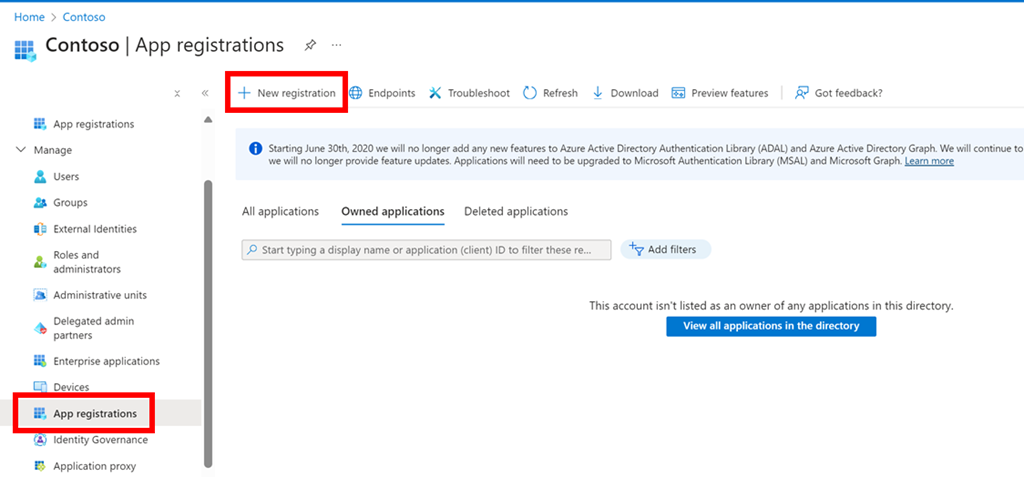
The first step in that process is to navigate to EntraID as an administrator in the Azure portal and select App registrations from the menu on the left and then New registration on the right as shown above.

image

Simply give the app a name and select Register as shown above.

image

When you will then be taken to new app overview page as shown above. Take a moment to record the:

– Application (client ID)

– Object ID

– Directory tenant ID

image

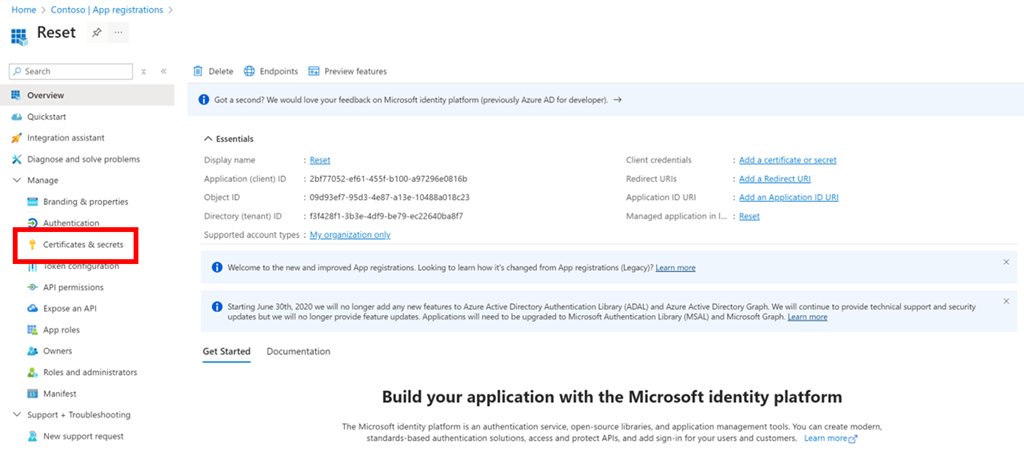
Next, select Certificates & secrets from the menu on the left as shown above.

image

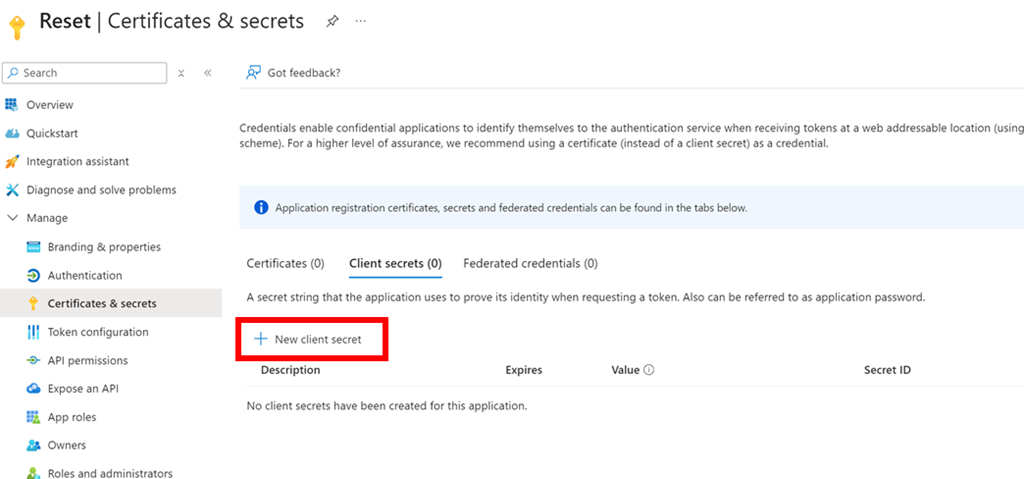
Select New client secret on the right as shown above.

image

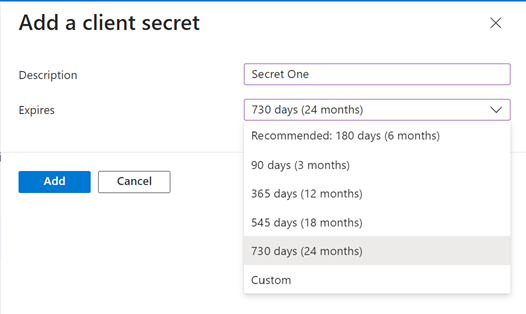
Give the secret a name and select the duration for that secret from the list available as shown.

image

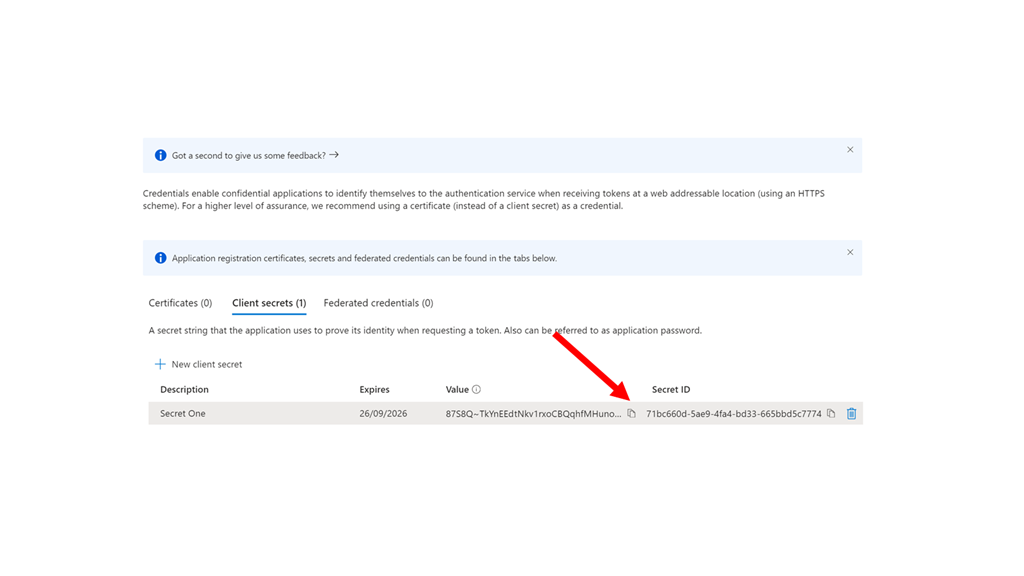
Take a moment to copy this secret as this is the only time that it will be available. If you don’t take a copy here you’ll need to generate a new secret.

image

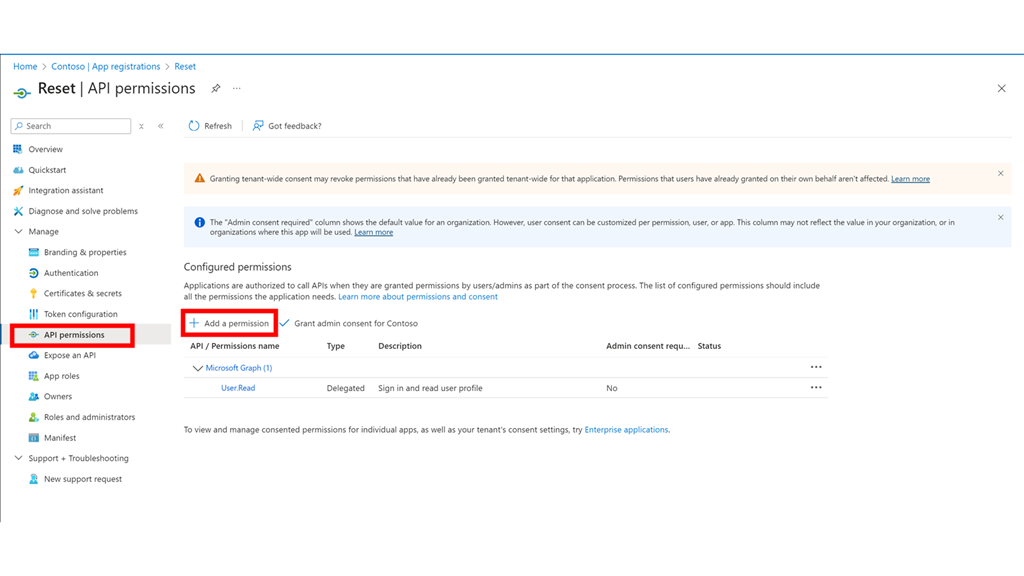
From the menu on the left select API permissions as shown above. Then select Add a permission on the right.

image

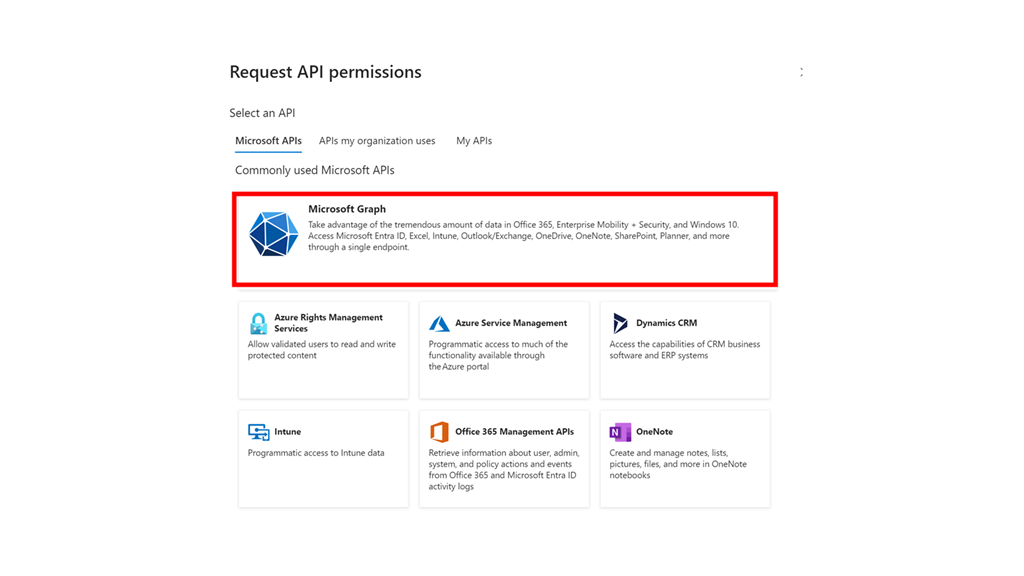
Select the option for the Microsoft Graph as shown.

image

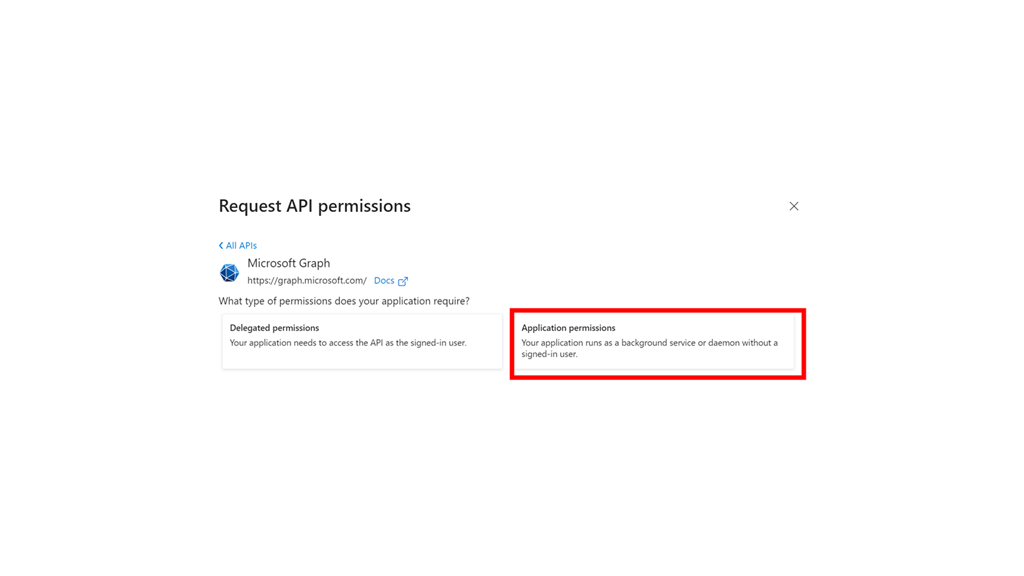
Select Application permissions.

Add the following permissions:

– User.ManageIdentities.All

– User.EnableDisableAccount.All

– User.ReadWrite.All

– Directory.ReadWrite.All

image

Select Grant admin consent.

image

Select Yes in the dialog that appears.

image

You should now see all the permissions have been consented to as shown above.

The EntraID app has now been created and is ready for use. This will used to login to with PowerShell and then enable any disabled user.


Excluding a user from Attack Disruption

After a recent incident, I decide to take a look at how I could exclude certain attacks from being automatically disable by Attack Disruption. More to understand how to disable this if I wanted rather than making it a standard setting as I think have automated Attack Disruption is a good thing.

To prevent Microsoft Defender XDR from automatically disabling accounts with automated attack disruption, you can configure exclusions within the Defender XDR settings. Here’s a general guide based on the information available:

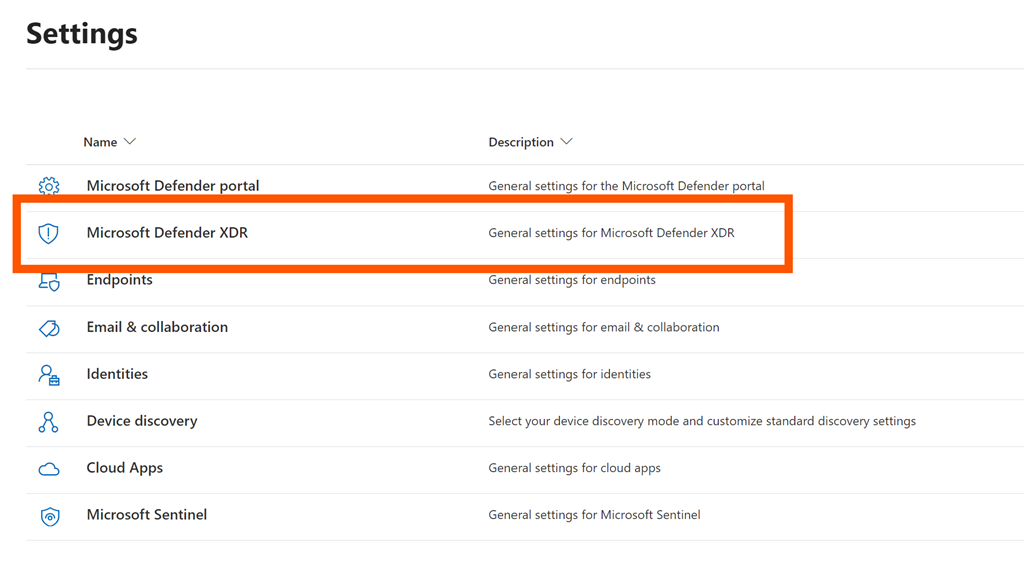
1. Navigate to Settings in the Microsoft Security portal.

Screenshot 2024-09-25 071244

2. Select Microsoft Defender XDR as shown above.

Screenshot 2024-09-25 070945

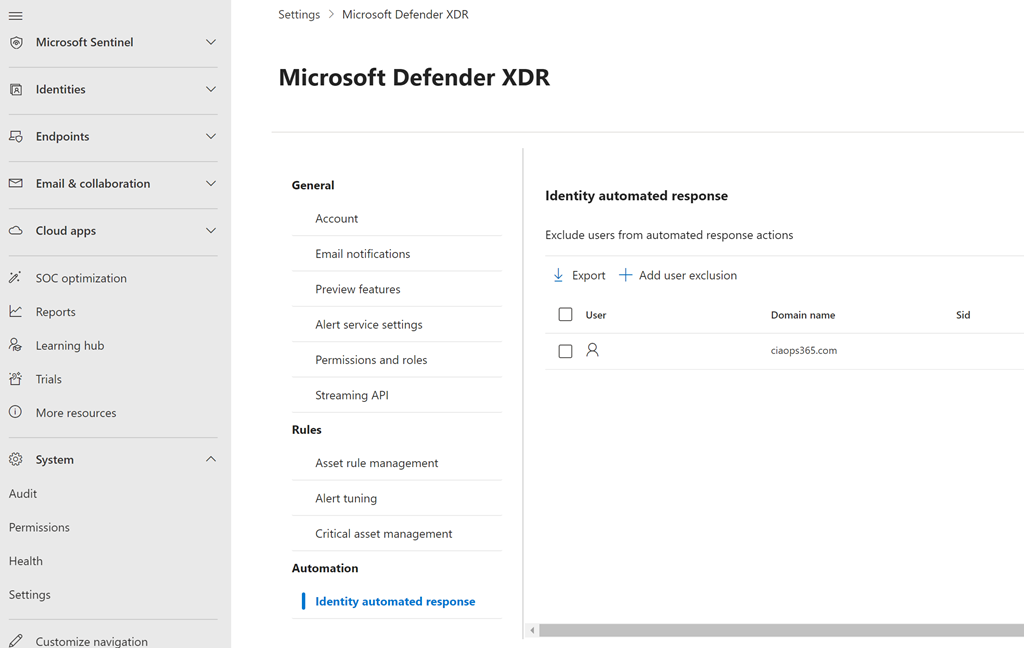
3. Select the Identity automated response option under the Automated section at the bottom of the page

4. On the right select the +Add user exclusion button to add a user you wish to exclude. That use should then appear in the list.

It’s important to note that while configuring exclusions can prevent automatic account disabling, it should be done with caution to ensure that it does not compromise your organization’s security posture. Always consider the potential risks and consult with your security team before making changes to the automated response settings.

For a detailed understanding and step-by-step instructions, you may refer to the documentation and resources provided by Microsoft, such as the Microsoft 365 Defender portal and Microsoft Learn articles on automatic attack disruption.

Configure automatic attack disruption capabilities in Microsoft Defender XDR – Microsoft Defender XDR | Microsoft Learn

Automated response exclusions – Microsoft Defender for Identity | Microsoft Learn

My kingdom for a global admin login

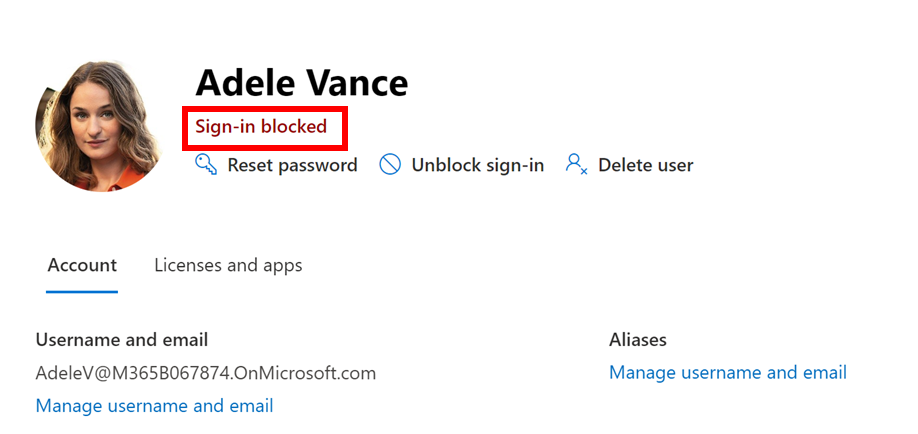
I had an experience recently in which I was unable to access a non-production tenant as a Global administrator. For some reason Defender decided that one of the Global Admins for the tenant had been compromised and an automated action had disabled that account per below:

image

image

I am still not 100% sure why this happened (investigations ongoing) but I was now blocked from accessing the tenant using an account that I used regularly. No worries I thought, I’ll just use my break glass account, which I did. I soon discovered, much to my dismay, that I had minimised the security level of my break glass so much that it wasn’t a global admin or possess the rights to unlock the account which had been disabled

So now I couldn’t get into my normal account and my break glass account didn’t have the permissions to re-enable the original disabled account. The next challenge was that I could only remember these two accounts inside the tenant. Although there were others in there I couldn’t remember their details as I never really used them.

I now needed to get Microsoft on the job as I couldn’t easily find a way to reenable the account. To this I needed to raise a ticket in the tenant. Problem was that typically, only admin can raise a support request in the tenant but I didn’t have access to any admin accounts. I therefore raised a support ticket in another tenant and provided all the details for the original tenant.

A few hours later I got a call from Microsoft about my issue and I explained what had happened and was informed that they would need to cancel the original ticket I had created and raise a new one for the right tenant. With that done, a while later I got a call from the Microsoft 365 Data Protection Team. These are the people who can give you access to your environment if it has been lost. Feeling better that the right people were now on the job I provided the Microsoft contact will all the details and we had a shared screen session where I demonstrated how I no longer had access. I was told that I would receive an update in 24 hours.

The next call from the Microsoft 365 Data Protection Team asked me about the domains and the other global admin I had in that tenant. I said I wasn’t sure as I didn’t use those regularly I simply used the account that was now locked. The Microsoft 365 Data Protection Team told me that to get the account unlocked I needed to prove that I was the legitimate owner of the tenant. The way they wanted me to achieve this was to add a TXT record in 3 of the domains I had pointing to the tenant in question.

That seemed easy enough and I was emailed the details to enter into the DNS for each domain. Basically it was a TXT record that needed to be added. I soon discovered that this would be a problem as two of the requested domains had their DNS records actually inside the tenant and managed by the same Microsoft 365 tenant I was locked out of. Thus, I couldn’t add the requested records for 2 of the 3 domains requested. All I could now do was point this out to the Microsoft 365 Data Protection Team and again wait for a response.

In the meantime I decided that I needed to extract as much configuration information from the tenant as I possible and in the process I realised that I had an Azure AD app that I could use to gain access. After logging in using the app credentials I determined that that too did not have sufficient permissions to enable the original but it did have enough permissions for me to gather information about users and domains to give me a far better idea of how the tenant was configured.

When the Microsoft 365 Data Protection Team finally made contact again, and given that I couldn’t set the required DNS records they basically had me share my screen and then use the camera to show my face along with some photo id that they could take a screen shot of to verify I was who I said I was. However, this needed to be signed off by another party inside Microsoft before my issues could be addressed.

Finally, a few hours later Microsoft again reached out and reset the password on one of the existing Global administrators, rather then re-enabling the account that had been locked and had me log into that other account which I managed to do successfully. At this point the Microsoft 365 Data Protection Team’s job was complete and they could close the ticket on this matter.

With global administrator access I now made sure I documented theses details and enabled the original break glass account to have the appropriate permissions plus take some addition steps to ensure this would not happen again.

Here are the lessons I learned from this experience and share:

  1. Regularly test that you have access to your break glass account and verify it has the permissions required to enable accounts and reset passwords.
  2. If you do need to get Microsoft’s assistance regaining control of your tenant it should be via the Microsoft 365 Data Protection Team that you need to get to assist you.
  3. Try and avoid having the DNS for the domains inside the tenant. Being able to change DNS records is going to be the initial way the Microsoft 365 Data Protection Team verify you are indeed the legitimate owner of the domain if you need to unlock access. If the DNS records can only be changed from inside the tenant you have lost access to, another verification method will be required.
  4. Ensure you have documented both the domains and users inside the tenant and know which ones are global administrators and which are active.
  5. Avoid having expired domains inside your Microsoft 365 tenant as these can be used to verify your identity.
  6. Do not expect the re-establishment of access to be a quick process it will probably take at least one week or more as it needs to go through a standard process of verification that the request is legitimate. In my case, due to the challenges with verifying I was the legitimate owner of the tenant, it took about 2 weeks from the actual incident.

I thank Microsoft for coming to me rescue with this account and fully acknowledge that they shouldn’t have needed to and I should have taken more care managing the tenant in question. I have learned a lot from this experience and hope by sharing this publicly that others will also and avoid the pain that I had to go through.