PowerShell with Azure Conditional Access

Recently, I did a video demonstrating how PowerShell can be used to automate Endpoint Management:

PowerShell with Endpoint Manager

I’ve now also created a video demonstrating how to automate Azure Conditional Access using PowerShell. As before, I am only making these scripts available via the CIAOPS Paton program.

In this video you’ll see me automatically backup up both Conditional Access locations and policies, then apply best practices locations and policies, finally restore the original policies, all using scripting.

Again, these scripts are not free and part of the CIAOPS Paton program. You’ll find my free stuff at https://www.github.com/directorcia.

Microsoft 365 Mailbox capacities and sizes

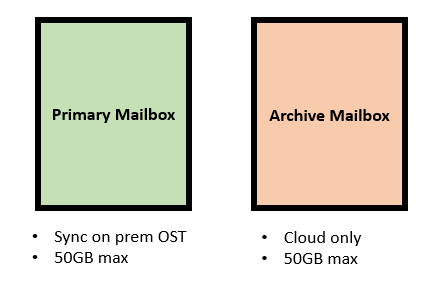
To better understand the mailbox capacities in Microsoft 365, think of an Exchange Online mailbox as potentially being made up of three distinct components like so:

image

  • Primary mailbox = Can be synchronised to Outlook on the desktop and into an OST file
  • Archive mailbox = Resides in the cloud
  • Compliance mailbox = Provides extra features like unlimited storage, litigation hold, etc. This too only resides in the cloud

The process by which the Compliance mailbox is provided 1.5TB of storage is by adding 100GB blocks of space as required. Thus you start with 100GB and when you exceed that another 100GB is added and so on. You can read about this in more detail here:

Overview of auto-expanding archive

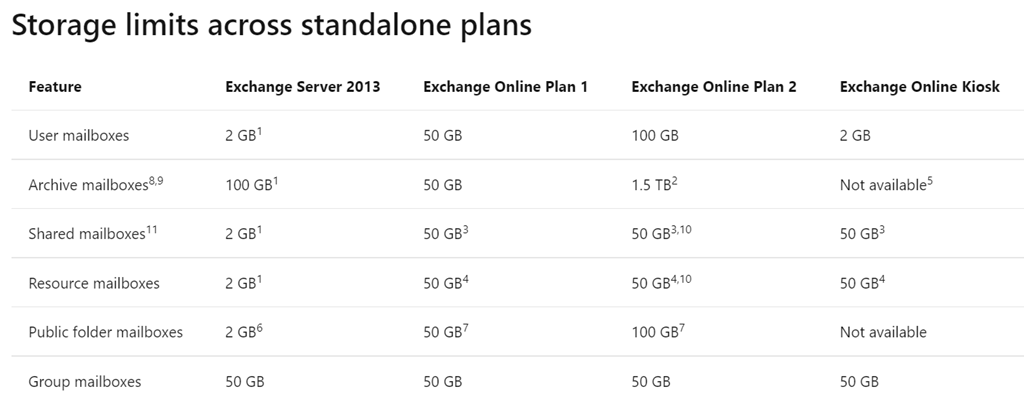
Now the capabilities and capacities of each of these individual mailboxes is defined in the Exchange Online limits, which currently are:

image

image

The configuration for Microsoft 365 Business Basic, Business Standard, Office 365 E1 and Exchange Online Plan 1 stand alone look like:

image

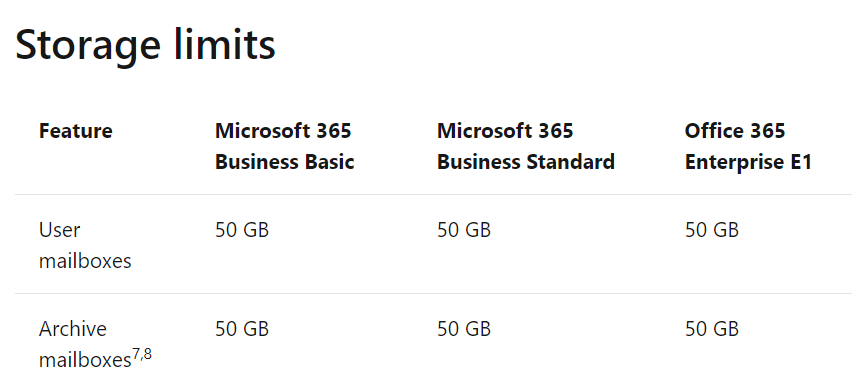
For all these licenses you get a 50GB primary mailbox and a 50GB cloud only archive.

image
image

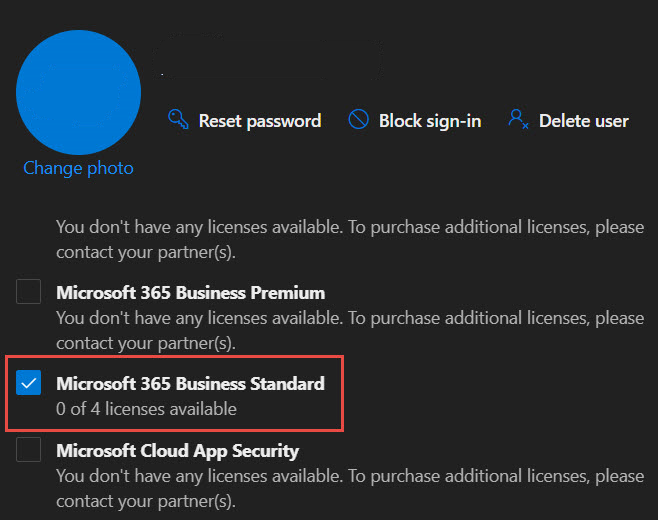
So a user with Microsoft 365 Business Standard like so:

image

will have a primary mailbox of capacity 50GB:

2021-02-05_10-54-41

and an archive also of 50GB like so:

2021-02-05_10-53-59

Thus, the total mailbox capacity across primary and archive combined here will be 100GB for these plans.

A Microsoft 365 Enterprise E3, E5, Office 365 E3, E5 or Exchange Online Plan 2 mailbox looks like:

image

It has a 100GB primary mailbox and a 1.5TB max capacity archive thanks to the fact that the features of the Compliance mailbox are baked into these plans as shown above. Confirming this in the Exchange Online limits documentation:

image

image

This 1.5TB capacity is provisioned by Auto expanding archive as mentioned previously per:

image

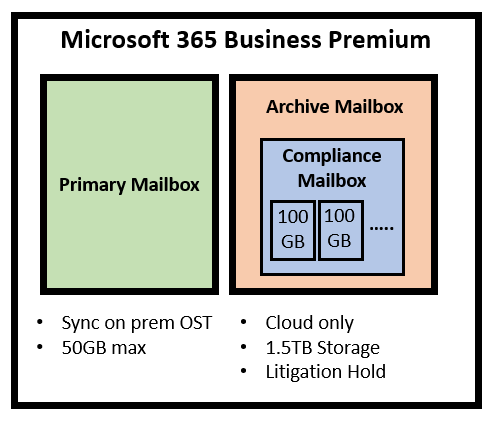
Where confusion is common is when the capacity of Microsoft 365 Business Premium mailboxes is considered.

image

As you can see from the above diagram, Microsoft 365 Business Premium is a little bit special because it takes a standard Exchange Online Plan 1 as discussed previously and adds something called Exchange Online Archiving. In simple terms, think of Exchange Online Archiving mapping directly to the Compliance mailbox mentioned early on. In essence, it provides an Exchange Online Plan 1 mailbox will features like 1.5TB storage, litigation hold and so on.

image

Thus, an easier way to think about a Microsoft 365 Business Premium mailbox is as being almost identical to the mailboxes found in Microsoft E3, E5, Office 365 E3, E5 and Exchange Online Plan 2 stand alone. That is except for one important difference. The Microsoft 365 Business Premium mailbox has a primary mailbox limit of 50GB which is just like the other Microsoft 365 Business mailboxes. This means that maximum amount of data that can be accommodated by a Microsoft 365 Business mailbox in a local OST file is 50GB NOT 100GB like what you receive with Enterprise mailboxes.

In summary then:

  • All Business mailboxes (and E1) receive a 50GB primary mailbox + 50 GB cloud archive mailbox = 100GB total storage
  • All Enterprise mailboxes (apart from E1) receive a 100GB primary mailbox + 1.5TB cloud archive mailbox
  • Business Premium mailboxes receive a 50GB primary mailbox + 1.5TB cloud archive mailbox

image

Microsoft 365 Business Premium receives this 1.5TB mailbox capability thanks to the inclusion of Exchange Online Archiving as shown above.

To get the best performance of any mailbox it is recommended best practice to ensure that capacities don’t get anywhere near what is detailed here. However, if you must, just keep the capacities and limitations for your license in mind.

Use PowerShell with Azure Sentinel

Yes Virginia, it is now possible to use PowerShell with Azure Sentinel. Microsoft has made available the Az.Security insights module that allows you to work with Azure Sentinel. You’ll find the module here:

https://www.powershellgallery.com/packages/Az.SecurityInsights/0.1.0

and you install it in your elevated PowerShell environment via the command:

Install-Module -Name Az.SecurityInsights –AllowClobber

To use the module commands you’ll also need to login to Azure. You can do that by using my connection scripts which are  here:

An easier way to connect using PowerShell

However, what I’ve done to make it even easier for you by creating a complete script here:

https://github.com/directorcia/Office365/blob/master/az-sentinel-ruleget.ps1

You run the script in your environment like so:

image

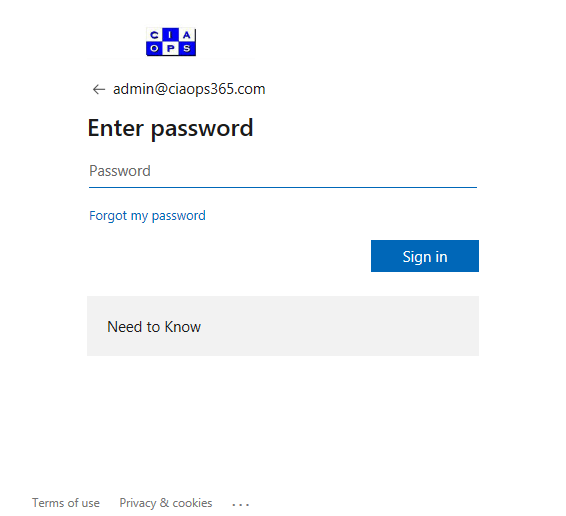
You’ll then be prompted to login to your Azure tenant like so:

image

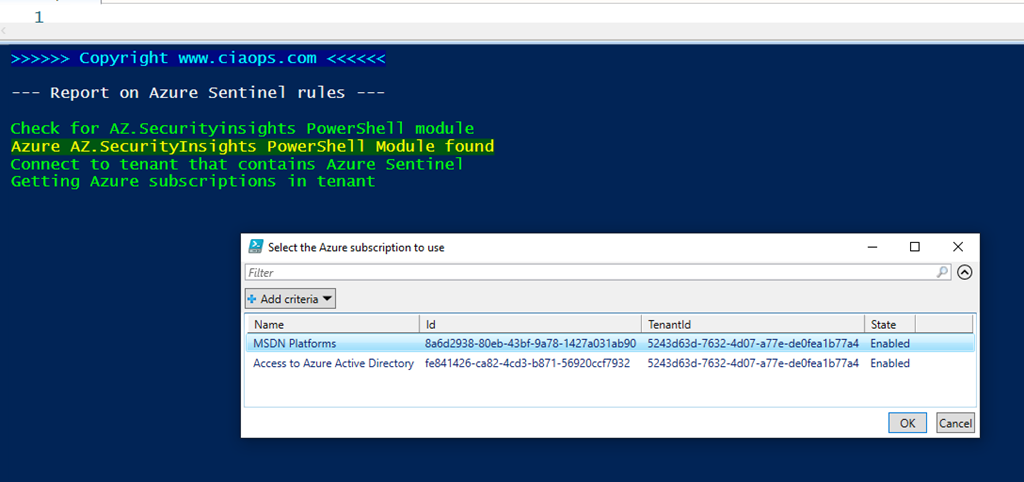
You’ll then be prompted to select your Azure subscription where Sentinel is configured:

image

You should see a list of all the subscriptions in your tenant as shown above. Select the one where Azure Sentinel is configured and select OK to continue.

image

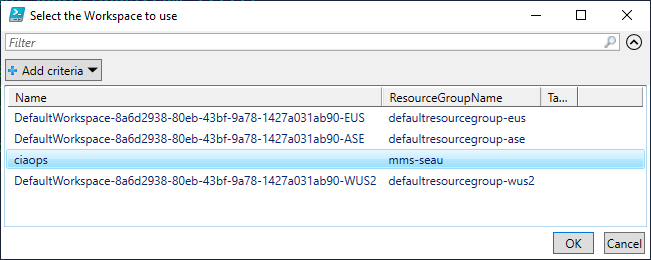
You’ll then be prompted to select which workspace Azure Sentinel is configured with. Again, just select the appropriate workspace and then OK to continue.

image

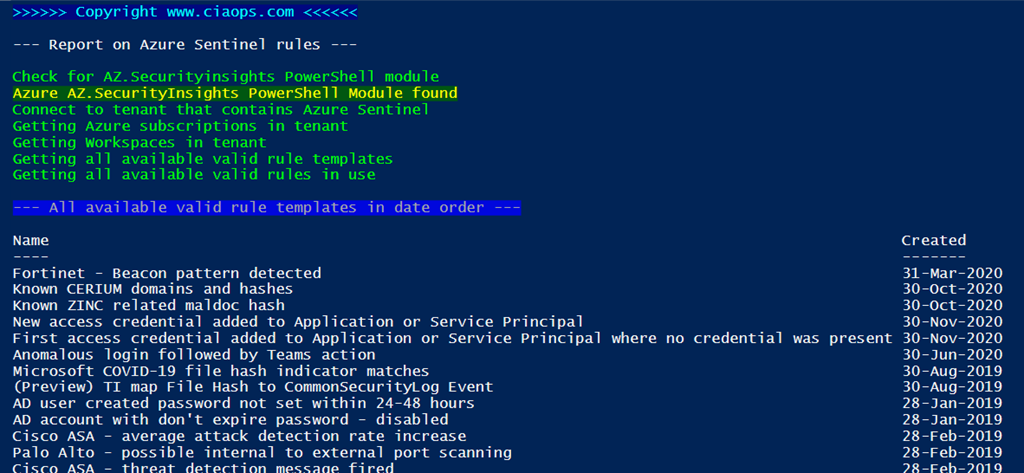
The script will now display  a list of all the available Rule Templates in Sentinel as shown above, sorted by most recently added (handy to see what’s new!).

image

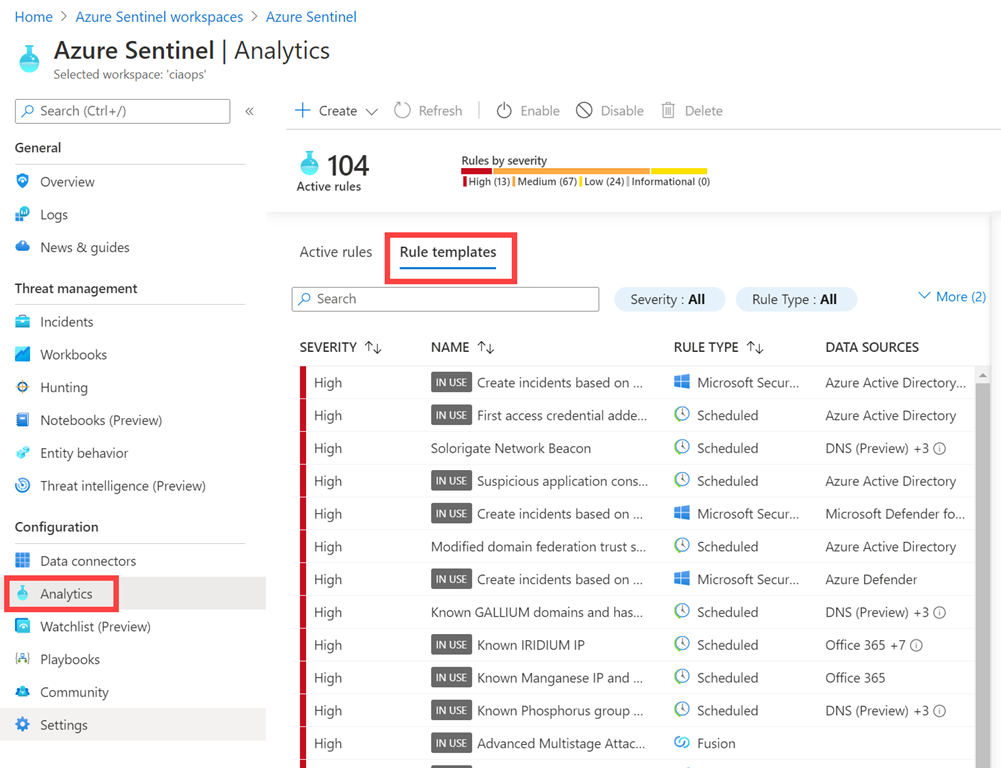
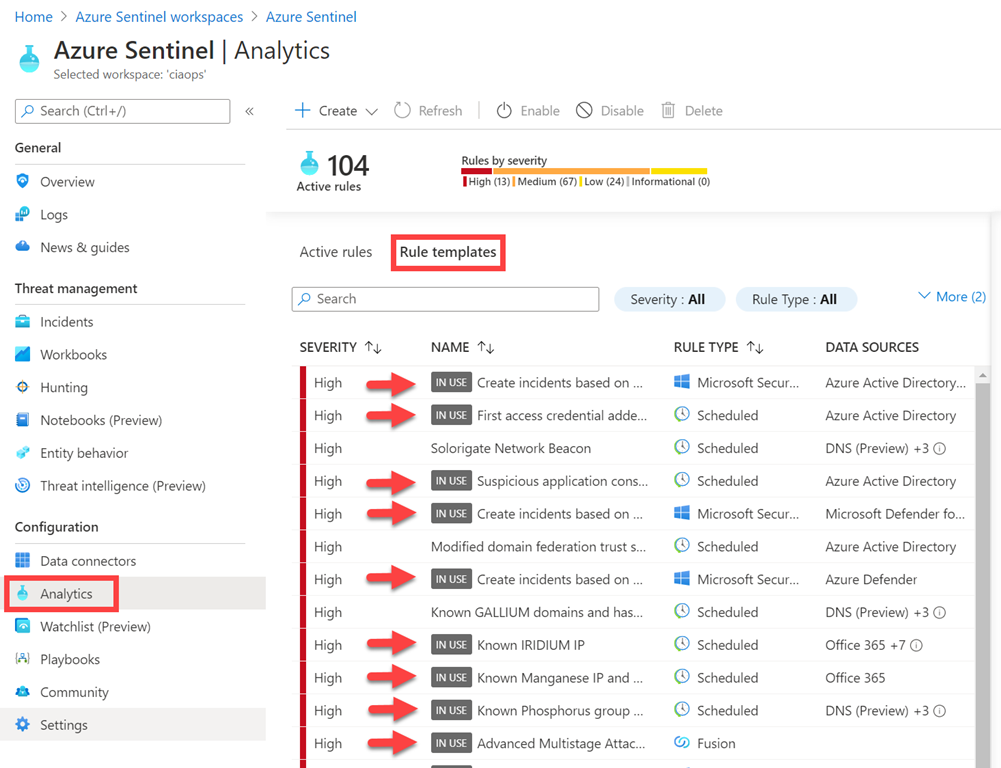
This list is what you see in the Azure Sentinel portal when you select Analytics, then Rule templates as shown above. In effect, this is every analytics rule Sentinel makes available to you.

image

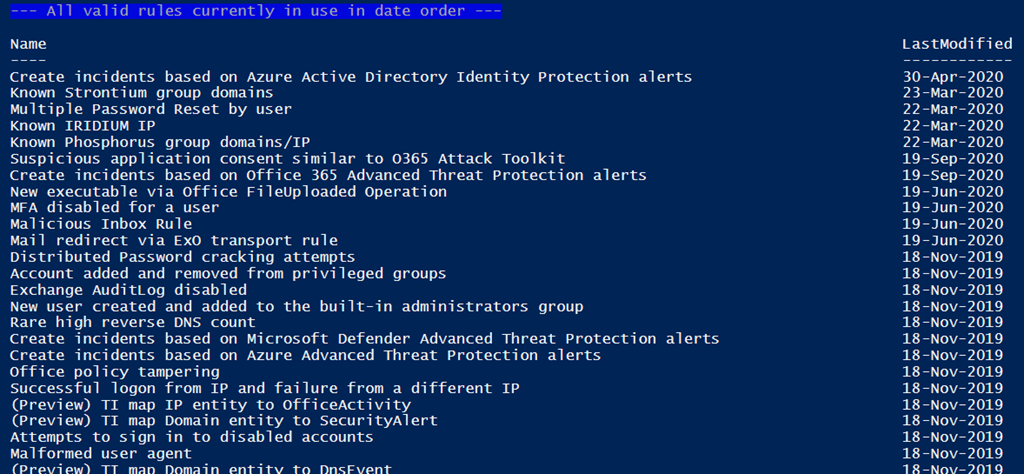
The next part of the script output will show you every rule in use.

image

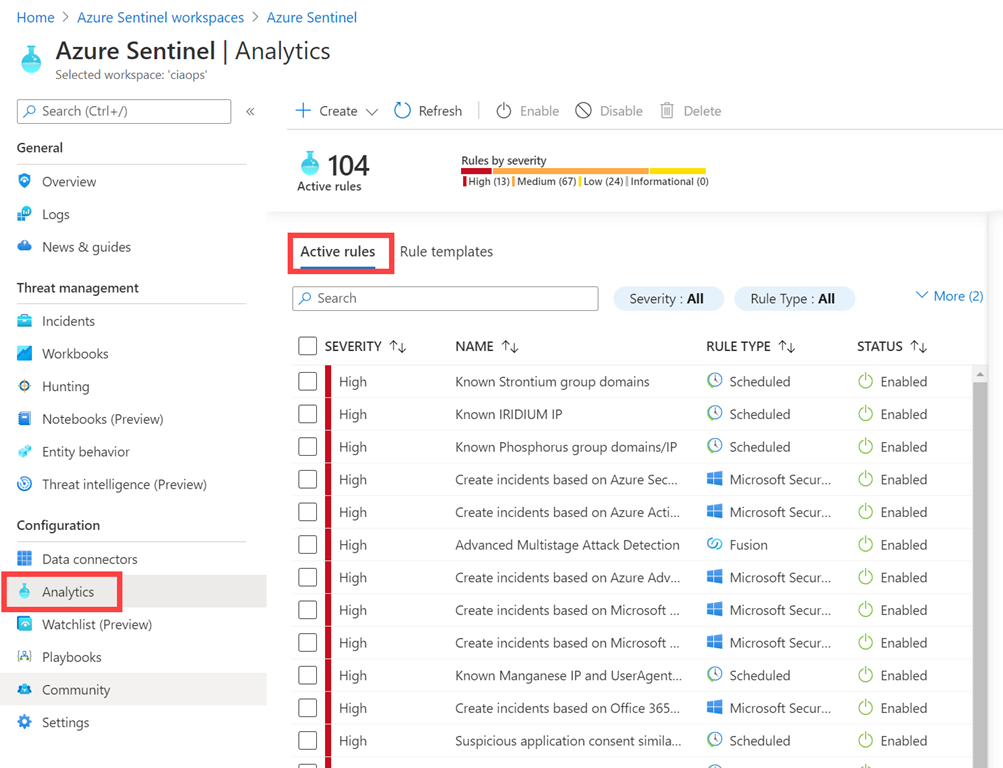
This corresponds with the Active rules area in the web portal as shown above.

image

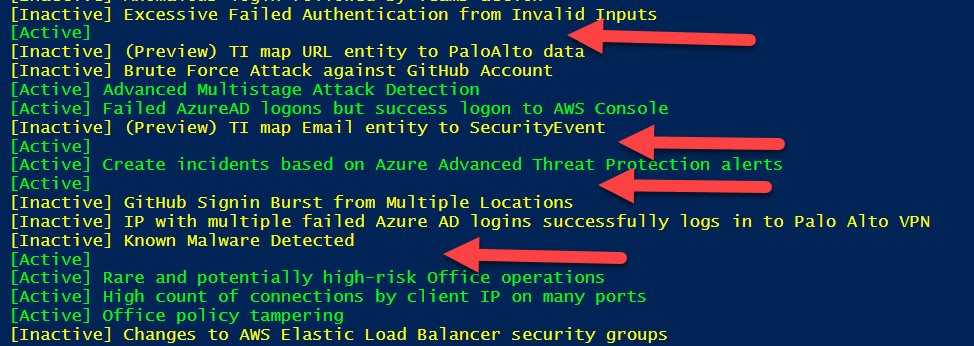
The next section of the script output will show you all the available rules and whether they are in use or Active as shown above.

image

You’ll see something similar if you return to the Rule templates, and note the rules “IN USE”, as shown above.

image

If you have a close look here, you’ll see rules that have no display name. I’ll cover that a bit further on, as it is still a bit of a mystery to me at this stage.

image

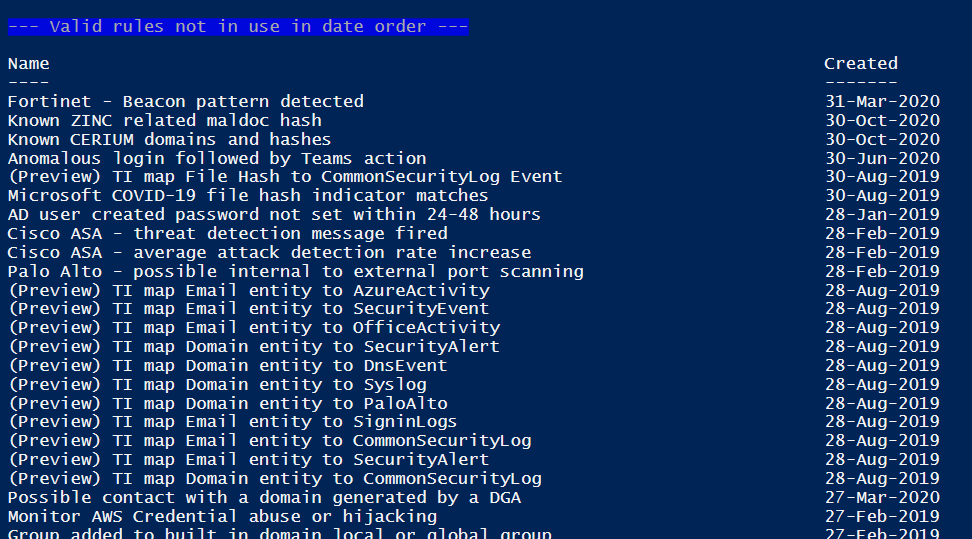
The last listing in script will show you all the rules that are NOT in use in date order. This is handy as I don’t see anything like this in the web portal.

image

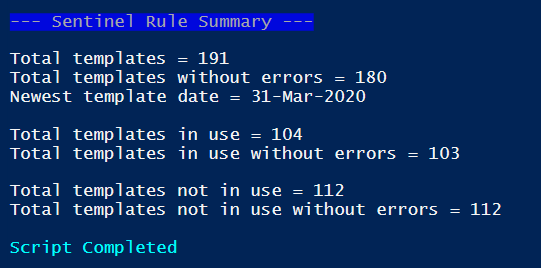
Finally, the script will give you a summary as shown above.

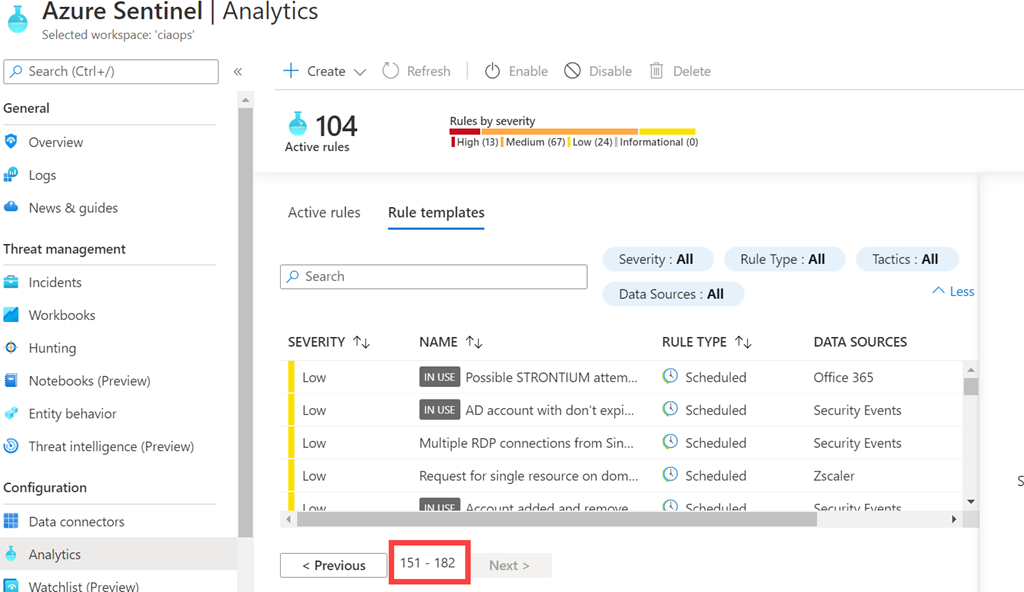
It is interesting to note that 11 scripts report errors? These seem to be the ones with no names? Still haven’t quite worked that one out yet. You might also see this mismatch in the rules in use as I have above. I need to dig into this a little more. Also a bit strange is the fact that I have 191 scripts reporting in total but if I add the 104 templates in use with the 112 not in use I come to a total of 216! If I then look in the web interface I see:

image

only 182 templates in total??

This new Azure Sentinel module is only a month old as of writing this article, so early days. Hopefully, these items are minor bugs that will get fixed soon. You can also double check my code to ensure I haven’t something silly. If I have, let me know so I can fix it and share.

However, that considered, I can see this new Azure Sentinel PowerShell module being pretty handy if I’m honest. This script allows me to see when Microsoft adds new rules that I need to go and configure for one. I’ll be spending more time with this PowerShell module to automate how I deploy Azure Sentinel, which I reckon will save me a bucket-load of time.

Looking forward to future updates to this module, but there is no reason you can’t start automating Azure Sentinel yourself today!


PowerShell with Endpoint Manager

Here is video demonstrating what I’ve been working of late. I am only making these scripts available via the CIAOPS Paton program.

The video will show you how I both create and erase policies via script, as well as generate a set of best practice policies and alternatively, importing them from previously saved policies. This saves a huge amount of time when compared creating and assigning policies manually.

Again, these scripts are not free and part of the CIAOPS Paton program. You’ll find my free stuff at https://www.github.com/directorcia.

Need to Know podcast–Episode 263

Welcome to 2021. I’m back with another year of podcasts focused on the Microsoft Cloud. Hope every one had a good break and ready to get into it. We kick of 2021 talking to MVP Alex Fields about security for SMB. Plenty of great take aways, so listen in a learn. I kick things off with news and updates from Microsoft as well. A jam packed episode.

This episode was recorded using Microsoft Teams and produced with Camtasia 2020.

Brough to you by www.ciaopspatron.com

Take a listen and let us know what you think – feedback@needtoknow.cloud

You can listen directly to this episode at:

https://ciaops.podbean.com/e/episode-263-alex-fields/

Subscribe via iTunes at:

https://itunes.apple.com/au/podcast/ciaops-need-to-know-podcasts/id406891445?mt=2

The podcast is also available on Stitcher at:

http://www.stitcher.com/podcast/ciaops/need-to-know-podcast?refid=stpr

Don’t forget to give the show a rating as well as send us any feedback or suggestions you may have for the show.Resources

@vanvfields – Alex Fields

@directorcia

ITProMentor

Alex’s publications

Center for Internet Security

What’s New in Microsoft Teams

Microsoft Lists Adoption

Microsoft Edge 88 Privacy and Security Updates

Bringing OneDrive settings into SharePoint admin center for streamlined, centralized control

Get the Microsoft Lists app for iOS

250GB File support in Microsoft 365

Microsoft surpasses $10 billion in security business revenue, more than 40 percent year-over-year growth

CIAOPS Need to Know Microsoft 365 Webinar–February

laptop-eyes-technology-computer

Bookings is an under utilised Microsoft 365 service that allows easy scheduling for you and your team. For February we’ll take a deep dive into all the cool stuff you can do with Bookings, so don;t miss it. I’ll also have the latest news from Microsoft and as always there will be time for your questions.

You can register for the regular monthly webinar here:

February Webinar Registrations

The details are:

CIAOPS Need to Know Webinar – February 2021
Friday 26th of February 2021
11.00am – 12.00am Sydney Time

All sessions are recorded and posted to the CIAOPS Academy.

The CIAOPS Need to Know Webinars are free to attend but if you want to receive the recording of the session you need to sign up as a CIAOPS patron which you can do here:

http://www.ciaopspatron.com

or purchase them individually at:

http://www.ciaopsacademy.com/

Also feel free at any stage to email me directly via director@ciaops.com with your webinar topic suggestions.

I’d also appreciate you sharing information about this webinar with anyone you feel may benefit from the session and I look forward to seeing you there.

Removing Azure Enterprise app consented permissions

image

After installing the appropriate PowerShell modules you can connect to  the Microsoft Graph with PowerShell using the command:

connect-graph

as shown above. First thing to remember is that this process can’t be completed in the Power ISE, you’ll need to do it elsewhere (here, using Windows terminal). The second thing to note is that you can specific the scope with which you to connect. Thus, in this case, the scope will be Files.ReadWrite.All and Sites.Readwrite.all. The scope is in effect the permissions the current user will be given when they connect to the Microsoft Graph. This allows you to only provide permissions for exactly what you need.
image

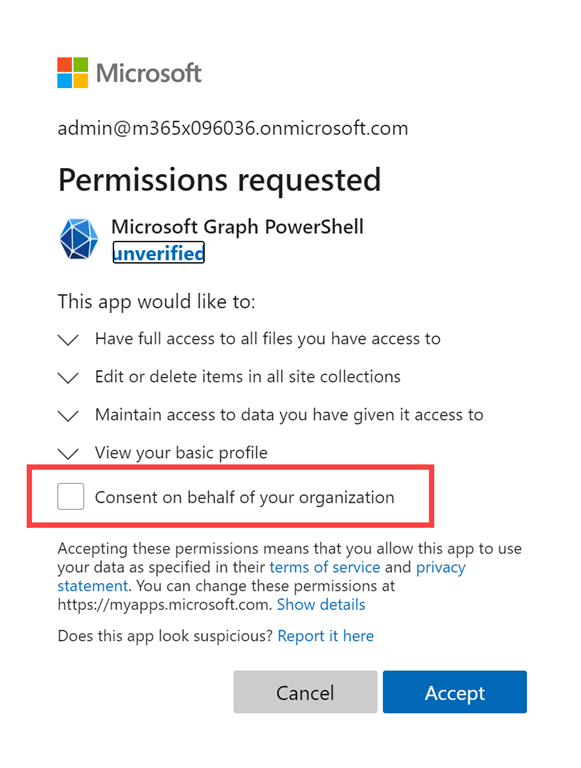
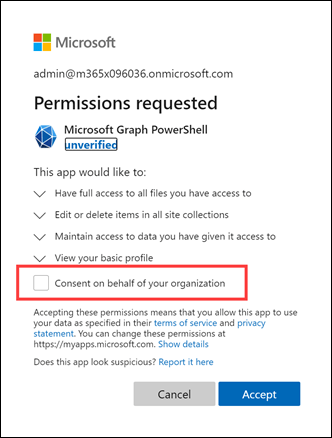
During the connection process you’ll be asked to consent to the permissions just requested, as shown above. If you simply select Accept here, you are just consenting for the current user. However, if you check the Consent in behalf of your organization option you’ll be providing these permissions to ALL users in your tenant! For now, only consent will be granted for the current user. However, be very, very careful consenting for the whole organization as I will illustrate.

You can now happily go off and perform whatever actions you need to using PowerShell for the Microsoft Graph.

image

With security in mind, I went to have a look at where these permissions just consented to actually appear. You’ll find them by opening the Azure Portal and navigating to Azure Active Directory as shown above. From here, select Enterprise applications from the menu on the left.
image

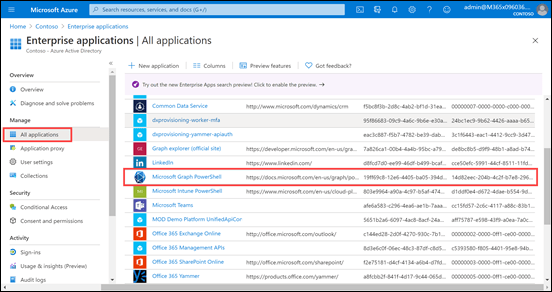
From the screen that appears ensure All applications is select from the menu on the left. Then on the right, locate and select Microsoft Graph PowerShell as shown.
image

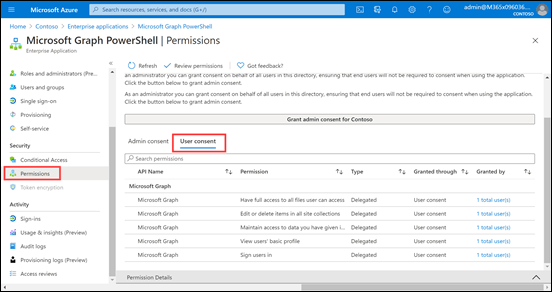
From the screen that now appears, select Permissions from the menu on the left as shown. On the right you’ll then be able to select either Admin consent or User consent.

Because the permissions assigned were only for a single user, the User consent item will show these to us as shown above. This list of permissions matches those consented to when connecting to the Microsoft Graph.

The right hand most column in this display, Grant by, has a hyperlink to show the number of users with this assigned permission.
image

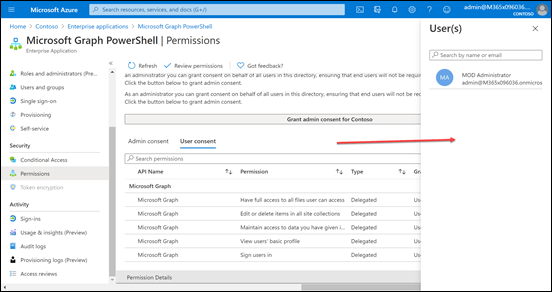
If you select any of these hyperlinks, you’ll see a list of users, on the right, that have been assigned this permission appear on the right as shown above.

Can you see the problem yet? No? Well…….how do you REMOVE or revoke a permission here?
image

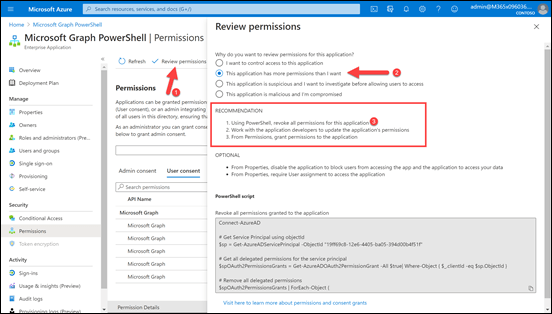
From what I can determine, you can’t remove the permissions via the portal. If you select Review permissions menu option you’ll see a item displayed from the right as shown above. If you select the option This application has more permissions that I want and basically told to use PowerShell to revoke all permissions for this application as well as being provided with the code to do so.

The issue is that even after you disconnect from the Microsoft Graph, having completed any scripting, those consented permissions remain in place i.e. they are NOT rescinded. This means that if the user account with these permissions to the Graph is compromised then that attacker has access to the Microsoft Graph and potentially lots of sensitive areas in a tenant, especially if the permissions have been added to over time. Imagine how much WORSE it gets if permissions were consented tenant wide, rather than to an individual user?
image

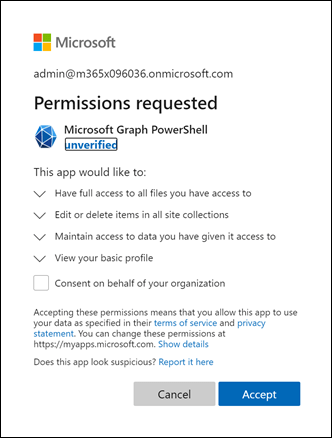
Selecting that little check box in the above Permissions requested dialog, which I see MANY people do without thinking, can really give you a security headache by opening up your Microsoft Graph permissions for EVERY user in the tenant!

Thus, best security practice is going to be to remove these permissions when they are no longer required as well as limiting who has them initially. Personally, I’d remove them after each interaction so I don’t forget and leave a potential attack vector.

To make doing all that a little easier, I have gone out and created a script that you’ll find in my Github repo:

https://github.com/directorcia/Office365/blob/master/graph-adappperm-del.ps1
image

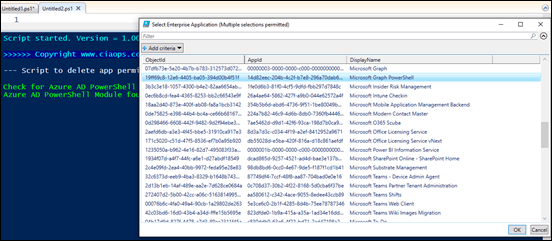
If you run the script, it will first check whether the Azure AD PowerShell module is loaded. If it is, it will then ask you to login to your tenant. Then it will display a list of all the Azure AD applications in your tenant and allow you to select the ones you want to change (yes, you can select multiple Azure AD apps if you want) as shown above.

In this case, Microsoft Graph PowerShell application is selected.
image

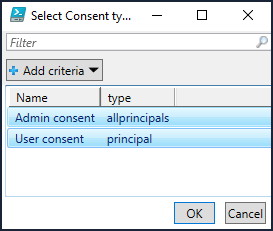
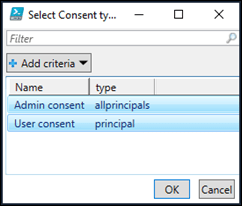
You’ll then be prompted to select whether you wish to select Admin consent and/or User Consent permissions. You can select both here if you wish by using the CTRL and/or SHIFT key when making selections (i.e. just like when you use Windows Explorer).
image

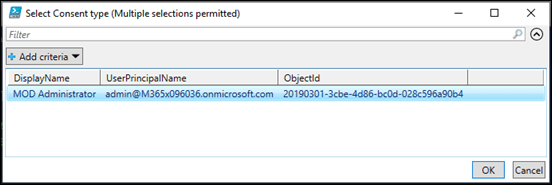
If you selected User consent, you’ll then be prompted to select the users you want. Again, multiple selections are available if offered.
image

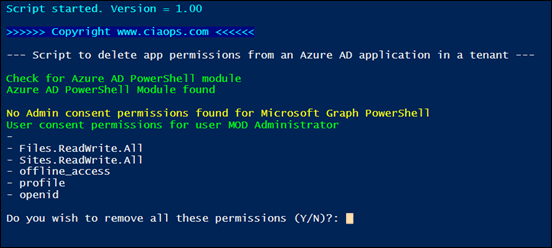
You’ll now be prompted to confirm you wish to delete these permissions for these users.
image

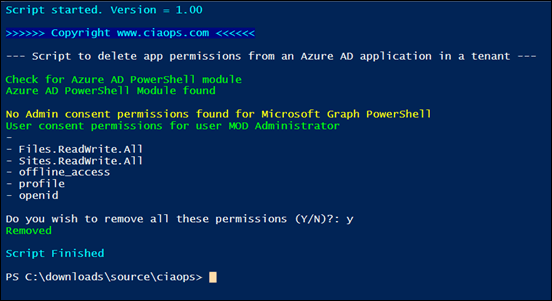
Those permissions will be removed and the script will continue to work through the rest of your selections.

In this case, because there were no Admin consented permissions for this application we receive a notification line as shown in above output.
image

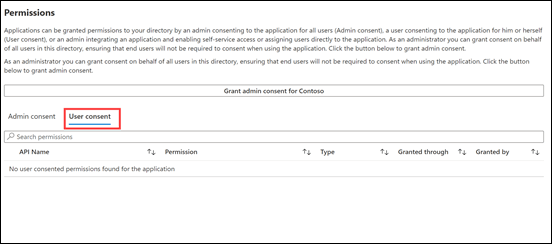
If you now return and have a look at the permissions for that app in the portal, you should see they have all been removed as shown above.

Leaving users with standing permissions to something as powerful as the Microsoft Graph is not best security practice. It is therefore important to regularly review these and remove what is not required. If you need those permissions again in eth future, after they have been removed, you can always re-consent to them when you next connect to the Microsoft Graph.