CIAOPS Need to Know Microsoft 365 Webinar – July

laptop-eyes-technology-computer

Last months attempt at using Microsoft Teams Webinars went well and I’ll be continuing to use this going forward. Registration for this month is here:

https://bit.ly/n2k2107

Shortly after this you should receive an automated email from Microsoft Teams confirming your registration, including all the event details as well as a calendar invite!

This month we’ll dive into email security with Microsoft 365, particularly the best practice configurations for Exchange Online. So please join us for this and all the latest news from the Microsoft Cloud.

You can register for the regular monthly webinar here:

July Webinar Registrations

The details are:

CIAOPS Need to Know Webinar – July 2021
Friday 30th of July 2021
11.00am – 12.00am Sydney Time

All sessions are recorded and posted to the CIAOPS Academy.

The CIAOPS Need to Know Webinars are free to attend but if you want to receive the recording of the session you need to sign up as a CIAOPS patron which you can do here:

http://www.ciaopspatron.com

or purchase them individually at:

http://www.ciaopsacademy.com/

Also feel free at any stage to email me directly via director@ciaops.com with your webinar topic suggestions.

I’d also appreciate you sharing information about this webinar with anyone you feel may benefit from the session and I look forward to seeing you there.

Security test script walk through video

I’ve create this video to give you a basic walk through of the free security testing PowerShell script I’ve created. You’ll find the script here:

https://github.com/directorcia/Office365/blob/master/sec-test.ps1

In the video you’ll see how to quickly get and run the script as well the results it generates on a stand alone Windows 10 device.

Apart from Windows 10, PowerShell and Word there are no special requirements and it can be used on stand alone, domain or Azure Ad joined, etc. It doesn’t matter. It is designed to help you better evaluate your security posture.

10 years an MVP

MVP_Logo_Horizontal_Preferred_Cyan300_RGB_300ppi

image

I am happy to report that I have been renewed as an MVP for 2021-22. That now makes me a 10 year veteran of the program. I am very proud of that achievement in an ever changing technology environment.

As always, thanks to Microsoft for the recognition, for the last, and every other year. I am proud and honoured to be part of the MVP community and the amazing people there. The MVP community, as always, is an inspiring place to be and a group of individuals who love sharing, learning and helping others. Their influence and interactions continue to help me improve both professionally and personally.

I need to also thank everyone who takes the time to do things like read and comment on my blog, watch my YouTube channel, use my Github repo, attend events where I speak and more. Thanks everyone, I really do appreciate it. It is always good to understand the impact you are having out there.

Going forward, it seems we are in for more uncertain times, and we all know technology will continue to rapidly evolve. The best mindset to use is to look at both of these as a challenge not a burden. I appreciate that maybe difficult but you’d be amazed at what an open minded approach can achieve. Change what you can and be at peace with what you can’t, is a good recipe to strive for.

Once again, thanks to Microsoft for this award. I will continue to work hard to live up to the expectations of program going forward and thanks to everyone else out there who has been part of this journey with me.

Is security working? PowerShell script

I was inspired by this article:

How to make sure your antivirus is working without any malware

to create an simple automated process to test security settings and alerts for the Microsoft Cloud environment. I have thus created this script:

https://github.com/directorcia/Office365/blob/master/sec-test.ps1

which you can download for free from my Github repo.

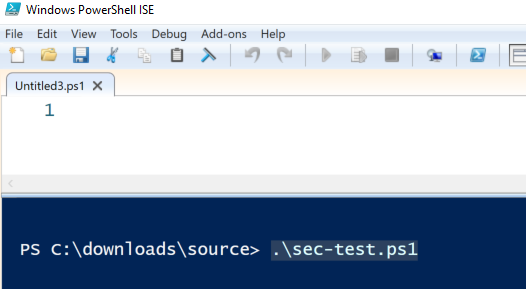
You can run the script by launching PowerShell and running

.\sec-test.ps1

image

You don’t need to run the script as an administrator or with elevate privileges.

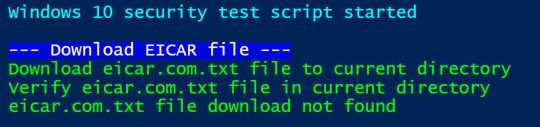
The first thing the script will attempt to do is download the EICAR testing file and save it locally as a file called eicar.com.txt.

image

Your security should prevent this and that file should not appear on your machine, which the script will verify, as shown above.

image

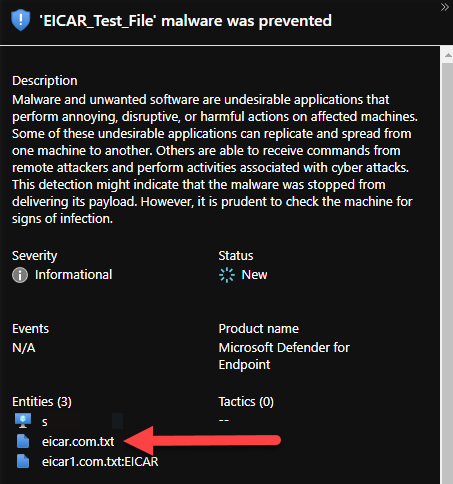
Your environment should also generate some sort of alert. In my case, one such alert appeared in Azure Sentinel.

image

Next, the script will attempt to create a new file in current directory called eicar1.com.txt with a signature that should be detected by your environment.

The script will then check the local Windows Defender logs for mention of the file eicar1.com.txt. If you are using a third party AV solution you’ll need to manually dig around in the logs to confirm this action has been detected. However, if you use Windows Defender, I have done that for you as you see above. The results are returned in order with Item 1 being the latest.

image

The script will then check to see whether the file eicar1.com.txt has been created. In most cases, the file will exist but it should be of zero length ensuring the creation process was terminated. If the eicar1.com.txt file exists and does not have a length of zero, then you’ll need to take action.

image

Next, the script will attempt to do a process dump for LSASS.EXE. To achieve this you’ll need to have SysInternals Procdump in the currently directory. If procdump.exe is not located in the current directory, you’ll be prompted to download it into the current directory.

The script will then try a process dump of LSASS.EXE using the command:

.\procdump.exe -ma lsass.exe lsass.dmp

The dump process should fail as shown above.

image

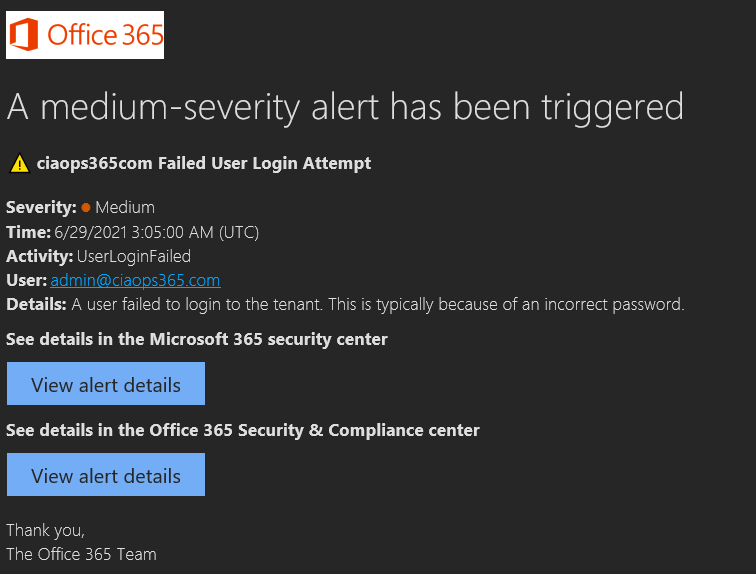
The final check is to prompt you for an email address and then attempt to login to Microsoft 365 using this.

image

Doing so should generate a log or alert as shown above that you can view and verify.

The aim of the scripts is largely to check that your security configuration is correctly enabled and configured. Generally, all the tests here should fail and all should report some where that can review to ensure your configuration is correct. Remember, good security is not to ‘assume’ and never test, it is to regularly test and understand where to look for specific types of alerts.

As I come up with more things to test, I’ll add them to the script, so make sure you check to see whether I have updated it in the future.

Need to Know podcast–Episode 269

I’m joined by Matt Soseman from Microsoft to discuss all things security. However, before that, we take a look at the fantastic Youtube channel Matt has created to help share all his great Microsoft Security information. It is a source I regularly consult so I urge you to subscribe.

There is of course also Microsoft Cloud news to get through, including my thoughts on the newly announced Windows 11, so tune in and let me know what you think.

This episode was recorded using Microsoft Teams and produced with Camtasia 2020.

Brought to you by www.ciaopspatron.com

Take a listen and let us know what you think – feedback@needtoknow.cloud

You can listen directly to this episode at:

https://ciaops.podbean.com/e/episode-269-matt-soseman/

Subscribe via iTunes at:

https://itunes.apple.com/au/podcast/ciaops-need-to-know-podcasts/id406891445?mt=2

The podcast is also available on Stitcher at:

http://www.stitcher.com/podcast/ciaops/need-to-know-podcast?refid=stpr

Don’t forget to give the show a rating as well as send us any feedback or suggestions you may have for the show.

Resources

Matt Soseman – Twitter, Linkedin, Blog

Matt Soseman Youtube channel

CIAOPS Secwerks

Microsoft Security Best Practices

CISA Microsoft 365 Security Recommendations

NIST Cyber Security Framework

Essential Eight

CIAOPS Best Practice links

Introducing Windows 11

Introducing Windows 11 for Business

Windows 11 for Enterprise

Windows 11: The operating system for hybrid work and learning

Basic Authentication and Exchange Online – June 2021 Update

Announcing Exciting Updates to Attack Simulation Training

How Microsoft 365 encryption helps safeguard data and maintain compliance

Rename your SharePoint domain

Need to Know podcast–Episode 268

In this episode I speak with Ian Mikutel from Microsoft who is Head of Product for Microsoft Whiteboard for Teams & Surface. Ian shares some exciting news about the recently released updates for Microsoft Whiteboard as well as what is coming down the pipeline. I love Microsoft Whiteboard and use it regularly and I’d encourage you to also look at the enhancements it now provides, especially inside Microsoft Teams. of course, there are plenty of updates from the Microsoft Cloud that I’ll share with you. so listen along and let me know what you think.

This episode was recorded using Microsoft Teams and produced with Camtasia 2020.

Brought to you by www.ciaopspatron.com

Take a listen and let us know what you think – feedback@needtoknow.cloud

You can listen directly to this episode at:

https://ciaops.podbean.com/e/episode-268-ian-mikutel/

Subscribe via iTunes at:

https://itunes.apple.com/au/podcast/ciaops-need-to-know-podcasts/id406891445?mt=2

The podcast is also available on Stitcher at:

http://www.stitcher.com/podcast/ciaops/need-to-know-podcast?refid=stpr

Don’t forget to give the show a rating as well as send us any feedback or suggestions you may have for the show.

Resources

Ian Mikutel – Twitter, Linkedin

Microsoft Whiteboard

Meet the new Microsoft Whiteboard designed for Hybrid Work

Microsoft Whiteboard roadmap

CIAOPS Secwerks event

Explore Microsoft 365 extensibility opportunities with the Microsoft 365 Extensibility look book

Bringing Visio to Microsoft 365: Diagramming for everyone

A new, more powerful, and customizable Microsoft Bookings is here

Windows 11 leak reveals new UI, Start menu, and more

Announcing new Microsoft Defender for Endpoint capabilities on Android and iOS

Monitoring Microsoft Security Posture in Azure Sentinel

Behind the scenes of business email compromise: Using cross-domain threat data to disrupt a large BEC campaign

Microsoft acquires ReFirm Labs to enhance IoT security

Say it with Microsoft Dictate

Announcing a more intuitive sharing experience across Microsoft 365 for better collaboration

Using Defender for Endpoint API and Power Automate

I recently detailed:

Using Defender for Endpoint API and PowerShell

to produce this type of output

image

which is all well and good but does lack some flexibility when it comes to output as well as being something you need to manually initiate. There is way to deliver more using Power Automate.

To do this you’ll still need to complete the initial steps from the previous article and create an Azure AD app in the destination tenant and save the access information. This basically allows access to the destination tenant to extract data. However, now, rather than embedding that sensitive information inside a public script and having the credentials ‘in the open’, they can be securely stored in Azure Key Vault. This will provide a secure repository for the Azure AD app credentials while still allowing them to be readily accessible by service like Power Automate. To use Azure Key Vault you will need a paid Azure subscription.
image

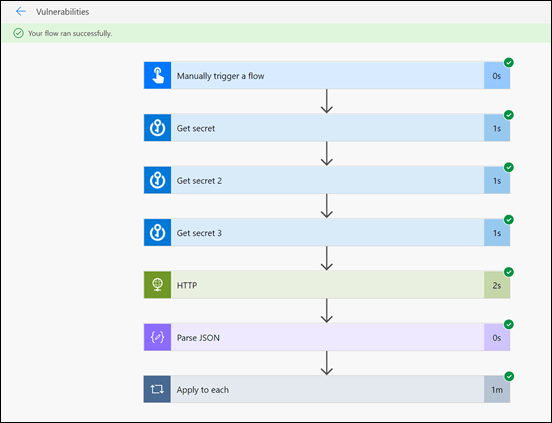
In a nutshell, we want to create a basic Flow in Power Automate like that shown above. In this case it is initiated manually but it could just as easily be triggered on a schedule using the Recurrence action in Flow. Next, the required parameters are grabbed from the Azure Key Vault.
image

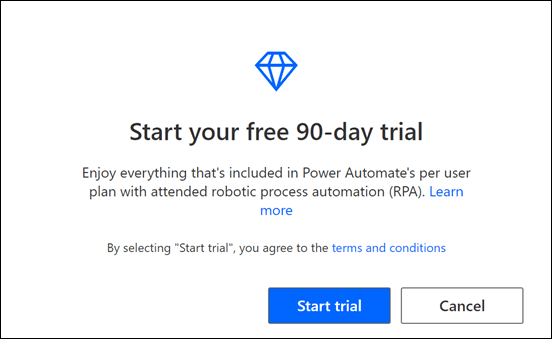
When you are building this Flow, if you see a dialog like shown above, it means you don’t have a Power Automate license that includes the ability to use Premium connectors like Azure Key Vault and HTTP. Licensing the Power Platform is beyond the scope of this article but, if you see that dialog you’ll probably need to purchase a stand alone license of Power Automate to gain access to the required premium connectors.

image

You construct the HTTP action as shown above, using the parameters from the Azure Key Vault to access the Azure AD app via the API URL:

https://api.securitycenter.microsoft.com/api/machines/SoftwareVulnerabilitiesByMachine

that will return a list of vulnerabilities exactly like the PowerShell script did in JSON format.

image

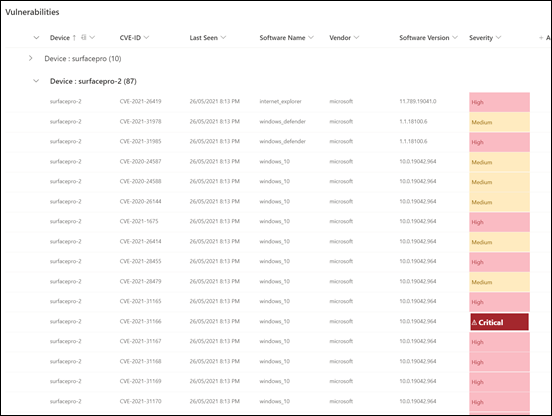
After parsing the JSON output from the HTTP action that executes the API request, the results are mapped to a simple SharePoint list as shown.
image

Thanks to the magic of SharePoint, you get results that look like the above, which is vulnerabilities by machine, or

image

vulnerabilities by severity above, thanks to the ability to easily sort lists in SharePoint.

You’ll also notice that conditional column formatting has been applied to to highlight the severity. Yet another benefit SharePoint lists provide.

So the basis of all of this is an Azure AD app with the appropriate permissions inside a tenant that you wish to obtain information from. From there you can use an API request using PowerShell or Power Automate or whatever, to pull the desired information. The easily way to format that information is to send the results to SharePoint, as done here, to slice and dice as well as display the information any way you want.

This output could as easily have been sent to Power BI, Power Apps, an email, or any other service in Microsoft 365. That’s the benefit of using the Power Platform and things like Flow to get the information. Now the possibilities are endless.

A few important point to note about this:

1. You are in control of the permissions and credentials for obtaining the information using the API. You are not surrendering or trusting these to a third party to access the source data.

2. Credentials are save in Azure Key vault which ensure they are secure and access is controlled by you.

3. You can use this technique with just about any API to import information. All you need is the API URL and the appropriate permissions inside the Azure AD app.

4. You can extract information from multiple tenants into a single source tenant if you wish, you are not limited to just pulling information from the tenant where the Flow was created.

5. The extracted data can be mapped to any Microsoft 365 service. Here it was to SharePoint as that is the easiest, but it could just as well be sent to any Microsoft 365 service. This provides a huge amount of flexibility.

6. You can modify, enhance, extend, etc the Flow at any stage to suit any changing needs.

7. The Flow and the process it executes lives inside you Microsoft 365 tenant and is subject to all the compliance and security options that Microsoft provides here.

8. You can trigger the data extraction to happen on a scheduled basis of your choice with Flow easily.

I see lots and lots of benefits of using this process to regularly pull information from any tenant on just about anything and report it in what ever way you wish. It puts you in control of the whole process, and most importantly, the security of executing this, which in a world moving to zero trust, is a huge benefit.

Hopefully, this will inside you to start playing around with the possibilities when it comes to API and Power Automate.