

This is part of a series on MSP priorities for 2026.
Enhancing Customer Experience & Strategic Value: MSP Roadmap for 2026 (SMB Focus)
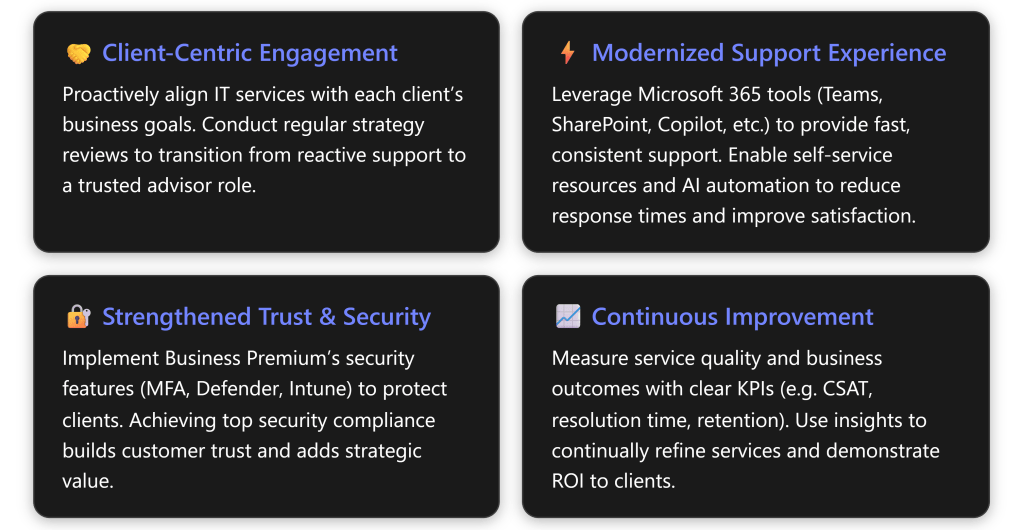
Managed Service Providers (MSPs) serving small and medium businesses in 2026 must go beyond break-fix IT support to deliver exceptional customer experiences and strategic business value. This roadmap outlines a step-by-step program leveraging Microsoft 365 Business Premium to transform an MSP’s service delivery – improving client satisfaction, building deeper partnerships, and driving measurable outcomes. The plan is organized into clear phases with targeted Microsoft 365 tools, assigned MSP roles, and key KPIs to track success. Key objectives include faster, more proactive support, alignment with clients’ business goals, empowered end-users through modern workplace solutions, and robust security/compliance as a trust builder. The result is an MSP that is seen not just as an IT fixer, but as a strategic partner delivering tangible business outcomes to SMB clients. [corkinc.com], [blog.ciaops.com] [corkinc.com], [corkinc.com]
Implementation Roadmap Overview
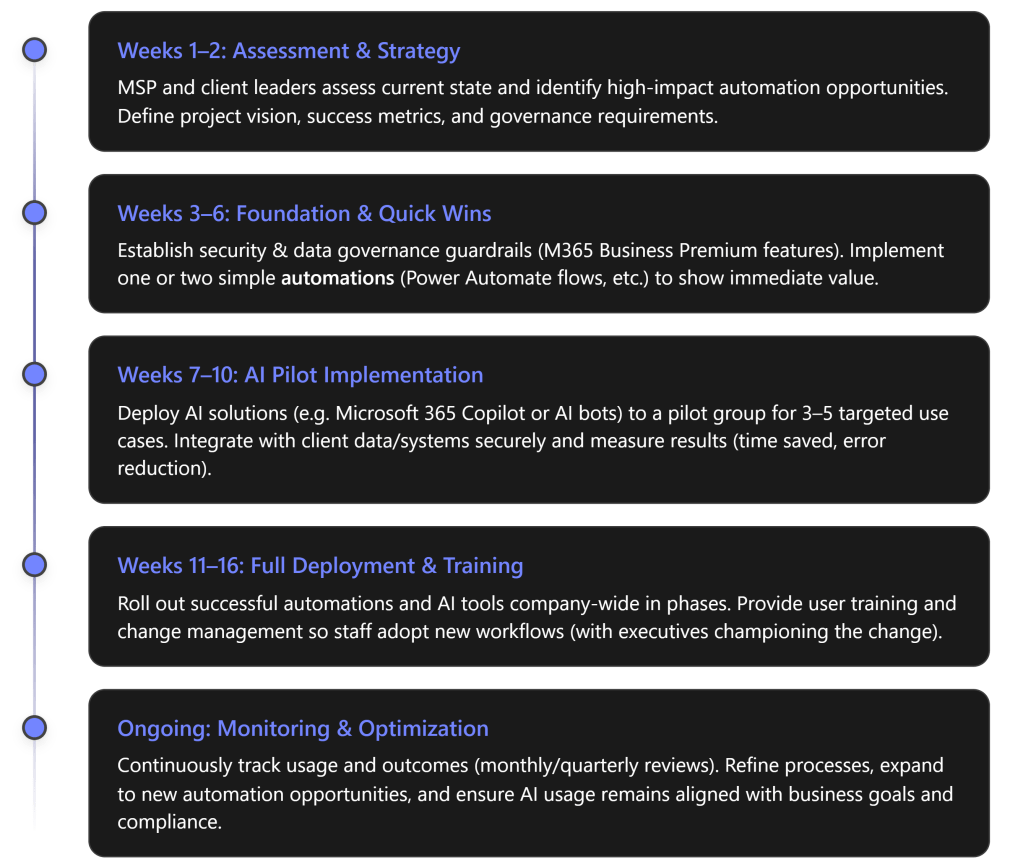
The program is structured into four major phases, executed over roughly 6–9 months (followed by ongoing improvement). Each phase includes specific initiatives, responsible team roles, supporting Microsoft 365 Business Premium capabilities, and targeted outcomes. Table 1 below summarizes the phases with key activities, tools, role assignments, and success metrics:
Table 1: Phased Program Plan – Activities, Tools, Roles, and KPIs
| Phase & Timeline | Key Activities & Deliverables | M365 Tools/Features | Responsible MSP Roles | Key Metrics (KPIs) | |||||
|---|---|---|---|---|---|---|---|---|---|
| Phase 1: Discovery & Planning Month 1 | – Client Vision & Needs Assessment: Gather client business goals, pain points, and current satisfaction levels. – CX Strategy Workshop: Define how IT can enhance client’s customer experience and map out value-add opportunities. – Roadmap & KPI Setting: Develop a tailored improvement plan with agreed success metrics and timeline. | Teams – for kickoff meetings & stakeholder interviews. Forms – to survey end-user satisfaction or needs. SharePoint – to document client requirements and share proposal. | Account Manager / vCIO – leads strategy discussions with client. Solutions Architect – analyzes client IT environment & maps M365 solutions. Project Manager – drafts roadmap, ensures stakeholder buy-in. | – Baseline CSAT (customer satisfaction) captured via survey | Roadmap sign-off by client stakeholders. – Defined KPIs (e.g. target first-response time, CSAT %, etc.) established for program. | ||||
| Phase 2: Solution Implementation Months 2–4 | – Modernize Support Channels: Set up integrated support via Microsoft Teams (e.g. dedicated Teams channel or chat for client, Teams Phone/Voice for helpdesk) to provide quick, multi-channel help. – Self-Service & Knowledge Base: Create a client-facing SharePoint site or portal with FAQs, how-to guides, and possibly a Power Virtual Agent chatbot for common issues, enabling 24/7 answers | Process Automation: Streamline routine tasks (password resets, onboarding) using Power Automate flows or Azure AD self-service features, freeing up engineers for higher-value work | – Security & Reliability Enhancements: Deploy Intune for device management and Microsoft Defender for Business for threat protection across endpoints and email. Enforce Conditional Access + MFA for all users to significantly reduce breach risk. (Leverage M365 Lighthouse to apply and monitor these across clients.) – Collaboration Upgrade: Improve client’s internal collaboration using Teams & OneDrive (if not fully adopted) – e.g. set up Teams channels for projects, train on OneDrive file sharing – to boost their workforce productivity (an indirect CX benefit). | Teams – channels & chat for support; Teams Phone for call routing. SharePoint Online – client knowledge base portal (with search). Power Automate – automate repetitive support tasks/workflows. Power Virtual Agents (for Teams) – optional bot for common Q\&A. Intune (Endpoint Manager) – enforce device security policies (app updates, AV, etc.). Defender for Office 365 & Endpoint – threat protection (phishing, malware). Azure AD P1 – Conditional Access, MFA, SSO for user convenience. Microsoft 365 Lighthouse – multi-tenant monitoring of compliance/security. | Service Delivery Manager – oversees support improvements (Teams helpdesk setup, KB content). Cloud Engineer – implements Intune policies, Defender configuration, automation workflows. Security Specialist – leads security configuration (MFA, CA policies) and compliance checks. Collaboration Specialist – optimizes Teams/SharePoint usage for client’s staff (may coordinate with client’s IT champion). | – Average First Response Time (to support queries) ↓ – e.g. respond within X hours (measured via Teams or ticket system). – Ticket Volume ↓ via self-service – track reduction in repetitive tickets (password resets, FAQs) as users self-help | – First Contact Resolution (FCR) ↑ – more issues resolved on first touch (target >Y% FCR) | Security Posture Score ↑ – e.g. Microsoft Secure Score improvement (demonstrating risk reduction). – Zero critical incidents during period (goal of no major downtime/security breaches, indicating reliability). | |
| Phase 3: Training & User Engagement Month 5 | – End-User Training Sessions: Conduct interactive training for client employees on new tools and portals (Teams usage, accessing the SharePoint help portal, any new self-service processes). Use Teams webinars or in-person workshops to ensure high adoption. – Enable Champions: Identify a client-side “IT champion” or power users and equip them to advocate best practices among peers. – Feedback Loop: Gather user feedback on the changes (via Forms surveys or during training Q\&A) to identify any friction points or additional needs. – Refinement: Fine-tune the solutions/configuration based on real-world use and feedback (e.g. adjust a Power Automate workflow, add content to FAQs). | Teams – live training meetings or webinars (recorded for future reference). Microsoft 365 Learning Pathways/Viva – provide on-demand training content (if available). Forms – collect attendee feedback and quiz for understanding. SharePoint – host user guides, tip sheets in portal. Yammer/Viva Engage (if in use) – establish community for peer support. | Training Specialist – leads user training sessions, creates help materials. Account Manager – communicates changes, manages expectations with client leadership throughout rollout. Support Engineers – on standby to assist users during initial go-live of new tools (floor-walking or rapid response). | – User Adoption Rate – e.g. % of users actively using Teams/OneDrive/portal (monitored via M365 usage analytics) ↑. – User Feedback – post-training survey shows confidence in using new tools (e.g. >90% feel “well prepared”). – Support Satisfaction – measure via quick post-ticket surveys; should show improvement as users find new system helpful. – Change Adoption Time – all users onboarded to new processes within X weeks (indicating successful change management). | |||||
| Phase 4: Ongoing Improvement & Strategic Review Month 6 onward (continuous) | – Performance Monitoring: Continuously monitor service performance and security. Use Microsoft 365 Admin Center and Lighthouse for alerts (e.g. new threats, device compliance) and track support metrics (ticket trends) over time. Ensure the improvements are sustained (e.g. no MFA lapses, knowledge base kept current). – Quarterly Business Reviews (QBRs): Every 3 months, hold a strategic meeting with the client (virtual or on-site via Teams) to review key metrics and business outcomes. Present how IT initiatives are impacting their business (e.g. productivity gains, zero major incidents, higher employee satisfaction) [corkinc.com]. Discuss new business needs or technology updates. – Introduce Innovation: Evaluate and propose new Microsoft 365 features or integrations that could further benefit the client’s business. For example, as AI capabilities mature, consider deploying Microsoft 365 Copilot or building a custom Copilot (via Copilot Studio) to automate customer service or data analysis tasks for the client. | Also explore Power BI reports for the client’s data to uncover insights they value. – Recognize & Adjust: Track outcomes against the defined KPIs. If targets aren’t met (e.g., CSAT below goal), analyze root causes and implement adjustments (additional training, process tweaks, etc.). Likewise, celebrate and reinforce successes (e.g., highlight that security compliance improvements have set the client apart in their industry, bolstering their trust with their own customers | Executive Communication: Maintain ongoing executive-level engagement – share newsletters or dashboards summarizing IT value delivered (uptime, new capabilities enabled, risk mitigated) in business terms, reinforcing the MSP’s strategic role. [corkinc.com], [corkinc.com] | Microsoft 365 Lighthouse – unified view of client tenants (monitor compliance, threat alerts). Azure AD & Endpoint Manager Admin – routine checks on sign-in security, device health. Teams – QBR meetings and ad-hoc strategy calls. Power BI – (optional) dashboards for service metrics or client business KPIs. Microsoft 365 Copilot – (optional) assist in drafting reports and mining insights for QBRs; potential client-facing use cases (with appropriate licensing). SharePoint – internal wiki for MSP to document lessons learned across clients; external newsletters via SharePoint News posts emailed out. | Account Manager / vCIO – leads QBRs, maintains strategic relationship, translates IT results to business value [corkinc.com]. Service Delivery Manager – monitors ongoing operations and SLA compliance; continuous improvement owner. Security/Compliance Lead – continuously audits security posture, keeps client compliant (e.g. industry standards, ACSC Essential Eight if relevant). Innovation Lead (optional) – explores new M365 features (AI, analytics) and pilots them for client benefit. | – Customer Satisfaction (CSAT) Score ↑ – aim for high post-engagement ratings (e.g. ≥ 90% satisfaction on QBR feedback surveys). – Net Promoter Score (NPS) ↑ – improved likelihood of client recommending the MSP (indicates strong trust/relationship). – Client Retention – 100% renewal of contracts and upsell of new services (zero churn). – Business Impact Metrics – client-specific outcomes achieved (e.g. reduced their internal support costs by X%, improved their end-customer ratings, etc., as gathered during QBR). – Compliance/Posture – maintain high security score and no major incidents (demonstrating risk managed effectively). |
Phase 1: Discovery & Planning. In the first month, the MSP engages with client leadership to define a joint vision for how technology will enhance the client’s customer experience. This involves interviews and workshops to understand the client’s business objectives, current pain points, and what “great service” means to them. For example, if the client is an e-commerce firm struggling with downtime affecting their end-customers, the plan will prioritize reliability and fast support. Using Microsoft Teams meetings and perhaps Forms surveys, the MSP gathers both qualitative and quantitative baseline data (e.g. current CSAT scores, ticket volumes). The MSP’s virtual CIO (vCIO) or account manager leads a strategy workshop to map out how Microsoft 365 solutions can address these needs – aligning IT initiatives with business outcomes (e.g. faster issue resolution leading to the client’s increased sales or customer loyalty). By the end of Phase 1, there is a documented roadmap on a SharePoint site (accessible to client stakeholders) that outlines the upcoming implementation steps, timeline, and agreed success metrics. For instance, the client and MSP might set a goal to raise end-user satisfaction by 15% and cut average ticket resolution time by 30% over the next 6 months (these targets will later be measured and reported). Establishing these goals upfront creates accountability and clarity. [corkinc.com]
Phase 2: Solution Implementation. In this phase (spanning roughly months 2–4), the MSP executes on the roadmap by deploying Microsoft 365 Business Premium solutions that directly enhance the customer experience and add strategic value for the client:
- Improve Responsiveness & Multi-Channel Support: The MSP configures modern support channels using Teams. For example, they might set up a Team with the client for real-time communication – enabling the client’s staff to @mention the MSP support team for quick questions or schedule ad-hoc support calls. If the client’s arrangement allows, the MSP may also integrate their ticketing system with Teams or use Teams Phone so that when the client calls for help, it rings into an organized call queue. The goal is to meet clients on the channels they prefer and respond faster. Outcome: Clients get help through chat or video within minutes rather than waiting hours for email responses, improving satisfaction (faster responses are strongly correlated with higher CSAT).
- Enable Self-Service & Knowledge Access: Anticipating common questions and issues, the MSP creates a SharePoint Online knowledge base or client portal. This site contains how-to articles, troubleshooting guides, and even short how-to videos (stored in SharePoint/Stream). It might also include a Power Virtual Agent bot (using the included Power Platform capabilities) embedded on the site or in Teams, which can answer routine questions 24/7 (“How do I reset my email password?” etc.). By leveraging these Microsoft 365 tools, the MSP empowers client users to find answers instantly, reducing the number of trivial tickets and freeing up support staff for more complex issues. This not only speeds up resolutions but also gives users a sense of control, improving their experience.
- Automate Routine Tasks: Using Power Automate, the MSP automates repetitive processes that previously required human intervention. For example, implement an automated user onboarding workflow: when the client hires a new employee, a Power Automate flow can automatically create the user account in Azure AD, assign licenses, email setup instructions, and schedule a Teams orientation call. Similarly, a self-service password reset (a feature of Azure AD) is enabled so users can resolve login issues without opening a ticket. These automations reduce manual effort and errors, allowing the MSP’s engineers to focus on strategic improvements instead of mundane tasks. Outcome: The MSP can handle client needs more efficiently – routine tasks that took hours or days now happen in seconds, and staff can devote more time to proactive projects (as Microsoft’s research notes, automation frees employees for high-value work).
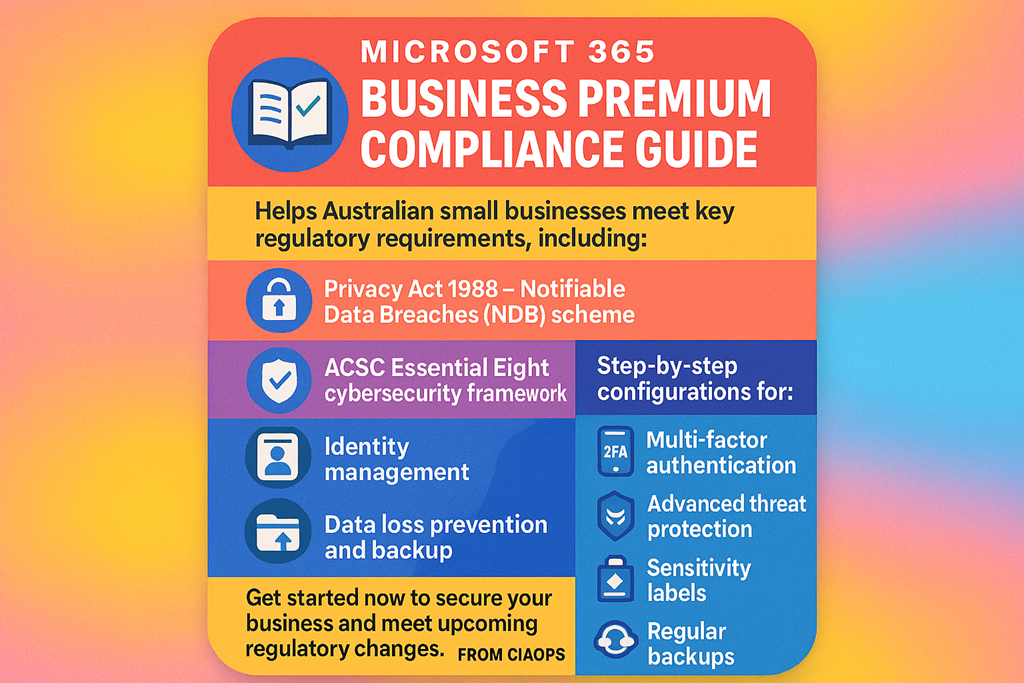
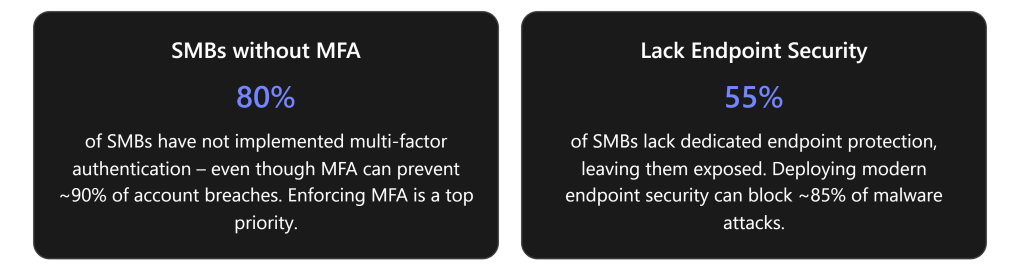
- Strengthen Security and Trust: Since a reliable, secure IT environment underpins any good customer experience, the MSP uses Business Premium’s security suite to harden the client’s infrastructure. This includes deploying Microsoft Defender for Endpoint & Office 365 to all client devices and mailboxes for advanced threat protection (guarding against malware, phishing, etc.), and enforcing Multi-Factor Authentication and conditional access policies via Azure AD to prevent unauthorized access. Device management with Intune ensures all client PCs and mobile devices have consistent security configurations, up-to-date patches, and compliance policies (like requiring encryption). These steps dramatically lower the risk of incidents like breaches or malware outbreaks, which can be devastating to the client’s operations and reputation. Achieving a high level of security compliance is framed as a strategic business value: the MSP explains that meeting top standards (for example, aligning with frameworks like ACSC Essential Eight Maturity Level 3) will differentiate the client in their market and foster trust with their customers and partners. In other words, the MSP turns cybersecurity into a customer experience issue — by preventing disruptions and building a trustworthy brand, the client improves the experience of its own customers. Outcome: measurable improvements in security posture (e.g., Microsoft Secure Score) and no major security incidents. Additionally, the client gains confidence that the MSP is safeguarding their business, reinforcing the partnership.
- Enhance Productivity & Collaboration: Although not strictly “support,” improving the client’s internal collaboration tools can indirectly elevate their overall experience and the value they get from IT. The MSP ensures the client is taking full advantage of the productivity features of Microsoft 365: for instance, rolling out Teams company-wide if not already done, helping migrate files to OneDrive/SharePoint for easy sharing, and setting up Shared Teams or Channels between MSP and client for joint projects. By introducing features like Teams integration with third-party apps or simple Power Apps to streamline specific client workflows, the MSP helps the client’s employees work more efficiently. This kind of guidance shows the MSP is invested in the client’s success, not just basic IT upkeep. Outcome: The client sees increases in their own team’s productivity (which can be gauged via tool usage metrics or feedback) and attributes some of that success to the MSP’s recommendations – deepening the MSP’s strategic value. [corkinc.com]
By the end of Phase 2, the core enhancements are in place. The MSP should communicate the early wins to the client: e.g., “Since we launched your new support portal, we’ve deflected 20% of tickets through self-service, and urgent issues are now addressed within 1 hour on average, down from 4 hours. Security score has improved by 30 points, reducing your cyber risk.” This sets the stage for training and full rollout.
Phase 3: Training & User Engagement. Even the best tools won’t deliver value if people don’t use them correctly. In month 5 (or once Phase 2 solutions are ready), the MSP invests time in educating the client’s users and driving adoption:
- The MSP’s training lead schedules live training sessions via Microsoft Teams webinars for different user groups. For example, a session for general employees on using the new IT self-service portal and Teams support channel; a session for managers on accessing new Power BI reports or compliance dashboards if those were provided; and perhaps a focused session for the client’s IT contact on the security improvements (so they understand the changes). These sessions are recorded and shared on SharePoint for any staff who could not attend live.
- The MSP provides quick-reference guides and FAQs (stored on SharePoint or delivered through OneNote) to reinforce learning. These might include a one-page infographic on “How to get IT help faster using Teams,” or a short video demonstrating the new password reset process. By integrating with familiar Microsoft 365 apps (e.g., a Viva Connections or intranet link to the support portal), the MSP makes it easy for users to remember how to engage.
- To ensure sustained adoption, the MSP encourages the client to nominate a few “digital champions.” These are tech-savvy employees at the client who will act as first-line support for their peers and promote the new tools internally. The MSP can host a separate, slightly more advanced training for these champions, equipping them to handle basic questions and gather feedback. This creates a partner on the inside and fosters user buy-in.
- Feedback is actively solicited. The MSP might use a Microsoft Forms survey after each training or at the end of the pilot period asking users how the new support experience is working for them. Questions could include rating the responsiveness via Teams, the usefulness of the self-service portal, etc., and open prompts for suggestions. This not only identifies areas to tweak but also makes users feel heard – an important aspect of a positive experience.
By the end of Phase 3, the client’s team is onboarded and comfortable with the new system. We expect to see high engagement – e.g., many knowledge base views, active Teams chats – and a reduction in confusion about IT processes. Ideally, support satisfaction scores (perhaps measured by a simple “How was your support experience?” survey after tickets) are already trending up. Any critical feedback (e.g., “the portal search isn’t finding what I need”) is fed into minor adjustments in this phase. The MSP demonstrates flexibility by refining the solution to fit the users’ reality.
Phase 4: Ongoing Improvement & Strategic Review. With the new processes in full swing by month 6, the MSP transitions into a continuous improvement mode. This phase is indefinite/ongoing and is about maintaining momentum and proving value:
- The MSP sets up regular monitoring using the admin tools in Microsoft 365. For instance, the Service Delivery Manager receives alerts from M365 Lighthouse or Intune if any device falls out of compliance or if there’s an unusual sign-in attempt on the client’s tenant, allowing the MSP to respond proactively (often before the client even notices an issue). They also watch helpdesk metrics: if ticket volume starts creeping up or satisfaction dips, that’s a signal to investigate and intervene early. This data-driven approach ensures the quality of service remains high over time, not just immediately after the project.
- Critically, the MSP conducts Quarterly Business Review (QBR) meetings with the client’s executives. In these meetings (held via a Teams video conference or in person), the MSP comes prepared with reports illustrating the impact of the last quarter’s IT operations in business terms. For example, a QBR report might show: Average ticket resolution time dropped to 2 hours (meeting our target), and as a result the client’s employee satisfaction with IT rose to 95% as per the survey – which helps their overall productivity. It might also highlight: Zero security incidents occurred, and the client passed a compliance audit smoothly, which protects their reputation. The MSP might use Power BI to present trends (like a chart of monthly support satisfaction or security posture improvements). By speaking the language of outcomes and risks (not just tech metrics), the MSP solidifies their role as a strategic partner. These reviews are also a forum to plan ahead: discuss upcoming client initiatives (office expansion, new software, etc.) and how the MSP can support them, essentially doing ongoing IT roadmap planning that aligns with the client’s business roadmap. [corkinc.com]
- The MSP keeps an innovation pipeline for each client. They stay abreast of new Microsoft 365 features (for example, new AI capabilities like Microsoft 365 Copilot and the Copilot Studio toolkit for custom AI assistants). Where relevant, the MSP pilot-tests these and introduces them to the client as additional enhancements. For instance, if the client’s customer service could benefit from AI, the MSP might propose building a custom Copilot chatbot integrated with the client’s data to handle tier-1 customer inquiries, leveraging the Copilot Studio platform. This would directly contribute to the client’s customer experience – an example of the MSP delivering strategic value beyond the initial scope. Even simpler, the MSP might implement small improvements continually: maybe a new Teams app for scheduling site visits, or a Power Automate update to integrate the client’s CRM with Teams notifications. By always seeking ways to improve, the MSP demonstrates commitment to the client’s evolving needs.
- KPIs are tracked and reported as part of continuous improvement. The MSP uses the agreed metrics (set in Phase 1) to measure success. For example, if one KPI was Net Promoter Score (NPS) of the client for the MSP’s service, the MSP will measure NPS annually and aim for increases. Internally, the MSP also watches retention and growth: a satisfied client is likely to renew and possibly expand services, so a 100% retention rate and new project engagements are signs of success. Security metrics (secure score, incident counts) and compliance status are checked regularly, and the MSP provides the client with compliance reports (e.g., leveraging Microsoft Purview tools if available for audit readiness). If any metric falls short, the MSP treats it as an actionable item – for instance, if surveys show only 80% satisfaction and the target was 90%, the MSP will dig in to find out if perhaps response time is still an issue for certain ticket types and address that specifically.
Throughout this phase, communication is key. The MSP doesn’t wait for QBRs only; they maintain frequent, transparent communication, positioning themselves as an ongoing advisor. For example, monthly email updates might highlight “new features” or share a cybersecurity tip, subtly reinforcing the MSP’s value. As one industry leader put it, clients today demand certainty and partnership – “clients do not just need tools, they need certainty” in outcomes. The MSP’s continuous oversight and engagement provide that certainty. Over time, this cements loyalty: the client views the MSP as an integral part of their success, not an interchangeable supplier. This directly addresses the blog’s emphasis that MSPs must elevate their role and meet rising expectations in 2026. [corkinc.com]
Measuring Success and Outcomes
By implementing this program, MSPs can expect significant improvements in both service quality and client relationship health. Here are the core outcomes and how they are measured:
- Higher Customer Satisfaction & Loyalty: The ultimate goal is improved CSAT and NPS from the client’s leadership and end-users. For example, post-implementation survey scores should show noticeable gains. High satisfaction is a leading indicator of client retention and referrals – key for an MSP’s growth. Evidence: Faster response and resolution directly drive up satisfaction, and clients who see their MSP proactively improving their business are far more likely to stay on and even expand the partnership.
- Faster, More Efficient Support Operations: Metrics like first response time and average resolution time should improve substantially. If, for instance, first response went from 4 hours to 1 hour by using Teams and a knowledge bot, that’s a quantifiable win. First Contact Resolution rates should also rise due to better knowledge availability and skilled front-line handling, leading to fewer escalations. Evidence: A well-integrated knowledge base and AI assistance can reduce time spent searching for answers, leading to quicker resolutions and consistent responses.
- Reduced Ticket Volume for Common Issues: With self-service in place, the MSP’s helpdesk will notice fewer repetitive questions (password resets, “how do I” queries). Those that do come will often be resolved by referring to the new portal, taking less effort. This efficiency gain can be tracked by categorizing tickets and seeing the drop in Tier-1 queries. The MSP can reallocate this saved time to value-added activities (e.g., more client consulting).
- Improved Security and Compliance Posture: Thanks to Business Premium’s security features, the client’s risk of incidents is minimized. A tangible metric is the Secure Score within Microsoft 365 (aim for a high score, e.g. >90%). Another is compliance audits passed or certifications achieved. The absence of any major security breach over the year is itself a critical outcome – a negative result that speaks volumes. The client and MSP can publicize that robust security (like Essential Eight Maturity Level 3 compliance) as a competitive advantage, reinforcing the strategic value delivered.
- Strategic Partnership & Business Outcomes: On a qualitative level, the client’s perception of the MSP should shift from “vendor” to “trusted advisor.” Are the MSP’s recommendations now part of the client’s business planning? Is the client asking the MSP for input on new initiatives (a clear sign of trust)? These are observable outcomes. Quantitatively, client retention rate and revenue per client are KPIs for the MSP’s business – satisfied clients stay and often grow the engagement (e.g., adding more Microsoft licenses or new projects, which in turn is a win-win). The program’s success is ultimately reflected in renewals, contract expansions, and maybe client testimonials attesting to the MSP’s value.
By focusing on these metrics, MSPs ensure they continuously align with what the client values most (e.g. uptime, responsiveness, innovation). Each metric ties back to the theme of customer experience and strategic value: for instance, client retention is a direct result of delivering strong experience and strategic insight; first-call resolution is a technical metric but heavily influences the customer’s day-to-day happiness.
Conclusion
In summary, MSPs can enhance customer experience and strategic value by systematically leveraging Microsoft 365 Business Premium across people, process, and technology dimensions. Starting with a deep understanding of client needs and ending with ongoing innovation, this program turns an MSP into a true partner in the client’s success. The use of Business Premium’s integrated suite – from Teams to Intune to the latest AI Copilot capabilities – enables proactive, personalized, and secure services at scale. Clients will notice the difference: quicker solutions, more engagement in planning, and technology that actually advances their business goals, not just maintains the status quo. [corkinc.com], [corkinc.com]
By following this roadmap, MSPs not only meet the “rising expectations” of 2026 but exceed them – delivering outcome-focused, relationship-driven service. This positions the MSP competitively in a changing market where, as experts note, “clients no longer want task-based IT support…they want outcomes”. Embracing that mindset, underpinned by Microsoft 365 tools, will translate into happier clients, stronger long-term partnerships, and growth opportunities for the MSP. [blog.ciaops.com] [corkinc.com]






 CIAOPS