Need to Know podcast–Episode 304

Join me for the latest news and updates from the Microsoft Cloud and then a look at Application Control and how you consider implementing it.

This episode was recorded using Microsoft Teams and produced with Camtasia 2023.

You can listen directly to this episode at:

https://ciaops.podbean.com/e/episode-304-application-control/

Subscribe via iTunes at:

https://itunes.apple.com/au/podcast/ciaops-need-to-know-podcasts/id406891445?mt=2

The podcast is also available on Stitcher at:

http://www.stitcher.com/podcast/ciaops/need-to-know-podcast?refid=stpr

Don’t forget to give the show a rating as well as send me any feedback or suggestions you may have for the show

Brought to you by www.ciaopspatron.com

Resources

@directorcia

@directorcia@twit.social

Join my shared channel

CIAOPS merch store

Become a CIAOPS Patron

CIAOPS Blog

New CIAOPS Power Automate course

Device actions during an incident

CIAOPS June Need to Know webinar

New Microsoft 365 apps security baseline profile and updates to the Microsoft Edge baseline

Update to Microsoft Intune PowerShell example script repository on GitHub

Detecting and mitigating a multi-stage AiTM phishing and BEC campaign

SharePoint roadmap pitstop: May 2023

Increasing Transparency into Azure Active Directory’s Resilience Model

Microsoft 365 Lighthouse provides deployment insights across all tenants on a single pane of glass

ITDR with Microsoft: Identity threat-level detections and automatic attack response

XDR meets IAM: Comprehensive identity threat detection and response with Microsoft

Conditional Access authentication strength is now Generally Available!

AppLocker vs WDAC

Windows AppLocker basics

Basics of deploying Windows AppLocker using Intune

Windows Defender Application Control (WDAC) Basics

Basics of deploying Windows Defender Application Control (WDAC) using Intune

WDAC basics

Microsoft recommended block rules

Microsoft recommended drive block rules

Blocking Command Prompt on Windows with an Intune Device Configuration profile

This article shows you how to use Intune to block the Command Prompt on Windows devices using a Configuration profile.

Navigate to https://endpoint.microsoft.com and select Device from the menu on the left as shown above.

Then, select Windows on the right.

Select Configuration profiles from the menu on the left as shown.

image

Select Create profile.

Then select the Platform as Windows 10 and later.

Select the Profile type as Templates.

From the list of templates select Custom.

Select Create in the bottom right.

image

Give the policy a name and select Next to continue.

image

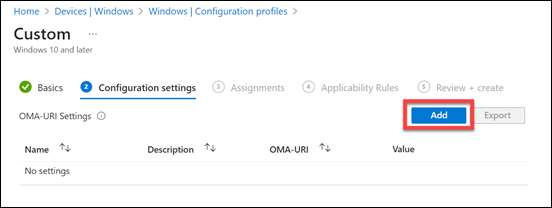
Select Add.

image

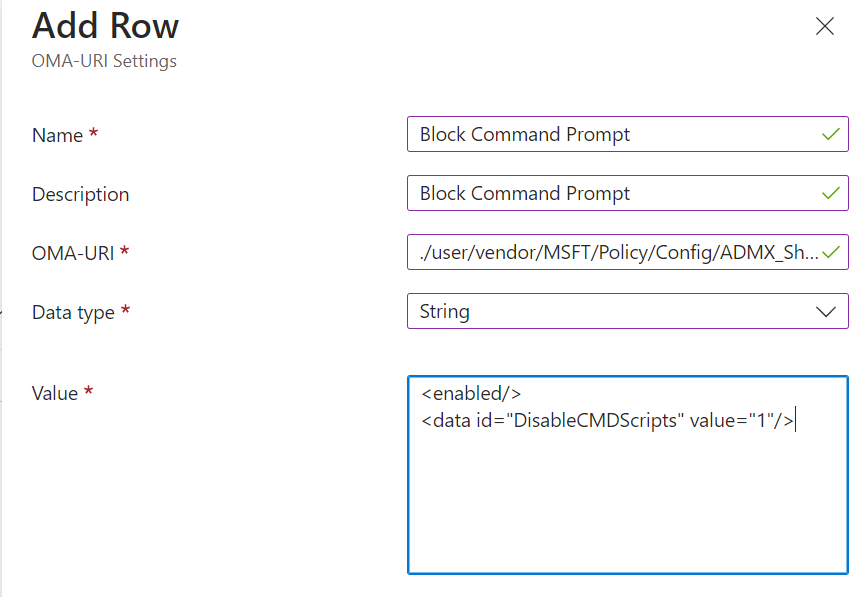
In the OMA-URI settings enter the following as shown above:

Name = Block Command Prompt

Description = Block Command Prompt

OMA-URI = ./user/vendor/MSFT/Policy/Config/ADMX_ShellCommandpromptRegeditTools/DisableCMD

Data type = String

Value =
<enabled/>
<data id=”DisableCMDScripts” value=”1″/>

Ensure you enter these exactly as shown, anything else will prevent the policy working as expected.

Press Save.

image

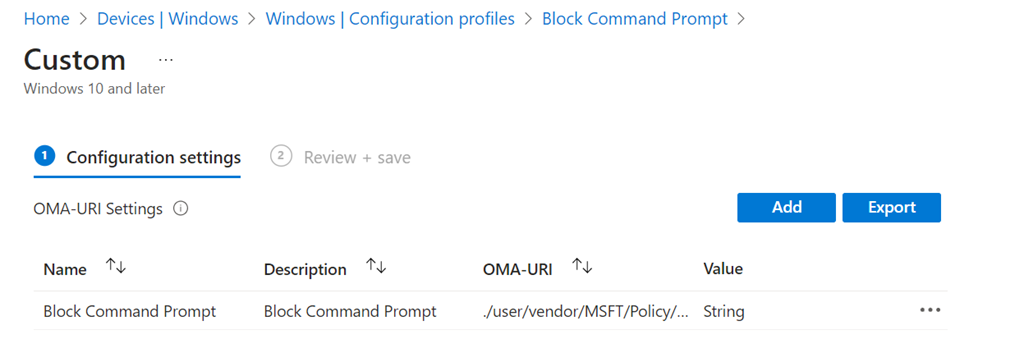
You should now see the item you just entered displayed as shown above.

Select Next to continue.

Assign the policy to a group. Here it is being assigned to all Windows devices.

Select Next to continue.

image

You will now see a summary. Ensure the Configuration settings has the above set before selecting the Create button to complete the policy.

image

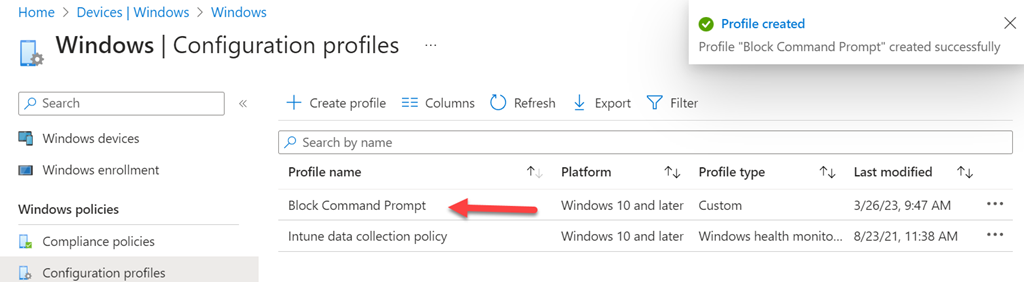
You should now see that the policy has been created and listed with all other Configuration profile policies as shown above.

You can edit this policy at any stage simply by selecting it.

image

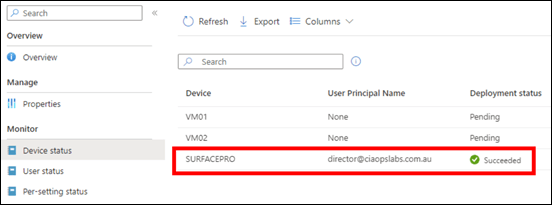
You now need to wait until the policy is deployed successfully to devices. You can check the status of this by viewing the Device status for the policy as shown above.

Capture2

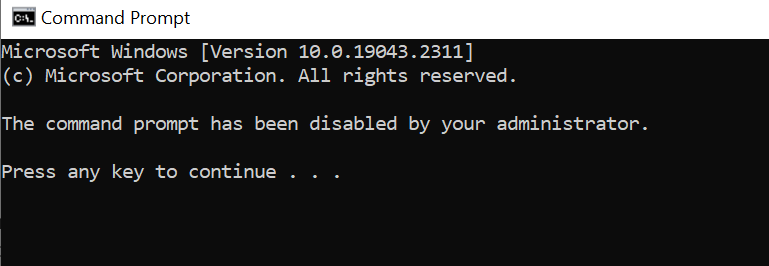
If you open the Command Prompt on a device where the policy is deployed you will see the above message.

Blocking Registry edits on Windows with an Intune Device Configuration profile

This article shows you how to use Intune to block Registry editing on Windows devices using a Configuration profile.
Navigate to https://endpoint.microsoft.com and select Device from the menu on the left as shown above.

Then, select Windows on the right.

Select Configuration profiles from the menu on the left as shown.

image

Select Create profile.

Then select the Platform as Windows 10 and later.

Select the Profile type as Templates.

From the list of templates select Custom.

Select Create in the bottom right.

image

Give the policy a name and select Next to continue.

image

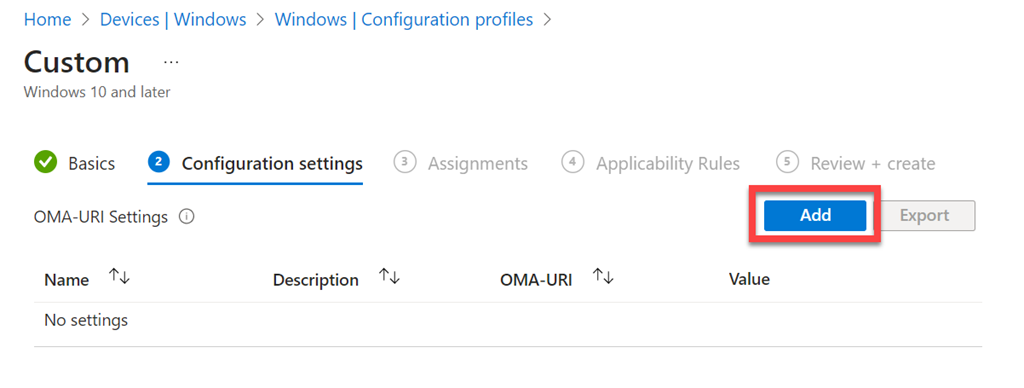
Select Add.

image

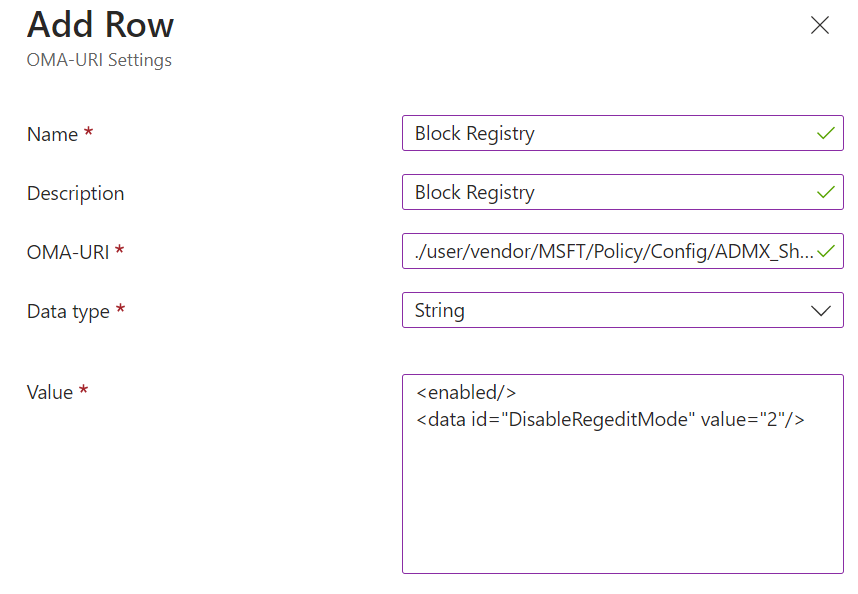
In the OMA-URI settings enter the following as shown above:

Name = Block Registry

Description = Block Registry

OMA-URI = ./user/vendor/MSFT/Policy/Config/ADMX_ShellCommandpromptRegeditTools/DisableRegedit

Data type = String

Value =
<enabled/>
<data id=”DisableRegeditMode” value=”2″/>

Ensure you enter these exactly as shown, anything else will prevent the policy working as expected.

Press Save.

image

You should now see the item you just entered displayed as shown above.

Select Next to continue.

Assign the policy to a group. Here it is being assigned to all Windows devices.

Select Next to continue.

image

You will now see a summary. Ensure the Configuration settings has the above set before selecting the Create button to complete the policy.

image

You should now see that the policy has been created and listed with all other Configuration profile policies as shown above.

You can edit this policy at any stage simply by selecting it.

image

You now need to wait until the policy is deployed successfully to devices. You can check the status of this by viewing the Device status for the policy as shown above.

Capture1

If you now try and make a change to the registry on a device where the policy is deployed you will see the following message.

Blocking USB devices on Windows with an Intune Endpoint Security policy
There are a number of ways to block USB devices using Intune. The following method uses an Endpoint Security Policy.

image

Navigate to https://endpoint.microsoft.com and select Endpoint security from the menu on the left as shown above.

Then select Attack surface reduction from the options that appear on the right as shown above.

image

Select Create policy.

Select Platform as Windows 10 and later as shown.

Select Profile as Device Control as shown.

Select Create in the bottom right.

image

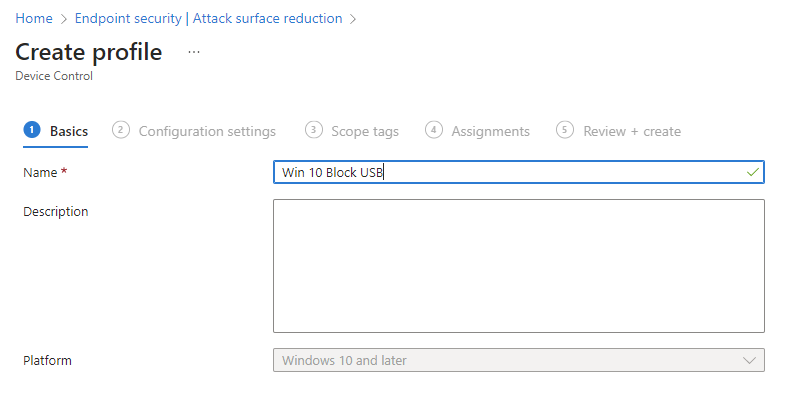
Give the policy a meaningful name and description.

Select Next to continue.

image

Under the System > Device Installation > Device Installation Restrictions heading locate the Prevent installation of removable devices item and set this to Enabled as shown above.

Select Next to continue.

image

Scroll down the list of available settings to locate the Device Control section as shown. To prevent ANY new USB from installing ensure this option is set to Not configured.

Select Next to continue.

image

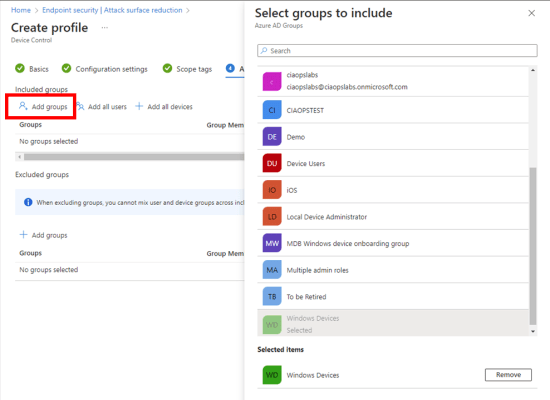
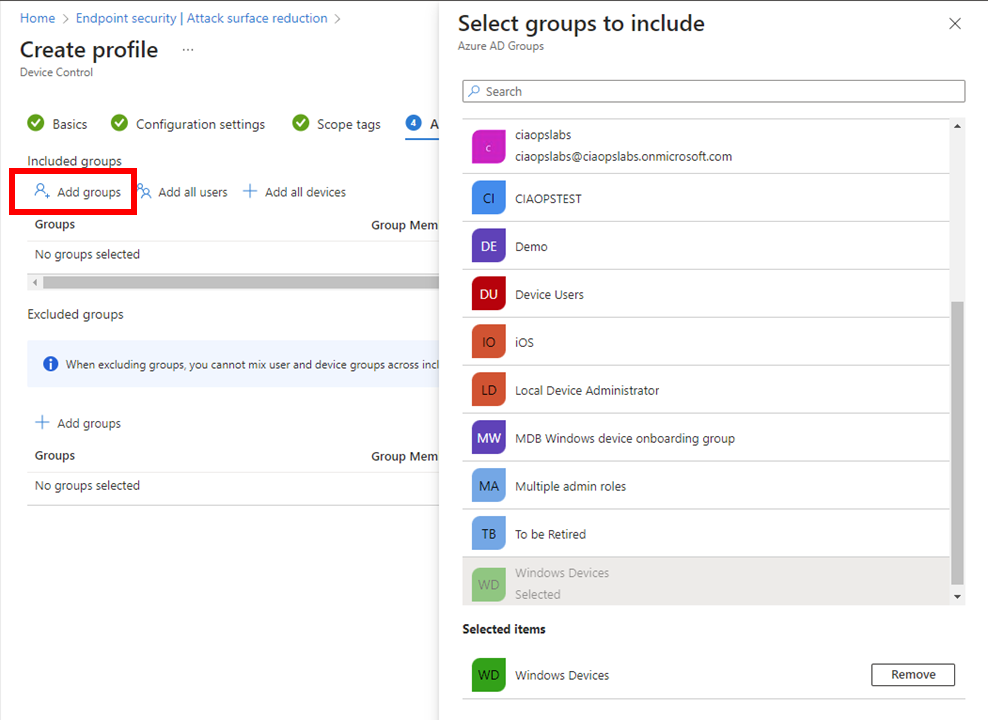
Assign the policy to a group. Here it is being assigned to all Windows devices.

Select Next to continue.

image

On the summary screen, expand the Administrative Templates option as shown. In here you should see that Prevent installation of removable devices is set to Enabled.

Select Create.

image

The created policy should now be listed as shown above. Click on it to view.

image

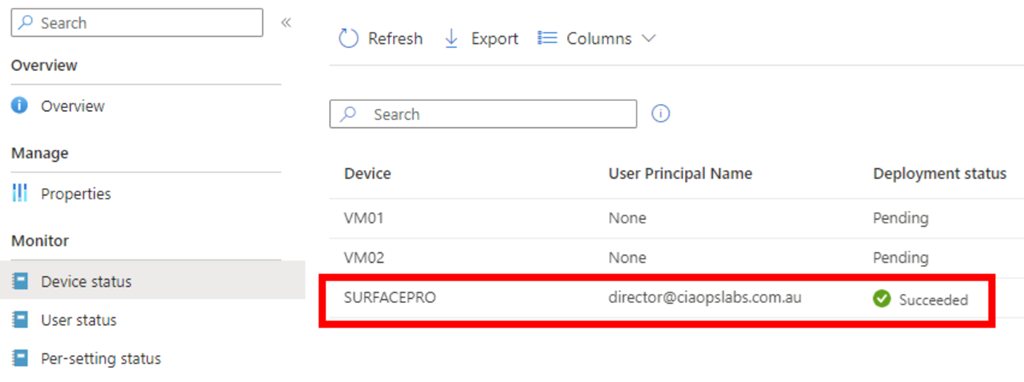
When the policy has been successfully applied to the devices the policy was assigned to you should see the status of devices as shown above.

Select View report button.

image

You should now see all the listed that have this policy applied to them as shown above.

Screenshot 2023-03-20 145033

If you now try and plug in an unknow USB storage device you may see the above warning. In other cases, you will see no warning but USB device storage will be blocked.

Some points to remember:

1. The above policy is only designed for Windows 10 and above

2. The above policy won’t prevent USB storage devices that have already been used on an endpoint. These need to be removed from the device manager on the device to be blocked in future.

3. Some USB devices that don’t appear as storage devices in fact have a small amount of storage on them (for video and projector drivers for example). These will also be blocked.

4. You can create exceptions to this policy via the device id if you wish.

Blocking web sites with Defender for Cloud Apps

Link to video = https://www.youtube.com/watch?v=CQOcUrS93FA

Thanks to the integration between Microsoft Edge browser, Cloud Apps Discovery (which is part of Defender for Cloud Apps) and Defender for Endpoint you can quickly and easily block most web based applications. In the example I prevent Facebook access on a Windows 11 device using the Edge browser. It is important to note that this blocking capability currently won’t work with third party browsers, however there are other ways of blocking sites with these browsers using other methods that are not covered in this video.

[CORRECTION] – Please note that in the video I may have indicated that this is possible with Microsoft 365 Business Premium. By default, it is not. Apologies for the confusion I may have caused here

Enhanced phishing protection in Windows 11 22H2

image

If you have Windows 11 22H2 and you take a look at your Windows Security settings under App & Browser control, you’ll find some new settings in Reputation-based protection as shown above.

You can read about these here:

Enhanced Phishing Protection in Microsoft Defender SmartScreen

If you want to enable these settings using an Intune Device policy you can do so using the Settings Catalog like so:

image

Remember, at the moment, you need Windows 11 22H2 to configure this.

Windows 11 Hyper V Guest configuration

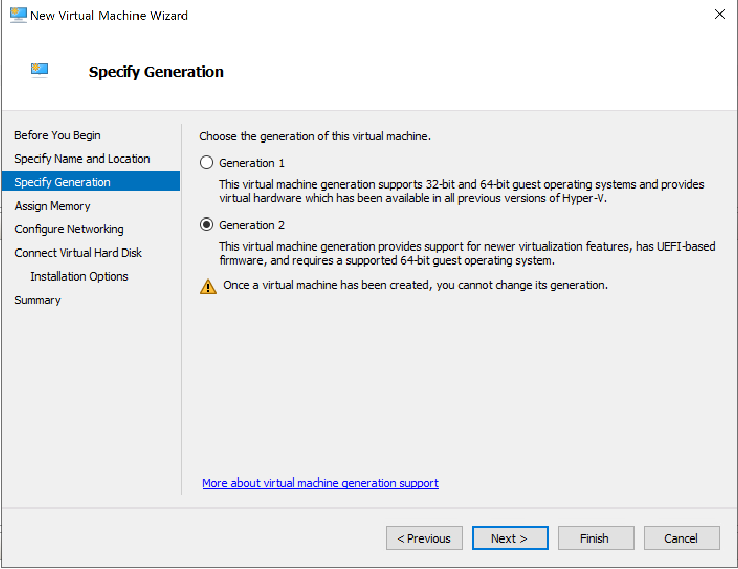
If you need to create a Windows 11 Hyper V guest machine You’ll need to ensure:

1. You create it as a Generation 2 machine

image

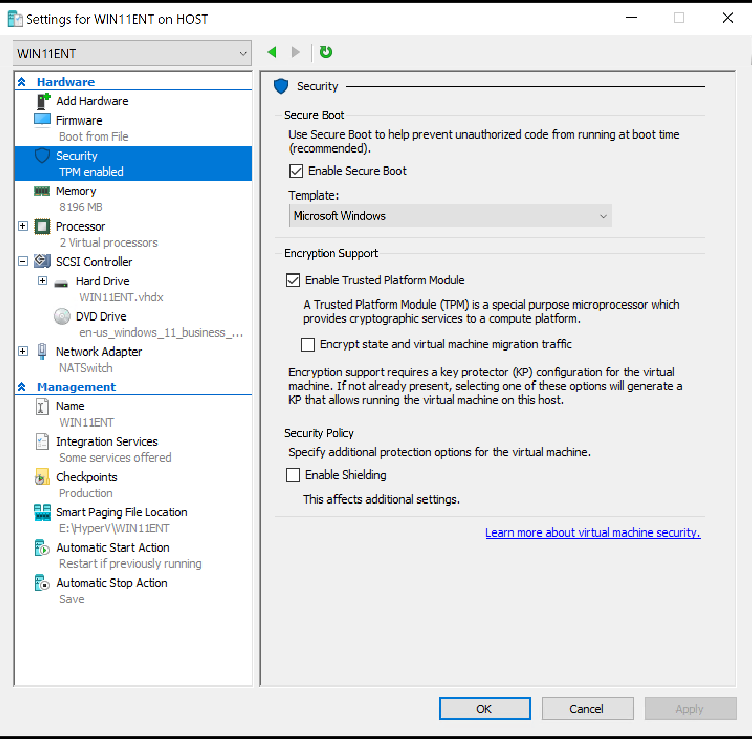
2. Once you have completed the normal set up process of assigning disks and setting up the machine, make sure you don’t power up the machine, but instead go into the Settings for that machine.

image

Select Security and ensure Enable Secure Boot and Enable Trusted Platform Module are checked.

3. Navigate to Processor

image

and ensure the Number of processors is at least 2.

With those basic settings in place you should now be able to install and run a Windows 11 Hyper V guest

image

Edge enhanced security

image

A new security option in Microsoft Edge.You’ll find it in Settings | Privacy, search and services as shown above. Three levels are available once you enable it (it is disabled by default).

What is does according to the documentation is:

Enhanced security in Microsoft Edge helps safeguard against memory-related vulnerabilities by disabling just-in-time (JIT) JavaScript compilation and enabling additional operating system protections for the browser.

and more information is found here:

Enhance your security on the web with Microsoft Edge

There is also the option to white list certain URLs if required.

So, if you want a bit more security when using Edge, turn it on! I have.