Need to Know podcast–Episode 150

Yet another milestone achieved. Episode 150! Wow, but we still have lots more content to bring you so it’s head down towards episode 200! Thanks everyone for listening and keep the feedback and reviewing coming.

This episode is proudly brought to you by Exclaimer, the best option for Exchange signatures on premise or in the cloud.

After our usual updates of the latest cloud news you’ll hear a few sound bytes from local MVPs at the recent MVP Community event in Sydney. Marc and I then speak with Brad Shepard, Senior Product Specialist, from Exclaimer all about their product. You’ll learn what Exclaimer is and how it can be used to reduce the burden of managing email signatures in your business. You’ll also get some deeper insight into how the products works behind the scenes and the technology it uses.

Take a listen and let us know what you think –feedback@needtoknow.cloud

You can listen to this episode directly at:

https://ciaops.podbean.com/e/episode-150-exclaimer/


Resources

@marckean

@directorcia

@greiginsydney

@leontribe

@martycatherall

Exclaimer

Azure news from Marc

External access coming to Microsoft Teams

Editing posts in Yammer now available

Team news rolls up come to SharePoint homepage

This episode proudly brought to you by:

April webinar resources

https://docs.com/d/embed/D25190964-2382-8197-9450-000528713933%7eMd4186d87-61d5-259a-4d26-00a8bd86cfff

April’s webinar is done and dusted. You can download the slides from:

April 2017 Need to Know Webinar

If you are not a CIAOPS patron you want to view or download a full copy of the video from the session you can do so here:

http://www.ciaopsacademy.com/p/april-2017-need-to-know-webinar/

We had a great session around Microsoft Staffhub with some fantastic questions from attendees. Thanks everyone for attending

you can also now get access to all webinars via:

http://ciaops-academy.teachable.com/courses/need-to-know-webinars

for a nominal fee.

See you next month.

Need to Know podcast–Episode 149

Marc and I bring you up to date with the latest Azure and Office 365. Lot’s been happening so tune in for the latest information on what been happening in the Microsoft Cloud.

Take a listen and let us know what you think –feedback@needtoknow.cloud

You can listen to this episode directly at:

https://ciaops.podbean.com/e/episode-149-cloud-news/

or via Soundcloud here:

Subscribe via iTunes at:

https://itunes.apple.com/au/podcast/ciaops-need-to-know-podcasts/id406891445?mt=2

The podcast is also available on Stitcher at:

http://www.stitcher.com/podcast/ciaops/need-to-know-podcast?refid=stpr

Don’t forget to give the show a rating as well as send us any feedback or suggestions you may have for the show.

Resources

@marckean

@directorcia

Azure news from Marc

Azure VM pre checks

Improved Office 365 login experience

SharePoint page Team news now visible

New file viewers in OneDrive for Business available

Removal of restricted file characters in SharePoint

Recover deleted Groups in Office 365

Assigning multiple users to tasks in Planner now available

This show brought to you by:

https://cpem.io/tJ01Hzu2k.js


Azure Active Directory version 2 PowerShell module

For a long time we have been using the msonline module in PowerShell to access Azure AD which provides Office 365 identity and security. This has now been superseded by the new:

Azure AD V2 PowerShell module

Also thanks to advances in PowerShell this module is even easier to install.

image

Just open the PowerShell application on your workstation (it is always recommended that you do this as an administrator). Then just type:

install-module –name azuread

and press enter.

image

You may be prompted about a Nuget provider as shown above. Select Yes to continue.

image

You should now see this being installed as shown above.

image

You may also be prompted about installing from an untrusted repository. Select Yes to all to continue.

image

You should now see the Azure AD module being downloaded.

 image

When complete you’ll be returned to the command prompt.

image

You’ll still need to login to your tenant using the standard get-credential command. However now you use the following:

connect-azuread

command to access Azure AD.

image

Once that is complete you can issue some of the new module command such as:

get-azureaddomain

as shown above to work with your cloud AD.

This new Azure AD module will the option to use going forward to work with your identities PowerShell for Office 365 because the older version 1 msonline will be depreciated at some stage.

Azure CLI 2.0 on Windows Bash shell

I recently wrote how to install Azure CLI 2.0 on Windows 10:

Configuring Azure CLI 2.0 on Windows 10

However, another option now with Windows 10 is to use the Bash Shell. Here’s the process of how to install both Bash and Azure CLI 2.0 on Windows 10

image

You’ll firstly need to install the Bash shell on Windows 10. To do this navigate to Settings in Windows 10. Then select For developers as shown above. Now select Developer mode.

image

You’ll be prompted to turn on developer mode. Select Yes to continue.

image

Windows will firstly search for the appropriate package

image

and then install it.

image

When complete you should receive a message, as shown above, that indicates you may need to restart your PC. You don’t have to reset just yet.

image

Go to Control Panel and select the option to Turn Windows features on or off. From the list that appears, locate and select Windows Subsystem for Linux (Beta) as shown above and then select OK.

image

Once the changes have been made you will need to reboot your PC.

image

Once rebooted select the Windows Start Menu and type bash. Select the bash option from the menu that appears.

image

Hit Y to continue.

image

The bash shell will be downloaded from the Windows Store as shown above.

image

It will then be installed.

image

When that is complete, you’ll need to enter a bash shell admin user name and password. This doesn’t have to be the same as you PC login but make sure you remember the details.

image

The bash shell installation will complete as you can see above.

image

If you now return to Windows Start Menu and enter bash you will see the option has changed to Bash on Ubuntu on Windows.

image

Next step is to ensure the Ubuntu subsystem is up to date. To do this enter the following command at the bash shell:

sudo apt-get update

image

Next, enter the command:

sudo apt-get upgrade

Once that is complete enter the following command:

echo “deb [arch=amd64] https://packages.microsoft.com/repos/azure-cli/ wheezy main” | \ sudo tee /etc/apt/sources.list.d/azure-cli.list

image

Then:

sudo apt-key adv –keyserver packages.microsoft.com –recv-keys 417A0893

image

Then:

sudo apt-get install apt-transport-https

image

Finally:

sudo apt-get update && sudo apt-get install azure-cli

to actually install Azure CLI 2.0.

image

image

Now if you type:

az

at the command prompt you should see the Azure CLI appear as shown above.

Remember, Azure CLI is designed to be a cross platform tool. That means it works on both Windows 10 and Bash on Windows 10 as well as Mac, Linux, etc. This makes it a great way to manage Azure from any platform.

Configuring Azure CLI 2.0 on Windows 10

Azure CLI is a cross platform scripting tool that runs on Linux, Mac and Windows.

There are two versions of the Azure Command-Line Interface (CLI) currently available:

  • Azure CLI 2.0: Next-generation CLI written in Python, for use with the Resource Manager deployment model.
  • Azure CLI 1.0: CLI written in Node.js, for use with both the classic and Resource Manager deployment models.

What we’ll cover here is how to install version 2.0 on a Windows 10 machine. To do this you basically need to follow the following steps in this article:

Install Azure CLI 2.0
image

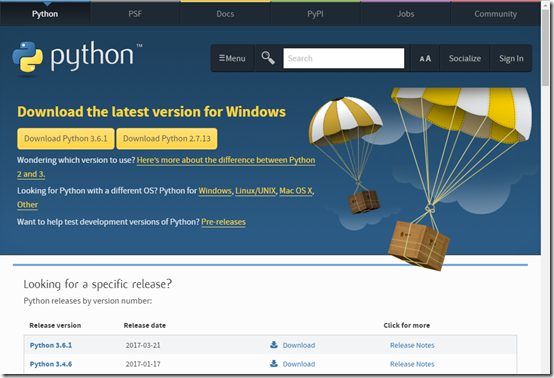
You’ll need to firstly download Python for Windows which you will find here:

https://www.python.org/downloads/

Select the most current version (here 3.6.1).
image

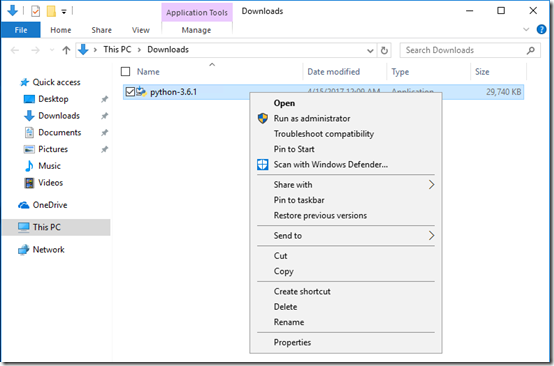
Once you have downloaded the file, right mouse click on the downloaded file and select Run as administrator.

Accept the UAC that appears.
image

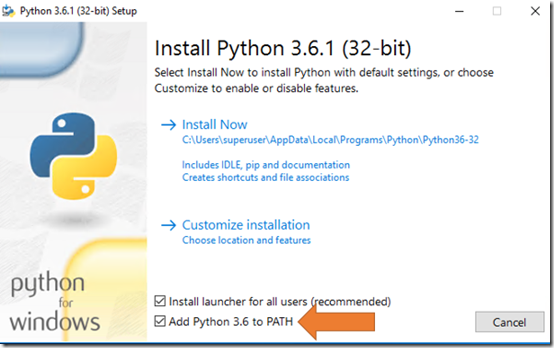
The install splash screen should now appear. Before you commence the install ensure the option to Add Python to PATH is selected at the bottom of the dialog as shown.

Select the Install now option to commence the installation.
image

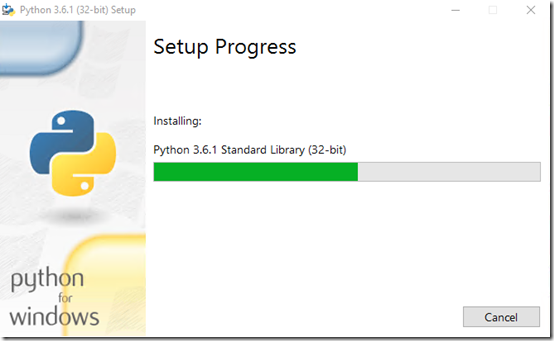
You should now see the installation progressing.
image

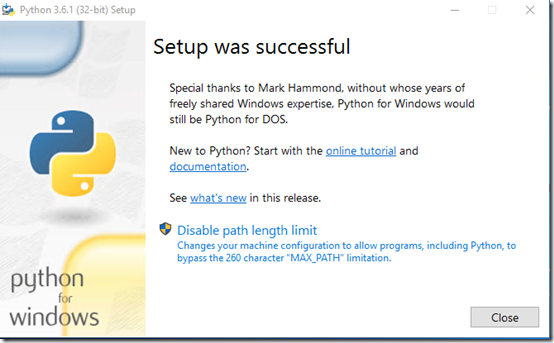
Select Close when complete.

image

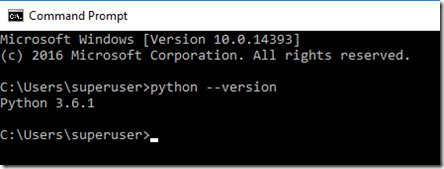
Open a command prompt and type:

python –-version

to which you should see the version number as shown above indicating that Python has install as expected.

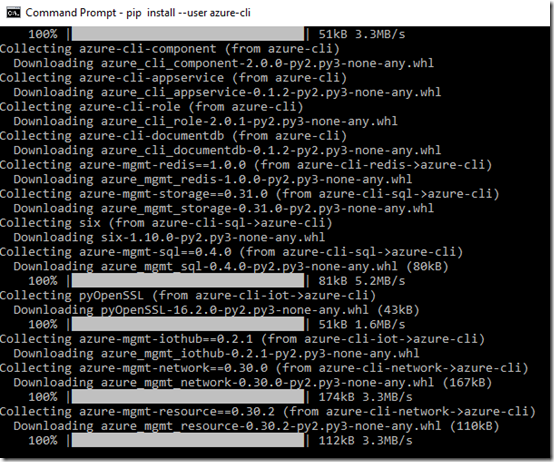
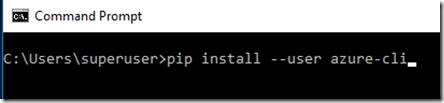
You now need to install the Azure CLI which you do using the command:

pip install –-user azure-cli
image

image

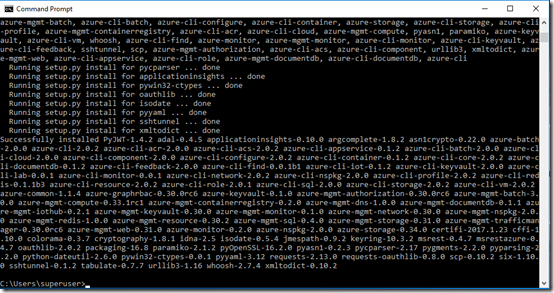
You should then see a range of package being downloaded as shown above.

This process will take a few minutes to complete.
image

When the process is complete, you’ll be returned to the command prompt as shown.
image

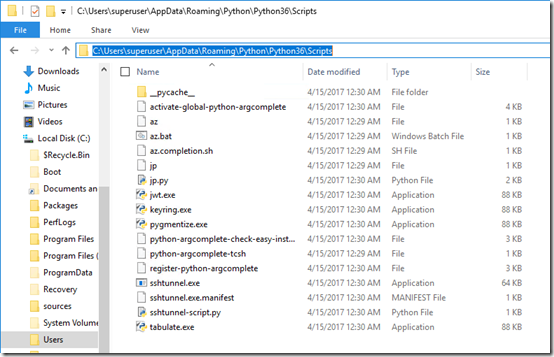
The command that you run to launch the CLI environment is az.bat. That has been installed in:

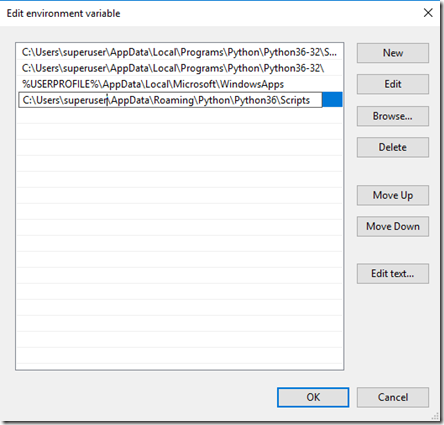
C:\Users\\AppData\Roaming\Python\Python36\Scripts

which unfortunately has not been added to the PATH environment. So you’ll need to add this for convenience.
image

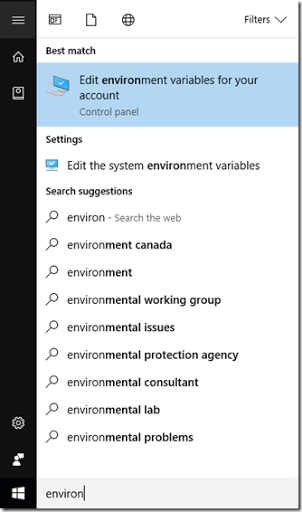
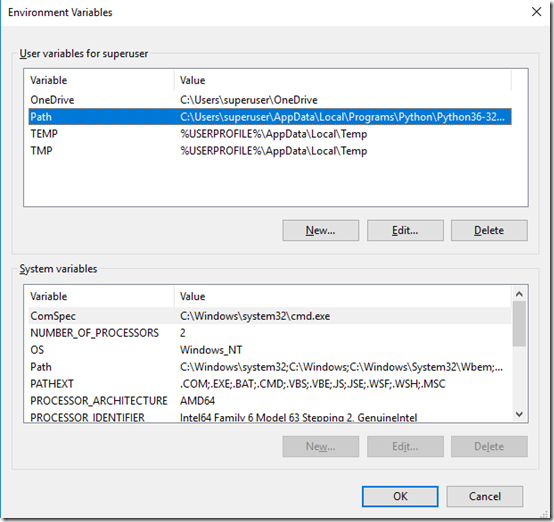
From the Windows 10 Start type environ and you should see the option Edit environment variables for your account at the top of the list as shown. Select this.
image

Select the Path line in the top box and then select the Edit button.
image

Select New and add the path to the az.bat file as shown above.

Select OK twice to save your changes and exit.
image

image

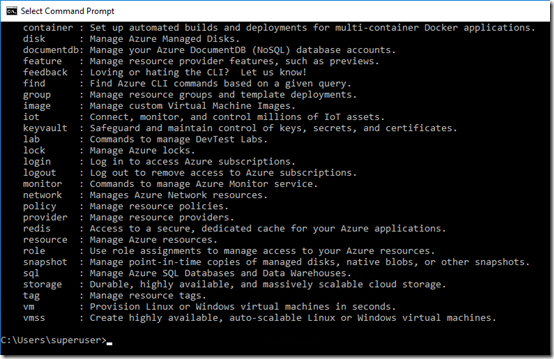
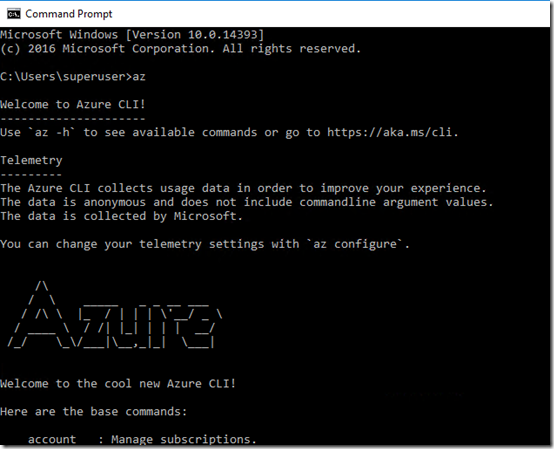
If you now go to the command prompt and type:

az

you should see the Azure CLI appear as shown above. You are now ready to use Azure CLI 2.0 on Windows to manage your Azure environment.

Accessing user mailboxes in Office 365

Following least privilege access, by default, even global administrators don’t have access to user mailboxes. This may prevent you from doing bulk administrative operations for your environment. To gain access to perform bulk administration tasks, such as using PowerShell scripts, you’ll need to assign the appropriate rights. This can be done in two places in the web interface.

image

If it is just mailbox access you require then the best place to assign these rights is in the Exchange admin center which you access from the Office 365 Admin center.

image

Select permissions on the left and then Discovery Management on the right. You then select the pen icon above the list of permissions to make changes.

image

At the bottom of the dialog that appears you can add new members to this role as well as view the included roles as shown above, one of which is Mailbox Search.

The description for the Discovery Management permission is:

Discovery Management

Members of this management role group can perform searches of mailboxes in the Exchange organization for data that meets specific criteria.

Note that it only provides permissions to mailboxes.

image

There is another way to provide rights to mailboxes BUT you’ll also be providing rights to files in SharePoint and OneDrive for Business. If you are following least privileged access best practices, which you should, you shouldn’t use this process if all you need is access to mailboxes.

Here you’ll need to navigate to the Security & Compliance center from the Admin center. You’ll then need to select Permissions on the left and the eDiscovery Manager on the right. You again select the pen icon to add the appropriate users to this role.

The description for this role is: 

eDiscovery Manager

Perform searches and place holds on mailboxes, SharePoint Online sites, and OneDrive for Business locations.

Note how this role provides permissions to mailboxes AND files as mentioned.

Once you have given a user permissions to mailboxes you may need to wait a little while (15 minutes typically) for them to fully flow through to all elements. Then you can start making the bulk changes you need.

Setting up Azure email billing alerts

Azure billing is very different from Office 365. It is consumption based rather than fixed cost per month cost. That is you pay for what you use. The more you use per month, the more you pay. Azure is also typically a ‘post-paid’ service, that is you pay for your usage at the end of the month.

Using Azure services is becoming easier and easier which translates into higher charges. There is also the case where people consume Azure services not exactly understanding what they consuming. This can result in a type of ‘bill-shock’ where the expected charges can be above the anticipated amount.

One of the way to avoid any potential Azure ‘bill-shock’ is to set up email billing alerts in Azure to warn you when your Azure consumption exceeds some threshold. Here’s how to do that.

image

Open the Azure management portal and navigate to the Subscriptions option. Then select the appropriate Subscription from the list of those available and from the menu at the top of the selected Subscription page select Manage as shown above.

image

You should then see a summary of your current usage for that subscription as shown above. Email alerting is currently in preview so select preview features from the menu across the top of the page.

image

You should now see the Billing Alert Service as shown above. Select the try it now button on the left to enable the service.

image

You’ll be prompted to confirm your selection by clicking the check mark in the lower right of the dialog box that appears.

image

The page will pause and think for a few moments.

image

and then you should see that the Billing Alert Service is active as shown above.

image

If you now return to the subscriptions option from the menu across the very top, you should now see a new option on the menu for your subscription called Alerts as highlighted above. Select the Alerts option to continue.

image

Select the add alert option. You’ll notice that you get a total of 5 alerts you can configure.

image

Enter a name for the alert as well as the when the alert will fire. You can also nominate up to two email addresses this alert will be sent to.

image

You can alert for either Monetary credits (i.e. amount remaining) or Billing total (i.e. amount spent). In this case I’m going to select Monetary credits because I want to know when my monthly available amount is becoming depleted.

Select Save when complete.

image

You should now see the alert you just created listed as shown above.

image

If you expand the alert you’ll see all the details and be able to make changes. You’ll also see the delete option (garbage can icon) on the right.

You can now add any additional alerts you desire.

Now if your subscription triggers an alert you’ll receive an email notification. Remember, if you have multiple Azure subscriptions in a tenant you’ll need to repeat this process for every subscription you wish to monitor.