Azure Nested Virtualization

One of the things that Azure VMs currently don’t seem to allow is the ability to login to machines using just Azure AD credentials. So, how to overcome this issue but remain totally cloud based?

The solution is to use nested virtualisation in Azure which Microsoft recently announced here:

Nested Virtualization in Azure

Nested virtualization is only available on specific machines (See above link for details). One of these is the E_V3 series, which are currently not available in every region.

image image

Just for comparison, I looked at my usual ‘go to’ machine (a DS2_v2) and the supported E2S_V3. As you can see from the above the E2S_V3 is far better value, being cheaper and having more RAM.

This made me think that perhaps I should convert some of my stand alone test VMs into guest VMs in a nested arrangement. As long as I only use these machines together the compute cost would only be for the single host VM on which the multiple guests are running rather than multiple individual Azure VMs. Hmm…something to consider down the track.
image

So I ran up a E2S_V3 out of the West US 2 datacenter with Windows Server 2016 datacenter in the standard manner.

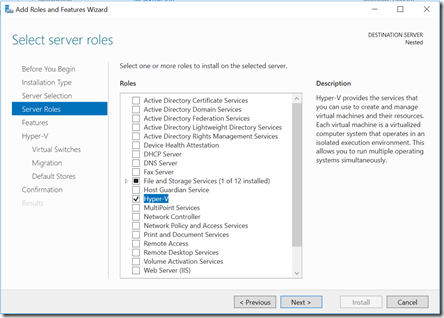
Once the server I up I simply went in and added the Hyper V role as you would with any Windows Server.
image

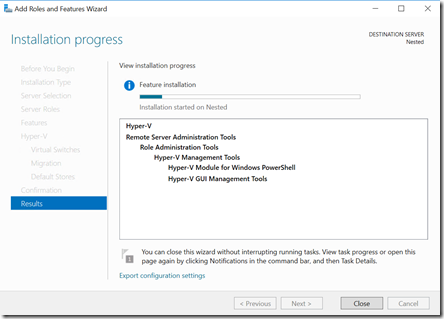
The feature installed and when complete I rebooted the server as required.
image

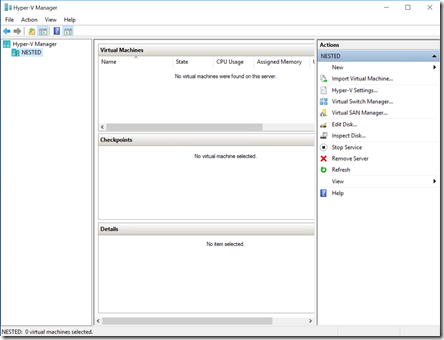
After the reboot I had access to the Hyper V Manager as you can see above, as with any Windows Server.
image

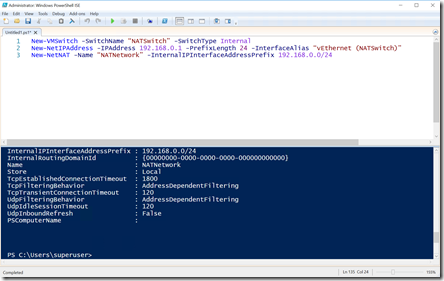
I now needed to create a new Hyper V Virtual Switch that would support NAT that my guests could connect to and then get access to the Internet.

To do this I needed to run 3 lines of PowerShell:

New-VMSwitch -SwitchName “NATSwitch” -SwitchType Internal

New-NetIPAddress -IPAddress 192.168.0.1 -PrefixLength 24 -InterfaceAlias “vEthernet (NATSwitch)”

New-NetNAT -Name “NATNetwork” -InternalIPInterfaceAddressPrefix 192.168.0.0/24

You can alter the IP addresses to suit.
image

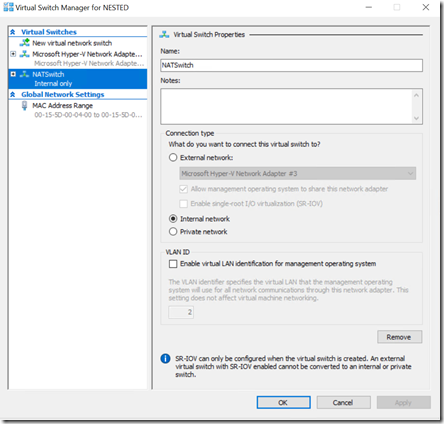
Once this is complete if I now look in my Hyper V Manager I see a new virtual switch as shown above. I’ll use this to connect the network card of my VMs to.

At this point I’ll need to assign the IP addresses to my virtual machines manually. I can configure an appropriate DHCP server if I want but I’ll leave that for a future article.
image

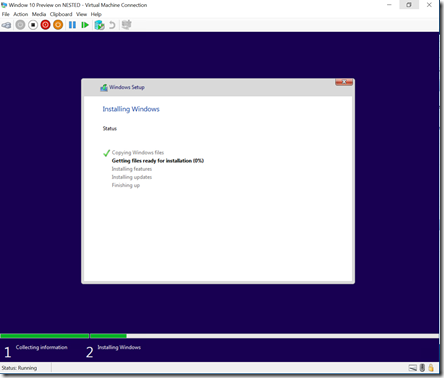
So now I just create a VM on this server as I would normally. In this case I chose a Windows 10 Preview edition.
image

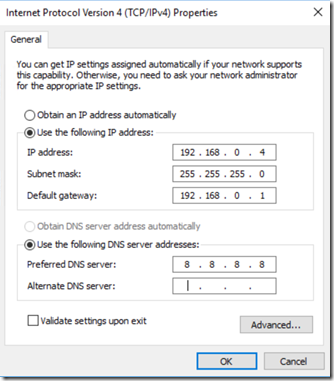
When complete I need to set a static IP until I get the DHCP server operating.
image

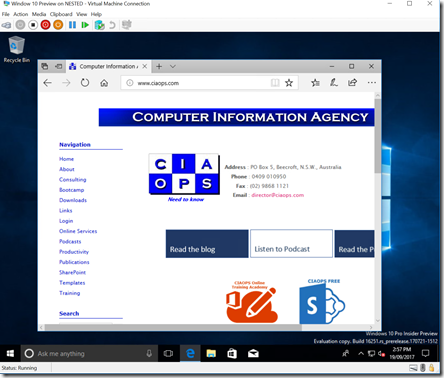
Voila, a nested VM in Azure connected to the Internet and ready for further testing.

I can’t tell you how much flexibility this is going to provide me. Not only can I now login to machines using Azure AD account but I can run up things like Windows 10S and (shock, horror) maybe even get SBS working as a guest. Now that would be really cool to achieve and I have added that to my ‘to do’ list. Watch for and article real soon!

Till then, all I can say is that Azure Nested Virtualization is super cool and really super cheap! Love the cloud!


Automation options in Office 365 presentation

Here’s the presentation I did for Office 365 Saturday here in Australia in various locations. It focused on the automation options that are available to you in Office.

You can also find the slides for download.

In the session I talk about Office macros, SharePoint Designer, third party options like If This Then That and Zapier. I also focus on Microsoft Flow and dip into some PowerShell.

In short, there are lots and lots of options when it comes to automating Office 365 and I feel more people should be taking advantage of them. Too many people are simply adding technology for technology’s sake and making their life harder. That is not what technology is for. Technology is designed to give you the freedom to do what you want not burden you with additional tasks.

Are you automating as much as you could? Hopefully, this presentation will inspire you to look more deeply at what is possible with a tool like Office 365.

Need to Know Podcast–Episode 164

Marc and I are back with the latest news and updates in the world of Office 365 and Azure. We are getting ready for the information overload we’ll suffer as Microsoft Ignite rolls around at the end of this month. Stay tuned right here for all the updates and maybe some special stuff!

In this episode I do a solo session around my belief that successful Office 365 adoption comes from focusing on the ‘me’ services – Yammer, OneDrive for Business, OneNote and Delve. I dive deep into my reasons and the actions you need to take away for success.

Take a listen and let us know what you think –feedback@needtoknow.cloud

You can listen directly to this episode at:

https://ciaops.podbean.com/e/episode-164-focus-on-me-services/

The podcast is also available on Stitcher at:

http://www.stitcher.com/podcast/ciaops/need-to-know-podcast?refid=stpr

Don’t forget to give the show a rating as well as send us any feedback or suggestions you may have for the show.

Resources

@marckean

@directorcia

Focus on the me service first

Conditional access with Microsoft Teams

Skype for Business becoming Microsoft Teams

Microsoft and Adobe build a closer relationship

Skype for Business updates on the Mac

This program is brought to you by:

image

September Azure Webinar resources

Slides from the very first CIAOPS Azure webinar are now available for download here:

https://www.slideshare.net/directorcia/ciaops-need-to-know-azure-webinar-september-2017

The recording is also available at:

http://www.ciaopsacademy.com.au/p/need-to-know-azure-webinars

which CIAOPS patrons get free access to as part of their subscription.

This webinar set the ground work for upcoming monthly webinars that will go deeper into Azure features and abilities.

So make sure you sign up for next month’s webinar. 

More benefits added to CIAOPS Patron program

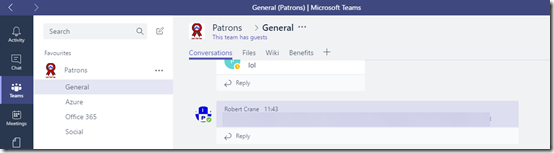
I am happy to announce that now Microsoft Teams is available to external users, so too is access to CIAOPS Patrons external Team from my own Office 365 tenant.

This means that all levels of CIAOPS Patrons now get access to an external Microsoft Teams resource that includes chat, SharePoint Team Site, Planner and more.

image

Not only will give you an better idea of what Microsoft Teams is all about, including how external access works, you’ll also get access to the variety of content that I’m adding into this Team.

The new external Microsoft Teams benefits is on top of all existing resources including a private Facebook community, webinar recording, access and more.

Visit www.ciaopspatron.com for more details of the program and watch out for further additions to the program.

Enabling Microsoft Teams External Access

Microsoft Teams has just announced that you can grant access to users outside your tenant. You can read about it here:

https://blogs.office.com/en-us/2017/09/11/expand-your-collaboration-with-guest-access-in-microsoft-teams/

Now being the eager beaver I am, I wanted this working asap. So I started invited people but for some reason they couldn’t gain access to my Team. They also seemed to get automatically removed from the Team after a period of time.

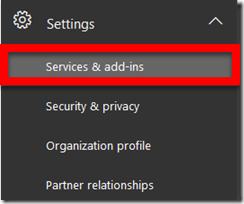
Turns out that external access for Teams is not enabled by default. To enable it you must go to your Office 365 Admin Center. Then select Settings from the left hand side.

SNAGHTML1a1ec049

From the menu that appears select Services & add-ins.

image

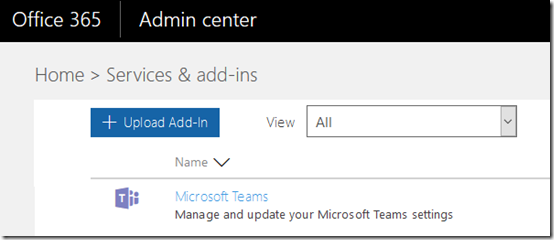
Locate Microsoft Teams from the list and select that.

image

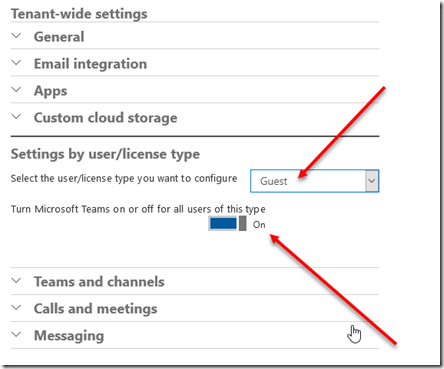
In the Tenant-wide settings locate Settings by user/license type. Change the pull down to read Guest and the set the option to On as shown above.

The first time I looked, I didn’t change the pull down from the default of Business & Enterprise so I totally missed the Guest option D’Oh.

After I made that change I could indeed invite external users successfully into the Microsoft Team I had prepared for them!

So if you are having troubles like I was, check that you have enabled guest access as shown above.

Using Yammer to keep up to date

I’ve written two previous articles about how you can use various Office 365 services to keep you and your business up to date. You’ll find these at:

Using Office 365 to stay up to date

Using Microsoft Teams to keep up to date

I’ll show you how to do exactly the same thing but this time using Yammer and Microsoft Flow.

image

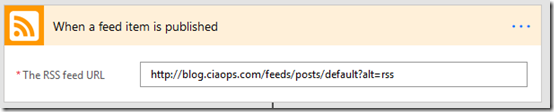
I am going to assume that you already have your Yammer network in operation (it does come free with most Office 365 suites after all!). So the first step in the process, as with previous articles, is to go and find the RSS feed for the item you wish to track.

image 

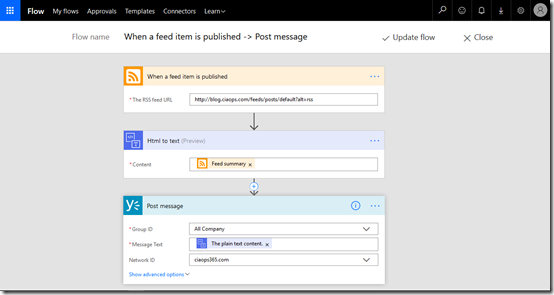
In this case I’ve created a new Flow and the trigger item I’ve selected is when a new items is created on the feed.

image

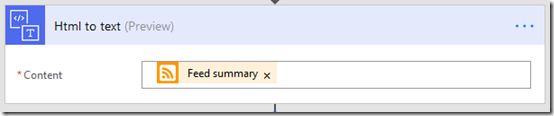
Once the process has started I’m then going to send that feed through a HTML to Text convert to make it easier for users to read.

image

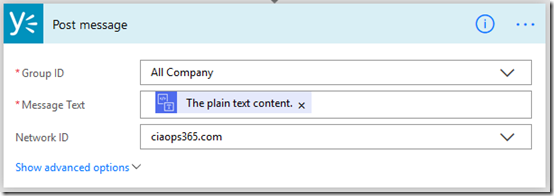
I’m then going to take the result of that conversion and post it automatically to a location in Yammer. In this case, I have elected to post it to All Company but you may wish to create a dedicated Yammer group for these items (kind of like the dedicated channel I suggested when using Teams).

image

So when a new article is published like that above, it will appear on Yammer like so.

image

This should give the news much greater visibility and importantly allow other in the business to comment, add conversations and more value around the item. It also allows people to draw it to the attention of others using ‘@’ mentions.

You could extend this further by automatically adding appropriate ‘#’ hashtags to make search and categorisation easier. You are only limited in what you can do by your imagination.

I think this Yammer style automatic posting of new items works best for items that are relevant across the organisation or at least across a group wider than what you find in a Microsoft Team channel. However, all three that I have covered, Office 365 Groups, Microsoft Teams and this can be used where ever and when ever they make sense. They all have mobile apps. They all encourage participation and they all make the information searchable.

The idea with all these suggestion is to demonstrate how easy it is to bring the news you want directly to a common location in your business. Hopefully, it also demonstrates how powerful this can be when enhanced by comments from people inside your business. This concept applies for all business, large and small. It is the smart way to use the tools you have to fetch the information you need.

Remember, Office 365 is not just a single service like email, it is a toolbox that allows you to solve business challenges. Make sure you explore all it has to offer and implement it in ways to make your business more productive as I have hopefully shown here.