Saving attachments to SharePoint

One challenge when moving your files and folders to the cloud is working with attachments, because now you want to save and retrieve them from this location. The good thing is that if you have the latest version of Outlook on your desktop then this is pretty simple.

In this article I’ll show you how to save attachments directly to SharePoint Online.

clip_image001

So let’s say you received an email, like the above, with a few attachments that you want to get into SharePoint Online. If you open the email and select the Attachment Tools tab at the top of the page as shown, you’ll see you have a number of Upload options in the Save to Cloud section of the Ribbon menu.

clip_image001[5]

You can also right mouse click on the attachment and see the same Upload options in the menu that appears.

clip_image001[7]

When you select the Upload option you’ll be presented with a number of different cloud locations into which you can save this file. These locations are dependent on the account items you have configured for Outlook. If you are an Office 365 user then you should see your own OneDrive for Business and some Office 365 Groups.

To display all the SharePoint Online options select the More… option at the bottom of the list.

clip_image001[9]

This will then show you all the Office 365 Groups that also have a SharePoint Team Site tied to them. This list will also include any Microsoft Teams you have created. Unfortunately, you won’t see any “pure” SharePoint Team Sites here, just ones connected to Office 365 Groups. Hopefully, we’ll get that ability down the track.

clip_image001[11]

Once you select your destination, here the Support group, the attachment will be saved into the root of the Documents library as shown above.

It would be nice if we got the ability to select from the different Document Libraries within the SharePoint Site and/or subfolders but for now at least we can get the file into a Team Site. Once the file has been saved you could then use something like Microsoft Flow to route the document elsewhere within the site or you could just move it manually if desired. You could also set up an automatic email alert in SharePoint to notified people that a new file has arrived.

clip_image001[13]

When you return to the email you will see that the attachment now has a small cloud icon next to and the word “Saved” to indicate it is stored online.

So a pretty straight forward process for saving attachments in emails directly to SharePoint Online. There are some limitations in the process in that it can only save to SharePoint locations created with Office 365 Groups or Teams and that it currently only saves into the default Document Library within the Team Site but there are ways to overcome these if desired. Hopefully, we’ll see these abilities included in the near future as well to provide additional flexibility. However, it is now very easy to get attachments directly into Office 365 from Outlook.
My Stuff 2018

This post my annual post is aimed at bringing the links to everything I have out there on the Internet together into a single place. Here we go.

About me

Social Media

Free Stuff

Regular technical and business information, tutorials, walk throughs, learnings, upcoming courses and more.

Here you’ll find currently almost 200 videos full of tutorials on SharePoint, Office 365, Azure and technology.

Documentation, presentations, SharePoint Guide and more are here for free download.

Docs.com is slated to be retired in December 2017 but as of today it is up. It will therefore, more than likely disappear totally in 2018 so go and grab anything you want while it is still available.

This is the recommended replacement for Docs.com and is the place that I am now uploading my presentations and whitepapers for free download. At this point in time it doesn’t contain everything that I had on Docs.com simply because it would take me too long to get everything up there. I’ll continue to add new stuff and stuff that is requested. Hopefully, I’ll also get the time to upload the stuff from Docs.com there.

Documentation for SharePoint on premises, especially the free versions and those that came with SBS. Note that all of these reside on Docs.com which is technically being retired so they may not be available for long.

Whitepapers and superseded documentation lives here.

With over 170 episodes and now entering it’s 8th year my podcast focuses on providing you news and updates from the Microsoft Cloud around Office 365 and Azure.

You can subscribe using iTunes or Stitcher.

After the course complete this morphs into my Office 365 newsletter.

Commercial stuff

This stuff helps pay for free stuff above so I appreciate your support for my paid work.

Access to the private CIAOPS community for technical support, product discounts and access to the best Office 365 and Azure information

Lots of courses on Office 365, PowerShell, Azure, SharePoint and the like.

Designed to help technology companies become cloud service providers

General Interest

This accounts sends a tweet to commemorate a significant dates from the Australian battles in France during World War 1.

I’m a big believer in supporting those who want to build their own business but just need a leg up to get started. Kiva is simply and easy way to provide this and I recommend this to everyone.

In 2017 I read over 30 books. That means I do a lot of reading on a variety of topics and with Goodreads you can follow along with the books I’m reading as well as those that I add to my bookshelf. I’ll have an upcoming post on my recommended reads, so watch out for that post coming soon.

Making changes to existing Site Collections

Here’s a quick summary video on how to make changes to a traditional SharePoint Site Collection. This will only work with pure SharePoint Teams Sites, not those created with Microsoft Teams and Office 365 Groups. That will become available in the new SharePoint Admin Center coming soon. Till then, this video will show you how to access the settings as well as how to interact with the most common configurations.

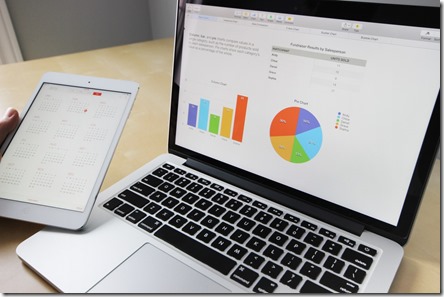
New Microsoft 365 courses from CIAOPS

pexels-photo-265087

Just in time for Christmas, I have released two new online courses focused on Microsoft 365 Business:

Introduction to Microsoft 365 Business

and

Getting Started with Microsoft 365 Business

The Introduction course is aimed at giving you an overview of the Microsoft 365 product and how the Business plan fits inside. The Getting Started course is more a step by step guide taking you through what you can actually do with the Business plan.

Both of these new courses can be found at the CIAOPS Academy where you’ll also find extensive online courses for Office 365 and Azure. You can purchase the courses individually or in annual bundle that includes every course now and for the next twelve months.

I have more courses focused in Microsoft 365 (including some focused on the Enterprise plan) coming very soon.

Need to Know Podcast–Episode 172

Our last episode for 2017. Some reflections along with the usual news and updates from the Microsoft cloud. We take this opportunity to thank our all our sponsors and listeners for the year as well as wishing everyone a great Christmas and New Year. Marc and I will be back in 2018 to keep you up to date with all the latest in Azure and Office 365 in our own unique way. See you all in 2018!

Take a listen and let us know what you think –feedback@needtoknow.cloud

You can listen directly to this episode at

https://ciaops.podbean.com/e/episode-172-end-of-2017/

Subscribe via iTunes at:

https://itunes.apple.com/au/podcast/ciaops-need-to-know-podcasts/id406891445?mt=2

The podcast is also available on Stitcher at:

http://www.stitcher.com/podcast/ciaops/need-to-know-podcast?refid=stpr

Don’t forget to give the show a rating as well as send us any feedback or suggestions you may have for the show.

Resources

@marckean

@directorcia

Azure news from Marc

New to Office 365 in December

Whiteboard app

Flow panel in SharePoint

Microsoft 365