January Azure Webinar resources

Slides from my January Azure webinar are now available at:

CIAOPS Need to Know Azure Webinar – January 2018

The recording is also available at:

http://www.ciaopsacademy.com.au/p/need-to-know-azure-webinars

which CIAOPS patrons get free access to as part of their subscription.

This webinar set the ground work for upcoming monthly webinars that will go deeper into Azure features and abilities.

So make sure you sign up for next month’s webinar.

January Office 365 Webinar Resources


The first webinar for the new year. Thanks to anyone who attended.

Slides from this months webinar are now available at:

https://www.slideshare.net/directorcia/ciaops-need-to-know-office-365-webinar-january-2018

If you are not a CIAOPS patron you want to view or download a full copy of the video from the session you can do so here:

http://www.ciaopsacademy.com.au/p/need-to-know-webinars

We looked at user management in this session.

Watch out for next month’s webinar.

My Tech Books – 2018

As much as business books are the mainstay of helping you grow a business, I would assert that there is a place for good fiction and non fiction as a way of expanding what is possible and what we may see with technology in the future. From such ideas, opportunities flow and in this ever changing world of technology, what is fiction today becomes fact tomorrow.

Below is a list of tech (both fiction and non-fiction) that I have really enjoyed and recommend to anyone interested in technology and the impact it may play in our lives down the track. Many books are ‘hacker’ style stories about the security challenges our technology creates thanks to it’s intersection with humanity. I think that technology simply magnifies the good and the bad. What do you think?

You can follow all the books, tech, business, non-fiction I read and want to read over at Goodreads where I have an account. You can also view my activity via:

https://www.goodreads.com/director_cia

or just follow me on Facebook:

www.facebook.com/ciaops

1. Daemon – Daniel Suarez [Fiction]

A glimpse into the future of where drones and augmented reality may take us. That may not necessarily be a good place either.

2. Freedom TM – Daniel Suarez [Fiction]

A follow up to Daemon. What happens when technology dominates the world? Who benefits?

3. Ready Player One – Ernest Cline [Fiction]

Much like the Matrix. What is life like if you live inside the machine? You can be just about anyone you choose. I also love this book for all the retro technology that was part of my life. TRS-80 anyone?

4. Future Crimes: Inside the Digital Underground and the Battle for our Connected World – Marc Goodman [Non-fiction]

Technology will ultimately doom us all I believe because we are building our world on stuff that unfortunately places a low regard for security and privacy. This book will show you why that is a road to ruination.

5. Countdown to Zero Day: Stuxnet and the Launch of the World’s First Digital Weapon – Kim Zetter [Non-Fiction]

If you don’t believe cyber warfare is real then read this book to understand how software is now a weapon as potentially devastating as any nuclear device.

6. Beyond Fear: Thinking Sensibly about Security in an Uncertain World – Bruce Schneier [Non-Fiction]

Security is important but it is important in context. We need to be rational when we consider our security not emotional. A great level headed approach to how we need to be secure.

7. American Kingpin: The Epic Hunt or the Criminal Mastermind Behind the Silk Road – Nick Bilton [Non-Fiction]

An amazingly detailed book on the rise and fall of Ross Ulbricht, the creator of the Silk Road web site. In here are asked to think about whether technology plays something more than a neutral role in today’s world.

8. The Cuckoos Egg – Clifford Stoll [Non-Fiction]

Before the Internet was in the public sphere it existed in the world of academia. This is the story of how one man’s search for the source of an accounting error uncovered something are more sinister.

9. Takedown – John Markoff and Tsutomu Shimomura [Non-Fiction]

The pursuit and eventual capture of notorious hacker Kevin Mitnick makes for great reading.

10. Hackers: Heroes of the Computer Revolution – Steven Levy [Non-Fiction]

Ah, the good ole days when it was more about proving how smart you were than trying to actually cause harm. If you think hacking is something new, then you’re in for a surprise with this book

Windows Autopilot Deployment heading to Azure portal

image

If you go to Intune in the Azure Portal, then select Device enrollment, then Windows enrollment, you see some new options for Windows Autopilot deployment as shown above.

If you need a refresher on where the settings where originally check out my previous article:

Introduction to Windows Autopilot

image

The above is what the deployment profiles option look like when you go there.

Here’s what it looks like in the original Business portal.

image

There isn’t a place to upload the machine identification file as yet in Azure as you can see here:

image

However, I would assume that it is coming.

So, keep your eyes posted to the Azure portal for more additions for Windows Autopilot.

Adding Apple MDM push certificate to Intune

When you start using Intune with services like Microsoft 365 Enterprise or stand alone you’ll need to add an Apple MDM push certificate to allow iOS devices to be managed by Intune. If you don’t, you’ll get errors when you try and add these devices.

Here’s how you create and add an Apple certificate to Intune.

clip_image001

When you initially go into Intune via the Azure portal you’ll need to set the Mobile Device Management Authority as shown above. Simply select the option for Intune MDM Authority and the Choose button to save the choice.

clip_image001[6]

In the list of Intune options, under the Manage heading, select Device enrollment.

clip_image001[8]

From the blade that appears, select Apple enrollment from the menu and the right side will then show a number of boxes.

clip_image001[10]

Select the box in the top left that should have the heading Apple MDM Push Certificate.

clip_image001[12]

Another blade will open. Under Step 1, select the Download your CSR hyperlink.

This will prompt you to save a file called IntuneCSR.csr to your computer.

clip_image001[14]

In Step 2, select the hyperlink Create your own MDM push certificate.

image

This will open a new tab in your browser and take you to the above Apple site. You’ll need to have or create an Apple ID to login here.

clip_image001[16]

You’ll need to accept the Terms of Use.

clip_image001[18]

You’ll need to create a new certificate. To do so, select the option to Browse at the bottom of the window as shown above.

Navigate to the certificate file you downloaded from the Intune portal previously.

Then select Upload.

clip_image001[20]

Next, select to Download the certificate created by the Apple site.

clip_image001[22]

Return to the Intune portal and insert the Apple ID you used to create the certificate in Step 3.

In Step 4, upload the Apple certificate.

When complete, select the Upload button at the bottom of the page.

clip_image001[24]

When you now look at the Intune portal the Apple MDM Push Certificates should now show a green tick, as shown above. This will now allow you to place iOS devices under Intune management.

image

Office 365 Cloud App Discovery

In today’s security environment it is really no longer possible for human beings to manage security, it typically needs to be out sourced to software. Signature based security is too slow to keep up with constantly changing attacks and the best way is to look for anomalies in behaviour patterns.

Office 365 Cloud App Security is service that is included in E5 licenses but also available as a separate stand alone purchase (called Microsoft Cloud App Security in the store). Unfortunately, you can’t add Office 365 Cloud App Security to Business plans only Enterprise plans.

Basically, Office 365 Cloud App Security allows you to configure policies that trigger alerts for specific activity as well as suspending accounts exhibiting suspicious activity. Let’s see how.

image

To get to Office 365 Cloud App Security you need to navigate to the Security & Compliance Center as an Office 365 administrator. Open the Alerts heading on the left and select Manage advanced alerts from the options that appear.

On the right you will see a check box to Turn on Office 365 Cloud App Security.

image

Once this has been selected you will be able to select the button to Go to Office 365 App Security.

image

On this page you may see a number of policies in place already. Here, I’m going add a new policy. To get to this page again I select the Control option from the menu across the top of the page and then Policies from the items that appear.

To add a policy I now select the Create Policy button on the right as shown above, and then Activity policy from the items that appear. You may have less items in this list, it depends on what licenses you have in place for your tenant.

image

For the Policy Template option I am going to select from a list of pre existing templates and use the Logon from a risky IP address which is described as:

Alert when a user logs on to your sanctioned apps from a risky IP address. By default, the Risky IP address category contains addresses that have IP address tags of Anonymous proxy, TOR or Botnet. You can add more IP addresses to this category in the IP address ranges settings page. 

image

You can see the list of existing policy templates above and of course, you can create your own custom one.

image

Once I have selected the policy I scroll down to the actual rules which appear in the Create filters for the policy section as shown above.

Basically you’ll see in this case that the rule looks at whether an IP is “risky” and the activity equals logon.

You can of course edit or define your own rules here if you want.

image

If you are wondering where the “risky” IP range is defined you’ll find these sorts of things in the upper left under the COG icon as shown above. In this case, look under the IP address ranges.

image

Once you save the settings you’ll be returned to the Policies page where you should now see the new policy as shown above.

image

To test this policy, I’m going to fire up a Tor browser and login to Office 365.

image

As expected, in a very short space of time (note it isn’t immediate. It may take a moment or two to appear) I get an alert and can view these by selecting the Alert option from the menu across the top of the page.

image

If I then click to open one of these alerts and select the General option in the middle of the page I get more information as shown above. You’ll see on the right that the IP category = “Risky” and this is because of a match to Tor and Anonymous proxy.

image

If I now select the User option in the middle of the page I get further information as to which user triggered this as shown above.

image

Likewise if I select the IP address option I get information about the networking in detail.

From here you can take actions on the alerts such as dismissing or digging deeper into the logs.

image

My advice would therefore be to enable all the default policy templates for your tenant as I have done for mine as shown above.

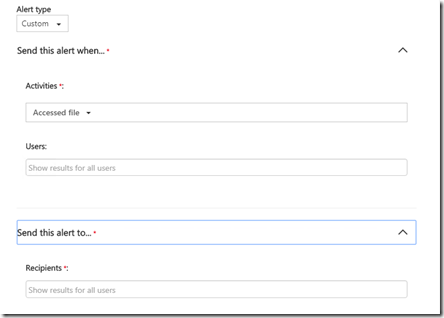
You’ll notice that I also have some custom policies in place as well. One of these is to provide an alert for repeated failed login attempts by a user.

image

Another policy is the one above that monitors logins by global administrators. You’ll see that I also restrict that policy to only apply when I am not on a corporate (i.e. office LAN) IP address.

My advice with custom policies is to start simply and broadly and tighten the rules up over time. There is nothing worse than setting a policy and getting deluged with alerts, so take it slow and increase restrictions over time to ensure you don’t overload yourself with false positives.

As I dig deeper into what is possible more I’m sure I’ll be adding additional policies to keep my tenant secure and provide a level of monitoring that no human could do. However, in today’s environment of increased attached I’d really recommend you look at adding Office 365 Cloud App Security to your tenant for enhanced protection.

Need to Know Podcast–Episode 173

A solo-cast from me this episode as Marc is busy doing his day job. A bit lonely for the first episode of 2018 but I’ll manage somehow. A quick episode to bring you up to date with what’s happening in the Microsoft Cloud as well as to introduce Microsoft 365 and what that is all about.

Take a listen and let us know what you think –feedback@needtoknow.cloud

You can listen directly to this episode at

https://ciaops.podbean.com/e/episode-173-marc-less/

Subscribe via iTunes at:

https://itunes.apple.com/au/podcast/ciaops-need-to-know-podcasts/id406891445?mt=2

The podcast is also available on Stitcher at:

http://www.stitcher.com/podcast/ciaops/need-to-know-podcast?refid=stpr

Don’t forget to give the show a rating as well as send us any feedback or suggestions you may have for the show.

Resources

@marckean

@directorcia

Outlook for Mac support creation of Office 365 Groups

Submit feedback request to Microsoft

SharePoint updates rolling out

Office customisation tool

Availability of Microsoft SharePoint Migration Tool

Azure site to site VPN

Azure Essentials

Apply labels to sensitive files

PowerShell V6 now available

American Kingpin by Nick Bilton

Introduction to Microsoft 365

Free legacy SharePoint Documentation and training

pexels-photo-301614

About 3 years ago I opened sourced all my SharePoint on premises documentation that used to be part of my Windows SharePoint Operations (WSSOPS) Guide as I details here:

https://blog.ciaops.com/2015/01/free-sharepoint-documentation.html

and is made available under Creative Commons Attribution-Non Commercial-ShareAlike-4.0 Internation license. In essence means it free to distribute but can’t be resold.

Initially it lived on my web site, then I moved to Docs.com. Unfortunately, Docs.com has now been fully retired so I need to find a new home for this.

I the decided to move everything to the CIAOPS Academy.

2023 update – I have moved the content into my GitHub repo at:

https://github.com/directorcia/general/tree/master/Archive/WSSOPS

All the information remains free to access and download but thanks to the platform I now use I can start adding additional training material, like my YouTube videos, into the curriculum hopefully adding some more value.

Please remember, that all the information here is provided ‘as is’ and is no longer maintained. It remains free to download and re-distribute, so if you want to put it somewhere else on the Internet, be my guest. However, remember it can’t be changed if you do and I’d also appreciate a heads up on where you have placed it just so I can monitor any comments or feedback.

I’ll keep adding to what’s up there but it isn’t a priority so please use it of you need to and let other know who still may require this information.