CIAOPS Need to Know Office 365 Webinar–February

laptop-eyes-technology-computer

In the February webinar we’ll take a closer look at using PowerApps as a way to capture information and create forms inside SharePoint. There will be the usual news, updates and Q & A on Office 365.

You can register for free at:

February Webinar Registrations

The details are:

CIAOPS Need to Know Webinar – February 2018
Thursday 22nd of February 2018
11am – 12am Sydney Time

All sessions are recorded and posted to the CIAOPS Academy.

There of course will also be open Q and A so make sure you bring your questions for me and I’ll do my best to answer them.

The CIAOPS Need to Know Webinars are free to attend but if you want to receive the recording of the session you need to sign up as a CIAOPS patron which you can do here:

http://www.ciaopspatron.com

or purchase them individually at:

http://www.ciaopsacademy.com/

Also feel free at any stage to email me directly via director@ciaops.com with your webinar topic suggestions.

I’d also appreciate you sharing information about this webinar with anyone you feel may benefit from the session.

Offline file conflicts with SharePoint Online

It has been over three years since I wrote an article about file conflicts in Office 365 –

Resolving OneDrive for Business file conflicts

and as you can appreciate a lot has changed since then. Probably the biggest change is that we now have File on Demand and the ability to sync SharePoint Document Libraries. However, there will always remain challenges around shared files going offline when multiple people continue to work on them.

I will preface all this by saying that it is best practice to ‘Check Out’ any files you wish to use prior to you going offline. Doing so will ensure you have exclusive write access to that file while you are offline and until you check that file back in.

Of course, not everyone is going to follow best practice and we are going to end up with the following scenario.
image

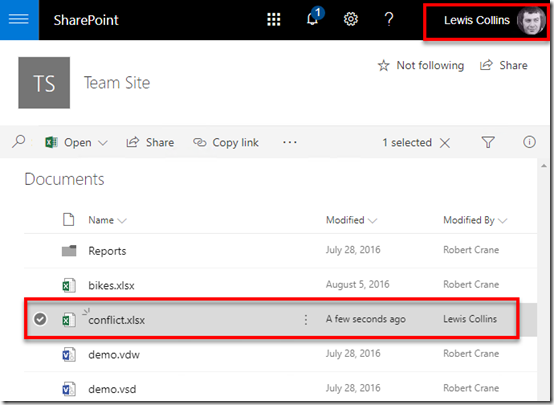
Let’s say that Lewis Collins (user 1) creates a new Excel spreadsheet called conflicts.xlsx in a SharePoint Document Library as shown above.
image

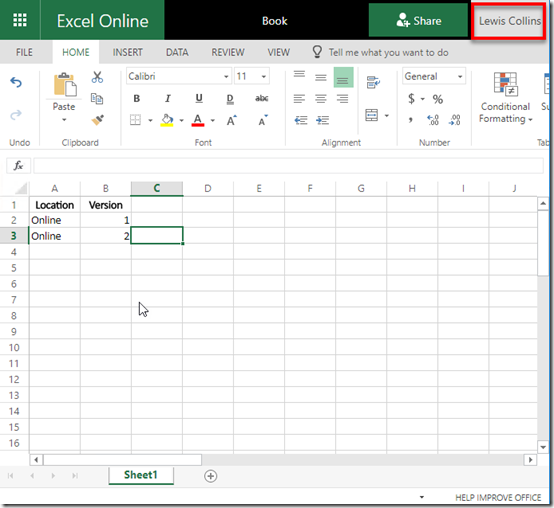
If Lewis opens that file using Excel Online and makes a change by adding the entry ‘Online 2’, as shown above, it is automatically saved back to the SharePoint Online Document Library.
image

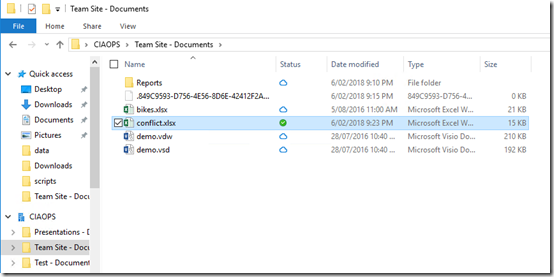
A second user (Robert Crane – user 2) used OneDrive Files on Demand to sync a copy of that same file to their desktop as shown above.
image

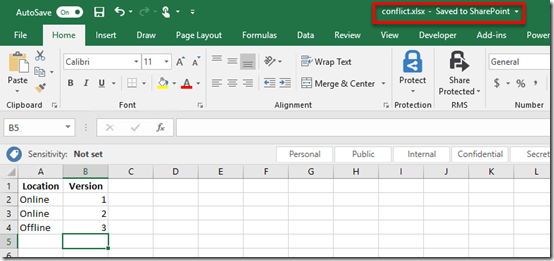
This second user (user 2) now opens the file using Excel on desktop and makes changes to the file by adding the entry ‘Offline 3’ as shown.

You can see that because the user is still connected to the Internet any changes are automatically synced back to the SharePoint Online Document Library.

So, while everyone is online all changes are updated into the one location.
image

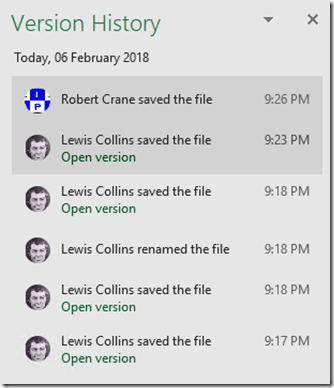
We can also look at the version history of the file and see all previous versions thanks to automatic version history in SharePoint Document Libraries. We can roll back or view any of these if we wish.

At this point, user 2 (Robert Crane), goes offline and is no longer connected to the Internet.
image

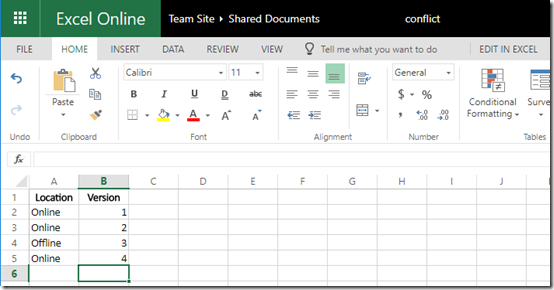
Now because user 2 didn’t check the file out prior to going offline, user 1 can continue to edit the file. They do so adding the entry ‘Online 4’ to the file, which is then immediately saved back to the SharePoint Document Library.
image

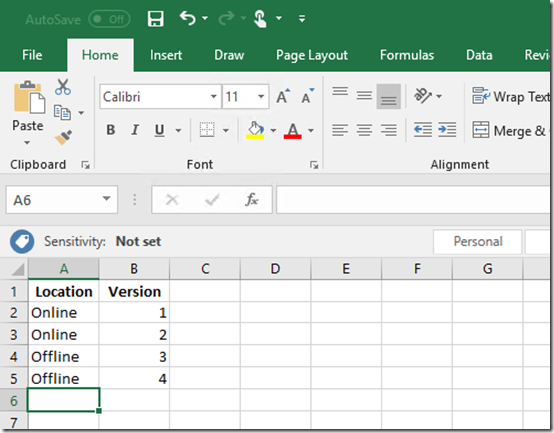
While offline, user 2 adds a new entry to their offline version of the same file. Here they create an entry ‘Offline 4’ as shown above.

Thus, we now have a situation where the file in SharePoint Online is different from the file on the users desktop. This will clearly create a conflict when user 2 return online.
image

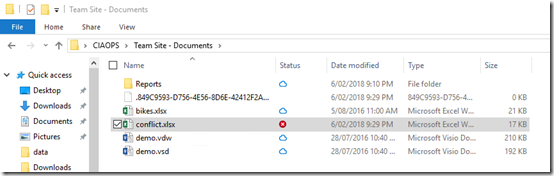
User 2 comes back online and at the next sync is informed of a conflict as noted in their file manager as shown above.
image

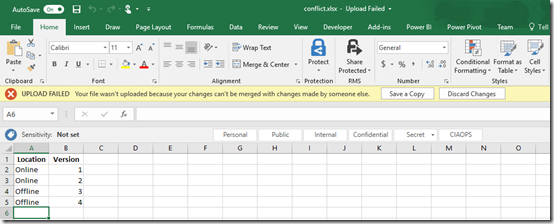
When user 2 attempts to open the file in conflict they are presented with the warning banner at the top as shown. They are given the option to either Save a Copy or Discard Changes.

If they select Discard Changes, any updates they have made to the file while they have been offline will be overwritten with what is currently in SharePoint Online. Once they select this, any updates they have made to the file while they are offline will be lost and the copy they have on their desktop will be the same as what is currently in SharePoint Online. In short, their local copy is overwritten with that from SharePoint Online. They can’t recover their original file after this happen because the file they changed was only saved to their desktop.

If they select Save a Copy, the file they have changed will be uploaded to SharePoint Online replacing the current version in SharePoint Online.
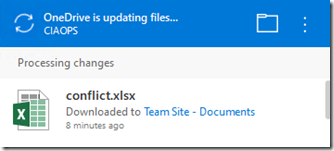
image

The OneDrive sync client will then kick in and copy the file from user 2’s desktop to SharePoint Online Document Library replacing the version that others have been working on and potentially removing changes they have made.
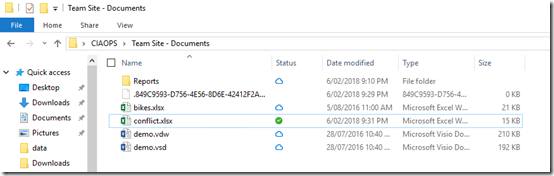
image

When the sync is complete, user 2 should see the same situation on their desktop, as shown above, prior to going offline.

Now, the file that was changed by user 2 while they were offline has become the primary file in SharePoint Online and on desktops. However, any changes that user 1 made while user 2 was offline are no longer in the most current version of the file.

Before we tackle that situation let’s look another experience for user 2 as they come back online with a different version of the file.

image

When user 2 comes back online with a different version of a file they will also see the system tray icon for their sync client display a warning as shown above.
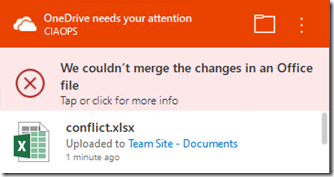
image

If they select this the sync client will open and display a conflict message as shown above.
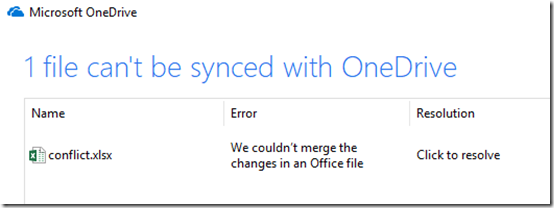
image

Clicking that message will show them greater detail on the conflict as shown above.
image

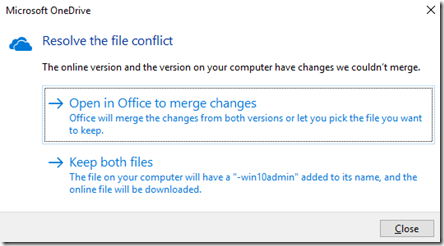
If they click to resolve the issue they will be presented with the above dialog providing two options.

The option Open in Office to merge changes will simply open Excel and take the user through the experience detailed above, i.e. save a copy or discard changes.

The second option Keep both files will rename the changed version on the desktop to conflicts-.xlsx. Thus, the original file they were working on offline will be renamed and the newer version that is in SharePoint Online will be downloaded to the original name on their desktop. The idea is basically to create a second copy of the file, rather than overwriting the original. Users would then need to open both files and manually merge any changes back to a single file. The end result here is two files with different names, each holding the unique changes made by each user.
image

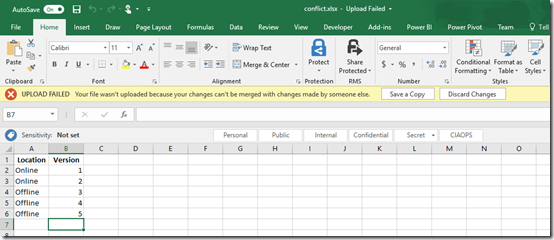
Let’s return to the situation where user 2, who was offline, comes back online, opens the file in conflict and selects to save their copy back into SharePoint Online by using the Save a Copy button.

This means that any changes user 1 made to the file while user was offline are ‘lost’ because user 2 has overwritten the file with their version.
image

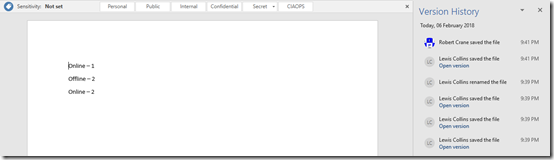
However, don’t forget that SharePoint Online Document Libraries include automatic versioning. This means that when user 2 uploaded their file, the file user 1 had been working on isn’t deleted, it is simply saved as a previous version. So, both files are still in SharePoint Online in full fidelity. One is current and one is the previous version.
image

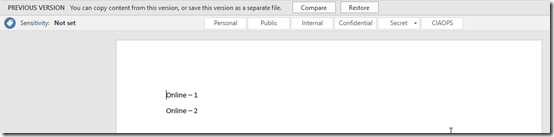
You have the ability to compare previous versions or restore previous versions if you wish.
image

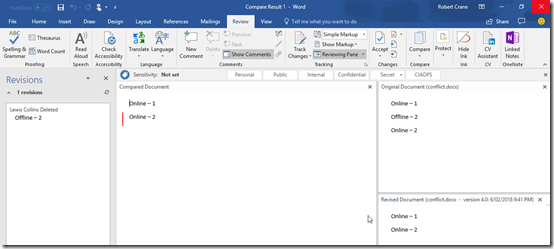
My experience is that Excel is a fairly complex program and in most cases you’ll have to manually merge any changes between the two documents. However, as you can see above, with Word the application can generally merge changes automatically for you using the revisions ability built into the program.

As I said at the beginning of this article, best practice is to check document out prior to going offline to avoid conflicts. If that doesn’t transpire, then you probably need to manually merge changes using versions in SharePoint Online. However, as you can hopefully see SharePoint Online will retain both versions of the file if you do go offline. I would suggest however, you have a play with exactly how this works in your environment prior to requiring it. SharePoint is magic but it doesn’t read minds, yet!


Learning Azure while mining cryptocurrency

One of the things that I advocate when it comes to learning new technologies is to find a use for it that interests you. Typically, that means find a problem you need to solve as I have said here:

Scratch your own itch

I used this approach to learn about Azure many years ago as I detailed here:

I finally get Azure

I continue to try all sorts of things in Office 365 and Azure but I thought I’d share this experience of using Azure to mine cryptocurrencies.

Warning, warning, spoiler alert – it isn’t profitable from what I can see to use Azure to do cryptocurrency mining. In 24 hours I managed to mine $8 and it cost me $50 in Azure credits. Not a good ROI, however what I learning during that same period was huge.

My aim was to determine how well Azure IaaS faired when it came to mining and what was the optimal family of VMs to use. I settled on using Minergate as the software to do the actual mining. Yes, there are better options when it comes to mining software but Minergate is free, is a simple install and can be set up in a few minutes. Minergate allows you to mine multiple coins, but for this experiment I stuck to just trying to mine Monero.

image

I then proceeded to run up various Azure VMs, install the Minergate software and complete a benchmark. I then set the machine to mining and looked at the Hashes/sec as a second data point.

You can see the results from the table above. The winner was the NC12 VM, even though it was the most expensive to run per minute.

So why do I have two entries for NC12 machines in the table above and why are the results so different? Interestingly, when you run an N series VM in Azure it doesn’t include the drivers for the GPUs. Thus, without installing the drivers you get a plain old CPU server. You’ll find the GPU drivers here:

Set up GPU drivers for N-series VMs running Windows Server

As you can see from the above table, with the GPU drivers loaded the benchmark jumps 3x fold!

Obviously, the more CPUs and GPUs you throw at crypto mining the better results you are going to get and that’s why I reckon the DS5_V2 promo machine is also a good option. The downside here is that the promo pricing won’t last forever in this machine. If the pricing goes up, then it will become less economic to mine.

All in all an interesting experiment and learning experience for me. I will continue to fiddle with crypto mining on Azure down the track and try stuff like using Linux instead of Windows as the OS and maybe look at some clustering options. However, my personal take away is that crypto mining on Azure isn’t economically viable and given that Azure rolls up costs like electricity into a single per hour cost, I don’t see how it can work economically for an individual if they use their own on premises hardware. I’m sure some people do make money mining crypto at home but, at this point, I can’t see how it can truly be profitable.

image

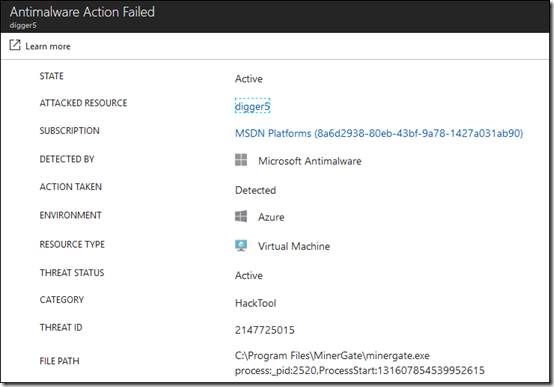
Another Azure activity I saw in action was the Security Center which flagged Minergate as malware on my VMs. I’ll now sit down and start playing with this more.

Azure, always interesting but for crypto mining not really profitable (yet!).

Enable activity auditing in Office 365

image

Here’s something I suggest you ensure is enabled in all Office 365 tenants.

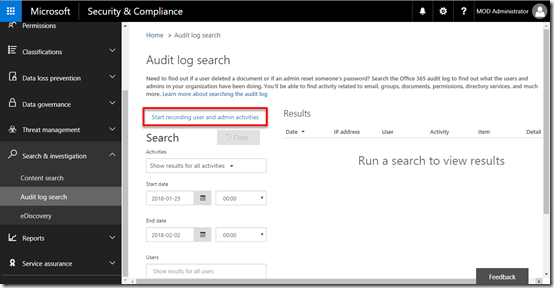
Visit the Office 365 Security and Compliance center as an administrator. From the menu on left, select the Search & investigation heading. From the items that appear select Audit log search.

If your audit logging hasn’t been enable you see a hyperlink on the right that says Start recording user and admin activity. If that link is visible, then select it as shown above.

image

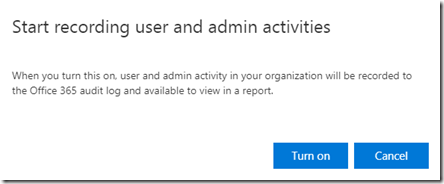
You will then receive the above confirmation. Select Turn on.

image

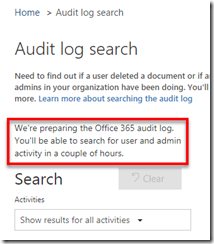
You’ll be taken back to the Audit log search page where you’ll see a message telling you that logging is being enabled.

image

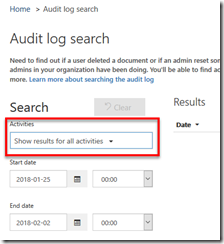
When that process is complete return to the Audit log search and select the Activities drop down.

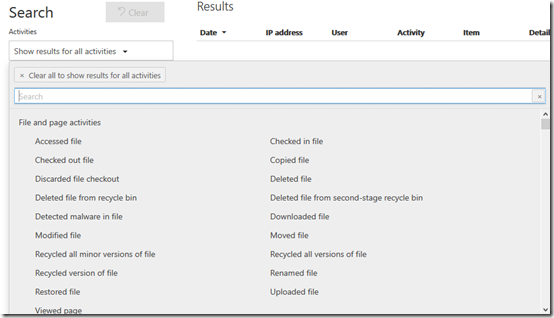
image

You’ll now be able to audit a huge range of activities and produce a report, like this –

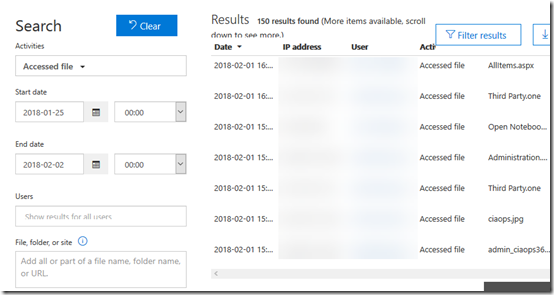
image

Here, I’ve run a report to display any files that have been accessed. From the results I can see the user, IP address and the file that was accessed.

image

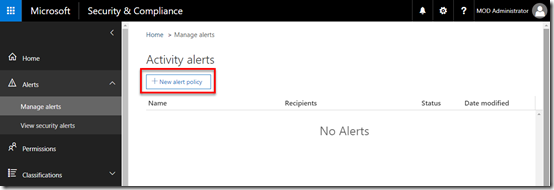
You can now also set up an alert on any of these activities.

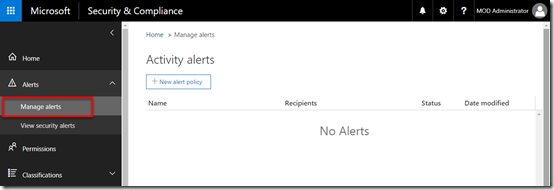
To do this, select the Alerts option on the left in the Security & Compliance center. From the items that appear select Manage alerts.

image

On the right select the + New alert policy button.

image

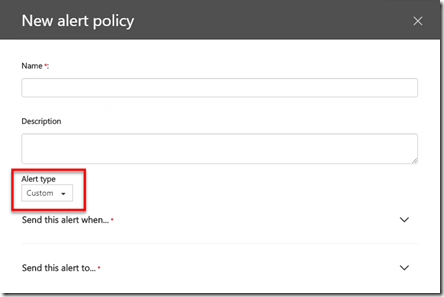
Set the Alert Type to Custom.

image

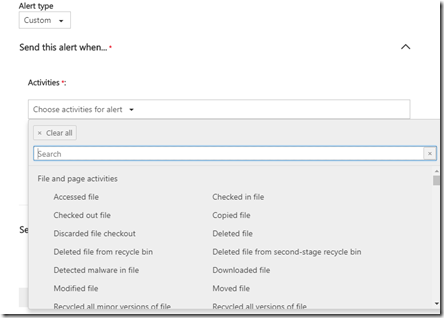
Select the Send this alert when… option and again choose the activity for the alert. The available options should be pretty much the same as you saw before with the audit logs.

image

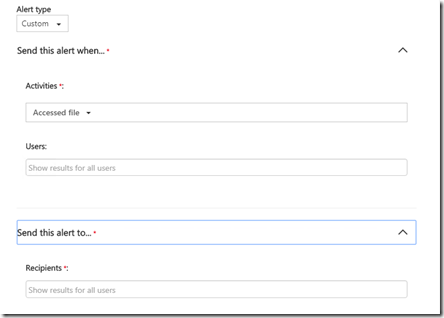
Then choose which users you wish the alert to apply to as well as an email address to send the alert to.

As with all alert settings ensure that you don’t make these too general because you’ll end up getting too many alerts and end up spamming yourself.

The important thing here is that auditing is no enabled by default. The best practice recommendation is therefore to go and turn it on so you can audit activity in your tenant.

HBUDS Bluetooth Headphone review

Full disclosure – I was provided a unit for review

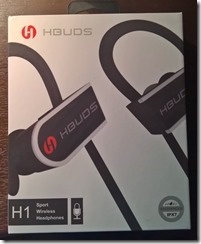
clip_image001

I was impressed with the unit even before I opened it. The packaging was high quality, even with a magnet grab to seal on the container. The packaging was not the usual flimsy or plastic style container of so many similar products. In fact, the outer box is so nice I’m going to keep it! So a 10 out of 10 for the packaging.

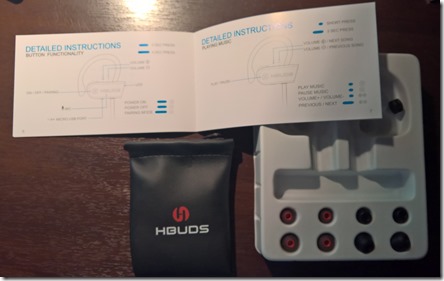
clip_image002

Inside the packaging are the earphones themselves, a range of different ear buds (to suit different people) which is really handy. How many times have I had a set of earphone and lost one earpiece only to have to throw out the whole thing out and get a new one. It is really nice to be provided with some spare earpieces. Inside you’ll also find a USB charging cable, a handy pouch to carry everything in while travelling (big bonus for me) as well a set of instructions. So a 10 out of 10 for the contents with everything required actually inside.

clip_image003

Normally, the instructions you receive are typically too small to read, have all the languages mashed together so you have to find the ones you understand and basically lack simple pictures to show you how to get started. Not here. The manual contains simple and straightforward instructions with lots and lots of picture to help you work out how to get everything working. 10 out of 10 again for the manual, which is easy to read, detailed and contains plenty of pictures.

With the unit now free from its packaging it was simple matter of hooking it up to a USB with the cable provided to charge it up prior to use. Again, the manual provides excellent clear instructions on how to make all of this happen.

After a short period of time the headset was charged and I paired to my phone. Now Bluetooth pairing can be tricky at times, given two different devices and one without a screen. I found it best to wear the headset so I could hear the commands and then do a manual find on my phone. Although not 100% seamless it was pretty close and the fault could have been mine or my phone so no deductions for the headset.

With the headset now fired up and connected I proceeded to listen to podcasts, music and take phone calls. The sounds quality was excellent and the reduction in ambient noise was good. The unit fitted snuggly and around my ear and provided enough distance from my ear to avoid any interference or irritation. The unit is light yet attaches quite sturdily and at no time did I feel it was going to fall off.

Working with headset on is always a bit of challenge to remember what all the buttons do and how long you need to hold them down for to perform their function. The main functions like volume, on/off, accept/decline calls are pretty straight forward but things like redial I’ll need to memorise. The main button give a nice click to indicate on/off as it is easy to determine whether it is being pressed. Likewise, the volume button are easy to find and large enough to work with fat fingers like mine, unlike some other units I have used. So 10 out of 10 here as well, especially when compared to other headsets.

It is hard to fault this unit. From the packaging to the instructions to the setup and use, it really is a high quality products that a lot of thought has clearly been invested. I thoroughly recommend this if you are in the market for such a device and am now happily using it to listen to music, podcast and take calls no matter where I am. My only ask would be perhaps a small container, separate from the packaging in which I could store the spare ear buds, however this is a minor issue on what is a really top quality unit. Highly recommended.

These headphones are currently on sale and the current price is really a bargain, so act fast!

Here are the links to the different versions on Amazon:

Black: http://amzn.to/2DLQzjL

White: http://amzn.to/2nednON

Purple: http://amzn.to/2GivUlB

Create a Safe Attachment policy with Office 365 ATP

image

When you have Office 365 Advanced Threat Protection (ATP) you should ensure that you actually go in a create a Safe Attachments policy because I don’t believe one is created by default.

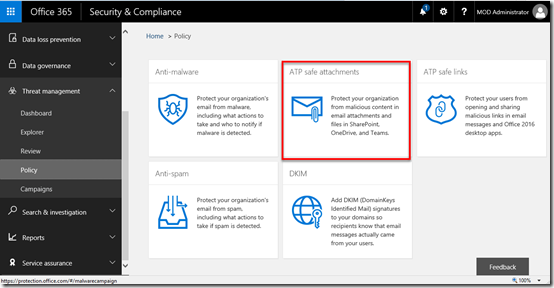
You’ll need to login to your Office 365 portal as an appropriate administrator and then navigate to the Security and Compliance portal as shown above.

From the menu on the left select Threat management. This should reveal a number of additional options. From those that appear, select Policy.

You should now see a number of options on the right hand side as shown above. Locate and select the ATP safe attachments option.

image

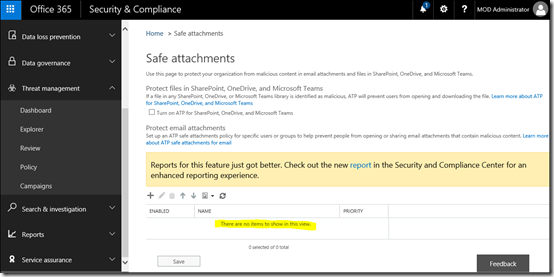
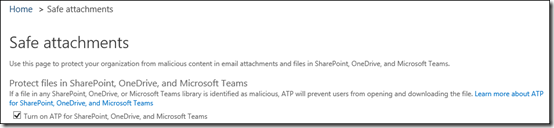
You should now be in the Safe attachments area as shown above.

image

Starting at the top of the page, ensure you have the Turn on ATP for SharePoint OneDrive and Microsoft Teams checked as shown.

image

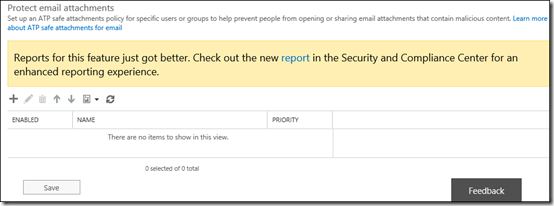
In the lower area you will see that no policies exist. To create a policy select the + (plus) icon.

image

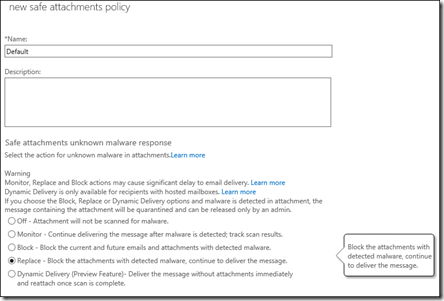
Give the new policy a name and select the action that will be taken from the options below. In this case I have selected the Replace option.

image

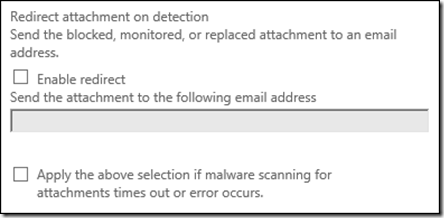
You can enable redirection if you wish.

image

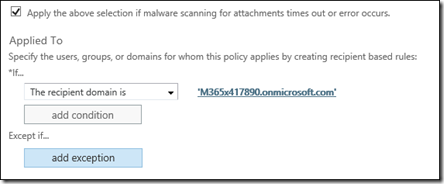
You now need to create the rules for this policy. if you want everything checked select the option The recipient domain is and then all the domains you have in your Office 365 tenant.

Save the configuration by using the button at the bottom of the screen.

image

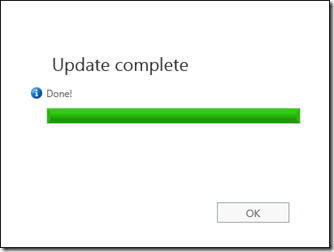
The update will be processed and applied.

image

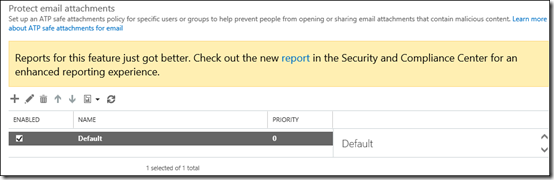
When you look at the Safe attachments page now you should the policy as shown in place.

To read more about safe attachments in Office 365 Advanced Threat Protection see:

Office 365 ATP safe attachments

January Azure Webinar resources

Slides from my January Azure webinar are now available at:

CIAOPS Need to Know Azure Webinar – January 2018

The recording is also available at:

http://www.ciaopsacademy.com.au/p/need-to-know-azure-webinars

which CIAOPS patrons get free access to as part of their subscription.

This webinar set the ground work for upcoming monthly webinars that will go deeper into Azure features and abilities.

So make sure you sign up for next month’s webinar.

January Office 365 Webinar Resources


The first webinar for the new year. Thanks to anyone who attended.

Slides from this months webinar are now available at:

https://www.slideshare.net/directorcia/ciaops-need-to-know-office-365-webinar-january-2018

If you are not a CIAOPS patron you want to view or download a full copy of the video from the session you can do so here:

http://www.ciaopsacademy.com.au/p/need-to-know-webinars

We looked at user management in this session.

Watch out for next month’s webinar.