One of the best things about SharePoint is the ability to add ‘metadata’ about items. This makes it easier to filter, sort and search information. What you may not realise is that Office 365 itself has it’s own ‘metadata’ ability, known as Labels.
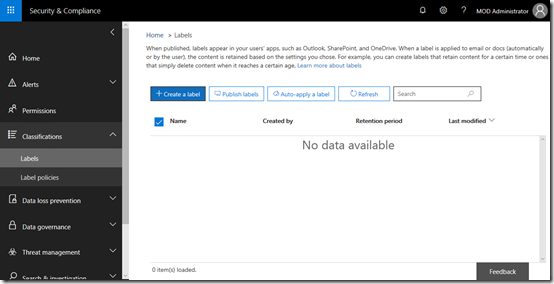
To create a label in Office 365 you’ll first need to navigate to the Security and Compliance center as an administrator. From there, select Classifications from the menu on the left and then Labels from the items that appear.
Now select the Create a label button on the right.
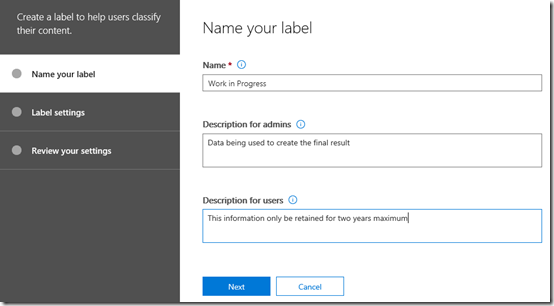
This will commence the label creation wizard as shown above. The first step is to give the label a Name and Description.
Press the Next button at the bottom of the dialog to continue.
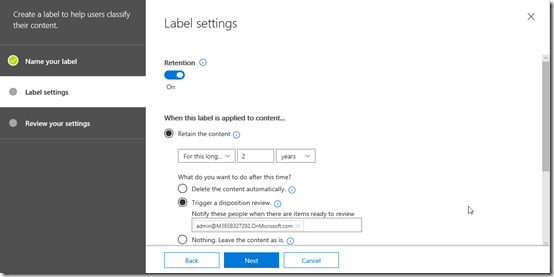
In the next step you can determine whether you wish to associate a retention policy with this label. In this case, I’m creating a 2 year retention policy with a ‘disposition review’ before the data is deleted.
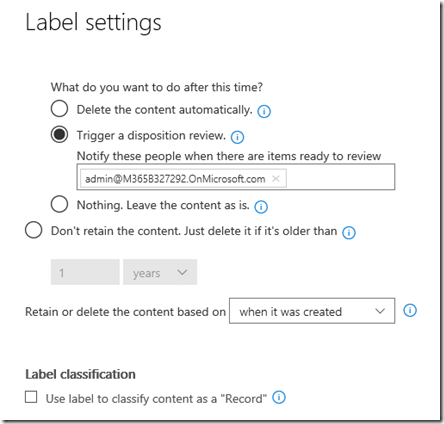
You’ll see a lot of these settings are similar to the Retention Policies you can create in Office 365 which I have written about here:
Using Retention Policies in Office 365
When complete, press the Next button to continue.
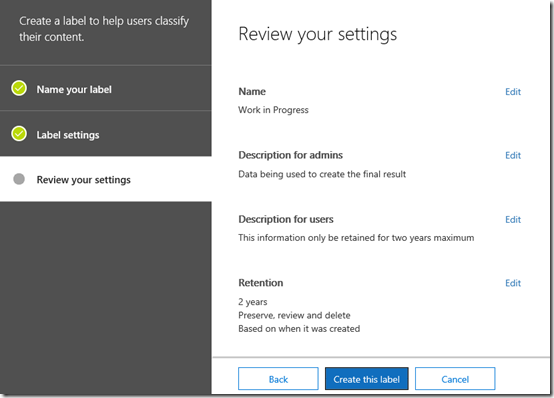
Review the options you have selected and then press the Create this label button at the bottom.
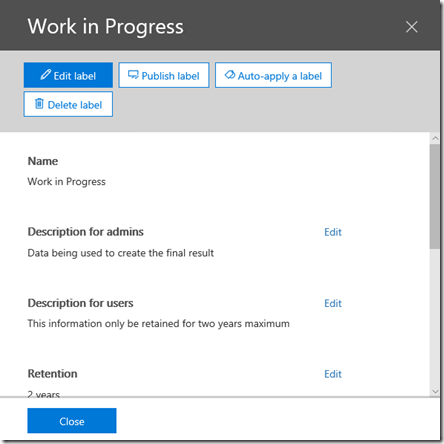
You should now see a summary of the label you just created as shown above. At this stage the label has been created but not applied anywhere in Office 365.
Select the Publish label at the top of the screen to apply this to Office 365.
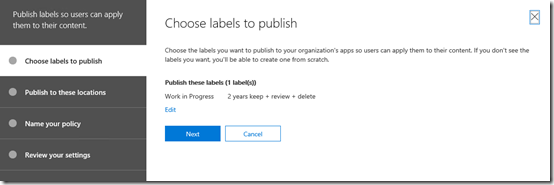
This will kick off the label publishing wizard as shown above. You should already see the label that you just created shown as the label to publish.
Select Next to continue.
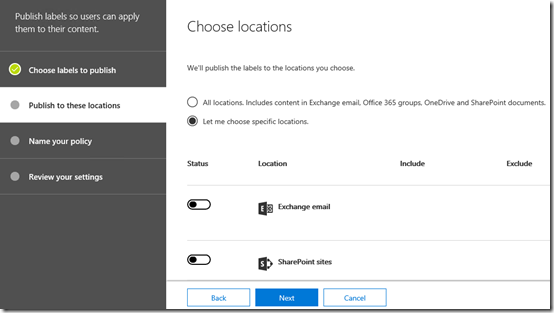
You now need to determine where this label will be applied in Office 365. You can elect to apply it across the entire tenant by selecting the All locations option at the top of the screen or select locations using the Let me choose option.
This means that you can target a specific label to a specific location in Office 365.
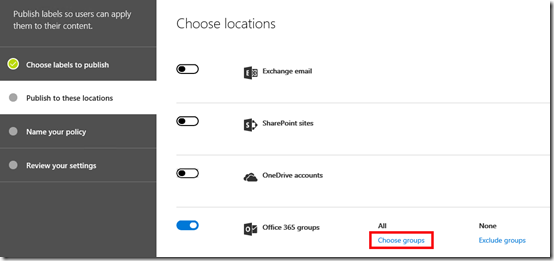
In this case, I’m going to apply the label to a specific Microsoft Team in the tenant. I select this location by ensuring the Office 365 Groups option is set to On and then selecting the Choose groups hyper link as shown above.
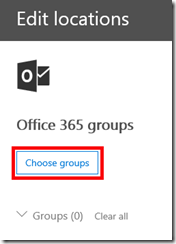
On the next screen I select Choose groups.

I then see a list of my Office 365 Groups and Microsoft Teams. In this case I’m going to select just the Special Projects group.
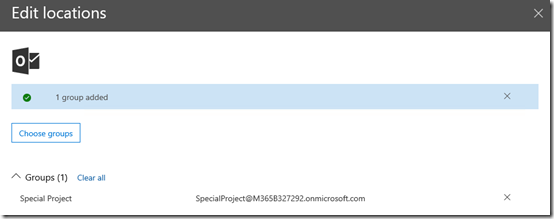
I should now see a banner at the to of the page that indicates my selection.
I select the Done button to continue.
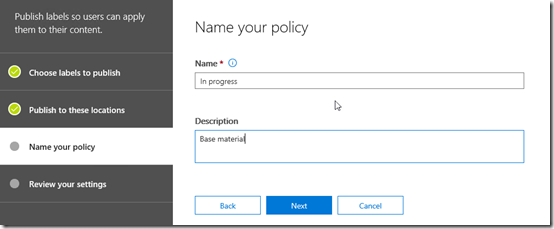
I now give the policy a name and select the Next button to continue.
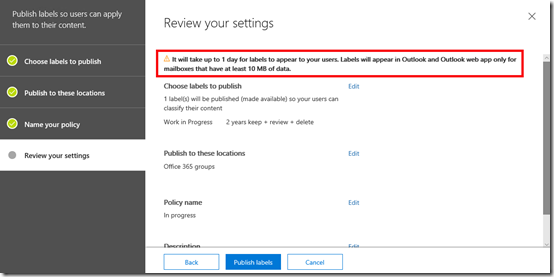
You should now see a list of all the options you have selected for this policy to review. You should also note the information message that the top that it may take up to 1 day for the label to appear for users and the limitations for Outlook mailboxes.
Select the Publish labels button to complete the process.
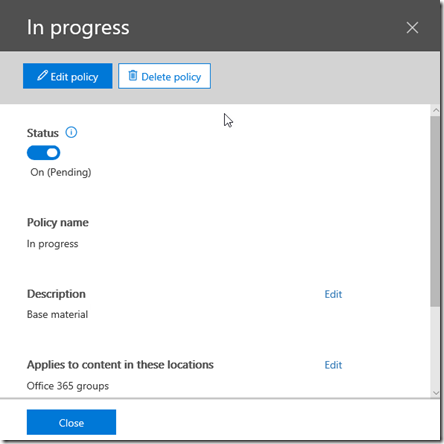
As detailed in the previous Retention Policies article, if you return to the policy you will see the status as shown above. You need to wait until that show success before the changes are available across you tenant.
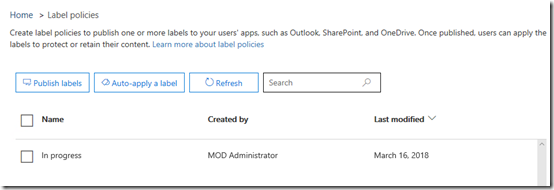
You should now also see you policy listed as shown above. I have also created a second policy and applied in the same way.
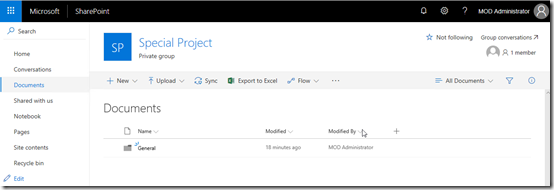
After the label policy has been successfully applied across your tenant you can visit the SharePoint Team Site where it has been applied.
if you look at the Document Library in that location you see no obvious changes.
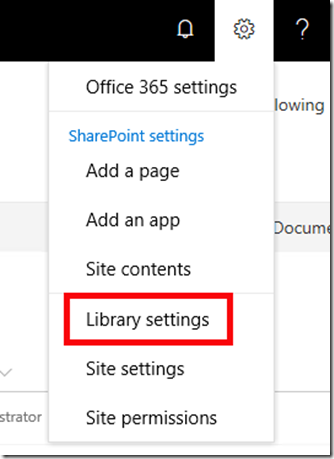
However, if you select Library settings from the COG in the top right of the screen
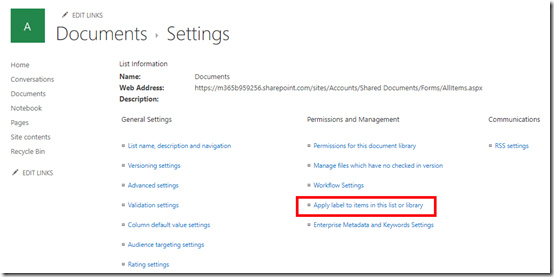
and then look in the Permissions and Management section as shown above, you will see an option Apply label to items in this list or library. Select this.
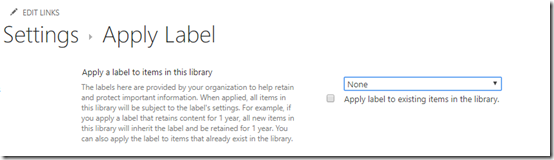
You’ll now see the ability to apply a label to item in this library automatically. This means when a new document is created here it will automatically assume the label you nominate. You can also elect to apply this label to any current unlabelled items in the library.
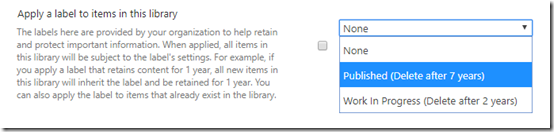
If you now select the list of labels that are available to be applied you should see the labels you just created in the Office 365 Security and Compliance center.

You can also modify the Document Library View to display the Labels field as shown. This will display the label that has been applied to that item.
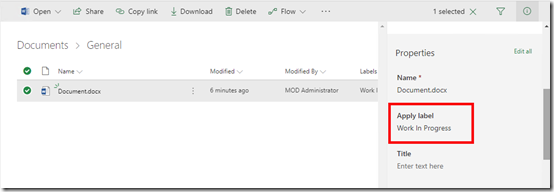
If you now edit any item in that library you will see the Apply label field displayed as shown above.
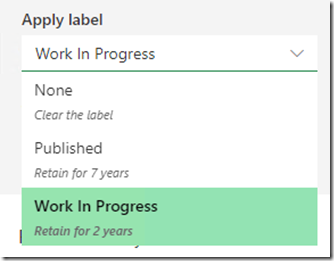
When you edit this field, you will again see a list of labels you have created in the Security and Compliance center as shown above.
So the Office 365 labels act as a kind of managed metadata but the advantage they have over traditional SharePoint managed metadata is that these same labels can apply across different SharePoint, OneDrive and email locations in Office 365.
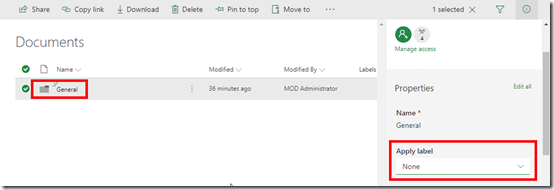
Another really great thing about Office 365 labels is that they can be applied to folders in SharePoint as well as individual items as shown above. Doing so means that everything in that folder will inherit the settings of the folder by default, just like SharePoint permissions.
Remember that labels are available across all Office 365 plans. With the Enterprise plans you get even more power when it comes to labels which I’ll dive into down the track.
Beware that you need to allow time for the policy to be applied across all your locations. In my experience this is generally quite quick with SharePoint and OneDrive but for Exchange it may take much longer. This is because each individual service applies and enforces the policy in its own way and own schedule.
In the case of Exchange the Managed Folder Assistant (MFA) handles the policy application. The MFA only runs on a seven day cycle so it can take this long for any of the policy to be applied to the mailboxes in question. You can run a PowerShell command to try and speed this process up somewhat but it is still somewhat hit and miss. So be patient after creating a new policy with email, it may take up to 7 days to be available.
I think the big take away here, and the different approach that needs to be adopted, is looking at data in a different way. Traditionally, most organisation have manually managed their own data. In reality, they haven’t really managed it at all because it takes too much work. They simply continue to create and save data in various locations with no real overarching management strategy. This allows mounts of data to accumulate, most of which no longer has relevancy. There is a cost to this.
With a bit of thought, up front planning and the use of Office 365 labels, organisations can better manage their data. They can create classifications that apply across their organisation, making it easier for users to tag data. This then allows the policies in operation in the background to take care of a large component of on going data management for them.
Like Alerts and Retention Policies, Labels are included in all Office 365 plans. They provide an easy to classify and manage across your tenant. They should be part of your information management strategy or in more official terms, the compliance policy within your organisation. To get the most from new tools like Office 365 you typically need to take a new approach to managing your information. Office 365 includes the tools to help you work smarter, so use them!