March Azure Webinar Resources

Here are the slides from the March Azure webinar where we took a look at Azure pricing.

https://www.slideshare.net/directorcia/ciaops-need-to-know-azure-webinar-march-2018

The recording is also available at:

http://www.ciaopsacademy.com.au/p/need-to-know-azure-webinars

which CIAOPS patrons get free access to as part of their subscription.

This webinar set more of the ground work for upcoming monthly webinars that will go deeper into Azure features and abilities.

So make sure you sign up for next month’s webinar.

March Office 365 Webinar Resources

Plenty of interest in security with legislation now making it even more important to protect information.

Slide from this month’s webinar are at:

https://www.slideshare.net/directorcia/ciaops-need-to-know-office-365-webinar-march-2018

If you are not a CIAOPS patron you want to view or download a full copy of the video from the session you can do so here:

http://www.ciaopsacademy.com.au/p/need-to-know-webinars

Watch out for next month’s webinar.

Need to Know Podcast–Episode 176

After some Microsoft Cloud news Brenton and I dive into an introduction to Microsoft 365 and why it is important for Microsoft, customers and partners. We look at what it comprises and what the major benefits are. We discuss how security and device management are the heart of the product and why that is so important in light of recent compliance legislation. This is only the start of what will no doubt be an ongoing examination of Microsoft 365 and its role in the market.

Take a listen and let us know what you think –feedback@needtoknow.cloud

You can listen directly to this episode at

https://ciaops.podbean.com/e/episode-176-microsoft-365/

Subscribe via iTunes at:

https://itunes.apple.com/au/podcast/ciaops-need-to-know-podcasts/id406891445?mt=2

The podcast is also available on Stitcher at:

http://www.stitcher.com/podcast/ciaops/need-to-know-podcast?refid=stpr

Don’t forget to give the show a rating as well as send us any feedback or suggestions you may have for the show.

Resources

@contactbrenton

@directorcia

One year of Microsoft Teams

New experience in Outlook.com

How Office 365 protects your organisation from modern phishing campaigns

Azure AD Connect: Version release history

Update management, inventory and change tracking in Azure automation now generally available

Just in time VM access is generally available

Azure AD expiration policy for Office 365 Groups is now generally available

Microsoft expands cloud services in Europe and into Middle East

Using Office 365 labels

One of the best things about SharePoint is the ability to add ‘metadata’ about items. This makes it easier to filter, sort and search information. What you may not realise is that Office 365 itself has it’s own ‘metadata’ ability, known as Labels.

image

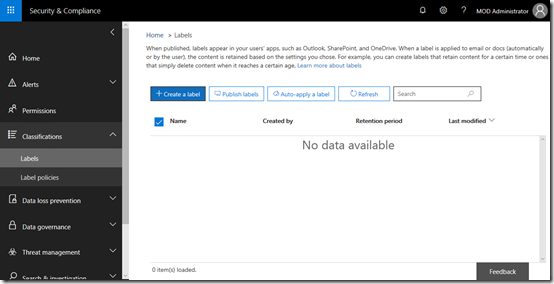
To create a label in Office 365 you’ll first need to navigate to the Security and Compliance center as an administrator. From there, select Classifications from the menu on the left and then Labels from the items that appear.

Now select the Create a label button on the right.

image

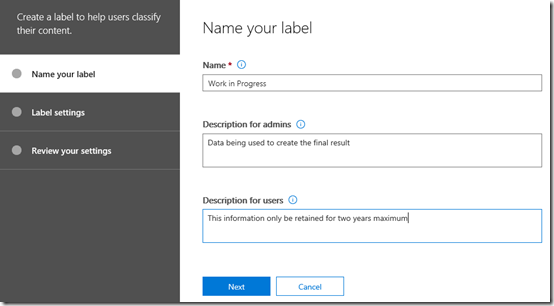
This will commence the label creation wizard as shown above. The first step is to give the label a Name and Description.

Press the Next button at the bottom of the dialog to continue.

image

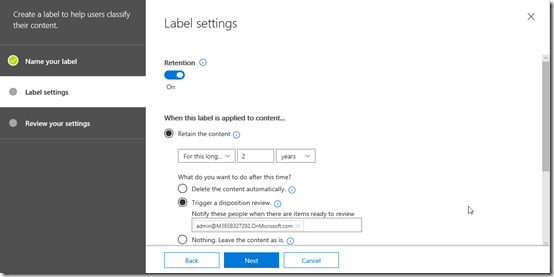
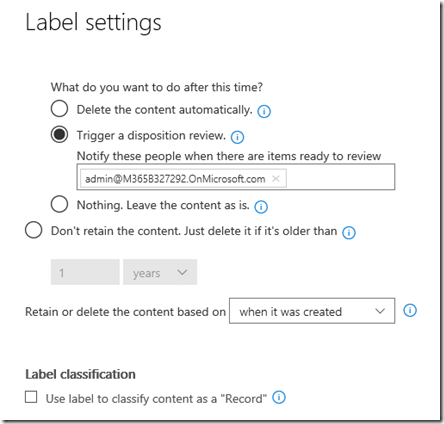
In the next step you can determine whether you wish to associate a retention policy with this label. In this case, I’m creating a 2 year retention policy with a ‘disposition review’ before the data is deleted.

image

You’ll see a lot of these settings are similar to the Retention Policies you can create in Office 365 which I have written about here:

Using Retention Policies in Office 365

When complete, press the Next button to continue.

image

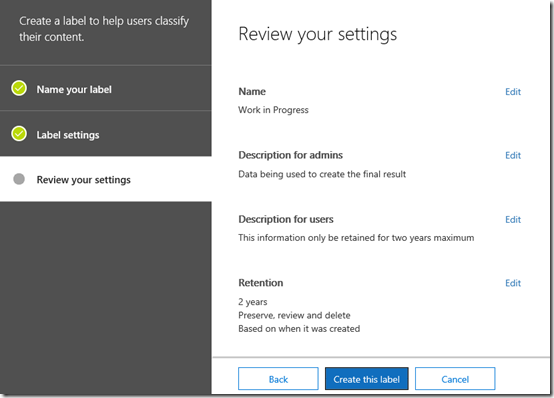
Review the options you have selected and then press the Create this label button at the bottom.

image

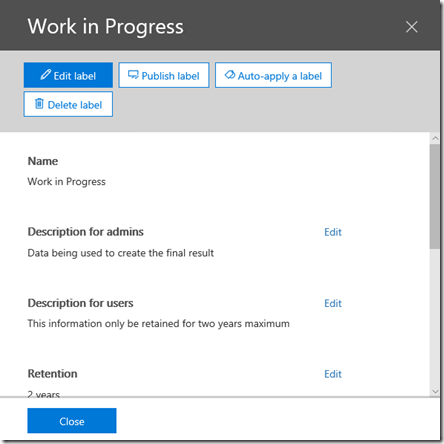
You should now see a summary of the label you just created as shown above. At this stage the label has been created but not applied anywhere in Office 365.

Select the Publish label at the top of the screen to apply this to Office 365.

image

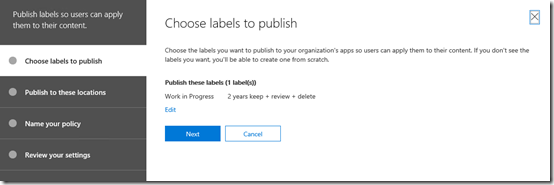
This will kick off the label publishing wizard as shown above. You should already see the label that you just created shown as the label to publish.

Select Next to continue.

image

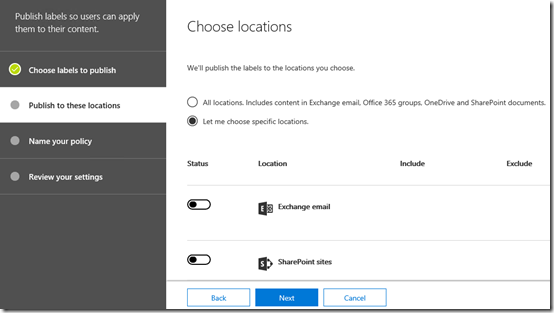
You now need to determine where this label will be applied in Office 365. You can elect to apply it across the entire tenant by selecting the All locations option at the top of the screen or select locations using the Let me choose option.

This means that you can target a specific label to a specific location in Office 365.
image

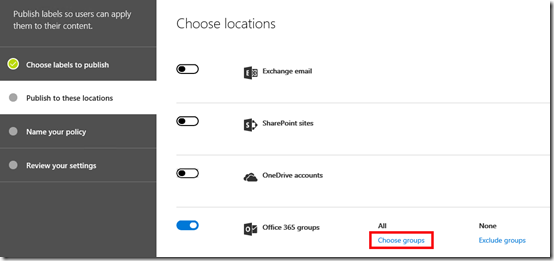
In this case, I’m going to apply the label to a specific Microsoft Team in the tenant. I select this location by ensuring the Office 365 Groups option is set to On and then selecting the Choose groups hyper link as shown above.

image

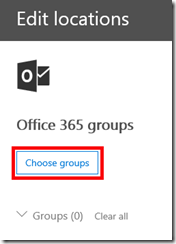
On the next screen I select Choose groups.

image

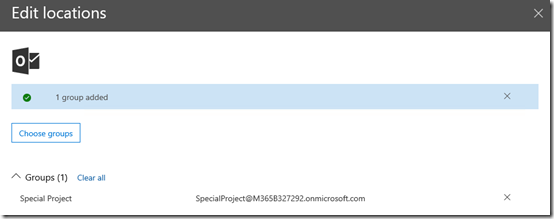
I then see a list of my Office 365 Groups and Microsoft Teams. In this case I’m going to select just the Special Projects group.

image

I should now see a banner at the to of the page that indicates my selection.

I select the Done button to continue.

image

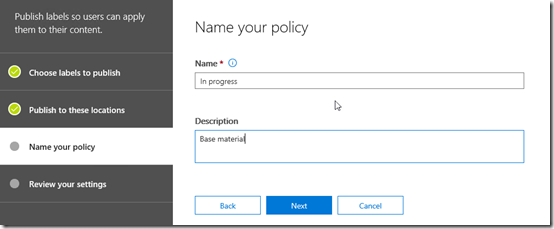
I now give the policy a name and select the Next button to continue.

image

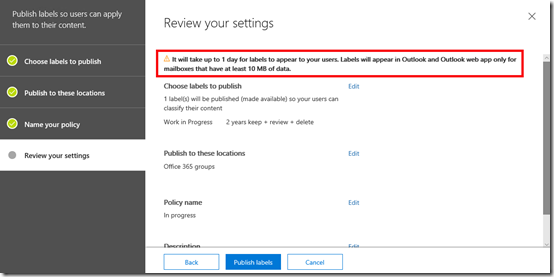
You should now see a list of all the options you have selected for this policy to review. You should also note the information message that the top that it may take up to 1 day for the label to appear for users and the limitations for Outlook mailboxes.

Select the Publish labels button to complete the process.

image

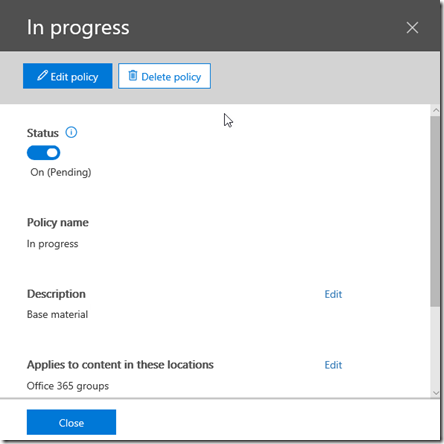
As detailed in the previous Retention Policies article, if you return to the policy you will see the status as shown above. You need to wait until that show success before the changes are available across you tenant.

image

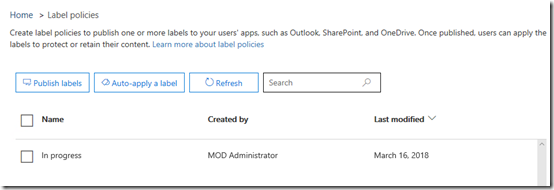
You should now also see you policy listed as shown above. I have also created a second policy and applied in the same way.

image

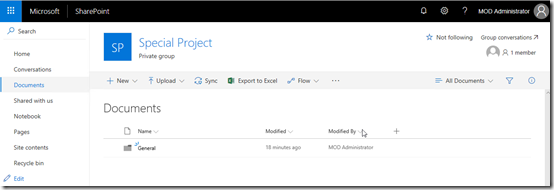
After the label policy has been successfully applied across your tenant you can visit the SharePoint Team Site where it has been applied.

if you look at the Document Library in that location you see no obvious changes.

image

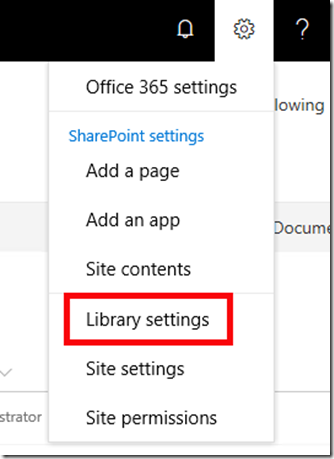
However, if you select Library settings from the COG in the top right of the screen

image

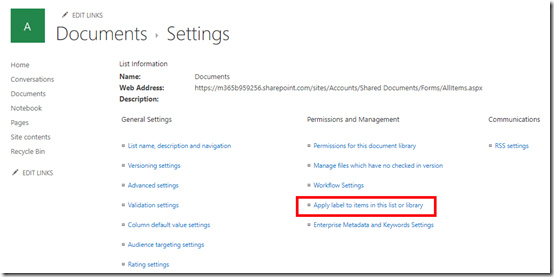
and then look in the Permissions and Management section as shown above, you will see an option Apply label to items in this list or library. Select this.

image

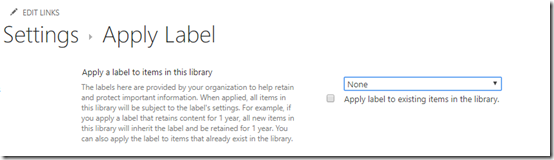
You’ll now see the ability to apply a label to item in this library automatically. This means when a new document is created here it will automatically assume the label you nominate. You can also elect to apply this label to any current unlabelled items in the library.

image

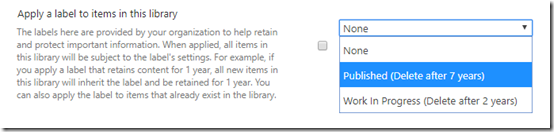
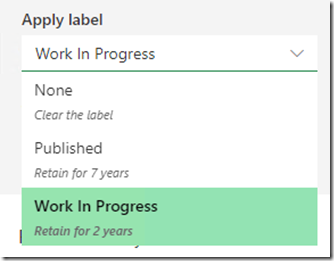
If you now select the list of labels that are available to be applied you should see the labels you just created in the Office 365 Security and Compliance center.

image

You can also modify the Document Library View to display the Labels field as shown. This will display the label that has been applied to that item.

image

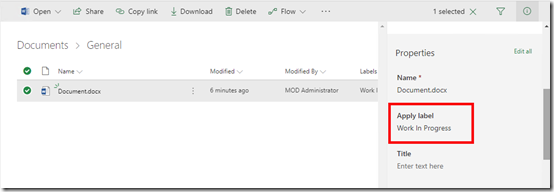
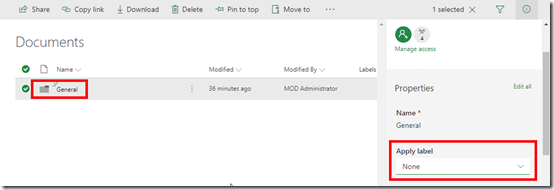
If you now edit any item in that library you will see the Apply label field displayed as shown above.

image

When you edit this field, you will again see a list of labels you have created in the Security and Compliance center as shown above.

So the Office 365 labels act as a kind of managed metadata but the advantage they have over traditional SharePoint managed metadata is that these same labels can apply across different SharePoint, OneDrive and email locations in Office 365.
image

Another really great thing about Office 365 labels is that they can be applied to folders in SharePoint as well as individual items as shown above. Doing so means that everything in that folder will inherit the settings of the folder by default, just like SharePoint permissions.

Remember that labels are available across all Office 365 plans. With the Enterprise plans you get even more power when it comes to labels which I’ll dive into down the track.

Beware that you need to allow time for the policy to be applied across all your locations. In my experience this is generally quite quick with SharePoint and OneDrive but for Exchange it may take much longer. This is because each individual service applies and enforces the policy in its own way and own schedule.

In the case of Exchange the Managed Folder Assistant (MFA) handles the policy application. The MFA only runs on a seven day cycle so it can take this long for any of the policy to be applied to the mailboxes in question. You can run a PowerShell command to try and speed this process up somewhat but it is still somewhat hit and miss. So be patient after creating a new policy with email, it may take up to 7 days to be available.

I think the big take away here, and the different approach that needs to be adopted, is looking at data in a different way. Traditionally, most organisation have manually managed their own data. In reality, they haven’t really managed it at all because it takes too much work. They simply continue to create and save data in various locations with no real overarching management strategy. This allows mounts of data to accumulate, most of which no longer has relevancy. There is a cost to this.

With a bit of thought, up front planning and the use of Office 365 labels, organisations can better manage their data. They can create classifications that apply across their organisation, making it easier for users to tag data. This then allows the policies in operation in the background to take care of a large component of on going data management for them.

Like Alerts and Retention Policies, Labels are included in all Office 365 plans. They provide an easy to classify and manage across your tenant. They should be part of your information management strategy or in more official terms, the compliance policy within your organisation. To get the most from new tools like Office 365 you typically need to take a new approach to managing your information. Office 365 includes the tools to help you work smarter, so use them!

Advanced Office 365 Alerts

A while ago I wrote an article about the standard alerts in Office 365 that are common across all plans. You can read that article here:

Create Office 365 Alerts

I also eluded to the fact that with the Enterprise Plans in Office 365 you get additional features and options. Here’s an example of one such alert that I have in place to warn me about potentially suspicious activity in my Enterprise E5 tenant.

SNAGHTML7347f58

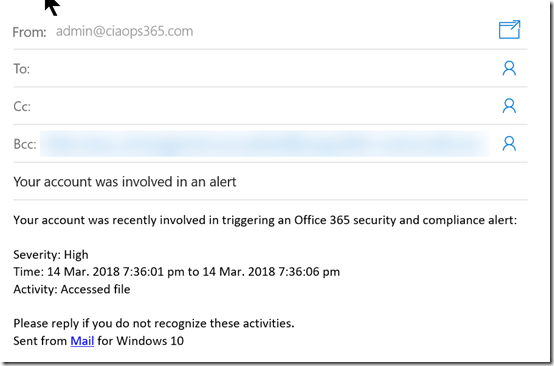
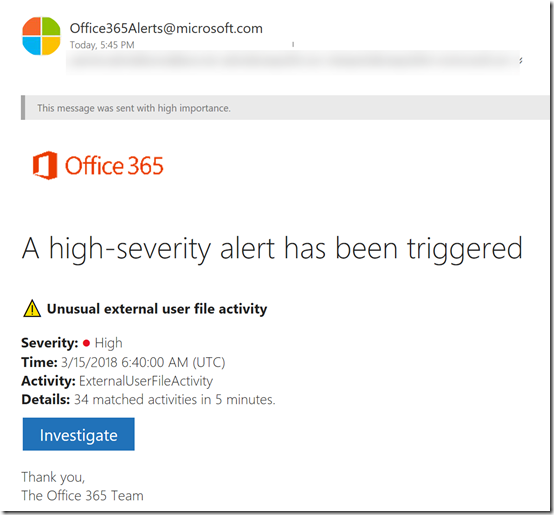
A very common activity that should be investigated is a mass download of files from the tenant. This is also heightened when that activity comes from an external source as you can see in the email alert I received above.

Now, it’s time to investigate.

image

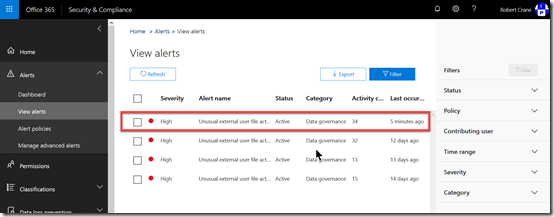
If I now go to the Office 365 Security and Compliance center and select Alerts from the menu on the left and then View Alerts from the options that appear I see a list of recent alerts on the right as shown above.

To view the alert to examine it in more detail, I simply select it from the list. In this case I will select the first one.

image

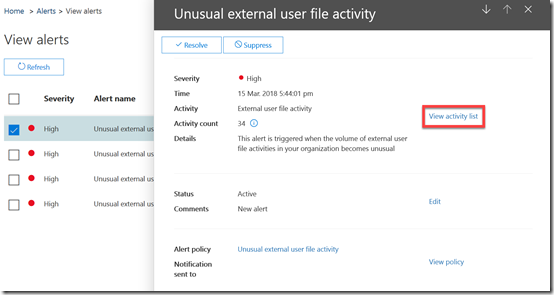
Information about the alert now appears in the right. You will see that there is also a hyper link, View activity list to given you even more detail.

image

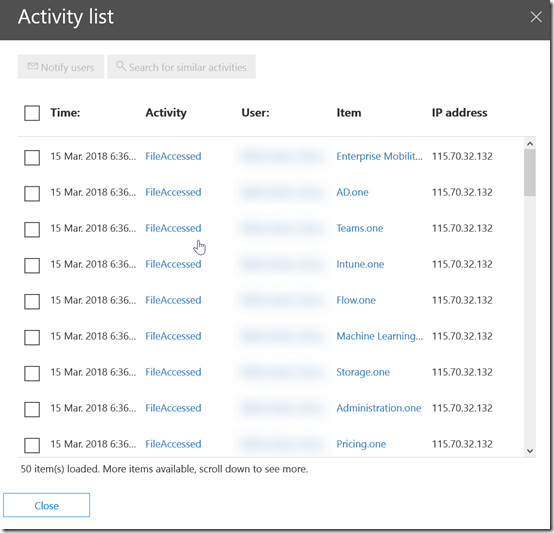
You see that selecting this option gives me the low level audit logs of the events that triggered this alarm. In this case I know that the external user is actually a member of my CIAOPS Patron community who is re-syncing the OneNote Codex that is part of their entitlements. So, I can now confirm that this was a know situation and I don’t need to investigate further.

image

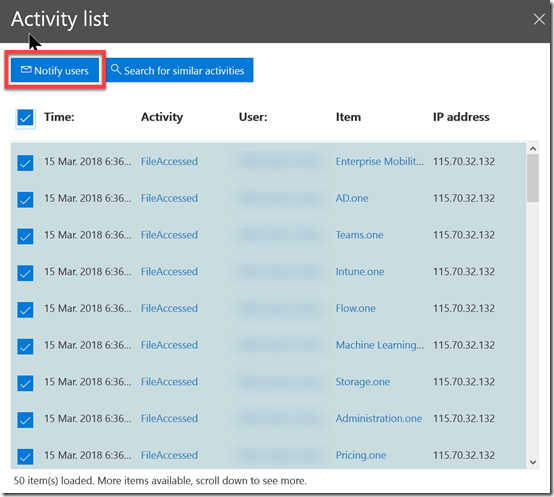
I can however select any, or all, of the alerts and then select to Notify users using the button in the top left.

image

This will create an email like that shown above that you can send to the users in question.

When I’m finished looking at the alert activity I simply close that dialog.

image

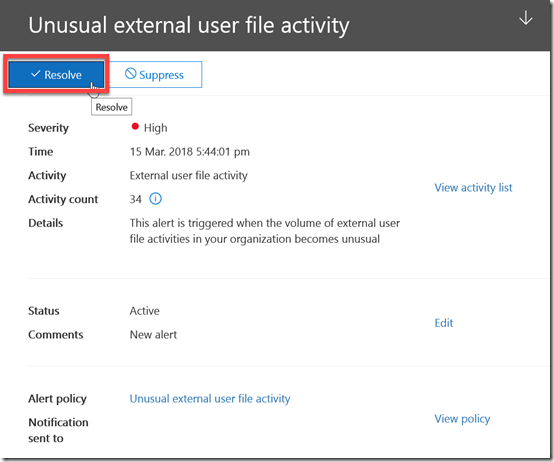
I can now mark this alert as resolved using the button in the top right.

image

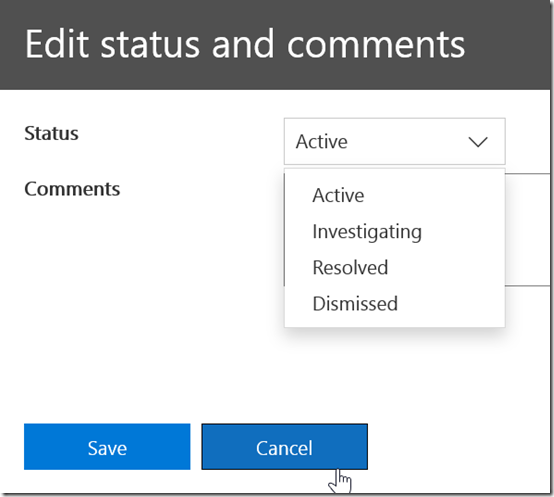
I do have a number of other options available to me when I mark this alert as shown above. However, in this case I’ll mark it as Resolved and Save it.

image

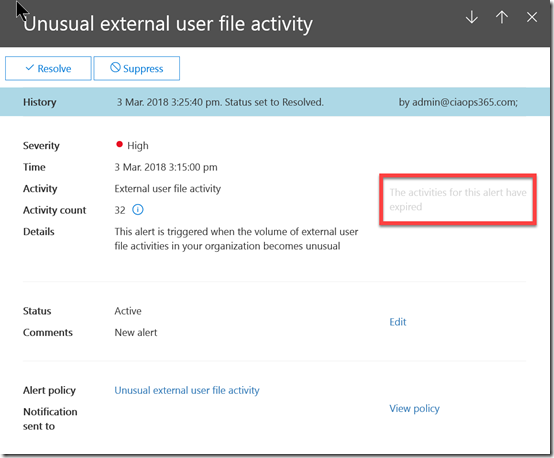
If I now re-examine an alert that has been resolved I’ll see the banner indicating that across the top of the page as shown.

You should also note that the activity items are not retained forever. It is bit hard to read but the item highlighted on the right says “The activities for this alert have expired”.

Enterprise Office 365 plans have some much more security and compliance options available to you hopefully as you can see from the above. If you are serious about IT security, then I’d be encouraging you to look at what the Enterprise Office 365 plans offer.

Using Retention Policies in Office 365

Before we get into this article I need to reinforce the following:

Retention is NOT the same as backup

Thus, what I am going to cover here should NOT be considered as a replacement to any existing backup policy you have for Office 365. What I’ll cover here is retention of data based on policies you set. Retention can be a way to preserve data as well as delete data based on a set of defined rules. You should consider retention policies as part of your compliance strategy not as part of the disaster recovery strategy.

The great thing about retention policies in Office 365 is that they are generally available across all plans. So what I detail here should apply to all Office 365 tenants.

image

Office 365 has no retention policies in place by default. This means that any existing data has no additional protection. Importantly, this means that existing data will NOT be covered by the policy UNTIL the data has been changed. Thus, if you create a retention policy and then go and delete data BEFORE making any changes to it, the data will NOT be saved! Once in place, the policy ONLY applies to data that gets altered (i.e. updated or modified) from that point on.

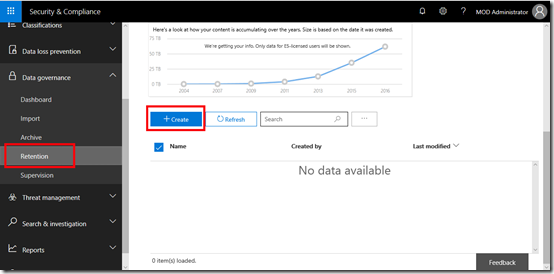
With that in mind the first step in the process is to create a retention policy. You do this by navigating to the Security and Compliance center in Office 365. From there, select the Data Governance option from the menu on the left and then Retention from the submenu as shown above. You should see that there no policies in place yet.
To create a new policy select the Create button on the right hand side of the screen.

image

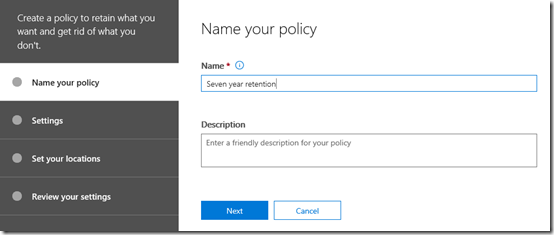
Give your new policy a name and description and press the Next button at the bottom of the screen.

image

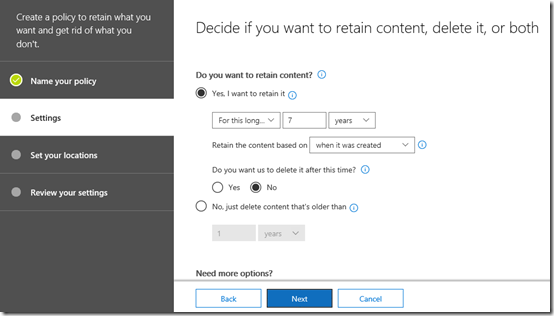
Here is where you need to decide what rules your policy will have. In this case I have chosen to retain data for 7 years based on when it was created and to not delete it after this period.

You’ll note that you can create policies that also delete data so be very careful when you select those options.

image

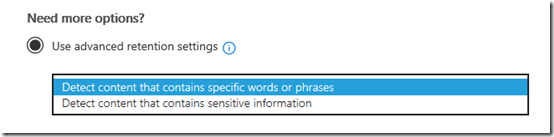
The bottom of the page allows you to use more advanced retention settings. In here there should two options to select from as shown above.

image

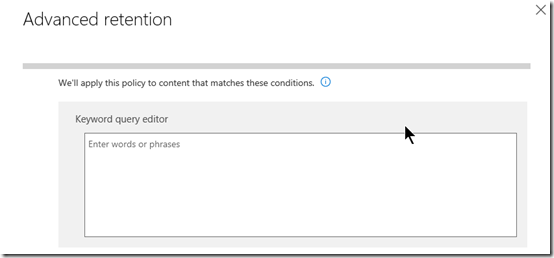
The first option allows you to apply the policy via keyword or phrase. You simply enter those terms into the editor that is displayed when you select the option.

image

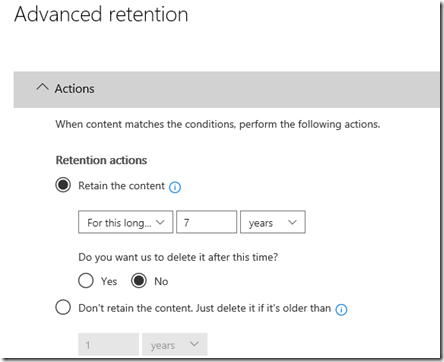
Once you have entered the keywords you wish, you’ll need to enter the standard retention options as shown above.

image

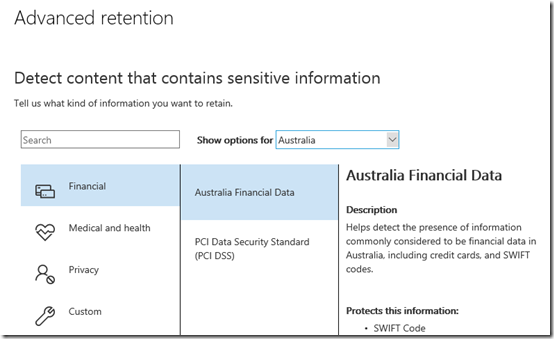
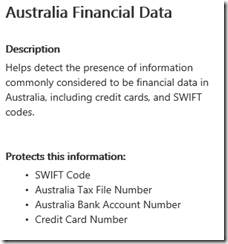
The second advanced retention option allows you to apply the policy based on ‘sensitive information’. As you can see from the above, you can select from a range of pre-configured sensitive information types that can be scoped to your country. Here, I am selecting Australian Financial Data.

image

If you look at the policy you will see what information it consider ‘sensitive’. In this case, the policy will match things like Australian SWIFT banking codes, Tax File Numbers, Bank Accounts and Credit cards.

image

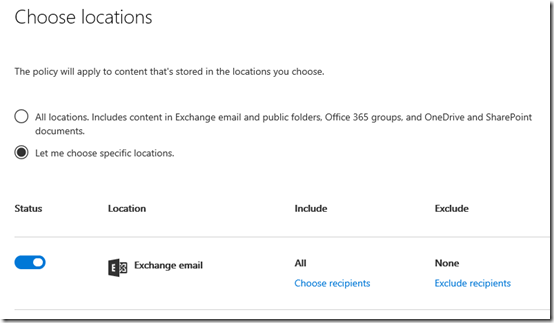
Once you have set the data types for your policy, you’ll need to nominate which locations inside Office 365 this retention policy will apply to. You can apply the policy across all or specific data inside Office 365 as shown above.

image

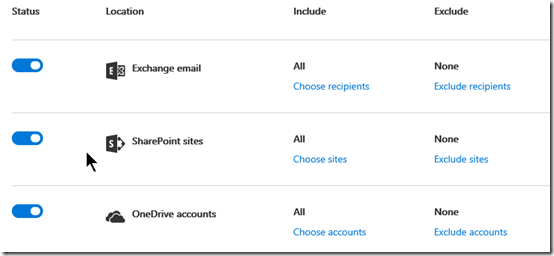
You’ll see that you can target Exchange mail, SharePoint Online,

image

Groups (as well as Teams), Skype and Exchange public folders.

image

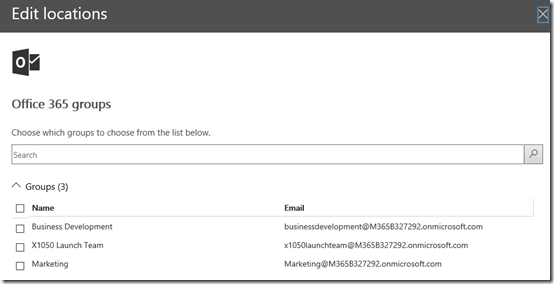
You’ll see that you can also include an/or exclude specific locations inside each service if you wish. Simply select the Choose hyperlink and make your selections as shown above.

image

Once you have completed all these options you can then Create this policy and apply it immediately or Save for later application.

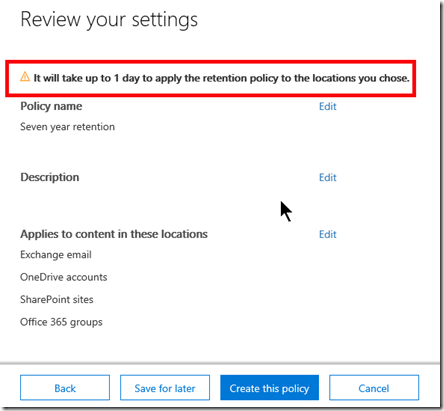
In this case I’ll create the policy and apply it immediately. Note the message at the top of of the dialog that tells you it may take a full day for the policy to be applied. I would suggest that you do wait a full day for the policy to be applied throughout your tenant before you continue.

image

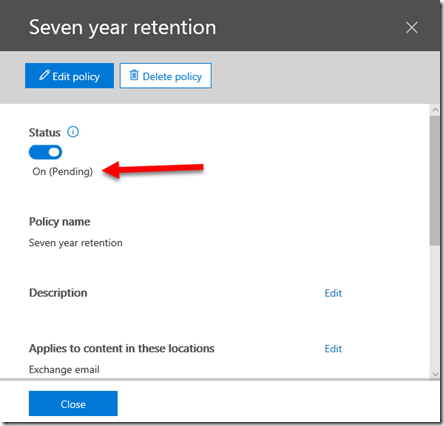
After creating the policy you will see that the Status is On but it is Pending as shown above.

image

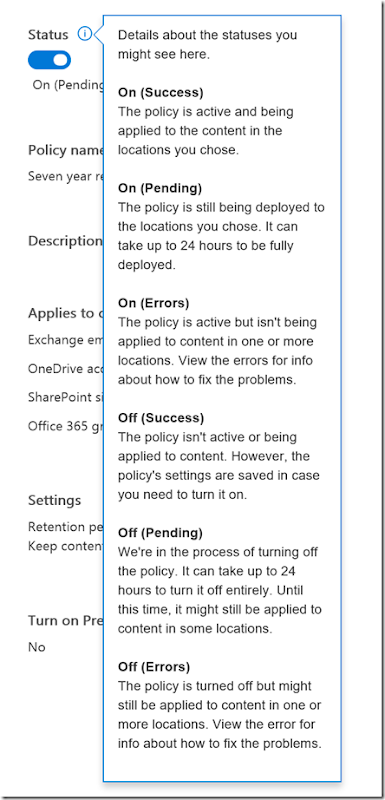
If you select the information icon you’ll see that what you want to wait for is the On (Success) option to be displayed here.

image

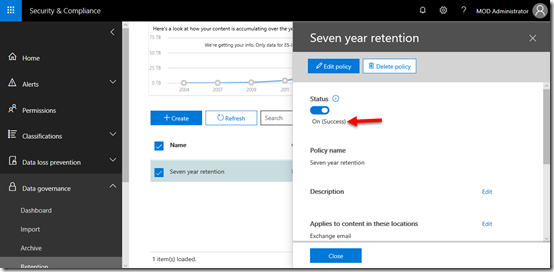
After waiting a suitable amount of time and checking the policy status you will find that it has succeeded as shown above.

At this point the policy is in place and is protecting any data that is now changed.

image

With the retention policy in place let’s go to the location of some file data in a SharePoint Team Site, specifically a Document Library as shown above.

image

Before we do anything, let’s check out that the Site actually contains.

image

We see that there is nothing special as yet. There will be, just not yet.

image

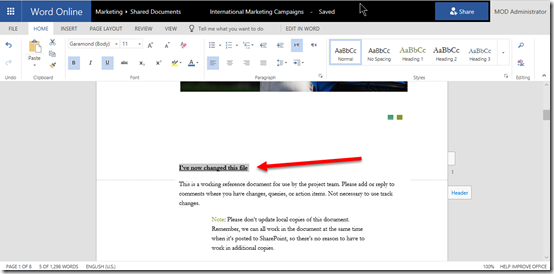
The retention policy will only act on changed documents from the point it was enabled. So we select a document in the library and edit it.

image

The document is changed and saved back to the library.

image

Now the file is still in it’s original location and the retention policy is applied. As the original file still existing in its original location the retention policy doesn’t need to take any action.

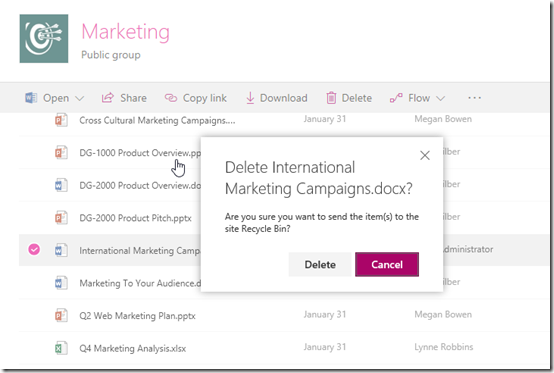
However, if the original file is now deleted from its original location as shown above what will happen?

image

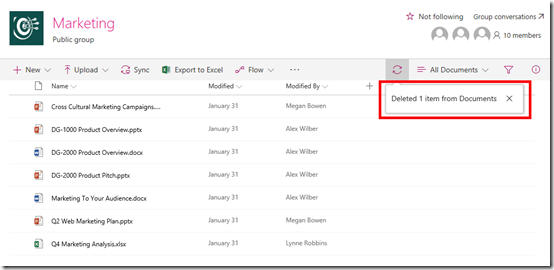
Any document deleted from a SharePoint Document Library is sent to the Recycle Bin.

image

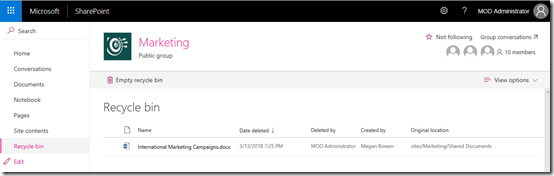
If we look in Recycle Bin we see the deleted document as shown again. The retention policy still does not yet need to take any actions as the document is still available, however remember, that items don’t stay in the SharePoint Recycle Bin forever. They are aged out after a total of 93 days. Thus, the retention policy doesn’t need to do anything until this time period is exceeded.

image

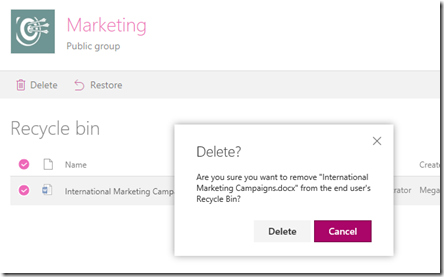
However, it is also possible for the user to delete the file from their recycle bin as shown above.

image

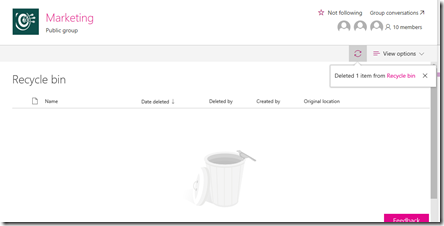
Once the user has deleted the file from their recycle bin the file will move to an administrator recycle bin or the remainder of the 93 days. Again, the retention policy doesn’t need to take any actions until this time period is exceeded.

image

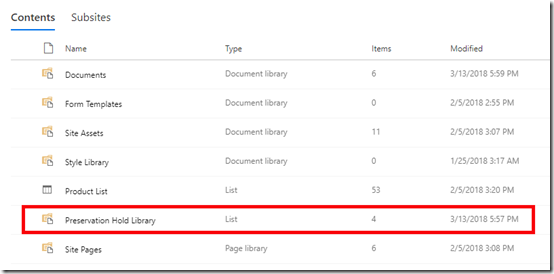
At the point at which the file is going to be purged from the Office 365 environment the retention policy that was configured kicks in. It creates a new document library in the Team Site called Preservation Hold Library as shown above.

image

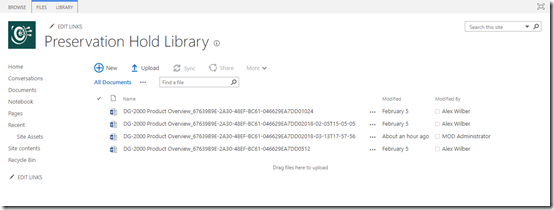
This new document library is only available for administrators to view and when you look in here you will see all versions of the deleted file. Remember, that every time you change a file in SharePoint it create a previous copy.

Thus, as an administrator, we can recover a file from this location for the period of the retention policy, which in this case is 7 years. Once the conditions of the retention policy no longer apply to the file (here it is > 7 years) the file will be removed permanently within 7 days from the tenant.

You can find lots more information about Office 365 retention policies here:

Overview of retention policies

In there, you will note for email data:

To include an Exchange Online mailbox in a retention policy, the mailbox must be assigned an Exchange Online Plan 2 license. If a mailbox is assigned an Exchange Online Plan 1 license, you would have to assign it a separate Exchange Online Archiving license to include it in a retention policy.

So, retention policies are a good way to manage the compliance of your data. As I said at the start, they are NOT a replacement for backup, however they do provide an extra layer of protection for you information and can be implemented quite easily as you can see above.

The last thing to remember is that retained data has to live somewhere and will consume you tenant space availability across the difference services. The more locations and data protect, the more copies of previous data you will have. So keep it simply and limit what you want to retain. This means planning your retention strategy in advanced rather than bulk applying it to all data in all locations.

Finally, remember that retention policies are available across the range of Office 365 license and I would encourage you to take advantage of them.

Create Office 365 Alerts

Another option that all Office 365 plans support is the ability to create your own custom alerts. Before you do this though, you’ll need to ensure that you have enabled the activity auditing in Office 365. Here’s an article I wrote that shows you how to do this:
https://blog.ciaops.com/2018/02/enable-activity-auditing-in-office-365.html

image

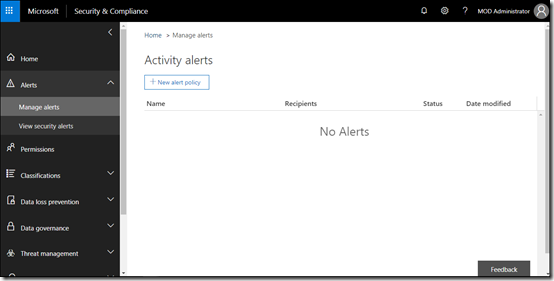
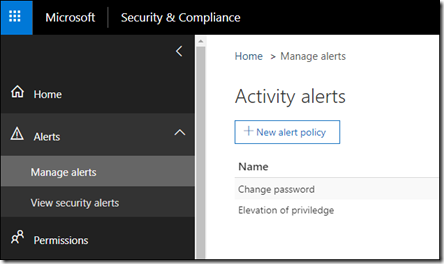
It will take 24 hours or so for the activity logging to be fully enabled but you can still go in and create alerts. You’ll need to navigate to the Security and Compliance center. From the menu on the left expand the Alerts option and then select Manage alerts.
You will probably see that there are currently no alerts configured as shown above. To configure an alert simply select the New alert policy button at the top of the page.

image

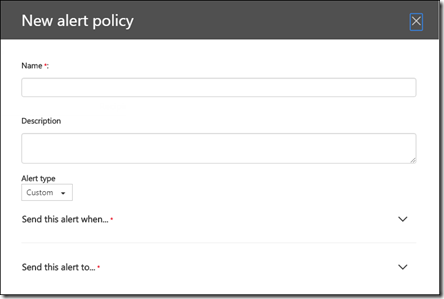
This will open the options window shown above. Give the alert a name and a description.

image

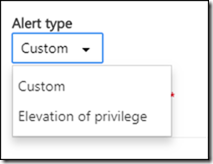
All Office 365 plans will have the choice to make the alert to be Custom or Elevation of privilege as shown above. Other plans may have additional options, but you should select the Elevation of privilege and configure that as your first alert.

image

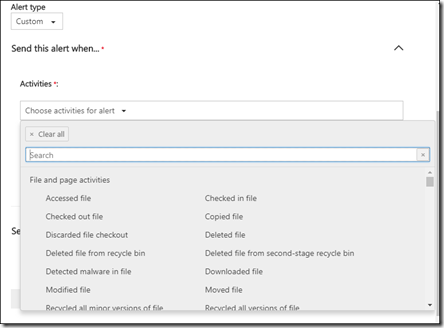
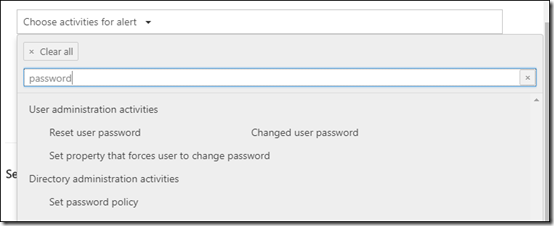
If you repeat the alert creation process but this time select to create a Custom alert you can then choose from a wide variety of activities to trigger the alert as shown above.

image

You can filter the list to the choices you wish using the search field at the top. Here I am filtering for any password activities.

image

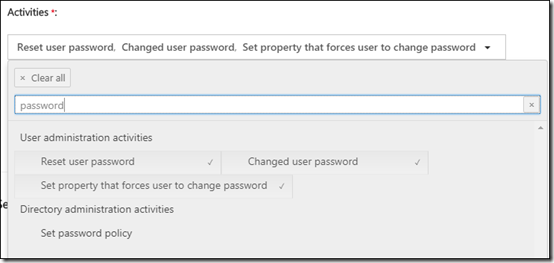
I simply select the activities I want included in the alert as shown above. When I select an option, a check appears to the right of the item.

image

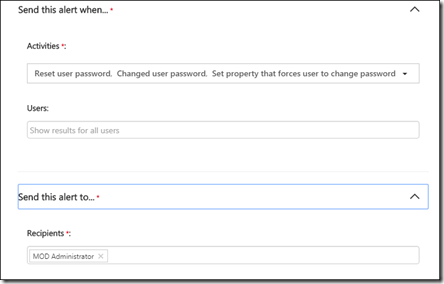
You then optionally set the users you wish to monitor for this activity (leaving the field blank applies it to all users) and finally whom you send any alerts to in your tenant (typically an administrator).

image

You then save the new alert and you should now see it in the Manage Alerts area as shown above.

image

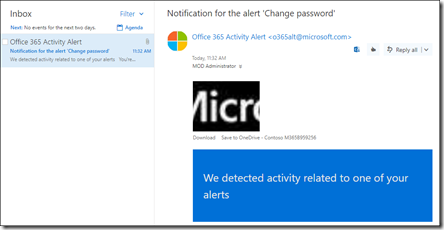
Now when an alert triggers you get an email alert as shown telling you about the activity.

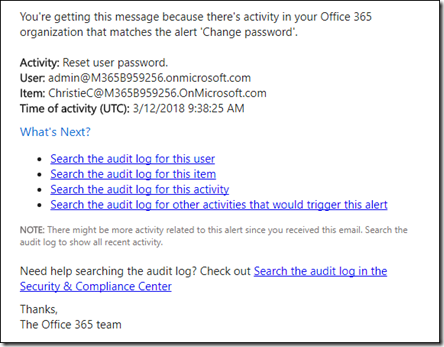
image

The alert email has lots of links that allow you to go and view the details in various places, typically in the audit log, which is why you need to turn that ability on first.

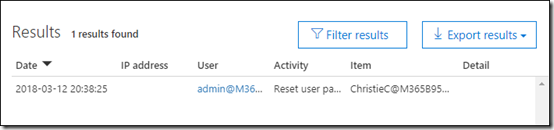
image

When we look in the audit log we see the activity and can investigate further.

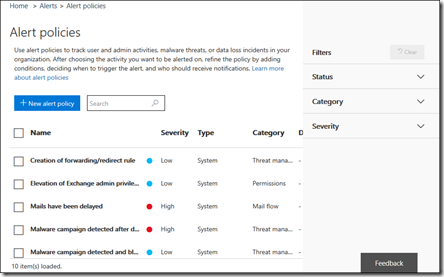
image

As I said, all the Office 365 plans allow you to do the basic alerting as I have shown, however with the Enterprise plans you get a whole range of additional abilities and alerts as shown above.

image

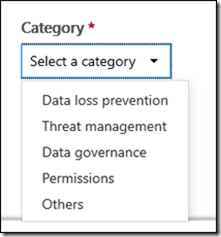
You also get additional categories as you see above. If you are serious about the security of your Office 365 tenant then I would highly recommend you consider Enterprise rather than business plans.

In summary, every Office 365 plan includes the ability to configure custom activity alerts which is something you should do. There are lots of activities you can alert on so be judicious on what you activities you alert on, as it is very easy to get overwhelmed by spurious alerts.

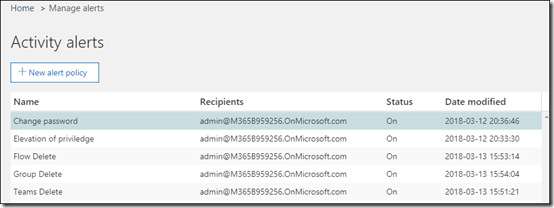
image

My general recommendation would be to set up the above list of alerts as a minimum but suggest you start with a handful and increase and refine overtime.

As I said, I would also recommend looking at Enterprise plans to provide additional alerting abilities and functionality, however no matter which plan you have, go in and add some for of alerting that makes sense for your tenant as there is typically nothing there by default.

Microsoft Cloud options

Here’s a video of a webinar I did recently on the options you now have with the Microsoft Cloud. I provide an overview of services like Office 365, Enterprise Mobility and Security, Microsoft 365 as well as Windows 10.

The slide can be viewed above or downloaded from:

https://www.slideshare.net/directorcia/microsoft-cloud-options

In short, there are so many options now available to you with the Microsoft Cloud to help you solve just about any business challenge.