
Wow! 40 episodes and counting. Who would have ever thought?
Join me in this episode as I speak with Microsoft CRM MVP Gus Gonzalez all about the benefits CRM can bring to a business. We learn how that CRM is more than just technology it is a process but a process worth investing in, especially for small business. Listen along and learn about how to improve you relationship with your customers and prospects.
http://ciaops.podbean.com/2012/11/06/episode-40-gus-gonzalez/
Don’t forget all the other podcasts at http://ciaops.podbean.com and appreciate a like over at http://www.facebook.com/n2kpodcast.
Remember if you want to be a guest please contact me (director@ciaops.com)
Category: Uncategorized
Upload to SharePoint 2010
Here’s a quick video that cover the ways that you can upload to SharePoint 2010 (on premise or via Office 365).
How to upload files to SharePoint 2010
http://www.youtube.com/watch?v=1OLyJAszoss
The video shows you how to do single and multiple file uploads as well as uploads via Windows Explorer. It also demonstrates the different upload options available via different browsers.
CIAOPS Affiliate program
I am happy to announce the creation of a CIAOPS Affiliate program. This provides cash back for every successful referral of select CIAOPS products you make.
You will receive 8% on successful referral of such products:
– SharePoint and Office 365 Guide
Thus, for every successful referral you make of the SharePoint and Office 365 Guide you’ll receive $25 cash back. However, if you are already a subscriber to the SharePoint and Office 365 Guide you’ll receive DOUBLE the normal affiliate fees (i.e. $50 for every successful referral).
You can start selling immediately, just let me know the prospect you have referred (via director@ciaops.com) and as soon as the sale is complete I’ll contact you to arrange transfer of you fees. Nothing could be simpler.
For more information about the program visit – http://www.ciaops.com/affiliate. The program is open to anyone so start earning CASH today!
Desktop to Cloud October Meeting
Every month I conduct a Desktop to Cloud user group meeting in Sydney. For this month we had presentations from Xero and Shoeboxed, two great cloud providers. If you want to see the meeting you can thanks to the magic of Google Hangouts and YouTube.
http://www.youtube.com/watch?v=EPF-pLOVY6M&feature=share&list=UUjCnvmKUX7DCRV9qN61xwOw
The shots of the are washed out due to the ‘cheapie’ webcam in use but if you want the slide decks from the presentations just send me an email (director@ciaops.com).
It was great to see a good crowd attend to hear from

Photos provided by GJ’s Computer Services
Christian Borkowski from the Prime Advisory Group

Photos provided by GJ’s Computer Services
Anna Cochrane from Xero

Photos provided by GJ’s Computer Services
Simon Foster from Shoeboxed

Photos provided by GJ’s Computer Services
of course it was great to see everyone else and I hope to see you all at next month’s meeting. For full details on the group visit www.desktoptocloud.com.au.
SkyDrive Channel
One of the great cloud services I use regularly is If This Then That. Basically it allows you to create ‘recipes’ that automate functions between web apps. They have just added a ‘channel’ for SkyDrive!

So what can you do with this?

Here are some examples of what others have created. You can copy these or create your own.
Remember If This Then That has a huge amount of other channels that you can do all sorts of automated process with.
Don’t forget my all time favourite ‘recipes’.

Even more SkyDrive Pro info
Andy Parkes provided a great link in response to my most recent blog post on SkyDrive Pro. Here it is:
5 Question about SkyDrive Pro – http://sharepoint.microsoft.com/blog/Pages/BlogPost.aspx?pID=1033
Let me make some comments on the points it makes:
1. There is a LOT of confusion around the whole SkyDrive brand now for most people. What is free? What is included? How much can I sync? Bottom line?
SkyDrive = free consumer web storage product with 7GB. (http://skydrive.live.com).
SkyDrive (App) = a free program to sync SkyDrive (NOT SkyDrive Pro) files locally on a desktop.
SkyDrive (Mobile) = free apps to work with files saved on SkyDrive (NOT SkyDrive Pro).
SkyDrive Pro (On premises) = commercial product available as part of SharePoint Server 2013.
SkyDrive Pro (Office 365) = commercial product available as part of SharePoint Online 2013
SkyDrive Pro (App) = local desktop app that comes with Office 2013 that allows syncing of files from SharePoint (Office 365 or on premise) to your desktop.
2. SkyDrive Pro (App) has LESS features than the current SharePoint Workspace 2010. SkyDrive Pro (App) can only sync files, whereas SharePoint Workspace 2010 could do other SharePoint elements like lists.

SharePoint Workspace 2010 will still work with all versions of SharePoint 2013 and provide all the features from what I can see but this is the last version of the product. It is no longer available in Office 2013. If you still want to run SharePoint Workspace 2010 and SkyDrive Pro (App) sync’ing tool on your desktop you’ll need to install this update for SharePoint Workspace:
http://support.microsoft.com/kb/2687364
3. SkyDrive Pro (Office 365) will have 7GB of storage! Wow, that is a huge increase from the current 500MB per user in the their my sites. Now, here’s a question, the current Office 365 P Plan SharePoint offering doesn’t offer My Sites so what will happen with the new Office 365 P Plans? Not much word there either, we’ll have to wait and see whether SkyDrive Pro is available in the new Office 365 P plans.
If it isn’t available you’ll still be able to use the SkyDrive Pro (App) that comes with Office 2013 to sync other SharePoint libraries. So you won’t have SkyDrive Pro (Office 365) but you’ll have SkyDrive Pro (App) with Office 365 P plans. Confused yet? Again, naming everything SkyDrive was not a good idea in my books.
4. The article in the link above seems to indicate that to get SkyDrive Pro all you need is Office 2013 or Office 365. Office 2013, yep agree, but in my testing from the current beta version of Office 365 when you click on the SYNC option on a SharePoint page you receive an error unless SkyDrive Pro (App) (or SharePoint Workspace 2010) is installed. This means that SkyDrive Pro (App) isn’t available directly from Office 365, it is in fact only available via Office 2013.
Now this could obviously change when the next version of Office 365 is released and as I said previously it makes a lot of sense to make the SkyDrive Pro (App) freely available. However, that is currently not the case from what I see and is only available when you install Office 2013. I also wonder whether SkyDrive Pro (App) will be available in ALL versions of Office 2013 or only the Professional Plus edition?
What about Office for MAC? Will there be an option for SkyDrive Pro (App) to suits MACs? There is one for the plain consumer SkyDrive but what about with Office 365 and SharePoint 2013? If you consider that Office for MAC will be available as part of many Office 365 plans you would of kind of think so but then how do you get it as they way I understand it there is not a new version of Office for MAC. That seems to point towards either a free SkyDrive Pro (App) or no app at all for MACs.
Don’t get me wrong, SkyDrive in all flavours (consumer, Pro, App, Mobile) is fantastic and I use it everyday and in a few months we’ll all being using these products without thinking BUT at the moment it is very confusing I reckon!
SharePoint Foundation 2013 Workgroup
You may not know that according to:
http://support.microsoft.com/kb/2764086/en-us
that, amongst other things, SharePoint Foundation 2013 is not supported on a stand alone workgroup (non domain joined) server.
Now just because it isn’t supported doesn’t mean that it can’t be done. Well almost. Here’s what I’ve worked out so far to get it almost all the way. I did the following on a Server 2012 that was not domain joined, i.e. only in a workgroup. You’ll also need a version of SQL 2008 or better installed before hand.

So you start the install and get the splash screen above. Select the option to install the pre-requisites.

Next you’ll get information about what will be installed. Press Next to continue.

Accept the license agreement and press Next.

The required software will be downloaded and installed.

When that is all complete you’ll get a summary and when you press Next the server will be automatically rebooted.

After you log back in the installation will continue installed some more software.

When complete you’ll see the above message. Best bet here is to do another reboot to ensure all the installations are complete.

When the reboot is complete re-run the installer and you will see the splash screen again. This time select the option to Install SharePoint Foundation.

Accept the terms again and press Continue.

Select the Complete option and the Install Now button.

You’ll need to wait while more software is installed.

When complete uncheck the option to Run the SharePoint Products Configuration Wizard now and press Close.

Locate the SharePoint 2013 PowerShell console and at the prompt run:
new-spconfigurationdatabase
Enter the details for your configuration database name, database server, farm credentials and finally a farm passphrase (and don’t forget this!). This process will now create the configuration database for you and may take several minutes to complete.

When the PowerShell command has completed locate and run the SharePoint Configuration Wizard. Select the option to not disconnect from the server farm.

Set the Central Administration Web details to what you require.
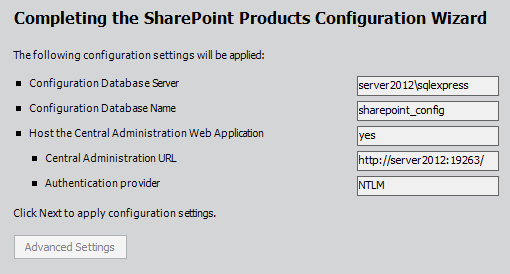
View the summary.

The configuration wizard will complete.

You should now get to the point of seeing the SharePoint 2013 Central Administration site. although not generally a good idea select the option to Run the Wizard to attempt to configure everything.

Select the Service Account (here I used the administrator which is not best security practices).

If you scroll down you’ll see all the option checked except for the Lotus Notes Connector. Continue.
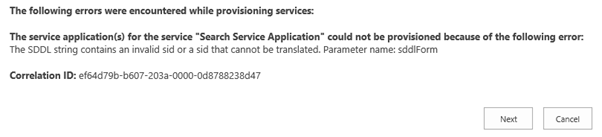
Here’s where I get the error with the Search Service Application. Press Next to continue anyway.

The wizard will complete and you’ll have a SharePoint site like so:

Problem is the search service won’t be running which obviously has something to do with that error mentioned previously.
Apart from that you should have a a SharePoint Foundation 2013 site running on a stand alone server. Neat. Again, remember that is NOT a supported configuration.
I’m sure I can find a solution to the error given some time so watch out for a future update on the topic.
A bit more on Skydrive Pro
if you haven’t seen my previous post (Skydrive Pro Primer) then I suggest you have a look so you know what I have discovered so far.
I fired up a new Windows 8 machine and installed Office 2013 Professional on it. When I selected the option to customize the installation I see:

As previously suspected, SkyDrive Pro is part of Office 2013.

Now if I look at my desktop I see a SkyDrive Pro 2013 icon.

Selecting the icon bring up the above window that asks which SharePoint Library I want to sync.

If I select the change button I can now select a new location on my local machine where the library will be sync’ed.
 CIAOPS