Email overrides are not best practice

I see a lot of email configurations in Microsoft 365 that use some form of override to ‘get around’ a delivery issue. Doing so is simply not best practice and in fact opens you up for additional attacks.

For more information, let’s review the Microsoft document:

Create safe sender lists in EOP

which says:

  • We don’t recommend managing false positives by using safe sender lists, because exceptions to spam filtering can open your organization to spoofing and other attacks.
  • Use Outlook safe senders – This method creates a high risk of attackers successfully delivering email to the Inbox that would otherwise be filtered; however, the user’s Safe Senders or Safe Domains lists don’t prevent malware or high confidence phishing messages from being filtered.
  • Use the IP allow lists – Without additional verification like mail flow rules, email from sources in the IP Allow List skips spam filtering and sender authentication (SPF, DKIM, DMARC) checks. This creates a high risk of attackers successfully delivering email to the Inbox that would otherwise be filtered; however, the IP Allow List doesn’t prevent malware or high confidence phishing messages from being filtered.
  • Use allowed sender lists or allowed domain lists – This method creates a high risk of attackers successfully delivering email to the Inbox that would otherwise be filtered; however, the allowed senders or allowed domains lists don’t prevent malware or high confidence phishing messages from being filtered. Do not use domains you own (also known as accepted domains) or popular domains (for example, microsoft.com) in allowed domain lists.

In short, if you are using white lists or the like you are creating a vulnerability in your environment that attackers can exploit. All inbound messages should be filtered through appropriately configured mail filtering policies. If you want information on setting these appropriately see:

Mail flow best practices for Exchange Online and Office 365

Best practices for configuring standalone EOP

Recommended settings for EOP and Defender for Office 365 security

To get an overall picture of all the message overrides in your environment visit the Security and Compliance admin portal:

image

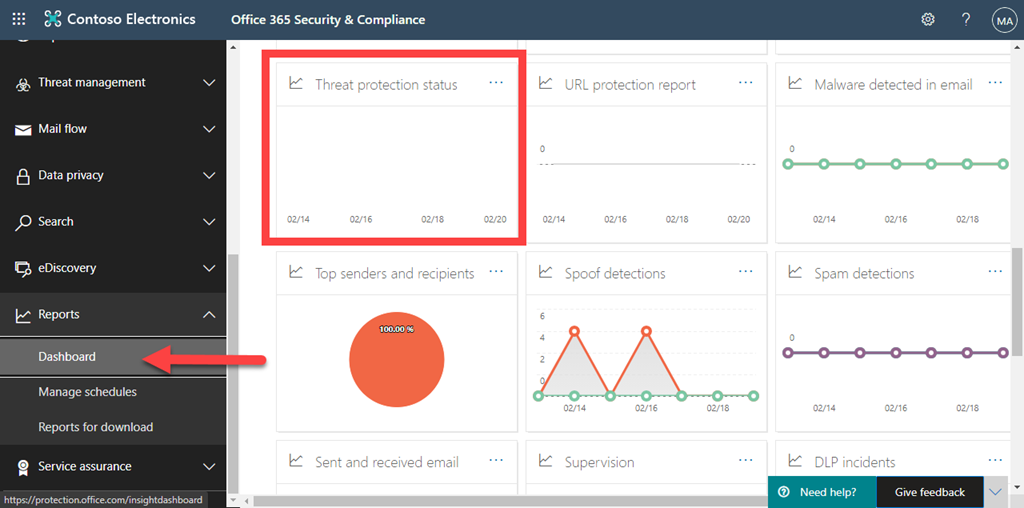
Locate the Reports option on the left and then select Dashboard as shown, from the expanded options. Then on the right locate the Threat protection status tile as shown and select it.

image

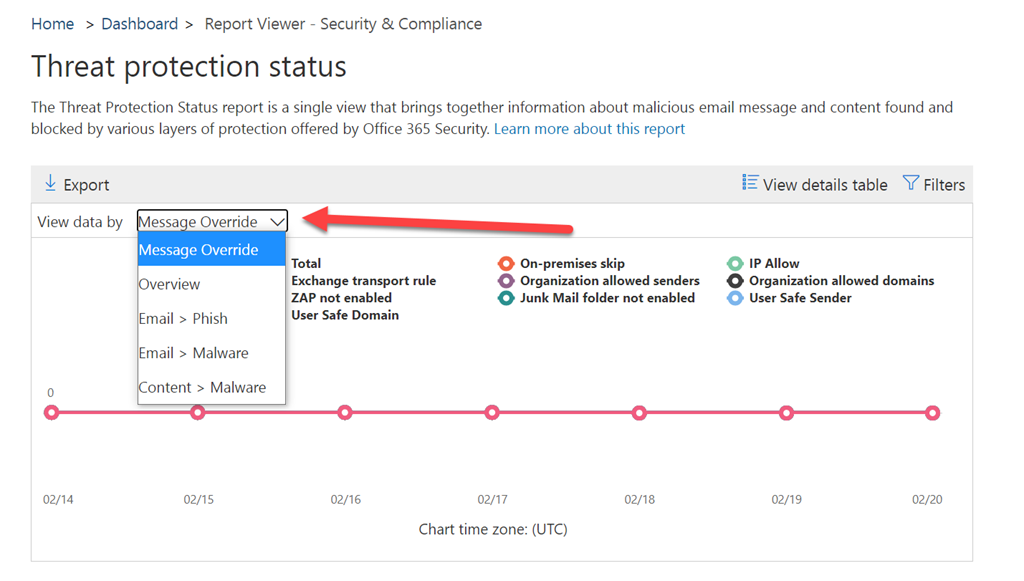
From the pull down options in the top right, as shown above, select Message override.

image

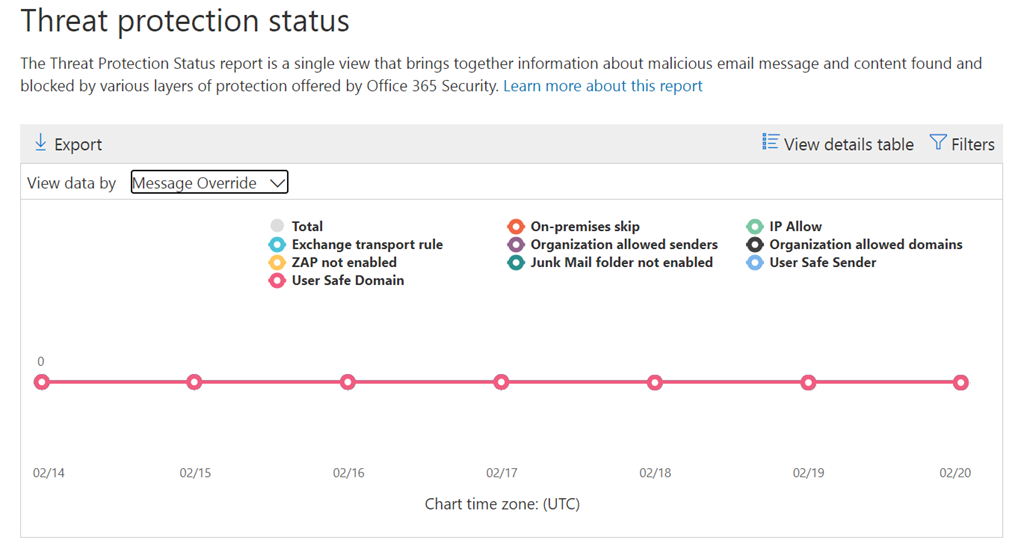
You should now see a nice summary of any messages passing through your environment that are overriding your configurations. Don’t forget that you can also View details table and select to Filter in the top right of this report.

A direct link to this report can be found here:

Threat Protection status – Message override

Overriding policies conditions is something that should be avoided as much as possible, simply because it increases the risk in your environment. Also, if you haven’t already, go take a look at what messages are overriding in your environment today and try to eliminate these to improve your security.

PowerShell with Azure Conditional Access

Recently, I did a video demonstrating how PowerShell can be used to automate Endpoint Management:

PowerShell with Endpoint Manager

I’ve now also created a video demonstrating how to automate Azure Conditional Access using PowerShell. As before, I am only making these scripts available via the CIAOPS Paton program.

In this video you’ll see me automatically backup up both Conditional Access locations and policies, then apply best practices locations and policies, finally restore the original policies, all using scripting.

Again, these scripts are not free and part of the CIAOPS Paton program. You’ll find my free stuff at https://www.github.com/directorcia.

Microsoft 365 Mailbox capacities and sizes

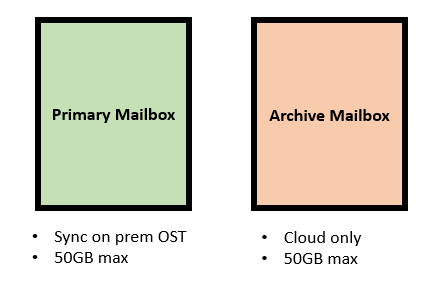
To better understand the mailbox capacities in Microsoft 365, think of an Exchange Online mailbox as potentially being made up of three distinct components like so:

image

  • Primary mailbox = Can be synchronised to Outlook on the desktop and into an OST file
  • Archive mailbox = Resides in the cloud
  • Compliance mailbox = Provides extra features like unlimited storage, litigation hold, etc. This too only resides in the cloud

The process by which the Compliance mailbox is provided 1.5TB of storage is by adding 100GB blocks of space as required. Thus you start with 100GB and when you exceed that another 100GB is added and so on. You can read about this in more detail here:

Overview of auto-expanding archive

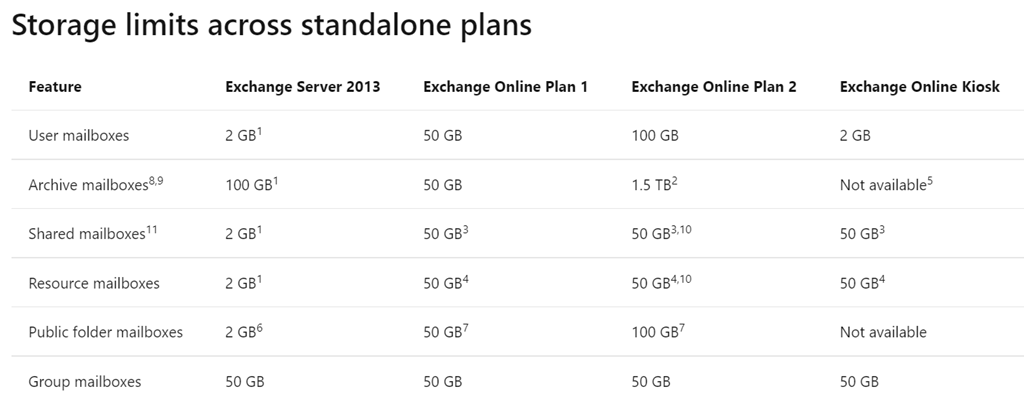
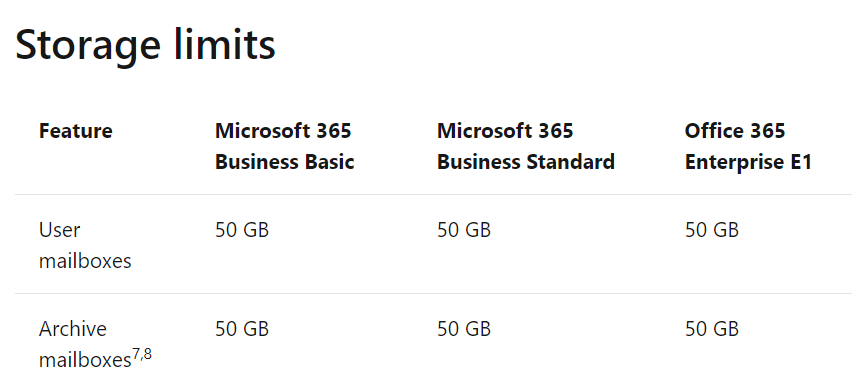
Now the capabilities and capacities of each of these individual mailboxes is defined in the Exchange Online limits, which currently are:

image

image

The configuration for Microsoft 365 Business Basic, Business Standard, Office 365 E1 and Exchange Online Plan 1 stand alone look like:

image

For all these licenses you get a 50GB primary mailbox and a 50GB cloud only archive.

image
image

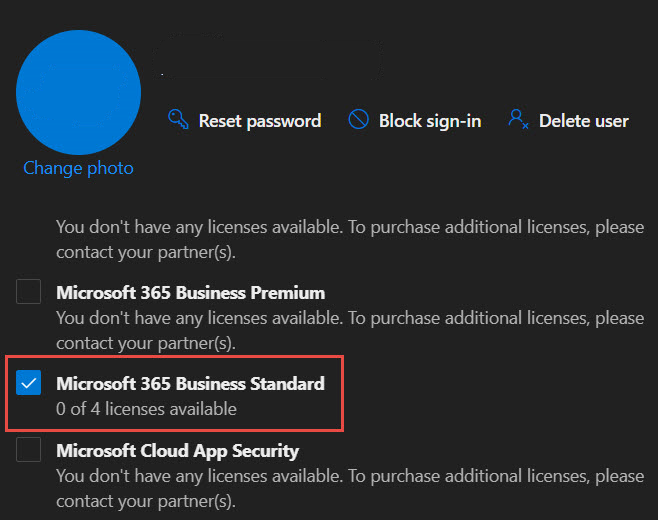
So a user with Microsoft 365 Business Standard like so:

image

will have a primary mailbox of capacity 50GB:

2021-02-05_10-54-41

and an archive also of 50GB like so:

2021-02-05_10-53-59

Thus, the total mailbox capacity across primary and archive combined here will be 100GB for these plans.

A Microsoft 365 Enterprise E3, E5, Office 365 E3, E5 or Exchange Online Plan 2 mailbox looks like:

image

It has a 100GB primary mailbox and a 1.5TB max capacity archive thanks to the fact that the features of the Compliance mailbox are baked into these plans as shown above. Confirming this in the Exchange Online limits documentation:

image

image

This 1.5TB capacity is provisioned by Auto expanding archive as mentioned previously per:

image

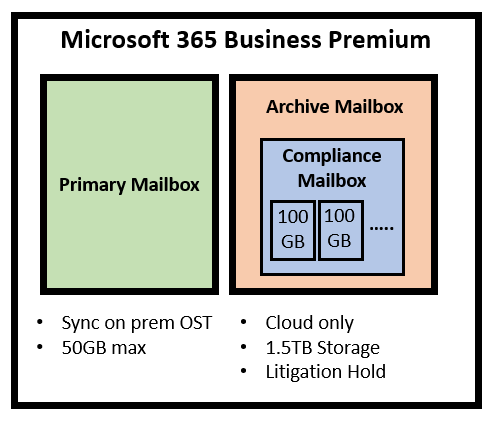
Where confusion is common is when the capacity of Microsoft 365 Business Premium mailboxes is considered.

image

As you can see from the above diagram, Microsoft 365 Business Premium is a little bit special because it takes a standard Exchange Online Plan 1 as discussed previously and adds something called Exchange Online Archiving. In simple terms, think of Exchange Online Archiving mapping directly to the Compliance mailbox mentioned early on. In essence, it provides an Exchange Online Plan 1 mailbox will features like 1.5TB storage, litigation hold and so on.

image

Thus, an easier way to think about a Microsoft 365 Business Premium mailbox is as being almost identical to the mailboxes found in Microsoft E3, E5, Office 365 E3, E5 and Exchange Online Plan 2 stand alone. That is except for one important difference. The Microsoft 365 Business Premium mailbox has a primary mailbox limit of 50GB which is just like the other Microsoft 365 Business mailboxes. This means that maximum amount of data that can be accommodated by a Microsoft 365 Business mailbox in a local OST file is 50GB NOT 100GB like what you receive with Enterprise mailboxes.

In summary then:

  • All Business mailboxes (and E1) receive a 50GB primary mailbox + 50 GB cloud archive mailbox = 100GB total storage
  • All Enterprise mailboxes (apart from E1) receive a 100GB primary mailbox + 1.5TB cloud archive mailbox
  • Business Premium mailboxes receive a 50GB primary mailbox + 1.5TB cloud archive mailbox

image

Microsoft 365 Business Premium receives this 1.5TB mailbox capability thanks to the inclusion of Exchange Online Archiving as shown above.

To get the best performance of any mailbox it is recommended best practice to ensure that capacities don’t get anywhere near what is detailed here. However, if you must, just keep the capacities and limitations for your license in mind.

Need to Know podcast–Episode 263

Welcome to 2021. I’m back with another year of podcasts focused on the Microsoft Cloud. Hope every one had a good break and ready to get into it. We kick of 2021 talking to MVP Alex Fields about security for SMB. Plenty of great take aways, so listen in a learn. I kick things off with news and updates from Microsoft as well. A jam packed episode.

This episode was recorded using Microsoft Teams and produced with Camtasia 2020.

Brough to you by www.ciaopspatron.com

Take a listen and let us know what you think – feedback@needtoknow.cloud

You can listen directly to this episode at:

https://ciaops.podbean.com/e/episode-263-alex-fields/

Subscribe via iTunes at:

https://itunes.apple.com/au/podcast/ciaops-need-to-know-podcasts/id406891445?mt=2

The podcast is also available on Stitcher at:

http://www.stitcher.com/podcast/ciaops/need-to-know-podcast?refid=stpr

Don’t forget to give the show a rating as well as send us any feedback or suggestions you may have for the show.Resources

@vanvfields – Alex Fields

@directorcia

ITProMentor

Alex’s publications

Center for Internet Security

What’s New in Microsoft Teams

Microsoft Lists Adoption

Microsoft Edge 88 Privacy and Security Updates

Bringing OneDrive settings into SharePoint admin center for streamlined, centralized control

Get the Microsoft Lists app for iOS

250GB File support in Microsoft 365

Microsoft surpasses $10 billion in security business revenue, more than 40 percent year-over-year growth

CIAOPS Need to Know Microsoft 365 Webinar–February

laptop-eyes-technology-computer

Bookings is an under utilised Microsoft 365 service that allows easy scheduling for you and your team. For February we’ll take a deep dive into all the cool stuff you can do with Bookings, so don;t miss it. I’ll also have the latest news from Microsoft and as always there will be time for your questions.

You can register for the regular monthly webinar here:

February Webinar Registrations

The details are:

CIAOPS Need to Know Webinar – February 2021
Friday 26th of February 2021
11.00am – 12.00am Sydney Time

All sessions are recorded and posted to the CIAOPS Academy.

The CIAOPS Need to Know Webinars are free to attend but if you want to receive the recording of the session you need to sign up as a CIAOPS patron which you can do here:

http://www.ciaopspatron.com

or purchase them individually at:

http://www.ciaopsacademy.com/

Also feel free at any stage to email me directly via director@ciaops.com with your webinar topic suggestions.

I’d also appreciate you sharing information about this webinar with anyone you feel may benefit from the session and I look forward to seeing you there.

Frustrations of using the Microsoft Graph with PowerShell

I’ve spent the past few day wrestling with the using Microsoft Graph with PowerShell, and it hasn’t been fun. Let me explain.
image

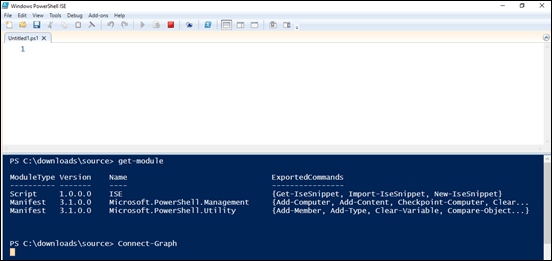
The first issue is that you can’t use the connect-graph command in the PowerShell ISE in Windows 10. if you do, you just get a flashing cursor as shown above that eventually times out.
image

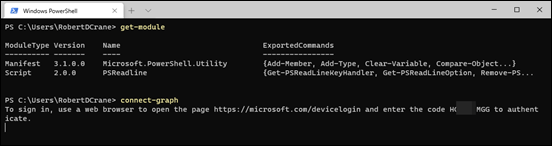
If you repeat the same process in wither Windows terminal (above) or the PowerShell command you are taken through the standard device login browser process as expected.
image

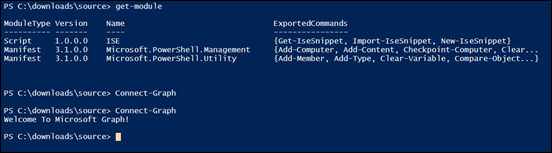
After that, if you return to the ISE (above) and repeat the command connect-graph, you receive a message telling you that you are connected by virtue of the token from the previous Windows Terminal session.
SNAGHTML3e54e286

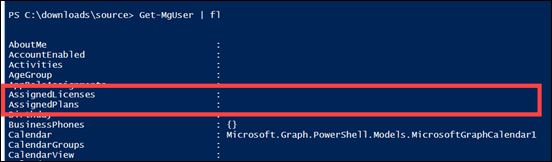
If you run the preferred Graph command get-mguser (above) you see that the AssignedLicenses and AssignedPlans attributes are blank.
image

If you now run my script:

https://github.com/directorcia/Office365/blob/master/Intune-connect.ps1

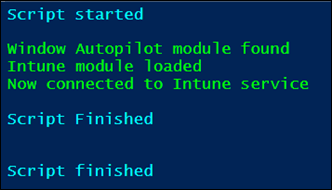
You also get connected to the Microsoft Graph as I highlighted here, but specifically to the Intune portion of the Graph:

New Intune connection PowerShell script

Typically, this type of connection is also designed for device management with PowerShell and work very well. However, because device management also requires access to users, we can also get access to user data via the Graph.

SNAGHTML3e5a0c9b

You achieve this by running the following script after connecting to Intune Graph:

$uri = “https://graph.microsoft.com/beta/users”
$users = (Invoke-MSGraphRequest -Url $uri -HttpMethod GET).Value
$users

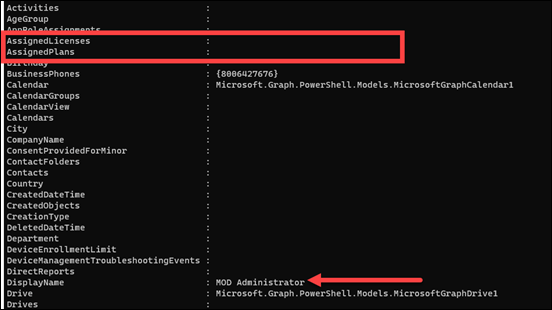
which you see above gives you similar to the user options before but with far more detail as demonstrated by the assignedLicenses and assignedPlans highlighted previously highlight above.
SNAGHTML3e5cd9e4

Just to prove there is no smoke and mirrors here, above the output of the command get-mguser used after the connect-graph command (i.e. the non-Intune connection method).

Clearly, the data is in the Graph, but the command get-mguser does not yet seem to support pulling all this down from what I see. I hope someone can point out the error of my ways here but to create the reporting and automation I REALLY want looks like I’m to either have to use the PowerShell Intune module or revert to using the full web based invoke-request to get what I’m after.
image

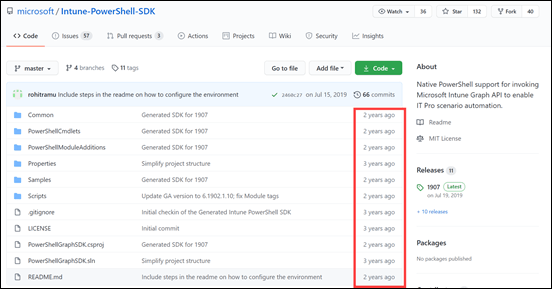
What kind of worries me a little is that Intune PowerShell project seen above and at:

https://github.com/microsoft/Intune-PowerShell-SDK

that works REALLY well, hasn’t seen any updates in 2 years! There are 57 outstanding issues at the time of writing this blog, including two from me because not all the native wrapper commands work as expected. Are they being attended to at all I wonder?

In summary then, I’m in somewhat of quandary about using PowerShell with the Microsoft Graph. Specific stuff like the Intune SDK works well using the invoke-msgraphrequest command. It is easy to setup and manage the permissions for. On the other hand, the more general Graph commands like get-mguser don’t as yet seem to return as much information as they could. As well as the Intune SDK works I’m kind of afraid that it will not see future development.

So where should I invest my time to continue automating Microsoft 365 administration? Suggestion anyone?