CIAOPS Need to Know Microsoft 365 Webinar – July

laptop-eyes-technology-computer

Join me for the free monthly CIAOPS Need to Know webinar. Along with all the Microsoft Cloud news we’ll be taking a look at how to work with files in Microsoft 365.

Shortly after registering you should receive an automated email from Microsoft Teams confirming your registration, including all the event details as well as a calendar invite.

You can register for the regular monthly webinar here:

July Webinar Registrations

(If you are having issues with the above link copy and paste – https://bit.ly/n2k2207 – into your browser or scan this QR code)

image

The details are:

CIAOPS Need to Know Webinar – July 2022
Friday 29th of July 2022
11.00am – 12.00am Sydney Time

All sessions are recorded and posted to the CIAOPS Academy.

The CIAOPS Need to Know Webinars are free to attend but if you want to receive the recording of the session you need to sign up as a CIAOPS patron which you can do here:

http://www.ciaopspatron.com

or purchase them individually at:

http://www.ciaopsacademy.com/

Also feel free at any stage to email me directly via director@ciaops.com with your webinar topic suggestions.

I’d also appreciate you sharing information about this webinar with anyone you feel may benefit from the session and I look forward to seeing you there.

Office desktop apps include Windows Explorer

A major stumbling block for many during the transformation process from on premises to Microsoft 365 is the desire for Windows Explorer. It is understandable that people want to maintain the status quo and their current work processes, however want many don’t appreciate is that Windows Explorer like capability is built right into Microsoft Office desktop applications.

image

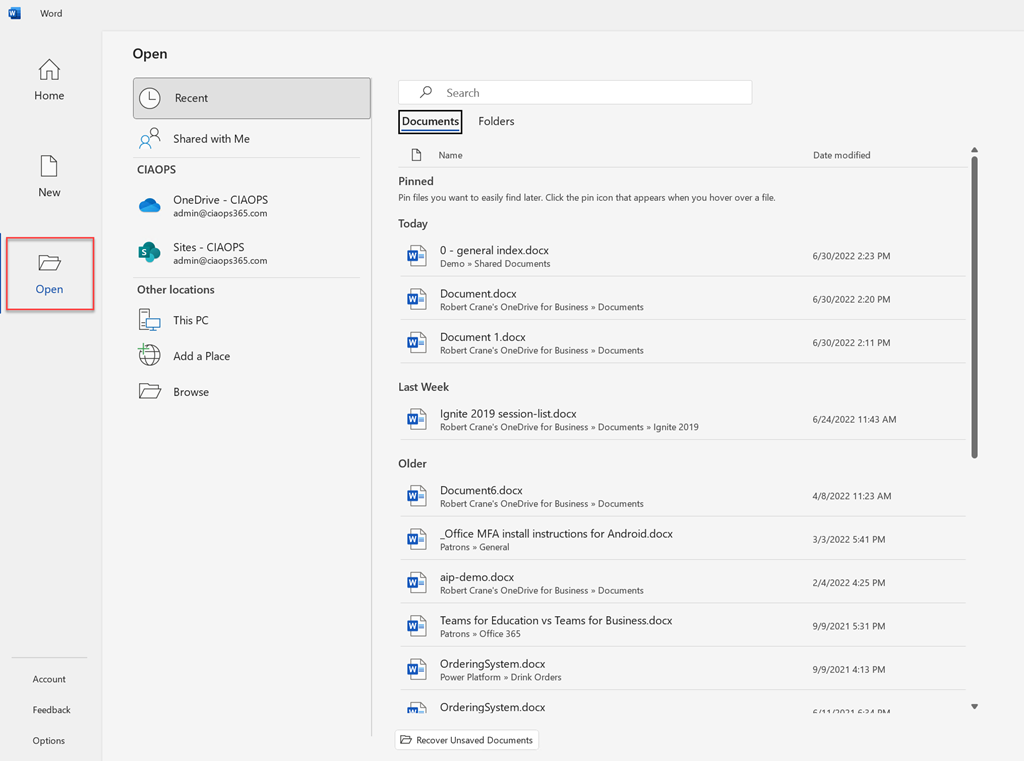
If we take a look a Word as an example, and then select Open from the menu on the left, we find an array of documents displayed that were recently opened as shown above. You’ll also notice that you can view recently accessed Folders from this same interface as well. There is even a Search option at the top of the page to help you locate items in this list.

image

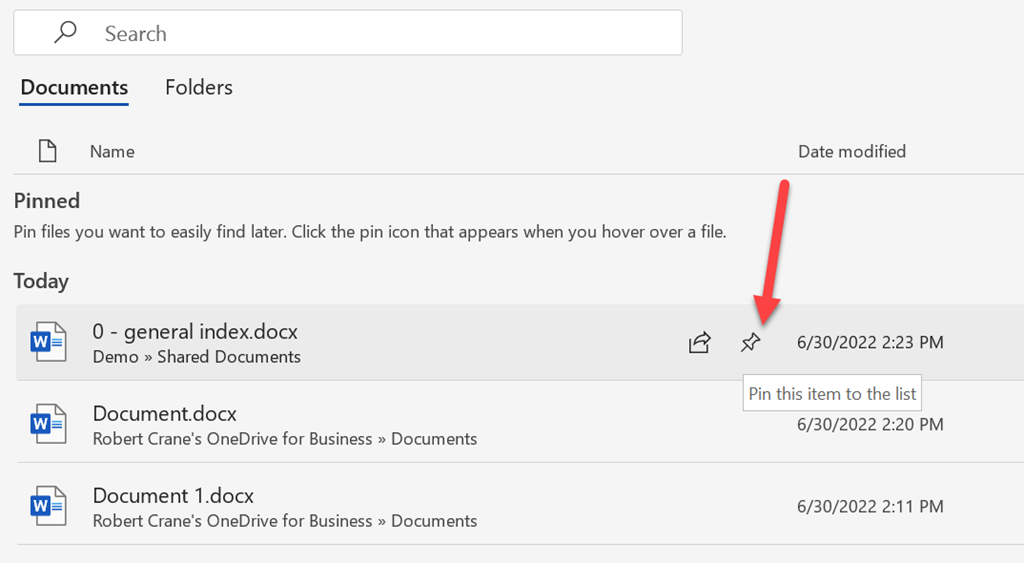
You’ll see there is also the ability to ‘pin’ an item (file or folder) so that it will always appear as shown above.

image

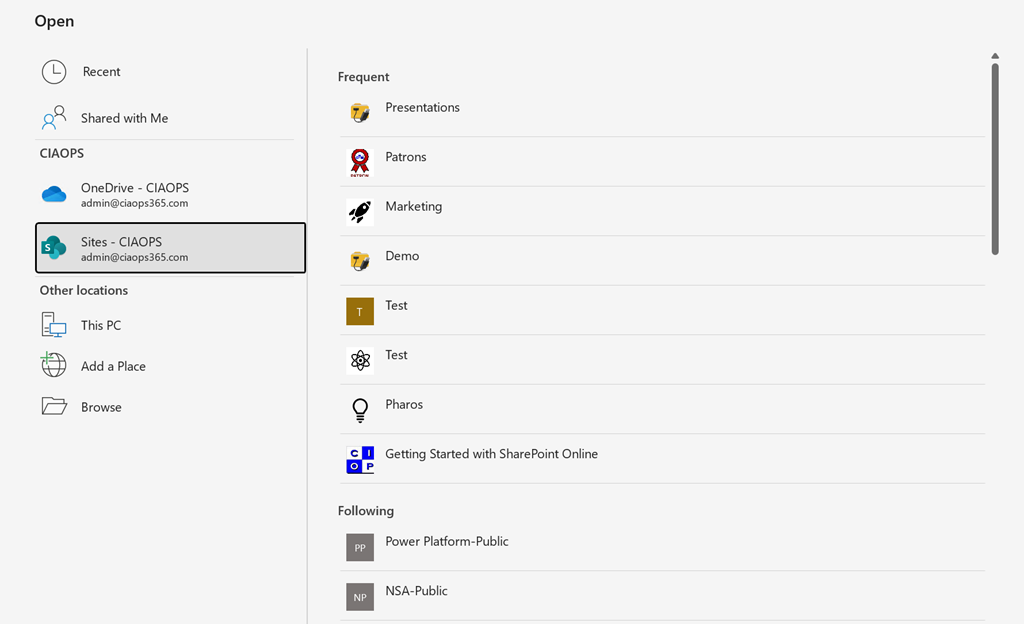
A little further down you will find the cloud storage locations you are connected to as shown above, which are typically associated with your Microsoft 365 environment. If I select SharePoint here, I will then see a list of my SharePoint sites on the right.

image

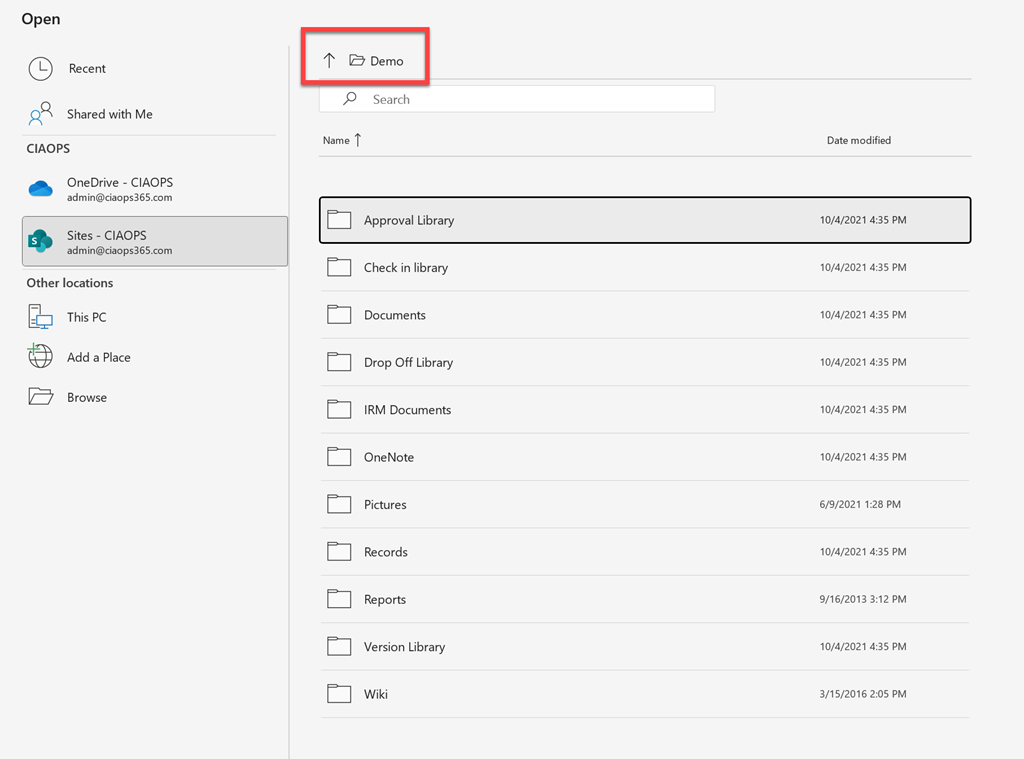
If I then drill into a site, I will see all the Document Libraries it contains. If then drill into a Document Library I will see all the files and folders within, just like you do when using Windows Explorer.

image

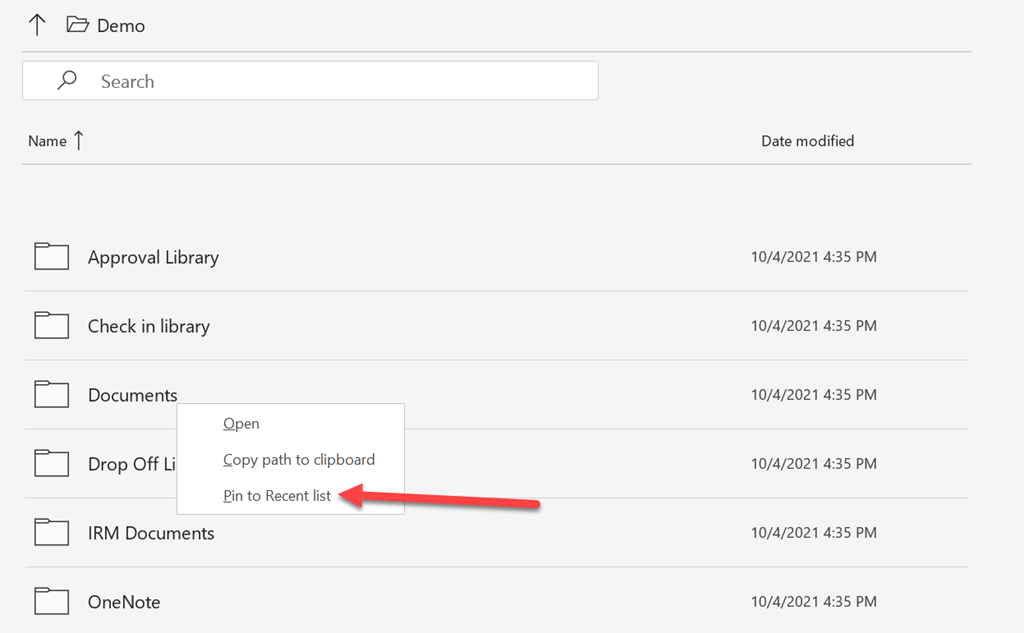
If I right click on something like a folder, you see from the above, that I again have the ability to Pin to Recent list. This makes it easy to navigate back to that location later. It is always a good idea to do this for those locations you need to get to regularly. 

I can move up and down the list of items as I could using Windows Explorer. This therefore, should be the familiarity that many are looking for when navigating file structures.

The file displays inside this application navigation are limited to files that can be opened or view by that application. For Word this would be things like DOC, DOCX, PDF, Text files and so on.

It would be nice if Microsoft (or anyone else) took this built-in Office desktop navigation and created a stand alone desktop application that could navigate all files at once. This would then be a direct replacement for the traditional version of Windows Explorer but for locations in Microsoft 365. How handy would that be?

As yet, I have not found an application that does this but hopefully some smart developer will look ate creating something as I reckon it would be a real winner. So, for the time being, remember that you do have a simplified version of the old familiar Windows Explorer built into Office desktop application that you can use to enhance your daily workflow with the common file types you work with in Microsoft 365.

Cloud file productivity using Windows Quick Access

Here’s a productivity tip I use to make navigating cloud file location easier on Windows 10 desktops.

image

After have set up any synced locations, like my OneDrive, SharePoint, Teams, etc,  I then locate a frequent folder I need in a cloud location. Here that folder is Customers on my OneDrive for Business. I then right mouse click on that folder and select the option Pin to Quick access as shown above.

image

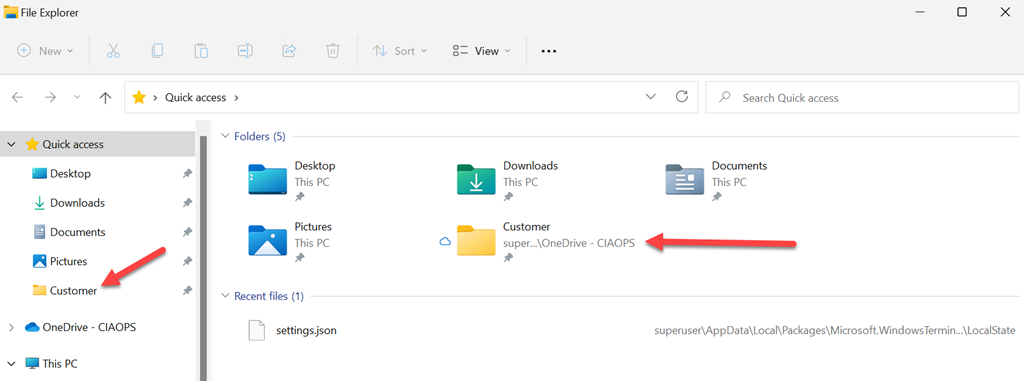
You should then see that folder in the Quick access area in the top left of Windows Explorer as shown above.

image

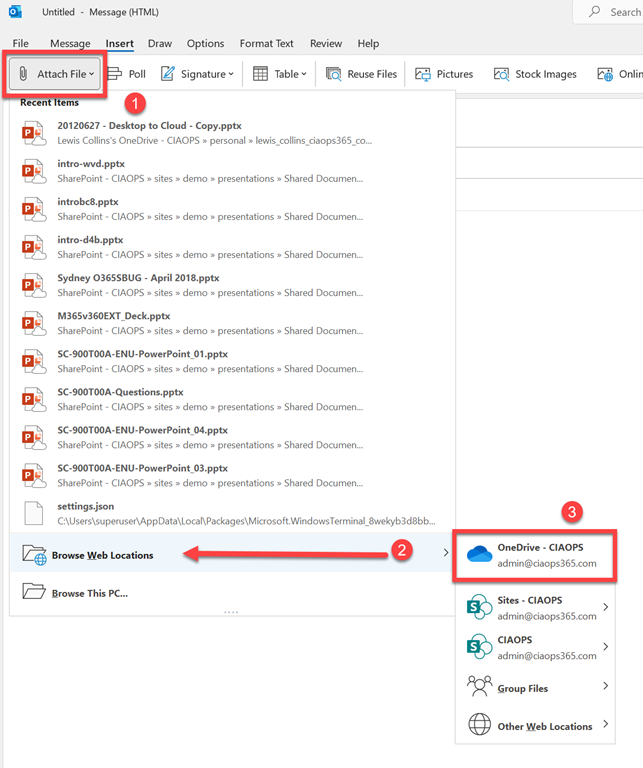
Now, if I want to attach an email from that location I can simply browse to a location (web or local doesn’t really matter), because whenever you get Windows Explorer, you also get your Quick access.

image

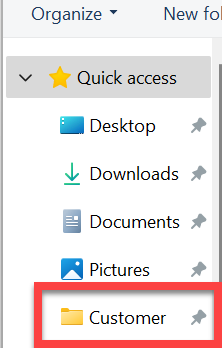
from which you navigate to the file you need via Quick access in the top left of Windows Explorer. Quick and easy.

image

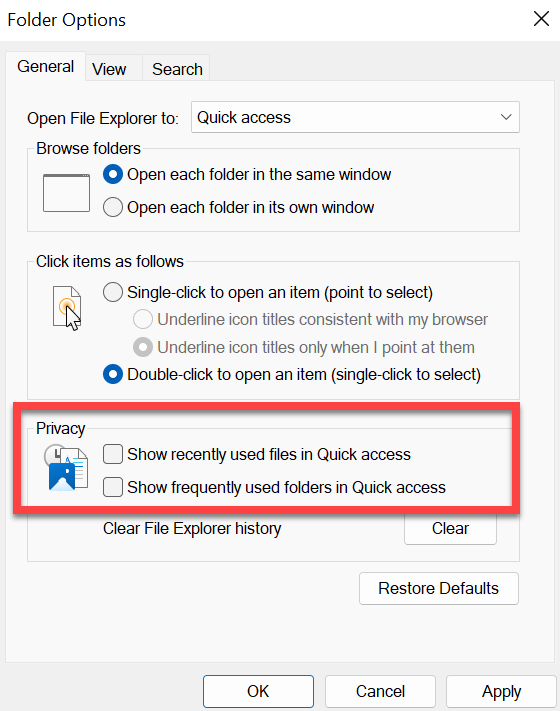
Because Windows wants to be ‘helpful’ and add recent locations to Quick access by default, I want to disable that so this area doesn’t become cluttered. I want Quick access just to contain the stuff I put in there, nothing else.

To achieve this, I go into the properties of Windows Explorer and in the General tab, under Privacy, I uncheck both options (Show recently used files in Quick access and Show frequently used folder in Quick access) as shown above.

I like to keep my Quick access as small as possible and therefore remove anything that isn’t relevant to my day to day work (i.e. the shortcuts to stuff like Media and Movies).

I haven’t seen many people use Quick access on Windows desktops but I find that once you set it up it is invaluable as it pops up anytime you need to work with files. You can also add, remove and edit over time to customise to your exact needs. For example, if I’m working on a project, I add that location for the duration of time I’m working on that project. This make access very fast and easy.

Hopefully, this productivity approach may also help you when working with files from the cloud.

Microsoft Defender for Business post setup wizard recommendations

image

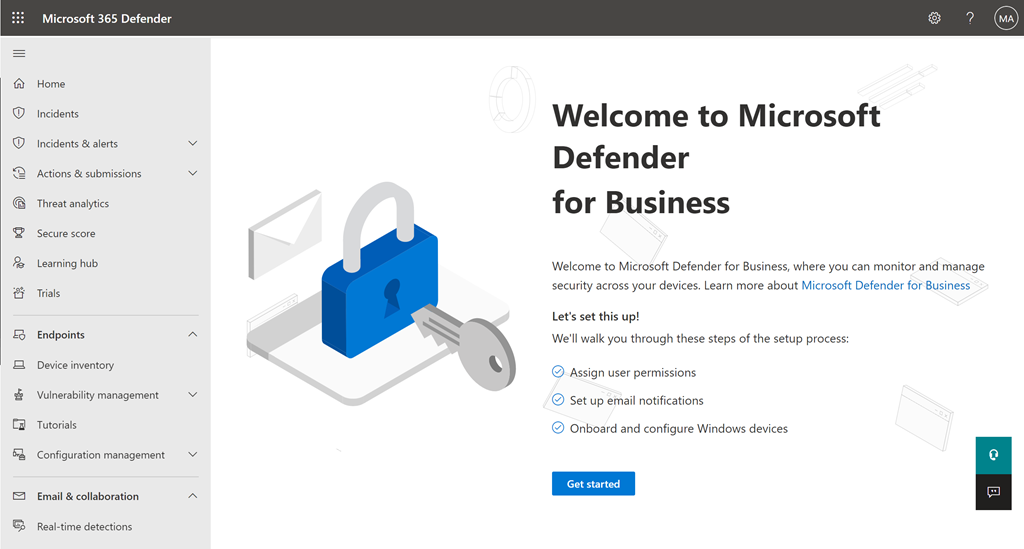
Let’s say that you have kicked off the Microsoft Defender for Business setup wizard as shown above. For the purposes of this article I’ll also assume that this is part of a Microsoft 365 Business Premium tenant.

image

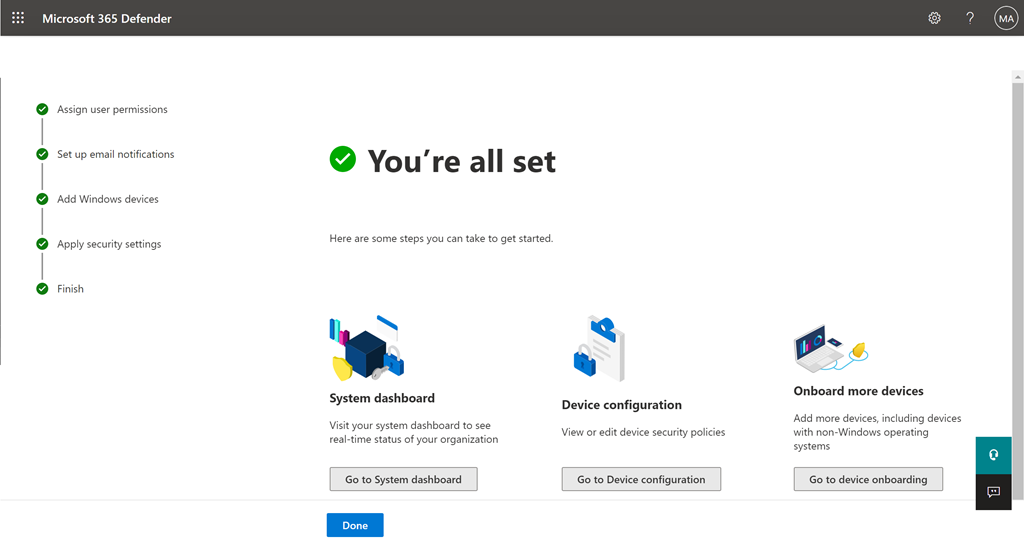
Let’s assume that you have now completed that process, which you can read about here:

Use the setup wizard in Microsoft Defender for Business

image

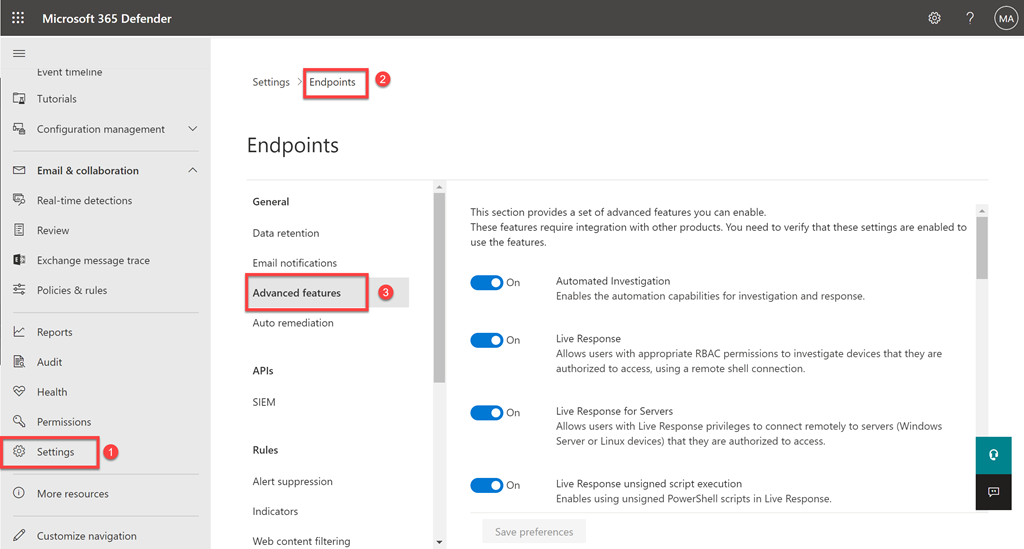
After the wizard has completed I suggest you head to the Settings options in https://security.microsoft.com and then select Endpoints and finally, select Advanced features, where you should see the above screen full of options on the right.

At this point I’d suggest you go and enable all the options listed. Now, not all of them will be relevant but I’d still recommend they be turned on none the less. Do it once and you won’t need to come back is my philosophy.

Leave that location open as we’ll be coming back here.

image

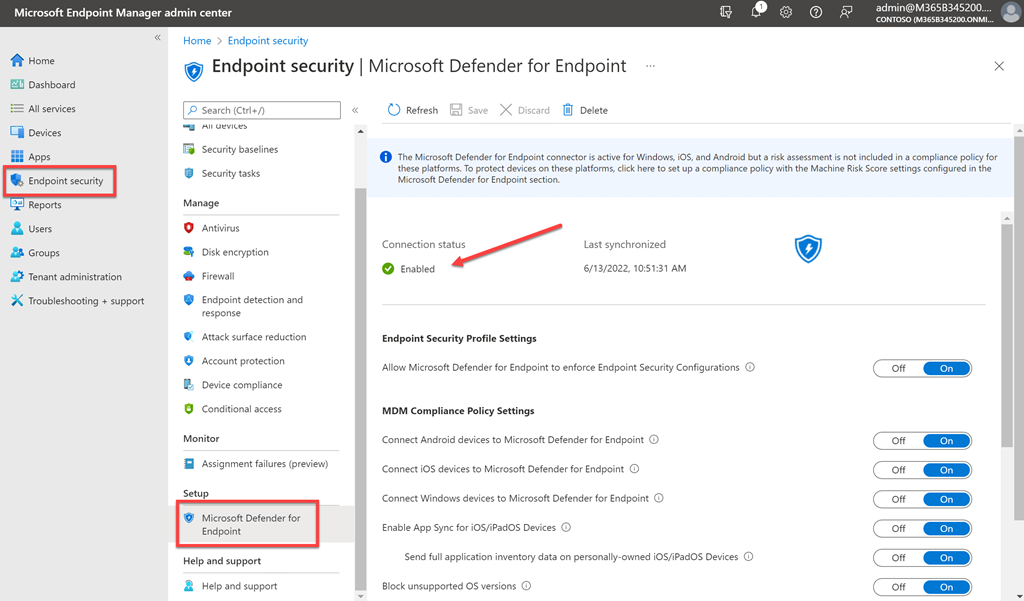
Next, head over to your Microsoft Endpoint Manager and select Endpoint security on the left, then Microsoft Defender for Endpoint, which should result in the above screen.

Here you want to ensure the Connection status is Enabled (i.e. green check mark) as shown.

If it isn’t for some reason, then head back to https://security.microsoft.com, Settings, Endpoint, Advanced features.

image

Scroll through the list of items until you find the Microsoft Intune connection as shown above. Ensure that it is turned On. If it isn’t, turn it On, wait at least 15 minutes and check back in Endpoint Manager for the Connection status to be Enabled (i.e. you see the green check mark). If it is already On and the green check mark doesn’t appear, turn the setting Off for at least 15 minutes and then turn it back On. You know, kinda reboot it. The connection status should go green after that in my experience.

image

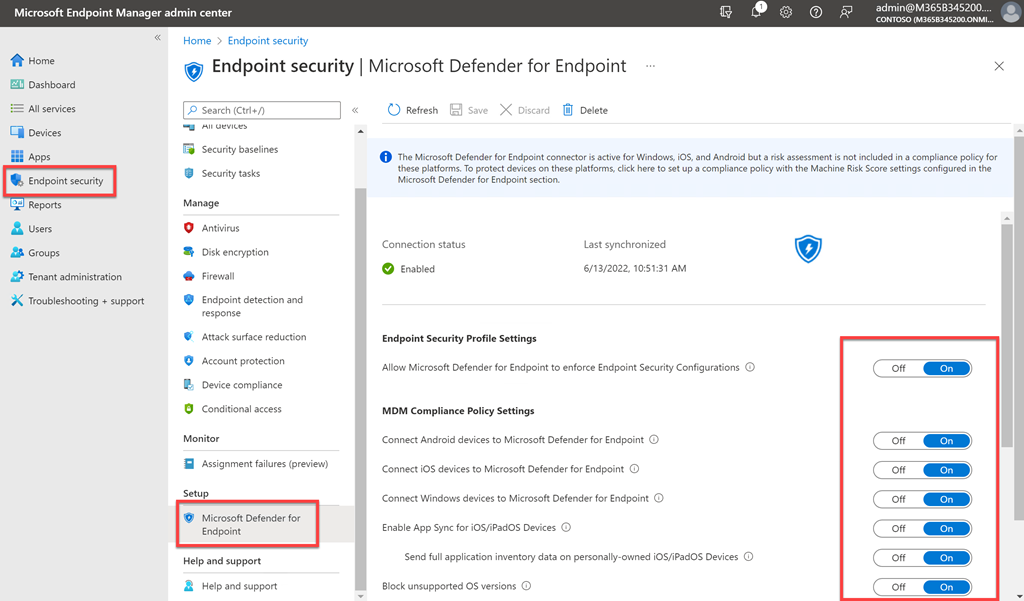
When the Connection status is Enabled go and turn all the options on the page to On as shown above.

image

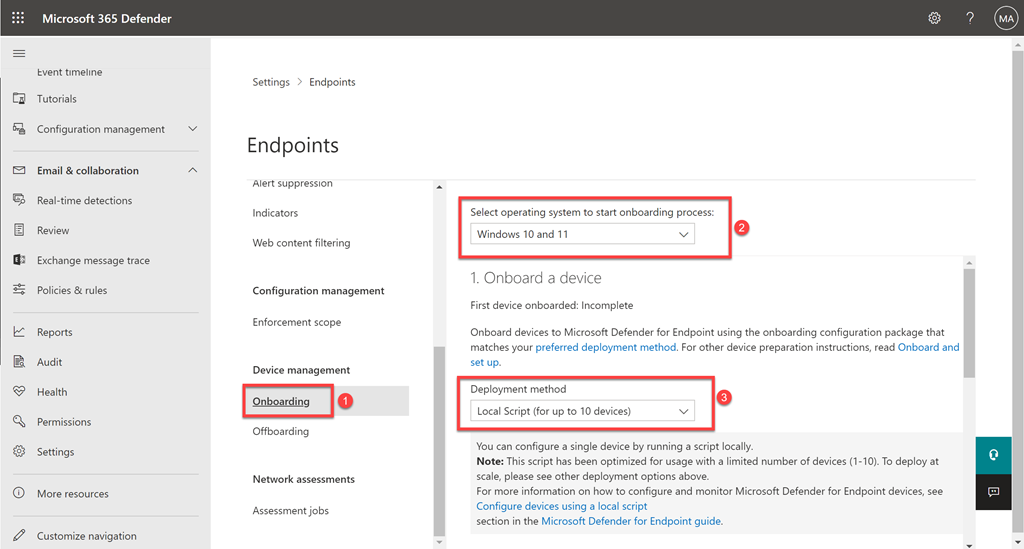
Return to https://security.microsoft.com and select the Onboarding option as shown above.

My recommendation is that you manually onboard the first Windows 10 device in your environment using a local script. That will ensure everything is working quickly and easily.

Simply download the script provided and run it on one of the Endpoint Manager enrolled devices in your environment.

image

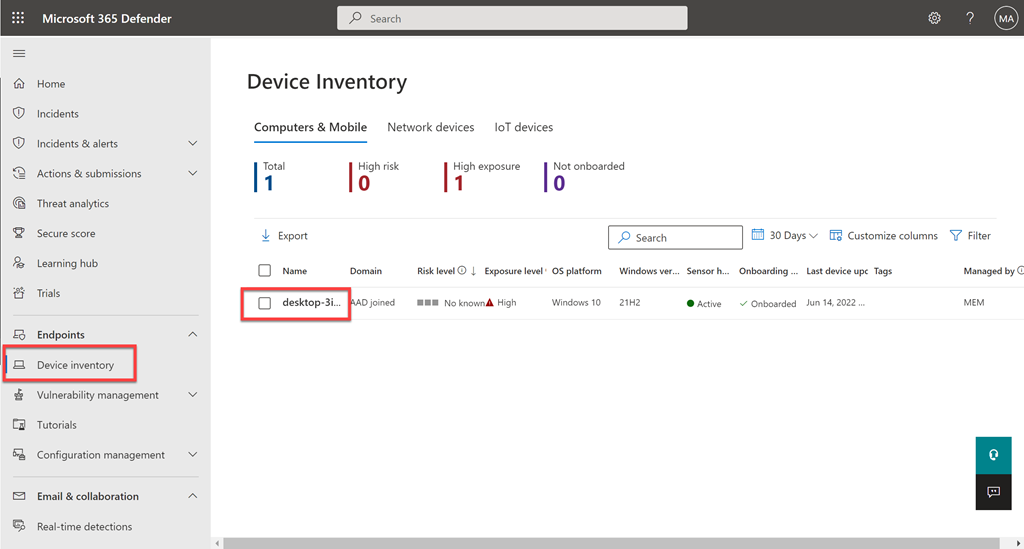
Once the script has run successfully return to the console and select Device inventory from the menu on the left as shown. Within 15 minutes or so, you should see the machine that you ran the script on appear here.

Congratulations, you have successfully onboarded your first device to Defender for Business in your tenant. You are now free to continue to configure additional devices using the policies provided. I always like to do the very first device in the environment manually so I know everything is working as expected. If I then get issues, I know to troubleshoot my deployment policies.

CIAOPS Need to Know Microsoft 365 Webinar – June

laptop-eyes-technology-computer

Join me for the free monthly CIAOPS Need to Know webinar. Along with all the Microsoft Cloud news we’ll be taking a look at Microsoft Teams.

Shortly after registering you should receive an automated email from Microsoft Teams confirming your registration, including all the event details as well as a calendar invite.

You can register for the regular monthly webinar here:

June Webinar Registrations

(If you are having issues with the above link copy and paste – https://bit.ly/n2k2206 – into your browser)

The details are:

CIAOPS Need to Know Webinar – June 2022
Friday 24th of June 2022
11.00am – 12.00am Sydney Time

All sessions are recorded and posted to the CIAOPS Academy.

The CIAOPS Need to Know Webinars are free to attend but if you want to receive the recording of the session you need to sign up as a CIAOPS patron which you can do here:

http://www.ciaopspatron.com

or purchase them individually at:

http://www.ciaopsacademy.com/

Also feel free at any stage to email me directly via director@ciaops.com with your webinar topic suggestions.

I’d also appreciate you sharing information about this webinar with anyone you feel may benefit from the session and I look forward to seeing you there.

We all need to automate more

A common challenge today many business, including IT resellers, face is the lack of suitably qualified staff. There seems little doubt this situation will continue for an extended period due to various reasons. However, I believe the situation has been greatly exacerbated by many businesses failing to truly embrace the power of automation, especially IT automation, in their business.

A common process I see in many businesses undertake is simply adding more technology without the drive for improved effectiveness. Many business seem to add more technology because they ‘believe’ it will make them more effective. However, unless there is a plan and desire to become more effective it rarely happens. In reality what happens is, they become less effective, as technology systems add increased burdens, costs and demand more resources. In many cases, they make things far worse and introduce more inefficiencies due to complexity and a lack of integration.

If you take a step back and look at the wider picture here, it was a common belief that computers and technology systems in general would remove the mundane burden of repetitive and undesired work in our society. However, if you look around today most people and businesses are far more stressed, are far more ‘time poor’ than they have even been and yet we have all this wonderful and powerful technology at our finger tips. We carry super computers in our pocket, but when was the last time everyone turned up to a meeting on time?

One of the reasons I suggest is that fact that most are merely using the ‘system default’ configuration that comes with any technology. They don’t invest in learning and exploring how to make the technology work best for them. Technology developers can only supply their products with a single configuration that ‘hopefully’ suits most users. That is rarely the case. Unfortunately, merely ‘accepting the defaults’ leads to inefficiencies which leads to being more time poor, which leads to less time being available to learn and optimise technology, which leads to merely ‘accepting the defaults’…. and so on through an ever more inefficient spiral.

Another reason is the fact that today we live a very much ‘now’ society. People don’t want to wait. They want instant gratifications. The days of investing for the long term no longer take primacy, which is strange, given that things like compound interest have been referred to by some pretty smart people as the eighth wonder of the world.

“Compound interest is the eighth wonder of the world. He who understands it, earns it … he who doesn’t … pays it.”

― Albert Einstein

Unfortunately, this fallacy of constant technology efficiency is unlikely to change. I would actually contend that it is, in fact, only going to accelerate. That, however, does present an opportunity for those who are prepared to invest some time and truly take advantage of what things like automation can achieve.

I like to think of technology automation along a spectrum. In the past, we have had things like scripting such as PowerShell that provides a huge mount of leverage. You can write a PowerShell script to do just about anything in the Microsoft environment these days. It allows a single person to obtain a consistent result once it has been developed. The problem is however, someone still needs to run that script. If an IT reseller is managing an environment for a customer, that customer can’t run the script themselves, they need to get the IT reseller to run that script. That is still not as efficient as it could be. It also centralises the power of automation, placing it in the hands of a small, technically savvy audience.

Next on this spectrum is the automation we see today in technologies like the Power Platform that allow an army of citizen developers to easily create ‘low-code’ solutions for business challenges. This means that most customers using Microsoft 365 have this capability. You can also see Microsoft raising the awareness of this audience to the possibilities without the need for dependencies on IT resellers to run these automation processes. Sure, they solutions developed by ‘citizen developers’ may not be as elegant as those created by a skilled developer, but does that really matter any more if it gets the job done? A growing army of people entering the workplace are ‘digitally native’ and more than willing to ‘try’ technology. By doing so, using the Power Platform, they are not only solving business challenges but they are increasing their own skill and career value.

Where I think we are going is to a world where automation are wrapped up inside a bot or something like Power Virtual Agents. Recently, I wrote this article:

Automated user tenant access control

In essence, it allows you to control when users can login to a Microsoft 365 tenant. Even thought this solution was created using Power Automate, it still needs someone to execute it if perhaps you wanted to use it when an employee goes on leave. The friction is much lower than using a PowerShell script, but it still could be better.

Think about wrapping this tenant access control solution inside a Power Virtual Agent bot and having that published to a channel in Teams. Then, when a user wants to take leave, they converse with the bot for approvals as well as automating the process of denying access while they are away. The bot can ensure that all the correct information is collected and correct processes are followed and documented, every time! Most importantly, this puts the power of automation in the hands of the people that use it. Using a bot, it does this in a friendly a conversational manner. It doesn’t introduce IT complexity to scare the end user away from actually using it. There are lots and lots of benefits.

The good news is that there are already lots of automation options you can take advantage of. The bad news is that you are unlikely to using them enough in your business. A modern approach to staff shortages shouldn’t be ‘where do I get good staff’. Instead, it should be ‘how can I automate more to reduce that dependency’.

Without doubt, the best place to start for most ‘non-IT’ types is the Power Platform in Microsoft 365. Yes, there is an upfront investment to be made, but like compound interest it will produce significant returns over time.

There are real opportunities for smart businesses to leverage the automation capabilities already inside most systems today. These are available to all but the smart ones will take them, implement and transform their impact on the market and their own businesses. Let’s put technology to work to do thing it supposed to do. That is, to make our lives easier and better, not simply as adding more that we don’t need. Simplicity is truly the effectiveness superpower.


Using Power Automate to send SMS

I recently had the need to send an SMS programmatically. The reason I wanted to be able to do this si because Microsoft Bookings currently doesn’t send SMS reminders to attendees of a booking outside the US. That means, here in Australia, I needed to add the capability via another SMS integration option.

The most obvious choice, once again, is Power Automate. To handle the SMS component I needed to work with a SMS provider. The one who came to party was Mondotalk.

The first step was to consult the Mondotalk API to discover how to send an SMS using code. Luckily, their documentation contained a handy PowerShell script:

$messagebody1 = @{

id = $id

key = $key

username = $username

password = $password

to = “<phone>”

sender = “<phone>”

msg = “hello world”

replyto = director@ciaops.com

}

$url = <API url>

Invoke-RestMethod -Method POST -Uri $url -Body $messageBody1

In essence you create the body of the API request using an array and then you simply POST that to the API URL. Pretty straightforward and after I worked out all the variables like username, id and key, I had this working.

image

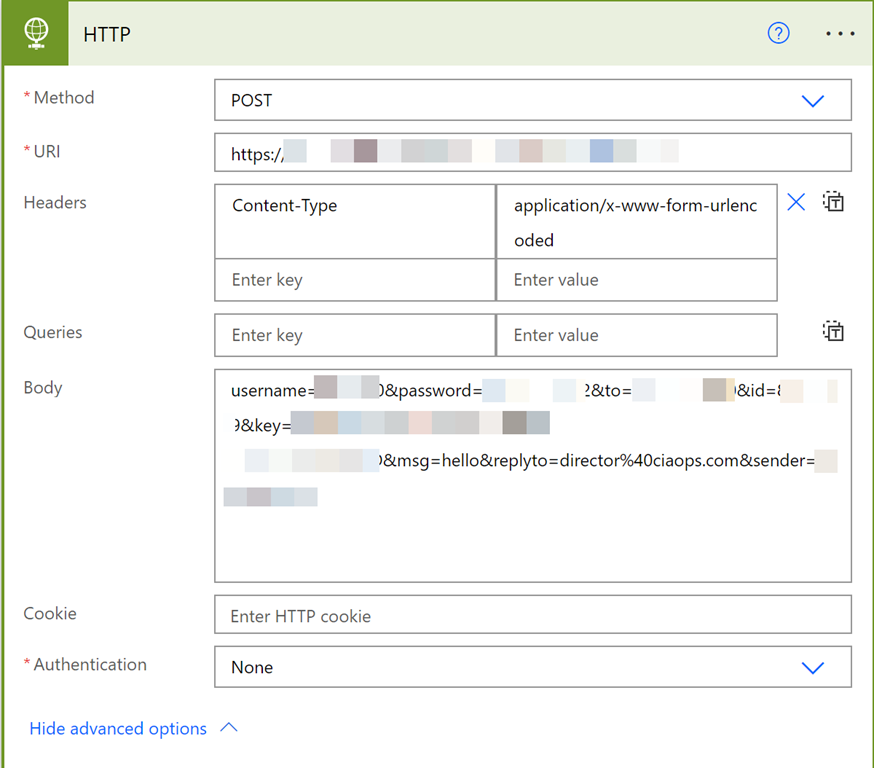
The key action is HTTP as shown above. It is important to remember that this a ‘premium’ connector and you may need a more advanced license to use this.

Initially, I thought I’d just bung in the parameters into the HTTP action as I have done before and it would be good to go. Not the case as it turned out. Everything I tried came back with a variation of the following error:

{“_meta”:{“status”:”ERROR”},”records”:{“errorCode”:401,”userMessage”:”Must login or provide credentials.”,”devMessage”:”Please provide credentials by either passing in a session token via cookie, or providing password and username via BASIC authentication.”,”more”:null,”applicationCode”:”Unauth:1″}}

In essence, the API is failing to login to my account to send the SMS. The PowerShell worked fine but Power Automate didn’t.

The solution ended up lying with adding a header field to the HTTP action:

Content type: application/x-www-form-urlencoded

and formatting the body with an ‘&’ between the fields i.e:

username=#####&password=*******&to=61######&id=#####&key=<GUID>msg=hello&replyto=director%40ciaops.com&sender=61########

as well as setting the authentication in the HTTP action to None as it was being done in the body of the request.

After all of that, I finally had success. The lesson here is that APIs don’t always want JSON!

image

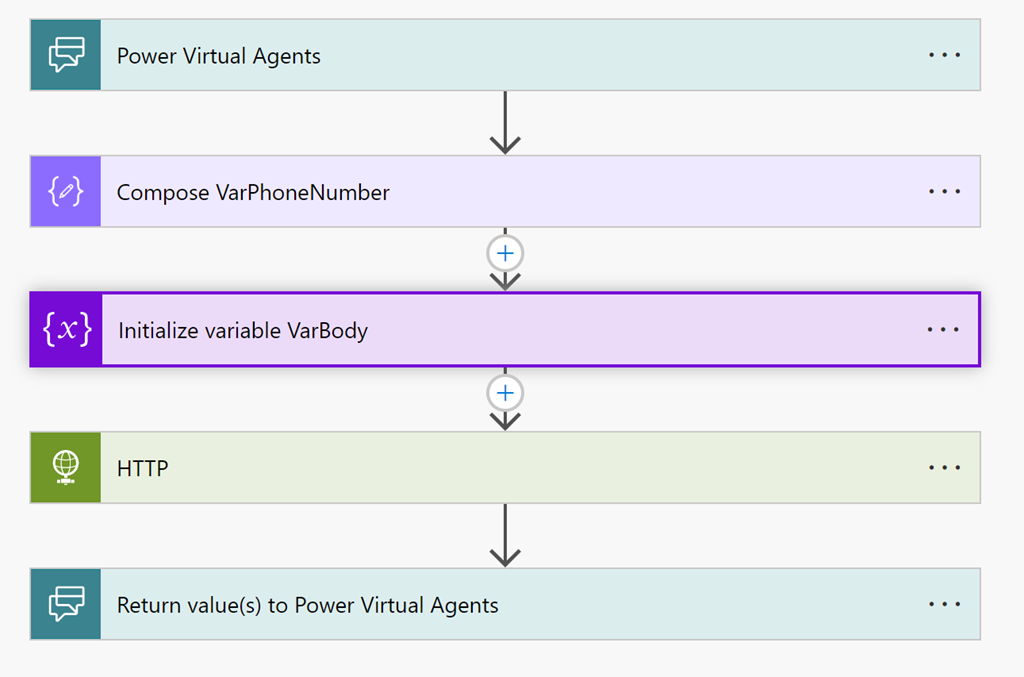
I then decided to wrap a Power Virtual Agent bot around the Flow and publish it into a Team to allow users to send SMS directly from Teams. They simply use a key phrase to call the bot and tell it when number to send to. The bot passes those details to the Flow and runs what I had worked out previously

image

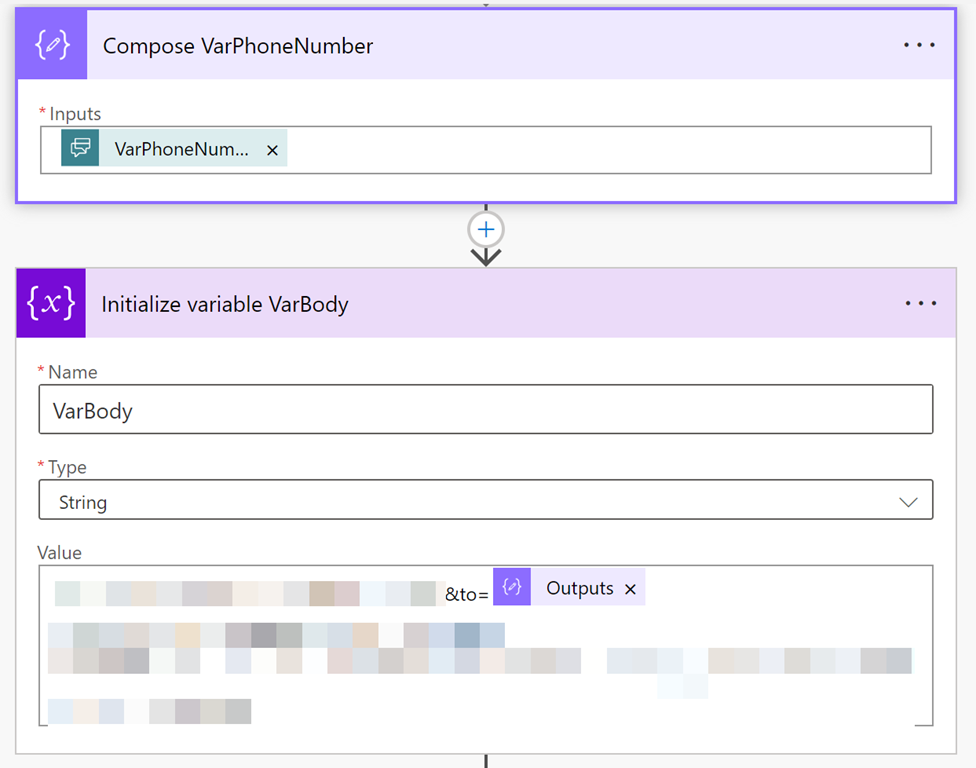
The only change here from the initial on demand Flow was the passing of a variable into the Flow from the bot and creating the body of the API request, also as a variable.

image

Again, it is important to get the body field in EXACTLY the right format for the API request when it is created.

So, that’s how you connect an SMS API gateway to Power Automate and Power Virtual Agents. The real trick was getting the right format of the API POST request which had to be deduced from the documentation. Hopefully, sharing that process here gives others a shortcut to getting it working in their environments because it took me a LONG time to work it out!

Thanks again to Mondotalk for being kind enough to give me a demo account and assist getting this working.