GRC in a Nutshell – And How Microsoft 365 Actually Makes It Practical

image

GRC is one of those acronyms that gets thrown around a lot, usually right before everyone in the room quietly switches off.

Governance, Risk Management, and Compliance sounds like paperwork, policy binders, and audit pain. But done properly, GRC is none of those things. It’s simply the mechanism that turns business intent into repeatable, defensible security outcomes.

And this is where Microsoft 365 quietly does a lot more heavy lifting than most organisations realise.

GRC isn’t about eliminating risk

Let’s get this out of the way early.

The goal of GRC is not to eliminate risk. That’s impossible. If your business uses email, cloud services, mobile devices, or people, risk exists.

What GRC is really about is:

  • Understanding what level of risk the business is willing to accept

  • Translating that appetite into practical controls

  • Measuring how well those controls are working

  • And getting explicit agreement on the residual risk that remains

That last point is critical. Security isn’t an IT problem — it’s a business decision. GRC gives the business a way to make that decision consciously, instead of by accident.

Governance: turning intent into guardrails

Governance is where most organisations stumble, because it’s often confused with documentation.

In reality, governance is simply the process of answering:

“How do we want things to work around here?”

In Microsoft 365, governance is expressed through configuration, not policy PDFs.

Examples:

  • Conditional Access defines who can access what, from where, and under what conditions
  • Intune defines how devices must be configured before they’re trusted

  • Sensitivity labels define how information is classified and handled

  • Retention policies define how long data should exist — and when it shouldn’t

This is governance as code. Once it’s configured, it applies consistently, silently, and at scale. No training session or reminder email can compete with that.

Risk management: making security measurable

Risk management is where GRC starts to pay for itself.

Instead of vague statements like “we take security seriously”, Microsoft 365 gives you evidence:

  • Secure Score shows how your tenant compares to recommended security baselines

  • Defender surfaces real‑world attack activity, not theoretical threats

  • Compliance Manager maps controls to recognised frameworks and highlights gaps

This matters because risk that isn’t measured can’t be discussed meaningfully with the business. Microsoft 365 turns risk into dashboards, trends, and improvement actions — which means security conversations can finally move beyond fear and anecdotes.

Compliance: a by‑product, not the goal

One of the biggest mistakes I see is organisations chasing compliance as the end goal.

Compliance should be the output of good governance and risk management, not the driver.

Microsoft 365 reflects this approach well. Whether you’re aligning to Essential Eight, ISO, or internal standards, the same core controls keep showing up:

  • Strong identity protection

  • Device compliance

  • Data classification and protection

  • Logging, auditing, and retention

When these are in place, compliance reporting becomes far less painful — because you’re proving what you already do, not scrambling to justify what you don’t.

Residual risk: the most important conversation

Here’s the part that rarely happens, but should.

After controls are implemented and compliance is measured, there will always be risk left over. Budget limits, usability trade‑offs, legacy requirements — they all create gaps.

GRC forces the right question:

“Are we comfortable accepting this remaining risk?”

Microsoft 365 makes that conversation possible because it provides clarity:

  • What’s protected

  • What isn’t

  • And what it would take to close the gap

That enables informed decisions instead of hand‑waving. Sometimes the answer is “yes, we accept that risk”. And that’s perfectly valid — as long as it’s a conscious choice.

Why this matters now

With Copilot, automation, and cloud‑first operations accelerating, risk is no longer something that can be managed annually or ad‑hoc.

Microsoft 365 gives organisations a living GRC platform:

  • Governance enforced through configuration

  • Risk surfaced through telemetry

  • Compliance evidenced continuously

The organisations that thrive won’t be the ones chasing perfect security. They’ll be the ones who understand their risk, manage it deliberately, and can explain — clearly — why they’ve made the choices they have.

And that, in a nutshell, is what GRC is supposed to do.

GRC mapped to Microsoft 365 (at a glance)

GRC Element What it means in plain English How Microsoft 365 supports it
Governance Define how the business wants security, access, and data handling to work. Conditional Access and identity controls set who can access what and under which conditions.
Intune enforces device standards. Sensitivity labels and retention policies define how data is
classified and handled across Exchange, SharePoint, OneDrive, and Teams.
Risk Management Identify, measure, and prioritise real security risks. Secure Score and Defender telemetry expose gaps and active threats. Intune and Entra ID reporting
provide visibility into configuration drift and access risk. Microsoft Sentinel and Defender XDR
(where used) correlate signals to show material risk rather than noise.
Compliance Demonstrate alignment to standards, regulations, or internal controls. Microsoft Purview Compliance Manager maps controls to frameworks and tracks implementation status.
Audit logs, eDiscovery, and retention provide evidence without manual data gathering. Built-in
compliance reporting supports regulatory and contractual requirements.
Residual Risk Explicitly accept what remains after controls are applied. Microsoft 365 reporting clarifies what is protected and what isn’t, allowing business leaders to
make informed trade-offs between usability, cost, and security.

Five Microsoft Teams features most people still aren’t using (but should be)

image

Everyone uses Microsoft Teams.

Very few people use it well.

Most organisations I walk into are using Teams as a glorified chat tool with meetings bolted on the side. That’s fine… but it’s also leaving a huge amount of productivity on the table. The irony is that the features that save the most time are usually the least talked about, because they’re not flashy and they don’t sell licences.

So here are five lesser-known Microsoft Teams tips that actually make a difference in day-to-day work — especially for MSPs and busy IT teams who live in Teams all day.

No fluff. No theory. Just practical wins.


1. Save messages for later, not forever

If you’re using Teams chat as a to‑do list, you’re already behind.

Most people know you can Save a message (hover → three dots → Save), but hardly anyone actually uses it properly. Saved messages are searchable, centralised, and survive the chaos of busy channels.

Here’s the real productivity trick:

  • Save actionable messages immediately

  • Review them once a day

  • Unsave them when done

Think of Saved messages as your temporary inbox, not long-term storage. If it sits there for weeks, it’s noise, not productivity.

Pro tip: Search for saved in the Teams search bar to instantly pull them all up.


2. Turn off channel noise (selectively)

The biggest Teams lie is that everything needs your attention.

It doesn’t.

Most users either mute nothing (and drown) or mute everything (and miss important stuff). The smarter approach is channel‑level notifications.

Right‑click a channel → Channel notifications → Custom.

Set it so you only get notified for:

  • Mentions

  • Replies to threads you’ve participated in

  • Important channels only

This one change alone can claw back hours per week — especially in MSP environments where Teams sprawl is very real.


3. Use message links instead of “scroll up”

“See my message above.”

No. Just… no.

Every Teams message has a direct link. Right‑click → Copy link. Drop that link into chat, a ticket, or a document and suddenly context is preserved without anyone scrolling through 200 messages of noise.

This is gold for:

  • Service desk escalations

  • Internal handovers

  • Project discussions

If your team still says “scroll up”, this is an easy win to coach out.


4. Schedule messages (because you don’t need to interrupt people)

Most Teams messages don’t need to be sent now.

They need to be sent at the right time.

Scheduled messages let you write when it suits you and deliver when it suits the recipient. Right‑click the Send button → Schedule message.

This is brilliant for:

  • End‑of‑day thoughts you don’t want to forget

  • Early‑morning reminders without being “that person”

  • MSPs working across time zones

It’s a small feature, but it’s a big professionalism upgrade.


5. Use Teams search like a database, not a gamble

Teams search is wildly under‑used — mostly because people don’t know how powerful it actually is.

You can filter by:

  • Person

  • Date

  • Channel

  • Has files

  • Has links

Instead of “I think Dave mentioned this last week”, try:

from:Dave has:files

Once you treat Teams as a searchable knowledge base instead of a scrolling timeline, your reliance on “tribal memory” drops fast.


Final thought: Productivity isn’t about more tools

Microsoft keeps adding features. Most people keep ignoring them.

Productivity isn’t about learning everything Teams can do — it’s about mastering a small number of behaviours that remove friction from your day.

If you implement even two of these tips across your team, you’ll feel the difference almost immediately.

And if Teams still feels overwhelming after that?
That’s not a technology problem.

That’s a habits problem.

Why AI Doesn’t Give the Same Answer Twice (And Why That’s Not a Bug)

image

One of the most common frustrations I hear from people using AI is this:

“I asked it the same question yesterday and got a different answer today.”

And usually that’s followed by:

“So… which one is right?”

This is where most people run head‑first into a concept they weren’t expecting: AI is probabilistic, not deterministic.

That sounds technical. It isn’t. But it does change how you should think about using AI.

Deterministic vs probabilistic (in plain English)

A deterministic system works like a calculator.

  • 2 + 2 = 4

  • Every time

  • Forever

Same input. Same output. No surprises.

Traditional software works this way. Code is written, rules are defined, and the system follows them exactly. That’s why accounting systems, payroll, and databases behave predictably. They have to.

AI doesn’t work like that.

AI is probabilistic. That means it doesn’t calculate “the answer”. It calculates the most likely next word, then the next, then the next — based on probabilities.

Think less calculator and more very well‑read human.

AI is making an educated guess (every single time)

When you type a prompt into an AI system, it isn’t “looking up” an answer. It’s generating a response based on:

  • Patterns it learned during training

  • The context of your prompt

  • The words it has already generated

  • Statistical likelihoods

Each word is chosen because it’s likely, not because it’s guaranteed.

That’s why:

  • You won’t always get the same response twice

  • Wording matters more than people expect

  • Small changes in prompts can produce big changes in results

This isn’t a flaw. It’s literally how the system works.

Why this confuses people

Most of us have spent our entire digital lives interacting with deterministic systems.

  • Search engines return ranked results

  • Forms either submit or error

  • Software either works or crashes

So when AI gives us a plausible but slightly different answer, our brain goes:

“Hang on… which one is correct?”

The answer is often: both could be reasonable.

AI isn’t trying to be a source of absolute truth. It’s trying to be a useful collaborator.

Prompts are instructions, not questions

This is the biggest mindset shift.

If you treat AI like Google and just “ask a question”, you’ll get inconsistent results and frustration.

If you treat AI like a new employee who wants to help but lacks context, things improve dramatically.

That employee:

  • Is smart

  • Has read a lot

  • Doesn’t know your business

  • Doesn’t know what “good” looks like to you

So the quality of the output depends heavily on the quality of your instructions.

Because the system is probabilistic, vague instructions lead to vague (or unpredictable) outcomes.

Why structure reduces randomness

Good prompting doesn’t remove probability — but it constrains it.

Clear prompts:

  • Reduce ambiguity

  • Narrow the range of possible responses

  • Increase consistency

For example:

  • “Summarise this” → wide range of outcomes

  • “Summarise this in 5 bullet points for a non‑technical audience, focusing on business impact” → much tighter results

You’re not forcing the AI to be deterministic. You’re guiding the probabilities in your favour.

The real risk: false certainty

The most dangerous mistake isn’t that AI is probabilistic.

It’s that people forget it is.

AI responses often sound confident, polished, and authoritative — even when they’re wrong, incomplete, or missing context.

That’s why:

  • You should always review outputs

  • You shouldn’t blindly trust first drafts

  • Human judgement still matters

AI is brilliant at drafting, summarising, ideation, and acceleration.

It is not a replacement for thinking.

The takeaway

If you remember one thing, make it this:

AI doesn’t give you the answer.
It gives you a likely answer.

Your job isn’t to demand certainty from a probabilistic system.

Your job is to:

  • Give clearer instructions

  • Provide better context

  • Review and refine the output

When you do that, AI stops feeling unpredictable — and starts feeling powerful.

And once you understand that shift, everything about prompting suddenly makes a lot more sense.

You Already Have Copilot. You’re Just Not Using It (Yet)

image

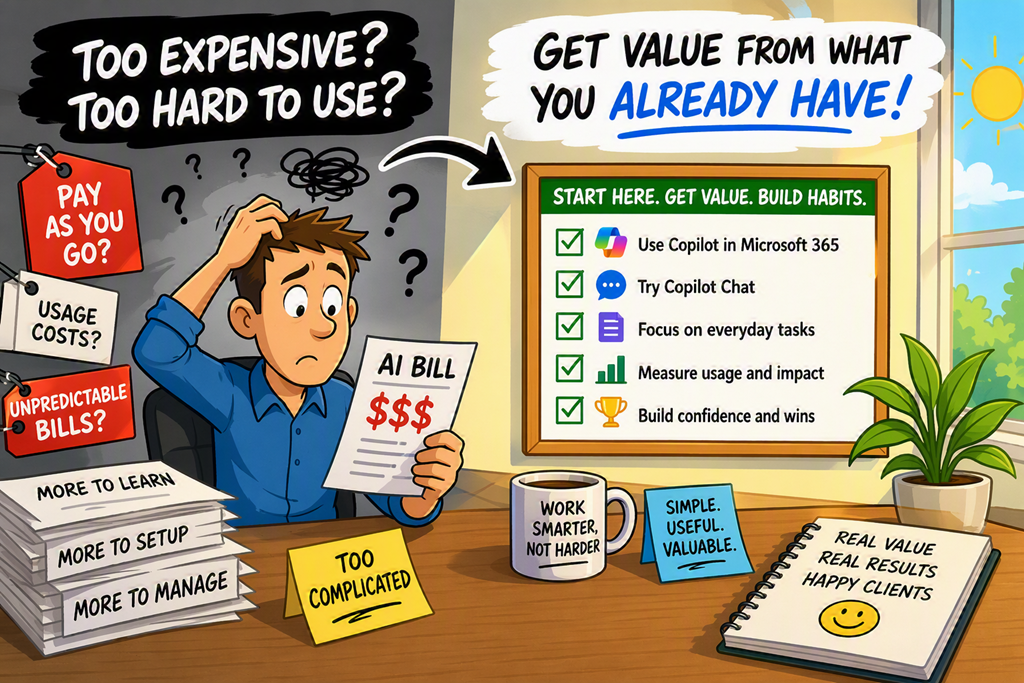
One of the biggest blockers I see with Copilot adoption isn’t cost.
It’s confusion.

Too many organisations think Copilot is something you buy, flip a switch on, and magically productivity goes up. Then they see the Microsoft 365 Copilot licence price and either panic… or over‑hype it internally and guarantee disappointment.

Here’s the part most people miss:

Copilot Chat is already included with Microsoft 365.
No extra licence. No commitment. No risk.
[support.mi…rosoft.com]

And it’s the best place to start evaluating Copilot—as long as you set the right expectations.


What Copilot Chat Actually Is

Copilot Chat is a secure, enterprise-grade AI chat experience that comes with eligible Microsoft 365 business plans. It’s available through the Copilot app, browser, and inside Microsoft 365 surfaces. [support.mi…rosoft.com]

Think of it as:

  • A safe, work-friendly alternative to public AI tools

  • A place to learn how to prompt properly

  • A way to introduce AI thinking without touching business data

It’s excellent for:

  • Brainstorming

  • Drafting content

  • Summarising uploaded documents

  • Research and idea validation

  • Learning how AI responds to different prompts

What it doesn’t do is magically understand your tenant.

And that’s where expectations matter.


What Copilot Chat Does Not Do

Copilot Chat does not have access to your Microsoft 365 data by default.

That means:

  • It can’t see your emails

  • It can’t summarise your Teams meetings

  • It can’t analyse your SharePoint files

  • It can’t act inside Word, Excel, Outlook or Teams using live context

Those capabilities require a Microsoft 365 Copilot licence. [support.mi…rosoft.com]

This is the mistake I see over and over again:

“We tried Copilot and it wasn’t very impressive.”

No—you tried Copilot Chat and expected Microsoft 365 Copilot.

They are related, but they are not the same thing.


Why Copilot Chat Is Still the Right Starting Point

Even with those limitations, Copilot Chat is a brilliant on‑ramp to AI adoption.

Why?

Because Copilot success has very little to do with licences—and everything to do with behaviour.

Copilot Chat lets organisations:

  • Learn how to ask better questions

  • Understand AI strengths and limitations

  • Build internal confidence with generative AI

  • Establish safe usage patterns and governance conversations

All before spending a dollar on add‑on licensing.

For MSPs, this is gold. You can:

  • Run Copilot Chat workshops

  • Teach prompt engineering fundamentals

  • Identify which roles would actually benefit from full Copilot

  • Reduce the risk of failed rollouts later


What Changes When You Buy Microsoft 365 Copilot

Microsoft 365 Copilot is where AI stops being a chat tool and becomes a workflow tool.

With the paid licence, Copilot:

  • Works directly inside Word, Excel, PowerPoint, Outlook and Teams

  • Understands emails, meetings, chats, files and calendars

  • Uses Microsoft Graph to reason across your tenant

  • Can summarise meetings, draft replies, analyse spreadsheets and build decks

In short:
Copilot Chat helps you think.
Microsoft 365 Copilot helps you do.
[support.mi…rosoft.com]

But that power only delivers value if users already know how to work with AI.


Set Expectations First. Licence Later.

The smartest Copilot projects I’ve seen all follow the same path:

  1. Start with Copilot Chat

  2. Train people how to prompt and think with AI

  3. Identify high‑value roles and use cases

  4. Then—and only then—license Microsoft 365 Copilot

Copilot Chat isn’t a “cut‑down demo”.
It’s a training ground.

Use it properly, and when you do buy licences, Copilot won’t feel expensive—it’ll feel obvious.

And that’s how Copilot adoption should work.

New Publication–Microsoft Defender for Business Implementation Guide

blog

https://directorcia.gumroad.com/l/mdbig

Unlock Enterprise-Grade Security for Every Business—No Matter the Size

Are you ready to transform your security posture and deliver true peace of mind to your organization or clients? The Microsoft Defender for Business Implementation Guide (v8) is your definitive, step-by-step playbook for deploying, configuring, and mastering Microsoft’s most powerful endpoint protection platform—tailored specifically for small and medium-sized businesses (SMBs) and managed service providers (MSPs).

Why This Guide?
  • Comprehensive & Current: Authored and reviewed against Microsoft’s latest documentation (March 2026), this guide incorporates all the newest features, compliance frameworks, and product naming conventions—including Microsoft Entra ID and Security Copilot integration.

  • Role-Based Clarity: Whether you’re L1 helpdesk, L2 systems technician, or L3 security engineer, you’ll find clear responsibilities, escalation policies, and best practices for every technical level.

  • Seven-Phase Deployment Blueprint: Follow a proven, auditable process from pre-implementation planning and licensing, through device onboarding and advanced feature enablement, to post-deployment validation and compliance tracking.

  • Real-World, Actionable Steps: Includes quick-start checklists, decision tables, escalation criteria, and step-by-step procedures for Windows, macOS, iOS, Android, and Linux environments.

  • MSP-Ready: Features dedicated guidance for multi-tenant management, Microsoft 365 Lighthouse, and compliance with the latest GDAP requirements.

  • Security Without Compromise: Learn how to implement next-generation antimalware, firewall management, attack surface reduction, endpoint detection and response (EDR), vulnerability management, and automated investigation and remediation (AIR)—all in one unified platform.

  • Audit-Ready & Best Practice Driven: Ensure every deployment is systematic, documented, and compliant with SMB1001 and Microsoft’s own recommendations.

Who Should Buy This Guide?
  • IT Managers & Security Leads in SMBs seeking enterprise-grade protection without enterprise complexity.

  • MSPs looking to standardize and scale secure deployments across multiple clients.

  • Technicians at All Levels—from helpdesk to security architects—who need clear, actionable instructions and escalation paths.

  • Organizations Pursuing Compliance and audit-readiness in today’s evolving threat landscape.

What You’ll Achieve
  • Rapid, error-free deployments with minimal downtime.

  • Consistent, auditable security operations and compliance.

  • Reduced analyst workload through intelligent automation.

  • Confident, well-trained teams ready to respond to any incident.


Don’t leave your business or clients exposed. Equip your team with the only guide that delivers both the “how” and the “why” of Microsoft Defender for Business—backed by real-world expertise and the latest best practices.

See all the titles available at – https://directorcia.gumroad.com/

Why the Essential Eight Falls Short for Microsoft 365 Copilot

image

The Essential Eight has done a lot of good.

It’s helped lift the baseline security posture of thousands of Australian organisations. It’s given boards something concrete to point at. And it’s given MSPs a common language to talk about “doing security properly”.

But here’s the uncomfortable truth:

The Essential Eight is not a good security framework for working with Microsoft 365 Copilot.

That doesn’t mean it’s useless.
It means it was never designed for this problem.

And pretending otherwise is where things start to break.

The Essential Eight Was Built for a Different Era

At its core, the Essential Eight is a host‑centric, exploit‑reduction framework.

Patch your systems.
Lock down macros.
Control admin privileges.
Stop ransomware from ruining your week.

That mindset made perfect sense when the primary risks were:

  • Malware executing on endpoints

  • Credential theft via phishing

  • Lateral movement across on‑prem networks

Copilot changes the threat model completely.

Copilot doesn’t break in.
It doesn’t escalate privileges.
It doesn’t drop malware.

It uses the access you’ve already given people—and amplifies it.

That’s a fundamentally different class of risk.

Copilot Turns “Access” Into the Attack Surface

The Essential Eight assumes that if a user can access something, the risk has already been accepted.

Copilot doesn’t.

Copilot takes that access and:

  • Aggregates it

  • Summarises it

  • Correlates it

  • Surfaces it in seconds

A user who technically had access to 10,000 SharePoint files—but never opened them—now has an AI assistant that can reason over all of them at once.

Nothing in the Essential Eight meaningfully addresses:

  • Overshared SharePoint sites

  • Inherited permissions chaos

  • “Everyone except external users” links

  • Legacy Teams and Groups no one remembers creating

From an Essential Eight perspective, everything is fine.

From a Copilot perspective, the tenant is a loaded weapon.

“We’re Essential Eight Compliant” Is a False Sense of Safety

This is where I see organisations get caught out.

They’ve ticked the boxes:

✅ MFA enforced
✅ Devices compliant
✅ Admin roles restricted
✅ Patching up to date

Then they turn on Copilot and assume security is handled.

It isn’t.

Because Essential Eight compliance tells you almost nothing about:

  • Who can see sensitive data

  • Whether data is correctly classified

  • Whether information barriers exist

  • Whether users understand the impact of AI on data exposure

Copilot doesn’t care that your macros are locked down.

It cares about data sprawl.

The Essential Eight Doesn’t Model “Inference Risk”

This is the biggest gap.

Copilot introduces inference risk—the ability to derive sensitive insights from non-sensitive data.

Individually harmless documents can become highly sensitive when combined:

  • A pricing doc

  • A staff list

  • A project timeline

  • A financial forecast

Copilot can stitch those together in ways humans rarely do.

The Essential Eight has no control for:

  • Semantic aggregation

  • Contextual inference

  • AI‑assisted discovery

You can be perfectly compliant and still expose far more than you realise.

Copilot Needs a Data‑Centric Security Model

If you’re serious about Copilot, your security thinking has to shift.

From:

“Can this device run malicious code?”

To:

“Should this person ever see this information—at scale?”

That means frameworks and controls that focus on:

  • Information architecture

  • Permission hygiene

  • Data classification and sensitivity labels

  • SharePoint and Teams governance

  • Ongoing access reviews

  • User behaviour and intent

None of which are meaningfully addressed by the Essential Eight.

This Doesn’t Mean You Throw the Essential Eight Away

Let’s be clear.

The Essential Eight is still a solid baseline.

You absolutely should be doing it.

But treating it as sufficient for Copilot is a mistake.

It’s like saying:

“We’ve installed seatbelts, so autonomous driving is safe.”

Different problem. Different risk profile.

The Right Question to Ask

Instead of asking:

“Are we Essential Eight compliant?”

Copilot forces a better question:

“What could Copilot expose tomorrow that we’d be uncomfortable explaining to the board?”

If you can’t answer that confidently, the framework you’re using is the wrong one for the job.

Copilot doesn’t reward checkbox security.

It rewards intentional design, clean data, and disciplined governance.

And that’s a conversation the Essential Eight simply wasn’t built to have.