Controlling local admin with LAPS and Intune

I recently suggested that Compliance policies were the place to start with Intune device management.

Start with Intune policies

From there, I would suggest that configuring the Local Administrator Password (LAPS) policy is a good follow on option. This will automatically rotate the password for the Windows local device administrator accounts.

image

In the Intune console select Endpoint Security and then Account protection. Create a new policy for Windows 10 and later and select Local admin password solution (Windows LAPS) as shown above.

Give the policy a meaning name and description.
image

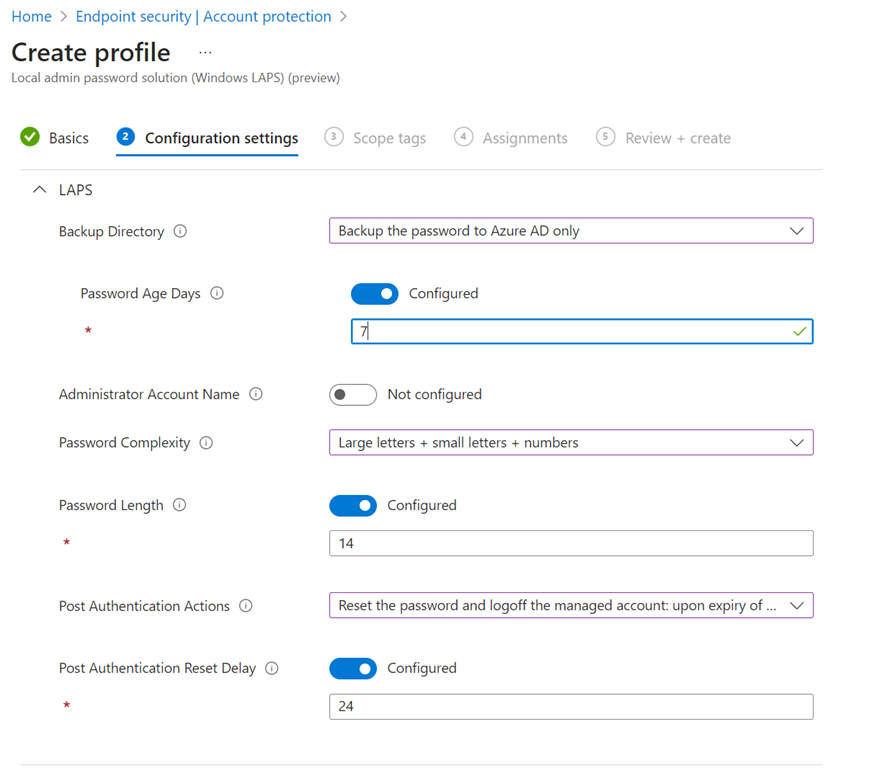
Make the appropriate settings as shown above. You want to ensure that the Backup directory is set to Backup the password to Azure AD only.

Assign the policy and save it.

image

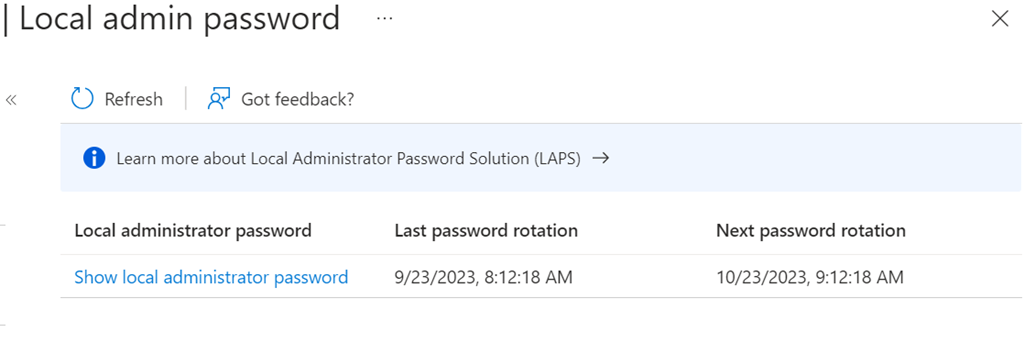
Once the policy has been assigned to the device a random password, to specifications set in the policy will be applied and a copy will be saved into the device details in the location shown above within Intune

In general it is best practice to have no other local admin accounts on devices except the default one provided by Windows that cannot be removed. Per the FAQs, LAPS supports only one account on a device. You can specify that account but it is best practice to not specify a name on the policy configuration and allow Intune to manage the default built-in administrator account.
image

Once the LAPS policy has been applied you will see the following for the Windows devices as shown above.
image

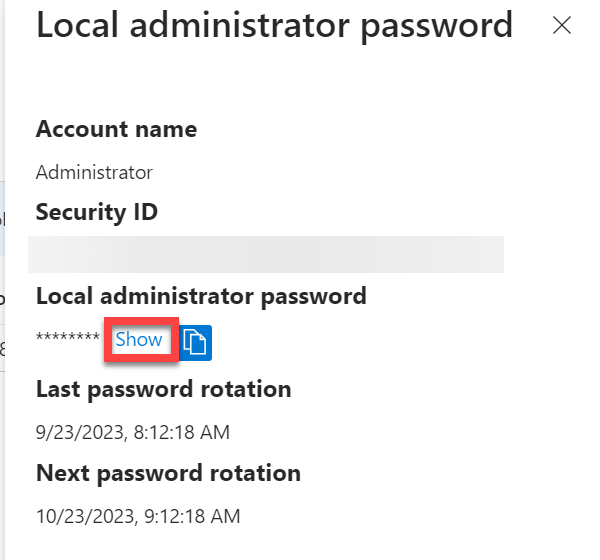
Selecting the Show local administrator password hyperlink will display a blade with the above information. Selecting the Show button here will display the current password and allow you to take a copy.

Best practice is to take control of the default local admin account using the LAPS policy deployed via Intune as shown. The next step would then to be to eliminate any other local admin account from the devices so the only ne left is the default which has its password rotated regularly thanks to LAPS.

Further information on LAPS with Intune can be found here:

Microsoft Intune support for Windows LAPS


Start with Intune Compliance policies

I see many people struggle to get started with Intune and Device Management in Microsoft 365. My recommendation is always to start with configuring Compliance policies. Doing so will give you:

1. A device inventory

2. A list of devices that fail to meet the minimum standards set for connection to corporate data

However, the major benefit is that, by default, Intune Compliance Policies make no change to any of the device or impact users productivity. In effect, Compliance Policies simply READ the status of a device and make NO changes.

Screenshot 2023-09-14 102330

You’ll find Compliance Policies under Devices in the Intune portal as shown above.

Typically, you’ll create at least one Compliance Policy for each different operating systems you have in your environment (i.e. for Windows, iOS, Android, etc). You can, of course, have as many different Compliance Policies as you desire, potentially targeted at different users and or devices. However, the policies you have, the more maintenance and troubleshooting will be required. It is therefore recommended to stick with a single Compliance Policy for each operating system.

Screenshot 2023-09-14 102823

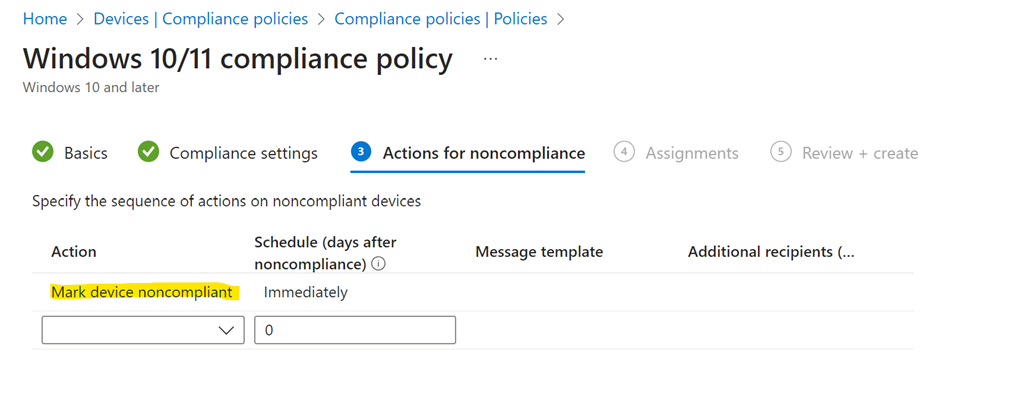
During the policy creation you’ll see a screen as shown above in which you can set actions for devices that fail compliance. You will not that, by default, the only taken is simply to mark the devices as non compliant. That is the only action take. You can add more actions if you want, but importantly, by default, the only action taken is simply to mark devices as non compliant.

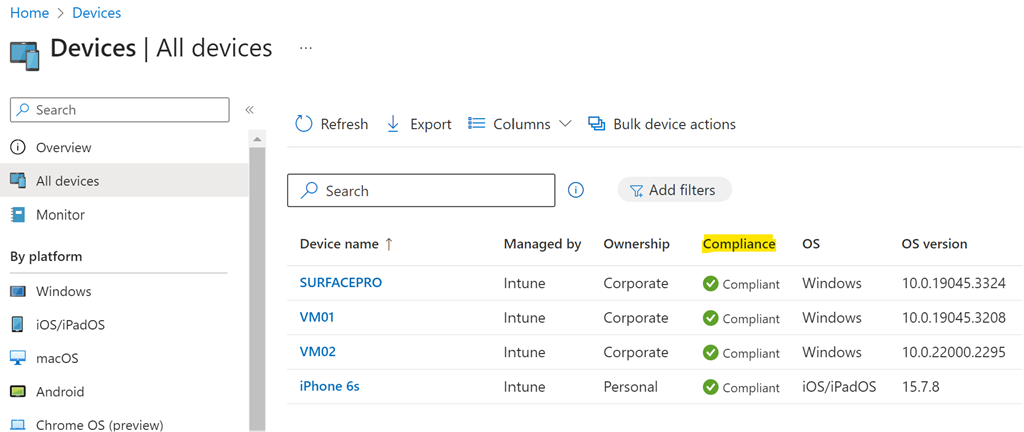
Once you have created and assigned the Compliance Policy the machines covered that policy will be evaluated and results reported back to Intune.

Screenshot 2023-09-14 103209

If devices are found that are not compliant, then you can take action to make them compliant before allowing them to access corporate data.

Above all, using compliance policies is a great way to get an inventory of all the devices in your environment and report their configuration. Of course, these Compliance Policies will continue to be evaluated regularly in case anything changes on the device.

The recommendation then is to start with Compliance Policies to take an inventory of your device fleet before proceeding further with Device management. If you want to read more about Modern Device Management then read my series of blog posts starting here:

https://blog.ciaops.com/2020/09/26/modern-device-management-with-microsoft-365-business-premium-part-1/