Comprehensive Android Device Onboarding Checklist for M365 Business Premium

bp1

Onboarding an Android phone into Microsoft 365 Business Premium (which includes Microsoft Intune for device management) ensures the device is fully managed and protected. This detailed checklist covers every step – from preparation to post-deployment – including security configurations, policies, and ongoing management. Follow the sequence below to set up the Android device securely and keep it compliant with your organisation’s standards.


Step-by-Step Onboarding Process

  1. Prepare the M365 Environment for Android Management

    • Verify Licensing & Access: Ensure the user is assigned a Microsoft 365 Business Premium license (this license includes Intune for Mobile Device Management). Also, have administrator access to the Microsoft 365 admin center and Endpoint Manager (Intune) portal.

    • Intune Tenant Preparation: Confirm Intune is set as the MDM authority (in modern tenants Intune is already the default). If not done previously, set up Intune by signing in to the Endpoint Manager admin center and reviewing enrollment preparation steps. For example, verify your tenant’s enrollment restrictions and device limit settings to allow Android enrollments.

    • Link Intune to Managed Google Play: Configure Android Enterprise integration by connecting Intune to a Managed Google Play account[1][2]. This is required for managing Android devices. In the Endpoint Manager portal, navigate to Devices > Android > Android Enrollment and connect your Intune account to Managed Google Play. Follow the on-screen steps to sign in with a corporate Google account and grant permissions[1]. Result: Intune is linked with Google Play, and the Company Portal app (and other Android Enterprise system apps) will be made available to devices automatically[2].

    • Choose Android Management Mode: Decide on the management mode. For corporate-owned devices that will be fully controlled by IT, use Android Enterprise Fully Managed (formerly COBO – Corporate Owned, Business Only)[1]. (For BYOD personal devices, you’d use Work Profile mode, but this guide focuses on fully managed corporate devices for maximum control and protection.) Ensure the Android OS version on the phone is supported by Intune and Android Enterprise (generally Android 9.0 or above for fully managed)[3]. If the device was previously enrolled in another MDM or used personally, factory reset it now – fully managed enrollment requires a fresh start[2].

    • Configure Initial Device Settings (Optional): If your organisation uses zero-touch enrollment or Samsung Knox Mobile Enrollment for bulk provisioning, set those up in advance. For Zero-Touch or Knox, you’d upload device IDs to those portals and link to Intune enrollment profiles. Otherwise, plan to enroll via QR code or the Company Portal app. Ensure you have a stable Wi-Fi network available for the device’s enrollment.
  2. Define Security Policies in Intune (Compliance & Configuration)
    Before enrolling the device, set up the security policies that will apply upon enrollment. This ensures that as soon as the phone is onboarded, it will receive the required configurations to be secure.

    • Create Compliance Policy: In Endpoint Manager (Devices > Compliance policies), create a new Android compliance policy to enforce your security requirements. Configure rules such as: require a password/PIN on the device (e.g. minimum 6-digit PIN, alphanumeric or complex as needed)[3][3], require device encryption to be enabled[3], set a minimum OS version (e.g. disallow Android versions lower than a certain release)[3], and block jailbroken/rooted devices by enabling Google Play Integrity or SafetyNet checks[3]. You can also mandate that the device is not on a blocked manufacturer/model list if relevant. Define an action for non-compliance (e.g. send user notification or block access after a grace period) – by default, marking the device non-compliant immediately is recommended[3].

    • Create Configuration Profiles: Next, create an Android device configuration profile (specifically an “Device Restrictions” profile for fully managed Android Enterprise). In Endpoint Manager (Devices > Configuration profiles), set restrictions to harden the device. Recommended settings include: disable USB file transfers and external media access to prevent data leaks[3]; block screen capture and screen recording; disable installation from unknown sources (to stop unapproved apps); enforce Google Play Protect app scanning (Threat Scan on apps: Require to ensure malware scanning is active)[3]; require device encryption if not already enforced via compliance; and enable other desired restrictions (e.g. block Bluetooth file sharing, block factory reset by the end-user[3], and force automatic system updates installation on a schedule). Also consider enabling biometric unlock (fingerprint/face) if available for user convenience on top of PIN – Intune can require biometrics for unlock via policy[1].

    • Email and App Configuration (Policy): If you plan to use the native email app (Gmail) for work email, create an “Email profile” configuration profile (with Exchange Online details) to push to the device. However, the recommended approach is to deploy Outlook (covered in the next step) instead of using native email. You can also prepare App Configuration policies for certain apps if needed (for example, pre-configure Outlook’s settings or require a PIN within Outlook app using an App Protection Policy).

    • Conditional Access (Integration with Azure AD): Set up a conditional access policy in Azure AD (if not already) to require device compliance for accessing corporate resources. For example, enforce that only devices marked Compliant by Intune (meaning they meet the above policy conditions) can access Exchange Online, SharePoint, Teams, etc.[4]. This ties the Intune compliance policy to actual access control, ensuring unmanaged or non-compliant devices are blocked from M365 data. (Note: Conditional Access requires Azure AD Premium, which is included in Business Premium.)
    • Review and Save Policies: Save and deploy these policies to the target user or device groups (e.g. to “All corporate devices” or specific user groups). Result: With compliance and configuration profiles in place, any enrolled device must adhere to these security requirements to be deemed compliant and maintain access[4].
  3. Enroll the Android Device into Intune (M365 Management)
    Now that the backend is prepared, proceed to enroll the phone. There are a few enrollment methods for a fully managed device – here we use the QR code method (suitable for Android Enterprise fully managed) or the Company Portal app method:

    • Generate Enrollment QR Code/Token: In Endpoint Manager, go to Devices > Android > Android Enrollment > Enrollment Profiles. Create a “Corporate-owned, fully managed user device” enrollment profile if you haven’t already[1]. Intune will provide an enrollment token (string code) and an option to get a QR code. This QR code or token will be used on the device during setup. (If using Android’s Zero-Touch enrollment or Samsung Knox, you would assign this profile to the device in those portals instead.) For a streamlined experience, the QR code is very convenient – it embeds the enrollment token and Intune’s info.

    • Factory Reset & Initial Setup: Ensure the Android phone is factory reset. Turn on the device (or if just reset, start the setup wizard). Follow the initial prompts (select language, connect to Wi-Fi, etc.). When prompted to sign in or when you reach a screen for device management, use the enrollment method:
      • QR Code enrollment: Tap multiple times on the welcome screen (or in setup, choose “Perform QR code enrollment” if available). Scan the QR code from Intune using the device’s camera. This will automatically configure the device to enroll in Intune.

      • Token entry enrollment: Alternatively, in the Wi-Fi selection screen, you can enter the code afw#setup in the Wi-Fi SSID field (this triggers Android Enterprise setup) and then you will be prompted to enter the enrollment token manually (or sign in to Google to retrieve it). Enter the enrollment token from Intune to proceed.

      • Company Portal app (for BYOD or if already set up): If the device was not factory reset (for example, if doing a personal device with work profile), the user could simply install the Intune Company Portal app from Google Play, launch it, and sign in with work credentials to enroll. In our fully managed scenario, the QR code method is more automated and ensures full control.
    • Intune Enrollment Process: After scanning the QR code or entering the token, the device will automatically download and install the Intune Company Portal and related management apps. It will prompt for the user’s Azure AD (M365) credentials. Sign in with the company (work) account when prompted (this binds the device to the user in Azure AD). The device will then enroll into Intune – you’ll see screens indicating the device is being managed by your organization.

    • Apply Corporate Profile: The enrollment profile will apply, marking the device as corporate-owned. The device may also set up a work Google account silently to manage Managed Play apps. The phone will likely enforce a PIN code setup at this point if your compliance policy requires one. Follow any on-screen instructions (e.g. “create a work profile” or “set a PIN to secure your device”). For fully managed devices, the entire device is now under management (not just a work profile).

    • Network & Sync: Ensure the phone stays connected to the internet during this process. Intune will start pushing down the configurations and apps assigned to this device/user. This can take a few minutes.

    • Verification: In the Endpoint Manager portal, you can check Devices > All Devices, and you should see the new Android phone appear in the list once enrollment is complete. It will show as “Compliant” or “Not compliant” depending on whether it has finished applying policies. (At first, it might be non-compliant until all policies are applied – this is normal. The device will continuously sync until it meets the compliance criteria.)
  4. Deploy and Configure Microsoft 365 Apps (Email, Teams, etc.)
    To ensure productivity and security, install the required Office/M365 applications on the device through Intune and configure them properly:

    • App Deployment via Managed Play: Using Intune’s integration with Managed Google Play, you should have added key apps in advance. If not done yet, go to Apps > Android Apps in Intune, and Add apps from the Managed Google Play store. Search and add apps like Microsoft Outlook, Microsoft Teams, OneDrive, Office (Mobile), Microsoft Authenticator, and any other required apps (such as Line of Business apps)[1]. Assign these apps to the device or user group (as “Required” for corporate devices so they install automatically)[1]. Intune will then push these apps to the enrolled phone.

    • Email Configuration: Outlook Mobile is the recommended email client. Once Intune pushes Outlook and it installs on the phone, the user should launch Outlook. The app may auto-detect the user’s account (through single sign-on with the managed device) or prompt the user to add their Office 365 email account. The user should sign in with their work credentials. Because the device is marked compliant (and conditional access is in place), the email account will successfully configure and start syncing mail. If you instead use the native email app, ensure an email profile policy was sent or instruct the user to add the account via system settings (and expect a prompt to enforce Device Administrator if Office 365 MDM was not already in effect – but since Intune MDM is handling it, Outlook is simpler).

    • Other App Sign-ins: Have the user open other apps like Teams and OneDrive – these should similarly either SSO sign-in or prompt for login with the work account. Verify that each app works and that policies like App Protection (if configured) are applied (for instance, if you set an App Protection Policy, it might require a PIN when opening Outlook or prevent copying data from Outlook to personal apps).

    • Policy Enforcement on Apps: Thanks to the earlier Managed Google Play setup, all apps deployed are the approved versions. Intune can manage permissions for certain apps if configured (for example, you can pre-grant or deny permissions to apps through the Device Restrictions profile). Ensure that Microsoft Defender (if your organisation uses it for mobile threat defense) is also deployed (see next step for more on Defender).
  5. Verify Device Compliance and Security Settings
    At this stage, the phone is enrolled and apps installed. Now verify that all security configurations are in effect and the device is compliant:

    • Compliance Check: On the device, open the Company Portal app. It should show the device status as compliant (green check) or list any actions needed. If any compliance item is missing, the Company Portal will typically prompt the user (for example, “Set a device PIN of at least 6 digits” if the user hadn’t done so, or “Encrypt your device” if encryption wasn’t automatic). Follow any prompts to resolve outstanding issues. Modern Android devices usually encrypt by default when a PIN/password is set, satisfying the encryption requirement automatically[3].

    • Intune Portal Status: In the Endpoint Manager admin center, check the device’s Compliance status. It should be Compliant if all policies are met. If it shows Not Compliant, review which setting is not met. Common causes: the user hasn’t set a required PIN or the device is still installing a required update or app. You can select the device in Intune and view Device Compliance to see a per-setting report. Resolve any outstanding compliance issues by either adjusting the device settings or updating the policies if necessary.

    • Security Policy Enforcement: Verify specific configurations: try taking a screenshot on the device – if you set “block screen capture,” it should be disabled by policy[1]. Attempt to plug the phone into a PC via USB – with USB data transfer blocked, the phone’s storage should not be accessible[3]. These tests confirm that the device restrictions profile is active. Also check that the required PIN complexity is enforced (e.g., try setting a too-simple PIN to see if it gets rejected as per policy).

    • Defender for Endpoint (Optional): If Microsoft Defender for Endpoint (part of Defender for Business in M365 Business Premium) is being used, ensure the Defender app is installed and onboarded. (Intune can deploy the Defender app just like other apps[1][1]. After installation, the user should open the Defender app and sign in to activate it[1][1]. Once onboarded, the device will show up in the Defender portal with its threat status.) This adds an extra layer of protection by scanning for malicious apps, phishing SMS, unsafe network connections, etc.

    • Encryption Status: Confirm the device storage is encrypted. On the phone, you can usually see this under Settings > Security > Encryption (it might say “Encrypted” if all is well). Intune can also report encryption status as part of compliance. This ensures data on the phone is protected if the device is lost.

    • Corporate Data Separation: Although this is a fully managed device (all data is corporate-managed), if any work/personal profile distinction exists (in COPE scenarios), verify that policies for data separation are applied (e.g. copying data from work apps to personal apps is restricted). In our fully managed case, all apps are corporate, so all data is under management and protected by policies like App Protection or the device encryption.

    • Compliance Reports: Intune provides compliance reports and dashboards. Use Devices > Monitor > Compliance in the portal to see an overview of device compliance across your organisation. Ensure this newly onboarded device appears with green status. Monitoring these reports regularly is important for ongoing compliance[5].
  6. Enable and Test Device Management Features
    With the device now managed, you have various remote management capabilities to secure and support it throughout its lifecycle:

    • Remote Wipe / Reset: In Intune, locate the device and test a Retire or Wipe command (caution: do this only for testing if you have no real data on the device, or just be aware of the capability). A Retire action removes the company’s data and management profiles but leaves personal data intact[6]. A Wipe fully resets the device to factory settings, erasing all data[6]. Use Retire for employee personal devices when they leave the company, and use Wipe if a device is lost/stolen or being reissued to someone else. Verify: If possible, simulate a Retire on a test device – the Company Portal and managed apps should get removed, and the device will lose access to corporate email (this demonstrates your ability to protect data if needed). Cancel or avoid a full wipe unless you are ready to reset the device.

    • Remote Lock and Passcode Reset: Intune supports remote locking of a device and resetting the passcode. These actions can be initiated from the device’s page in Endpoint Manager. This is useful if a device is misplaced or the user forgets their PIN. (Fully managed Android devices may support these commands – verify on a test device.)

    • Device Encryption Enforcement: We already required encryption via compliance. If the device for some reason wasn’t encrypted, Intune would mark it non-compliant. There isn’t usually a separate action needed, as modern Android will encrypt upon setting a PIN. However, it’s worth noting for older devices: you might instruct the user through Company Portal to enable encryption if it didn’t happen automatically. Ensure no one turns encryption off (some devices might allow decrypting via settings – which should also flip compliance to non-compliant).

    • Policy Updates & Sync: Know that you can push policy updates or new configurations anytime. For example, if you want to enable a new Wi-Fi profile or VPN configuration on the phone, you can create a profile in Intune and assign it; the device will receive it on next check-in (devices check in with Intune periodically, or the user can open Company Portal and tap “Check Device Settings” to force a sync).

    • Defender and Threat Management: If using Defender, you can view device risk in the Defender Security portal. Intune can also take action based on device risk (via compliance policies integrating with Defender threat level). Make sure Defender is actively protecting the device (run a test EICAR virus file if you want to see if Defender catches it, for example).

    • User Support Abilities: In the Company Portal, the user can see company contacts or support info (you can customise the Company Portal branding and contact details in Intune). It’s good practice to configure Help Desk information there so users know how to get assistance. Also, the user can use the Company Portal to see which policies are applied, which apps are available, and initiate a sync or check compliance. Encourage users to familiarize themselves with the Company Portal app.
  7. Manage Operating System and App Updates
    Keeping the device up-to-date is critical for security. Microsoft Intune provides mechanisms to manage Android OS updates for corporate devices:

    • Configure System Update Policy: In your Device Restrictions configuration profile (created earlier), use the System update settings to control how updates are applied[7]. Options include: using the device default (updates auto-install when idle, charging, on Wi-Fi), forcing automatic install ASAP (no user delay)[7], or postponing updates for a defined period (e.g. postpone up to 30 days)[7]. You can also set a maintenance window for updates (so updates install during off-hours)[7]. For example, you might allow automatic nightly updates or weekend updates to minimise disruption.

    • Enforce Updates (Don’t Rely on Users): It’s best practice not to rely on end users to install OS patches[7]. Intune policies ensure updates happen so that users cannot indefinitely defer important patches[7]. For instance, if an update is deferred 30 days, Intune will prompt or force installation after that. Make sure devices are set to a schedule that balances security with usability (and communicate this to users so they know their device may reboot for updates at designated times).

    • App Updates via Managed Play: Apps deployed through Managed Google Play will be updated automatically via the Play Store (according to Play Store policies). Intune itself doesn’t directly schedule app updates, but by using Managed Play, you ensure the user cannot disable auto-updates for those apps. Periodically check in the Managed Play store if critical apps (e.g. Outlook, Teams) have updates that might require admin approval (for apps in Managed Play, you might need to approve new versions depending on your Play enterprise settings – the default is usually automatic approval).

    • Monitor Update Compliance: Use Intune’s Reports (under Devices > Monitor > Software update status for Android) to see the OS update status of devices. Ensure all devices, including this one, are not running significantly outdated patch levels. You can also enforce compliance by setting a Minimum Android security patch level in the compliance policy if desired (for example, require that the device’s security patch date is no older than 2 or 3 months)[3]. This will mark devices non-compliant if they fall behind on security updates, adding pressure to get them updated.

    • Plan for Upgrade Cycles: When Android releases major new versions, test them with your policies. Intune allows setting a minimum or maximum OS version in compliance, so update those rules over time as you

References

[1] Deploy Microsoft Defender for Endpoint on Android with Microsoft Intune

[2] Android device enrollment guide for Microsoft Intune

[3] Android Enterprise security configurations for corporate-owned fully …

[4] How Conditional Access Works in M365 Business Premium

[5] iPhone Onboarding into M365 Business Premium Step-by-Step Guide

[6] Administrative Intune Offboarding

[7] Admin checklist for Android software updates in Microsoft Intune

Replacing RADIUS for Wireless Security with Intune Suite Cloud PKI: A Certificate-Based Approach

image

Replacing a traditional RADIUS server for wireless access security with Microsoft Intune Suite’s Cloud PKI involves transitioning to a certificate-based authentication model using 802.1X and EAP-TLS. This approach leverages digital certificates managed by Cloud PKI as the primary method for verifying the identity of devices connecting to the wireless network, offering enhanced security and simplified management for Intune-managed endpoints.

Here’s a breakdown of how this works and the steps involved in setting it up, with citations from the search results:

How Cloud PKI Replaces RADIUS for Authentication

Traditionally, a RADIUS server acts as a central authority for authenticating and authorizing users and devices on a network, particularly for WPA2/WPA3-Enterprise Wi-Fi secured with 802.1X. The wireless access point (WAP) forwards authentication requests from connecting devices (supplicants) to the RADIUS server. The RADIUS server then validates the provided credentials, often against an identity store like Active Directory, before informing the WAP whether to grant or deny access [1, 5].

With Intune Cloud PKI, the authentication process shifts to validating digital certificates issued by the Cloud PKI. This typically utilizes the EAP-TLS protocol within the 802.1X framework [1, 3]. The flow is as follows:

  1. Certificate Issuance: Intune, integrated with Cloud PKI, acts as a simplified certificate authority, issuing unique client authentication certificates to Intune-managed devices [7, 8, 9].
  2. Trusted Root Deployment: The public certificates of the Cloud PKI’s root and issuing certificate authorities (CAs) are deployed to both the Intune-managed devices and the wireless infrastructure (WAPs or wireless controllers) [4, 7]. This ensures that both the connecting device and the network infrastructure trust certificates issued by your Cloud PKI.
  3. Connection Attempt: When an Intune-managed device attempts to connect to a secure Wi-Fi network, the WAP initiates the 802.1X authentication process.
  4. Certificate Presentation and Validation: The device presents its Intune Cloud PKI-issued client authentication certificate to the WAP. The WAP (or controller) validates this certificate by checking its validity period, its revocation status (often via a CRL Distribution Point provided by Cloud PKI), and verifying that it chains up to a trusted root CA installed on the wireless infrastructure [1, 4].
  5. Access Decision: Based on the successful validation of the certificate, the wireless infrastructure grants the device access to the network. Authorization, such as assigning a VLAN, can be based on information within the certificate or managed through separate policies on the wireless infrastructure [1, 3].

In this model, the core authentication decision is made by the wireless infrastructure based on the trust and validity of the Cloud PKI-issued certificate, effectively bypassing the need for a separate RADIUS server to perform this specific authentication task for Intune-managed devices.

Setting Up Wireless Access Security with Intune Cloud PKI

Implementing this certificate-based wireless security requires configuration in both Microsoft Intune and your wireless access point or controller management interface.

Phase 1: Configure Intune Cloud PKI and Certificate Profiles

  1. Enable and Configure Cloud PKI: Within the Microsoft Intune admin center, enable the Cloud PKI service. This involves setting up your certificate authority hierarchy, typically starting with a root CA and then configuring an issuing CA that will issue certificates to your devices [7, 8].
  2. Create Trusted Certificate Profiles: Create Intune configuration profiles for each relevant operating system (Windows, macOS, iOS, Android) to deploy the public certificates of your Cloud PKI’s root and issuing CAs to your managed devices [4]. These profiles ensure devices trust certificates issued by your Cloud PKI.
  3. Create SCEP or PKCS Certificate Profiles: Create SCEP or PKCS certificate profiles in Intune for your target operating systems [3, 4]. These profiles configure devices to request client authentication certificates from your Cloud PKI’s issuing CA. You’ll define settings such as the certificate type (device or user), key usage (must include ‘Client Authentication’), key size, and the SCEP or PKCS endpoint URL provided by Cloud PKI [3, 4].
  4. Assign Certificate Profiles: Assign the created trusted certificate and SCEP/PKCS certificate profiles to the appropriate Azure AD user or device groups that will need access to the secure wireless network [3, 4].

Phase 2: Configure Your Wireless Infrastructure

Configuration steps will vary based on your specific WAPs or wireless controller, but the general requirements are:

  1. Configure SSID: Set up your wireless network SSID to use WPA2-Enterprise or WPA3-Enterprise security [2, 5].
  2. Enable 802.1X and EAP-TLS: Configure the SSID to use 802.1X authentication and select EAP-TLS as the EAP method [1, 2, 3].
  3. Install Trusted CA Certificates: Import the public certificates of your Intune Cloud PKI’s root and issuing CAs into the trusted certificate store of your wireless access points or controller. This is crucial for the wireless infrastructure to validate the certificates presented by connecting devices [2].
  4. Configure Certificate Validation: Configure the wireless infrastructure to perform certificate validation during the 802.1X process. This includes enabling checks for certificate chain trust, validity periods, and certificate revocation using the CRL Distribution Point URL provided by your Cloud PKI [1].

Phase 3: Configure Wi-Fi Profiles in Intune

  1. Create Wi-Fi Profile: In Intune, create a Wi-Fi configuration profile targeting the relevant operating systems [3, 4].
  2. Configure Enterprise Settings: Configure the profile to connect to your WPA2/WPA3-Enterprise SSID [3, 4].
  3. Select EAP-TLS: Choose EAP-TLS as the authentication method within the Wi-Fi profile [3, 4].
  4. Associate Certificate: Configure the profile to use the client authentication certificate deployed via the SCEP or PKCS profile for authentication. You will typically reference the trusted certificate profile that deploys your Cloud PKI’s issuing CA certificate [3, 4].
  5. Assign Wi-Fi Profile: Assign the Wi-Fi profile to the same Azure AD groups used for assigning the certificate profiles [3, 4].

By following these steps, you can leverage Intune Suite’s Cloud PKI to issue and manage the certificates required for secure, certificate-based wireless authentication for your Intune-managed devices, thereby replacing the authentication role traditionally performed by a RADIUS server.

References:

[1] Portnox. How Does 802.1X EAP TLS work? Portnox Cybersecurity 101. Retrieved from https://www.portnox.com/cybersecurity-101/8021x-eap-tls/

[2] Cisco Meraki Documentation. Configuring RADIUS Authentication with WPA2-Enterprise. Retrieved from https://documentation.meraki.com/MR/Encryption_and_Authentication/Configuring_RADIUS_Authentication_with_WPA2-Enterprise

[3] Keytos. How to Enable WiFi Certificate Authentication in Intune. Retrieved from https://www.keytos.io/docs/cloud-radius/setup-radius-in-mdm/intune/how-to-enable-wifi-certificate-authentication/

[4] Microsoft Learn. Use SCEP certificate profiles with Microsoft Intune. Retrieved from https://learn.microsoft.com/en-us/intune/intune-service/protect/certificates-profile-scep

[5] SecureW2. What is 802.1X? How Does it Work? SecureW2 Solutions. Retrieved from https://www.securew2.com/solutions/802-1x

[6] Ping Identity. Radius Authentication – How it Works. Ping Identity Blog. Retrieved from https://www.pingidentity.com/en/resources/blog/post/radius-authentication.html

[7] Microsoft Security. Microsoft Cloud PKI—Certificate Management. Retrieved from https://www.microsoft.com/en-us/security/business/endpoint-management/microsoft-cloud-pki

[8] Microsoft Learn. Overview of Microsoft Cloud PKI for Microsoft Intune. Retrieved from https://learn.microsoft.com/en-us/mem/intune-service/protect/microsoft-cloud-pki-overview

[9] Interlink Cloud Advisors. How Microsoft Intune Suite’s Cloud PKI and Enterprise App Management are Game Changers for Endpoint Management. Interlink Cloud Advisors Blog. Retrieved from https://www.interlink.com/blog/how-microsoft-intune-suites-cloud-pki-and-enterprise-app-management-are-game-changers-for-endpoint-management/

Managing BYOD Devices in an M365 Business Premium Environment

image

Effectively managing Bring Your Own Devices (BYOD) is crucial for organizations to balance flexibility with the security of company data. Microsoft 365 Business Premium provides a robust suite of tools, primarily through Microsoft Intune, to achieve this. The recommended approach focuses on Mobile Application Management (MAM) to protect corporate data at the application level without fully managing the user’s personal device, supplemented by Mobile Device Management (MDM) for certain scenarios and Conditional Access policies for granular control.

Here’s a comprehensive guide:

Recommended Approach: Prioritize App-Level Protection (MAM) for BYOD

For most BYOD scenarios, the least intrusive and generally recommended approach is to use Intune App Protection Policies (APP), also known as Mobile Application Management (MAM). This allows employees to use their personal devices to access company data within approved applications while ensuring that the data is protected.

Key Benefits of MAM for BYOD:

  • Data Protection: Corporate data is protected within managed apps (e.g., Outlook, Teams, OneDrive) regardless of the device’s management state.
  • User Privacy: Personal data and apps on the device remain separate and untouched by IT.
  • Flexibility: Users prefer this less intrusive approach on their personal devices.
  • Security: Prevents data leakage through copy/paste restrictions, mandating PINs for app access, and enabling remote wipe of corporate data from apps.

Core Components of the BYOD Strategy:

  1. Microsoft Entra ID (formerly Azure AD) for Identity and Access Management:

    • Ensure all users have M365 Business Premium licenses assigned.
    • Utilize Entra ID groups to target policies effectively (e.g., “BYOD Users”).
    • Enforce Multi-Factor Authentication (MFA) for all users.
  2. Intune App Protection Policies (APP/MAM):

    • Protect corporate data within specific applications on iOS, Android, and Windows devices.
  3. Intune Device Compliance Policies (Optional MDM for specific needs):

    • If users need to access resources that require full device management or if your organization has stricter compliance requirements, you can offer device enrollment (MDM). Clearly communicate the implications of device enrollment to users.
    • For BYOD, enrollment is typically voluntary.
  4. Conditional Access Policies:

    • Enforce access controls based on user identity, location, device health (if enrolled), and application.
    • Key for ensuring only approved apps and compliant configurations can access M365 services.
  5. Data Loss Prevention (DLP) Policies:

    • Further protect sensitive information by defining policies that prevent data from being inappropriately shared or moved.

Step-by-Step Configuration Guide:

Phase 1: Initial Setup and Prerequisites

  1. Ensure Licensing: Verify all users intended for BYOD access have Microsoft 365 Business Premium licenses assigned in the Microsoft 365 admin center.
  2. Configure MDM Authority (if not already set):
    • In the Microsoft Intune admin center (intune.microsoft.com), navigate to Tenant administration > Tenant status.
    • Ensure the MDM authority is set to Microsoft Intune. If not, you’ll need to set it (this is a one-time setup).
  3. Prepare User Groups:
    • In the Microsoft Entra admin center (entra.microsoft.com) or Microsoft 365 admin center, create user groups for policy assignments. For example, a group named “BYOD-Users” for users who will be using personal devices.

Phase 2: Configure Intune App Protection Policies (MAM)

These policies apply to applications, not the entire device, making them ideal for BYOD.

  1. Navigate to App Protection Policies:
    • In the Microsoft Intune admin center, go to Apps > App protection policies.
  2. Create a New Policy:
    • Click + Create policy and select the platform (iOS/iPadOS, Android, or Windows). It’s recommended to create separate policies for each platform for tailored settings.
  3. Basics:
    • Name: Give your policy a descriptive name (e.g., “BYOD iOS App Protection”).
    • Description: (Optional) Add a description.
    • Click Next.
  4. Apps:
    • Target policy to:
      • All public apps: Targets all Intune-aware public store apps.
      • Selected apps: Allows you to choose specific apps (recommended for control). Select key M365 apps like Outlook, OneDrive, SharePoint, Teams, Word, Excel, PowerPoint, and Microsoft Edge.
      • You can also add custom line-of-business (LOB) apps if they are integrated with the Intune SDK or wrapped.
    • Click Next.
  5. Data Protection: This is a critical section for BYOD.

    • Send org data to other apps:
      • Policy managed apps: Recommended. This restricts data sharing (like copy/paste) to other apps also managed by an App Protection Policy.
      • All apps: Less secure, allows data transfer to any app.
      • No apps: Most restrictive.
    • Receive data from other apps:
      • Policy managed apps: Recommended.
    • Save copies of org data:
      • Allow: If you want users to be able to save corporate data to local storage or other locations.
      • Block: Recommended for BYOD to prevent corporate data from being saved to unmanaged personal storage. If blocked, ensure users can save to approved corporate locations like OneDrive or SharePoint.
    • Restrict cut, copy, and paste between other apps:
      • Policy managed apps with paste in: Recommended. Allows copy/paste within policy-managed apps and allows pasting into managed apps from unmanaged apps but not the other way around for sensitive data.
      • Blocked: Most restrictive.
    • Screen capture and Google Assistant (Android) / Siri (iOS):
      • Block: Recommended to prevent data leakage via screenshots or voice assistants. Note that recent Intune SDK updates might enable blocking screen capture by default under certain conditions.
    • Encrypt org data: Require.
    • Sync policy managed app data with native apps or add-ins: Block or Allow based on your security posture. Blocking prevents potential data leakage to unmanaged native contact or calendar apps.
    • Printing org data: Block unless there’s a strong business need.
    • Restrict web content transfer with other apps: Configure which browsers are allowed to open web links from managed apps. It’s best to require links to open in a managed browser like Microsoft Edge.
    • Org data notifications: Choose how much information is shown in notifications. Block org data is the most secure.
    • Click Next.
  6. Access Requirements:
    • PIN for access: Require. Set PIN requirements (e.g., type, length, simple PIN, fingerprint/face ID).
    • Work or school account credentials for access: Can be required instead of or in addition to a PIN after a certain period of inactivity.
    • Recheck the access requirements after (minutes of inactivity): Define a timeout.
    • Conditional Launch:
      • Offline grace period: Define how long apps can run offline before requiring re-authentication.
      • Max PIN attempts: Set the number of attempts before an app reset or corporate data wipe.
      • Min app version: Specify minimum versions for apps to ensure security updates.
      • Disabled account: Action to take if the user account is disabled.
      • Jailbroken or rooted devices: Block access or Wipe data. Recommended to block.
      • Min OS version: Set minimum OS requirements.
      • Device model(s) (Android only): Can restrict specific device models if needed.
      • SafetyNet device attestation (Android): Required. Helps ensure the device integrity.
      • Require device lock (iOS): Ensure the device itself has a passcode.
    • Click Next.
  7. Assignments:
    • Click + Add groups and select the “BYOD-Users” group (or other appropriate groups) you created earlier.
    • Click Next.
  8. Review + create:
    • Review your settings and click Create.

Repeat these steps for each platform (Android, iOS/iPadOS, Windows). For Windows, App Protection Policies primarily apply to Microsoft Edge and other enlightened apps.

Phase 3: Configure Conditional Access Policies

Conditional Access policies act as a gatekeeper, ensuring specific conditions are met before granting access to M365 resources.

  1. Navigate to Conditional Access:
    • In the Microsoft Intune admin center, go to Endpoint security > Conditional Access. This will redirect you to the Microsoft Entra admin center. Alternatively, go directly to entra.microsoft.com > Protection > Conditional Access.
  2. Create a New Policy:
    • Click + Create new policy.
  3. Name: Give your policy a descriptive name (e.g., “BYOD – Require Approved App and App Protection”).
  4. Assignments:
    • Users:
      • Include: Select your “BYOD-Users” group.
      • Exclude: (Optional) Exclude emergency access accounts or specific service accounts.
    • Target resources (Cloud apps or actions):
      • Select Cloud apps.
      • Include: Choose All cloud apps (most comprehensive, but be careful not to lock yourself out – exclude your admin account during testing or use the “What If” tool). Alternatively, select specific apps like Office 365 Exchange Online, Office 365 SharePoint Online, Microsoft Teams, etc.
    • Conditions:
      • Device platforms:
        • Configure: Yes.
        • Include: Android and iOS. (And Windows if you have Windows BYOD).
      • Client apps:
        • Configure: Yes.
        • Select: Mobile apps and desktop clients and Browser. (Consider if you need to differentiate policies for browser access vs. app access).
  5. Access controls:
    • Grant:
      • Select Grant access.
      • Require approved client app: This ensures users are using apps that can be managed by Intune (e.g., Outlook mobile instead of native mail apps).
      • Require app protection policy: This is crucial. It ensures that the App Protection Policies you configured are applied to the app before access is granted.
      • For multiple controls: Select Require all the selected controls.
      • (Optional but Recommended for stronger security) Require multi-factor authentication: If not already enforced globally, this adds another layer of security.
      • (Optional, for enrolled devices) Require device to be marked as compliant: If you are also implementing device compliance policies for enrolled BYOD devices.
  6. Enable policy:
    • Set to Report-only initially to test the impact.
    • Once satisfied, change to On.
  7. Click Create.

Common Conditional Access Policies for BYOD:

  • Require MFA for all users accessing cloud apps. (A foundational policy)
  • Require approved client app and app protection policy for mobile access to M365. (As detailed above)
  • Block access from unsupported/non-compliant device platforms.
  • Limit session controls for unmanaged devices (e.g., block downloads using Microsoft Defender for Cloud Apps integration, though this requires additional licensing/configuration).

Phase 4: (Optional) Configure Device Enrollment and Compliance Policies (MDM for BYOD)

If you decide to support or require device enrollment for certain BYOD users or scenarios:

  1. Configure Enrollment Restrictions:
    • In the Intune admin center, go to Devices > Enroll devices > Enrollment device platform restrictions.
    • Create restrictions to allow or block personally owned devices for specific platforms (iOS/iPadOS, Android, Windows, macOS). For BYOD, you’d typically allow personally owned devices for the platforms you support.
  2. Create Device Compliance Policies:
    • Go to Devices > Compliance policies.
    • Click + Create policy. Select the platform.
    • Name: e.g., “BYOD iOS Device Compliance”.
    • Settings: Configure requirements such as:

      • Minimum/Maximum OS version.
      • Device passcode/PIN.
      • Device encryption (usually enabled by default on modern devices).
      • Jailbroken/rooted device detection (mark as non-compliant).
      • Microsoft Defender for Endpoint risk level (if integrated).
    • Actions for noncompliance:
      • Mark device noncompliant: Immediately or after a grace period.
      • Send email to end user: Notify them of non-compliance and how to remediate.
    • Assignments: Assign to your “BYOD-Users” group or a group specific to enrolled BYOD devices.
  3. Communicate Enrollment Process to Users:
    • Users typically enroll via the Intune Company Portal app, which they can download from their respective app stores.
    • Provide clear instructions on how to enroll and the implications (what IT can and cannot see/do on their device).
    • Windows BYOD Enrollment: Users can go to Settings > Accounts > Access work or school > Connect.
    • Android BYOD Enrollment: Typically uses Android Enterprise personally owned work profiles, which separates work and personal data at the OS level.
    • iOS/iPadOS BYOD Enrollment: Uses standard Apple MDM enrollment.

Phase 5: Configure Data Loss Prevention (DLP) (Optional but Recommended)

Microsoft Purview Data Loss Prevention can help prevent leakage of sensitive information.

  1. Navigate to Microsoft Purview:
  2. Data Loss Prevention:
    • Go to Data loss prevention > Policies.
    • Click + Create policy.
    • Use a template (e.g., for PII, financial data) or create a custom policy.
    • Name your policy.
    • Locations: Choose where the policy applies (e.g., Exchange email, SharePoint sites, OneDrive accounts, Teams chat and channel messages, Devices). For “Devices,” this applies to Windows endpoints with Purview DLP enabled.
    • Policy settings:
      • Define conditions (e.g., content contains sensitive info types like credit card numbers, social security numbers).
      • Define actions (e.g., restrict access, block sharing, show policy tips to users, send alerts to admins).
    • User notifications and overrides: Configure how users are informed and if they can override the policy with justification.
    • Incident reports: Set up alerts and reporting.
    • Test it out first or Turn it on right away.
    • Assign the policy.

DLP for BYOD scenarios often relies heavily on protecting data within the M365 services and through App Protection Policies. Endpoint DLP for Windows devices provides more direct control on the device itself.

Phase 6: User Communication and Training

  • Clearly communicate your BYOD policy to users.
  • Explain what data is being managed/protected and what remains private.
  • Provide instructions on how to install managed apps (like Outlook, Teams) and access corporate resources.
  • If offering device enrollment, explain the benefits and implications.
  • Train users on best practices for data security on their personal devices.

Phase 7: Monitoring and Maintenance

  • Monitor App Protection Policy status: In Intune, go to Apps > Monitor > App protection status.
  • Monitor Device Compliance: In Intune, go to Devices > Monitor > Device compliance status.
  • Review Conditional Access policy reports: Check sign-in logs in Entra ID to see how policies are being applied.
  • Review DLP alerts and reports in Microsoft Purview.
  • Keep policies updated as M365 features evolve and your security requirements change.
  • Regularly review user access and group memberships.

Important Considerations for M365 Business Premium:

  • Simplified Admin Console vs. Full Intune Console: M365 Business Premium offers a simplified admin experience. For more advanced Intune configurations, you might need to access the full Microsoft Intune admin center (intune.microsoft.com).
  • Microsoft Defender for Business: Included with M365 Business Premium, it provides endpoint security for devices, including those enrolled in Intune. This enhances protection against malware and other threats.
  • Windows Information Protection (WIP) was deprecated: The modern approach for data protection on Windows is through Intune App Protection Policies (especially for Edge) and Microsoft Purview DLP.

By implementing this layered approach, focusing on App Protection Policies for broad BYOD adoption and supplementing with Conditional Access and optional device enrollment/compliance, organizations using M365 Business Premium can effectively secure corporate data while providing users with the flexibility of using their personal devices.

Updating and patching software with Intune

image

Part 1: Vulnerability Remediation (Primarily via Microsoft Defender for Endpoint Integration)

Intune itself isn’t a vulnerability scanner. For this, you’ll leverage Microsoft Defender for Endpoint’s (MDE) Threat & Vulnerability Management (TVM) capabilities. The magic happens when MDE is integrated with Intune.

  1. Onboard Devices to MDE:

    • Ensure your devices are onboarded to Microsoft Defender for Endpoint. This can be done via an Intune policy (Endpoint security > Microsoft Defender for Endpoint > “Connect Windows devices…”).
  2. Enable MDE-Intune Connection:

    • In the Microsoft Defender portal (security.microsoft.com): Go to Settings > Endpoints > Advanced features.

    • Turn ON “Microsoft Intune connection.”

    • In the Microsoft Intune admin center (intune.microsoft.com): Go to Endpoint security > Microsoft Defender for Endpoint.

    • Ensure “Allow Microsoft Defender for Endpoint to enforce Endpoint Security Configurations” is ON.
  3. How Remediation Works:

    • Vulnerability Identification: MDE’s TVM continuously scans your enrolled devices for software vulnerabilities and misconfigurations.

    • Security Recommendations: MDE provides prioritized security recommendations. For many software vulnerabilities, the recommendation will be to “Update software.”

    • Remediation Tasks in Intune:
      • For certain recommendations, MDE can create a “security task” in Intune.

      • You’ll see these tasks in Intune under Endpoint security > Vulnerability management > Recommendations (or Security tasks in older views).

      • You can then “Accept” the risk or “Request remediation.” If you request remediation, Intune might:

        • Guide you to update the application (if it’s a managed app).

        • Guide you to create/modify a configuration profile (e.g., for an OS setting).
    • “Automatic” Remediation through Patching (see Part 2): The most common way to “automatically” remediate software vulnerabilities is by keeping the software patched. If you have robust patching (as described below), new versions of software that fix vulnerabilities will be deployed, effectively remediating them.

    • Configuration Changes: For vulnerabilities related to misconfigurations (e.g., an insecure setting), MDE will recommend changing the setting. You can then create or modify an Intune configuration profile (e.g., Attack Surface Reduction rules, Security Baselines) to enforce the secure setting across devices.

Part 2: Regular Software Patching via Intune

Intune offers several ways to patch software:

  1. Windows Updates (OS Patching):

    • This is the most straightforward.

    • Go to Devices > Windows > Update rings for Windows 10 and later.

    • Create profiles to define:

      • Servicing channel: (e.g., General Availability Channel)

      • Quality update deferral period: How long to wait after Microsoft releases a monthly quality update.

      • Feature update deferral period: How long to wait for major Windows version upgrades.

      • Driver updates: Allow/block.

      • Microsoft product updates: (e.g., Office updates, if not managed separately).

      • User experience settings: Active hours, restart deadlines, notifications.
    • Tip: Use multiple rings (e.g., Pilot, Broad) to test updates before wide deployment.

    • Feature Updates: Use Devices > Windows > Feature updates for Windows 10 and later to control deployment of specific Windows versions (e.g., move everyone to 22H2).

    • Expedited Updates: For critical zero-day patches, use Devices > Windows > Quality updates for Windows 10 and later (under Windows Update (preview)) to deploy specific KBs quickly, overriding deferrals.
  2. Microsoft 365 Apps (formerly Office 365 ProPlus):

    • Go to Apps > All apps > Add. Select Windows 10 and later > Microsoft 365 Apps.

    • Configure the app suite. Key settings for patching:

      • Update Channel: (e.g., Current Channel, Monthly Enterprise Channel). This determines update frequency.

      • Automatically remove other versions: Yes.

      • Use shared computer activation: If applicable.
    • Intune will then manage the deployment and ensure the apps stay on the selected update channel, receiving updates directly from the Office CDN.

    • You can also use Configuration Profiles (Devices > Configuration Profiles > Create Profile > Windows 10 and later > Settings catalog and search for “Office” or “Update”) for more granular control over M365 App updates (e.g., update deadlines).
  3. Third-Party Application Patching: This is often the most challenging area.

    • Win32 App Management (Supersedence):
      • This is the most common Intune-native method.

      • When a new version of a third-party app is released (e.g., Adobe Reader, Chrome, 7-Zip):

        1. Package the new version as a Win32 app (using the Microsoft Win32 Content Prep Tool).

        2. Upload it to Intune.

        3. In the app’s properties, go to Supersedence.

        4. Add the older version(s) of the app that this new version should replace.

        5. Choose “Uninstall previous version.”

        6. Assign the new app to the same groups as the old app (or your target groups).
      • When devices check in, Intune will see the supersedence rule, uninstall the old version, and install the new one.

      • This requires manual effort to package each new version but automates the deployment.
    • Microsoft Store Apps (New Experience with Winget integration):
      • Intune is increasingly integrating with winget (Windows Package Manager).

      • Go to Apps > Windows > Add. Select Microsoft Store app (new).

      • You can search the Store or Winget repository. If an app is available via Winget and you deploy it, Intune can help keep it updated if the app publisher supports winget upgrade properly and you deploy the “latest” version. This is still evolving.
    • Enterprise App Catalog (Preview):
      • Apps > Windows > Windows catalog app (Win32) (Preview)
      • This provides a curated list of common enterprise apps that Microsoft packages and makes available. The idea is that Microsoft will also handle updating these apps in the catalog, simplifying your patching for these specific titles. This is a very promising feature.
    • Third-Party Patch Management Solutions:
      • Many organizations use dedicated third-party patching tools that integrate with Intune (e.g., Patch My PC, ManageEngine Patch Manager Plus, Ivanti Security Controls).

      • These tools typically:

        • Monitor vendor feeds for new patches.

        • Automatically package them as Win32 apps (or their own format).

        • Publish them to Intune (or their own distribution system controlled by Intune).

        • Handle supersedence.
      • This significantly reduces the manual effort for third-party patching.
    • PowerShell Scripts (Proactive Remediations or Win32 Apps):
      • For apps not easily packaged or without good supersedence options, you can use:

        • Proactive Remediations: (Requires appropriate licensing – typically E3 + MDE P1/P2 or E5)

          • A detection script checks if a vulnerable version is present or if a patch is needed.

          • A remediation script runs if the detection script indicates an issue (e.g., downloads and installs the update).
        • Win32 App with Scripts: Package a script as a Win32 app. The “install” command could be your patching script, and the detection method checks if the patch was successful.

Key Considerations & Best Practices:

  • Testing: Always test patches in a pilot group before broad deployment.

  • Phased Rollouts: Use Intune’s assignment filters and group staggering for gradual rollouts.

  • User Communication: Inform users about upcoming updates and potential reboots, especially if deadlines are enforced.

  • Monitoring: Regularly check Intune’s reporting for update compliance (e.g., Reports > Windows updates, app installation status).

  • Licensing: Some features (like Proactive Remediations or Defender for Endpoint) require specific Microsoft 365 licenses (e.g., E3, E5, or add-ons).

By combining MDE for vulnerability identification and Intune for deploying OS, Microsoft app, and third-party app updates, you can create a fairly robust system for managing vulnerabilities and patching. For extensive third-party app patching, a dedicated third-party tool integrated with Intune is often the most efficient solution.

How to enrol a device in Intune that has previously been joined to Entra id

Screenshot 2025-05-09 091912

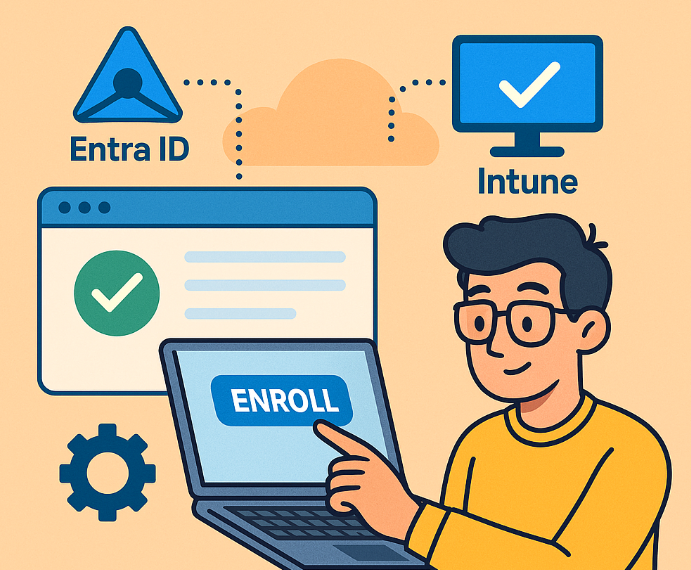
When a device is Entra ID joined *before* the user has an Intune license or before automatic MDM enrollment is configured for that user/group, it won’t automatically enroll in Intune.

Here’s how to get it enrolled without needing to unjoin and rejoin Entra ID (which is the more disruptive option):

Method 1: Trigger Enrollment via Settings (Easiest & Preferred)

This is often the simplest way if automatic enrollment is now correctly configured for the user.

  1. Ensure Prerequisites:

    • Intune License: Confirm the user logging into the Windows device has an active Intune license assigned (e.g., part of Microsoft 365 E3/E5/F3, EMS E3/E5, or a standalone Intune license).

    • MDM User Scope: In the Microsoft Entra admin center (entra.microsoft.com):

      • Navigate to Devices > Enrollment > Windows enrollment.

      • Click on Automatic Enrollment.

      • Ensure the MDM user scope is set to All or a group that the licensed user is a member of. (The MAM user scope is for a different purpose, usually BYOD).
    • CNAME Records: While Entra ID join worked, it’s good to ensure your DNS CNAME records for EnterpriseRegistration and EnterpriseEnrollment are correctly pointing to Microsoft’s services. This is usually fine if Entra join worked, but it’s a foundational piece for MDM enrollment.
  2. On the Windows Device:

    • Log in as the user who has the Intune license.

    • Go to Settings > Accounts > Access work or school.

    • You should see “Connected to ‘s Microsoft Entra ID”.

    • Click on this connection, then click the Info button.

    • Look for a Sync button. Click it.

      • This action forces the device to re-evaluate its MDM enrollment status with Entra ID. If the user is now in scope and licensed, it should trigger the Intune enrollment process.
    • Wait: Enrollment can take a few minutes. You might see a notification, or you can check the Intune portal (Microsoft Intune admin center) under Devices > Windows to see if the device appears and its compliance status.

    • Reboot: Sometimes a reboot helps kickstart the process after clicking “Sync.”

Method 2: Enroll via Company Portal App

  1. Ensure Prerequisites: Same as Method 1 (License and MDM User Scope).

  2. On the Windows Device:
    • Install the Company Portal app from the Microsoft Store.

    • Open the Company Portal app.

    • Sign in with the Entra ID credentials of the licensed user.

    • The Company Portal app will typically detect that the device isn’t yet managed by Intune and will guide the user through the enrollment process. Follow the on-screen prompts.

Method 3: Enroll Only in Device Management (Less Common for this scenario but an option)

This method is typically for devices that are not Entra ID joined but you want to enroll them into Intune. However, it can sometimes nudge an already Entra ID joined device.

  1. Ensure Prerequisites: Same as Method 1.

  2. On the Windows Device:
    • Go to Settings > Accounts > Access work or school.

    • Click Connect.

    • Crucially, on the “Set up a work or school account” screen, look for a link that says something like “Enroll only in device management” or similar phrasing. Do not just type the email address in the main box, as that will try to Entra ID join it (which it already is).

    • Enter the user’s Entra ID email address and follow the prompts.

Troubleshooting & Verification:

  • Check Intune Portal: After attempting enrollment, go to the Microsoft Intune admin center (intune.microsoft.com) > Devices > Windows. Search for the device. It might take 5-30 minutes (sometimes longer) to appear or update its status.

  • Event Viewer on the Device:
    • Open Event Viewer.

    • Navigate to Applications and Services Logs > Microsoft > Windows > DeviceManagement-Enterprise-Diagnostics-Provider > Admin.

    • Look for events related to MDM enrollment (Event ID 75 or 76 often indicate successful enrollment). Errors here can give clues.
  • Check MDM URLs in Registry (Advanced):
    • Open Registry Editor (regedit).

    • Navigate to HKEY_LOCAL_MACHINE\SOFTWARE\Microsoft\Enrollments.

    • Look for a subkey with a GUID. Inside, you should find values like DiscoveryServiceFullUrl, EnrollmentServiceFullUrl, PolicyServiceFullUrl pointing to Intune services (e.g., https://enrollment.manage.microsoft.com/...). If these are present, enrollment likely succeeded or is in progress.
  • Patience: Sometimes it just takes a little while for all the syncs to happen.

Last Resort (If the above fails and you’re sure licensing/scoping is correct):

  1. Disconnect from Entra ID and Rejoin:
    • Backup important local data if any.
    • Go to Settings > Accounts > Access work or school.

    • Click the “Connected to ‘s Microsoft Entra ID” account and click Disconnect. Confirm the disconnection.

    • Reboot the device.

    • After rebooting, go back to Settings > Accounts > Access work or school.

    • Click Connect.

    • Choose to Join this device to Microsoft Entra ID and sign in with the licensed user’s credentials.

    • This fresh join process should trigger the Intune enrollment immediately, assuming automatic enrollment is configured.

Start with Method 1 (Sync button) as it’s the least invasive. Method 2 (Company Portal) is also very reliable.

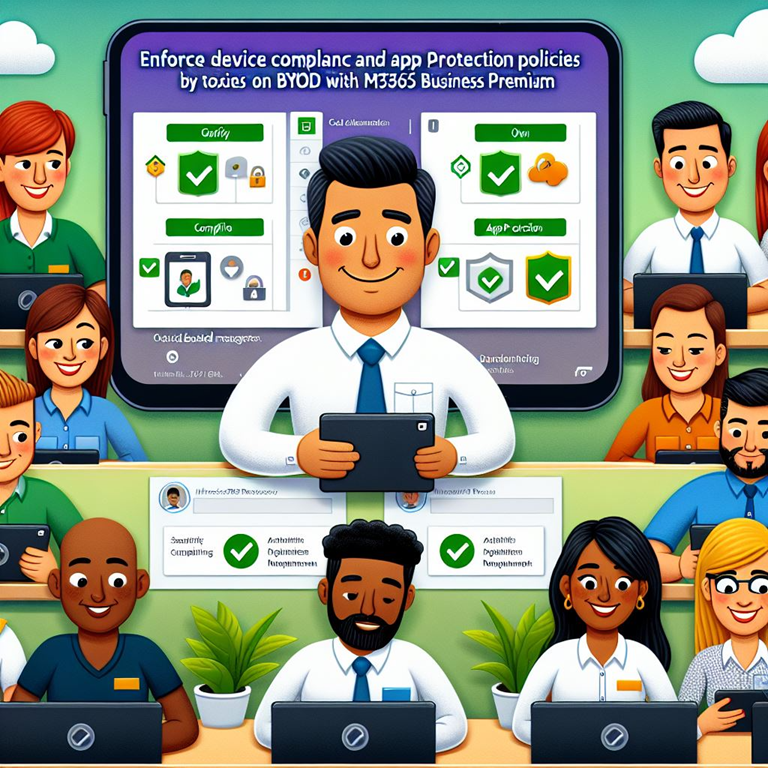
Enforce device compliance and app protection policies on BYOD with M365 Business premium

image

M365 Business Premium is well-suited for this because it includes key components like:

  • Microsoft Intune (Part of Microsoft Endpoint Manager): For Mobile Device Management (MDM) and Mobile Application Management (MAM).

  • Azure Active Directory (Azure AD) Premium P1: Provides Conditional Access policies, which are crucial for enforcement.

  • Information Protection Features: For data security.

Here’s a step-by-step approach, focusing on the least intrusive but effective methods for BYOD:

Core Strategy: Prioritize App Protection Policies (MAM) without Full Device Enrollment (MDM)

This is often the preferred approach for BYOD because it protects corporate data within specific apps without taking full control over the user’s personal device. It respects user privacy while securing business information.

Steps:

  1. Configure App Protection Policies (APP / MAM Policies):

    • Go to the Microsoft Endpoint Manager admin center: (endpoint.microsoft.com)

    • Navigate: Apps > App protection policies.

    • Create Policy: Click “+ Create policy” and select the platform (iOS/iPadOS or Android).

    • Basics: Give the policy a descriptive name (e.g., “BYOD App Protection – Android”).

    • Apps:
      • Target policy to: Select “All Public Apps” or “Selected Apps”. For BYOD, often start with core Microsoft apps (Outlook, Teams, OneDrive, Edge, Office apps). You can add other MAM-enabled apps later.

      • Important: This policy only applies to apps that support Intune App Protection.
    • Data Protection: This is the core. Configure settings like:

      • Prevent backup: Block backing up work data to personal cloud storage (iCloud/Google Cloud).

      • Restrict cut, copy, paste: Control data movement between managed (work) apps and unmanaged (personal) apps. Often set to “Policy managed apps”.

      • Encryption: Ensure app data is encrypted. (Usually enabled by default).

      • Screen capture: Block screen capture for Android (iOS requires device management).

      • Save copies of org data: Prevent saving work files to local/personal storage. Allow saving only to managed locations like OneDrive for Business or SharePoint.

      • Receive data from other apps: Control if managed apps can receive data from unmanaged apps.

      • Open data in Org documents: Control which apps can open work documents.
    • Access Requirements: Define how users access the protected apps:

      • PIN for access: Require a separate PIN (or biometrics) to open the work apps. Configure PIN complexity and timeout.

      • Work or school account credentials for access: Force re-authentication after a period of inactivity.
    • Conditional Launch: Set conditions that must be met for the app to launch (e.g., block rooted/jailbroken devices, minimum OS version, app version).

    • Assignments:
      • Target: Assign the policy to specific Azure AD user groups containing your BYOD users. Do not assign to device groups for MAM-without-enrollment.
    • Review + Create: Finalize and create the policy.
  2. Configure Conditional Access Policies in Azure AD:

    • This is how you enforce the use of protected apps and check device state (even without full enrollment).

    • Go to the Microsoft Endpoint Manager admin center or Azure AD portal: (portal.azure.com)

    • Navigate: Endpoint Security > Conditional Access (in MEM) or Azure Active Directory > Security > Conditional Access (in Azure Portal).

    • Create New Policy:
      • Name: Give it a clear name (e.g., “CA – Require App Protection for Mobile Access”).

      • Assignments > Users and groups: Target the same user groups as your App Protection Policy.

      • Assignments > Cloud apps or actions: Select the specific M365 services you want to protect (e.g., Exchange Online, SharePoint Online, Teams). Start with “Office 365” (which covers multiple services).

      • Assignments > Conditions > Device platforms: Configure this policy to apply only to iOS and Android.

      • Assignments > Conditions > Client apps: Configure this to apply to “Mobile apps and desktop clients” > “Modern authentication clients” > Select “Mobile apps”.

      • Access Controls > Grant:
        • Select “Grant access”.

        • Choose “Require app protection policy”.

        • Optional but Recommended: Also choose “Require approved client app”. This ensures users are using MAM-capable apps (like Outlook Mobile instead of native mail clients).

        • For “Multiple controls”: Select “Require all the selected controls”.
      • Enable policy: Set to “On”.

      • Create: Save the policy.

User Experience with this Approach:

  1. The user installs a managed app (e.g., Outlook) from the public app store.

  2. They sign in with their work (Azure AD) account.

  3. Conditional Access checks if access is allowed. The policy requires an app protection policy.

  4. The user is prompted that their organization protects data in the app. They may be prompted to install the Microsoft Authenticator (on Android) or the Company Portal app (on iOS/Android). Crucially, they do NOT need to fully enroll their device via the Company Portal. The Company Portal app simply needs to be present to receive and report the APP status.

  5. The App Protection Policy settings are applied to the app (e.g., PIN required, copy/paste restrictions).

  6. The user can now securely access work data within that managed app. Their personal apps and data remain untouched and unmanaged.


Alternative/Additional Strategy: Device Compliance (Requires Enrollment – MDM)

If you need stronger device-level controls (e.g., enforcing screen lock complexity on the device itself, checking for device encryption, ensuring minimum OS), you need users to enroll their devices into Intune (MDM). This is more intrusive for BYOD and users might resist.

Steps (If Choosing Enrollment):

  1. Configure Enrollment Restrictions: (MEM Admin Center > Devices > Enroll devices > Enrollment device platform restrictions) Ensure personal iOS/Android devices are allowed to enroll if you intend to support this.

  2. Create Device Compliance Policies: (MEM Admin Center > Devices > Compliance policies)

    • Create separate policies for iOS and Android.

    • Configure settings like: Minimum/Maximum OS Version, Require PIN/Password, Require Encryption, Device Threat Level (if using Defender for Endpoint), Block rooted/jailbroken devices.

    • Assign these policies to user groups.
  3. Modify/Create Conditional Access Policies:
    • Instead of (or in addition to) “Require app protection policy,” add the grant control “Require device to be marked as compliant”.

    • You can combine these: Require a compliant device AND require app protection policy for maximum security on enrolled BYOD devices.

User Experience with Enrollment:

  1. User installs the Company Portal app.

  2. User signs in and follows the prompts to enroll their device. This grants Intune management capabilities over the device.

  3. Intune checks the device against the assigned Compliance Policy.

  4. If compliant, the device is marked as such in Azure AD.

  5. Conditional Access policies check for this compliance status before granting access to corporate resources.

  6. App Protection Policies can still be applied for layered data security within apps, even on enrolled devices.

Summary & Recommendation:

  • For BYOD, start with App Protection Policies (MAM) without enrollment, enforced by Conditional Access requiring App Protection and Approved Client Apps. This provides strong data security within work apps with minimal impact on the user’s personal device.

  • Use Device Compliance Policies (MDM) requiring enrollment only if you have specific, strong requirements for device-level settings and your users consent to this level of management on their personal devices.

  • Always communicate clearly with users about what is being managed and why, especially with BYOD.

  • Test thoroughly with pilot groups before rolling out broadly.

By leveraging App Protection Policies and Conditional Access, Microsoft 365 Business Premium offers a powerful and flexible way to secure corporate data on BYOD smartphones while respecting user privacy.

Starting point for implementing Intune security policies

image

This plan focuses on establishing foundational security controls across your diverse devices, leveraging the integrated features of M365 BP.

Core Concepts:

  • Microsoft Intune: Your cloud-based Mobile Device Management (MDM) and Mobile Application Management (MAM) solution.

  • Azure Active Directory (Azure AD): Your identity provider. User accounts and groups live here. It’s tightly integrated with Intune.

  • Configuration Profiles: These define settings and restrictions pushed to managed devices (MDM).

  • Application Protection Policies (APP / MAM): These protect organizational data within specific apps, useful for both corporate and personally owned (BYOD) devices, without requiring full device enrollment.

  • Compliance Policies: Define rules devices must meet to be considered “compliant” (e.g., have encryption enabled, be updated).

  • Conditional Access (CA): The powerhouse feature (included in M365 BP via Azure AD Premium P1 features) that uses signals (like user, location, device compliance) to enforce organizational policies (like requiring MFA or blocking access from non-compliant devices).

Assumptions:

  • You have Microsoft 365 Business Premium licenses assigned to all 20 users.

  • You have Global Administrator access to your Microsoft 365 tenant.

  • Your users are licensed and exist in Azure AD.

Step-by-Step Implementation Plan:

Phase 1: Preparation & Foundational Setup

  1. Access the Endpoint Manager Admin Center:

  2. Set MDM Authority to Intune:

    • Navigate to Tenant administration > Tenant status.

    • Verify that the Mobile device management authority is set to Microsoft Intune. If it’s something else (like Office 365 MDM or Configuration Manager), you’ll need to change it. This is usually a one-time setting for new tenants. Be careful if you have existing MDM.
  3. Configure Enrollment Settings (Enable Platforms):

    • You need to explicitly allow each device platform to enroll.

    • Windows: Go to Devices > Enroll devices > Windows enrollment > Automatic Enrollment.

      • Set MDM user scope to All (or a specific Pilot Group first).

      • Set MAM user scope to All (or Pilot Group). This enables MAM without full enrollment for BYOD Windows.
      • Recommendation: Also configure DNS CNAME records (enterpriseenrollment and enterpriseregistration) pointing to Microsoft’s services to simplify Windows enrollment. Search Microsoft Docs for “Configure DNS for Intune Windows enrollment”.
    • Apple (iOS/iPadOS & macOS): Go to Devices > Enroll devices > Apple enrollment.

      • You must create an Apple Push Notification service (APNs) certificate. Follow the Apple MDM Push certificate link and instructions carefully. This certificate needs renewal annually. Set reminders!

      • For macOS enrollment methods, initially, users can enroll via the Company Portal app.

      • For iOS/iPadOS enrollment methods, users can enroll via the Company Portal app.

      • (Advanced/Recommended for corporate devices later: Consider Apple Business Manager integration for supervised enrollment).
    • Android: Go to Devices > Enroll devices > Android enrollment.

      • Click Managed Google Play and connect your Intune tenant to your organization’s Managed Google Play account. Follow the instructions. This is required for most Android management scenarios.

      • Decide on enrollment profiles. For a mix of BYOD and potentially corporate devices, enabling Android Enterprise: Personally-owned devices with work profile is the most common starting point for BYOD. This creates a secure container for work apps/data separate from personal data.
  4. Create User Groups:

    • Go to the Azure AD portal (https://aad.portal.azure.com/) or via M365 Admin Center (Groups > Active groups).

    • Create at least one group, e.g., “All Company Employees”. Assign all 20 users to this group. This makes targeting policies much easier. You might create pilot groups later for testing.

Phase 2: Basic Security Policies (Configuration Profiles)

Start with essential security settings for each platform. Target these profiles to your “All Company Employees” group (or a pilot group first).

  • How to Create: In Endpoint Manager (https://endpoint.microsoft.com/), go to Devices > Configuration profiles > Create profile. Select the Platform, then choose a Profile type (use Settings catalog where possible for granularity, or Templates for common scenarios).
  1. Windows Security Policies:

    • Platform: Windows 10 and later
    • Profile Type: Settings catalog
    • Key Settings to Configure (Search within Settings catalog):
      • BitLocker: Require device encryption, configure recovery key storage. (Crucial!)

      • Password: Set minimum length, complexity, history.

      • Windows Defender (Microsoft Defender Antivirus): Ensure real-time monitoring, cloud protection, daily scans are enabled. (M365 BP includes Defender for Business features here).

      • Windows Update for Business: Create Update Rings to manage patch deployment (e.g., install deadlines, deferral periods).

      • Firewall: Ensure Microsoft Defender Firewall is enabled for relevant profiles (Domain, Private, Public).
  2. macOS Security Policies:

    • Platform: macOS
    • Profile Type: Settings catalog (preferred) or Templates (e.g., Device Restrictions)

    • Key Settings:
      • Passcode: Set minimum length, complexity, auto-lock time.

      • Encryption (FileVault): Require FileVault disk encryption, configure recovery key escrow. (Crucial!)

      • Software Update Policy: Configure how updates are handled.

      • Security & Privacy: Enforce Gatekeeper (allow apps from App Store and identified developers), ensure Firewall is enabled.
  3. iOS/iPadOS Security Policies:

    • Platform: iOS/iPadOS
    • Profile Type: Settings catalog (preferred) or Templates (e.g., Device Restrictions)

    • Key Settings:
      • Passcode: Require passcode, set minimum length, complexity (e.g., alphanumeric), maximum grace period for device lock, max failed attempts before wipe (optional but strong).

      • Device Restrictions: Consider disabling simple passcodes, maybe block untrusted TLS certificates, configure AirDrop settings. Start minimally.
  4. Android Enterprise (Work Profile) Security Policies:

    • Platform: Android Enterprise
    • Profile Type: Personally-owned work profile > Device restrictions
    • Key Settings:
      • Work profile settings: Require a separate Work Profile Password (complexity, length).

      • Device password: Require a device screen lock (can be less strict than work profile if desired, but still recommended).

      • Security: Ensure work profile data is encrypted (usually default), block screen capture within the work profile, potentially restrict data sharing between personal/work profiles.

Phase 3: Protect App Data (Application Protection Policies – MAM)

This is vital for BYOD scenarios and adds a layer of security even on enrolled devices.

  • How to Create: In Endpoint Manager, go to Apps > App protection policies > Create policy. Select the platform (iOS/iPadOS, Android, Windows).
  1. Create Policies for iOS/iPadOS and Android:

    • Target these policies to your “All Company Employees” group.

    • Apps: Select All Microsoft apps or target specific core apps initially (Outlook, OneDrive, Teams, Edge, Word, Excel, PowerPoint).

    • Data Protection Settings:
      • Prevent Save As to local/personal storage.

      • Restrict Cut, copy, and paste between policy-managed apps and unmanaged/personal apps (Allow within policy apps).

      • Block opening work data in unmanaged apps.

      • Encrypt work app data.
    • Access Requirements:
      • Require PIN for access (separate from device passcode). Set complexity, length, timeout. Allow Biometrics (Face ID/Touch ID/Fingerprint) as an alternative to PIN.
    • Conditional Launch:
      • Set conditions like minimum OS version, block jailbroken/rooted devices.
  2. (Optional but Recommended) Create Policy for Windows:

    • This protects data on Windows devices without full MDM enrollment (useful if some Windows PCs are personal).

    • Target the policy to the user group.

    • Select target apps (e.g., Edge).

    • Configure similar data protection settings (prevent save-as, restrict copy/paste).

    • Note: Windows MAM has fewer features than mobile MAM.

Phase 4: Enforce Health and Access (Compliance & Conditional Access)

This ties everything together.

  1. Create Device Compliance Policies:

    • How to Create: In Endpoint Manager, go to Devices > Compliance policies > Create policy. Select Platform.

    • Key Settings (Align with Configuration Profiles):
      • Windows: Require BitLocker, Require Secure Boot, Require Antivirus, Require Firewall, Set Min/Max OS Version, Require Password.

      • macOS: Require System Integrity Protection, Require Firewall, Require Password, Require FileVault, Set Min/Max OS Version.

      • iOS/iPadOS: Require Passcode, Require device encryption (implicit with passcode), Min/Max OS Version, Block Jailbroken devices.

      • Android Enterprise (Work Profile): Require Device Lock, Require Encryption, Min/Max OS Version, Block Rooted devices, Require Google Play Protect checks.
    • Actions for Non-Compliance: Start with Mark device noncompliant (immediately). You can add Send email to end user after a few days.

    • Assignment: Assign these policies to your “All Company Employees” group.
  2. Configure Foundational Conditional Access Policies:

    • How to Configure: In Endpoint Manager, go to Devices > Conditional Access > Create new policy. (This actually takes you to the Azure AD CA portal).

    • Policy 1: Require MFA for All Users:
      • Name: CA001: Require MFA for All Users
      • Assignments: Users and groups > Include All users. Exclude 1-2 emergency access/”break-glass” accounts (highly recommended).

      • Cloud apps or actions: Include All cloud apps.

      • Conditions: Define any trusted locations (like your office IP) where MFA might be skipped if necessary (use with caution).

      • Access controls: Grant > Grant access > Check Require multi-factor authentication. Require all the selected controls.

      • Enable policy: On (or Report-only initially to test impact).
    • Policy 2: Require Compliant Devices for Cloud App Access:
      • Name: CA002: Require Compliant Device for Access
      • Assignments: Users and groups > Include All users. Exclude break-glass accounts.

      • Cloud apps or actions: Include All cloud apps.

      • Conditions: Device platforms > Configure > Include All platforms. Client apps > Configure > Include Browser, Mobile apps and desktop clients.

      • Access controls: Grant > Grant access > Check Require device to be marked as compliant. Require all the selected controls.

      • Enable policy: Report-only first, then On.
    • Policy 3: Require Approved App / App Protection Policy for Mobile Access:
      • Name: CA003: Require Protected Apps on Mobile
      • Assignments: Users and groups > Include All users. Exclude break-glass accounts.

      • Cloud apps or actions: Include Office 365 (or specific apps like Exchange Online, SharePoint Online).

      • Conditions: Device platforms > Configure > Include Android, iOS. Client apps > Configure > Include Mobile apps and desktop clients.

      • Access controls: Grant > Check Require approved client app AND Require app protection policy. Select Require one of the selected controls (allows flexibility if one isn’t applicable).

      • Enable policy: Report-only first, then On.

Phase 5: User Enrollment, Communication & Monitoring

  1. Communicate with Users:

    • Explain why these changes are being made (security, data protection).

    • Provide simple instructions on how to enroll their devices (e.g., install Company Portal app from the app store and sign in).

    • Explain what they should expect (e.g., prompts for PINs, work profile creation on Android).

    • Offer support for the transition.
  2. Guide Users Through Enrollment:

    • Have users install the “Intune Company Portal” app on their iOS, Android, and macOS devices and sign in with their M365 credentials. Follow the prompts.

    • For Windows devices that are not already Azure AD Joined: Guide users through Settings > Accounts > Access work or school > Connect, entering their M365 email and following prompts to join Azure AD and enroll in Intune (if Automatic Enrollment is configured).
  3. Monitor Enrollment and Compliance:

    • In Endpoint Manager, check Devices > Overview for enrollment status and compliance overview.

    • Check specific device compliance under Devices > Compliance policies.

    • Review Conditional Access sign-in logs in Azure AD (Monitoring > Sign-in logs) to see policy impacts.

Important Considerations:

  • Start Simple & Iterate: Don’t try to implement everything at once. Start with foundational policies and build complexity as needed.

  • Test Thoroughly: Use pilot groups before rolling out to everyone. Use “Report-only” mode for Conditional Access policies initially.

  • BYOD vs. Corporate: Be clear about expectations for personal devices (Work Profile on Android, MAM policies) vs. company-owned devices (potentially fully managed).

  • User Experience: Balance security with usability. Overly restrictive policies can hinder productivity.

  • Documentation: Keep track of the policies you create and why.

  • Annual APNs Renewal: Don’t forget this! If it expires, you can’t manage Apple devices.

This step-by-step guide provides a solid starting point leveraging the security features within Microsoft 365 Business Premium. Remember to consult Microsoft’s official documentation for detailed configuration options as you proceed.

ASD Configuration policy templates for Intune

image

The Australian Signals Directorate (ASD) has produced a number of recommended configuration policies for Intune as part of their Secure Cloud initiative. You can find them here:

ASD Configuration policies

Edge hardening guidelines

All Macros disabled

Macros enabled for trusted publishers

Office Hardening guidelines

Windows hardening guidelines

User rights assignments

Theses policies are in TXT format but are effectively just JSON files.

I have therefore takes these TXT files, renamed to JSON files and uploaded into my best practices repository here:

CIAOPS Best Practice Repo – ASD recommended policies

It would have been good if the ASD had placed in their own repo so they could easily be monitored for updates. Alas, maybe in the future.

So for now you can import these files directly from my repo into your Intune and I’ll try and do my best to keep them current with what the ASD does.