Copilot for Microsoft 365 in ‘classic’ Outlook

image

To get Copilot for Microsoft 365 to work with desktop applications you need to follow this process:

Adding Copilot button to desktop applications

To get the most from Copilot for Microsoft 365 you need to use the ‘new’ Outlook. However, there is currently the ability to use some of the Copilot features in the ‘classic’ desktop version of Outlook.

image

When you open an email in the older desktop version of Outlook you will find a Summarize button in the upper right as shown above (provided you have a Copilot for Microsoft 365 license of course).

image

If you select that, Copilot will go away and munch on the information in the email for a moment.

image

Then, you’ll then get a nice summary at the top of the email as shown above.

As I understand it, more Copilot for Microsoft 365 will be coming to the ‘classic’ version of Outlook and I’ll let you know when they start appearing for me. However for now, if you do have Copilot for Microsoft 365 and prefer the older version of Outlook on the desktop put it work doing email summaries.

Need to Know podcast–Episode 313

The big news is that Copilot for Microsoft 365 is now available in SMB. There are also some additional Copilot options available as well. I cover all this plus provide some information around getting Copilot on your desktop apps as well as other news and updates from the Microsoft Cloud. Tune in and catch up.

You can listen directly to this episode at:

https://ciaops.podbean.com/e/episode-313-copilot-amongst-us/

Subscribe via iTunes at:

https://itunes.apple.com/au/podcast/ciaops-need-to-know-podcasts/id406891445?mt=2

Don’t forget to give the show a rating as well as send me any feedback or suggestions you may have for the show.

Brought to you by www.ciaopspatron.com

Resources

@directorcia

Join my shared channel

CIAOPS merch store

Become a CIAOPS Patron

CIAOPS Blog

CIAOPS Brief

Support CIAOPS

Bringing the full power of Copilot to more people and businesses

Microsoft Copilot for Microsoft 365

Microsoft 365 Copilot video play list

Copilot for Microsoft 365 for small and medium businesses

Introducing Microsoft Copilot App

Introducing Copilot Pro: Supercharge your Creativity and Productivity

Microsoft’s new Copilot Pro brings AI-powered Office features to the rest of us

Adding Copilot button to desktop applications

Set up Microsoft 365 backup

Microsoft Entra’s Top 50 Features of 2023

Protect faster with Microsoft Defender XDR’s latest UX enhancements

New Microsoft Incident Response guides help security teams analyze suspicious activity

Introducing SharePoint Premium for Information Workers

Employee quick setup

Introducing the new PowerShell Module for Microsoft Defender for Identity

Visualize Entra Sign-in Logs using an Interactive Map

Train your users to be more resilient against QR code phishing

Introducing Automatic File and URL (Detonation) Analysis

Adding Copilot button to desktop applications

Microsoft has just made Copilot for Microsoft 365 available for SMB customers:

Bringing the full power of Copilot to more people and businesses

So I went and signed up to get a look. Bottom line at the moment is that, yes you can buy a single license for a tenant with Business Premium but you need to pay for 12 months up front. Here in Australia than means around $600 inc GST upfront for a minimum 12 months. I have no doubt that I will get value but as yet there is no month by month option.

image

When I open my Microsoft 365 portal now I see a new Copilot icon as shown on the left.

image

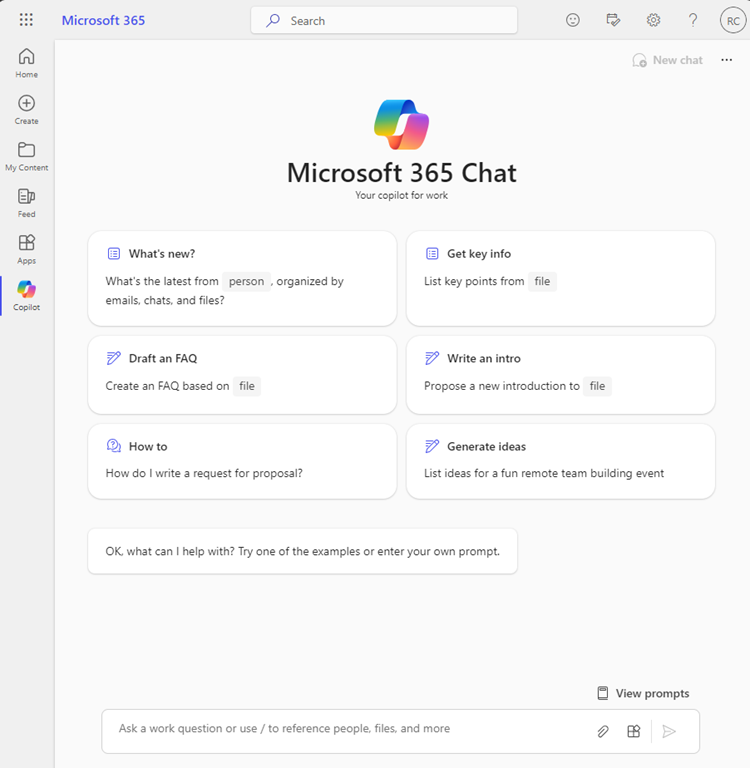
When I select that icon, I am taken to a ChatGPT like screen as shown above that allows me to interact with my data in Microsoft 365 as expected.

image

If I open Word, Excel, Powerpoint, etc on the web I see a Copilot button in the ribbon as shown above.

image

However, I can’t see the expected Copilot button in any of desktop applications, like Word shown above.

This video from MVP Shane Young:

https://www.youtube.com/watch?v=KROOEdZXvoY

provided all the answers.

To see the Copilot button in Word, Excel, PowerPoint, OneNote (but not Outlook or Teams) you need to

image

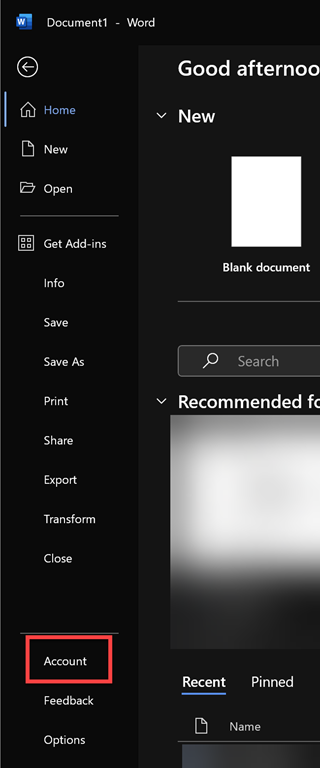
go into each application individually (yes all of them one by one at this stage). Select File from the menu.

image

Then select Account from the option on the left.

image

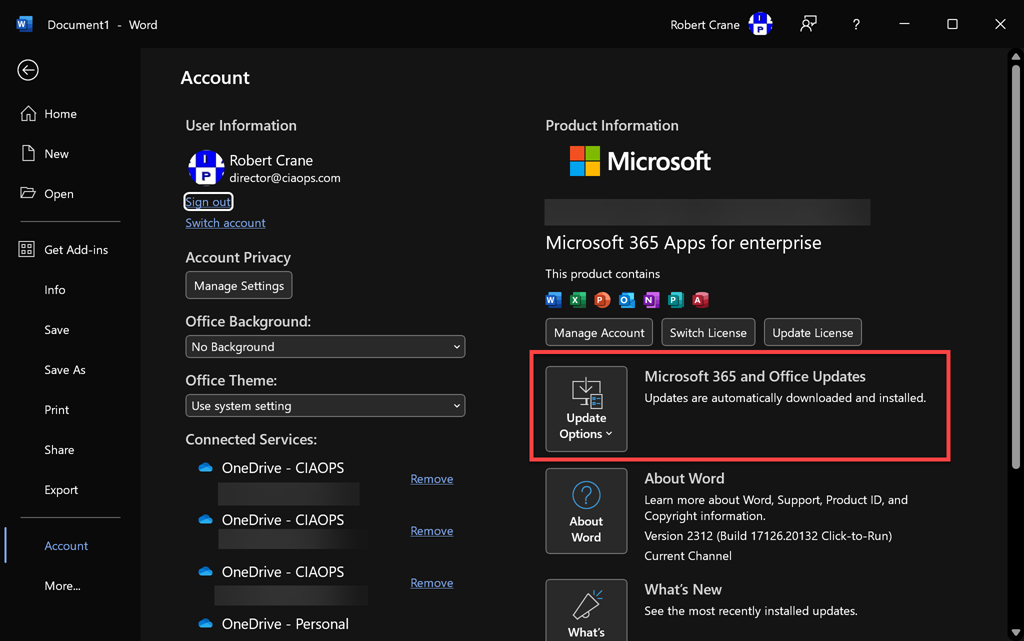
On the right, I’d suggest that ensure your application is up to date first by selecting the Update Options button as shown above.

image

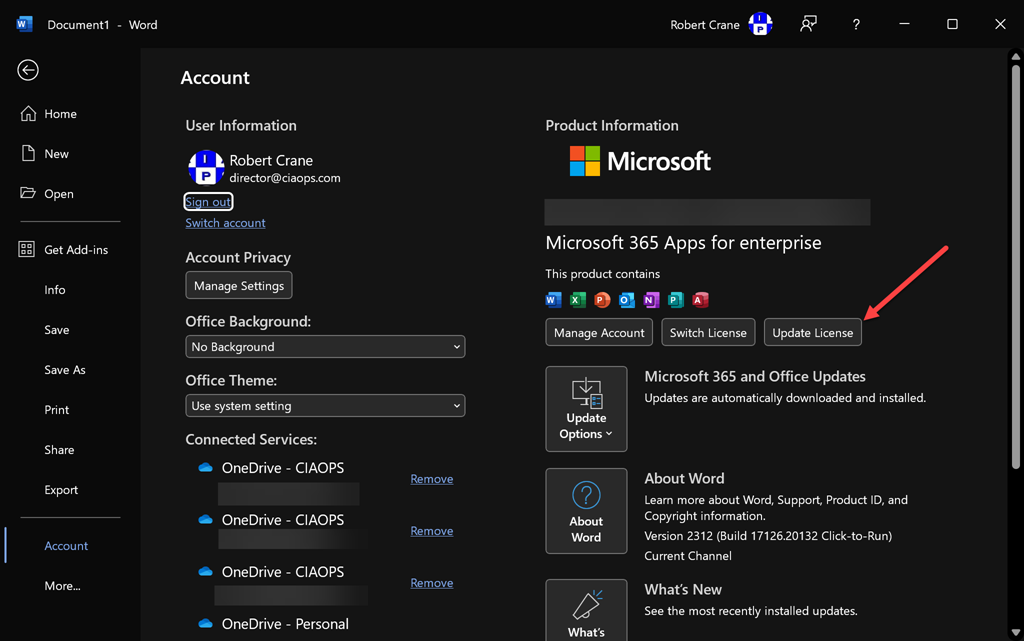
Now select the the Update License button as shown.

image

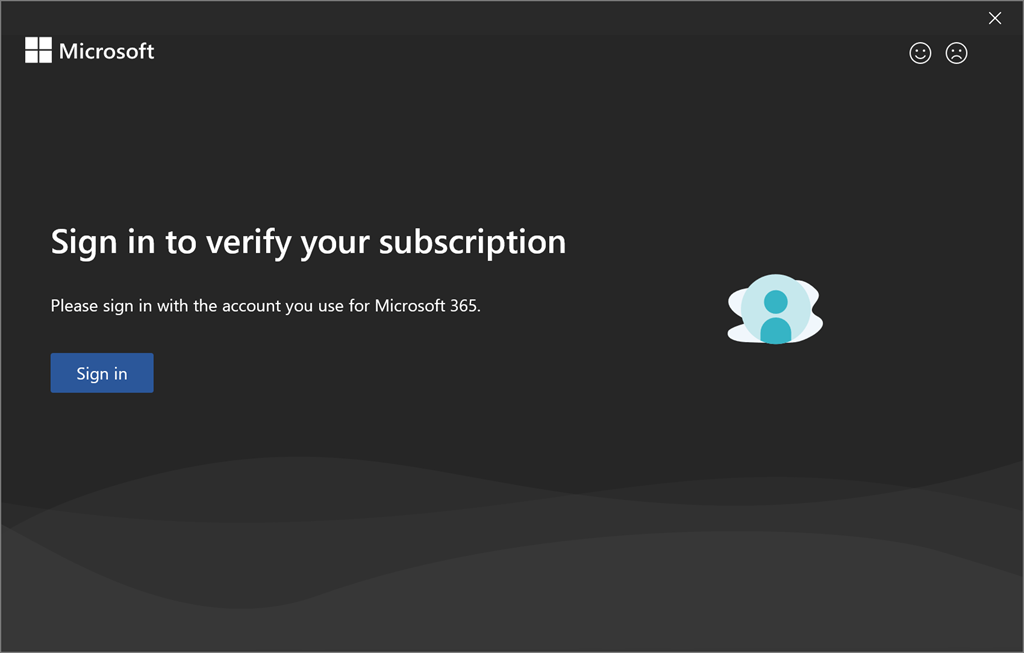
You’ll see the above dialog appear. Select Sign in and sign in using the account that has been assigned a Copilot for Microsoft 365 License.

image

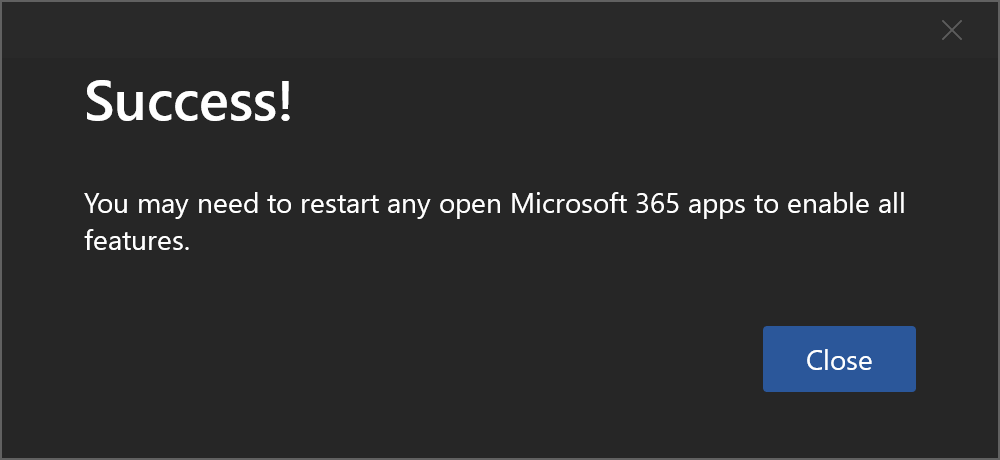
You should see the above message indicating the process is complete. Select Close.

Now, Close and re-open the application.

image

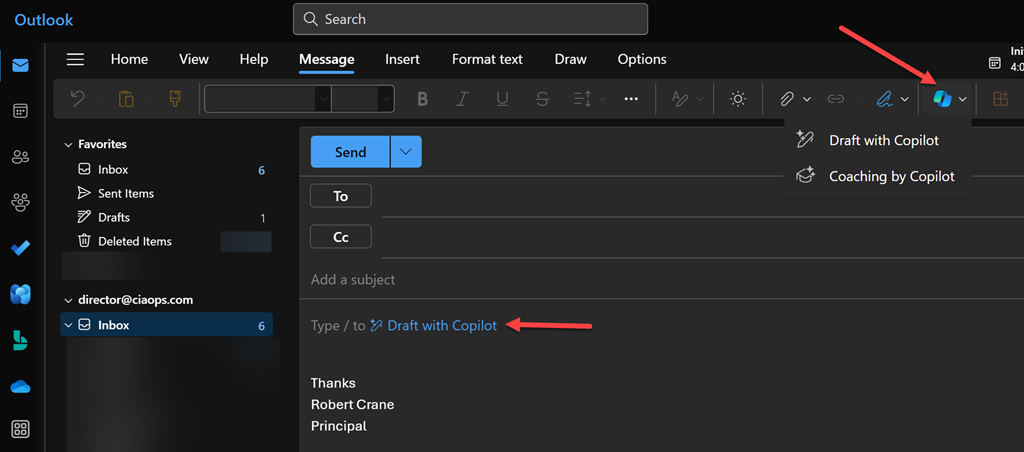
Now the Copilot button should be visible and because this is Word you will also see the Draft with Copilot dialog as shown above confirming everything is enabled.

Remember, you’ll need to do this individually for each desktop application: Word, Excel, PowerPoint, OneNote following the same process.

Things are bit different for Outlook and Teams.

image

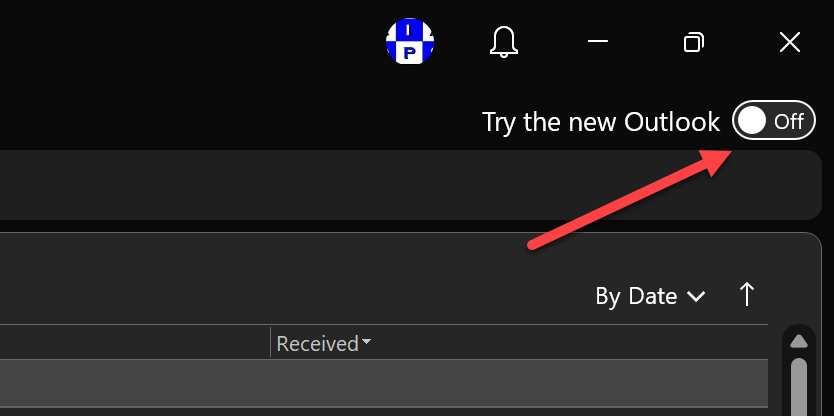
For Outlook you’ll need to switch over to the New Outlook by toggling the option in the top right corner of Outlook on the desktop as shown above.

image

As for Teams, you’ll just need to Sign Out and then Sign in with the account that has Copilot assigned.

image

image

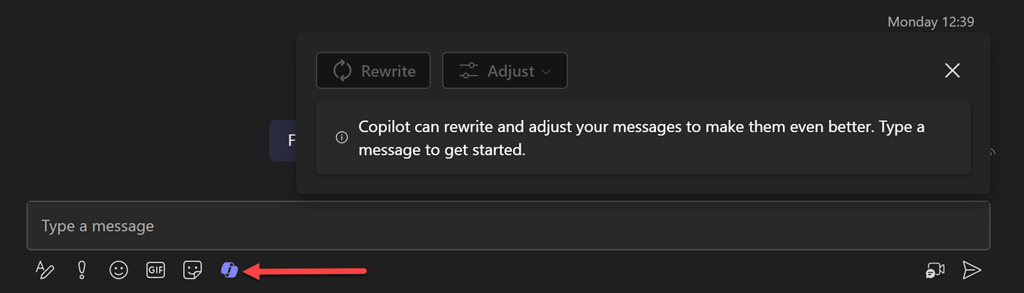
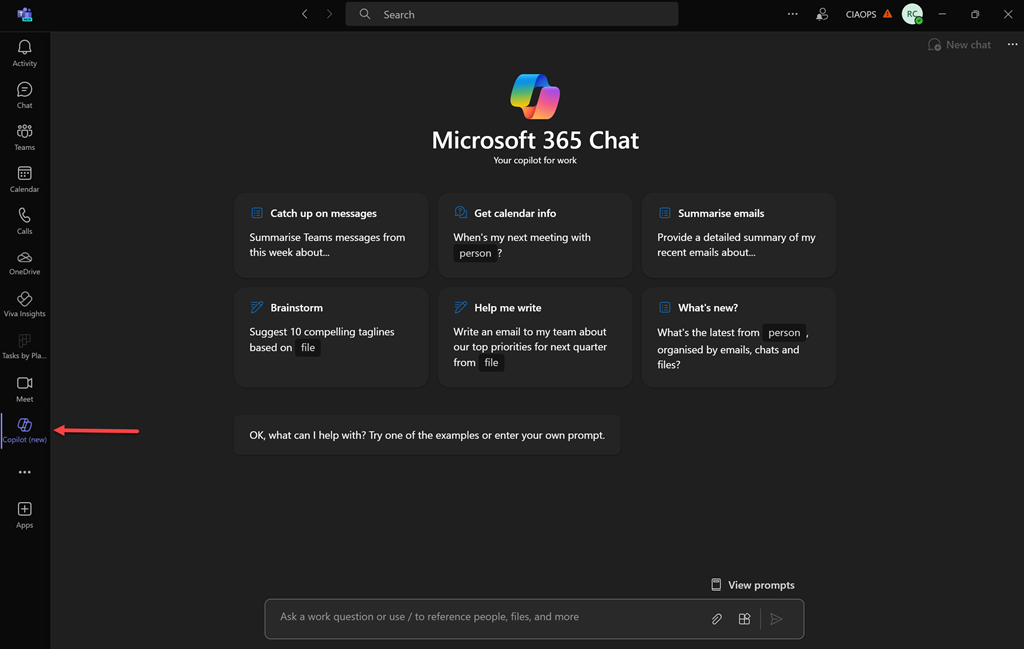
you can also add the Copilot app on the left menu bar.

image

which will allow you access to the original ChatGPT style interface:

image

Don’t forget you can pin this ‘app’ to menu bar as well by right clicking on it.

All this an it is only day one with Copilot for Microsoft 365. Much to come. Stay tuned.

CIAOPS Need to Know Microsoft 365 Webinar – December

laptop-eyes-technology-computer_thumb

Join me for the free monthly CIAOPS Need to Know webinar. Along with all the Microsoft Cloud news we’ll be taking a look at Microsoft Copilot in all it’s various forms to help separate fact from fiction.

Shortly after registering you should receive an automated email from Microsoft Teams confirming your registration, including all the event details as well as a calendar invite.

You can register for the regular monthly webinar here:

December Webinar Registrations

(If you are having issues with the above link copy and paste – https://bit.ly/n2k2312

The details are:

CIAOPS Need to Know Webinar – December 2023
Thursday 29th of December 2023
11.00am – 12.00am Sydney Time

All sessions are recorded and posted to the CIAOPS Academy.

The CIAOPS Need to Know Webinars are free to attend but if you want to receive the recording of the session you need to sign up as a CIAOPS patron which you can do here:

http://www.ciaopspatron.com

or purchase them individually at:

http://www.ciaopsacademy.com/

Also feel free at any stage to email me directly via director@ciaops.com with your webinar topic suggestions.

I’d also appreciate you sharing information about this webinar with anyone you feel may benefit from the session and I look forward to seeing you there.

Copilot appearance for SMB will require patience

man waiting patiently and not rushin

Microsoft has announced that Copilot will be available on November the 1st 2023. Unfortunately, Microsoft is only targeting the initial release at enterprises as revealed in a document titled:

Microsoft 365 Copilot General Availability FAQ for partners. In essence it says:

Availability will be worldwide, in the public clouds, and customers will be able to transact via the EA/EAS/MCA-E channels.

the document also addresses the question:

Why are we not making the SKU available in Direct and CSP channels?

Microsoft 365 Copilot is an amazing new technology, but we are all learning together. To ensure
a smooth integration process, we’ve decided to start by introducing it to our Enterprise and
SMC-Corporate customers via EA/EAS/MCA-E.

there will also be minimum purchase requirements, also highlighted in the document:

Is there a minimum number of seats customers should buy?

Yes, customers must buy at least 300 seats of Microsoft 365 Copilot.

It is disappointing to see many claim, even some well respected identities in the SMB space, that Microsoft is not delivering Copilot to SMB. The reality is that the SMB space has always had to wait for technologies to trickle down and Copilot will be no different.

As I understand it, Copilot and AI in general, places a lot more load on the back end servers and much of this cannot be cached like normal searching can. Also, Microsoft doesn’t have a true indication of the load users will place on cloud infrastructure when it starts to be used in production. They therefore want to bring this load on in a controlled manner to avoid failure, which would not be good or profitable for a new service like Copilot.

Thus, there are many technical and business reasons for limiting the roll out of Copilot to the customers. There is significant demand in all areas for the technology but it needs to both prove itself and pay its way before it is widely adopted. That means that those in SMB are going to wait a little longer before it becomes available as a direct purchase. It does not mean that Microsoft won’t be delivering to all audiences, it just means people will need to be patient.

I would point you back to the features that have been added to Microsoft Business premium over time. At release of this product it didn’t include technologies like Entra ID P1 or Defender for Business. However, they did come to the product. Perhaps they didn’t arrive as soon as people would have liked but they did arrive and we are reaping the benefits today.

There is no doubt that the demand for Copilot is significant. There is no doubt that will will benefit the SMB market. However, it is incorrect to say Copilot will not be available for the SMB market. It will just require a little patience for it to become available, which to be honest is probably a good thing to let others work the kinks out.

Adoption with fun and OpenAI

I’ve detailed how to use an API with Power Automate to inject some engaging content automatically into Microsoft Teams.

Adoption with fund and astronomy

Thanks to API’s I want to extend this to use OpenAI and ChatGPT.

What I want to achieve is to ask a question of ChatGPT via an API everyday something like this:

Tell me about 1 May as a list

When I do this interactively at chat.openai.com I see:

image

I now want something like that to appear in Microsoft Teams daily for each day.

You’ll need to head over to OpenAI and get an API key. Here’s how to do that:

How to get an OpenAI API key in just 5 easy steps

I’d also suggest signing up for an OpenAI API subscription if you want to continue using this service. Here’s an idea of the costs.

image

Create a new Scheduled cloud flow. Don’t forget to change the repeat option to 1 day typically.

image

Add the Current Time action.

Add the Convert time zone action to get the time in your location. Set the format string to Month/day pattern (i.e. May 1).

image

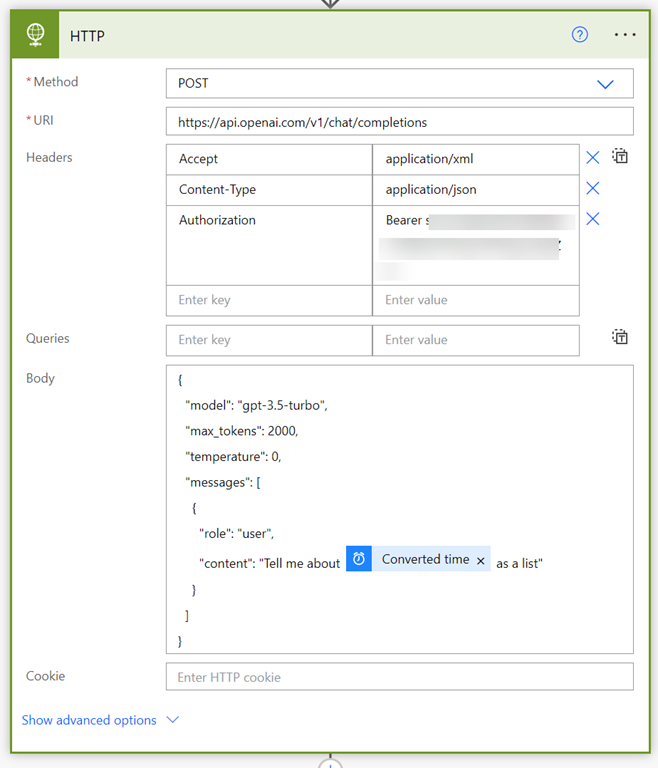
Add the HTTP action. Remember, this is a Premium connector. Set teh following options here:

Method = POST

URI = https://api.openai.com/v1/chat/completions

Accept = application/xml

Content-Type = application/json

Authorization = Bearer (your OpenAI API key)

Body:

{
   “model”: “gpt-3.5-turbo”,
   “max_tokens”: 2000,
   “temperature”: 0,
   “messages”: [
     {
       “role”: “user”,
       “content”: “Tell me about @{body(‘Convert_time_zone’)} as a list”
     }
   ]
}

Ensure you double check all these settings as it is easy to make a mistake.

image

Add the Parse JSON action.

I’ve put the JSON schema you need here:

https://github.com/directorcia/general/blob/master/Power%20Platform/OpenAI/JSON-for-GPT

image

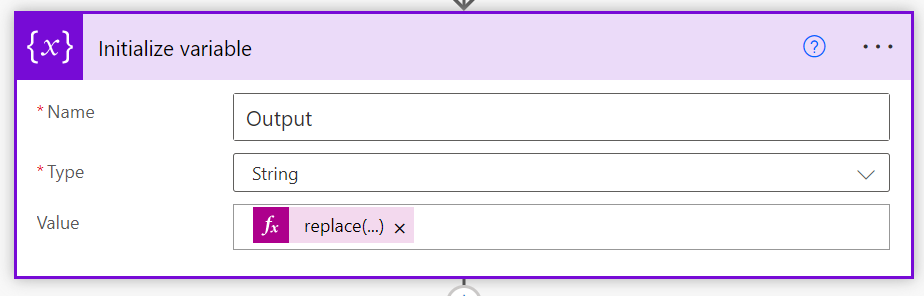
Add the Initialize variable action. We need to extract the returned text and format it so it will display in Teams. That means replacing the ‘/n’ string ‘<br>’. That can be done via this expression:

replace(body(‘Parse_JSON’)?[‘choices’][0]?[‘message’]?[‘content’],’/n’,’<br>’)

NOTE: if you copy and paste this expression and receive an error when you try and save it, you’ll most likely have to change the apostrophe from ‘ to ‘. It’s subtle, but you need to use the one to the left of the ENTER key on most keyboards to get it to work in Power Automate.

image

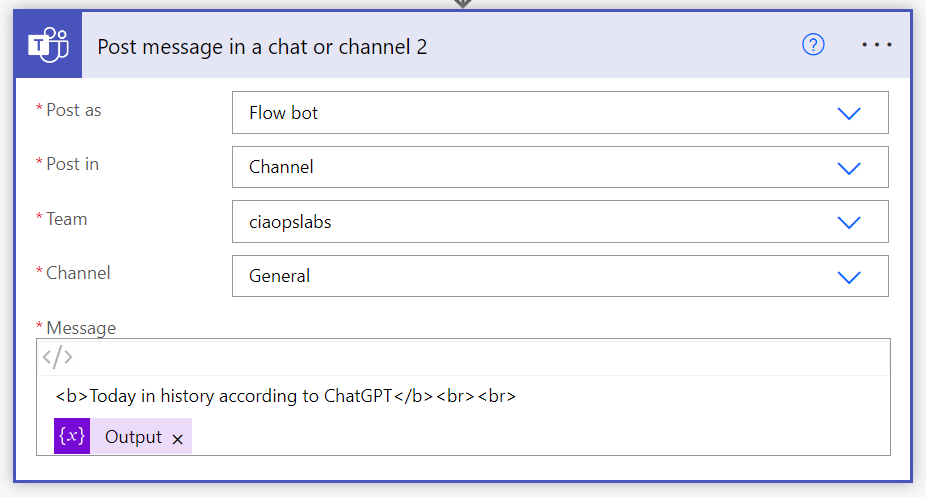
Finally add the Post message in chat or channel action.

image

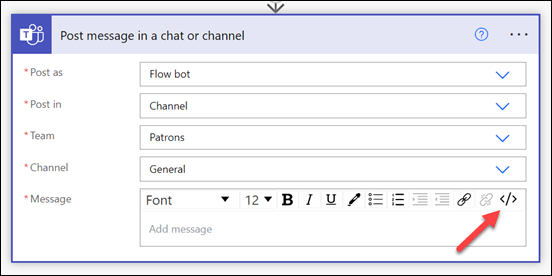
Ensure you swap to the HTML editor using the </> item in the top right of the message as shown above.

Format the message the way you want to and insert variable created previously as shown.

image

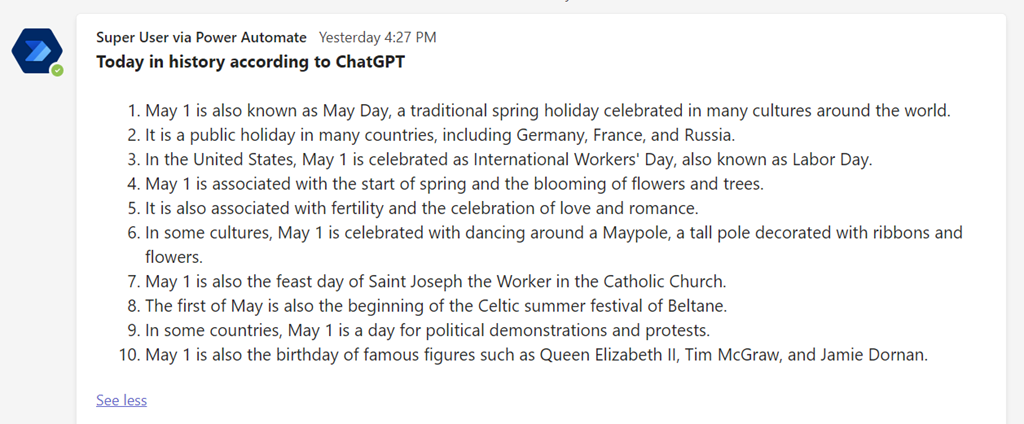
When the Flow executes the output should look something like the above.

Note that GPT isn’t always right! You can also change the AI models if you wish, but remember they have different prices.

Typically, I’d suggest you run this Flow once a day to promote more engagement in your Microsoft Team. Better yet, you can show everyone how you are integrating AI into Teams. Yet another point of engagement in your Microsoft Team and perhaps a way to spark ideas for how you can expand the use of OpenAI in yoru business.

Microsoft Defender for Endpoint: The Ultimate Solution for Endpoint Security

In today’s digital world, endpoint security is more important than ever. With the rise of cyberattacks and malware, it’s essential to have a robust security solution in place to protect your business from potential threats. One of the best options available is Microsoft Defender for Endpoint. In this blog post, we’ll take a look at the benefits of using Microsoft Defender for Endpoint to secure your business.

  1. Real-time protection: Microsoft Defender for Endpoint provides real-time protection against malware and other threats. It uses advanced threat intelligence to detect and block malicious activity, keeping your business safe from harm.

  2. Cloud-based: Microsoft Defender for Endpoint is a cloud-based solution, which means it can be accessed from anywhere with an internet connection. This makes it easy to manage and monitor your security, even when you’re on the go.

  3. Easy to use: The user interface of Microsoft Defender for Endpoint is simple and easy to navigate. This makes it easy for even the most non-technical users to manage and monitor their security.

  4. Automated security: Microsoft Defender for Endpoint automates many of the security processes, such as malware scanning and vulnerability assessments. This helps to reduce the risk of human error and ensures your security is always up-to-date.

  5. Integration with other Microsoft products: Microsoft Defender for Endpoint integrates seamlessly with other Microsoft products, such as Office 365 and Azure. This allows for a more comprehensive security solution, as well as improved collaboration and productivity.

  6. Advanced threat protection: Microsoft Defender for Endpoint offers advanced threat protection, including behavioral-based detection, machine learning, and ransomware protection. This provides an extra layer of security to keep your business safe from even the most sophisticated attacks.

  7. Compliance and regulatory standards : Microsoft Defender for Endpoint can help you meet compliance and regulatory standards, such as HIPAA and PCI-DSS. This can help to reduce the risk of fines and reputational damage caused by non-compliance.

In conclusion, Microsoft Defender for Endpoint is an excellent security solution that offers real-time protection, cloud-based management, easy usability, automation, integration with other Microsoft products, advanced threat protection and compliance and regulatory standards. It is essential for any business looking to secure their endpoints. By using Microsoft Defender for Endpoint, you can rest assured that your business is protected from potential threats and that you are meeting compliance standards.

———————————————————————————————

If you have read this far, then you’ll really know that this post is about ChatGPT rather than Microsoft Defender for Endpoint.

This is what I asked ChatGPT to do:

write a blog post on the benefits of Microsoft defender for endpoint

Now it can also generate code as well like the response to:

create a powershell script to connect to Exchange online

to which it gave me:

Here is a basic PowerShell script that can be used to connect to Exchange Online:

$UserCredential = Get-Credential $Session = New-PSSession -ConfigurationName Microsoft.Exchange -ConnectionUri https://outlook.office365.com/powershell-liveid/ -Credential $UserCredential -Authentication Basic -AllowRedirection Import-PSSession $Session

This script will prompt the user to enter their Exchange Online credentials, and then create a new PowerShell session using those credentials. It will then import the session, allowing you to run Exchange Online cmdlets. You can then run command specific to your needs like, getting mails, setting mailbox etc.

It is important to note that in order to run this script, you will need to have the Exchange Online PowerShell module installed on your machine. Also, make sure that you have the necessary permissions to access the Exchange Online instance.

Of course none of these answers are ‘prefect’, however they are surprisingly good and will be for many a great time saver. If you ask people what the toughest part of any process is, most will say that just getting started is. So using ChatGPT to at least handle this task should make it far easier to kick off any process. Best of all? You can do that today!

The interesting thing for me is that at the moment ChatGPT is just a stand alone chat style question and answer application. However, what happens when it starts being integrated with other service via API calls? What happens when the power of ChatGPT increases and improves.

If you have been at this IT ‘stuff’ for a long as I have you’ve seen many ‘revolutions’ and ‘this changes everything’ moments, many of which didn’t pan out. If nothing else, I think ChatGPT has lifted consciousness about AI and what it can potentially do to the wider population audience (i.e. muggels). What happens after that is the interesting part. Will that ‘enlightenment’  kick ChatGPT to the next level or will fade back into the shadows to be reborn again in the future? Only time will tell.

However, I think that if you are interested in seeing where ChatGPT could go then start using as I have and exploring the possibilities. I can honestly say it has helped me commercially (this blog post is a good example, even the part ChatGPT didn’t write for me). The best way to sum it up at this stage is:

We always overestimate the change that will occur in the next two years and underestimate the change that will occur in the next ten. Don’t let yourself be lulled into inaction. – Bill Gates

Who knows? In a short while maybe I can automate ChatGPT to do all my blog posts and you’d never be the wiser!


Power Virtual Agents

image

Keeping with the AI theme of late:

A dedicated Microsoft Cloud Search engine

and

Need to Know Q and A Bot

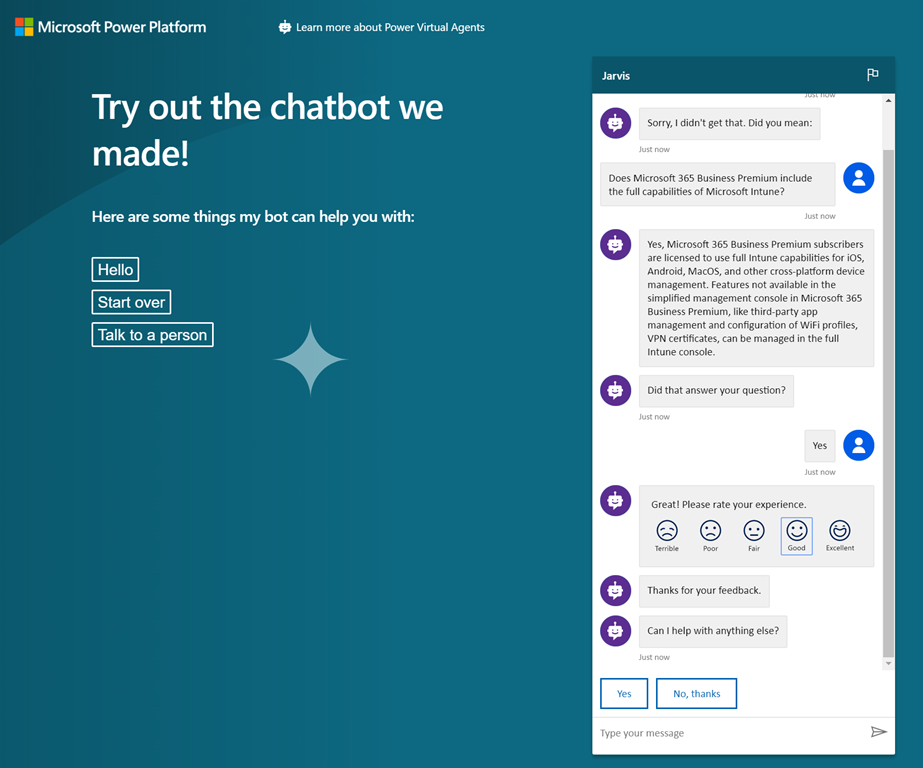
I’ve also been playing around with the ability to create bots in the Power Platform. You can try out what I’ve created here:

https://bit.ly/ciapowerva

Again, remember this is a chat bot not a search engine. I have also been able to integrate this chat bot into my Microsoft Team but the process isn’t as straight forward as clicking a single link and I’ll try to cover that off in more detail in an upcoming article for you.

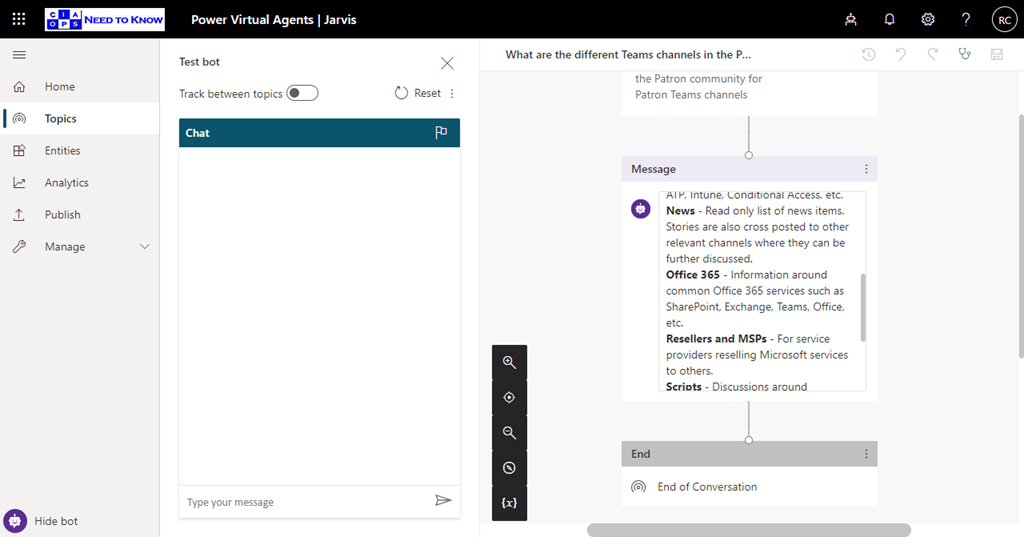
In many ways the Power Virtual Agent chat bot functions like the Q and A bot mentioned earlier, but it does have some major differences. Behind the scenes there is more flexibility programming than with the Q and A bot:

image

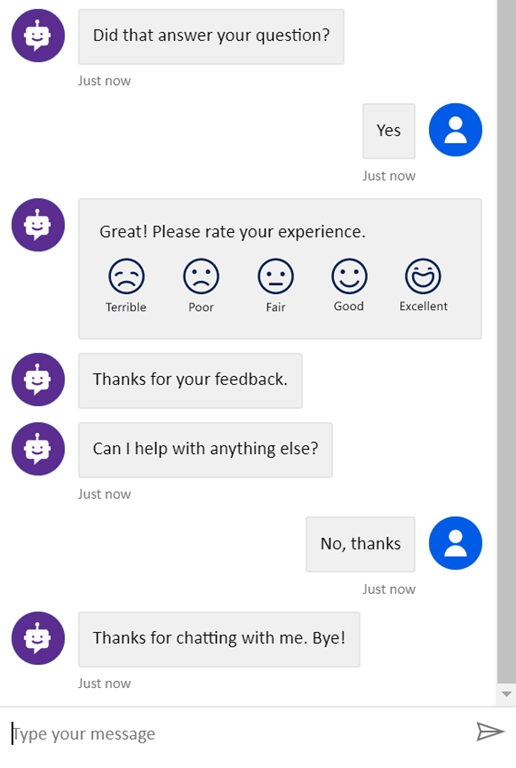
I like the ability to visually create branching logic. This makes it a lot like Microsoft Power Automate to my mind. You can also create your own custom reposes as well as import from web site information, which is what I have done in my case. I also like the follow up and after event survey responses:

image

Which is all built in.

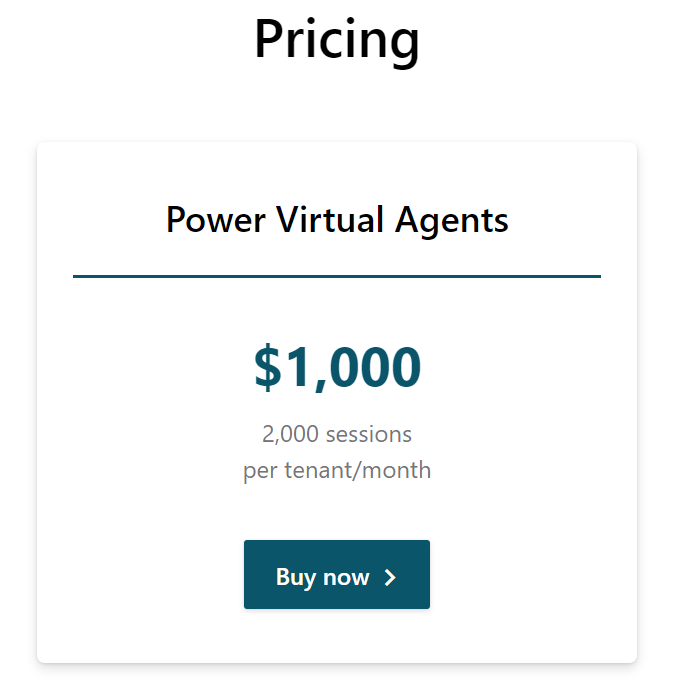
However, from what I can see, it is also much more expensive – https://powervirtualagents.microsoft.com/en-us/

image

Given that price plus the fact that you have to invest your own time to build something, I think this isn’t likely to be too widely adopted in the SMB space as yet. I do like the platform, compared to what I have seen so far but not sure whether it is really appropriate for a ‘casual’ play. If you are serious into automation and have lots of need for this type of thing, then it is probably going to be the platform of choice. We’ll see. I need more time will all of these tools.

I can see how all of these AI platforms utilise the same core abilities that Microsoft is building underneath. They are simply layering different interfaces over the top in essence. Some are aimed more at developers, while others are aimed at power users. I am still working out where all these fit in what I am looking to achieve and I’m sure they will all continue to improve over time. That’s kinda why I’m jumping on the AI band wagon now.

I’ll be diving deep into more of what I have found and how set all this up for yourself in upcoming articles. In the meantime I suggest you go and have a think about what you’d like to automate in your business and then look at what I’ve covered so far. It is all certainly possible, but as with anything in technology, you have to determine the best tool for your own needs.

Microsoft did a good overview video on Power Virtual Agents here: https://www.youtube.com/watch?v=nWxguR5B5-s