Configuring Exchange Online Mailbox Logging – Best Practices and Step-by-Step Guide

Important: Mailbox Auditing is Already ON by Default

Good news! Since 2019, Microsoft automatically enables mailbox auditing for all Exchange Online organizations. This means logging is already active for your mailboxes without requiring any manual configuration.

Should You Enable All Available Logging?

No, you should NOT enable all available logging. Here’s why:

  • Microsoft’s Recommendation: Use the default audit configuration, which Microsoft automatically manages and updates
  • Storage Impact: Audit logs consume storage space in each mailbox’s Recoverable Items folder (counts against the 30GB default limit)
  • Performance Consideration: Excessive logging can impact mailbox performance
  • Automatic Updates: Microsoft automatically adds new important actions to the default audit configuration as they’re released

What’s Logged by Default

The default configuration logs these critical actions:

ActionAdminDelegateOwner
Create (Calendar items)
HardDelete
MoveToDeletedItems
SendAs
SendOnBehalf
SoftDelete
Update
UpdateFolderPermissions
UpdateInboxRules

Step-by-Step Configuration Guide

Method 1: PowerShell (Recommended)

Step 1: Connect to Exchange Online PowerShell

Install-Module -Name ExchangeOnlineManagement
Connect-ExchangeOnline -UserPrincipalName admin@yourdomain.com

Step 2: Verify Organization-Wide Auditing is Enabled

Get-OrganizationConfig | Format-List AuditDisabled

Result should show False (meaning auditing is enabled)

Step 3: Check Current Mailbox Audit Status

# For a specific mailbox
Get-Mailbox -Identity "user@domain.com" | Format-List Name,AuditEnabled,DefaultAuditSet

# For all mailboxes
Get-Mailbox -ResultSize Unlimited | Format-Table Name,AuditEnabled,DefaultAuditSet

Step 4: Use Default Settings (Recommended)

# Restore default auditing for a mailbox that was customized
Set-Mailbox -Identity "user@domain.com" -DefaultAuditSet Admin,Delegate,Owner

Step 5: Only If Necessary – Customize Specific Actions

# Example: Add MailboxLogin tracking for owner actions
Set-Mailbox -Identity "user@domain.com" -AuditOwner @{Add="MailboxLogin"}

# Example: Set specific admin actions (overwrites defaults - not recommended)
Set-Mailbox -Identity "user@domain.com" -AuditAdmin MessageBind,FolderBind,HardDelete

Step 6: Configure Retention Period

# Default is 90 days, can extend up to 365 days (E5 license required for >180 days)
Set-Mailbox -Identity "user@domain.com" -AuditLogAgeLimit 180

# Apply to all mailboxes
Get-Mailbox -ResultSize Unlimited | Set-Mailbox -AuditLogAgeLimit 180

Step 7: Verify Configuration

# Check what actions are being audited
Get-Mailbox -Identity "user@domain.com" | Select-Object -ExpandProperty AuditAdmin
Get-Mailbox -Identity "user@domain.com" | Select-Object -ExpandProperty AuditDelegate
Get-Mailbox -Identity "user@domain.com" | Select-Object -ExpandProperty AuditOwner

Method 2: Microsoft 365 Admin Center (Limited Options)

Note: The GUI provides limited mailbox audit configuration options. Most settings require PowerShell.

To Search Audit Logs via GUI:

  1. Navigate to Microsoft Purview compliance portal
  2. Go to Audit in the left navigation
  3. Ensure audit log search is turned on (banner will appear if it’s not)
  4. Use the search interface to query audit logs
  5. Filter by:
    • Activities (e.g., “Mailbox activities”)
    • Date range
    • Users
    • File, folder, or site
  6. Export results as needed

To Export Mailbox Audit Logs via Classic EAC:

  1. Navigate to the Classic Exchange Admin Center
  2. Go to Compliance ManagementAuditing
  3. Click “Export mailbox audit logs”
  4. Specify date range and recipients
  5. Submit the export request

Best Practices Summary

  1. Keep default auditing enabled – It’s already on and Microsoft manages it
  2. Don’t enable all actions – Avoid FolderBind and MessageBind for owners (creates excessive logs)
  3. Retention considerations:
    • Standard licenses: 180 days retention
    • E5 licenses: 1 year retention by default
    • 10-year retention available with additional licensing
  4. Monitor storage: Check Recoverable Items folder size periodically
  5. Use PowerShell for configuration: GUI options are limited
  6. Test before mass deployment: If customizing, test on pilot mailboxes first

When to Customize Auditing

Only customize mailbox auditing if you have specific compliance requirements such as:

  • Regulatory requirements for specific action tracking
  • Security investigation needs
  • Tracking mailbox login events (MailboxLogin)
  • Monitoring specific delegate activities

Understanding FolderBind and MessageBind Logging for Mailbox Owners

What FolderBind and MessageBind Actually Log

FolderBind

What it logs: Every time a mailbox folder is accessed or opened

  • Records when someone navigates to or opens any folder (Inbox, Sent Items, Deleted Items, custom folders, etc.)
  • Captures the folder GUID and path
  • Logs the timestamp, client IP address, and application used
  • For delegates, entries are consolidated (one record per folder per 24-hour period to reduce volume)
  • Important: Not consolidated for owners – every folder access creates a separate log entry

MessageBind

What it logs: Every time a message is viewed in the preview pane or opened

  • Records when someone reads or opens an individual email message
  • Captures the message subject and ItemID
  • Logs whether the message was previewed or fully opened
  • Records the client application and IP address
  • Note: For E5 licensed users, this is replaced by the more sophisticated MailItemsAccessed action

Why These Actions Are NOT Enabled for Owners by Default

1. Massive Log Volume

The Reality: A typical user might:

  • Access 20-50 folders per day during normal email activity
  • View 50-200+ messages daily
  • Generate thousands of audit entries weekly
  • Create up to 100,000+ audit entries annually per mailbox

2. Storage Impact

  • Audit logs are stored in the mailbox’s Recoverable Items folder (Audits subfolder)
  • Count against the 30GB default quota (or 100GB with holds)
  • Maximum 3 million items can be stored in the Audits subfolder
  • Heavy users could hit these limits within months

3. Performance Considerations

  • Every folder navigation and message view triggers a write operation
  • Can impact mailbox performance, especially for heavy email users
  • Increases server-side processing load
  • May slow down email client responsiveness

4. Signal-to-Noise Ratio

  • 99.9% of owner FolderBind/MessageBind events are legitimate daily activity
  • Makes it extremely difficult to identify suspicious activity
  • Investigation tools often filter out FolderBind by default because of the noise

Legitimate Scenarios for Enabling FolderBind/MessageBind for Owners

1. Insider Threat Detection

Use Case: Monitoring high-risk individuals or sensitive roles

  • Executives with access to M&A information
  • Employees on performance improvement plans or termination notice
  • Users with access to intellectual property or trade secrets
  • Detecting unusual access patterns (e.g., accessing old emails before resignation)

2. Compliance Requirements

Use Case: Specific regulatory mandates

  • Financial services requiring complete audit trails (SEC, FINRA)
  • Healthcare organizations tracking PHI access (HIPAA)
  • Government contractors with security clearance requirements
  • Legal hold scenarios requiring complete activity documentation

3. Forensic Investigations

Use Case: Post-incident analysis

  • Determining if a compromised account’s emails were actually read
  • Investigating data exfiltration attempts
  • Proving or disproving unauthorized access claims
  • Building timeline of activities during security incidents

4. Privileged Account Monitoring

Use Case: Enhanced monitoring for administrative accounts

  • Service accounts that shouldn’t have regular email activity
  • Shared mailboxes with sensitive information
  • Discovery mailboxes used for legal searches
  • Executive assistant mailboxes with delegated access

Best Practices If You Enable FolderBind/MessageBind for Owners

1. Selective Implementation

# Enable only for specific high-risk mailboxes
Set-Mailbox -Identity "CEO@company.com" -AuditOwner @{Add="FolderBind","MessageBind"}

# Create a list of VIP users
$VIPUsers = "CEO@company.com","CFO@company.com","Legal@company.com"
foreach ($user in $VIPUsers) {
    Set-Mailbox -Identity $user -AuditOwner @{Add="FolderBind","MessageBind"}
}

2. Increase Retention Period

# Extend audit log retention to accommodate increased volume
Set-Mailbox -Identity "CEO@company.com" -AuditLogAgeLimit 365

3. Monitor Storage Impact

# Check audit folder size regularly
Get-MailboxFolderStatistics -Identity "CEO@company.com" -FolderScope RecoverableItems | 
    Where-Object {$_.Name -eq 'Audits'} | 
    Format-List FolderPath,FolderSize,ItemsInFolder

4. Implement Automated Analysis

  • Export logs to SIEM systems for pattern analysis
  • Set up alerts for unusual access patterns
  • Use machine learning to baseline normal behavior
  • Focus on deviations from typical patterns

5. Consider Alternative Solutions

  • For E5 Users: Use MailItemsAccessed instead (more intelligent, less noisy)
  • Microsoft Defender: Use insider risk management policies
  • Third-party tools: Consider specialized insider threat detection solutions
  • DLP policies: Focus on preventing data loss rather than tracking all access

The MailItemsAccessed Alternative (E5 Licenses)

For organizations with E5 licenses, MailItemsAccessed is a superior alternative that:

  • Intelligently aggregates similar activities (reduces noise by 80-90%)
  • Provides both sync and bind operation tracking
  • Includes deduplication (removes duplicate entries within 1-hour windows)
  • Records InternetMessageId for precise message tracking
  • Better suited for forensic investigations
  • Automatically enabled for E5 users

Summary Recommendation

Enable FolderBind/MessageBind for owners ONLY when:

  1. You have specific compliance or security requirements
  2. Monitoring high-risk individuals or during investigations
  3. You have the resources to analyze the massive data volume
  4. Storage and performance impacts have been evaluated
  5. You’ve implemented automated analysis tools

Otherwise: Stick with the default configuration and use alternative methods like DLP policies, insider risk management, and the MailItemsAccessed action (for E5 users) for more effective security monitoring.
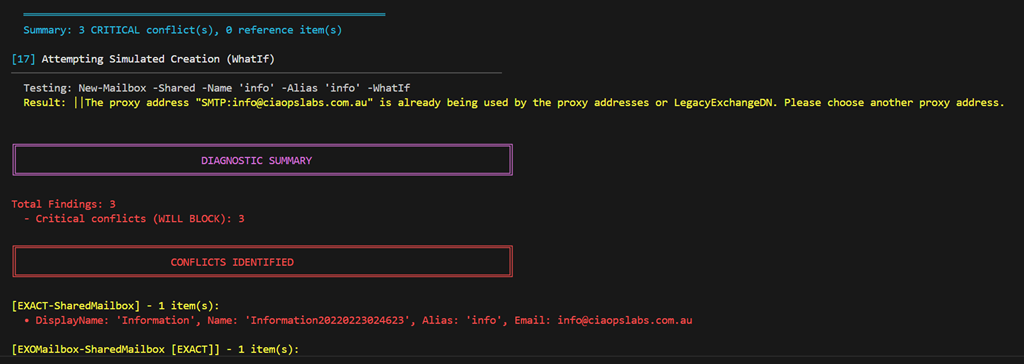


The name is already being used–Shared Mailbox troubleshooting script

Screenshot 2025-10-14 165536

I recently had to move a mailbox alias from an existing mailbox to a hared mailbox. Every time I attempted to do so I received the following error:

The name is already being used. Please try another name

The error isn’t real helpful because it doesn’t tell you exactly what the other object causing the conflict could be. To make life easier and look across the array of places the conflict could be I created the following script:

https://github.com/directorcia/Office365/blob/master/find-name-conflict.ps1

with documentation at:

https://github.com/directorcia/Office365/wiki/Find-Name-Conflict-%E2%80%90-Shared-Mailbox-Diagnostic-Tool

In my case the issue was with a ‘Name’ value in Entra ID but the script will also give your recommendations on what PowerShell commands to run to overcome any issues it detects. I ran these and I was good to!

Hopefully, this script makes it easier to find any conflicts.

Implementing a Phased Rollout of Conditional Access Policies Requiring Device Compliance in Microsoft 365

Overview

Implementing Conditional Access policies requiring device compliance in Microsoft 365 requires careful planning and a phased approach to minimize disruption while maintaining security. This comprehensive guide provides step-by-step instructions specifically tailored for small businesses.

1. Prerequisites and Initial Setup

Required Licenses

  • Microsoft Entra ID P1 or P2 – Required for Conditional Access
  • Microsoft Intune – Required for device compliance management
  • Microsoft 365 Business Premium or higher for small businesses

Essential Preparations

  1. Configure Emergency Access Accounts
    • Create at least two emergency access (break-glass) accounts
    • Exclude these accounts from ALL Conditional Access policies
    • Store credentials securely and separately
  2. Create Device Compliance Policies First
    • Define minimum OS version requirements
    • Set encryption requirements
    • Configure password/PIN requirements
    • Establish jailbreak/root detection settings
  3. Enable User Registration for MFA
    • Allow users to register authentication methods before enforcing policies
    • Communicate registration requirements to all users

2. Phased Rollout Strategy

Phase 1: Foundation (Weeks 1-2)

Objective: Establish baseline security and prepare infrastructure

  1. Create policies in Report-Only Mode
  2. Block legacy authentication protocols
  3. Secure the MFA registration page
  4. Target privileged accounts first with phishing-resistant MFA

Phase 2: Pilot Testing (Weeks 2-4)

Objective: Test with limited user groups

Pilot Group Selection

  • Start with 5-10% of your organization
  • Include IT staff and willing early adopters
  • Avoid executives and VIPs initially
  • Ensure representation from different departments

Creating the Policy in Report-Only Mode

  1. Navigate to Microsoft Entra admin centerConditional AccessPolicies
  2. Create new policy with these settings:
    • Name: “Require Device Compliance – Pilot”
    • Users: Select pilot group
    • Cloud apps: Start with non-critical apps
    • Grant: Require device to be marked as compliant
    • Enable policy: Report-only

Phase 3: Gradual Expansion (Weeks 4-8)

Objective: Progressively include more users and applications

Automated Phased Rollout Approach

If using the Conditional Access Optimization Agent (requires Microsoft Security Copilot):

  1. The agent automatically creates a 5-phase rollout plan
  2. Groups are assigned based on risk and impact analysis
  3. Automatic progression between phases based on success metrics
  4. Built-in safeguards pause rollout if sign-in success rate drops below 90%

Manual Phased Rollout Approach

  1. Phase 3a: Add 25% more users (low-risk departments)
  2. Phase 3b: Add another 25% (medium-risk departments)
  3. Phase 3c: Add remaining standard users
  4. Phase 3d: Include executives and VIPs
  5. Phase 3e: Apply to all cloud applications

Phase 4: Full Deployment (Week 8+)

  1. Switch policy from Report-only to On
  2. Monitor for 2 weeks before removing report-only policies
  3. Clean up redundant or test policies

3. Monitoring Strategies

Real-Time Monitoring Tools

A. Sign-in Logs Analysis

  1. Navigate to Microsoft Entra admin centerMonitoring & healthSign-in logs
  2. Filter by:
    • Conditional Access status
    • Failure reasons
    • Affected users
  3. Review the Report-only tab for policy impact without enforcement

B. Conditional Access Insights Workbook

Requires Azure Monitor subscription:

  • Provides aggregate view of policy impacts
  • Identifies potential issues before enforcement
  • Shows user impact analysis

C. Device Compliance Dashboard

  1. Access via Intune admin centerReportsDevice compliance
  2. Monitor:
    • Compliance status by policy
    • Non-compliant device trends
    • Error patterns in compliance evaluation

Key Metrics to Track

  • Sign-in success rate: Should remain above 90%
  • Device compliance rate: Target 95%+ before full enforcement
  • Help desk tickets: Monitor for unusual spikes
  • User productivity impact: Track application access patterns

4. Rollback Procedures

Immediate Rollback Options

Option 1: Disable the Policy

  1. Navigate to the Conditional Access policy
  2. Change Enable policy from “On” to “Off”
  3. Takes effect within minutes for new sign-ins

Option 2: Switch to Report-Only Mode

  1. Edit the policy
  2. Change Enable policy to “Report-only”
  3. Maintains visibility while removing enforcement

Option 3: Exclude Affected Users/Groups

  1. Edit policy → AssignmentsUsers
  2. Under Exclude, add affected users or groups
  3. Use sparingly and temporarily

Grace Period Configuration

Configure grace periods in Intune compliance policies:

  1. Navigate to Intune admin centerDevicesCompliance policies
  2. Edit policy → Actions for noncompliance
  3. Set grace period (recommended: 3-7 days for initial rollout)
  4. Users maintain access during grace period while fixing compliance issues

Recovery from Deleted Policies

  • Deleted policies can be recovered within 30 days
  • Access soft-deleted policies through Microsoft Entra admin center
  • Restore maintains original configuration and assignments

5. Best Practices and Recommendations

Communication Strategy

  1. Pre-deployment: 2 weeks advance notice with requirements
  2. During pilot: Weekly updates to pilot users
  3. Rollout phases: 48-hour notice before including new groups
  4. Post-deployment: Success confirmation and support resources

Testing Checklist

  • ✓ Test with multiple device platforms (Windows, iOS, Android)
  • ✓ Verify enrollment process for new devices
  • ✓ Confirm excluded accounts remain accessible
  • ✓ Test rollback procedures in development environment
  • ✓ Validate help desk escalation procedures

Common Pitfalls to Avoid

  1. Not excluding emergency accounts – Can result in complete lockout
  2. Skipping report-only mode – Misses opportunity to identify issues
  3. Moving too quickly between phases – Insufficient time to identify problems
  4. Inadequate user communication – Leads to confusion and resistance
  5. Not monitoring device check-in intervals – Compliance updates may be delayed

PowerShell Monitoring Example


# Connect to Microsoft Graph
Connect-MgGraph -Scopes "Policy.Read.All"

# Get all Conditional Access policies
$policies = Get-MgIdentityConditionalAccessPolicy

# Filter for device compliance policies
$compliancePolicies = $policies | Where-Object { 
    $_.GrantControls.BuiltInControls -contains "compliantDevice" 
}

# Display policy status
$compliancePolicies | Format-Table DisplayName, State, CreatedDateTime

CIAOPS AI Dojo 005–MCP Servers

bp1

What’s the session about?

Empower attendees to design, build, and deploy intelligent chat agents using MCP servers, with a focus on real-world automation, integration, and user experience

Who should attend?

This session is perfect for:

  • IT administrators and support staff
  • Business owners
  • People looking to get more done with Microsoft 365
  • Anyone looking to automate their daily grind

Save the Date

Date: Friday the 31st of October 2025

Time: 9:30 AM Sydney AU time

Location: Online (link will be provided upon registration)

Cost: $80 per attendee (free for Dojo subscribers)

Register Now

CIAOPS Need to Know Microsoft 365 Webinar – October

laptop-eyes-technology-computer_thumb

Join me for the free monthly CIAOPS Need to Know webinar. Along with all the Microsoft Cloud news we’ll be taking a look at how to get the most from SharePoint.

Shortly after registering you should receive an automated email from Microsoft Teams confirming your registration, including all the event details as well as a calendar invite.

You can register for the regular monthly webinar here:

October Registrations

(If you are having issues with the above link copy and paste – https://bit.ly/n2k2510)

The details are:

CIAOPS Need to Know Webinar – October 2025
Friday 31st of October 2025
11.00am – 12.00am Sydney Time

All sessions are recorded and posted to the CIAOPS Academy.

The CIAOPS Need to Know Webinars are free to attend but if you want to receive the recording of the session you need to sign up as a CIAOPS patron which you can do here:

http://www.ciaopspatron.com

or purchase them individually at:

http://www.ciaopsacademy.com/

Also feel free at any stage to email me directly via director@ciaops.com with your webinar topic suggestions.

I’d also appreciate you sharing information about this webinar with anyone you feel may benefit from the session and I look forward to seeing you there.

CIA Brief 20251013

image

Your shortcut to Microsoft Entra deployment success –

https://techcommunity.microsoft.com/blog/microsoft-entra-blog/your-shortcut-to-microsoft-entra-depl…

Microsoft 365: Copilot + OneDrive –

https://www.youtube.com/watch?v=L6CWEU3kIjg

Dissecting PipeMagic: Inside the architecture of a modular backdoor framework –

https://www.microsoft.com/en-us/security/blog/2025/08/18/dissecting-pipemagic-inside-the-architectu…

Copilot + OneDrive: Intelligence in Every Click, Inspiration in Every Memory –

https://techcommunity.microsoft.com/blog/onedriveblog/copilot–onedrive-intelligence-in-every-click…

Know Your Risk: Using Microsoft Purview to Protect Sensitive Data –

https://techcommunity.microsoft.com/blog/nonprofittechies/know-your-risk-using-microsoft-purview-to…

Monthly news – October 2025 –

https://techcommunity.microsoft.com/blog/microsoftthreatprotectionblog/monthly-news—october-2025/…

Auto-Archiving for Exchange Online –

https://techcommunity.microsoft.com/blog/exchange/auto-archiving-for-exchange-online/4459735

Disrupting threats targeting Microsoft Teams –

https://www.microsoft.com/en-us/security/blog/2025/10/07/disrupting-threats-targeting-microsoft-tea…

Strengthen Your Security Posture This October with Smarter Endpoint Protection –

https://techcommunity.microsoft.com/blog/nonprofittechies/strengthen-your-security-posture-this-oct…

Mail bombing detection | Microsoft Defender for Office 365 –

https://www.youtube.com/watch?v=Hv3X-_0x6gU

App Assure’s Sentinel promise now extends to Microsoft Sentinel data lake –

https://techcommunity.microsoft.com/blog/MicrosoftSentinelBlog/app-assures-sentinel-promise-now-ext…

How Microsoft Defender helps security teams detect prompt injection attacks in Microsoft 365 Copilot –

https://techcommunity.microsoft.com/blog/microsoftthreatprotectionblog/how-microsoft-defender-helps…

Redefining Cyber Defence with Microsoft Security Exposure Management (MSEM) and Security Copilot –

https://techcommunity.microsoft.com/blog/securitycopilotblog/redefining-cyber-defence-with-microsof…

After hours

Uncovering America’s Underwater City – https://www.youtube.com/watch?v=q2C1JpQi5G4

Editorial

If you found this valuable, the I’d appreciate a ‘like’ or perhaps a donation at https://ko-fi.com/ciaops. This helps me know that people enjoy what I have created and provides resources to allow me to create more content. If you have any feedback or suggestions around this, I’m all ears. You can also find me via email director@ciaops.com and on X (Twitter) at https://www.twitter.com/directorcia.

If you want to be part of a dedicated Microsoft Cloud community with information and interactions daily, then consider becoming a CIAOPS Patron – www.ciaopspatron.com.

Watch out for the next CIA Brief next week

Implementing Risk-Based Conditional Access Policies for Small Business

Risk-based Conditional Access policies provide adaptive security that automatically adjusts authentication requirements based on the risk level of sign-ins and user behavior, helping you maintain an optimal balance between security and productivity.

Prerequisites and Licensing

  • Microsoft Entra ID P2 license required for risk-based policies (includes Identity Protection)
  • Microsoft 365 Business Premium includes Conditional Access features for small businesses
  • Users must be registered for Multi-Factor Authentication (MFA) before policy enforcement
  • Configure trusted network locations to reduce false positives

Step-by-Step Implementation Guide

Phase 1: Foundation Setup (Week 1)

  1. Create Emergency Access Accounts
    • Set up at least two break-glass accounts excluded from all policies
    • These prevent complete lockout if policies are misconfigured
  2. Start with Report-Only Mode
    • Deploy all new policies in report-only mode first
    • Monitor for at least 7-14 days to understand impact
    • Review sign-in logs to identify potential issues

Phase 2: Sign-in Risk Policy Configuration

  1. Navigate to Microsoft Entra admin center > Conditional Access
  2. Create new policy: “Require MFA for risky sign-ins”
  3. Configure settings:
    • Users: Include all users, exclude emergency accounts
    • Cloud apps: All cloud apps
    • Conditions > Sign-in risk: Select Medium and High
    • Grant: Require multi-factor authentication
    • Session: Sign-in frequency – Every time
    • Enable policy: Report-only (initially)

Phase 3: User Risk Policy Configuration

  1. Create new policy: “Require password change for high-risk users”
  2. Configure settings:
    • Users: Include all users, exclude emergency accounts
    • Cloud apps: All cloud apps
    • Conditions > User risk: Select High
    • Grant: Require password change + Require MFA
    • Enable policy: Report-only (initially)

Microsoft’s Recommended Risk Levels for Small Business

  • Sign-in Risk: Require MFA for Medium and High risk levels
    • Provides security without excessive user friction
    • Allows self-remediation through MFA completion
  • User Risk: Require secure password change for High risk only
    • Prevents account lockouts from overly aggressive policies
    • Users can self-remediate compromised credentials

Balancing Security and Productivity

Enable Self-Remediation

  • Sign-in risks: Users complete MFA to prove identity and continue working
  • User risks: Users perform secure password change without admin intervention
  • Reduces helpdesk tickets and minimizes productivity disruption

Progressive Deployment Strategy

  1. Pilot Group (Week 1-2)
    • Start with IT staff and power users
    • Monitor and gather feedback
    • Adjust risk thresholds if needed
  2. Phased Rollout (Week 3-4)
    • Expand to departments gradually
    • Provide user communication and training
    • Document self-remediation procedures
  3. Full Deployment (Week 5+)
    • Switch policies from Report-only to On
    • Monitor sign-in logs for blocked legitimate users
    • Fine-tune based on real-world usage

PowerShell Implementation Example

Import-Module Microsoft.Graph.Identity.SignIns

# Create Sign-in Risk Policy
$signInRiskPolicy = @{
    displayName = "Require MFA for risky sign-ins"
    state = "enabledForReportingButNotEnforced"
    conditions = @{
        signInRiskLevels = @("high", "medium")
        applications = @{
            includeApplications = @("All")
        }
        users = @{
            includeUsers = @("All")
            excludeGroups = @("emergency-access-group-id")
        }
    }
    grantControls = @{
        operator = "OR"
        builtInControls = @("mfa")
    }
    sessionControls = @{
        signInFrequency = @{
            isEnabled = $true
            type = "everyTime"
        }
    }
}

New-MgIdentityConditionalAccessPolicy -BodyParameter $signInRiskPolicy

Key Monitoring and Success Metrics

  • Sign-in Success Rate: Should remain above 95% for legitimate users
  • MFA Prompt Frequency: Monitor for excessive prompting that impacts productivity
  • Risk Detection Accuracy: Review false positive rates weekly
  • Self-Remediation Rate: Track percentage of users successfully self-remediating
  • Helpdesk Tickets: Should decrease after initial deployment

Best Practices for Small Business

  1. Start Conservative: Begin with High risk only, then add Medium risk after validation
  2. Communicate Clearly: Provide user guides explaining why MFA prompts occur
  3. Enable Modern Authentication: Block legacy authentication to prevent policy bypass
  4. Regular Reviews: Analyze risk detection patterns monthly and adjust as needed
  5. Document Exceptions: Maintain clear records of any policy exclusions
  6. Test Rollback Procedures: Know how to quickly disable policies if issues arise

Step-by-Step Guide: Setting Up Entra ID Conditional Access for Small Businesses

Understanding Conditional Access

Conditional Access is Microsoft’s Zero Trust policy engine that evaluates signals from users, devices, and locations to make automated access decisions and enforce organizational policies. Think of it as intelligent “if-then” statements: If a user wants to access a resource, then they must complete an action (like multifactor authentication).

For SMBs using Microsoft 365 Business Premium, Conditional Access provides enterprise-grade security without requiring complex infrastructure, protecting your organization from 99.9% of identity-based attacks.

Prerequisites

  • License Requirements: Microsoft 365 Business Premium (includes Entra ID P1) or Microsoft 365 E3/E5
  • Admin Role: Conditional Access Administrator or Global Administrator privileges
  • Preparation: Ensure all users have registered for MFA before implementing policies
  • Emergency Access Account: Create at least one break-glass account excluded from all policies

Phase 1: Initial Setup and Planning (Week 1)

Step 1: Turn Off Security Defaults

  1. Navigate to Microsoft Entra admin center (entra.microsoft.com)
  2. Go to Entra IDProperties
  3. Select Manage security defaults
  4. Toggle Security defaults to Disabled
  5. Select My organization is using Conditional Access as the reason
  6. Click Save

Important: Only disable security defaults after you’re ready to create Conditional Access policies immediately.

Step 2: Create Emergency Access Accounts

  1. Create two cloud-only accounts with complex passwords
  2. Assign Global Administrator role to both accounts
  3. Store credentials securely (separate locations)
  4. Document these accounts for emergency use only
  5. Exclude these accounts from ALL Conditional Access policies

Step 3: Access the Conditional Access Portal

  1. Sign in to entra.microsoft.com
  2. Navigate to Entra IDConditional Access
  3. Select Policies to view the main dashboard

Phase 2: Create Baseline Policies (Week 1-2)

Policy 1: Require MFA for All Users

  1. Click New policy from templates
  2. Select Require multifactor authentication for all users template
  3. Name your policy: “Baseline: MFA for All Users”
  4. Under Assignments:
    • Users: All users
    • Exclude: Select your emergency access accounts
  5. Under Target resources:
    • Select All resources (formerly ‘All cloud apps’)
  6. Under Access controlsGrant:
    • Select Require multifactor authentication
  7. Set Enable policy to Report-only
  8. Click Create

Policy 2: Block Legacy Authentication

  1. Click New policy from templates
  2. Select Block legacy authentication template
  3. Name your policy: “Security: Block Legacy Authentication”
  4. Under Assignments:
    • Users: All users
    • Exclude: Emergency access accounts
  5. Under ConditionsClient apps:
    • Configure: Yes
    • Select Exchange ActiveSync clients and Other clients
  6. Under Access controlsGrant:
    • Select Block access
  7. Set Enable policy to Report-only
  8. Click Create

Policy 3: Require MFA for Administrators

  1. Click New policy from templates
  2. Select Require multifactor authentication for admins template
  3. Name your policy: “Security: MFA for Admin Roles”
  4. Under Assignments:
    • Users: Select users and groups
    • Select Directory roles
    • Choose all administrative roles
    • Exclude: Emergency access accounts
  5. Under Access controlsGrant:
    • Select Require multifactor authentication
  6. Set Enable policy to Report-only
  7. Click Create

Phase 3: Testing and Validation (Week 2)

Step 1: Use the What If Tool

  1. Navigate to Conditional AccessPoliciesWhat If
  2. Enter test scenarios:
    • Select a test user
    • Choose target applications
    • Set device platform and location
  3. Click What If to see which policies would apply
  4. Review both “Policies that will apply” and “Policies that will not apply”
  5. Document results for each test scenario

Step 2: Monitor Report-Only Mode

  1. Leave policies in Report-only mode for at least 7 days
  2. Navigate to Entra IDSign-in logs
  3. Filter by Conditional Access = Report-only
  4. Review impacts:
    • Check for “Report-only: Success” entries
    • Investigate any “Report-only: Failure” entries
    • Look for “Report-only: User action required” entries
  5. Address any issues before enforcement

Step 3: Pilot Testing

  1. Create a pilot group with 5-10 users
  2. Create a duplicate policy targeting only the pilot group
  3. Set this pilot policy to On (enforced)
  4. Monitor for 3-5 days
  5. Gather feedback from pilot users
  6. Address any issues identified

Phase 4: Production Deployment (Week 3)

Step 1: Enable Policies

  1. After successful testing, return to each policy
  2. Change Enable policy from Report-only to On
  3. Start with one policy at a time
  4. Wait 2-4 hours between enabling each policy
  5. Monitor sign-in logs after each activation

Step 2: Communicate to Users

  1. Send announcement email before enforcement
  2. Include:
    • What’s changing and when
    • Why it’s important for security
    • What users need to do (register for MFA)
    • Support contact information
  3. Provide MFA registration instructions
  4. Schedule optional training sessions

Phase 5: Advanced Policies (Week 4+)

Optional: Require Compliant Devices

Only implement after basic policies are stable

  1. Create new policy: “Security: Require Compliant Devices”
  2. Target high-value applications first
  3. Under Grant controls:
    • Select Require device to be marked as compliant
  4. Test thoroughly before enforcement

Optional: Location-Based Access

  1. Define trusted locations (office IP addresses)
  2. Create policies based on location:
    • Block access from specific countries
    • Require MFA when not in trusted location

Troubleshooting Common Issues

Users Can’t Sign In

  • Check sign-in logs for specific error messages
  • Use What If tool to identify blocking policies
  • Verify user has completed MFA registration
  • Temporarily exclude user while investigating

Policy Not Applying

  • Verify policy is set to “On” not “Report-only”
  • Check assignment conditions match user scenario
  • Review excluded users and groups
  • Wait 1-2 hours for policy propagation

Emergency Rollback

  1. Navigate to problematic policy
  2. Set Enable policy to Off
  3. Or exclude affected users temporarily
  4. Document issue for resolution
  5. Re-enable after fixing configuration

Training Resources

Microsoft Learn Modules (Free)

Documentation and Guides

Video Resources

Best Practices Summary

  • ✅ Always maintain emergency access accounts excluded from all policies
  • ✅ Test every policy in Report-only mode for at least 7 days
  • ✅ Use the What If tool before and after creating policies
  • ✅ Start with Microsoft’s template policies – they represent best practices
  • ✅ Document all policies and their business justification
  • ✅ Monitor sign-in logs regularly for anomalies
  • ✅ Communicate changes to users before enforcement
  • ✅ Have a rollback plan for every policy
  • ✅ Implement policies gradually, not all at once
  • ✅ Review and update policies quarterly