This is part 3 of a multi part examination of moving to the Microsoft cloud. If you missed the first episode, you’ll find it here:
Moving to the Cloud – Part 1
which covered off setting up a site to site VPN to Azure and
Moving to the Cloud – Part 2
which looked at creating traditional ‘dive mapped’ storage as PaaS.
It is now time to consider identity. We need to know where a user’s identity will live in this new environment because there are a few options. Traditionally, a user’s identity has lived on premises in a local domain controller (DC) inside an Active Directory (AD). With the advent of the cloud we now have Azure Active Directory (AAD) as an option as well. It is important here to remember that Azure Active Directory (AAD) is NOT identical to on premises Active Directory (AD) per:

What this means is that native Azure AD (AAD) can’t do some things that on premises Active Directory (AD) can do. Much of that is legacy services like Group Policy and machine joins, etc. You’ll see that Windows 10 machines can be joined to Azure AD (AAD) directly but legacy systems, like Windows 7, 8 and Windows Servers can’t be directly joined to AAD. That’s right. As we stand today, even the latest Windows Server cannot be directly joined to AAD like it can be joined to an AD on premises.
Thus, if you have legacy services and devices as well as Windows Servers you want to remain as part of your environment, you are going to need to select an identity model here that supports traditional domain joins. I will also point out that, as of today (changing in the future), if you want to implement Windows Virtual Desktop (WVD), you will also need a traditional AD to join those machines to. However, if you have no devices that require legacy services, for example if your environment is totally Windows 10 pro based with no servers (on prem or in Azure IaaS), then all you will need is Azure AD.
Thus, not every one can jump directly to AAD immediately. Most will have to transition through some form of hybrid arrangement that supports both AAD and AD in the interim. However, most transitions are ultimately aimed at eliminating on premises infrastructure to limit costs such as patching and updating things like physical servers. This will be what we are aiming for in this scenario.
In a migration from a traditional on premises environment with a domain controller (DC) and AD we now have a number of options when it comes to identity in the cloud.
1. You can maintain the on premises domain controller and AD, while using Azure AD Connect to synchronise (i.e. copy) the user’s identity to the AAD. It is important to note here that the identity in Azure is a COPY and the primary identity remains on premises in the local AD. This is still the case if you implement things like password write back that are part of Azure AD P1 and Microsoft 365 Business. Having the user’s primary identity still on premises means this is where you need to go to make changes and updates.
2. You can swing the domain controller from on premises to Azure IaaS. This basically means setting up a new VM in the Azure VNET that has been created already, joining it to the existing on premises domain across the VPN, then using DCPromo to make it a domain controller. To make it the ‘primary’ domain controller, you swing across the domain infrastructure roles via the following in PowerShell:
Move-ADDirectoryServerOperationMasterRole -Identity “Target-DC” -OperationMasterRole SchemaMaster,RIDMaster,InfrastructureMaster,DomainNamingMaster,PDCEmulator
and then DCPromo the original on premises domain controller out and then remove it altogether. This way you now have your Domain Controller and AD on the VM in Azure IaaS working with machines in the Azure VNET and on premises thanks to the site to site VPN established earlier (told you it would be handy!). In essence, this is like picking up the domain controller hardware and moving it to a new location. Nothing else changes. The workstations remain on the same domain, group policy is unaffected, etc, etc. The downside is that you still need to continue to patch and update the new domain controller VM in Azure but the maintenance and flexibility is superior now it is in Azure IaaS.
3. You replace the on premises domain with Azure AD Domain Services. Think of this like a cloud domain controller as a service. It is a Domain Controller as PaaS. This means that when you use Azure AD Domain Services Microsoft will spin up two load balanced domain controller VMs and connect this directly to AAD so the users there now appear in the PaaS domain controllers. Using Azure AD Domain Services removes the burden of you having to patch, update, scale, etc domain controllers for your environment. It also gives you a traditional AD environment you can now connect things like servers to. However, there are some trade offs. When you use Azure AD Domain Services you must start a new domain. This means you can’t swing an existing domain across onto it, like you can in step 2 above. This means detaching and reattaching all your legacy devices, like servers, from the original to new domain. You also get limited functionality with traditional AD services like Group Policy. You should see Azure AD Domain Services as a transitionary step, not an end point.
With all that in mind, you need to make a decision on what works best for your environment, now and in the future. Considering that most environments I see want to eliminate the on premises domain controller hardware as soon as possible and not replicate this going forward. That desire therefore means a migration to PaaS using Azure AD Domain Services.
The first step in this process then is going to be to ensure that all your users are in Azure AD. The assumption here is that you have already set up your Microsoft 365 environment and the users are configured in Azure AD. If you retaining an on premises domain controller you’ll need to have set up Azure AD Connect to copy the user identities to Azure AD. Azure AD is where Azure AD Domain Services will draw it’s identities when it is installed, so the users need to be there first. Once the users appear in Azure AD, next step will be to set up Azure AD Domain Services. You can kind of think of a traditional on premises domain controller as somewhat being equivalent to Azure AD combined with Azure AD Domain Services.
Setting up Azure AD Domain Services is done via the Azure portal.
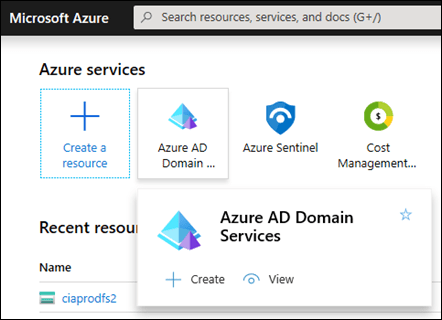
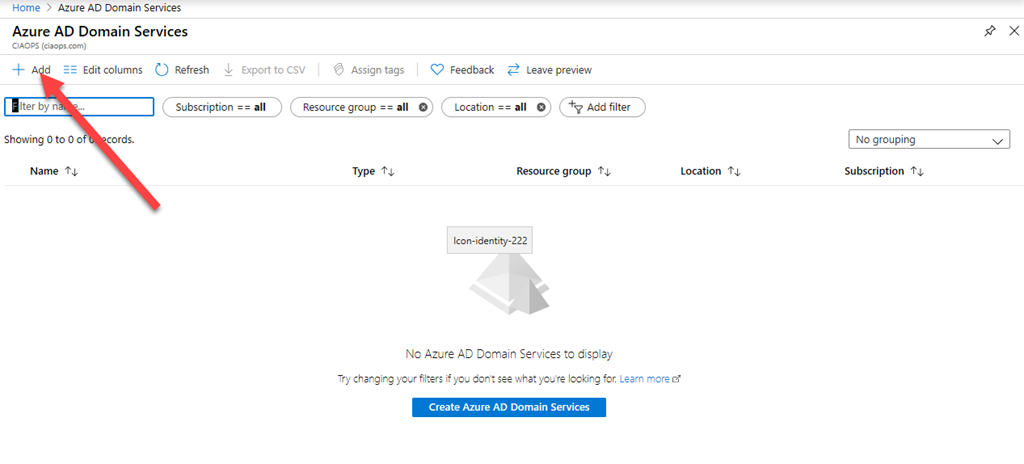
Login as a global administrator and locate Azure AD Domain Services and select that.
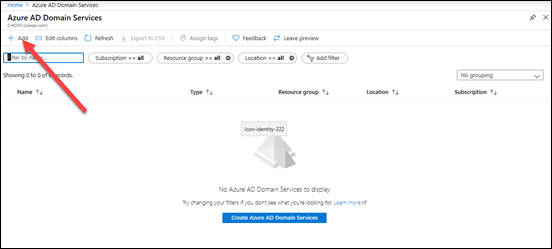
You’ll most likely find that no services are as yet configured. Select the Add option from the menu across the top as shown above.
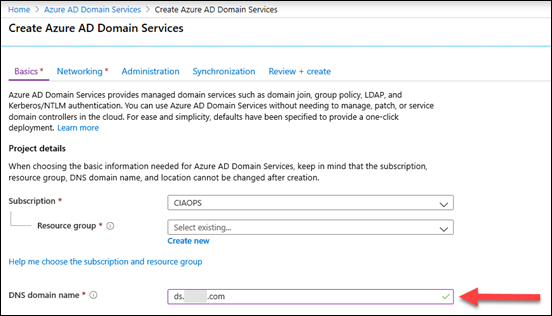
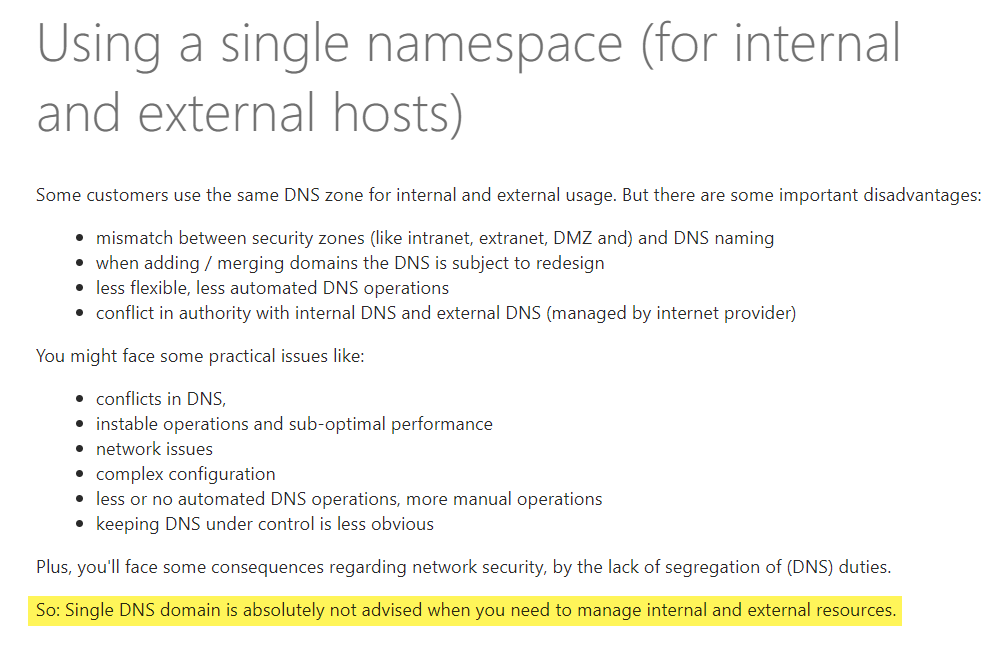
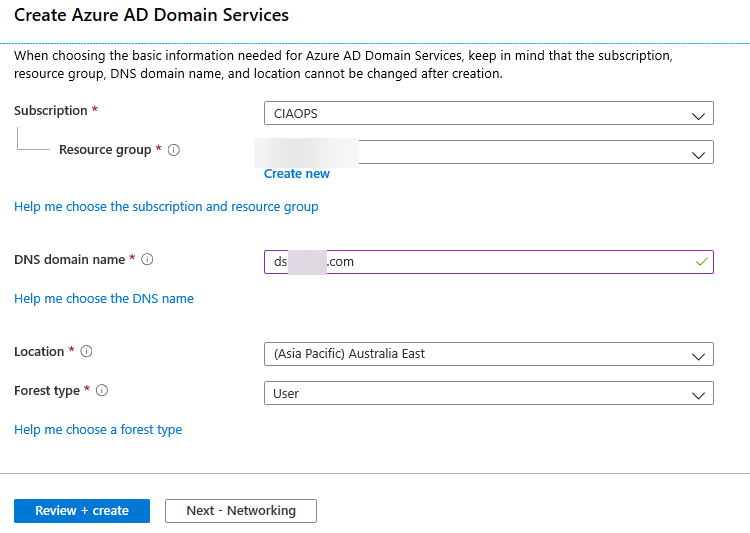
You then need to complete the details. Here we face an interesting question, what should we call this new ‘traditional’ managed domain we are about to create with Azure AD Domain Services? Should it be the same as what is being used in Azure AD already?
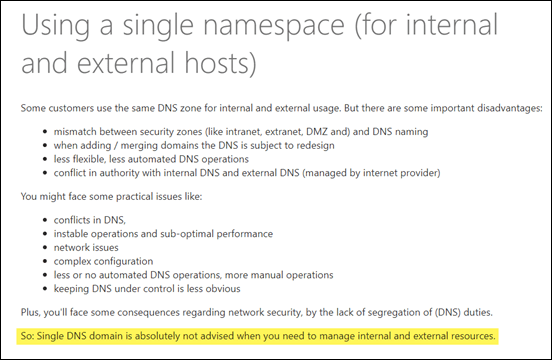
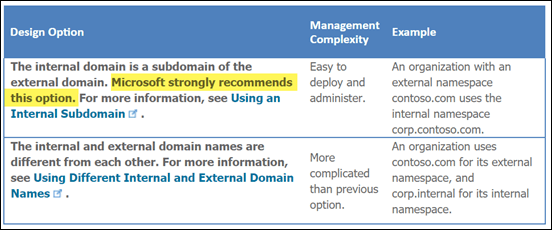
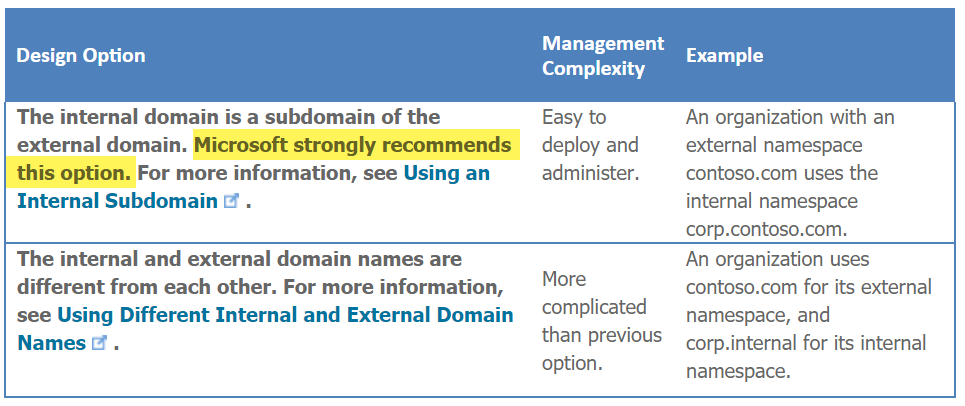
How you configure this is totally up to you. There is guidance, as shown above, which can be found at:
Active Directory: Best Practices for Internal Domain and Network Names
In this case I have decided to go for a sub-domain, as recommended, and prefix the new Azure AD Domain Services with the letter ‘ds’ i.e. ds.domain.com.
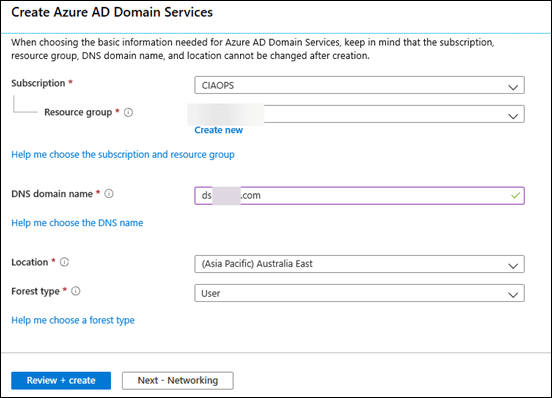
With all the options completed, select Next – Networking to continue.

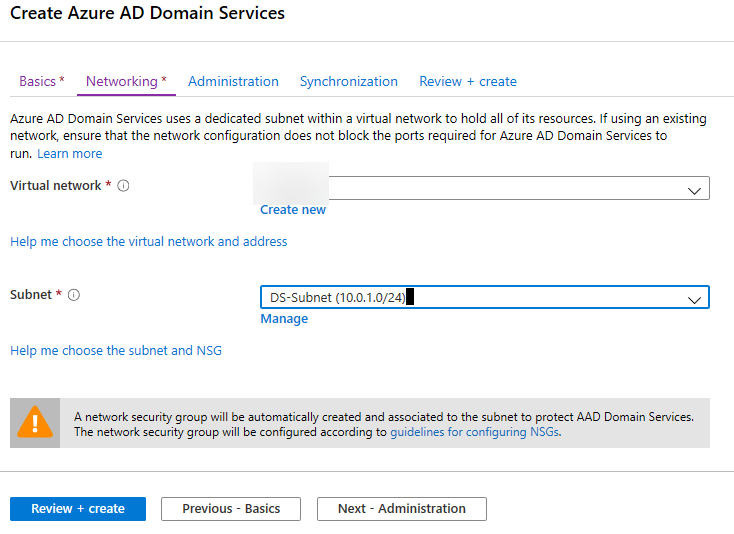
Unfortunately, you can’t configure Azure AD Domain Services on the same subnet that has service endpoints as you can see above. You’ll see this if you configured your Azure storage to use private endpoints as we have, which has been previously recommended.
If so, then you can select the Manage link below this box and simply add a new subnet to your Azure VNET and then use that to connect Azure AD Domain Services to.

Before you continue to Administration, ensure that you are adding Azure AD Domain Services to your existing Azure VNET as the default is to create a new VNET, which is NOT what you want here. You want to connect it to an existing VNET you have established previously.
When you have selected your existing Azure VNET and a suitable subnet, select the Next – Administration button to continue.
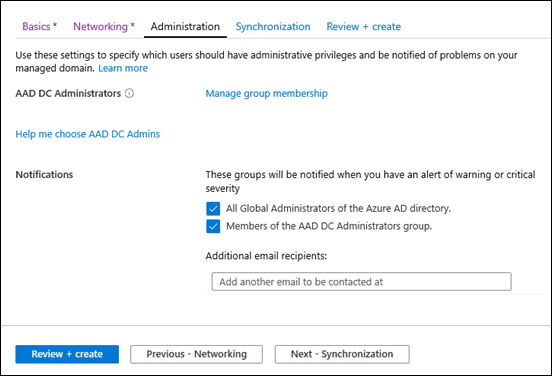
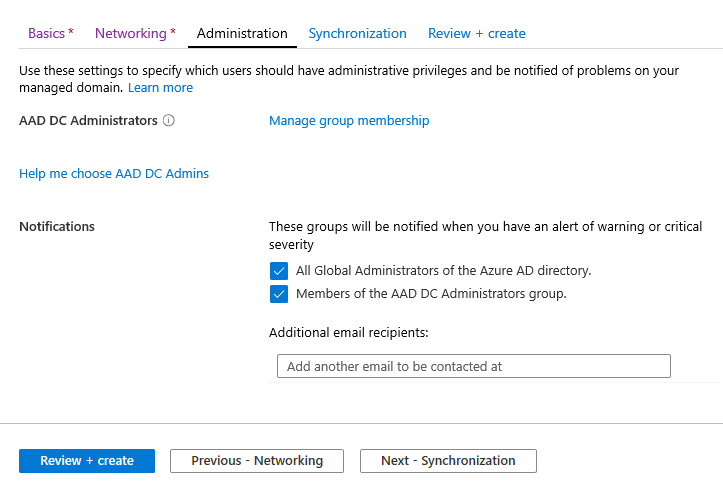
Here you’ll need to decide which users will be administrators for the domain. So from the documentation:
What can an AAD DC Admin do?
Only Microsoft has domain admin and enterprise rights on the managed domain. AAD DC Admins can do the following:
- Admins can use remote desktop to connect remotely to domain-joined machines
- Admins can join computers to the domain
- Admins are in the administration group on each domain-joined machine
Considerations for the AAD DC Administrators group
- Pick group members for the AAD DC Administrators group that have these needs:
- Users that need special administrative permissions and are joined to the domain
- Users that need to join computers to the domain
- Do not change the name of the AAD DC Administrators group. This will cause all AAD DC Admins to lose their privileges.
The default will be your global administrators and members of a special group called AAD DC Administrators, that will be created. So, you can simple add any Azure AD user to this group and they will have admin privileges in the Azure AD Domain Services environment going forward.
You can of course configure these permissions any way you wish but generally the defaults are fine so select the Next – Synchronization button to continue.
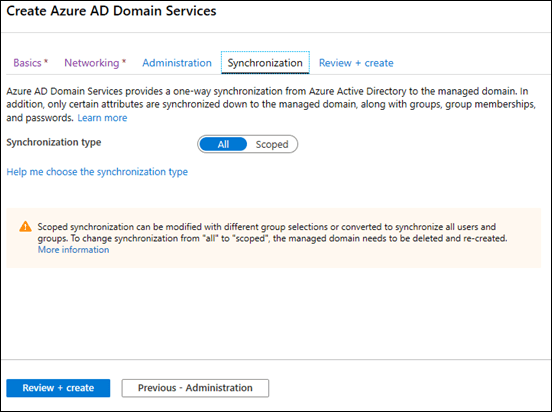
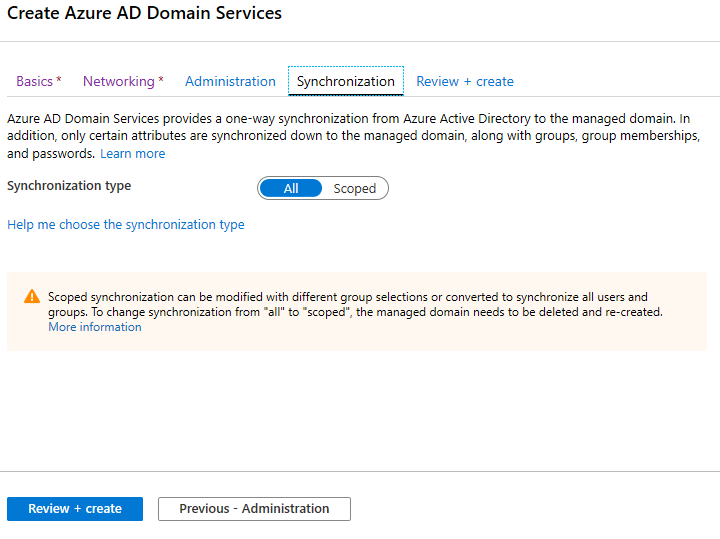
The final question is whether you wish to have all or a subset of your Azure AD users synchronised into the Azure AD Domain Service environment. In most cases, you’ll want all users, so ensure that option is select and press the Review + create button to continue.
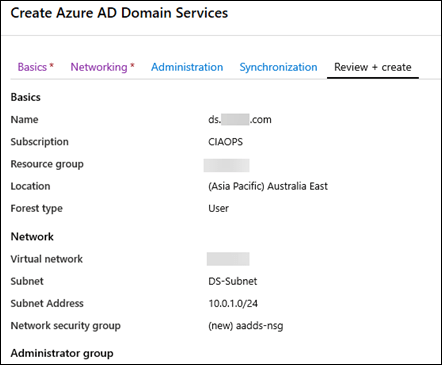
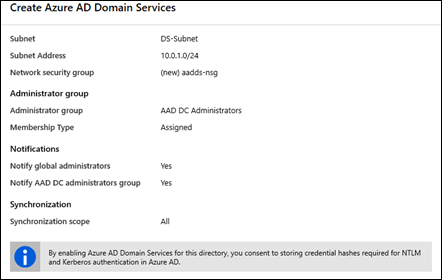
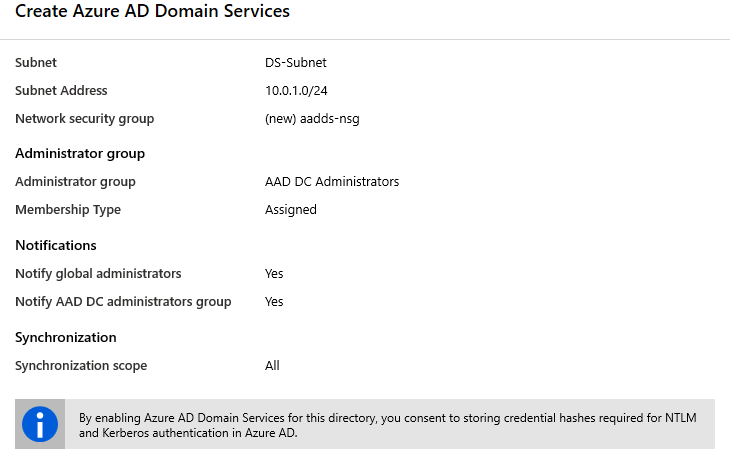
You should now see all your settings and importantly, note the box at the bottom about consenting to store NTLM and Kerberos authentication in Azure AD. This is because these older protocols have potential security concerns and having them stored in a place other than a domain controller is something you need to be aware of. Generally, there won’t be any issues, but make sure you are aware of what that last box means for your security posture.
Press the Create button when complete.
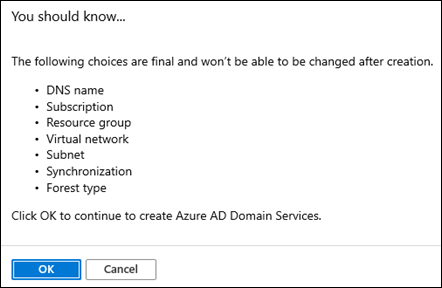
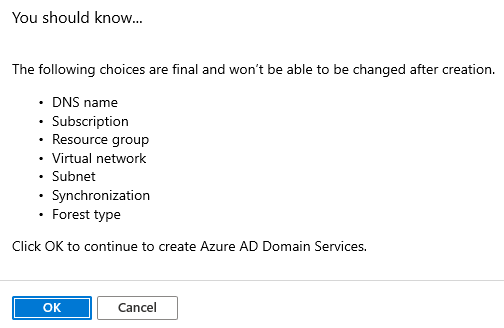
You’ll then receive the above warning about what configurations options can’t be changed after the fact. Once you have reviewed this and you wish to proceed, select the OK button.
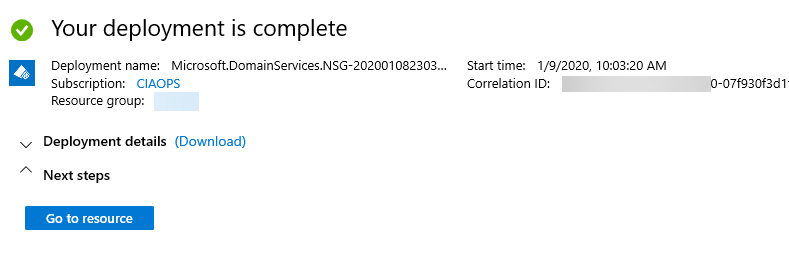
Your deployment into Azure will then commence. This process should generally take around 1 hour (60 minutes).
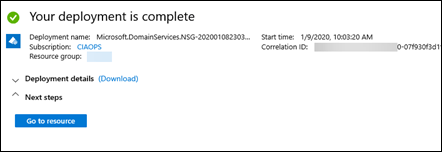
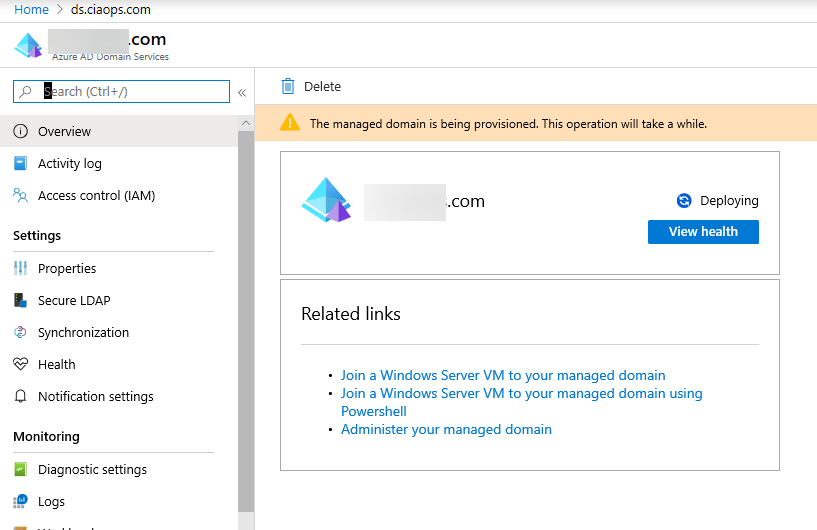
You should see the above message when complete and if you select Go to resource you’ll see:
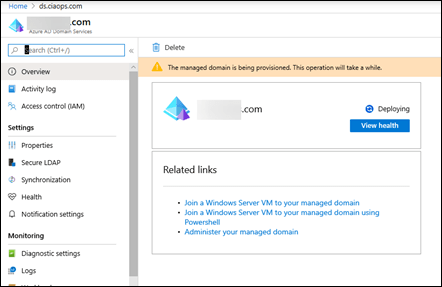
You’ll note that it still says Deploying here, so you’ll need to wait a little longer until that process is complete.
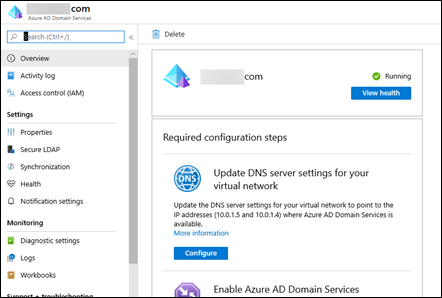
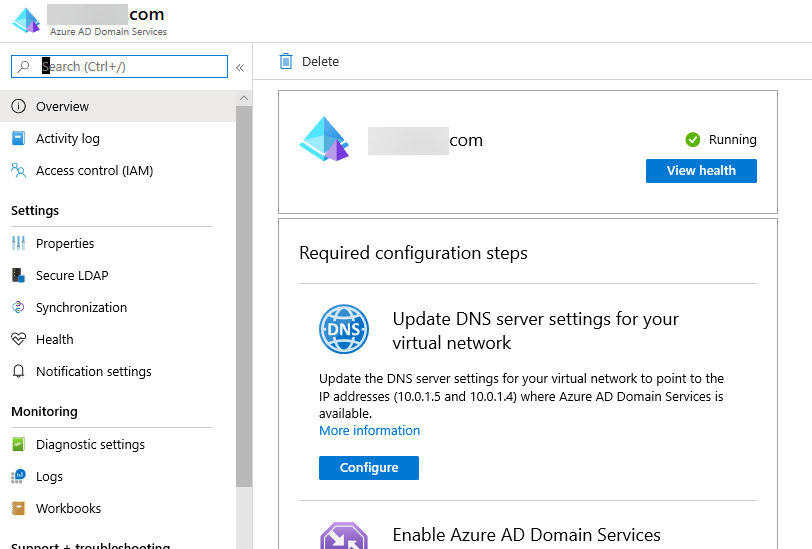
In about another 15 minutes you should see that the domain is fully deployed as shown above. Here you will note that two domain controllers have automatically been allocated. In this case they are 10.0.1.5 and 10.0.1.6 on the subnet into which Azure AD Domain Services was deployed. You can select from a number menu options on the left but the service is pretty basic. Most times you’ll only need to look at the Activity log here from now on.
Can you actually manage the domain controllers like you can on premises? Yes, somewhat. To do that you’ll need to download and install the:
Remote Server Administration Tools for Windows 10
on a Windows 10 workstation that can access these domain controllers.
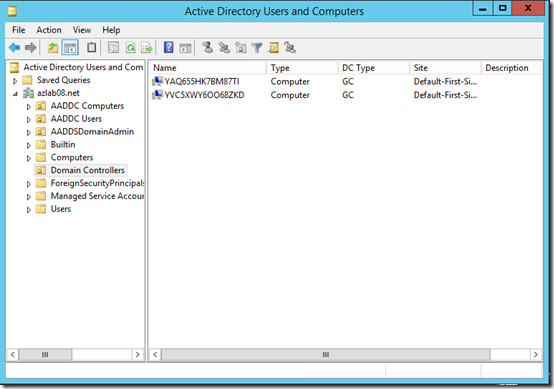
You can then use that to view your domain in the ‘traditional way’ as shown above.
Thus, with Azure AD Domain Services deployed, you have a ‘traditional’ domain but without infrastructure and with your Azure AD users in there as well.
The summary of the options around identity here are thus:
1. Primary = local AD, Secondary = none (which can be linked to Azure via a VPN)
2. Primary = Azure AD, Secondary = none (no on premises infrastructure like servers to worry about)
3. Primary = local AD, Secondary = Azure AD (thanks to Azure AD Connect, but need a VPN again to connect to Azure IaaS)
4. Primary = Azure AD, Secondary = Azure AD Domain Services (which can be linked backed to on premises via a VPN)
In this case, we’ll be going with Option 4. You can see however that a VPN is going to be required for options 1, 3 and 4. That’s why one of the first steps in this series was to set one up.
With all that now configured, let’s now look at the costs involved. The costs here will vary on what identity solution you select. If you stay with an on premises domain controller only, you will need to have site to site VPN to resources in Azure. The costing for this has been covered previously:
Moving to the Cloud – Part 1
and equates to around AU$36 per month with less than 5GB of traffic inbound to Azure. Azure AD Connect software you use to synchronise user identities to Azure AD is free.
If you move the domain controller to a virtual machine in Azure, there will be the cost of that virtual machine (compute + disk storage). The cost will therefore vary greatly on what VM type you select. I’ll be covering more about VM options in this migration in an upcoming article, but for now let’s keep it simple and say we use a A2v2 Standard VM (4GB RAM, 20GB HDD) for a single role as just a domain controller. The cost for that is around AU$76 per month. If you also still have on premises infrastructure, like Windows Servers, that need access to the domain, then you’ll also need a site to site VPN to communicate with the domain controller VM in Azure IaaS. Thus, to move the domain controller to Azure IaaS and still allow access to on premises infrastructure the cost would be around AU$112 (Azure VM + VPN). Of course, if you can migrate all your on premises server infrastructure to Azure IaaS, you probably wouldn’t need the VPN but there would then be the costs of the additional infrastructure in Azure. Balanced against this cost in Azure IaaS is the saving in local hardware, power, etc.
Again, let’s keep it simple for now and say we want to maintain on premise infrastructure but have a dedicate domain controller in the Azure IaaS so the one on premises can be de-commissioned. That means the costs would be AU$112 per month for a domain controller in Azure IaaS and a VPN back to on premises.
Finally, the last identity option is if we wanted to use the Azure PaaS service, Azure AD Domain Services, which means no infrastructure at all but also means we need to start with a new ‘clean’ domain separate from the existing on premises one. The costs of this Azure PaaS service can be found at:
Azure Active Directory Domain Services pricing
which reveals:
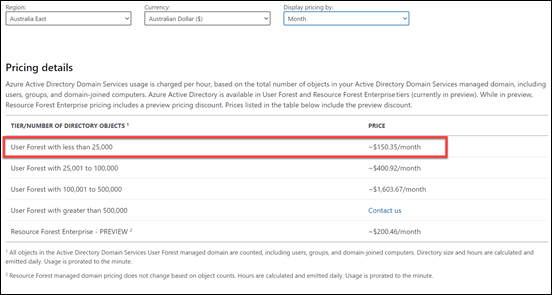
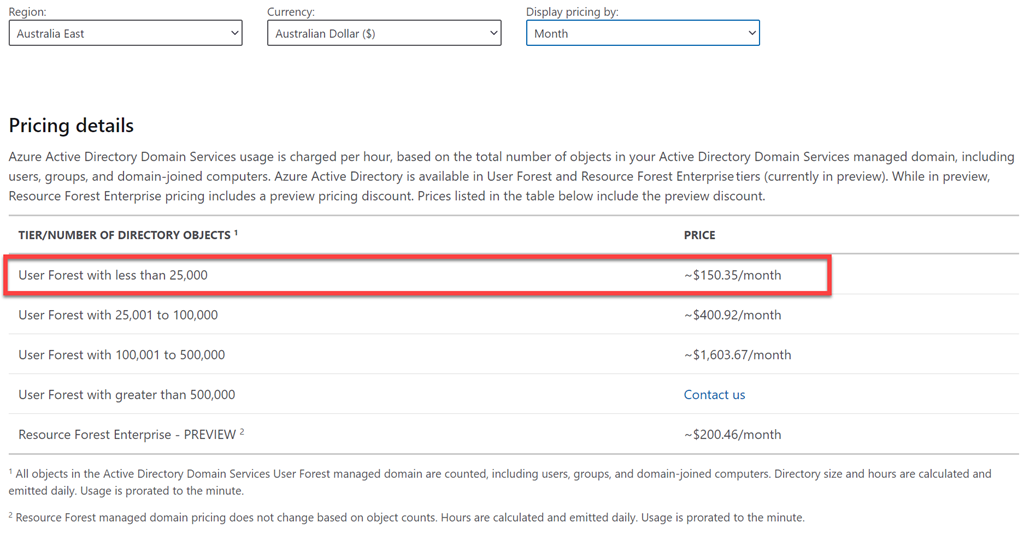
For smaller directories (<25,000 objects) the cost is going to be AU$150 per month flat. Remember, here when equating costs, there are no VMs to backup or operating systems to patch because it is PaaS. This is a domain controller as a service and Microsoft will take care of all the infrastructure “stuff” for you as part of that service. Of course, if you need on premises infrastructure to access Azure AD Domain Services, you’ll again need a site to site VPN to get there. If all your infrastructure is cloud based, then no site to site VPN is required. However, in this scenario, we still want access to on premises infrastructure so the costs would be AU$186 per month (Azure AD Domain Services + VPN).
In summary then, the configuration options/costs will be:
Option 1. Retain on premises AD = AU$36
Option 2. Move domain controller to Azure IaaS = AU$112 (estimated typical cost)
Option 3. Migrate domain controller to Azure PaaS = AU$186 per month
Going forward we’ll be selecting Option 3, because we are aiming to minimise the amount of infrastructure to be maintained and we want to move to PaaS as soon as possible. That means the total cost of the migration so far is:
1. Site to Site VPN = AU$36
2. Storage = AU$107
3. Identity (PaaS) = AU$150
Total maximum infrastructure cost to date = AU$293 per month
This means we have:
1. Eliminated the old on premises domain controller (hardware, patching, backup, power, etc costs)
2. Can connect to on premises infrastructure to Azure AD (via Azure AD Domain Services and the VPN)
3. Have mapped tiered storage locations for things like archiving, profiles, etc that are PaaS
4. We can now build out a Windows Virtual Desktop environment
The next item that we’ll focus on is setting up a Windows Virtual Desktop environment as we now have all the components in place to achieve that.