
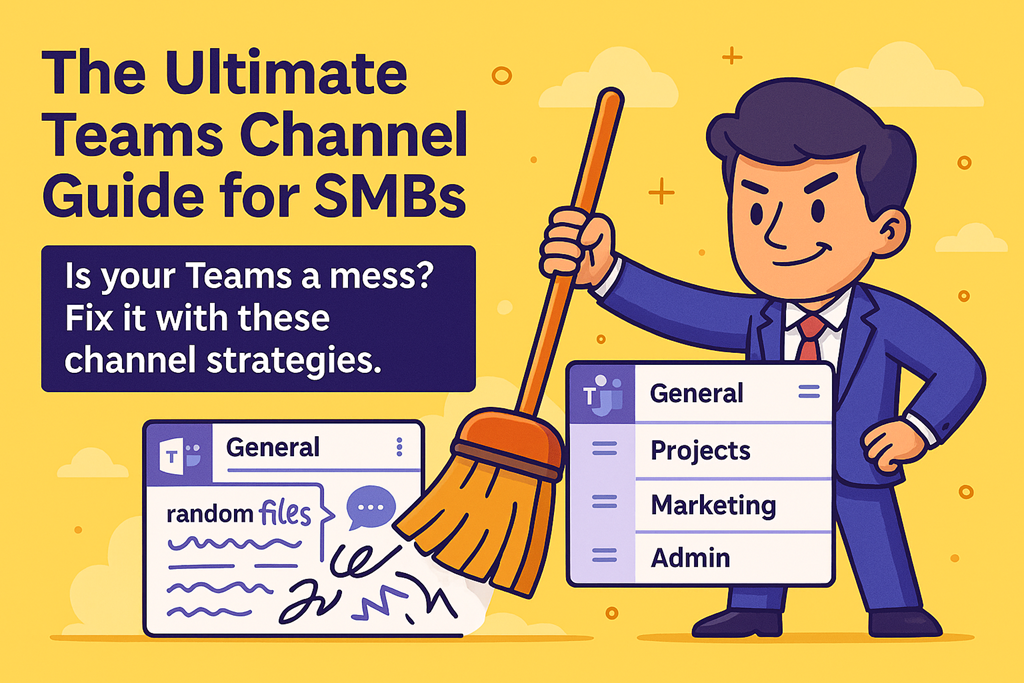
Is your Teams a mess? Fix it with these channel strategies.
Let’s be honest.
Most Microsoft Teams environments don’t fail because Teams is bad. They fail because no one ever decided how it should be used.
What starts as “we’ll just spin up a Team” quickly turns into channel sprawl, random tabs, duplicated files, and conversations scattered everywhere. Before long, people stop trusting Teams and fall back to email, private chats, or worse – asking, “Where’s that document again?”
The good news? You don’t need to rebuild everything. You just need a clear channel strategy.
This guide shows you how to structure channels, tabs, naming conventions, and integrated Planner/OneNote so Teams actually supports work instead of slowing it down.
First principle: Channels are for workstreams, not people
If your channels are named after people (“Bob”, “Accounts – Jane”) or vague concepts (“General 2”, “Random”, “Stuff”), you’ve already lost.
Channels should represent ongoing workstreams that have a shared outcome.
Good channel examples:
- Sales Pipeline
- Invoicing & Finance
- Projects – Client A
- Operations
- Marketing Campaigns
Bad channel examples:
- Bob
- Misc
- Old Stuff
- Testing 123
A simple rule:
If the work would still exist if someone left the business, it deserves a channel.
Keep General boring (that’s a feature)
The General channel should not be a dumping ground.
Use it for:
- Announcements
- High-level updates
- Links to key resources
- Onboarding info
Do not use it for day-to-day work.
When everything happens in General, nothing stands out.
Naming conventions reduce friction (and arguments)
Consistency matters more than creativity.
Pick a naming pattern and stick to it:
- Projects – Client Name
- Projects – Internal
- Admin – Finance
- Admin – HR
This helps users instantly understand:
- What type of work lives here
- Whether the channel is operational, administrative, or project-based
You shouldn’t need training to find the right channel.
Tabs turn channels into workspaces
Most Teams are underpowered because channels are treated like chat rooms instead of workspaces.
Every active channel should have, at minimum:
- Files – where the work lives
- Planner – what needs to be done
- OneNote – how things are done
Planner: make work visible
Add a Planner tab for:
- Tasks
- Ownership
- Due dates
If it’s not in Planner, it’s not real work – it’s just a conversation.
OneNote: stop answering the same questions
Use OneNote tabs for:
- Meeting notes
- Process documentation
- Decision logs
- “How we do this” guides
This is how you reduce repeat questions and tribal knowledge.
Fewer channels, better behaviour
More channels do not mean better organisation.
As a rule of thumb:
- 5–12 channels per Team is usually plenty
- Archive or delete channels that are no longer active
- Spin up a new Team when work becomes unrelated, not just “big”
If users are confused about where to post, you have too many options.
Guide + Checklist: fix one Team this week
Don’t boil the ocean. Start small.
Checklist:
- Rename unclear channels
- Move active work out of General
- Add Planner and OneNote tabs to key channels
- Remove unused tabs and channels
- Agree on a simple naming convention
You’ll be surprised how quickly behaviour improves once structure exists.
Final challenge
Reorganise one Team this week and share a before/after screenshot.
Not for vanity.
For clarity.
Because Teams doesn’t need more features.
It needs better decisions.
If you want Teams to work, design it like a workspace – not a chat app.
 CIAOPS