To receive a FREE copy of my SharePoint Online – Playbook for Small Businesses you’ll need to sign up for, and attend, this months CIAOPS Need to Know webinar:
You can register for the regular monthly webinar here:
The content of these all day face to face workshops is driven by the attendees. That means we cover exactly what people want to see and focus on doing hands on, real world scenarios. Attendees can vote on topics they’d like to see covered prior to the day and we continue to target exactly what the small group of attendees wants to see. Thus, this is an excellent way to get really deep into the technology and have all the questions you’ve been dying to know answered. Typically, the event produces a number of best practice take aways for each attendee.
Recent testimonial – “I just wanted to say a big thank you to Robert for the Brisbane Techworks day. It is such a good format with each attendee asking what matters them and the whole interactive nature of the day. So much better than death by PowerPoint.” – Mike H.
If you found this valuable, the I’d appreciate a ‘like’ or perhaps a donation at https://ko-fi.com/ciaops. This helps me know that people enjoy what I have created and provides resources to allow me to create more content. If you have any feedback or suggestions around this, I’m all ears. You can also find me via email director@ciaops.com and on X (Twitter) at https://www.twitter.com/directorcia.
If you want to be part of a dedicated Microsoft Cloud community with information and interactions daily, then consider becoming a CIAOPS Patron – www.ciaopspatron.com.
If you found this valuable, the I’d appreciate a ‘like’ or perhaps a donation at https://ko-fi.com/ciaops. This helps me know that people enjoy what I have created and provides resources to allow me to create more content. If you have any feedback or suggestions around this, I’m all ears. You can also find me via email director@ciaops.com and on X (Twitter) at https://www.twitter.com/directorcia.
If you want to be part of a dedicated Microsoft Cloud community with information and interactions daily, then consider becoming a CIAOPS Patron – www.ciaopspatron.com.
Important: Mailbox Auditing is Already ON by Default
Good news! Since 2019, Microsoft automatically enables mailbox auditing for all Exchange Online organizations. This means logging is already active for your mailboxes without requiring any manual configuration.
Should You Enable All Available Logging?
No, you should NOT enable all available logging. Here’s why:
Microsoft’s Recommendation: Use the default audit configuration, which Microsoft automatically manages and updates
Storage Impact: Audit logs consume storage space in each mailbox’s Recoverable Items folder (counts against the 30GB default limit)
Performance Consideration: Excessive logging can impact mailbox performance
Automatic Updates: Microsoft automatically adds new important actions to the default audit configuration as they’re released
What’s Logged by Default
The default configuration logs these critical actions:
Result should show False (meaning auditing is enabled)
Step 3: Check Current Mailbox Audit Status
# For a specific mailbox
Get-Mailbox -Identity "user@domain.com" | Format-List Name,AuditEnabled,DefaultAuditSet

# For all mailboxes
Get-Mailbox -ResultSize Unlimited | Format-Table Name,AuditEnabled,DefaultAuditSet
Step 4: Use Default Settings (Recommended)
# Restore default auditing for a mailbox that was customized
Set-Mailbox -Identity "user@domain.com" -DefaultAuditSet Admin,Delegate,Owner
Step 5: Only If Necessary – Customize Specific Actions
# Example: Add MailboxLogin tracking for owner actions
Set-Mailbox -Identity "user@domain.com" -AuditOwner @{Add="MailboxLogin"}

# Example: Set specific admin actions (overwrites defaults - not recommended)
Set-Mailbox -Identity "user@domain.com" -AuditAdmin MessageBind,FolderBind,HardDelete
Step 6: Configure Retention Period
# Default is 90 days, can extend up to 365 days (E5 license required for >180 days)
Set-Mailbox -Identity "user@domain.com" -AuditLogAgeLimit 180

# Apply to all mailboxes
Get-Mailbox -ResultSize Unlimited | Set-Mailbox -AuditLogAgeLimit 180
Step 7: Verify Configuration
# Check what actions are being audited
Get-Mailbox -Identity "user@domain.com" | Select-Object -ExpandProperty AuditAdmin
Get-Mailbox -Identity "user@domain.com" | Select-Object -ExpandProperty AuditDelegate
Get-Mailbox -Identity "user@domain.com" | Select-Object -ExpandProperty AuditOwner
Method 2: Microsoft 365 Admin Center (Limited Options)
Note: The GUI provides limited mailbox audit configuration options. Most settings require PowerShell.
Government contractors with security clearance requirements
Legal hold scenarios requiring complete activity documentation
3. Forensic Investigations
Use Case: Post-incident analysis
Determining if a compromised account’s emails were actually read
Investigating data exfiltration attempts
Proving or disproving unauthorized access claims
Building timeline of activities during security incidents
4. Privileged Account Monitoring
Use Case: Enhanced monitoring for administrative accounts
Service accounts that shouldn’t have regular email activity
Shared mailboxes with sensitive information
Discovery mailboxes used for legal searches
Executive assistant mailboxes with delegated access
Best Practices If You Enable FolderBind/MessageBind for Owners
1. Selective Implementation
# Enable only for specific high-risk mailboxes
Set-Mailbox -Identity "CEO@company.com" -AuditOwner @{Add="FolderBind","MessageBind"}

# Create a list of VIP users
$VIPUsers = "CEO@company.com","CFO@company.com","Legal@company.com"
foreach ($user in $VIPUsers) {
    Set-Mailbox -Identity $user -AuditOwner @{Add="FolderBind","MessageBind"}
}
DLP policies: Focus on preventing data loss rather than tracking all access
The MailItemsAccessed Alternative (E5 Licenses)
For organizations with E5 licenses, MailItemsAccessed is a superior alternative that:
Intelligently aggregates similar activities (reduces noise by 80-90%)
Provides both sync and bind operation tracking
Includes deduplication (removes duplicate entries within 1-hour windows)
Records InternetMessageId for precise message tracking
Better suited for forensic investigations
Automatically enabled for E5 users
Summary Recommendation
Enable FolderBind/MessageBind for owners ONLY when:
You have specific compliance or security requirements
Monitoring high-risk individuals or during investigations
You have the resources to analyze the massive data volume
Storage and performance impacts have been evaluated
You’ve implemented automated analysis tools
Otherwise: Stick with the default configuration and use alternative methods like DLP policies, insider risk management, and the MailItemsAccessed action (for E5 users) for more effective security monitoring.
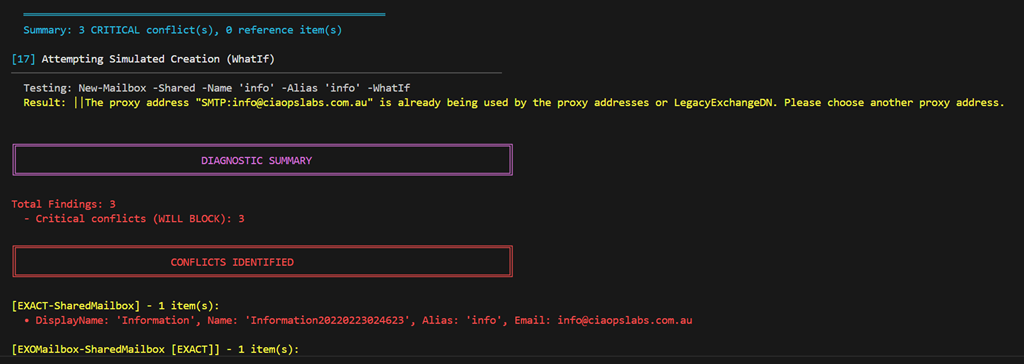
I recently had to move a mailbox alias from an existing mailbox to a hared mailbox. Every time I attempted to do so I received the following error:
The name is already being used. Please try another name
The error isn’t real helpful because it doesn’t tell you exactly what the other object causing the conflict could be. To make life easier and look across the array of places the conflict could be I created the following script:
In my case the issue was with a ‘Name’ value in Entra ID but the script will also give your recommendations on what PowerShell commands to run to overcome any issues it detects. I ran these and I was good to!
Hopefully, this script makes it easier to find any conflicts.
Implementing Conditional Access policies requiring device compliance in Microsoft 365 requires careful planning and a phased approach to minimize disruption while maintaining security. This comprehensive guide provides step-by-step instructions specifically tailored for small businesses.
1. Prerequisites and Initial Setup
Required Licenses
Microsoft Entra ID P1 or P2 – Required for Conditional Access
Microsoft Intune – Required for device compliance management
Microsoft 365 Business Premium or higher for small businesses
Essential Preparations
Configure Emergency Access Accounts
Create at least two emergency access (break-glass) accounts
Exclude these accounts from ALL Conditional Access policies
Store credentials securely and separately
Create Device Compliance Policies First
Define minimum OS version requirements
Set encryption requirements
Configure password/PIN requirements
Establish jailbreak/root detection settings
Enable User Registration for MFA
Allow users to register authentication methods before enforcing policies
Communicate registration requirements to all users
2. Phased Rollout Strategy
Phase 1: Foundation (Weeks 1-2)
Objective: Establish baseline security and prepare infrastructure
Create policies in Report-Only Mode
Block legacy authentication protocols
Secure the MFA registration page
Target privileged accounts first with phishing-resistant MFA
Phase 2: Pilot Testing (Weeks 2-4)
Objective: Test with limited user groups
Pilot Group Selection
Start with 5-10% of your organization
Include IT staff and willing early adopters
Avoid executives and VIPs initially
Ensure representation from different departments
Creating the Policy in Report-Only Mode
Navigate to Microsoft Entra admin center → Conditional Access → Policies
Create new policy with these settings:
Name: “Require Device Compliance – Pilot”
Users: Select pilot group
Cloud apps: Start with non-critical apps
Grant: Require device to be marked as compliant
Enable policy: Report-only
Phase 3: Gradual Expansion (Weeks 4-8)
Objective: Progressively include more users and applications
Automated Phased Rollout Approach
If using the Conditional Access Optimization Agent (requires Microsoft Security Copilot):
The agent automatically creates a 5-phase rollout plan
Groups are assigned based on risk and impact analysis
Automatic progression between phases based on success metrics




 CIAOPS