For a typical SMB using M365 Business Premium with a fully remote workforce, a basic firewall is still a necessary foundational element, but a high-priced, advanced enterprise-grade firewall is no longer a cost-effective or strategically sound investment. The security focus has decisively shifted from the traditional network perimeter to the identity and data perimeters, which M365 Business Premium is explicitly designed to protect.
Here’s a detailed breakdown illustrating why and how M365 redefines the need for expensive hardware.
1. The Changing Landscape: The “Deperimeterized” World
The concept of a “network perimeter” is nearly obsolete for companies with remote employees. When staff work from home, coffee shops, or other offices, they are connecting directly to the internet, completely bypassing the company’s hardware firewall.
Traditional Model: Internet -> Corporate Firewall -> Internal Users/Data
Modern Model (Remote Work): Internet -> User’s Home Router -> M365 Cloud Services (Email, Files, Teams)
The new “perimeter” is the user’s identity and their devices. Therefore, investing thousands of dollars in a fortress-like firewall to protect an empty castle (the office) is a misallocation of resources. The budget is better spent securing the identities and data that are now everywhere.
2. How M365 Business Premium Can Replace Firewall Functions
A fully configured M365 Business Premium provides layers of security that replicate or surpass the capabilities of a traditional firewall for the remote workforce. Think of it as a “firewall in the cloud” that follows each user.
a) Replacing Network Threat Prevention
Firewall Function: Inspects incoming/outgoing web traffic for malware, phishing, and malicious sites.
M365 Equivalent: Microsoft Defender for Office 365 (Plan 1)
Safe Links: Scans URLs in emails and Office documents in real-time. Even if a user clicks a malicious link, they are blocked before reaching the site, negating the need for the firewall to filter that DNS request.
Safe Attachments: Opens emails with attachments in a virtual sandbox to detect malicious behavior before the email is ever delivered to the user’s inbox. This is more effective than a firewall simply blocking a file type.
b) Replacing Content Filtering & DNS Security
Firewall Function: Blocks access to inappropriate or dangerous websites.
M365 Equivalent: Microsoft Defender for Endpoint & Web Content Filtering
Web Content Filtering: This is a core feature of Defender for Endpoint (included in Business Premium). It allows you to create policies that block access to specific website categories (e.g., adult content, malware sites, gambling) on the endpoint itself, regardless of network location. Whether the user is at the office, at home, or on a public WiFi, the policy is enforced. This makes network-level DNS filtering on a firewall redundant for company devices.
c) Replacing Intrusion Prevention & Advanced Threat Protection
Firewall Function: Detects and blocks sophisticated attacks and exploits.
M365 Equivalent: Microsoft Defender for Endpoint (Integrated)
This is a next-generation antivirus (NGAV) and Endpoint Detection and Response (EDR) solution. It monitors endpoints (computers, phones) for malicious activity, behavioral anomalies, and vulnerability exploitation. It detects and responds to threats that have bypassed other defenses, a function far beyond what a standard firewall does for a device already on the network.
d) The Ultimate Firewall Replacement: Zero Trust with Conditional Access
This is the most powerful concept. Instead of trusting a device because it’s on the corporate network (a flawed model), Zero Trust means “never trust, always verify.”
M365 Tool: Azure Active Directory Conditional Access
You can create policies that act as dynamic, identity-centric firewalls. For example, you can configure a policy that states:
“If a user tries to access company email from a device that is not Marked as Compliant by Intune (e.g., it doesn’t have disk encryption, a password, or an antivirus), then block access completely.”
“If a login attempt comes from a country we don’t operate in, block it.”
“Require Multi-Factor Authentication (MFA) when accessing SharePoint from outside the office network.”
This means even if an attacker steals a password, without the second factor and a compliant device, they are stopped at the identity layer—the new perimeter.
3. The Role of a “Basic Firewall”
A basic firewall is still a worthwhile, minimal investment for the following reasons:
Protecting the Physical Office: It still provides essential Network Address Translation (NAT) and a basic stateful inspection barrier for any on-premise equipment (e.g., a local file server, printers, VoIP system).
Segmenting IoT Devices: Isolating “smart” devices (thermostats, cameras) on a separate network from business-critical systems.
First Line of Defense for On-Site Users: It provides a layer of security for any employees who do work in the office.
A basic, modern firewall from vendors like Ubiquiti, Fortinet (FortiGate 40F series), or Cisco (Meraki MX) is sufficient for these tasks and is relatively inexpensive.
Cost-Effective Security Architecture for a Remote-First SMB
Security Layer
Traditional Approach (Costly)
Modern Approach (Cost-Effective)
Network Security
High-end enterprise firewall ($3k+ + annual fees)
Basic Firewall ($500 – $1k) for the office.
Threat Prevention
Firewall subscription for IPS/IDS
Defender for Office 365 (Included in M365 BP)
Web Filtering
Firewall subscription for DNS filtering
Defender for Endpoint Web Content Filtering (Included)
Endpoint Protection
Separate third-party antivirus subscription
Defender for Endpoint (Included)
Access Control
VPN to get “inside” the network
Azure AD Conditional Access (Included)
Device Management
Limited or separate tool
Intune (Included for device compliance)
Data Protection
Separate DLP appliance/software
Microsoft Purview DLP (Included for email/files)
Conclusion and Recommendation
No, it is not a worthwhile option to purchase high-priced firewall devices for an SMB whose workforce is primarily remote and is using M365 Business Premium.
The investment is dramatically more effective when directed towards:
Properly licensing and configuring M365 Business Premium to its full potential. This is where 80% of your security gains will be made.
Purchasing a capable but cost-effective basic firewall to protect the office network segment.
Investing in user security training to create a human firewall, as many attacks (phishing) target users directly.
By fully leveraging the security stack in M365 Business Premium, you build a dynamic, identity-centric security model that protects users, devices, and data anywhere in the world, making an expensive hardware firewall an outdated solution for the remote work paradigm.
For a cloud-first SMB that’s fully leveraging Microsoft 365 Business Premium and has many remote workers, a high-priced “next‑gen” or UTM firewall at each office is rarely cost‑effective. A reliable business-class router/firewall that provides NAT, stateful inspection, VLANs/guest Wi‑Fi, and basic VPN/site‑to‑site is typically sufficient when combined with Business Premium’s endpoint, identity, email, and data protections.
Consider an advanced firewall only if you have specific on-prem/network needs (for example, hosting public-facing services, heavy site‑to‑site VPN/SD‑WAN, regulated environments that explicitly require network IDS/IPS, or complex WAN requirements).
Why Business Premium can replace most perimeter security for typical SMBs
Endpoint protection and EDR everywhere (on and off the office network)
Microsoft Defender for Business (included in Business Premium) delivers next‑gen AV, endpoint detection and response, automated investigation/remediation, firewall management, attack surface reduction (ASR) rules, controlled folder access (ransomware mitigation), network protection, and web content filtering across Windows, macOS, iOS, and Android. These controls travel with the device, so remote workers are protected even off-network.
Defender for Office 365 Plan 1 (included in Business Premium) adds Safe Links, Safe Attachments, and anti‑phishing to protect Exchange Online, SharePoint, OneDrive, and Teams from zero‑day malware/phishing/BEC. This removes the need for email filtering on the firewall.
Identity-driven Zero Trust access instead of network trust
Business Premium includes Microsoft Entra ID P1 (formerly Azure AD P1). Conditional Access plus Intune device compliance lets you gate access to M365 and SaaS based on MFA, device health/compliance, platform, app, and location—without hairpinning traffic through a central firewall.
Sensitivity labels, encryption, and Microsoft Purview DLP in Business Premium protect data in email, SharePoint, OneDrive, and Office apps—addressing use cases that perimeter DLP/UTM appliances try to cover on a network chokepoint.
Microsoft’s Zero Trust guidance for SMB explicitly positions Business Premium with Defender for Business and Defender for Office 365 as the foundation to “verify explicitly,” “use least privilege,” and “assume breach,” reducing reliance on perimeter devices.
When a basic firewall is enough vs. when to consider more
A basic business-class router/firewall is enough when:
You are primarily cloud/SaaS (Microsoft 365, line-of-business SaaS).
You don’t host public-facing services on-prem.
Remote users connect directly to the internet; you don’t backhaul traffic through HQ.
You can implement simple VLANs for office/IoT/guest segmentation and provide site-to-site VPN only if needed.
Consider a higher-end firewall or specialized edge only if you require:
Publishing on-prem apps to the internet and needing reverse proxy/WAF at the edge.
Heavy site-to-site VPN/SD‑WAN, multi‑ISP load balancing, or strict QoS.
Compliance mandates that call for network IDS/IPS at the perimeter and centralized packet logging.
High-throughput VPN termination for many remote users or non‑Microsoft services that require network‑layer egress controls.
How to configure Microsoft 365 Business Premium to reduce or eliminate dedicated firewall appliances Below is a practical, step-by-step baseline you can apply. It assumes you manage devices with Intune and use Defender for Business and Defender for Office 365 that are included in Business Premium.
1) Identity and access (Zero Trust gatekeeping)
Require MFA for all users and admins.
Conditional Access policies (Entra ID P1):
Require compliant device for access to Microsoft 365.
Block legacy protocols (POP/IMAP/Basic auth) and require modern auth.
Restrict by platform (for example, block unknown/unsupported OS versions).
Require approved apps for mobile (Outlook/Office).
3) Endpoint protection baselines (Defender for Business)
Verify default Defender for Business policies are applied; then harden:
Attack Surface Reduction (ASR) rules—start in audit for a week, then enforce standard protection rules (for example, block LSASS credential theft, abused vulnerable signed drivers, WMI persistence).
Controlled folder access to mitigate ransomware.
Network protection to block malicious domains.
Web content filtering to block risky categories (legal liability, adult, high bandwidth, etc.)—applies on and off the corporate network.
Windows Defender Firewall with centrally managed rules via Intune; keep it enabled and only allow required inbound/outbound.
VLANs for Corp, Guest, and IoT; guest Wi‑Fi isolation on the APs.
Optional site‑to‑site VPN between offices. Avoid backhauling all remote traffic through HQ.
Simple inbound port forwarding only if truly needed; prefer cloud alternatives first.
Do not rely on perimeter TLS inspection to find threats; modern EDR/ASR on the endpoint and MDO do a better job for SaaS/cloud traffic, and TLS interception often breaks modern auth workflows.
Shift services off-prem where possible (files to OneDrive/SharePoint; apps to SaaS). If you must publish on-prem web apps, consider Microsoft Entra application proxy (included in P1) to avoid opening inbound ports.
Edge cases where high-end firewalls can still be justified
You host internet-facing workloads on‑prem and need WAF/reverse proxy and tight inbound publishing.
You require network IDS/IPS and packet capture for a compliance framework that explicitly demands it.
You operate many branches with high-volume site‑to‑site VPN/SD-WAN, advanced QoS, multi‑ISP path selection, or need >1–2 Gbps encrypted throughput.
You need complex segmentation inside a large on‑prem network with many legacy servers. If you have on-prem servers, also consider the Defender for Business servers add-on.
For a typical remote-first SMB on Microsoft 365 Business Premium, invest in strong endpoint, identity, and data controls you already own rather than expensive UTM firewalls. Use a solid but basic firewall/router for connectivity, segmentation, and VPN as needed. Step up to advanced edge gear only when your business requirements clearly demand capabilities that Microsoft 365 and endpoint security cannot deliver at the host, identity, or data layers.
Executive Summary: Small and mid-sized businesses (SMBs) increasingly rely on cloud services and remote work, raising the question: Is it still worthwhile to invest in expensive firewall appliances, or can Microsoft 365 Business Premium’s security features suffice alongside a basic router firewall? This report finds that with Microsoft 365 Business Premium fully configured for security, most SMBs can rely on its comprehensive protections and a standard network firewall, rather than purchasing high-priced dedicated firewall devices. Modern security has shifted from perimeter-focused hardware to a multi-layered “Zero Trust” approach built into cloud and endpoint solutions[1][2]. We detail how Microsoft 365 Business Premium’s advanced security—identity protection, device and endpoint defense, email threat filtering, and data controls—can reduce or eliminate the need for standalone firewalls, especially for distributed workforces. A comparison of features, costs, and effectiveness is provided to guide decision-making.
The Traditional SMB Firewall Approach: Role and Limitations
High-priced firewall appliances (often called “next-generation firewalls” or unified threat management devices) have long been a staple of SMB IT security. These hardware devices sit at the network perimeter (e.g. office internet gateway) to inspect and filter traffic. Key capabilities of a typical advanced firewall include:
Network Traffic Filtering & Intrusion Prevention: Scanning incoming/outgoing data packets for malicious signatures or anomalous patterns, blocking attacks before they reach internal systems. For example, a firewall can stop external hacking attempts or deny access to known malicious IP addresses[1].
Web Content Filtering and URL Blocking: Many SMB firewalls offer category-based filtering to block dangerous or inappropriate websites enterprise-wide. This helps prevent users from accessing malware-hosting sites—but only when device traffic passes through the firewall.
VPN Server for Remote Access: Firewalls often provide VPN capabilities so remote workers can “tunnel” into the office network securely. This was crucial when on-premises servers and network drives were the norm.
Application Control and QoS: High-end models recognize and control applications (e.g. blocking peer-to-peer file sharing, prioritizing VoIP traffic) to secure and optimize network use.
Email/Spam Filtering and AV Proxy: Some UTM devices can scan email or web downloads for viruses and spam (though in cloud email setups, this may be bypassed).
Segmentation and Monitoring: They allow creating network zones (e.g. guest Wi-Fi vs internal) and monitoring internal traffic flows for suspicious lateral movement.
Value: In a classic office-centric environment, these capabilities provided a strong perimeter defense. A firewall can act as a single choke point to enforce security policies for all devices on the office LAN. For example, it might stop a ransomware attack from reaching a vulnerable PC, or log an intrusion attempt on the server.
However, the traditional firewall model has significant limitations in today’s SMB context:
Dissolving Network Perimeter: With many employees now working from home offices, coffee shops, and client sites, much of their internet traffic never traverses the office firewall[1]. If remote users connect to cloud apps (Microsoft 365, Salesforce, etc.) directly, a firewall at HQ doesn’t see or filter that traffic. The perimeter “doesn’t exist” when data is spread across cloud services and roaming devices[1].
VPN Dependency: Firewalls can protect remote users only if those users VPN into the office network consistently. In practice, forcing all remote traffic through a VPN and firewall is cumbersome and can slow things down. Many SMBs find users connect via VPN only for specific internal resources, leaving general internet use uninspected. Stolen or weak VPN credentials have also become a common breach vector[1].
Blind Spots to Identity and Devices: A firewall makes binary decisions based on IP addresses and ports, but it cannot verify user identities or device health. Once a connection is allowed (e.g. an employee VPNs in), traditional tools assume trust internally[1]. If an attacker steals a valid user’s credentials or if a legitimate laptop is infected, the firewall might not detect the resulting malicious activity.
Encrypted Traffic and Cloud Services: An increasing share of traffic is encrypted (HTTPS). Firewalls can perform deep inspection only by doing SSL decryption (complex to set up and a potential privacy issue) or relying on reputation feeds. They also can’t inspect data stored in cloud services (e.g. files in OneDrive) for sensitive info leaks – that requires cloud-native solutions.
Cost and Complexity: A quality next-gen firewall appliance can be expensive (several thousand dollars plus annual subscriptions for threat updates). Managing it requires expertise to tune rules and review alerts. For resource-constrained SMB IT teams, this can be challenging. Misconfigurations or missed updates can undermine the very protection it’s supposed to provide.
Trend – Beyond the Firewall: Modern security thinking recognizes that “firewalls were built for a perimeter that doesn’t exist anymore”[1]. With data in SaaS apps and employees everywhere, the new approach is Zero Trust: assume attackers might already be in or that any network is unsafe, and verify each user, device, and access continuously rather than relying solely on a gate at the network edge[1][1]. This is where Microsoft 365 Business Premium’s security features come in, aligning security to users and devices instead of a single office pipeline.
In summary, a basic firewall (for example, the built-in firewall on a router or Windows Defender Firewall on devices) is still necessary for baseline protection (blocking unsolicited inbound traffic, network address translation, etc.). But investing in high-priced, feature-rich firewall devices yields diminishing returns if your apps are cloud-based and your workforce is largely remote. The security focus for SMBs has shifted to protecting identities, endpoints, and cloud workflows – areas where Microsoft 365 Business Premium provides extensive capabilities, as we explore next.
Microsoft 365 Business Premium: A Comprehensive Security Suite
Microsoft 365 Business Premium (M365 BP) is an integrated offering that bundles Office productivity apps with a robust set of enterprise-grade security and management tools tailored for SMBs[3]. When fully configured, M365 Business Premium addresses many security layers that a firewall would, and in some cases goes further by protecting beyond the network boundary. Key security components include:
Azure AD Premium P1 (Identity and Access Management): Business Premium includes Azure Active Directory P1, enabling Multi-Factor Authentication (MFA) for all users and Conditional Access policies[3]. This means you can enforce that only verified users on compliant devices can access company resources, significantly reducing risk from stolen passwords. (MFA alone blocks 99.9% of account attacks[4].) Conditional Access allows policies like “Only allow login to M365 if the device is managed and healthy, or if coming from certain locations”. This identity-centric control is a cornerstone of Zero Trust, and something a network firewall cannot do. Single Sign-On also improves security (users have fewer passwords to manage, reducing phishing risks)[5].
Microsoft Defender for Office 365 (Email and Collaboration Security): This suite provides advanced threat protection for email, OneDrive, SharePoint, and Teams. It includes Safe Attachments (opening attachments in a detonation sandbox to catch zero-day malware) and Safe Links (URL scanning and rewriting to block phishing links at click time)[2]. It also adds anti-phishing algorithms that detect impersonation or spoofing attempts. These protections address threats (like phishing and ransomware) at the content level, regardless of network path. For instance, an employee working from home gets the same email threat protection as one behind the office firewall[2]. Traditional firewalls alone have limited visibility into such targeted content threats.
Microsoft Defender for Business (Endpoint Security): This is an enterprise-grade endpoint protection platform now included in M365 Business Premium[2]. It provides next-generation antivirus, behavioral monitoring, and Endpoint Detection and Response (EDR) capabilities across Windows PCs (and extends to Mac, iOS, Android)[2]. Critical features:
Anti-Malware and EDR: Defender uses AI-driven cloud protection to catch malware (viruses, ransomware, spyware) and suspicious behavior on the device in real time. If malware is detected on a laptop, it can automatically quarantine the threat and alert IT—no matter where that laptop is located or what network it’s on[6].
Attack Surface Reduction (ASR): Rules to harden the endpoint by blocking vulnerable behaviors (e.g. preventing Office macros from spawning executables, or blocking script abuse) which stop many attacks at an early stage[6]. These act like a personal firewall against exploit techniques, beyond what network devices do.
Network Protection & Web Filtering: Defender for Business includes Network Protection which extends the idea of a firewall to each device. It can block outbound connections from endpoints to risky domains (e.g. if a user clicks a phishing link, Defender can prevent the connection even if off the corporate network)[2]. It also offers Web Content Filtering by category via the Defender cloud, effectively doing what a web-filtering firewall does, but on the endpoint itself[6]. For example, an Intune policy can enforce that the Windows Defender Firewall is enabled on all profiles and apply web threat protection policies to block phishing sites[6]. This means each laptop has a continuously updated “cloud-informed firewall” for web threats – protection travels with the device.
Firewall & Device Control: Through Intune (Endpoint Manager), admins can ensure the built-in Windows Defender Firewall is ON and configured on every managed PC[7]. You can set rules or simply rely on Windows’ default-deny of unsolicited inbound traffic (which is akin to basic firewall functionality on each device). In short, M365 Business Premium makes sure every endpoint has its own firewall and AV/EDR sensor active[6] – a distributed security model.
Automated Investigation and Response: Defender can auto-investigate alerts and even remediate issues across devices (e.g. isolate a machine, remove a malicious file) without waiting for human intervention[2].
Intune – Mobile Device Management (MDM) and Mobile Application Management (MAM): Intune allows you to manage and secure devices and apps. You can enforce compliance policies: require disk encryption (BitLocker), strong passwords, up-to-date OS patches, enable antivirus and firewall, etc., on all company devices[7]. Non-compliant devices can be blocked from access (via Conditional Access). Intune also lets you wipe corporate data from lost devices or apply App Protection Policies on BYOD (e.g. prevent copy-paste from work apps to personal apps)[8]. By keeping devices in a known secure state and under watch, Intune reduces the risk of infection or data leakage that a firewall at the office couldn’t prevent if the device is off-network.
Data Protection and Compliance (Microsoft Purview): Business Premium includes features like Information Rights Management, Data Loss Prevention (DLP), sensitivity labeling (via Azure Information Protection P1)[9], and message encryption. These help ensure sensitive info is not leaked or accessed improperly – for example, DLP can block an employee from emailing out a credit card number or uploading confidential files to unapproved services. A firewall might block certain websites, but it cannot understand the content of a file being sent out; Purview DLP can, and it travels with the data (within M365 ecosystem). Email encryption can protect data in transit beyond the firewall’s reach.
Cloud App Security (Defender for Cloud Apps) – although not fully included in Business Premium, integration points exist (like app discovery logs via Defender endpoint). For many SMBs primarily using Microsoft 365 services, the need for a separate Cloud Access Security Broker (CASB) is reduced since most data stays within M365’s protected environment.
In effect, M365 Business Premium transforms security from a point-in-time network checkpoint to an always-on, holistic defense. Each user must prove their identity (MFA), each device is checked and monitored, each email or file is scanned, and sensitive data is governed. This aligns with the Zero Trust model (never trust, always verify).
Crucially, these protections apply uniformly whether an employee is in the office behind a simple firewall, or on the go using public Wi-Fi. For example, if a user’s home PC is infected with malware, a traditional office firewall can’t help; but if that PC is managed via Business Premium, Defender on the endpoint would catch and contain the malware[6]. Similarly, if an attacker phishes an employee, Safe Links can block the click whether or not they’re on the corporate network[2].
To maximize security, an SMB should ensure Business Premium is fully configured to “maximum” security – it’s not automatic. Out of the box, some features require setup by an admin. In the next section, we illustrate how to configure M365 Business Premium so that an SMB environment is locked down, effectively taking over many duties of a hardware firewall.
Configuring M365 Business Premium to Replace Firewall Functions
To effectively reduce reliance on a dedicated firewall, an SMB must enable and fine-tune M365 Business Premium’s security features. Here is how to configure the suite to achieve a high-security posture (often referred to as “configure to the max”):
Enforce Multi-Factor Authentication (MFA) for all users: Enable MFA for every account, either via Security Defaults or Conditional Access policy[3]. This ensures that even if passwords are phished, attackers cannot easily use them. (Administrators and remote access accounts must have MFA – these are high-risk targets). According to Microsoft, MFA thwarts 99.9% of automated credential attacks[4].
Set Conditional Access Policies: Go beyond basic MFA by defining rules in Azure AD:
Require compliant devices for certain sensitive applications (e.g., allow SharePoint access only from Intune-enrolled devices or through browser sessions with data controls)[10].
Block access from risky sign-ins or unfamiliar locations unless additional verification is passed.
Perhaps disallow legacy authentication protocols which bypass MFA. These policies ensure only trusted devices and users access your cloud resources, achieving a role similar to a firewall blocking unknown machines.
Onboard all devices to Intune and Defender for Business: All company PCs (and Macs, mobile devices) should be enrolled in Intune MDM. This will:
Push down a Security Baseline configuration (Intune has templates) that enables Windows Defender Antivirus, cloud protection, and the Windows Firewall on each endpoint[6].
Deploy the Defender for Business endpoint agent (on Windows 10/11, enabling Intune onboarding will automatically enroll them into Defender for Business EDR)[6]. Verify in the Microsoft 365 Defender portal that devices show up as secure and reporting.
Configure Attack Surface Reduction (ASR) rules via Intune. For example, turn on Controlled Folder Access to protect documents from ransomware encryption, and enable rules like blocking Office from creating child processes[6]. These settings harden devices against threats that might slip past network controls.
Ensure Web Protection is active: via Intune security policies, enable Network Protection and, optionally, Web Content Filtering categories (e.g., block known malware sites or adult content company-wide). A check on a test device’s Windows Security > App & Browser Control can confirm these are on[6].
Firewall rules: Intune can enforce firewall rules if needed (e.g., to block SMB file sharing traffic on public networks, or allow certain ports for an app). At minimum, verify the firewall is enabled on domain, private, and public profiles[6] – Intune’s default Device Compliance policy can flag if firewall or AV is off.
In the Microsoft 365 Defender portal (Security Center), configure Safe Links and Safe Attachments for all users. For Safe Attachments, use “Dynamic Delivery” so users get email body instantly while attachments are scanned in background[3]. Enable Safe Attachments for SharePoint/OneDrive/Teams as well[6].
Set up Anti-phishing policies to protect high-risk users or domains (e.g., ensure the CEO’s display name can’t be impersonated easily in incoming mail). Also configure Spoof intelligence and Impersonation protection features which come with Defender for O365.
Train users: Despite technical controls, phishing can still trick users. Use the Attack Simulator in M365 or third-party phishing tests to educate staff.
Email Security and Spam Tuning: Although Exchange Online Protection (EOP) automatically filters spam/malware, review the policies:
Ensure ATP Anti-Spam is on and consider stricter thresholds if spam is a problem.
Enable Outbound spam alerts to catch if an internal account is compromised and sending malicious emails (which a firewall wouldn’t catch).
Apply DMARC, DKIM, SPF for your email domain to prevent spoofing.
**Enable and enforce *BitLocker encryption* on all Windows devices via Intune**. This ensures data remains safe even if a device is stolen. (While unrelated to network threats, it’s a critical part of a “fully secure” posture that a firewall doesn’t address).
Use Data Loss Prevention (DLP) and Sensitivity Labels: In the Purview compliance portal, create DLP policies for sensitive info (credit cards, personal IDs, etc.) to prevent accidental leaks via email or Teams. Configure Sensitivity Labels (with encryption if needed) for confidential data, so even if files leave your environment they remain protected[9]. These measures mitigate insider threats and data exfiltration that a firewall could never catch (since they operate at the content level and follow the data).
Monitor and Respond: Set up alerting in the security portal for important events (e.g., multiple failed login attempts, malware found on a device, user added to admin role). M365 Defender’s dashboards should be regularly checked. Many SMBs use an IT partner or MSP to manage this; if so, the partner can use tools like Microsoft 365 Lighthouse for multi-tenant visibility.
Incident Response Plan: Even without a dedicated firewall, SMBs should have a plan using M365 tools. For example, if a breach is suspected, use Azure AD to disable the account, Intune to wipe or lock a device, Defender to isolate the device from the network, and then investigate with Defender for Business’ logs[11].
Maintain a Basic Network Firewall/Router: While M365 covers users and data, you should still have a basic firewall at any office location for fundamental network hygiene:
Make sure default router passwords are changed and firmware updated.
Enable basic firewall features (block all unsolicited inbound traffic, only allow necessary ports like VPN or remote desktop if needed – and consider turning those off entirely in favor of cloud solutions).
If using Wi-Fi, use strong WPA2/3 encryption. Segment guest Wi-Fi from corporate devices.
This “plumbing” level of security ensures that if employees do come to office or if there are local servers/IOT devices, they have some perimeter protection against internet threats like port scans. However, this box can be a simple device (often provided by the ISP or a low-cost business router) since the heavy lifting of threat detection is handled by M365.
By following the above steps, an SMB will have multiple layers of cloud-driven security active: strict identity verification, well-protected endpoints (with local firewall and global intelligence), and real-time scanning of content and communications. In such an environment, a high-end hardware firewall provides relatively little additional benefit, since there are few gaps for it to cover. The organization’s data is largely on Microsoft’s secure cloud or on encrypted, managed devices; users authenticate through Azure AD with MFA; threats like malware are caught on devices or in emails by Defender.
Importantly, this configuration is also more suitable for remote work: it doesn’t force traffic through a central choke point, which could become a bottleneck or single point of failure. Each device and cloud app is self-secured, allowing direct yet safe connectivity.
Anecdotally, IT consultants report that well-secured M365 environments experience dramatically fewer incidents. For example, enforcing MFA and device compliance has stopped password-related breaches, and Defender for Business has automatically contained malware that previously might have spread on the network. These successes highlight that investment is better spent on maintaining M365 security (and user awareness) than on firewall appliances.
Comparison: High-End Firewalls vs. M365 Business Premium Security
To summarize the differences, the table below compares a traditional dedicated firewall appliance approach versus the Microsoft 365 Business Premium security approach, across key criteria:
Security Aspect
High-Priced Firewall Device (Perimeter-Based)
M365 Business Premium Security (Cloud/Endpoint-Based)
Network Threat Protection
Strong at blocking external network attacks at office site. Intrusion Prevention Systems can detect known exploits, DDoS, port scans, etc. Effective for on-prem servers and LAN. However, provides no protection when users connect from outside networks (unless via VPN)[1].
Distributed protection on each device via Defender’s next-gen antivirus and network protection. Blocks malware, suspicious traffic, and malicious domains directly on endpoints[6]. Cloud intelligence feeds updated threat info to all devices. Covers users anywhere, not just in office. Azure AD Conditional Access can also block network access based on location or risk.
Remote Workforce Coverage
Requires VPN to channel remote traffic through the firewall for full protection. If users don’t use VPN (common for SaaS apps), those sessions bypass the firewall completely. Firewalls have “no visibility into remote users on unmanaged networks”[1].
Built for remote/hybrid work. Security is tied to user identity and device, not physical network. All policies (MFA, device compliance, Defender) apply equally off-network. Examples: A laptop is protected on public Wi-Fi by its own firewall/Defender; cloud email is filtered by Microsoft’s datacenters[2]. No need for VPN for security – conditional access and app protections govern access.
Email & Phishing Protection
Some UTMs can filter SMTP email for spam/viruses if email flows through them. But many SMBs use Exchange Online, meaning email bypasses the on-prem firewall entirely. Firewalls cannot analyze the content of Office 365 emails or Teams chats.
Robust built-in Email security (Defender for Office 365): Always on, scanning every email and link. Phishing emails are blocked or neutralized by Safe Links/Attachments[2]. Impersonation protection and AI detect fraud attempts. These protections don’t depend on user’s network – even a home user clicking a phishing link gets blocked[2].
Web Filtering & Malicious URLs
Yes, can block websites by category or reputation for any user traffic going through it. However, SSL inspection may be needed to see inside HTTPS, which adds complexity. Doesn’t help remote devices off-network.
Yes, via Defender’s Network Protection and Web Content Filtering on endpoints: Blocks access to known dangerous domains enterprise-wide[2]. Configurable categories (gambling, etc.) on each device. Also, Safe Links feature in M365 rewrites URLs in emails and Office docs to prevent clicks to bad sites[2]. These apply regardless of network – essentially each device has a web filter and the cloud services do too.
Internal Threats & Lateral Movement
Offers internal network segmentation and can detect some suspicious lateral traffic, but once an attacker or malware is inside the network, a firewall’s ability to stop it is limited (especially if it uses allowed ports). It treats internal traffic as trusted by default[1].
Uses a Zero Trust mindset: no inherent trust for internal traffic. Every access is verified. If a device is compromised, Defender can flag abnormal behavior (e.g., ransomware-like file access patterns) and isolate that device[6]. Conditional access can force re-auth or block if a user account exhibits risky signs. So, lateral movement is constrained because compromised credentials or devices quickly lose their access.
Device Security (AV, Firewall)
Not provided by perimeter firewall – you’d need separate endpoint AV on each machine. The network firewall can’t stop an attack that originates from a USB drive or a rogue insider launching malware from within.
Comprehensive endpoint security included: Every Windows PC gets Defender AV/EDR with Business Premium[2]. Intune ensures host firewalls, encryption, and updates are enabled[7]. Threats are stopped at the device. Even if a user runs an infected file, Defender will catch and quarantine it, often before it spreads[6].
Access Control & Identity
Basic network-level control (IP or port-based rules, VLANs). Cannot differentiate users beyond IP/MAC or require MFA. VPN can enforce user auth for entry, but once connected, internal access is broad (unless complex network ACLs set up).
Granular identity-based access: Azure AD Conditional Access can grant or deny access to apps based on user, group, role, device state, location, etc.[3]. Can enforce MFA, device compliance, even time-of-day. This fine-grained control means even if network is open, data access is locked to only authorized, verified sessions – a level of control traditional firewalls don’t have.
Data Loss Prevention
Limited. A firewall might block certain file types or large transfers, but it cannot understand the contents of files (e.g. detect IP or GDPR data) leaving the network without complex DLP proxies (generally not in SMB firewalls).
Built-in DLP and encryption: Business Premium includes DLP policies that detect sensitive info in emails or files and prevent it from being shared outside policy[9]. Also, sensitivity labels can encrypt documents so even if they leave approved channels, they remain inaccessible to outsiders. This helps prevent data exfiltration by malicious insiders or malware. The firewall is out of the loop; M365’s cloud services provide this protection at the app/data layer.
Management & Maintenance
Dedicated appliance requires setup and ongoing management (rule updates, firmware patches, subscription renewals for threat lists). Needs an expert to interpret logs or tune rules to avoid blocking business traffic. Hardware has capacity limits – may need upgrade if company grows.
Unified cloud management through Microsoft 365 admin portals. Policies are mostly set-and-forget, with Microsoft managing the threat intelligence updates. No physical hardware to patch or replace – Microsoft ensures the security cloud is updated. IT admin focuses on reviewing security reports and adjusting policies, rather than low-level traffic rules. This reduces overhead and error risk. Additionally, one integrated ecosystem means fewer compatibility issues.
Cost
Typically a significant upfront cost ($500–$5,000+ depending on model and size) plus annual support/license fees (for security services subscriptions, often a few hundred dollars a year). Costs are mostly fixed, not per user (good for static environments, but costly for small teams relative to usage). If multiple sites, need multiple devices.
Subscription per user – Business Premium is about $22/user/month (versus ~$12.50 for Business Standard with no advanced security)[12]. For an SMB with 20 users, that’s ~$4,400/year, which also includes all Office apps and cloud services. Since many SMBs would already pay for email/Office, the increment for security is smaller. It scales with user count – you pay only for the people you have. No extra charge for deploying on up to 5 devices per user. This can be more cost-effective than a $3000 firewall serving 20 users, especially if those users are rarely in office. Also, consolidation saves costs: Business Premium’s security can replace multiple point products (AV, VPN, email filtering), yielding license savings[5].
Table: Comparison of a traditional on-premises firewall approach vs. Microsoft 365 Business Premium’s cloud-centric security in an SMB context[1][2][3].
As the table shows, Microsoft 365 Business Premium provides a broad spectrum of protections that overlap with or surpass firewall capabilities in many areas, especially for securing remote users and cloud-based workflows. High-end firewalls still excel at certain network-specific functions (like protecting legacy on-prem servers or linking office networks via VPN), but if your infrastructure is largely cloud-based (Exchange Online, SharePoint/OneDrive, Teams, etc.), those functions see diminished use.
Financially, the value proposition is clear: instead of spending thousands on an appliance and separate security software, an SMB can invest in Business Premium licenses that cover everything. A rough cost comparison: A UTM firewall for ~50 users might cost $2,000 upfront + $500/year, and you’d still purchase anti-virus for endpoints at maybe $30/device/year – over 3 years, that totals ~$5,500. In contrast, upgrading 50 users from a basic Microsoft 365 plan to Business Premium at +$9.50/user/month costs ~$17,100 over 3 years[12], but that also replaces email security subscriptions, separate VPN services, and provides far more capability (and productivity tools). For smaller teams (10–20 users), the math often favors skipping the big firewall; for larger, one might do both, but even then, the firewall is just one layer.
For a typical SMB with a distributed workforce and heavy reliance on cloud services, investing in Microsoft 365 Business Premium’s security stack offers more bang for the buck than purchasing high-priced firewall hardware. Business Premium, when properly configured, functions as a security shield that envelops each user and device, rather than just the office network perimeter. This modern approach is better aligned to current threats and work patterns:
Remote and roaming users stay protected by cloud-driven security no matter where they work, something an on-premises firewall cannot achieve[1][6].
Identity- and device-centric controls in M365 prevent breaches (through MFA, conditional access, endpoint hardening) rather than simply reacting at the network edge[3][6].
Integrated threat protection across email, endpoints, and cloud apps stops phishing, malware, and other attacks more comprehensively than a perimeter device scanning traffic[2].
Simplified management and scalability reduce the need for dedicated network security appliances and their upkeep, which is a relief for small IT teams.
That said, a basic firewall device is still recommended as part of a layered defense – essentially to handle what M365 doesn’t, such as: providing a minimal barrier between your office network and the wild internet (blocking unsolicited inbound connections), ensuring reliable site-to-site connectivity if needed, and offering fail-safe protections (for example, if a device isn’t yet enrolled in Intune, the network firewall might catch something). Fortunately, most SMB routers include these basic firewall features out-of-the-box. Thus, you likely do not need an expensive “next-gen” upgrade; a stable, basic firewall/router plus the security of M365 is sufficient in most cases.
In scenarios where an SMB still hosts significant on-premises assets (file servers, PBX systems, etc.) or has compliance requirements for network monitoring, a higher-end firewall or unified threat device might remain worthwhile. Additionally, some businesses add a cloud-based firewall-as-a-service (as part of a SASE solution) if they want to extend network-style controls to roaming devices without hardware. But for many, leveraging the security you already pay for in M365 Business Premium is the most cost-effective strategy.
Bottom Line: If your organization has maximized Microsoft 365 Business Premium’s security features – MFA on every account, Intune-managed and Defender-secured endpoints, up-to-date policies against phishing and data leaks – then pouring additional budget into a premium standalone firewall has diminishing returns. Your security posture will be strong with just a reliable basic firewall at any office Internet junction and the rich, cloud-backed protections in M365 guarding your users and data. In other words, Business Premium can legitimately reduce or eliminate the need for dedicated firewall hardware for a cloud-oriented SMB environment, allowing you to reallocate resources to other critical areas (like user training, incident response readiness, or improving infrastructure). This aligns with the industry shift to cloud-first security for SMBs, where trust is placed in platforms like Microsoft 365 to deliver comprehensive protection as a service[1][3], rather than piling on more physical devices.
Small and medium businesses (SMBs) with remote employees have shifted from a single “office network” model to a Zero Trust model. Microsoft 365 Business Premium (BPP) already includes extensive security layers – identity protection, device management, email scanning, and endpoint defenselearn.microsoft.comlearn.microsoft.com. With those controls fully configured, the traditional on-premises network perimeter (and thus an expensive firewall appliance) becomes far less critical. In practice, a standard router/NAT firewall combined with Windows/macOS built‑in firewalls and M365’s cloud protections can cost‑effectively secure a remote SMB. We explain how M365 BPP’s features cover typical firewall functions, and when a dedicated firewall (beyond a basic one) may not be needed.
Built-In Security in Microsoft 365 Business Premium
Microsoft 365 Business Premium bundles multiple security layers: endpoint protection, identity/access controls, device management, and more. Key built‑in features include:
Endpoint Security – Microsoft Defender for Business (included) provides next‑gen antivirus, threat detection/response and a host firewall on each devicelearn.microsoft.comlearn.microsoft.com. Devices (Windows, macOS, iOS, Android) get managed protection against ransomware, malware and network attacks.
Email and App Protection – Defender for Office 365 Plan 1 (included) scans email attachments and links for malware and phishing. Safe Links/Safe Attachments help stop threats before they reach userslearn.microsoft.com.
Identity and Access (Zero Trust) – Azure AD Premium P1 (included) enables Conditional Access policies and mandatory multi-factor authenticationmicrosoft.comlearn.microsoft.com. Only compliant, enrolled devices can access company resources, and admins/devices are always re‑authenticated.
Device Management – Microsoft Intune can enforce security policies on all devices: requiring device encryption (BitLocker), patching, endpoint firewalls, and even configuring VPN or Wi‑Fi profileslearn.microsoft.comlearn.microsoft.com. In short, Intune ensures every device meets the company’s security baseline before it connects.
Secure Remote Access – Azure AD Application Proxy (via Azure AD P1) publishes any on‑premises app through Azure AD, so remote users can reach internal resources without opening inbound firewall portssherweb.com. This often replaces a VPN or on‑site reverse proxy, making remote access simpler and safer.
These built-in layers cover most attack vectors. For example, M365 BPP’s Defender for Business includes a managed host-based firewall and web filtering, so each laptop is protected on any networklearn.microsoft.com. And Conditional Access can block sign-ins from unsecured locations or unregistered devices, effectively extending the network perimeter to only trusted endpoints.
Zero Trust and Remote Work
In a modern SMB, employees “can work anywhere,” so the old model of trusting the office LAN no longer applies. As Microsoft describes, traditional protections rely on firewalls and VPNs at fixed locations, whereas Zero Trust assumes no network is inherently safelearn.microsoft.com. Every sign-in is verified (via Azure AD) and every device is checked (via Intune) no matter where the user is.
In this diagram, a corporate firewall on the left no longer suffices when employees roam (right side)learn.microsoft.com. With Business Premium, identity and device policies take over: multifactor authentication and Conditional Access ensure only known users on compliant devices connectlearn.microsoft.commicrosoft.com. In effect, the organization’s “perimeter” is the cloud. Remote workers authenticate directly to Azure/Office 365 and receive Microsoft’s protection (e.g. encrypted tunnels, safe browser checks), rather than passing first through an on‑site firewall.
Host-Based Firewalls and Device Security
Even without a hardware firewall, devices must protect themselves on untrusted networks. All common operating systems include a built‑in firewall. Enabling these host firewalls is free and highly effective – many MSP guides advise turning on Windows Defender Firewall (and macOS’s) on every device before even buying a hardware applianceguardianangelit.com. Microsoft Defender for Business not only installs antivirus but can manage each device’s firewall settings: for instance, Intune can push a profile that blocks all inbound traffic except essential serviceslearn.microsoft.com.
By treating each endpoint as its own secured “network edge,” an SMB covers the user’s connection in coffee shops or home Wi‑Fi. For example, if a user’s laptop is on public Wi‑Fi, the Windows firewall (enforced by Defender policies) stops inbound attacks, while Defender’s web protection filters malicious sites. This layered endpoint approach (antivirus+EDR + host firewall + encrypted disk) significantly shrinks the need for a central firewall inspecting all traffic.
Network Perimeter and When to Use Firewalls
If an SMB still maintains an office or data closet, some firewall or router will normally be used for basic perimeter functions (NAT, DHCP, segmentation of guest networks, etc.). However, the level of firewall needed is typically minimal. A basic managed router or inexpensive UTM is often enough to separate IoT/guest Wi-Fi from internal staff, and to enforce outbound rules. Beyond that, heavy enterprise firewalls yield little benefit in a predominantly cloud-centric setup.
For remote-heavy SMBs, many experts suggest zero-trust access (e.g. VPN, ZTNA) instead of relying on office hardware. ControlD’s SMB security checklist, for instance, recommends ensuring VPN or Zero-Trust Network Access for remote employees, rather than expecting them to route through the office firewallcontrold.com. In other words, with cloud apps and M365-managed devices, the on‑site firewall sees only its local subnet – almost all work and threats are already handled by Microsoft’s cloud services and endpoint defenses.
Configuring M365 Business Premium as Your “Firewall”
A Business Premium tenant can be tuned to cover typical firewall functions:
Enroll and Update All Devices: Use Intune (part of BPP) to enroll every company device (Windows, Mac, mobile) and onboard them to Defender for Businesslearn.microsoft.comlearn.microsoft.com. Ensure full disk encryption (BitLocker/FileVault), automatic OS updates, and Defender real‑time protection are all enabled.
Enforce Host Firewalls: Create an Intune endpoint security policy that turns on Windows Defender Firewall for all profiles (Domain/Private/Public) and disables unnecessary inbound rulesguardianangelit.comlearn.microsoft.com. Similarly, enable the macOS firewall via Intune configuration. This ensures devices block unwanted network traffic by default.
Enable Multi-Factor Authentication & Conditional Access: Turn on Azure AD security defaults or define Conditional Access policies so that every login requires MFA and checks device compliancelearn.microsoft.commicrosoft.com. You can restrict access by device state or location, preventing unknown devices from even reaching company apps.
Protect Email and Apps: Activate Defender for Office 365 (Plan 1) to scan all incoming email and Teams messages. Safe Links/Attachments in Office documents serve as an additional layer that no firewall can providelearn.microsoft.com.
Use Application Proxy for Internal Apps: If you have any on-premises servers, install the Azure AD Application Proxy connector. This publishes apps (e.g. intranet, CRM) through Azure without punching holes in your firewallsherweb.com. Remote users then access the app via Azure AD login, with no need to maintain a VPN or open router ports.
Monitor and Respond: Use Microsoft 365 Defender’s security portal (included) to monitor alerts. Its threat analytics will flag unusual traffic or sign-ins. Automated investigation and remediation in Defender for Business can contain a threat on a device before it spreads.
Network-Level Protections (Optional): For extra DNS- or web-filtering, an SMB might add services like Microsoft Defender SmartScreen (built into Edge/Windows) or a cloud DNS filter. These complement – but don’t replace – the firewall; they block malicious domains at the device level.
In this configuration, each device and identity becomes a control point. The M365 stack effectively sits in front of your data, rather than hardware at the network perimeter.
Cost vs. Benefit of Dedicated Firewalls
Without regulatory mandates, a high-end firewall appliance is often not cost-justified for an SMB fully on M365. The hardware itself and ongoing subscriptions (threat feeds, VPN licenses, maintenance) add significant cost. Given that M365 Business Premium already provides next-generation protection on endpoints and enforces secure access, the marginal security gain from a $2k+ firewall is small for remote-centric SMBs.
That said, a simple firewall/router is still recommended for the office LAN. It can provide:
Basic NAT/segmentation: Separating staff devices from guest or IoT VLANs.
VPN termination (if needed): A site‑to‑site VPN or point‑to‑site gateway for branch offices or legacy systems (though Azure VPN with Azure AD is an alternative).
On‑prem device connectivity: If on-premises servers exist, the firewall can regulate incoming traffic.
For example, installing Azure AD Application Proxy (no cost beyond BPP license) often removes the need to expose an on‑site port for remote accesssherweb.com. Similarly, if home users connect via secure VPN with M365 credentials, the corporate firewall is bypassed by design.
In contrast, host-based security and cloud controls cover most threats: phishing and remote intrusion are handled by Defender and MFA, malware is stopped at the device, and data exfiltration is controlled by identity and DLP settings. As one MSP guide notes, for small businesses the built-in OS firewalls should be used before investing in hardware firewallsguardianangelit.com. In practice, the total protective overlap from Intune+Defender+Conditional Access can eliminate many risks that a hardware firewall is meant to address.
Conclusion
For a typical SMB with Microsoft 365 Business Premium fully enabled, the need for an expensive dedicated firewall is greatly reduced. M365 BPP delivers comprehensive security – endpoint protection, email filters, and zero-trust access – that, when properly configured, cover most attack vectorslearn.microsoft.comlearn.microsoft.com. A basic network firewall (even the one built into a router) is useful for simple segmentation, but beyond that most protections are handled by Microsoft’s cloud services and host firewalls. In short, by leveraging Business Premium’s features (Defender, Intune, Azure AD P1, etc.), an SMB can safely rely on default and cloud-managed defenses rather than purchasing a high-end firewall applianceguardianangelit.comsherweb.com.
Here are 10 tailored prompts you can use with your ASD Secure Cloud Blueprint agent to address common Microsoft 365 Business Premium security concerns for SMBs, with a focus on automated implementation using PowerShell:
🔐 Identity & Access Management
“What are the ASD Blueprint recommendations for securing user identities in M365 Business Premium, and how can I enforce MFA using PowerShell?”
“How does the ASD Blueprint suggest managing admin roles in M365 Business Premium, and what PowerShell scripts can I use to audit and restrict global admin access?”
📁 Data Protection & Information Governance
“What ASD Blueprint controls apply to protecting sensitive data in M365 Business Premium, and how can I automate DLP policy deployment with PowerShell?”
“How can I implement ASD Blueprint-compliant retention policies in Exchange and SharePoint using PowerShell for M365 Business Premium tenants?”
🛡️ Threat Protection
“What are the ASD Blueprint recommendations for Defender for Office 365 in Business Premium, and how can I configure anti-phishing and safe links policies via PowerShell?”
“How can I automate the deployment of Microsoft Defender Antivirus settings across endpoints in line with ASD Blueprint guidance using PowerShell?”
🔍 Auditing & Monitoring
“What audit logging standards does the ASD Blueprint recommend for M365 Business Premium, and how can I enable and export unified audit logs using PowerShell?”
“How can I use PowerShell to monitor mailbox access and detect suspicious activity in accordance with ASD Blueprint security controls?”
🔧 Configuration & Hardening
“What baseline security configurations for Exchange Online and SharePoint Online are recommended by the ASD Blueprint, and how can I apply them using PowerShell?”
“How can I automate the disabling of legacy authentication protocols in M365 Business Premium to meet ASD Blueprint standards using PowerShell?”
In this video, I walk you through exactly how I upgraded my Copilot Studio agent to harness the power of GPT-5! If you’ve been stuck with GPT-4 and want to access the latest AI features, watch as I show you the full process—from navigating the Power Platform Admin Center, creating a new environment with early release features, to switching your agent’s model to GPT-5. I share practical tips, licensing requirements, and everything you need to know to get ahead with cutting-edge AI in Copilot Studio. Don’t miss out on unlocking the future of AI for your projects!
Here are 10 ready-to-use prompts you can ask your ASD-aligned security agent to tackle the most common SMB security issues in Microsoft 365 Business Premium tenants. Each prompt is engineered to:
Align with the ASD Secure Cloud Blueprint / Essential Eight and ACSC guidance
Use only features available in M365 Business Premium
Produce clear, step-by-step outcomes you can apply immediately
Avoid E5-only capabilities (e.g., Entra ID P2, Defender for Cloud Apps, Insider Risk, Auto-labelling P2, PIM)
Tip for your agent: For each prompt, request outputs in this structure: (a) Current state → (b) Gaps vs ASD control → (c) Recommended configuration (Business Premium–only) → (d) Click-path + PowerShell → (e) Validation tests & KPIs → (f) Exceptions & rollback.
Prompt: “Assess our tenant’s MFA and sign-in posture against ASD/ACSC guidance using only Microsoft 365 Business Premium features. Return: (1) Conditional Access policies to enforce MFA for all users, admins, and high-risk scenarios (without Entra ID P2); (2) exact assignments, conditions, grant/ session controls; (3) block legacy authentication; (4) break-glass account pattern; (5) click-paths in Entra admin portal and Exchange admin centre; (6) PowerShell for disabling per-user MFA legacy and enabling CA-based MFA; (7) how to validate via Sign-in logs and audit; (8) exceptions for service accounts and safe rollback.”
Prompt: “Create Intune compliance and configuration baselines for Windows/macOS/iOS/Android aligned to ASD/ACSC using Business Premium. Include: (1) Windows BitLocker and macOS FileVault enforcement; (2) OS version minimums, secure boot, tamper protection, firewall, Defender AV; (3) jailbreak/root detection; (4) role-based scope (admins stricter); (5) conditional access ‘require compliant device’ for admins; (6) click-paths and JSON/OMA-URI where needed; (7) validation using device compliance reports and Security baselines; (8) exceptions for servers/VDI and rollback.”
4) BYOD Data Protection (App Protection / MAM-WE)
Prompt: “Design BYOD app protection for iOS/Android using Intune App Protection Policies (without enrollment), aligned to ASD data protection guidance. Deliver: (1) policy sets for Outlook/Teams/OneDrive/Office mobile; (2) cut/copy/save restrictions, PIN/biometrics, encryption-at-rest, wipe on sign-out; (3) Conditional Access ‘require approved client app’ and ‘require app protection policy’; (4) blocking downloads to unmanaged locations; (5) step-by-step in Intune & Entra; (6) user experience notes; (7) validation and KPIs (unenrolled device access, selective wipe success).”
5) Endpoint Security with Defender for Business (EDR/NGAV/ASR)
Prompt: “Harden endpoints using Microsoft Defender for Business (included in Business Premium) to meet ASD controls. Return: (1) Onboarding method (Intune) and coverage; (2) Next-Gen AV, cloud-delivered protection, network protection; (3) Attack Surface Reduction rules profile (Business Premium-supported), Controlled Folder Access; (4) EDR enablement and Automated Investigation & Response scope; (5) threat & vulnerability management (TVM) priorities; (6) validation via MDE portal; (7) KPIs (exposure score, ASR rule hits, mean time to remediate).”
6) Patch & Update Strategy (ASD: Patch Apps/OS)
Prompt: “Produce a Windows Update for Business and Microsoft 365 Apps update strategy aligned to ASD Essential Eight for SMB. Include: (1) Intune update rings and deadlines; (2) quality vs feature update cadence, deferrals, safeguards; (3) Microsoft 365 Apps channel selection (e.g., Monthly Enterprise); (4) TVM-aligned prioritisation for CVEs; (5) rollout waves and piloting; (6) click-paths, policies, and sample assignments; (7) validation dashboards and KPIs (patch latency, update compliance, CVE closure time).”
7) External Sharing, DLP & Sensitivity Labels (ASD: Data Protection)
Prompt: “Lock down external sharing and implement Data Loss Prevention using Business Premium (no auto-labelling P2), aligned to ASD guidance. Deliver: (1) SharePoint/OneDrive external sharing defaults, link types, expiration; (2) guest access policies for Teams; (3) Purview DLP for Exchange/SharePoint/OneDrive—PII templates, alerting thresholds; (4) user-driven sensitivity labels (manual) for email/files with recommended taxonomy; (5) transport rules for sensitive emails to external recipients; (6) step-by-step portals; (7) validation & KPIs (external sharing volume, DLP matches, label adoption).”
8) Least Privilege Admin & Tenant Hygiene (ASD: Restrict Admin)
Prompt: “Review and remediate admin privileges and app consent using Business Premium-only controls. Provide: (1) role-by-role least privilege mapping (Global Admin, Exchange Admin, Helpdesk, etc.); (2) emergency access (‘break-glass’) accounts with exclusions and monitoring; (3) enforcement of user consent settings and admin consent workflow; (4) risky legacy protocols and SMTP AUTH usage review; (5) audit logging and alert policies; (6) step-by-step remediation; (7) validation and KPIs (admin count, app consents, unused privileged roles).”
9) Secure Score → ASD Gap Analysis & Roadmap
Prompt: “Map Microsoft Secure Score controls to ASD Essential Eight and generate a 90‑day remediation plan for Business Premium. Return: (1) Top risk-reducing actions feasible with Business Premium; (2) control-to-ASD mapping; (3) effort vs impact matrix; (4) owner, dependency, and rollout sequence; (5) expected Secure Score lift; (6) weekly KPIs and reporting pack (including recommended dashboards). Avoid recommending E5-only features—offer Business Premium alternatives.”
10) Detection & Response Playbooks (SMB-ready)
Prompt: “Create incident response playbooks using Defender for Business and Defender for Office 365 for common SMB threats (phishing, BEC, ransomware). Include: (1) alert sources and severities; (2) triage steps, evidence to collect, where to click; (3) auto-investigation actions available in Business Premium; (4) rapid containment (isolate device, revoke sessions, reset tokens, mailbox rules sweep); (5) user comms templates and legal/escalation paths; (6) post-incident hardening steps; (7) validation drills and success criteria.”
Optional meta‑prompt you can prepend to any of the above
“You are my ASD Secure Cloud Blueprint agent. Only recommend configurations available in Microsoft 365 Business Premium. If a control typically needs E5/P2, propose a Business Premium‑compatible alternative and flag the limitation. Return exact portal click-paths, policy names, JSON samples/PowerShell, validation steps, and KPIs suitable for SMBs.”
ASD’s Blueprint for Secure Cloud is a comprehensive set of security guidelines published by the Australian Signals Directorate. It details how to configure cloud services (including Microsoft 365) to meet high security standards, incorporating strategies like the Essential Eight. For Microsoft 365, the Blueprint covers everything from enforcing multi-factor authentication and blocking legacy authentication, to hardening Office 365 services (Exchange, SharePoint, Teams) and securing Windows devices via Intune policies[1][2]. By creating a dedicated Copilot Chat agent based on this Blueprint, you give your organisation an easy way to access all that expertise. The agent will act as a virtual security advisor: available through Microsoft Teams (Copilot Chat) to answer questions, provide configuration guidance, and even supply automation scripts – all for free using your existing M365 subscription.
Below is a step-by-step guide to build the agent within the Copilot Chat interface, followed by examples of how it can improve your Microsoft 365 security management.
Step-by-Step: Creating the Copilot Agent in Teams Copilot Chat
You can create the agent entirely within the Microsoft 365 Copilot Chat interface (such as in Teams), using the built-in Agent Builder. There’s no need to use separate tools or write code. Here’s how to set it up quickly:
Note: The above assumes that the Copilot Agents feature is enabled in your tenant. Microsoft made Copilot Chat available to all users by 2025, but an admin might need to turn on custom agent creation if it’s in preview. Check your M365 admin settings for “Copilot” or “Agents” if you don’t see the option to create an agent. Once enabled, any user can build or use agents in Copilot Chat[3].
How the Agent Improves M365 Security
With your M365 Security Copilot agent up and running, your IT team (and potentially all employees) can leverage it in several ways to strengthen security. Here are some examples of what it can do:
1. Instant Q&A on Security Best Practices
The agent can answer questions about Microsoft 365 security configurations, drawing directly from the ASD Blueprint’s guidance and related Microsoft documentation. This is like having a security policy expert available 24/7.
Example:“What does the ASD Blueprint say about email protection?” – The agent might respond: “It recommends enabling Microsoft Defender for Office 365 features like Safe Links and Safe Attachments for all users[2]. Safe Links will check URLs in emails and documents for malicious content and redirect users if the link is unsafe. Safe Attachments will open email attachments in a sandbox to detect malware before delivering them to the recipient[2].” It would likely go on to mention anti-phishing policies as well. This guidance helps you know which settings to configure (e.g. turn on Safe Links and Safe Attachments in your Exchange Online security policies).
Example:“Do we allow legacy email protocols?” – Legacy protocols like IMAP/POP3 (which use Basic Auth) are a known security risk. The agent knows the Blueprint stance is to disable them in favour of Modern Authentication. It might answer: “No. According to ASD’s guidelines, legacy authentication protocols such as POP3 and IMAP should be disabled[4]. This prevents attackers from bypassing MFA. You should ensure only Modern Auth is allowed for Exchange Online.” The agent could even cite Microsoft’s policy that basic auth is deprecated. This reminds your team to verify those settings (or use the script the agent provides, which we’ll see below).
Example:“What are the password requirements for Windows 10 devices?” – The agent can pull from the Intune compliance policy Blueprint. It could respond: “The Blueprint’s baseline for Windows 10 requires a complex password of at least 15 characters[1]. Simple passwords are blocked, and the device must be encrypted with BitLocker[1]. It also enforces screen lock after 15 minutes of inactivity.” This gives a clear answer that aligns with your organisation’s policy (assuming you adopt the Blueprint settings).
Why this helps: It eliminates guesswork. Admins and helpdesk staff don’t have to search through lengthy documents or remember every detail. They can just ask the agent and get an authoritative answer with the reasoning included. This ensures consistent application of security best practices.
2. Guidance for Implementation and Automation
The agent doesn’t just cite policy – it can help you implement it. Through step-by-step guidance or actual code snippets, it translates the recommendations into action:
Step-by-Step Instructions: For instance, if you ask “How do I enforce MFA for all users?”, the agent will explain the methods. It might say: “To enforce MFA, you have options: (1) Enable Security Defaults in Azure AD, which require MFA for all users by default; or (2) create a Conditional Access policy that requires MFA for all sign-ins[2]. In Azure AD portal, go to Conditional Access -> New policy, assign to all users, cloud apps All, then under Access Controls, require MFA.” It will outline these steps clearly. If the Blueprint or Microsoft docs have a sequence, it will present it in order. This is like having a tutor walk you through the Azure AD configuration.
PowerShell Script Generation: Perhaps the biggest time-saver. The agent can generate scripts to configure settings across your tenant:
If you say, “Give me a PowerShell script to disable POP and IMAP for all mailboxes,” the agent can produce something like:
It knows from context that disabling these protocols is recommended, and the commands to do so. In fact, this script (getting all mailboxes and piping to Set-CASMailbox to turn off POP/IMAP) is a common solution[4]. The agent might add, “This script connects to Exchange Online and then disables POP and IMAP on every user’s mailbox.” With this, an admin can copy-paste and execute it in PowerShell to enforce the policy in seconds.
Another example: “Generate a script to require MFA for all users.” The agent could output a script using Azure AD PowerShell to set MFA on each account. For instance, it might use the MSOnline module:
And it would explain that this iterates through all users and enforces MFA. This aligns with the Blueprint’s mandate for MFA everywhere. The agent is effectively writing the code so you don’t have to. (As always, you should test such scripts in a safe environment, but it provides a solid starting point.) Not here that the MSOL module has been deprecated by Microsoft and you really should use the latest option. Always check your results from AI!
The agent can assist with device policies too. If you ask, “How can I deploy the Windows 10 baseline settings?”, apart from describing the steps in Intune, it might mention scriptable options (like exporting the Blueprint’s Intune configuration as JSON and using Graph API or PowerShell to import it). It will guide you to the appropriate tooling.
Why this helps: It automates tedious work and ensures it’s done right. Many IT admins know what they need to do conceptually, but writing a script or clicking through dozens of settings can be error-prone. The agent provides ready-made, Blueprint-aligned solutions. This speeds up implementation of secure configurations. Your team can focus on higher-level oversight rather than nitty-gritty syntax.
3. Organisation-Wide Security Awareness
By sharing the agent with the whole organisation, you extend its benefits beyond the IT/security team (if desired):
Empowering Helpdesk and Junior Staff: Frontline IT support can use the agent to answer user questions or to verify they’re giving correct advice. For example, if a user asks “Why can’t I use my old Outlook 2010 with company email?”, a helpdesk tech could consult the agent, which might answer: “Outlook 2010 uses legacy authentication which is not allowed because it doesn’t support modern security features. We require newer Outlook versions or clients that support Modern Auth to protect your account.” This backs up the helpdesk with authoritative reasoning.
Training New Team Members: New hires in the IT department can learn your security policies by interacting with the agent. They can ask it various “why do we do X” questions and get consistent answers. It’s like an interactive policy manual. Over time, this improves everyone’s understanding of security in the company.
Consistent Messaging: The agent will always refer to the Blueprint’s guidance. This means the language and recommendations are consistent. If two different people ask about, say, OneDrive sharing settings, they’ll get the same answer from the agent. Consistency is key in security – you don’t want conflicting info. The agent ensures one voice (that of the ASD Blueprint) is answering.
4. Keeping the Agent (and Advice) Up-to-Date
As threats evolve and the ASD Blueprint (or Microsoft’s recommendations) update, you can refresh the agent easily:
Periodically check the Blueprint site for updates. If new sections or changes appear (e.g., a new recommendation to use a particular security feature), you can update the agent’s knowledge. In Copilot’s agent settings, you can re-index the website or add new URLs if needed. For example, if a new “Design Decision” is added on the blueprint site about a feature, include it.
You might also feed the agent additional sources. Suppose Microsoft releases a detailed blog on a new M365 security feature not covered by the current Blueprint. You can add that blog URL to the agent’s sources. Now the agent can incorporate that into its answers as well.
Because you can edit the agent’s instructions at any time, you can also adjust its behavior. If your organisation decides on a custom policy that slightly deviates from the Blueprint, you can instruct the agent about that. For instance, “our company chooses to disable feature X due to internal reasons – reflect that in answers.”
All of this ensures the agent remains a living tool that adapts to the latest best practices and your organisation’s needs.
Example Questions & Agent Responses
To illustrate, here are some example questions you could ask your new security Copilot agent, and the kind of answers you can expect:
Question
Agent’s Response (Summary)
“How do I enforce MFA for all users?”
“Multi-Factor Authentication is mandatory for all users. The ASD Blueprint advises enabling it tenant-wide. You can do this by turning on Azure AD Security Defaults or creating a Conditional Access policy requiring MFA for all accounts. This ensures every login uses a second factor, which makes accounts 99.9% less likely to be compromised[5].” The agent would then guide through setting up the policy (as described in step-by-step above).
“Give me a script to disable legacy email auth.”
“To block legacy authentication (like basic auth for POP/IMAP) on Exchange Online, run the following PowerShell commands: Connect-ExchangeOnline -Credential (Get-Credential) Get-Mailbox -ResultSize Unlimited | Set-CASMailbox -PopEnabled $false -ImapEnabled $false This disables POP and IMAP for all mailboxes[4], forcing the use of Modern Authentication (which supports MFA).”
“What are the device security requirements?”
“For Windows 10/11 devices, the Blueprint baseline requires: BitLocker disk encryption enabled, a password of at least 15 characters with complexity, screen lock after 15 minutes, and up-to-date antivirus/antispyware protection[1]. Jailbroken or rooted mobile devices are not compliant. These ensure devices meet a strong security standard.”
“How can we protect email from phishing?”
“Use Microsoft Defender for Office 365. The Blueprint recommends Safe Links and Safe Attachments for all users[2]. Safe Links will scan and rewrite URLs in incoming emails to shield users from malicious sites. Safe Attachments will open email attachments in a virtual machine to detect malware. Enable these in your Office 365 security center under Threat Management > Policy.” The agent might also mention anti-phishing policies and user training reminders.
“Why do we insist on MFA for login?”
“Because it dramatically improves security. As Microsoft reports, an account is over 99.9% less likely to be hacked if MFA is enabled[5]. The ASD Blueprint therefore mandates MFA for all users. Even if a password is stolen, the attacker cannot get in without the second factor.” This kind of answer provides the rationale you can pass on to users or execs who ask the same question.
These examples show how the agent can be used in practice. It provides precise, actionable answers with evidence (often even citing the official guidance). By interacting with the agent, your IT staff can save time and ensure they’re following the correct procedures, and your end-users get consistent answers on why security measures are in place.
In summary, a dedicated Copilot Chat agent based on the ASD Secure Cloud Blueprint can greatly streamline your Microsoft 365 security operations. It’s free to set up (since Copilot Chat agents are available to all M365 users[3]), quick to distribute via Teams, and immediately useful for both answering questions and executing security tasks. Your organisation gets the benefit of an always-available expert that reflects approved best practices, helping you raise the security baseline across the board.



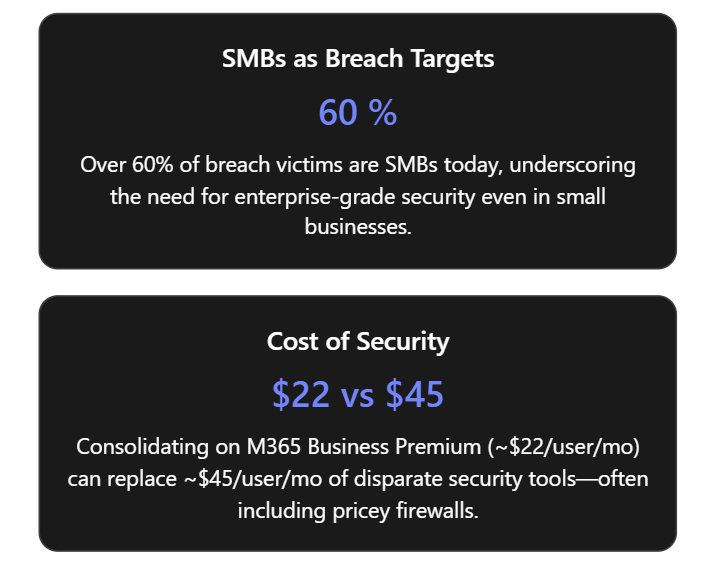
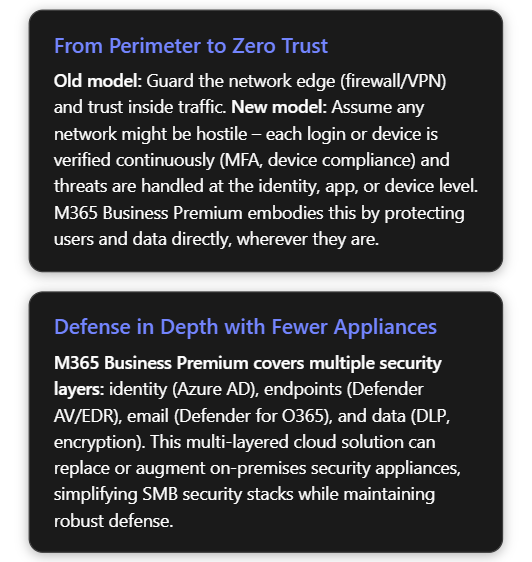



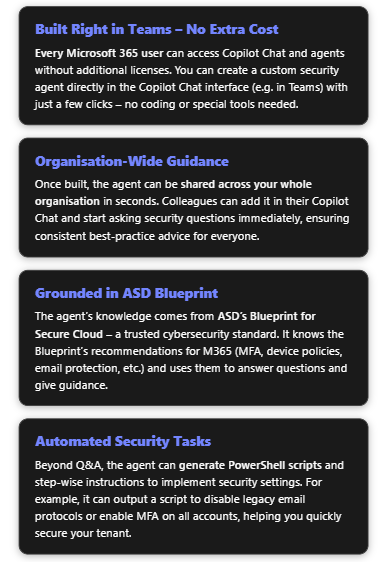
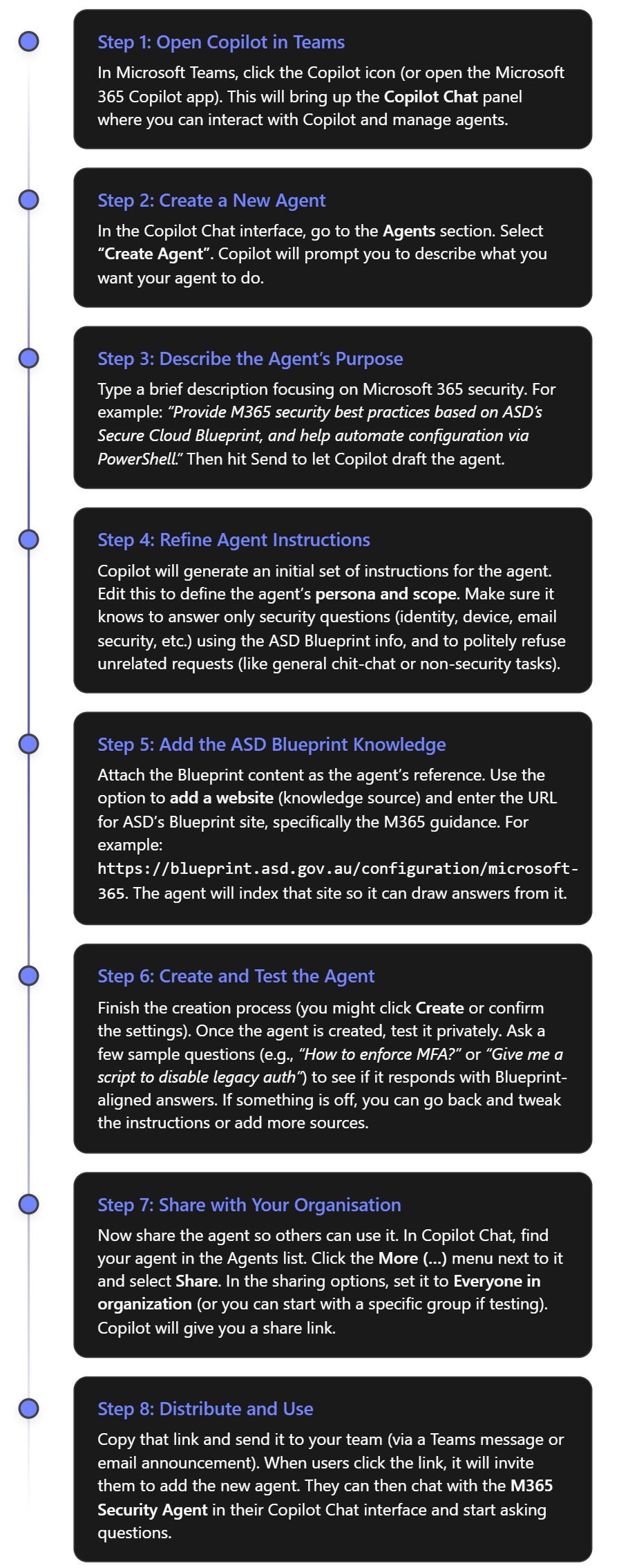
 CIAOPS