
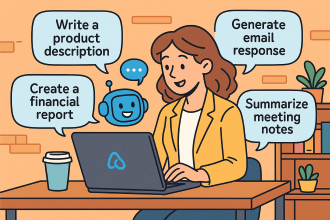
Microsoft 365 Copilot is a powerful AI assistant integrated into the Microsoft 365 apps you already use, designed to boost productivity, creativity, and efficiency. For small businesses, it can act as a virtual team member, automating routine tasks and providing intelligent assistance across various functions.
Here’s a breakdown of practical examples and a step-by-step implementation guide for a small business to leverage Copilot for increased productivity:
Practical Examples of Microsoft 365 Copilot in a Small Business
Here are concrete scenarios where a small business can use Copilot to be more productive:
1. Marketing & Content Creation:
-
Scenario: A small online retail business needs to create engaging product descriptions for new inventory and draft a marketing email campaign.
-
Copilot Use:
-
Word: “Draft 10 unique, SEO-friendly product descriptions for a new line of organic bath bombs, highlighting their natural ingredients and calming properties.” Copilot generates initial drafts, which the team can then refine.
-
Outlook: “Based on the organic bath bomb product descriptions, write a promotional email to our subscriber list, including a special launch discount and a clear call to action to visit our website.” Copilot drafts the email, saving significant time.
-
PowerPoint: “Create a presentation for an upcoming local market vendor event, showcasing our brand story and top 5 best-selling products. Include images and key benefits.” Copilot helps generate slides, suggest layouts, and even find relevant stock images.
-
2. Sales & Customer Management:
-
Scenario: A freelance graphic designer needs to prepare a tailored proposal for a new client and summarize a long email thread about project revisions.
-
Copilot Use:
-
Word: “Generate a comprehensive project proposal for [Client Name] for their new brand identity project. Include sections for scope of work, timeline, deliverables, and pricing, referencing our standard pricing guide.” Copilot quickly builds the proposal structure and fills in details.
-
Outlook: In a long email thread about client feedback, “Summarize the key decisions made and action items from this email conversation regarding the logo design revisions for [Client Name].” Copilot provides a concise summary, preventing missed details.
-
Teams: After a client meeting, “Summarize this Teams meeting about the website redesign, highlighting key agreements, outstanding questions, and assigned tasks to each team member.” Copilot generates meeting minutes and action items.
-
3. Finance & Operations:
-
Scenario: A small consulting firm needs to analyze quarterly sales data in Excel and draft a memo to employees about new expense policies.
-
Copilot Use:
-
Excel: “Analyze this sales data in Sheet1 to identify the top 3 performing services and visualize monthly revenue trends.” Copilot can suggest formulas, create charts, and even interpret the data, turning raw numbers into actionable insights.
-
Word: “Draft a clear and concise memo to all employees outlining the new expense reimbursement policy, effective next month. Emphasize the need for itemized receipts and submission deadlines.” Copilot helps draft the policy document quickly and accurately.
-
Microsoft 365 Chat: “What are the latest updates to the company’s Q2 budget in the ‘Finance Reports’ SharePoint folder?” Copilot can search across your M365 environment to retrieve and summarize relevant information.
-
4. Human Resources (HR) & Internal Communications:
-
Scenario: A small accounting firm needs to create an onboarding checklist for new hires and respond to common employee queries about leave policies.
-
Copilot Use:
-
Word: “Create a detailed onboarding checklist for new hires, covering IT setup, HR paperwork, team introductions, and initial training modules.” Copilot provides a structured checklist to ensure a smooth onboarding process.
-
Outlook: When an employee asks about personal leave, “Draft an email response to [Employee Name] explaining the company’s personal leave policy, referencing the relevant section in the employee handbook, and attaching the leave request form.” Copilot helps generate accurate and consistent responses.
-
Step-by-Step Implementation of Microsoft 365 Copilot in a Small Business
Implementing Copilot effectively involves more than just enabling licenses. It requires preparation, user adoption strategies, and ongoing monitoring.
Phase 1: Preparation and Readiness
-
Assess Your Microsoft 365 Environment:
-
Data Governance: Copilot inherits your existing Microsoft 365 security, privacy, and compliance settings. Ensure your data is well-organized, permissions are correctly set, and sensitive information is protected (e.g., using sensitivity labels). This is crucial to prevent “oversharing” of information through Copilot.
-
Licensing: Verify you have an eligible Microsoft 365 subscription (e.g., Microsoft 365 Business Standard or Business Premium). Copilot is an add-on, so you’ll need to purchase licenses ($30 per user per month, as of my last update).
-
Network Readiness: Ensure your internet connection and Microsoft 365 services are robust enough to handle the increased AI processing.
-
-
Identify Key Use Cases and Pilot Users:
-
Define Needs: Pinpoint specific pain points and areas where AI can provide the most immediate value for your business (e.g., slow report generation, repetitive email drafting, meeting summaries).
-
Select Pilot Group: Choose a small group of enthusiastic users from different departments who are heavy Microsoft 365 users and open to new technologies. These “champions” will be crucial for early feedback and encouraging wider adoption.
-
-
Establish an “AI Council” (Even for a Small Business):
-
This doesn’t need to be formal or large. It could be 1-2 owners/managers and a key IT contact (internal or external).
-
Their role: Define clear goals for Copilot, oversee implementation, address challenges, and communicate the vision.
-
Phase 2: Deployment and Onboarding
-
Assign Copilot Licenses:
-
Go to the Microsoft 365 admin center.
-
Navigate to Billing > Licenses.
-
Select Microsoft 365 Copilot and assign licenses to your chosen pilot users.
-
Note: It might take up to 24 hours for Copilot to appear in all apps for users. They may need to restart or refresh the apps.
-
-
Provide Training and Resources:
-
Basic Prompting: Train users on how to craft effective prompts. Emphasize clarity, context, and specifying the desired outcome.
-
Role-Specific Examples: Provide examples of how Copilot can be used in their specific roles (e.g., marketers: “draft a social media post,” sales: “summarize this client email”). Microsoft provides an “SMB Success Kit” and online quick-start training (aka.ms/quickstartcopilot) that can be valuable.
-
“When to use Copilot” vs. “When not to”: Help users understand when Copilot is a valuable assistant and when human judgment or expertise is still paramount.
-
Encourage Experimentation: Foster a culture where users feel comfortable experimenting with Copilot.
-
-
Establish a User Community (informal):
-
Even in a small business, create a dedicated chat channel (e.g., in Microsoft Teams) for users to share tips, ask questions, and celebrate “Copilot wins.” This peer-to-peer learning is highly effective.
-
Phase 3: Monitor, Refine, and Expand
-
Gather Feedback:
-
Regularly check in with your pilot users. What’s working well? What are the challenges? What new ideas do they have?
-
Qualitative feedback (discussions, surveys) is just as important as quantitative data.
-
-
Monitor Usage (Microsoft Copilot Dashboard):
-
The Microsoft Copilot Dashboard provides insights into Copilot usage, including which apps it’s used in most and active user counts. Use this to understand adoption trends and identify areas for further training or focus.
-
-
Iterate and Optimize:
-
Based on feedback and usage data, refine your training materials, prompt guidelines, and use cases.
-
Address any data governance issues that arise.
-
-
Gradual Rollout (or full deployment):
-
Once the pilot is successful and you’ve addressed initial challenges, gradually expand Copilot access to more users or the entire team.
-
Continue to provide ongoing support and training as new users come online.
-
-
Celebrate Successes:
-
Share stories of how Copilot has helped employees save time, improve quality, or achieve business goals. This builds enthusiasm and encourages wider adoption.
-
By following these practical examples and a structured implementation approach, even small businesses can effectively harness the power of Microsoft 365 Copilot to significantly boost their productivity and gain a competitive edge.
 CIAOPS
One thought on “Everyday Copilot example prompts for SMB”