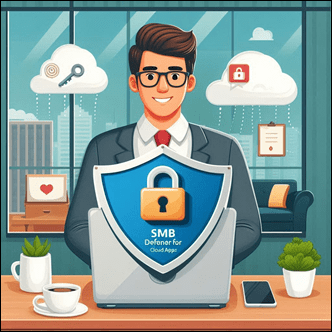
Microsoft Defender for Cloud Apps (MDCA), formerly known as Microsoft Cloud App Security (MCAS), is a comprehensive cloud access security broker (CASB) solution designed to secure SaaS applications. It offers full-spectrum protection for cloud apps, making it a powerful tool for small and medium-sized businesses (SMBs) to safeguard their data and users in the cloud[1][4]. This report explains MDCA’s key features, how those features help protect SMBs, common threats it mitigates, best practices for implementation, and practical considerations like integration, training, costs, and limitations.
Introduction: Cloud Security Challenges for SMBs
SMBs are increasingly reliant on cloud applications, from Office 365 to third-party SaaS services, to drive productivity. However, this shift introduces new security challenges: employees might use unsanctioned apps (“Shadow IT”), sensitive data could be stored in cloud services, and cyber threats (like phishing and ransomware) target cloud accounts. Traditional perimeter security is not enough, as users access apps from anywhere and attackers constantly seek weaknesses. SMBs often have limited IT staff and resources, making a unified, easy-to-manage cloud security solution essential.
Microsoft Defender for Cloud Apps addresses these challenges by providing visibility and control over cloud applications and data[1]. It helps SMBs identify what cloud services are in use, protect sensitive information, detect threats such as account compromise or suspicious data downloads, and enforce policies to prevent leaks. As part of Microsoft’s security stack, MDCA integrates with other tools to provide a holistic defense without the need for a large security team[1]. In the following sections, we detail the capabilities of MDCA and how an SMB can leverage the full version of the product to significantly enhance their security posture.
Key Features of Microsoft Defender for Cloud Apps
Microsoft Defender for Cloud Apps delivers multiple layers of protection across different areas of cloud security. Its key features include:
-
Cloud Access Security Broker (CASB) Functions: MDCA provides fundamental CASB capabilities such as Shadow IT discovery, visibility into cloud app usage, and protection against app-based threats across your cloud environment[1]. For example, it can analyse network logs or endpoint telemetry to find all cloud services users are accessing and assess their risk. It also offers information protection and compliance assessments for discovered apps[1], so you can see if an app meets security and regulatory standards.
-
SaaS Security Posture Management (SSPM): MDCA includes SSPM features that help assess and improve the configuration security of your SaaS apps[1]. It identifies misconfigurations and provides recommendations (based on industry standards like CIS benchmarks) to strengthen each connected application’s settings[1]. These recommendations surface in tools like Microsoft Secure Score, allowing you to track and remediate configuration risks across apps (e.g., ensuring MFA is enabled on all accounts in Salesforce or ServiceNow)[3].
-
Advanced Threat Protection (ATP) and Anomaly Detection: As part of Microsoft’s extended detection and response (XDR) ecosystem, MDCA offers user and entity behavior analytics (UEBA) and machine learning to spot unusual or risky activities in cloud apps[2]. It comes with built-in anomaly detection policies that can trigger alerts for suspicious behaviors – for example, impossible travel logins (a user account logging in from two distant locations in a short time), mass downloads of data, ransomware-like encryption activities, or a sudden spike in file deletions[3][2]. These help detect account compromises, insider threats, or malware outbreaks in real time. MDCA’s threat protection extends the full kill chain: it correlates signals with other Microsoft security products to detect multi-stage attacks and provides incident-level visibility and investigation tools via Microsoft 365 Defender (XDR)[1].
-
App-to-App Protection (OAuth App Governance): Modern attacks often exploit third-party OAuth integrations – for instance, a malicious app that a user unknowingly grants access to their Office 365 data. MDCA includes App Governance capabilities to monitor and control OAuth-enabled apps that have access to your data[1]. It identifies all apps your users have consented to, evaluates their permissions and behavior, and lets you set policies (e.g. alert if an app with high privileges is granted by many users)[2]. If an OAuth app is deemed risky or malicious, you can ban or revoke it to prevent data access[2]. This feature closes a security gap by ensuring inter-app data exchange is governed and suspicious apps are dealt with[1].
-
Information Protection and Data Loss Prevention (DLP): MDCA helps protect sensitive information in the cloud. It can scan files stored in connected SaaS apps (like OneDrive, SharePoint, Box, Dropbox, etc.) for sensitive data and apply labels or enforce policies. Through integration with Microsoft Purview Information Protection, MDCA can automatically detect classified data (using a broad set of built-in sensitive info types) and even apply or respect sensitivity labels on documents[1]. For example, if a file containing credit card numbers is found in a cloud drive, MDCA can flag it or apply a “Confidential” label and encryption automatically[1][2]. With DLP policies, MDCA can also prevent data leaks – e.g. by alerting or blocking when a user tries to share a sensitive file externally or download it to an unmanaged device[2]. Governance actions allow automatic responses like removing external collaborators from a confidential file or quarantining risky files[1][2].
-
Real-time Access Control (Conditional Access App Control): In conjunction with Microsoft Entra ID (Azure AD) conditional access, MDCA can enforce session controls on cloud apps. This means you can allow users to access an app but monitor or restrict specific activities in real time – for instance, blocking the download of a sensitive file when the user is on an unmanaged device, while still allowing them read access via web[2]. Adaptive access policies can also limit or tag “risky sessions” (like from non-compliant devices or unusual locations) and apply additional scrutiny or restrictions in those sessions[1]. (Note: Conditional Access App Control requires Azure AD Premium P1, which we discuss under licensing.)
All these features work together to give SMBs full visibility and control over their cloud environment: discovering what apps are in use, securing configurations, protecting data, and detecting/responding to threats. Importantly, MDCA is highly integrative – it feeds into and draws from Microsoft’s broader security platform, which is covered next.
Integration with Microsoft Security and Compliance Tools
One of the biggest advantages of MDCA for an SMB is its seamless integration with other Microsoft security products and existing infrastructure:
-
Microsoft 365 Defender (XDR) Integration: MDCA is built into the Microsoft 365 Defender XDR suite, which means alerts from cloud apps are correlated with signals from email, endpoints, identities, and more[1]. For example, if a user’s email was phished and then that account was used to download data from SharePoint, the system will correlate these events into a single incident. This gives the security team a complete end-to-end view of an attack across systems (email → device → cloud app) with full kill-chain visibility[1]. In the Microsoft 365 Defender portal, MDCA alerts and investigations are unified with other alerts, enabling powerful cross-product response actions (like disabling a user account or wiping a device) from one place[1].
-
Microsoft Defender for Endpoint (MDE) Integration: By integrating MDCA with Defender for Endpoint (which many SMBs use for device protection), you extend cloud app discovery beyond corporate networks. Defender for Endpoint can automatically feed MDCA with information about cloud app traffic directly from the endpoints, even when machines are used off-network[2]. This means an SMB user working from home or a café is still contributing to Shadow IT discovery – MDCA will see what apps they use without relying on firewall logs. This integration also ties user/device identity to cloud usage, so you can identify which user and device is accessing a risky app and investigate in Endpoint or Cloud Apps portals accordingly[2].
-
Azure AD / Microsoft Entra ID Integration: MDCA uses Azure AD’s identity framework to enforce policies. With Azure AD Conditional Access, you can route sessions through MDCA for monitoring/control (Conditional Access App Control). You can also leverage Azure AD sign-in risk signals (like risky user detected by Entra ID Protection) in MDCA policy decisions. Conversely, MDCA can suspend or flag a user as compromised in Azure AD as a response to certain alerts. (For instance, a policy can automatically suspend a user account in Azure AD if MDCA detects that the user’s credentials are likely stolen, stopping further damage.)
-
Microsoft Purview Compliance Integration: As mentioned, MDCA integrates with Purview Information Protection. SMBs that have data labeling or Data Loss Prevention (DLP) policies via Microsoft 365 compliance can extend those to third-party apps through MDCA. For example, if you’ve defined sensitive info types (like personal data for GDPR) in Purview, MDCA can recognize those in files across your cloud services[1][2]. MDCA also feeds into Microsoft Secure Score (security posture rating) for apps: any misconfiguration or risk it finds in connected apps can reflect in your Secure Score, giving you a centralized metric to track improvements[3].
-
Microsoft Sentinel and Other Tools: For SMBs with a SIEM like Microsoft Sentinel, MDCA can send its alerts and logs to it for centralized logging and long-term retention. Also, MDCA shares data with services like Microsoft Defender for Cloud (infrastructure security) and Entra Permissions Management to support a broader Zero Trust approach across cloud resources[7].
-
Out-of-the-Box Policies and Templates: MDCA comes with many built-in policy templates and analytics (e.g., templates for detecting “Mass download of cloud data” or “OAuth app with suspicious permissions”). These are maintained by Microsoft and use intelligence from across the ecosystem. By using these or enabling Defender’s out-of-box anomaly detections, SMBs benefit from Microsoft’s extensive threat research without heavy configuration. Integration with Security Copilot (an AI assistant for security, as hinted on the product page) is emerging to help analyse incidents at machine speed.
Integration example: If an SMB user’s account is compromised via phishing, Microsoft’s integrated approach shines. Suppose the attacker logs into the user’s Office 365 and starts downloading a large number of files from OneDrive and sets up email forwarding. MDCA will detect unusual mass downloads and the creation of suspicious mailbox rules, alerting you to a possible Business Email Compromise (BEC) incident[3]. At the same time, Defender for Office 365 would catch the phishing email, and Azure AD might flag the login as risky. In the XDR portal, these pieces come together, and the admin could directly trigger a response – e.g. forcing a password reset, suspending the account, or removing the malicious OAuth app that was granted, all from one unified interface[1].
For an SMB, this tight integration means less management overhead and a more cohesive defense, which is critical when IT teams are small. You are leveraging a whole security ecosystem rather than a standalone tool, thereby increasing effectiveness against complex multi-vector attacks.
Common Security Threats Faced by SMBs (and How MDCA Mitigates Them)
SMBs face many of the same cloud security threats as larger enterprises, but often with fewer defenses in place. Here are common threats in cloud app usage for SMBs and how Microsoft Defender for Cloud Apps helps address each:
-
Shadow IT (Unsanctioned App Usage): Employees may use cloud services (file sharing, messaging, SaaS tools) without IT’s approval, potentially putting corporate data in unmanaged, insecure apps. Risk: Data leakage and non-compliance when using unvetted apps. MDCA Solution: Shadow IT Discovery continuously inventories cloud app use by analyzing traffic logs or endpoint telemetry[2]. It maintains a catalog of over 25,000 apps with 90+ risk factors (security, compliance certifications, GDPR stance, etc.) to assess each app[1]. MDCA gives each discovered app a risk score, so SMBs can quickly identify risky services in use[1]. With this visibility, you can decide which apps to sanction or block. MDCA lets you tag apps as “Approved” or “Unsanctioned” and even export block scripts for your firewall or proxy to automatically block unsanctioned apps[2]. This helps an SMB eliminate risky Shadow IT or guide users toward safer alternatives.
-
Data Leakage and Oversharing: Cloud storage and collaboration tools make it easy to share data – sometimes too easy. Employees might accidentally share a confidential document via a public link or upload sensitive files to personal cloud drives. Risk: Sensitive information (customer data, financials, IP) could be exposed to the public or unauthorized parties, leading to compliance violations. MDCA Solution: Data Loss Prevention (DLP) and file policies monitor data at rest and in transit. MDCA scans files in connected apps for sensitive content or labels[1][2]. It can automatically flag or remove external sharing on files containing regulated data. For example, you can set a policy to alert and revoke external access if a file labeled “Confidential” is shared outside the company[2]. MDCA’s real-time controls can block downloads of sensitive files to unmanaged devices, preventing an employee from, say, saving a client list to a personal laptop[2]. By containing data within approved channels and logging all file activities, MDCA helps SMBs prevent leaks and meet compliance (like HIPAA or GDPR) requirements[1][2].
-
Account Compromise and Phishing Attacks: Phishing is a top threat to SMBs – if a user is tricked into giving up credentials, an attacker can log into cloud services to steal data or cause damage. Risk: Unauthorized access to email, files, or SaaS apps leading to data theft, fraud (as in Business Email Compromise scams), or service misuse. MDCA Solution: MDCA’s anomaly detection will notice when a user behaves abnormally post-compromise. For instance, it can detect sign-ins from unusual locations or impossible travel (e.g., user logs in from New York and 30 minutes later from Russia)[2], mass file downloads or deletions (a hallmark of data theft or ransomware)[3], and suspicious modifications like an abnormal spike in mailbox forwarding rules[3]. When these anomalies trigger alerts, security can respond quickly – or even automatically. MDCA allows policies to auto-remediate some issues: you could configure it to suspend a user account upon certain high-risk alerts, blocking an attacker’s access while an investigation begins. Additionally, MDCA’s integration with identity protection means confirming a user as compromised in MDCA can feed into Azure AD to enforce password resets or MFA for that account. By providing early warning of account takeover and tools to contain it, MDCA dramatically reduces the damage a phished account can cause.
-
Insider Threats and Misuse: Not all threats come from outside. A disgruntled or careless employee might attempt to exfiltrate data (for example, download all client records before leaving the company) or access data they shouldn’t. Risk: Internal data theft or policy violations that could go unnoticed without monitoring. MDCA Solution: Through its activity policies and UEBA, MDCA monitors user activities in cloud apps and can alert on defined patterns or anomalies for insiders. You can set activity policies for things like “download of >500 files in an hour” or “user viewed >100 sensitive files” to catch suspicious behavior. MDCA also uses machine learning to learn normal user patterns and will flag anomalies per user – catching things like a user suddenly accessing files they never touched before or performing administrative actions beyond their normal scope[2][2]. Every action in connected apps is recorded in an audit log. If an incident is suspected, the audit trail can be reviewed to see exactly which files or emails an employee accessed or sent[2]. MDCA thus provides oversight that can deter malicious insiders and quickly uncover internal misuse. Governance actions like file quarantine or account suspension can again mitigate damage if an insider is detected in the act.
-
Malicious OAuth Apps (“Consent Phishing”): Attackers may trick users into authorizing a third-party app that requests extensive permissions (read emails, files, etc.). Once consented, the app acts as a backdoor to data without needing the user’s password. Risk: A trusted but malicious app siphons data or performs actions on behalf of the user (e.g., emailing all customers). MDCA Solution: The App Governance feature keeps watch on OAuth apps. It logs all OAuth app consents in the tenant (for Microsoft 365 and other supported services) and highlights those with risky permissions or unusual usage patterns[2]. You can create OAuth app policies – for example, alert if an app with Mail.ReadWrite permission is granted by over 10 users, or if an app’s usage suddenly spikes across the org[2]. If an application is deemed malicious or unnecessary, MDCA allows you to revoke its access or ban it entirely, preventing any further OAuth token use[2]. This protects SMBs from the growing threat of consent phishing, which might otherwise slip past traditional email filters (since no credential is stolen, the abuse happens via an allowed channel). By maintaining “app hygiene” – monitoring unused or high-permission apps – MDCA helps ensure only trustworthy applications integrate with your environment[1].
-
Compliance Violations and Regulatory Risks: SMBs in regulated industries (finance, healthcare, etc.) or those handling personal data have to adhere to standards (GDPR, PCI DSS, etc.). Cloud usage can introduce compliance issues, like storing data in regions disallowed by law or using apps that don’t meet security standards. Risk: Fines, legal penalties, or reputational damage from data mishandling. MDCA Solution: Compliance is woven into MDCA’s discovery and protection capabilities. The app catalog highlights which discovered apps have compliance certifications (e.g., ISO 27001, SOC 2, HIPAA) and which don’t, so you can avoid non-compliant services[1]. MDCA’s SaaS security posture management ensures that your sanctioned apps are configured in line with best practices – for example, requiring strong passwords and MFA, which are often compliance mandates[3]. Its DLP policies help enforce compliance by preventing certain data from being stored or shared in ways that violate regulations (for instance, blocking the sharing of EU customer personal data to a third-party app not approved for GDPR)[2][2]. MDCA also provides audit records and reports that can be useful for compliance audits, demonstrating that controls are in place and monitored. By using MDCA, an SMB can more easily meet the security controls expected by regulations and demonstrate due diligence in protecting sensitive data.
In summary, MDCA functions as an ever-vigilant security layer for cloud apps, directly addressing many top threats to SMBs. Whether the risk comes from external attackers or internal accidents, MDCA’s mix of prevention (policies to reduce risk), detection (alerts on anomalies), and response (automated actions and investigation tools) significantly enhances an SMB’s ability to operate safely in the cloud.
Best Practices for Implementing Defender for Cloud Apps in an SMB
To get the most out of Microsoft Defender for Cloud Apps, SMBs should follow best practices that cover setup, policy configuration, and ongoing operations. Based on Microsoft’s guidance and real-world experience, here are key best practices for deploying MDCA in an SMB environment:
1. Deploy in Phases and Prioritise Key Apps
Start with critical apps and gradual rollout: Begin by connecting your most important cloud applications (like Microsoft 365 services) to MDCA for immediate visibility[2]. Microsoft 365 (which includes SharePoint, OneDrive, Teams, Exchange, etc.) should be connected first – this is usually a one-click connection since MDCA is natively integrated[2]. Then, connect other major SaaS apps your business uses (Salesforce, Box, Dropbox, Google Workspace, etc.) using MDCA’s app connectors[2]. By onboarding apps one by one, you can focus on tuning policies for each and avoid being overwhelmed. Initially, run MDCA in an audit/monitoring mode – let it observe and report activity before you enforce strict controls. This phased approach lets you baseline “normal” usage and identify what policies make sense.
Tip: Check Microsoft’s list of supported app connectors (via the “Connect apps” page) to see all third-party apps you can integrate via API[2]. If an important app isn’t natively supported, you can still use generic controls (like discovery and reverse proxy) to cover it, but prioritize official connectors for deeper insight.
2. Enable Shadow IT Discovery with Endpoint Integration
Gain visibility into all cloud services in use: As an SMB, you may not have a fancy network proxy – but if you use Defender for Endpoint on your PCs, leverage it for app discovery. By enabling the integration, every device will report cloud app usage to MDCA, even off-network[2]. This is a best practice because it provides continuous Shadow IT monitoring without requiring manual log uploads from firewalls. In MDCA, enable “Automatic log upload” or continuous reports for discovery[6]. Review the Cloud Discovery dashboard to identify unsanctioned apps and create App Discovery policies: for example, get alerted when a new app starts trending in usage or if users flock to an app with a poor risk score[2]. After an initial discovery period, tag the apps: mark trusted services as “Sanctioned” and unapproved ones as “Unsanctioned”[2]. You can then enforce this by blocking unsanctioned apps at your firewall or via proxy; MDCA helps by providing block scripts or integrations for certain devices[2]. This process ensures no cloud tool is flying under IT’s radar, which is crucial for security and compliance.
3. Implement Strong Governance Policies
Use MDCA policies to enforce safe behavior: MDCA offers various policy types (activity policies, file policies, session policies, anomaly policies, OAuth app policies, etc.). As an SMB, you might start with template policies and then refine. Key policies to implement include:
-
Access and Session Policies: If you have Azure AD Premium, set up Conditional Access App Control for high-risk scenarios. For instance, create a session policy to block downloads of sensitive files on unmanaged devices[2]. Also consider policies to monitor user sessions from risky IPs or countries (you can configure policies to alert on any login from a foreign country your business doesn’t operate in)[2]. These real-time policies can dramatically reduce the risk of data loss from unsecured networks.
-
File Policies: Deploy DLP-oriented file policies. For example, policy to detect externally shared files containing sensitive info (like those matching credit card or SSN patterns)[2]. Another is to enforce classification: e.g., if a file labeled “Confidential” is shared externally, automatically revoke the external sharing[2]. Also enable malware detection policies – MDCA can integrate with anti-malware engines to detect malicious files in your cloud storages (quarantining infected files if found).
-
Activity Policies: Define policies for things like mass download or delete (to catch possible data theft or ransomware), admin activities (alert if an admin creates a new app API token, as that could be abused), or login anomalies if you don’t have anomaly detection (e.g., user logging in during odd hours or from new ISP). MDCA’s templates can help here – you can adapt templates such as “Impossible travel” or “Mass download” to your environment[3]. Activity policies can even notify the user when triggered (“You downloaded 200 files; if this was not intended, security has been alerted”) which can deter risky behavior.
-
OAuth App Policies: Use these to manage third-party app usage. A suggested policy is: alert if any OAuth app with high permissions is granted by more than X users[2], or if a single user grants permissions to an unusually large number of apps. This helps spot malicious apps quickly. If you see an app that looks suspicious or isn’t needed, you can use MDCA to revoke its access for all users[2].
Best Practice: Regularly review and tune anomaly detection policies. Out-of-the-box anomalies are useful, but adjust their sensitivity to suit your SMB (you might lower sensitivity to reduce false alarms if you have frequent travelers, for instance)[2]. Also configure IP address ranges (like label your office IP, VPN IPs, etc., as “corporate”) in MDCA settings[2]. This will improve alert accuracy (for example, “impossible travel” logic will then know what is a familiar location vs. not) and reduce noise from known good activities.
4. Protect Sensitive Data with Classification and DLP
Integrate information protection from the start: If your SMB deals with any sensitive or regulated data, integrate MDCA with Microsoft Purview Information Protection (formerly Azure Information Protection) right away[2]. This allows MDCA to recognize your sensitivity labels (Confidential, Secret, etc.) and apply them. Turn on automatic scanning and labeling for files in cloud apps[2]. This way, as soon as MDCA is connected to, say, your SharePoint or Box, it will detect files that contain things like credit card numbers or personal identifiers and can optionally apply a label or encryption according to your policies[1]. Even without formal labels, configure file content scanning in MDCA by enabling file monitoring for all connected apps[6] and setting up policies for known sensitive content (you can use built-in data types like financial info, health info, etc.).
Enforce collaboration controls: Beyond just identifying sensitive data, use MDCA to control sharing. A best practice is to limit external sharing of sensitive files using file policies – e.g., auto-remove external users if they were invited to a SharePoint file that contains confidential data[2]. You can also create policies to catch files being shared to personal email domains (like gmail.com, yahoo.com) which often indicates someone emailing data to themselves[2]. The goal is to reduce the chance that an employee can accidentally or intentionally take sensitive data out of the company.
Finally, educate your users about data labeling and the new controls. If employees understand that MDCA will, for instance, block them from downloading certain files on a personal device, they are more likely to use the approved, secure methods (like viewing via web or requesting a one-time approval). Pairing technology with awareness ensures that security doesn’t stifle productivity.
5. Use Real-Time Controls and Zero Trust Principles
Adopt a Zero Trust mindset for cloud app access: never fully trust a login, especially if conditions are unusual. With MDCA, enforce Conditional Access policies that route risky sessions through MDCA for monitoring[2]. For example, you might allow a user to access CRM data from any device, but if the device is not Azure AD compliant or the location is unknown, require session monitoring. In practice, this translates to using Conditional Access App Control in “Monitor” or “Block” mode for those scenarios[2][2]. It’s a best practice to block downloads of classified data in untrusted sessions – MDCA can allow the user to view a sensitive document in a web viewer but prevent the actual download if they’re not on a corporate device[2]. This granular control embodies Zero Trust (verify explicitly, and give least privileged access needed).
Also, consider enabling user risk mitigation: MDCA can tie into Azure AD Identity Protection, where if a user is flagged as high-risk, you can apply stricter controls or even block their cloud app sessions until they do MFA or password reset. All these help contain threats like stolen tokens or cookies – if something seems off, MDCA can gate what the user can do.
6. Monitor Alerts and Use the Audit Log for Incident Response
Define a process for reviewing MDCA alerts daily. Even with tuning, MDCA will generate alerts that need attention. Smaller organizations should determine who is responsible for cloud security alerts (it might be the IT admin or a security officer). Use the Microsoft 365 Defender portal as a one-stop to watch incidents and alerts across MDCA and other workloads – this unified queue can simplify your workflow[1]. When an alert comes in (e.g., “Impossible travel” or “Mass download detected”), investigate using the MDCA console’s investigation tools. MDCA provides an Activity log (audit trail) where you can filter by user, file, app, etc., to see the sequence of actions leading up to an alert[2]. For instance, if you get an alert about a suspicious login, you can quickly search the audit log to see what the user did after that login (uploaded files? changed sharing settings? etc.)[2].
Take advantage of governance actions to respond: MDCA lets you directly suspend users, terminate sessions, or remove file shares from within the portal. A best practice is to integrate MDCA with your incident response plan. For a given type of alert, decide in advance: will we just monitor, or immediately suspend the account? Many SMBs choose to have MDCA automatically suspend a user or require a sign-in reauthentication if a high-severity anomaly (like impossible travel) is detected, because it’s better to be briefly locked out than to be an entry point for attackers. You can enable such automatic responses in policy configurations (e.g., an activity policy can suspend a user as a response action). Make sure to document these and inform your team.
Finally, use the audit logs as a forensic tool. If (hopefully not) you suffer a security incident, MDCA’s logs of cloud activities can be invaluable in piecing together what happened – often, they will show exactly which files were touched or which unusual actions occurred around the incident time. MDCA retains activity logs for up to 180 days by default[7]. For longer retention, integrate with a SIEM. Regularly exporting critical logs or connecting to Sentinel can be a good practice if you need to keep data for compliance.
7. Regularly Review Security Posture and Compliance
Use MDCA to continuously assess and improve your security posture: In the MDCA portal (or M365 Defender Secure Score), check the secure configuration recommendations for each connected app. MDCA will list posture improvement suggestions (for example, “Salesforce: Disable legacy authentication methods” or “Dropbox: Enable personal account prevention”) based on industry best practices[3]. SMBs should treat these like a checklist and remediate as many as possible, as they directly reduce risk. Many SMBs find it useful to assign an admin the task of improving Secure Score by a certain amount each month using these recommendations.
On the compliance side, if your business has to follow regulations, MDCA’s discovered app list can be reviewed to ensure no one is using an app that lacks required compliance. Enforce that only approved, compliant apps are allowed (and mark them as such in MDCA). Also, periodically review reports: MDCA offers reports like App trends, File violations, etc. For instance, you might run a monthly report of all external file sharing events detected, to verify they were legitimate business needs.
By following these best practices – gradual deployment, comprehensive monitoring, strong policy enforcement, and continuous tuning – SMBs can successfully implement Defender for Cloud Apps to dramatically enhance their cloud security while minimising disruption.
Deployment Steps for SMBs: How to Get Started with MDCA
Implementing Microsoft Defender for Cloud Apps in an SMB environment can be straightforward if approached systematically. Here is a step-by-step guide to deploying the full version of MDCA:
Step 1: Obtain the Necessary Licenses
Ensure you have the appropriate licensing for MDCA. Microsoft Defender for Cloud Apps is not included in all Microsoft 365 plans by default. Each user you want to protect needs a MDCA license[8]. MDCA is included in Microsoft 365 E5 and certain bundles (like Microsoft 365 E5 Security or EMS E5), or it can be purchased as a standalone add-on[8][4]. For many SMBs who use Microsoft 365 Business Premium (which is like E3 level), note that Business Premium includes only limited Cloud App Security (discovery), not the full MDCA features. To get the full version, you may need to add the **“Microsoft Defender for Cloud Apps (standalone)” license per user or upgrade to a plan that includes it[8][4]. Once you have licenses assigned, MDCA will become available in your tenant. (You can get a free trial via a Microsoft 365 E5 trial if you want to test first[6].)
Step 2: Access the MDCA Portal
With licensing in place, access MDCA through the Microsoft 365 Defender portal. Navigate to the “Cloud Apps” section of the portal—this is the MDCA interface[6]. (Alternatively, use the standalone portal link if provided, but Microsoft is unifying it under the Defender portal.) Verify that MDCA is active for your tenant by checking Settings > Cloud Apps > About, which shows your MDCA tenant details and region[7].
Step 3: Connect Core Cloud Apps (App Connectors)
Set up App Connectors for the cloud services you want to monitor and protect. Start with Microsoft 365: In the MDCA portal, go to Settings > Cloud Apps > App Connectors, then click + Connect an app and select Office 365 (or “Microsoft 365”)[6][6]. Follow the prompts—since you’re likely already logged in as an admin, this is often just a matter of granting the consent. Once connected, MDCA will begin ingesting activity logs from Exchange, SharePoint, OneDrive, Teams, etc., giving you visibility into all those services[2].
Next, connect other third-party apps your business uses. Common ones are Salesforce, Google Workspace, ServiceNow, Box, Dropbox, Slack, etc. Each connector might require an admin account or API token for that service. MDCA’s Connect Apps wizard will guide you through the needed steps for each (often linking out to documentation for the app). By connecting apps, you gain deep visibility into user activities, files, and settings for those apps, and can start to apply policies to them[6][6]. Note: There may be API call limits on apps (for example, some services limit how fast MDCA can pull data); the portal will warn if you approach those[6].
Step 4: Enable Policies and Governance Actions
Once apps are connected, configure your initial set of policies. It’s wise to begin with out-of-the-box Policy Templates that align to common scenarios (MDCA provides templates for things like “Mass download by a single user”, “Daily upload anomaly”, “Suspicious OAuth app” etc.)[6]. In the portal, go to Policies > Policy Templates, pick a relevant template, and click the + to create your own policy from it[6]. Customize the filters or threshold as needed, and set governance actions (like alerting, notifying user, or suspending user) appropriate for the severity[6]. Additionally, go to Policies > Policy Management to see all active policies and adjust as needed[6]. We recommend enabling at least: a few anomaly detection policies (MDCA’s built-in ones are auto-enabled – ensure they’re on), a couple of activity policies for admin and sign-in events, and a few file policies for DLP.
Don’t forget to configure governance action settings globally: e.g., set up email notifications so that if an alert triggers, your admins get an email (MDCA can send alert notifications to specified email or to Teams). Under Settings > Cloud Apps > Alerts, you can set who gets notified for alerts and how often. Also, in Settings, there is a section to configure IP address ranges – input your corporate IPs here as “Internal” etc., to aid in location-based policies[2].
Step 5: Set Up Cloud Discovery
For Shadow IT discovery, decide how to feed MDCA logs of internet usage: either via Defender for Endpoint integration or by uploading firewall/proxy logs. If you have devices with Defender for Endpoint, simply enable the integration toggle: in the MDCA settings, find the option to integrate with Defender for Endpoint or in the Defender for Endpoint settings, allow data to be shared with MDCA[6][6]. This will automatically start sending cloud app data from endpoints. If not using Defender for Endpoint, you can configure automatic log upload from your network devices: MDCA supports parsing many common firewall logs (Cisco, Palo Alto, etc.). Set up a Log Collector (a lightweight VM or agent that uploads logs to MDCA) as per documentation[6]. You can also run one-time snapshot reports by uploading a batch of logs manually via the portal[6]. After enabling discovery, verify it’s working by checking the Cloud Discovery Dashboard, which should start showing discovered apps and users.
Step 6: Fine-Tune and Test
With connectors and initial policies in place, let MDCA run for a short period to collect data. Use this time to fine-tune: Are you getting too many alerts? Adjust policy sensitivity or scope. Are some known good activities being flagged? Add them to allowed lists or lower thresholds. Test critical controls: e.g., try downloading a labeled confidential document from an unmanaged device to see if your session policy blocks it as intended. Try installing a test OAuth app to see if your OAuth policy triggers. It’s better to identify needed adjustments early.
Make sure the integration pieces are working: check the Microsoft 365 Defender Incidents and see if MDCA alerts are part of those incidents as expected. Ensure admins receive email notifications for high-severity alerts.
Step 7: Train Your Team and Go Live
Educate both IT staff and end users about MDCA. Admin/IT Training: Administrators should know how to navigate the MDCA portal, interpret alerts, and take actions. Microsoft provides a “Defender for Cloud Apps Ninja Training” and Microsoft Learn modules which are excellent for getting up to speed on all features. Investing a few hours in these trainings can significantly help your IT team utilize MDCA effectively. User Awareness: Let employees know that a cloud security solution is in place – not to scare them, but to encourage good practices. For instance, inform them that certain risky activities (mass downloads, trying to use unapproved apps) may be monitored or blocked. Promote a list of “approved cloud apps” and ask users to stick to those for work data. With transparency, users are less likely to feel “spied on” and more likely to cooperate with security policies.
Now, start enforcing policies and treat alerts seriously. As you fine-tune over time, you’ll strike a balance where MDCA operates with high efficacy and minimal annoyance.
Step 8: Ongoing Management
Post-deployment, make MDCA management a routine. Review alerts daily or weekly depending on volume. Update policies as your business or threats change (e.g., if you adopt a new SaaS tool, add appropriate policies; if a certain alert is always a false positive, adjust it). Onboard new apps whenever your users start using them – MDCA discovery might reveal a new popular app, at which point you should evaluate it and, if it’s to be allowed, connect it via API for full insight. Keep an eye on new features: Microsoft regularly updates MDCA with new capabilities (for example, recent addition of “secure use of generative AI apps” is mentioned in docs[4]). Applying updates and improvements will ensure your SMB gets maximum protection value over time.
By following these steps, an SMB can methodically deploy Microsoft Defender for Cloud Apps and quickly start reaping its benefits in securing their cloud footprint.
Training Staff for Effective Use of Defender for Cloud Apps
Technology alone isn’t enough – people and process are key to a successful security solution. For SMBs, it’s essential that both IT administrators and end-users are appropriately trained to use and live with Microsoft Defender for Cloud Apps:
-
Admin and IT Staff Training: The individuals responsible for security or IT in your organization should become proficient in MDCA. Microsoft offers comprehensive training resources such as the Microsoft Defender for Cloud Apps Ninja Training (a multi-part blog and video series) and interactive Microsoft Learn courses. These cover everything from basic concepts to advanced configurations. Encourage your IT staff to complete these trainings to gain confidence in tasks like creating policies, investigating alerts, and integrating MDCA with other tools. Additionally, consider scenario-based exercises: e.g., have them simulate a response to an alert (like a mock “impossible travel” incident) to practice using the MDCA portal for investigation and taking action (suspending a user or file quarantine). Regular knowledge shares or refresher sessions are useful, since MDCA’s features evolve.
-
Security Operations Process: If you have a security team or even a single dedicated security admin, establish clear procedures on handling MDCA alerts. For example, define which types of alerts require immediate action (e.g., a “OAuth app consented by 50 users” might warrant urgent response to remove it), and which can be just documented and monitored. Ensure the team knows how to escalate issues found by MDCA – e.g., if MDCA finds evidence of a breach, what’s the incident response plan? Having run-books that include steps to take in MDCA (like “if malware found in Box, use MDCA to quarantine the file and then notify affected user”) will streamline responses under pressure.
-
End-User Awareness and Training: While end-users don’t interact with MDCA directly, their actions trigger its policies. Educating users on acceptable cloud usage and the security measures in place will improve compliance and reduce false alarms. Make sure employees know which cloud apps are approved and that using unapproved ones could be detected and blocked. If you’ve enabled things like session monitoring, you might occasionally have MDCA display a notification to a user (for example, if a policy is set to notify on certain actions). Inform users that these messages are part of keeping company data safe, not personal criticism. Provide tips like: “Avoid uploading work documents to personal cloud drives – use OneDrive or approved storage where we have security protections.” Emphasize that MDCA is there to protect both the company and them (preventing their accounts from abuse, etc.). You could include a short segment on cloud security in your regular security awareness training, highlighting phishing prevention (which ties to MDCA catching account compromise) and safe data handling.
-
Leverage Reports for Feedback: MDCA can also be used in training by showing the workforce aggregated insights. For instance, IT can share, “Last quarter, we discovered 50 unsanctioned cloud apps in use and have reduced that to 5 now. This improves our security and compliance.” Celebrating improvements can reinforce good behavior. Conversely, if MDCA logs show risky trends (like many confidential files shared externally), you can address this trend in a company meeting (no need to call out individuals – focus on the behavior to correct, e.g., “we’ve seen too many external sharing events, please double-check before sharing if it’s necessary and allowed”).
-
Continuous Learning: The threat landscape changes, and so will MDCA capabilities. Make it a practice for your IT team to stay updated via Microsoft security blogs or community webinars. Microsoft often publishes case studies and tips for Defender for Cloud Apps – reading those can give your team new ideas to utilize MDCA more effectively. If feasible, attend security conferences or webcasts related to cloud security or Microsoft 365 security; many are tailored for IT pros at smaller organizations.
By investing in training and awareness, an SMB ensures that MDCA isn’t a black box but a well-understood tool. A knowledgeable team will harness MDCA’s full potential, responding quickly to incidents and fine-tuning the system proactively. Likewise, an informed user base will be less likely to trigger security incidents, making your entire cloud environment safer.
Costs and Licensing Considerations for SMBs
When planning for the full version of Microsoft Defender for Cloud Apps, SMBs should understand the licensing model and associated costs:
-
Licensing Model: MDCA is licensed on a per-user basis (i.e., each user whose activities you want to monitor/protect must have a license)[8]. There isn’t a site-wide or server license; it’s tied to users. This means if you have 100 employees using cloud apps, you’d license all 100. In an SMB context, you might opt to license only certain users (for example, start with those handling the most sensitive data), but for comprehensive protection it’s best to cover everyone.
-
Included in Microsoft 365 Plans: The full MDCA is included in Microsoft 365 E5 (top-tier enterprise), and also in some add-on bundles:
- Microsoft 365 E5 Security add-on (this is an add-on to, say, M365 E3; MDCA is part of it)[8].
- Enterprise Mobility + Security (EMS) E5 (the advanced security suite)[4].
- Certain industry or government SKUs (A5 for education, G5 for government) also include it[4].
- Microsoft 365 Business Premium, aimed at SMBs, does not include full MDCA; it includes only a subset called “Cloud App Security Discovery” (Shadow IT reporting)[5][5]. So Business Premium users would need an upgrade or add-on for full capabilities.
- Lower plans like M365 E3 or EMS E3 often include only “Cloud App Security (CAS) Discovery” or “Office 365 Cloud App Security” (limited to O365 apps)[5], not the full MDCA for all apps. The term “Microsoft 365 Cloud App Security” refers to a lighter version limited to M365 data[6].
-
Standalone Purchase: MDCA can be purchased as a standalone license if you don’t have E5. This is useful for SMBs on lower M365 plans. The standalone SKU is often just called “Microsoft Defender for Cloud Apps” and is priced per user per month. (While Microsoft doesn’t publicly list prices on docs as they vary by region and agreement, one Microsoft partner source indicates it’s on the order of a few dollars per user per month for MDCA standalone[5] – approximately in the range of \$3–\$5 USD/user/month, but exact pricing should be confirmed with a Microsoft reseller.) Be aware that if you go standalone, you might also need to ensure you have Azure AD Premium P1 for each user to use some MDCA features like Conditional Access App Control[4]. Azure AD P1 is included in many suites (EMS E3/E5, Business Premium includes it, etc.), but it’s a prerequisite for the session control scenarios.
-
SMB Cost Considerations: SMBs tend to be cost-sensitive, so an E5 license for all users might be too expensive if they only need the CASB functionality. A common approach is to keep an SMB on Business Premium (for general productivity and basic security) and add a “Microsoft 365 E5 Security” add-on for those who need advanced security. The E5 Security add-on includes MDCA and other advanced protections at a fraction of the cost of full E5[5][5]. For example, if you have 50 users, you might buy 50 Business Premium licenses and 50 E5 Security add-ons for them to get MDCA (and more). Discuss with a Microsoft licensing partner for the most cost-effective combo.
-
Value Proposition: It’s worth noting that the cost of MDCA can often be justified by the risk reduction it provides. A single data breach or compliance fine can cost far more than years’ worth of MDCA licensing. Microsoft also bundles MDCA in such a way that you get other benefits (Defender for Endpoint, etc., in the same bundle), which overall improves your security posture. Additionally, MDCA’s broad feature set could replace or consolidate other third-party tools (like separate CASB or DLP solutions), potentially saving money in your IT budget by not paying for multiple products.
-
Trial Availability: If cost commitment is a concern, Microsoft offers a free trial (often 30 days) for up to a certain number of users via an E5 trial[6]. An SMB can trial MDCA to evaluate the benefits before purchasing. This can be a good way to gather evidence (e.g., “MDCA found 200 risky app uses in a month”) to justify the spend to management.
In summary, the full Defender for Cloud Apps is a premium feature that typically requires a premium license. SMBs should plan licensing strategically – possibly using add-ons – to fit their budget. It’s important to ensure every user you intend to monitor or protect is licensed; otherwise, their activities might not be covered, leaving gaps. Always verify with Microsoft’s latest licensing guides or a trusted partner, as Microsoft’s licensing options do evolve.
Compliance Support for SMBs
For many small and medium businesses, meeting compliance requirements (be they legal regulations or industry standards) is as critical as security. Microsoft Defender for Cloud Apps provides several capabilities to help SMBs maintain compliance and protect data privacy:
-
App Compliance and Risk Assessment: As part of Shadow IT discovery, MDCA’s catalog provides compliance-related information for each app discovered. This includes whether the app has certifications like ISO 27001, SOC 2, PCI DSS, HIPAA, GDPR compliance statements, etc.[1]. SMBs can use this feature to enforce that employees only use cloud services that meet the company’s compliance criteria. For example, if you operate in healthcare, you might decide that only apps compliant with HIPAA are allowed. MDCA will flag those that are not, so you can block or discourage their use. This helps prevent the use of shadow IT that could inadvertently violate regulations.
-
Data Residency and Privacy: MDCA itself is designed with data privacy in mind. The service operates in regional Azure data centers; your MDCA data is stored in the geography of your tenant (for example, EU tenants’ data stays in EU data centers), adhering to data residency requirements[7]. This is important if you have obligations about where data is stored. Additionally, MDCA retains data (activity logs, etc.) for up to 180 days in the portal[7], and will purge it after contract termination in accordance with Microsoft’s privacy commitments[7]. Knowing this, SMBs can be assured that using MDCA will not introduce new compliance problems—Microsoft handles MDCA data securely and transparently.
-
Protection of Regulated Data: MDCA’s information protection and DLP features directly support compliance by ensuring regulated data is properly handled. You can define policies to detect data like personal identifiable information (PII), financial information (credit card numbers, bank details), health records, etc., which are common in laws such as GDPR, PCI DSS, or HIPAA. Once detected, MDCA can prevent that data from being openly shared or leaving the controlled environment[2][2]. For instance, to comply with GDPR’s requirement to safeguard personal data, you can set MDCA to encrypt or quarantine files that contain EU citizen personal data if they’re stored in non-EU cloud apps, or simply to alert your compliance officer whenever such data is uploaded to a cloud service. These controls create an audit trail and enforcement point for compliance that SMBs might otherwise lack.
-
Compliance Reporting: While MDCA is not a compliance management tool per se, it provides logs and alerts that feed into your overall compliance reporting. If auditors ask “how do you monitor for unauthorized data sharing?”, an SMB can demonstrate MDCA’s policies and even show example alerts that were generated and resolved. MDCA also integrates with Microsoft Purview’s Compliance Manager and Secure Score. By improving Secure Score through MDCA, you’re likely also improving your compliance posture. Secure Score and MDCA’s SSPM essentially guide you to implement best practices that often line up with regulatory standards (e.g., enforcing MFA, restricting external sharing, etc., which are common audit checkpoints).
-
Zero Trust Approach and Regulations: Many modern regulations (or at least industry frameworks like ISO 27001, NIST, etc.) encourage a Zero Trust security approach and continuous monitoring. MDCA enables exactly that for cloud apps – continuous monitoring of user actions and data flow. For an SMB pursuing certifications or questionnaires for clients (say you need to answer how you protect cloud data for a potential B2B client), being able to say you have a CASB (MDCA) monitoring all cloud usage with anomaly detection, DLP, etc., can satisfy many security control requirements.
-
Customer Lockbox and Data Access: One subtle privacy aspect – when MDCA scans your data, is Microsoft accessing it? By design, MDCA’s scanning is automated. Microsoft operators do not access your content; and in sensitive scenarios (like scanning content of files), the service abides by Microsoft’s customer data access policies (in many Microsoft services, if human access is needed for support, it’s only with permission via Customer Lockbox on certain plans). So SMBs can be confident that their data remains under their control, just made safer by MDCA. The MDCA privacy documentation confirms that data collected depends on what apps provide and might include personal info, but it is handled according to strict privacy standards[7].
In short, MDCA helps SMBs enforce the confidentiality, integrity, and availability of data in cloud apps – the core of many compliance regimes. It not only helps prevent violations (like an employee storing credit card numbers in an unsanctioned app), but it also provides evidence that you are monitoring and protecting data as required. For SMBs without large compliance teams, MDCA’s built-in intelligence and policies can act as a guardian to keep everyday operations within the bounds of laws and standards.
Benefits of MDCA Over Other Solutions for SMBs
Why should an SMB choose Microsoft Defender for Cloud Apps (the “full version”) as opposed to other cloud security solutions or doing nothing? Here are the notable benefits of MDCA, particularly from an SMB perspective:
-
Comprehensive Protection in One Platform: MDCA is a multi-faceted solution (CASB, SSPM, DLP, threat detection, app control)[1]. Without it, an SMB might need separate tools – one for shadow IT discovery, another for DLP, another for user behavior analytics. Managing multiple tools is costly and complex. MDCA gives a one-stop platform, which is easier to deploy and maintain. Plus, it’s updated regularly by Microsoft with new policies and threat indicators, so you benefit from continuous improvements without extra effort.
-
Native Integration with Microsoft Ecosystem: Many SMBs are heavily invested in Microsoft 365. MDCA being part of that ecosystem is a major advantage. It integrates natively with Azure AD, Office 365, and Windows endpoints, meaning setup is simpler and functionality is richer than a third-party CASB trying to hook in. For example, MDCA can leverage a signal like “risky sign-in detected by Azure AD” directly to trigger a policy, which a non-native solution might not know about. The unified Microsoft 365 Defender experience means your team doesn’t have to swivel-chair between different consoles for email security, endpoint security, and cloud app security – it’s all in one, which is a big productivity boost for a lean IT team[1].
-
Machine Learning and Threat Intelligence: Microsoft has vast threat intelligence from billions of data points (email, endpoints, identities worldwide). MDCA benefits from this by having advanced anomaly detection and templates built by Microsoft’s experts[2]. The kinds of alerts it generates (impossible travel, atypical data access, etc.) are informed by real attack patterns seen across the globe. Competing CASB products also have ML, but Microsoft’s breadth of signal (especially when combined with other Defender components) is hard to match. For an SMB, this means you get enterprise-grade detection capabilities out-of-the-box – effectively outsourcing a lot of security research to Microsoft.
-
Ease of Deployment and Use: The basic features of MDCA require minimal effort to deploy – often just enabling it and connecting your accounts. For SMBs who might not have a dedicated security engineer, the fact that MDCA can be largely up and running in a short time is crucial. The interface is also integrated with familiar Microsoft portals, reducing the learning curve. Microsoft provides plenty of guidance and even automated setup guides to configure MDCA[6]. This ease-of-use means you can start getting value (like discovering shadow IT and receiving alerts) very quickly compared to some complex enterprise solutions.
-
Cost-Effectiveness (if already on Microsoft stack): While MDCA licensing is not free, if an SMB already has (or plans to get) Microsoft 365 E5 or the security add-on, MDCA comes as part of a bundle that also includes other needed security tools. The incremental cost might be lower than buying a standalone CASB from another vendor on top of existing Microsoft licenses. Additionally, consolidating with Microsoft can sometimes simplify licensing negotiations and support contracts. Microsoft also often runs promotions or adds new capabilities at no extra cost (e.g., they integrated the “App Governance” add-on into core MDCA licensing in 2023 for free, which added value[5]).
-
Scalability and Future-Proofing: As your small business grows, MDCA scales with you. It’s cloud-based, so no appliances to upgrade; just assign more licenses. If you expand to use more cloud services, MDCA likely already supports them or will soon, given Microsoft’s broad support. And if you adopt new Microsoft technologies (say you start using Power Platform heavily, or new AI services), MDCA tends to incorporate security for those as well. For example, it’s mentioned to help secure usage of generative AI apps as those become prevalent[4]. Having Microsoft as the provider means you’re on a platform that will evolve to cover new cloud security needs, which is comforting for an SMB that can’t keep shopping for new tools every year.
-
Unified Visibility and Control: One underrated benefit: MDCA gives unified visibility into cloud app usage that can be shared across the organization’s management. The dashboards and reports can be shown to executives to illustrate risk and improvement. If using multiple point solutions, aggregating that info is harder. With MDCA, an IT manager can pull a single report showing all cloud app usage, all policy violations, etc., and use that to justify security investments or policy changes. It’s also easier to demonstrate compliance efforts (as discussed). This holistic insight is valuable for strategic decision-making at SMBs.
-
Microsoft Support and Community: Being a Microsoft product, MDCA comes with Microsoft’s support resources and a large user community (tech forums, blogs, etc.). If you encounter issues or need best practices, there’s a lot of documentation (as we’ve cited) and community knowledge available. Third-party solutions might have smaller communities or require separate support contracts. With MDCA, an SMB who is already dealing with Microsoft for other services has one fewer vendor to manage.
In summary, MDCA offers enterprise-grade cloud security in a package accessible to SMBs, especially those already aligned with Microsoft. Its breadth of protection, integration, and ease of management make it stand out against alternatives. For SMBs, which often need maximum security value for minimal complexity, MDCA’s consolidated approach is a strong advantage.
Leveraging MDCA for Incident Response in SMBs
When a security incident occurs involving cloud applications or data, Microsoft Defender for Cloud Apps can be a critical tool in the incident response (IR) process for SMBs. Here’s how SMBs can leverage MDCA during and after security incidents:
-
Early Detection of Incidents: The first step in incident response is knowing something is wrong. MDCA’s real-time alerts often serve as the trigger that an incident is occurring. For example, MDCA might alert on “Multiple files encrypted and renamed – possible ransomware” or “Unusual mass download by user X.” The speed of these detections means you might catch an incident in progress (e.g., an insider copying data or an external attacker rummaging through an account) rather than after the fact. SMBs should route critical MDCA alerts to on-call staff (via email or SMS integrations) to ensure they are seen quickly.
-
Automatic Containment: MDCA can perform or prompt immediate containment actions, which is vital when resources are limited. Through policy-based governance actions, MDCA can automatically suspend a user account or revoke user sessions when a high-risk alert is triggered. For instance, if an account is exhibiting behavior consistent with hijack, MDCA can suspend that user in the target SaaS app (and even in Azure AD in some cases) to stop the attacker’s activity. Similarly, if a malicious file is detected in a cloud storage during an incident (say malware in SharePoint), MDCA can quarantine the file (restrict access to it) to prevent further spread. These actions give an SMB immediate breathing room – stopping the bleeding – even if the security admin hasn’t yet fully jumped in.
-
Investigation and Scope: Once an incident is identified, MDCA’s logs and investigations help determine scope and impact. The MDCA Activity log can answer key IR questions: “What did the attacker do? What data was accessed or exfiltrated? Which users are affected?” For example, if a malicious insider was forwarding emails outside, you can filter MDCA logs for that user’s activities and see every file they downloaded, or any unusual admin actions they took, etc. The governance log in MDCA shows what actions were automatically taken (e.g., “User was suspended by policy at 3:00 PM”) which is useful to know during response. MDCA also integrates with Microsoft Sentinel and other SIEMs – if you have those, all MDCA alerts and activities can be queried in one place alongside other logs to piece together a full timeline.
-
Eradication of Threats: With the intelligence MDCA provides, you can eradicate the threat. If the incident was a compromised OAuth app, you use MDCA to ban that app tenant-wide[2]. If the incident was an account compromise, MDCA already suspended the account; next step is to remove any rogue sharing links created or suspicious files uploaded – MDCA can assist by showing all shared links (in its Files view) and letting you remove external shares in bulk. It also might reveal other risky configurations to fix (like if the attacker created inbox rules, MDCA’s anomaly detected that, so you know to go delete those rules). Essentially, MDCA provides a checklist of what to clean up by highlighting all the abnormal changes.
-
Recovery and Post-Incident: After containment and eradication, you’ll restore normal operations (e.g., unsuspend the user after a password reset, restore data from backups if needed). Then, crucially, learn from the incident. MDCA can help here by identifying gaps. For example, if an incident happened because an unsanctioned app was used, you might need to formalize blocking of that app (mark it unsanctioned in MDCA and use conditional access or firewall to prevent its use). If a certain anomaly wasn’t detected this time, consider creating a custom policy for it for the future. Also, check MDCA’s Secure Score and recommendations – often after an incident, you’ll find recommended actions (like “enable MFA for all users”) that if implemented could prevent similar incidents. Treat the incident as a test of your MDCA policies: did an alert fire soon enough? If not, tune the policies.
-
Documentation and Reporting: SMBs may need to report incidents to authorities or business partners, or at least document them for internal review. MDCA aids this by providing a clear record of what happened and when. You can export logs of relevant activities during the incident window to include in your incident report. The fact that MDCA logs who accessed what file and whether data was blocked or allowed can be vital in assessing data breach impact (e.g., “although an attacker attempted to access 100 files, our DLP policies blocked downloads of files with customer data, so exposure was limited”). This kind of detail helps in breach notifications and customer assurance post-incident.
-
Integration with Response Workflows: If you have an IT service management (ITSM) tool or simple ticketing, integrate MDCA alerts with it. For example, critical MDCA alerts can automatically create an incident ticket and send it to the responsible person. Microsoft’s ecosystem (with tools like Power Automate or Logic Apps) allows such integrations – an alert triggers a flow that sends a Teams message to admins or generates a helpdesk ticket. This ensures no alert falls through the cracks, essentially embedding MDCA in your response workflow even if you don’t have a formal Security Operations Center.
For an SMB that might not have a full-time incident response team, MDCA acts as a force multiplier: it detects issues early, takes preset actions to contain damage, and provides the information needed to resolve and learn from the incident. By incorporating MDCA into your incident response plan, you reduce the likelihood that a cloud security incident turns into a business crisis.
Limitations and How SMBs Can Address Them
While Microsoft Defender for Cloud Apps is a powerful solution, it’s important for SMBs to understand its limitations or challenges and how to mitigate them:
-
License and Feature Limitations: As discussed, not all Microsoft 365 plans include full MDCA. A limitation for some SMBs is that with basic licenses they only get Cloud App Security for Office 365 (covering Microsoft apps) or just shadow IT reporting, but not the full suite of protections[5]. How to address: If you’re serious about cloud security, budget for the necessary license upgrade or add-on. Microsoft does not offer partial MDCA features beyond what’s in those lower plans. Consider starting with a subset of users if cost is an issue – e.g., license your admins and high-risk users first. Over time, aim to cover everyone.
-
Learning Curve and Configuration: MDCA has many features and policy options. For a small IT team, this can be overwhelming at first. Misconfiguring policies might lead to either gaps in coverage or too many alerts. How to address: Utilize Microsoft’s best practice guides (like the ones we cited) to follow tried-and-true configurations. Start small: enable a few key policies and gradually expand. Leverage the default anomaly detection which works out-of-the-box so you’re protected even before you fine-tune everything. Engaging a Microsoft partner or consultant for initial setup can also help an SMB get off on the right foot, if resources allow.
-
False Positives / Alert Noise: Behavioral analytics can sometimes flag benign behavior as suspicious (false positives). Especially if an SMB has users who travel or use various apps for legitimate reasons, you might get frequent alerts that turn out not to be breaches. How to address: MDCA provides tuning knobs – adjust sensitivity of anomaly policies (e.g., set “impossible travel” to low sensitivity if your users legitimately move around a lot)[2] and mark familiar activities. Defining IP ranges (corporate IPs) reduces false alerts for known locations[2]. You can also “dismiss with feedback” on alerts in MDCA[2]; giving feedback helps MDCA’s algorithms learn and reduces similar alerts in future. Over a few months of tuning, the alert quality will usually improve significantly. It’s also wise to have alerts go to someone who can triage them, rather than bothering end-users; only involve users when needed (e.g., requiring them to sign back in if flagged).
-
Coverage Gaps: MDCA works great for SaaS and some IaaS/PaaS (it can connect to AWS, GCP for certain governance as well[2]), but it’s primarily about cloud apps. It doesn’t replace endpoint AV, firewall, etc. If an SMB has on-premises systems or legacy apps not in the cloud, MDCA won’t directly cover those. How to address: Use MDCA as part of a layered defense. Pair it with Defender for Endpoint on devices, Defender for Office 365 for email, etc., to cover other attack vectors. Microsoft’s strategy is defense in depth; no single tool covers everything. The good news is MDCA integrates with these others, but ensure you have those other layers in place. Also, MDCA’s Conditional Access App Control works only with apps that authenticate via Azure AD. Some third-party cloud apps might not be federated through Azure AD – those you can still monitor via discovery and API if supported, but you won’t have session control. To mitigate, try to integrate key apps with Azure AD SSO if possible, or rely on their native security capabilities in tandem with MDCA’s API control.
-
Device Requirements for Conditional Access: If you want to use the powerful session controls, you need Azure AD P1 and conditional access, and typically devices that are Azure AD registered or compliant (to differentiate managed vs unmanaged). SMBs that don’t use Azure AD or have a bring-your-own-device environment might find it complicated to distinguish device trust. How to address: Consider adopting Azure AD registration for devices (even in a lightweight way via MDM or compliance policies) so that MDCA can tell managed devices apart. If that’s not feasible, use other criteria for policies — e.g., IP ranges, user roles — to approximate the control. Microsoft is also enabling more granular access controls via the browser (by injecting controls in sessions) which can work without device management, but for now, having at least Azure AD P1 is a must for those scenarios[4].
-
Limited Offline Capabilities: MDCA focuses on cloud usage; if a user downloads data and then works offline, MDCA can’t track what they do with it offline (that’s more a job for device DLP or endpoint protection). Similarly, if your internet goes down, MDCA can’t enforce policies on local copies of data. How to address: Combine MDCA with endpoint DLP or rights management for highly sensitive info, which can persist protection even offline. However, in many cases, MDCA’s job is done at the cloud boundary — once data leaves, it’s another system’s responsibility. Just be aware of that limit and plan accordingly (e.g., discouraging or blocking downloads of top-secret data entirely, so it never lives outside the monitored cloud).
-
Support for Some Apps: While MDCA supports a wide array of popular apps, there might be niche SaaS apps your SMB uses that don’t have a native connector or any API. In such cases, MDCA might only see them via log traffic and can perhaps block/allow via proxy, but cannot do deep scanning or apply governance in that app. How to address: For un-supported apps, use MDCA’s “discovery” and sanction/unsanction approach. If an app is unsanctioned, block it at network/endpoint. If it’s sanctioned but not API-supported, ensure that app’s internal security settings are configured strongly (since MDCA can’t manage them). You might also contact the vendor or vote on Microsoft’s UserVoice/forums for that app to be added.
-
User Resistance or Workarounds: Occasionally, users might be frustrated by new controls (like a download blocked) and seek workarounds (maybe using a different channel to send data). This is more a cultural limitation. How to address: Get management buy-in and communicate the why of MDCA policies. Monitor MDCA logs for attempted policy violations – if you see users trying to bypass controls, address it with them. Usually, once users understand the stakes (e.g., “we could be fined or lose customers if this data leaks”), they cooperate. Also, tune policies to not overly hinder legitimate work, which reduces the temptation to bypass.
In conclusion, while MDCA has certain limitations, most can be mitigated with planning and complementary practices. Microsoft’s ecosystem approach means many limitations in one product (like offline coverage) are handled by another product (like endpoint protection). For SMBs, the key is to be aware of these boundaries and ensure you have a holistic security strategy. When configured correctly and used alongside other best practices, the benefits of MDCA far outweigh its limitations, and it significantly elevates an SMB’s security posture.
Conclusion
Microsoft Defender for Cloud Apps (full version) empowers small and medium-sized businesses to secure their cloud journey with confidence. By providing visibility into cloud app usage, protecting sensitive data, and detecting threats – all integrated within the familiar Microsoft security ecosystem – MDCA addresses a crucial area of modern cybersecurity that SMBs cannot afford to ignore. Through its CASB capabilities, even a lean IT team can gain control over Shadow IT and ensure employees are using safe, compliant applications[1]. Its advanced threat protection and anomaly detection act as a watchdog for account compromises and malicious activities, often catching incidents that would otherwise go unseen until damage is done[2][3]. And with DLP and governance controls, SMBs can enforce the principle that company data stays secure, no matter where it travels[2][2].
Implementing MDCA does require an investment in licenses and in configuring policies to fit your organization, but the best practices and steps outlined above provide a roadmap to maximize its effectiveness from day one. When combined with staff training and a culture of security, MDCA becomes a force multiplier, extending your security team’s reach into every cloud app and every user session. It aligns well with a Zero Trust strategy, which many SMBs are embracing as they modernize their IT – verifying each access, monitoring continuously, and responding decisively to anomalies[1].
In the ever-evolving threat landscape, SMBs are often targeted by the same sophisticated attacks as large enterprises, but without the luxury of large security departments. Microsoft Defender for Cloud Apps helps level the playing field, giving SMBs enterprise-grade cloud defense as a service. By leveraging MDCA’s full capabilities, an SMB can confidently harness the productivity benefits of cloud apps while keeping risks in check – knowing that their data is protected, compliance requirements are met, and threats are being hunted across their cloud environment. In summary, for any SMB looking to bolster their cybersecurity, Microsoft Defender for Cloud Apps offers a comprehensive and integrated solution to protect the modern workplace in the cloud[1]
References
[1] Overview – Microsoft Defender for Cloud Apps | Microsoft Learn
[2] Best practices for protecting your organization – Microsoft Defender …
[3] Top Threat Protection use cases in Microsoft Defender for Cloud Apps
[4] Microsoft Defender service description – Service Descriptions
[5] Microsoft Cloud Security Licenses and pricing – Sulava
[6] Get started – Microsoft Defender for Cloud Apps
[7] Privacy with Microsoft Defender for Cloud Apps
[8] Defender for Cloud Apps Licensing – Microsoft Q&A






 CIAOPS