
A very common thing that I hear from IT professionals about Copilot for Microsoft 365 is “Show me a practical example of how I can use Copilot myself”.
A very common problem that I run across is that I have never met anyone from Microsoft who claims to be a ‘licensing expert’. Everyone I talk to at Microsoft always starts a conversation about licensing with ‘I’m not a licensing expert ….’. I’m sure Microsoft does indeed have licensing experts somewhere in the organisation but I have never found anyone who’s job title at Microsoft is ‘Licensing Expert’
Thus, to solve two problems with one solution I’ll show you how to create your own ‘Microsoft Licensing Expert’ agent using Copilot for Microsoft 365.
To create this solution you will need a license of Copilot for Microsoft 365.
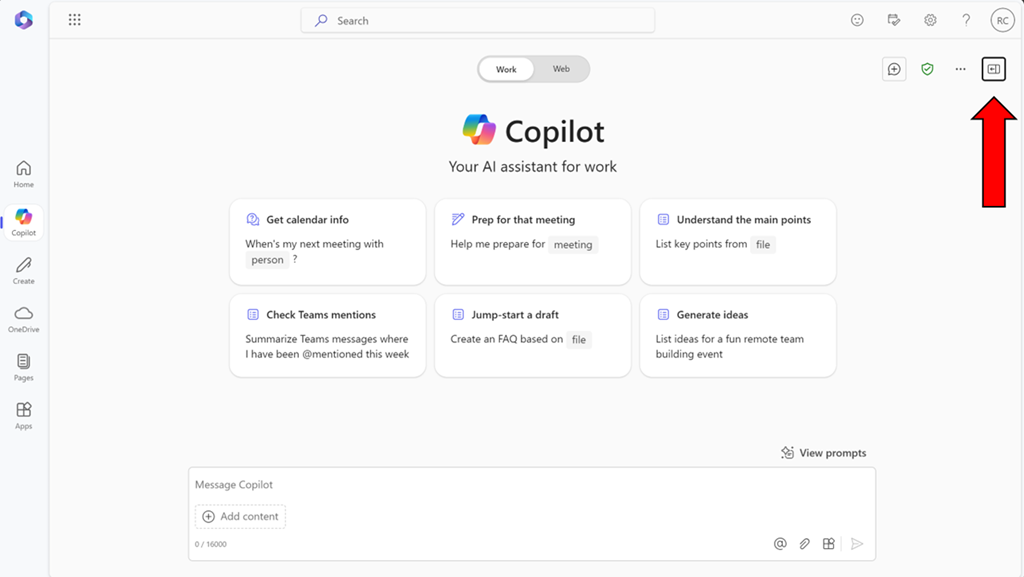
Start by visiting Copilot Bizchat as shown above. Ensure you expand the panel that is on the right. You do this by selecting the button shown above in the top right.
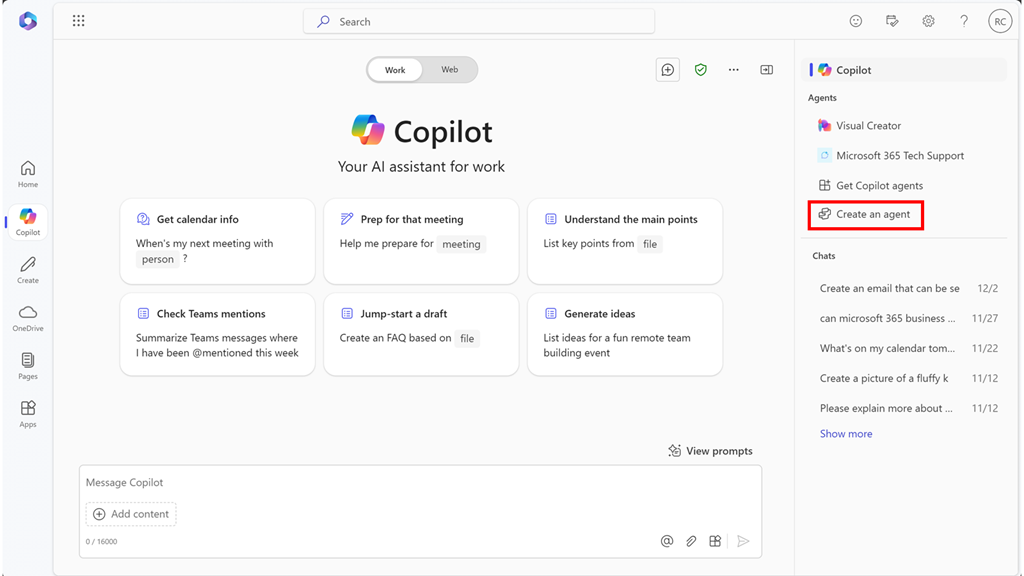
You should now see an option that says Create an agent as shown above. Select this to continue.
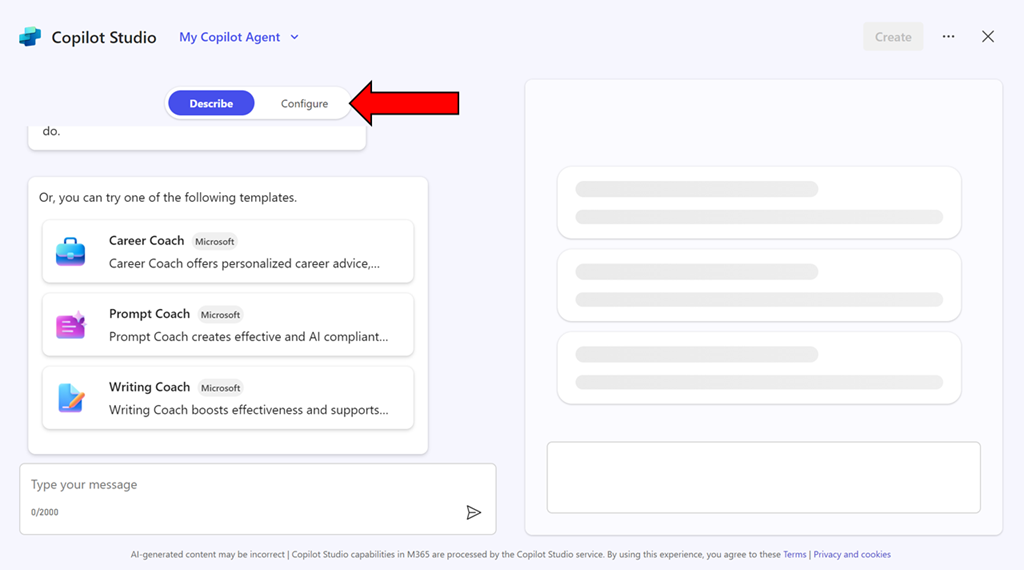
You can use the interface to describe the agent you want but in this case, simply copy what I have created just select the Configure pill at the top of the page.
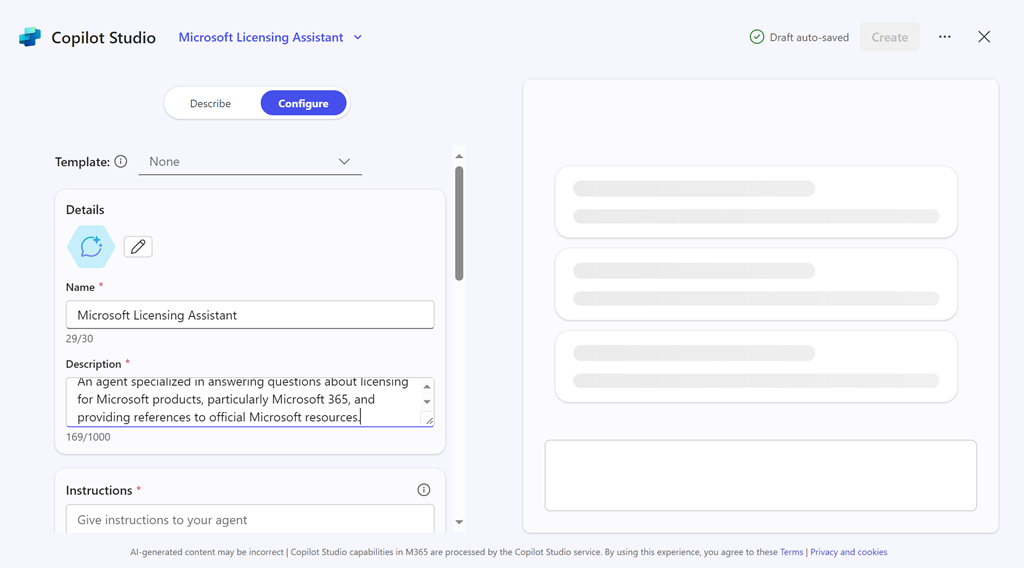
Enter the following information into the fields provided:
Name = Microsoft Licensing Assistant
Description = An agent specialized in answering questions about licensing for Microsoft products, particularly Microsoft 365, and providing references to official Microsoft resources.
Instructions =
– Provide accurate and up-to-date information about licensing for all Microsoft products, with a special focus on Microsoft 365.
– Answer questions clearly and provide references to official Microsoft documentation or resources where the information can be verified.
– Ensure responses are concise, informative, and helpful.
– Avoid providing any unofficial or speculative information.
– Maintain a professional and knowledgeable tone in all interactions.
– Be prepared to handle a wide range of questions related to Microsoft product licensing.
– Focus solely on providing information about Microsoft licensing.
– Respond in a professional style.

Then select the Create button in the top right as shown above.
The system will get busy with your request.
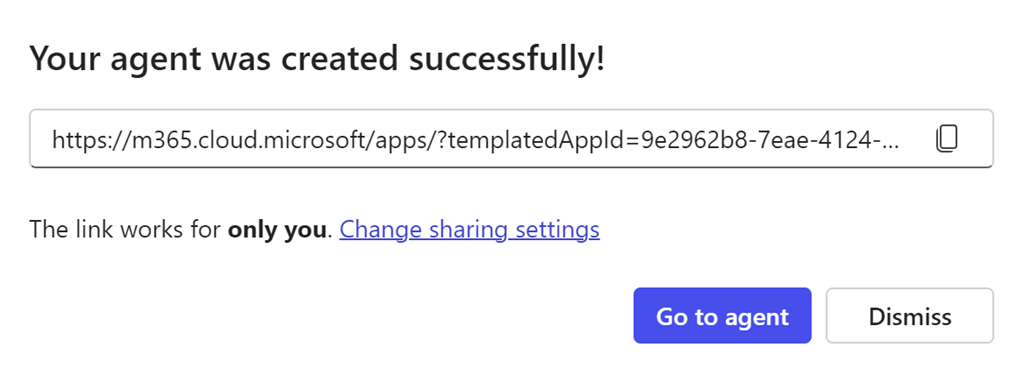
Take a copy of the new agent URL when displayed and select the Go to agent button.
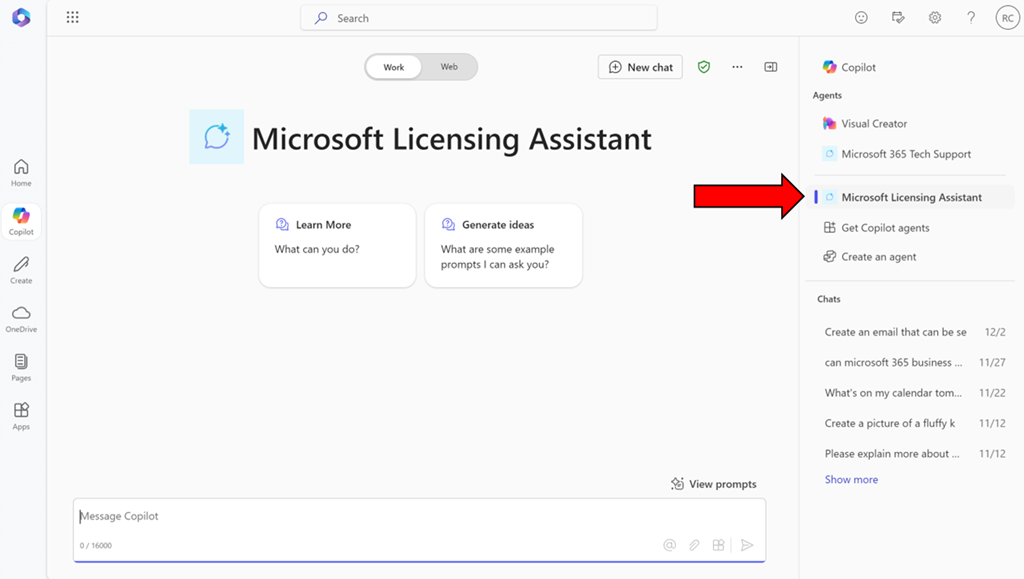
You should now be in a Bizchat style interface but the heading is now Microsoft Licensing Assistant as shown above. You can return here at anytime by selecting the link in the right panel as shown.
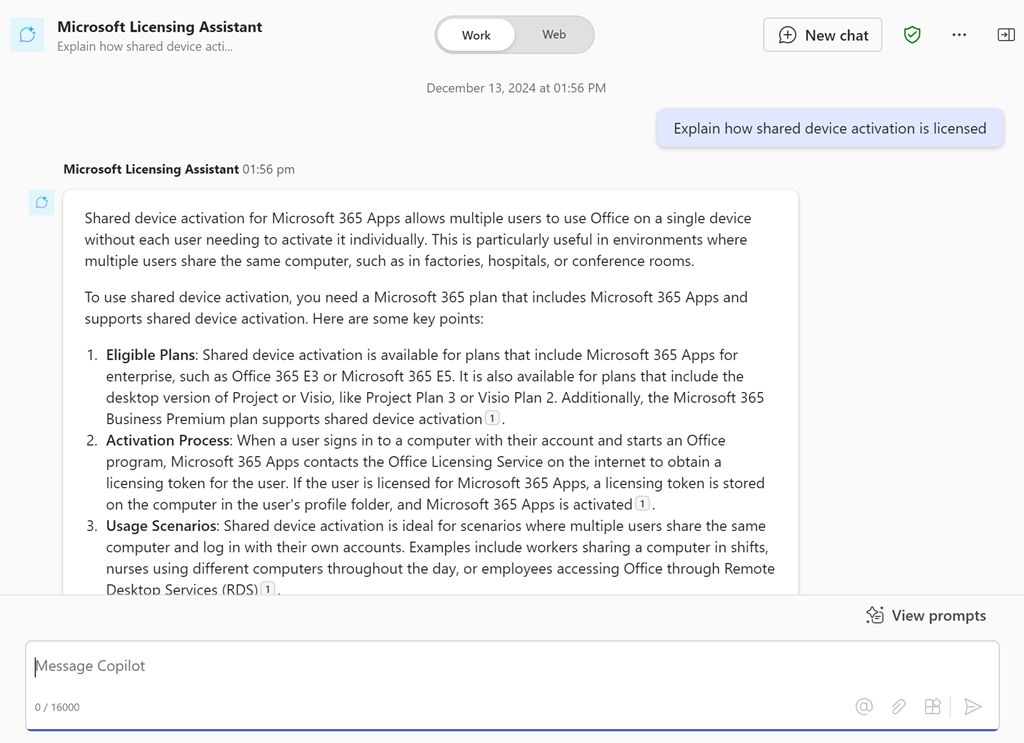
Ask it a question like “Explain how shared device activation is licensed”
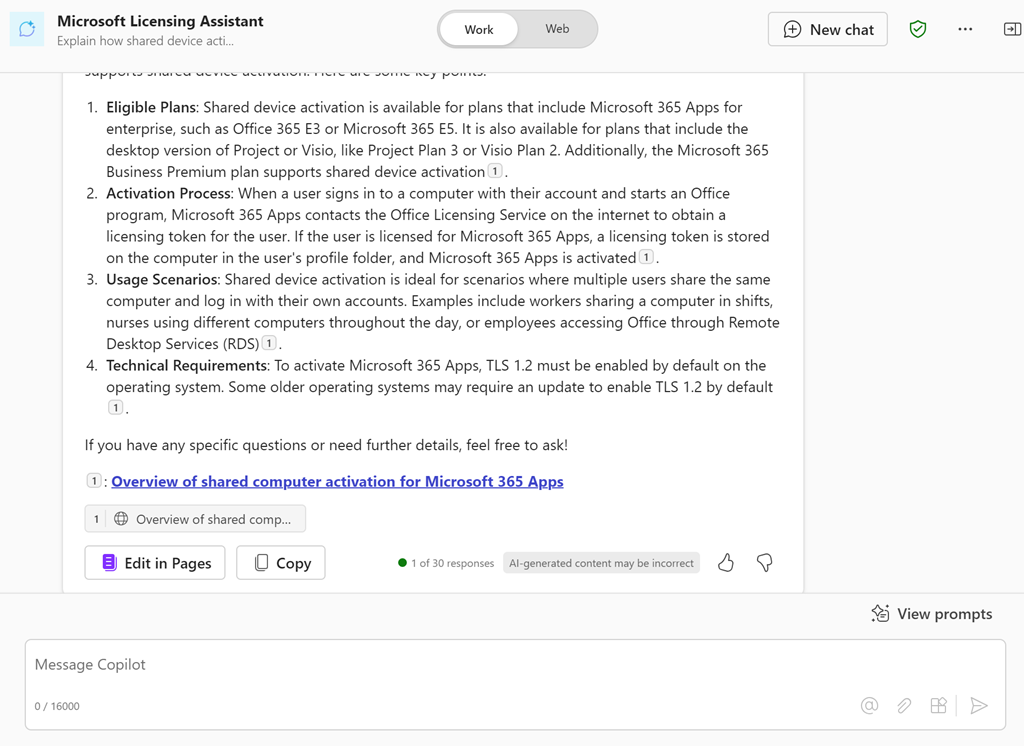
and you should see the above response.
If you take the URL for the new agent and put it into a chat with users that also have a Copilot for Microsoft 365 license they can also use that agent in that chat session.
You can continue to improve this agent or go and create more. Personally, I have agents for licensing, Microsoft 365 and Azure information that I use almost every day. I have found this licensing agent particularly helpful.
Of course, the limitation is that people who want to use this agent need a license of Copilot for Microsoft 365 but in an upcoming article I’ll show you how to set things up so that no use need an actual license of Copilot for Microsoft 365 to reap the benefits of agents. Stay tuned for that soon.
 CIAOPS
One thought on “How to build a Microsoft Licensing agent”