
After a recent incident, I decided that I needed a way, independent of a user login to re-enable a disabled user account. To achieve this an EntraID app needs to be created with the appropriate permissions as I have detailed here:
Create an EntraID app to allow user enablement
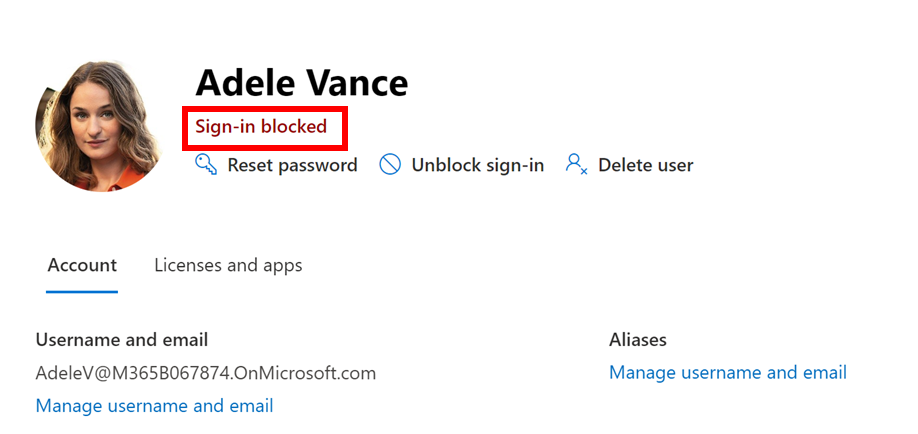
If a user is disabled as shown above,

you’ll firstly need to set some variables to use in your script as shown above for the client ID and the tenant ID which where available when the EntraID app was created previously.

Next you’ll need to save the EntraID app password credential to another variable as shown above. At this point you will be prompted to enter the EntraID app password you have previously stored.

You can now connect to the Microsoft Graph using the command:
Connect-MgGraph -TenantId $tenantId -ClientSecretCredential $ClientSecretCredential
at which point you should be logged into the tenant as shown above.
The command to update the user account is:
which requires the following application permissions as shown.

These permissions were set in the EntraID app previously created.

if the command:
Update-MgUser -UserId “AdeleV@M365B067874.OnMicrosoft.com” –AccountEnabled
is now run we don’t receive any errors on the command line as shown above.

but when we check the user we see that it is unblocked and able to be logged into.
The benefit of using this method is that you are not dependent on any existing user account to unlock any account. You are logging into the tenant using the EntraID app created prior. Haveing just an ‘unlock’ app like this means it has a ‘least privilege’ function of just unlocking a user account. However, you will still need to take appropriate action to protect the EntraID app as it does not prompt for MFA.
 CIAOPS
Nice one Robert, I will give this a crack
LikeLike