
The first place to disable Linkedin integration in Microsoft 365 is inside the Azure portal.

Navigate to Microsoft Entra ID, then select Users as shown above.

Select User settings on the left and set the Linkedin account connections to No.
Remember to Save your settings before existing this page.
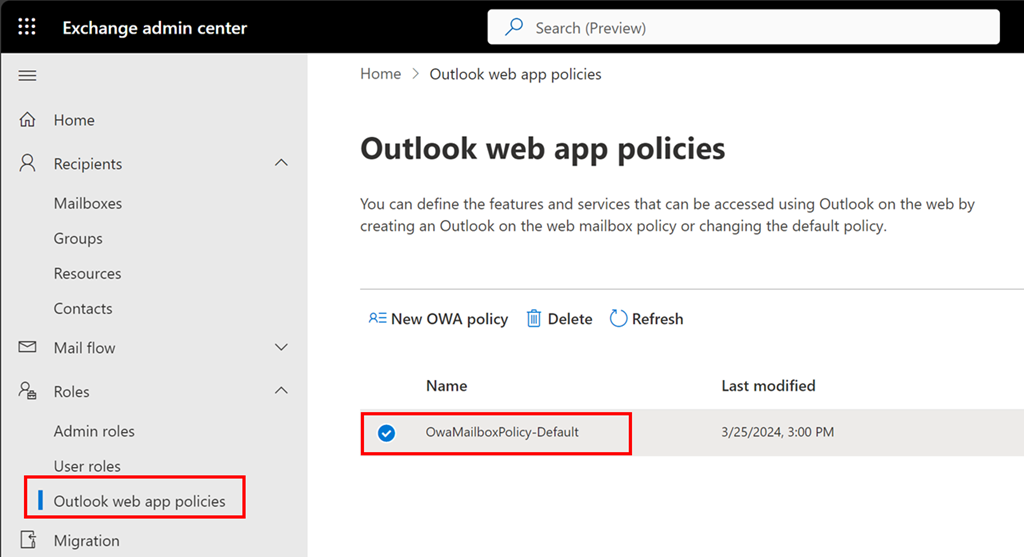
Now navigate to the Exchange Online administration portal. Expand the Roles option on the left and then select Outlook Web Apps policies.
Typically, there will only be one OWA policy as shown above. If there are more, then you will need to repeat this process with each.
Select the policy name, here OwaMailboxPolicy-Default..
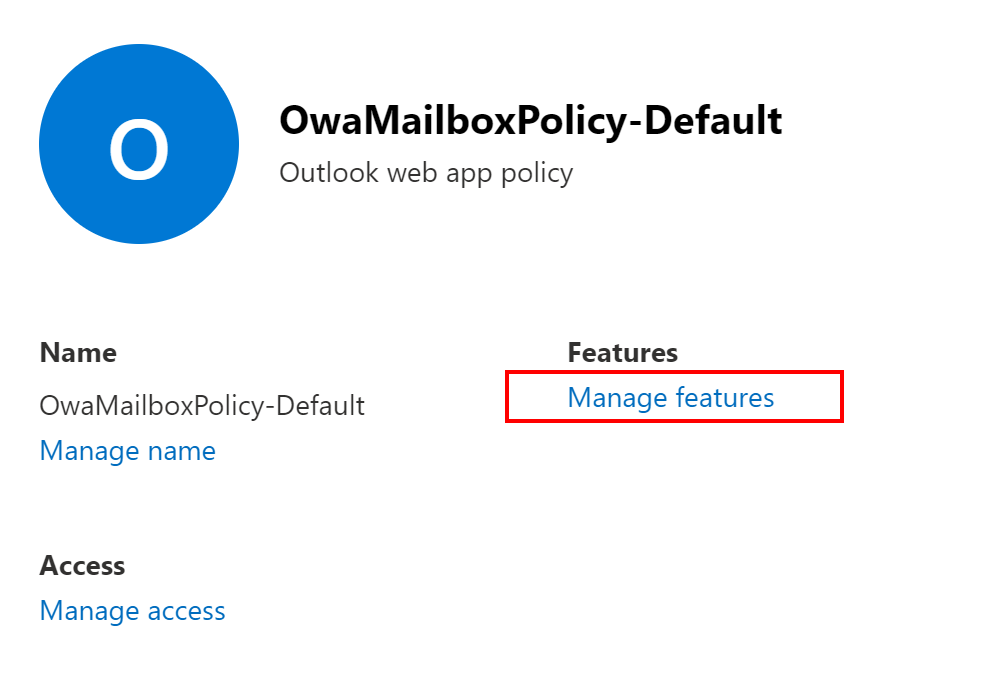
From the window that appears on the right select Manage features as shown above.

Ensure Linkedin contact sync is unselected as shown above.
Save your settings before you exit.
 CIAOPS
