
A very important security task is to ensure you are collecting all the logging data for your services and sending them to a central location for storage and analysis.
Here’s how you can send the logs from Defender EASM into Sentinel.
You’ll need to have already established both Sentinel and Defender EASM instances. Underneath Sentinel is a Log Analytics Workspace that is where all the logging data for Sentinel is accumulated. It is into this workspace that the Defender EASM logs will be sent.
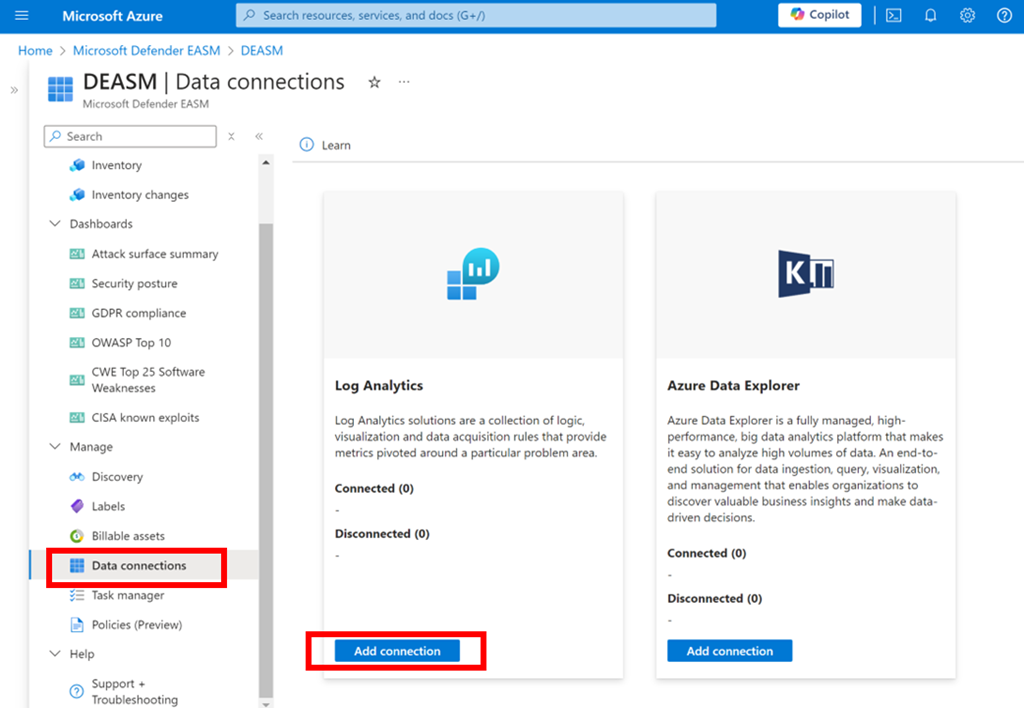
Log in to the Azure portal and navigate to Defender EASM as shown above. Select the Data connections option from the menu on the left. From the window that appears on the right select Add connection under Log Analytics as shown.
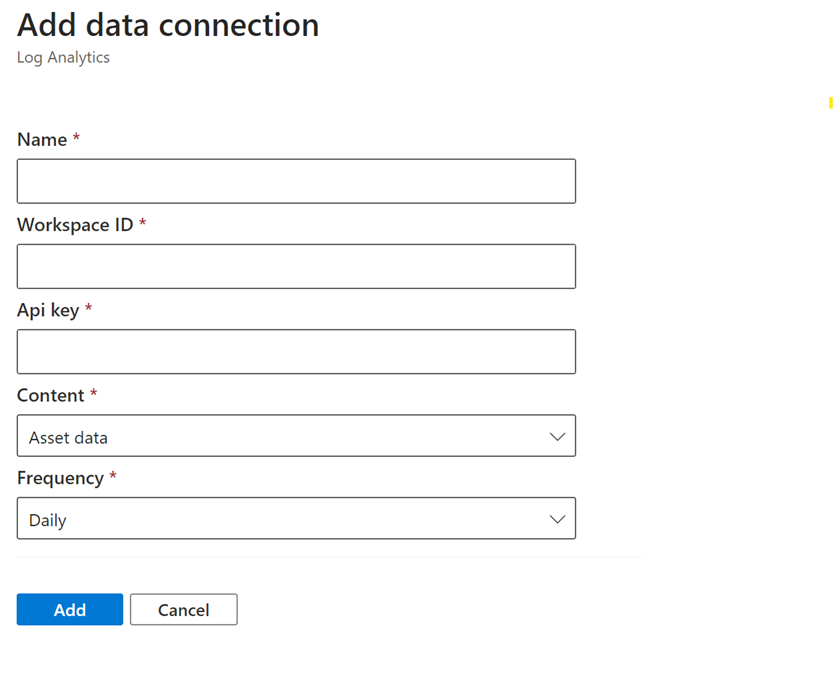
A dialog will appear from the right hand side prompting you for further information as shown above.
Open a new browser tab and navigate to Sentinel.

Select the Settings option at the bottom of the menu on the left hand side as shown above. From the windows that appears on the right select Workspace settings as shown.

In the Log analytics workspace for Sentinel select the Agents option under Settings from the menu on the left as shown.
In the window that appears on the right you will find both the Workspace ID and an API key as shown. Both of these will be required back in the Defender EASM connectors page.
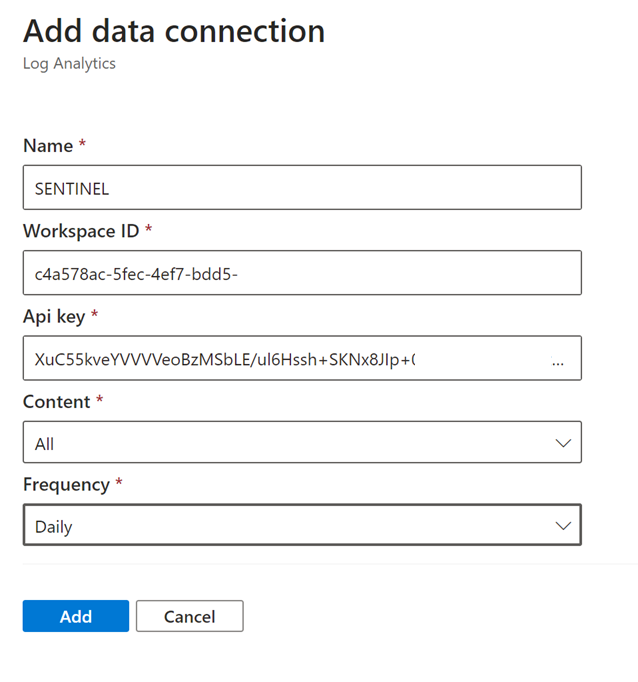
Return to the Defender EASM connectors page configuration and give this connection an appropriate Name. Enter the Workspace ID and Api key from the Sentinel Log Analytics page. Select All content and Daily for frequency.
Save these settings.
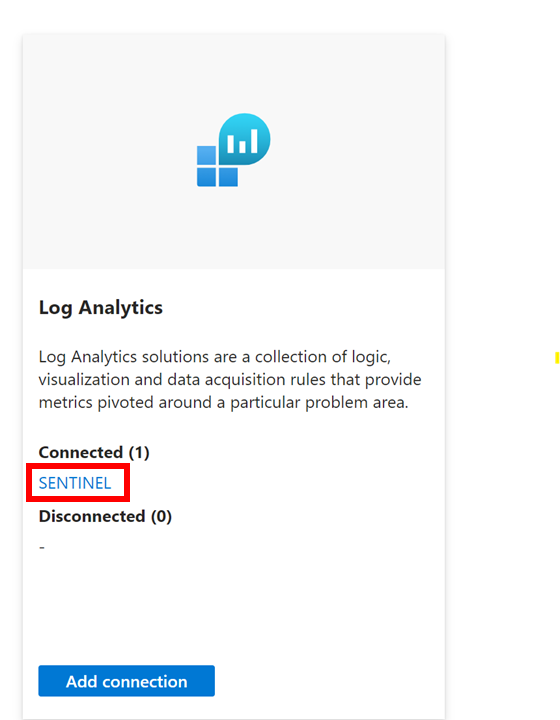
If everything is correct you should now see that the Log Analytics connexion now displays you settings under Connected as shown above.
The logs from Defender EASM will now start becoming available for you in Sentinel to use in things like KQL queries.
 CIAOPS
Thanks, Easy to follow. Will replicate this now in our own internal documentation to use on all clients.
Can you do another article on what you think are good alerts to set up in sentinel based off the info we might get from Defender EASM?
LikeLike