

In a previous article:
Setting Microsoft 365 Backup policies
I determined that I liked the simplicity of setting up backups with Microsoft 365 Backup but the negative was a lack of reporting or alerting on the execution of these jobs.
I’m sorry to say that I also find the restoration process for Microsoft 365 lacking for a number of reasons.
1. The main reason is, at the moment, there is not really a granular restore option.
2. The restore option is typically all over the top of what is there already, effectively replacing it or restoring everything to a different location and then you have to manually copy the data across.
3. Selecting which actual backup to restore from I also found cumbersome.
4. I found the restoration of Exchange online mailboxes the most tricky to restore a select amount of data. You have to filter what you looking for via a few options. You kind of have to know what you want prior, you can’t just browse.
5. When the restore process actually runs you get no real indication of what it is actually doing, you simply have to wait for it to finish. My 1.28TB test SharePoint site took around 45 minutes to copy to a new location.
This may be me but when I did a restore of a OneDrive for Business to another location, the destination into which it copied the data is blank!
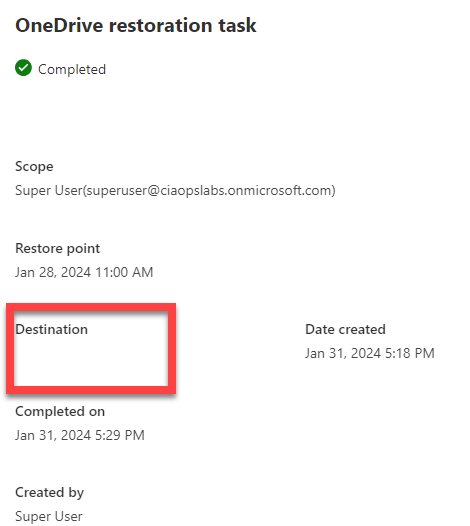
I did this more than once and got the same result. I couldn’t find any new SharePoint sites in my environment or sub folders. As such I am still trying to find out where the data actually restored to, as it does say it is completed!
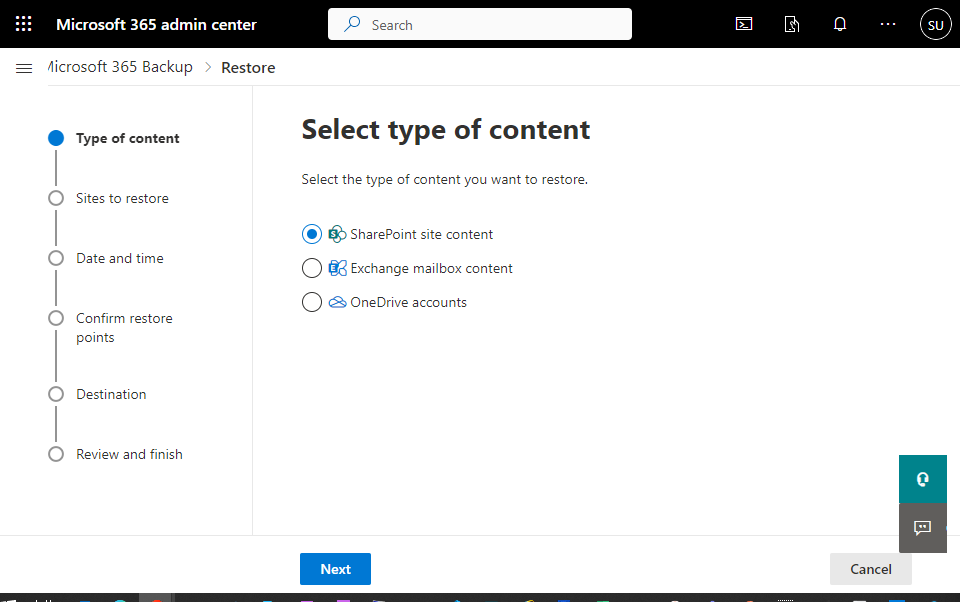
The good thing is the restore process is pretty straight forward. A wizard takes you through the process as shown above.
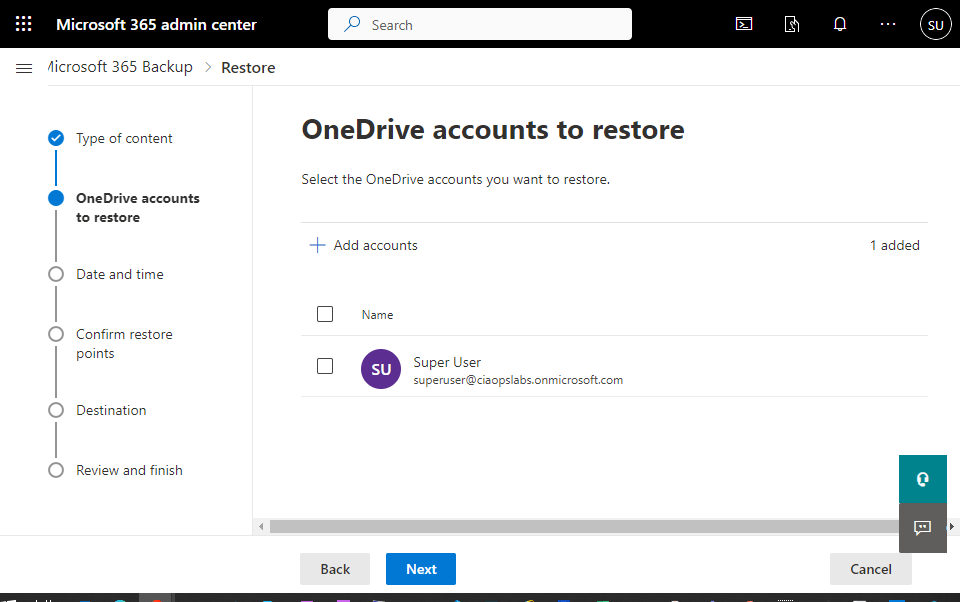
For example, if you want to restore a OneDrive for Business you select the item from a list.

You then need to select a time and date to restore from. This is somewhat cumbersome and would be much better if you could simply browse through the available backups. For now you need to select the date and time you want.
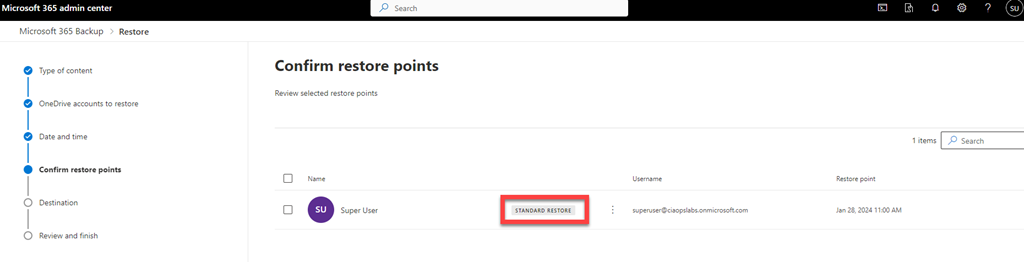
I’m not sure what “standard restore” means when you confirm the restore point as shown above.

When you select the destination you’ll see that it typically everything over the top or everything to another location and then you need to manually copy what you need and delete the rest.
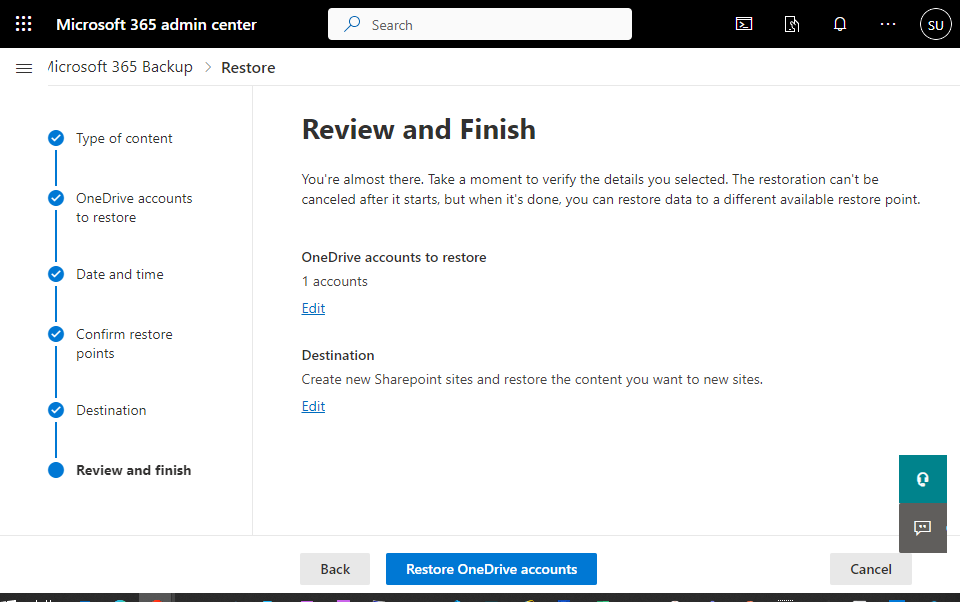
You confirm the restore.
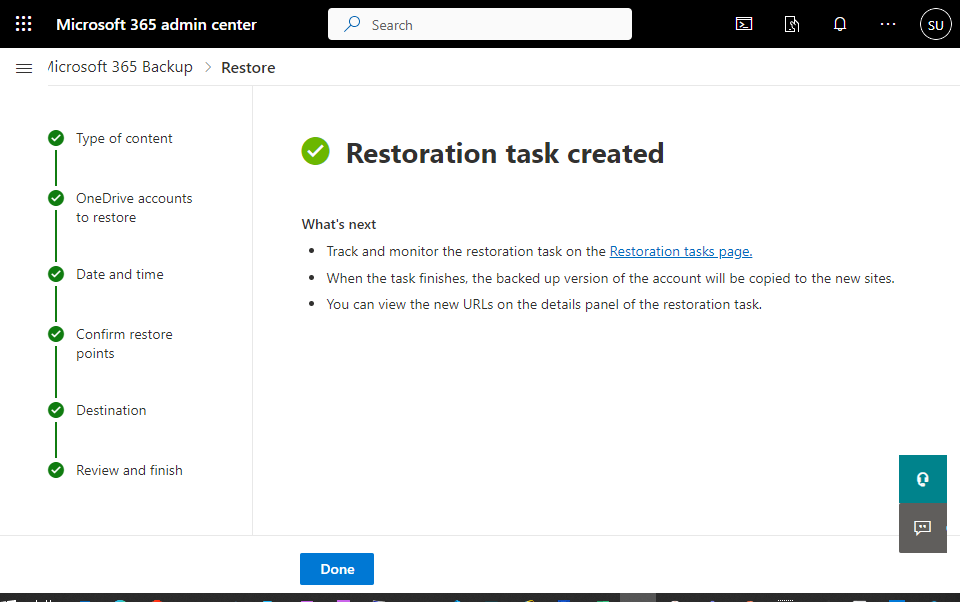
and you select Done.
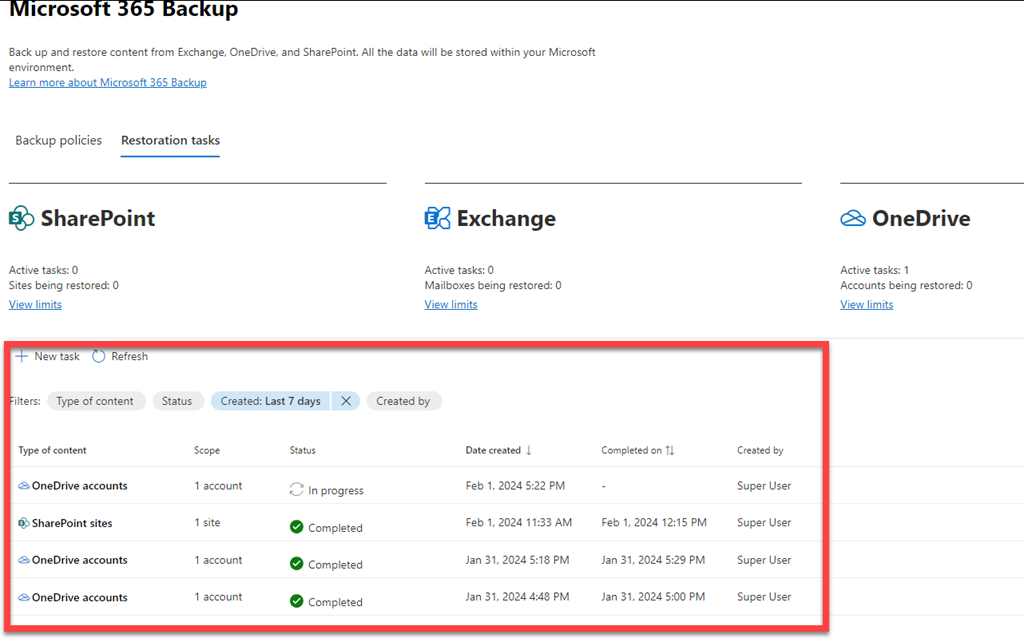
Then at the bottom of the page are the restore tasks as shown above.
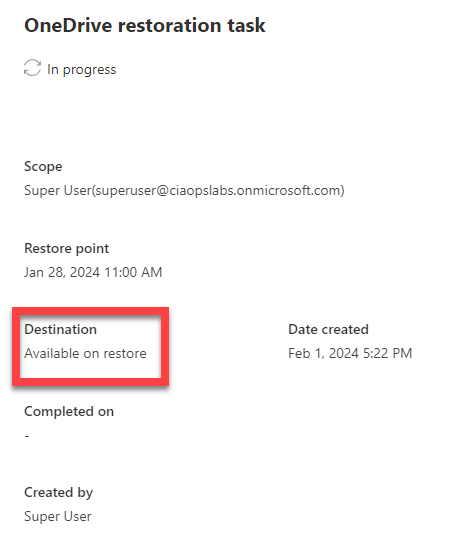
Even with the restore in progress, you’ll see you don’t any information of progress or completion time. You’ll also note that the Destination will be available on restore,
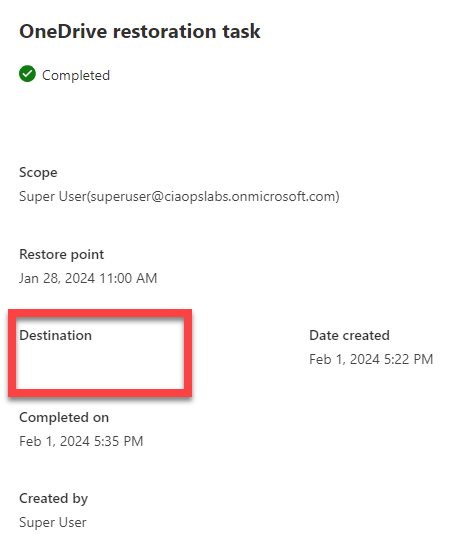
but it wasn’t again unfortunately.
I found the mailbox restore process quite cumbersome.
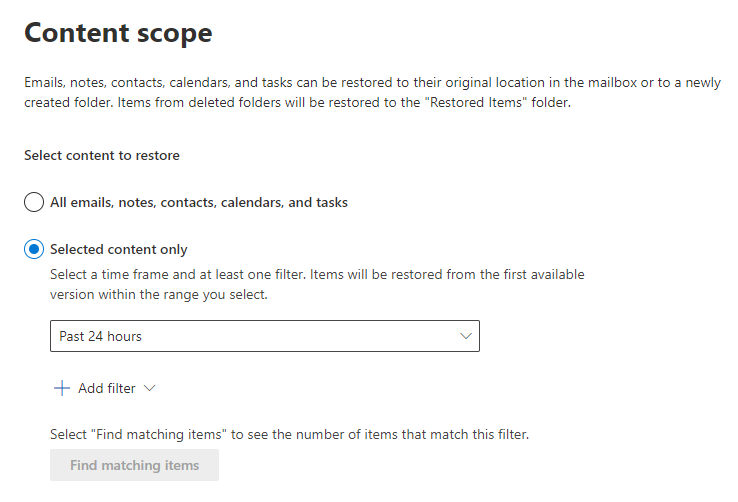
If you want to do selected content as shown above you need to select a time frame
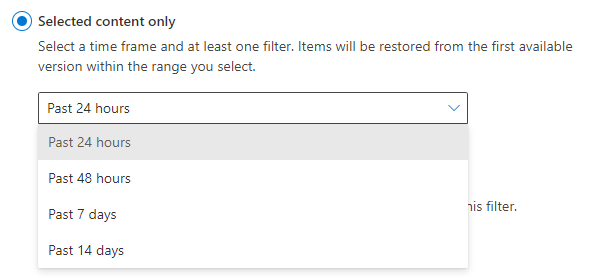
and that time frame is 14 days maximum.
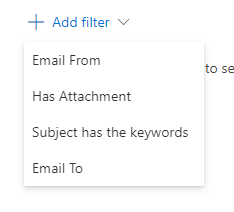
Then you need to add filters from the four options shown above.

Then you have to find any matches and more me, most of the time I didn’t find any in my test environment, which was frustrating.
Remember, Microsoft 365 Backup is still in preview and will continue to improve and develop. However, as it stands now I don’t feel this is a viable alternative for people who do wish to restore their Microsoft 365 environment in a granular manner. I think as a disaster recovery tool, that is, back up everything and restore everything, over the top if needed, it would be fine.
Thus, in summary, for now, I think Microsoft 365 Backup could work as a disaster recovery service but for granular, item level restore – no so much. However, it is still very early days for this product, so keep your eye on what develops. I know I will.
 CIAOPS