As a follow on from my recent post:
I’ve also now done a companion video at:
https://www.youtube.com/watch?v=A8dJL43zDYA

Information about SharePoint, Microsoft 365, Azure, Mobility and Productivity from the Computer Information Agency
As a follow on from my recent post:
I’ve also now done a companion video at:
https://www.youtube.com/watch?v=A8dJL43zDYA
Here’s all the Microsoft Cloud news I have come across this week.
Microsoft Defender Monthly news – November 2023 – https://techcommunity.microsoft.com/t5/microsoft-365-defender-blog/monthly-news-november-2023/ba-p/3970796
Microsoft Entra ID Governance licensing for business guests – https://techcommunity.microsoft.com/t5/microsoft-entra-azure-ad-blog/microsoft-entra-id-governance-licensing-for-business-guests/ba-p/3575579
Copilot in Outlook | Manage your inbox –
https://www.youtube.com/watch?v=PSTSOyBccnY
Copilot in Word | Locate key information –
https://www.youtube.com/watch?v=hxc5t3AfpKo
Copilot in Word | Transform a document –
https://www.youtube.com/watch?v=Tx0IbvgI4NA
Announcing Microsoft Secure Future Initiative to advance security engineering –
Copilot in Excel | Be more analytical –
https://www.youtube.com/watch?v=9K5EptYm-B4
Copilot in Word | Gain focus time –
https://www.youtube.com/watch?v=KzOxnZBDbwQ
Latest updates to Microsoft 365 Migration Manager –
https://www.youtube.com/watch?v=C-MbzTrZJ0A
A new world of security: Microsoft’s Secure Future Initiative –
Copilot for work –
https://www.microsoft.com/en-us/microsoft-365/copilot-for-work
HDFC Bank uses the Microsoft Power Platform to lead digital transformation –
https://www.youtube.com/watch?v=seD7BapZeMA
Copilot in Excel | Identify key insights –
https://www.youtube.com/watch?v=OmbIJv0WY0I
Copilot in Word | Get a head start –
https://www.youtube.com/watch?v=H5tDkC2dOj8
Microsoft 365 Business Premium now comes with 100 print jobs per user –
[MC682087 · Published Oct 17, 2023]: Organizations with Microsoft 365 Business Premium licenses will receive one hundred (100) print jobs per license per month starting on November 14, 2023. Today, Microsoft 365 Business Premium customers receive five (5) print jobs per license per month. These print jobs are refreshed every month and are pooled, so all licensed employees can use them. This change is similar to the April 2023 extension of print jobs per license for Microsoft 365 E3 and E5 organizations.
OneDrive Quickstart Guide –
https://adoption.microsoft.com/files/onedrive/Microsoft-OneDrive-quick-start-guide.pdf
Microsoft Security Copilot Demo: Defend at Machine Speed –
https://www.youtube.com/watch?v=psWW3g1CJvY
Latest updates to Microsoft 365 Migration Manager – https://www.youtube.com/watch?v=C-MbzTrZJ0A
Storing data for thousands of years | Microsoft Project Silica – https://www.youtube.com/watch?v=-rfEYd4NGQg
What’s new for IT pros in Windows 11, version 23H2
The Defender’s Watch: Disrupting Attacks in Real Time – https://info.microsoft.com/ww-thankyou-the-defenders-watch-episode-4.html?LCID=EN-US
Windows passwordless experience expands – https://techcommunity.microsoft.com/t5/windows-it-pro-blog/windows-passwordless-experience-expands/ba-p/3962005
What’s new in Microsoft Intune (2310) October edition – https://techcommunity.microsoft.com/t5/microsoft-intune-blog/what-s-new-in-microsoft-intune-2310-october-edition/ba-p/3964074
If you found this valuable, the I’d appreciate a ‘like’. This helps me know that people enjoy what I have created. If you have any feedback or suggestions around this, I’m all ears.
Watch out for the next CIA Brief next week.
Given that a number of upcoming articles will discuss Azure Key Vaults, I thought a good place to start was to show you how to set one up. It is pretty easy, so let’s do it!

You’ll need a paid Azure subscription and administrator access to your Azure portal.
In the Azure portal, search for Key Vaults as shown and select Key Vaults from the results.
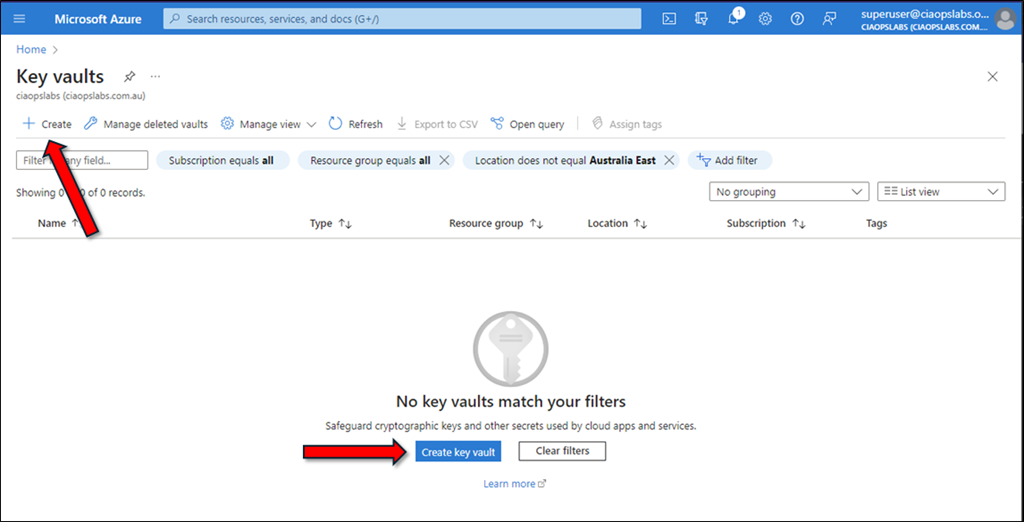
Then select the option to Create a new vault as shown above.
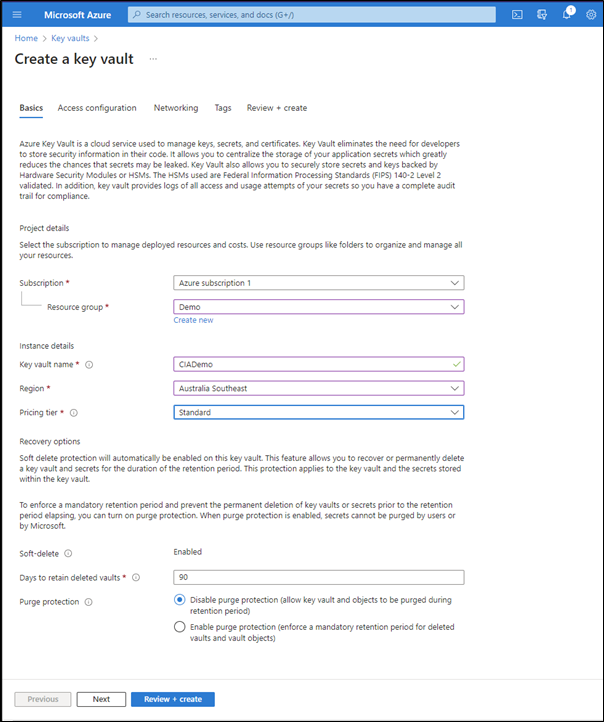
Complete the details for the vault, including:
– Azure subscription
– Resource group
– Key vault name
– Region
– Pricing tier
most of the other options can be left at their defaults. Select the Next button at the bottom of the window to continue.

In this case the default Permissions model of Azure role-based access control is desired setting.
Generally, no further changes are required. Select Next at the bottom of the windows to continue.

Typically, no changes need to be made here as we will want this new vault to be available publicly via something like PowerShell. However, you can make whatever changes you desire and select the Next button at the bottom of the screen to continue.

Add tags if you wish and then select the Next button at the bottom of the window.
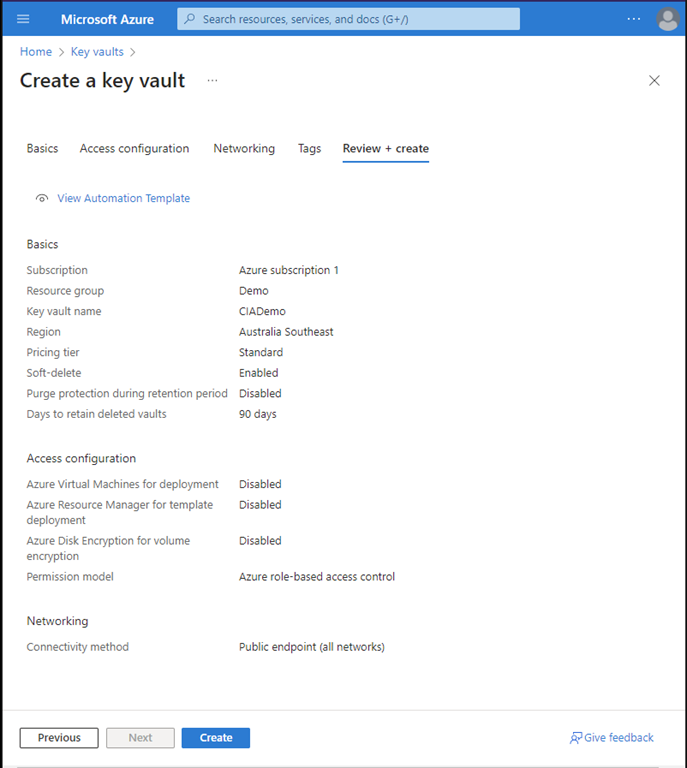
Review the settings you have made and select the Create button.
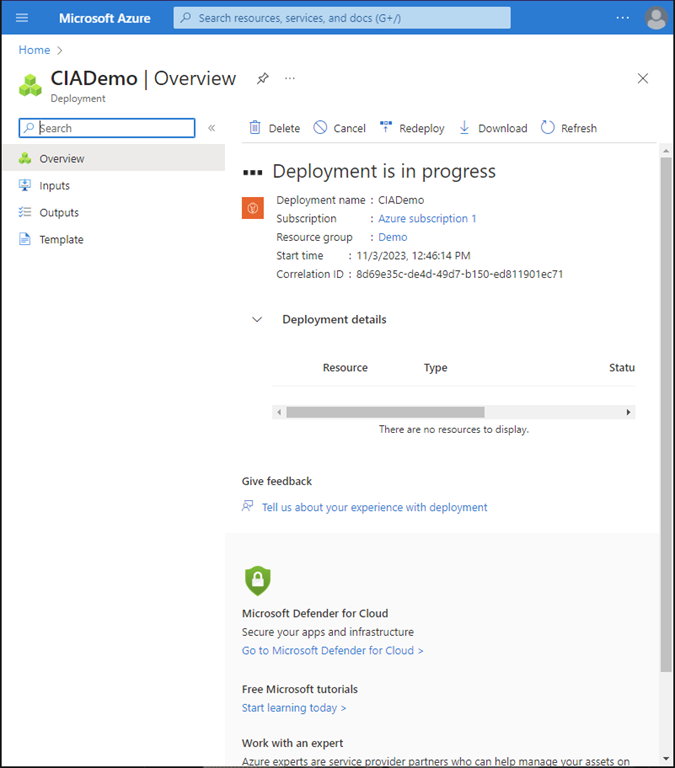
You should now see the new vault being provisioned as shown above.
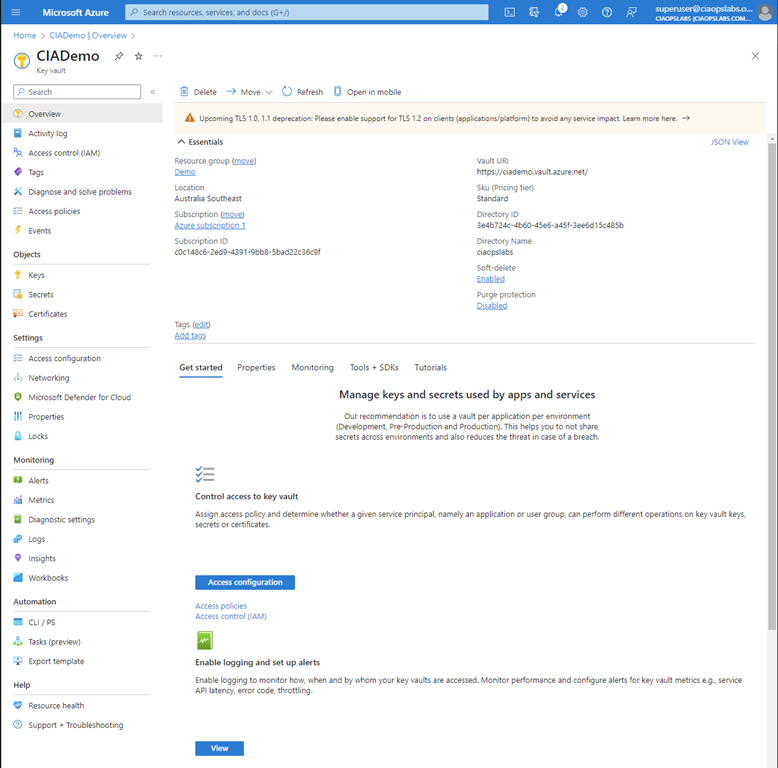
When the provisioning you can select the option to view the result as shown above.

You can return to your new vault at any time by navigating to Key Vaults in the Azure portal where you should see the vault just created as shown above.
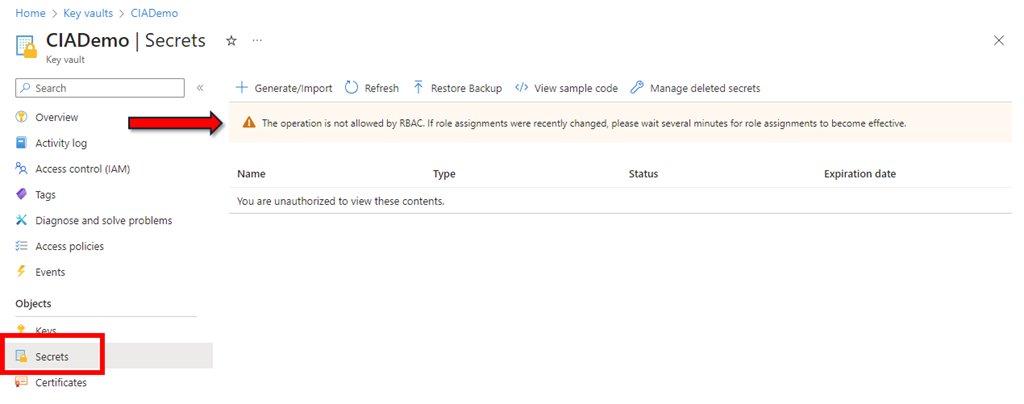
I’d also suggest you check some permissions before you leave. Open the newly created vault and select Secrets from the menu on the left. If you see the banner across the top as shown above the reads This operation is not allowed by RBAC then you’ll probably need to change some permissions.
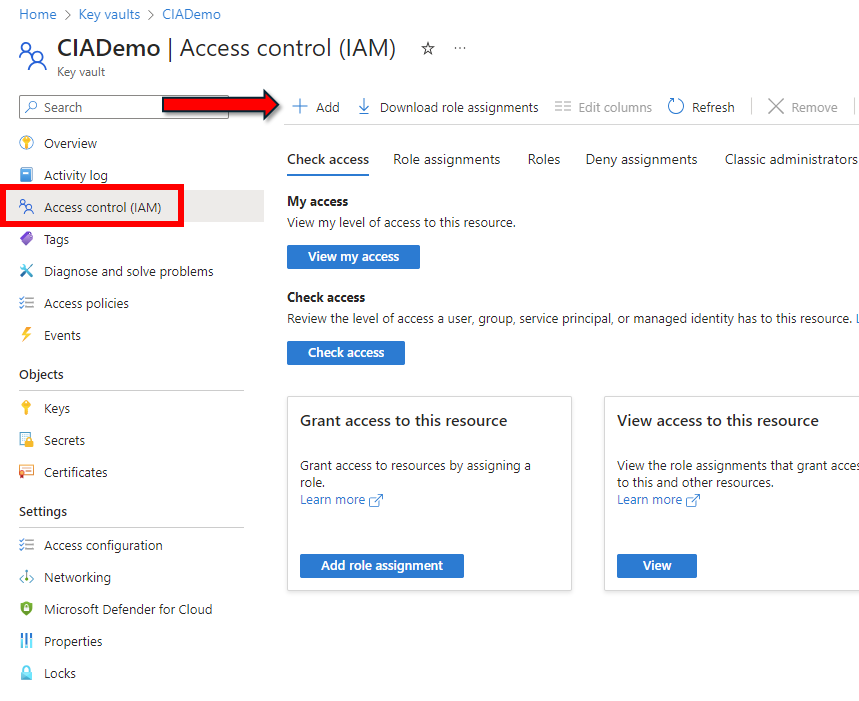
Navigate to the Access Control (IAM) option from the menu on the left as shown above. Then on the right select +Add.
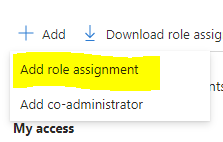
From the menu that appears select the Add role assignment as shown above.
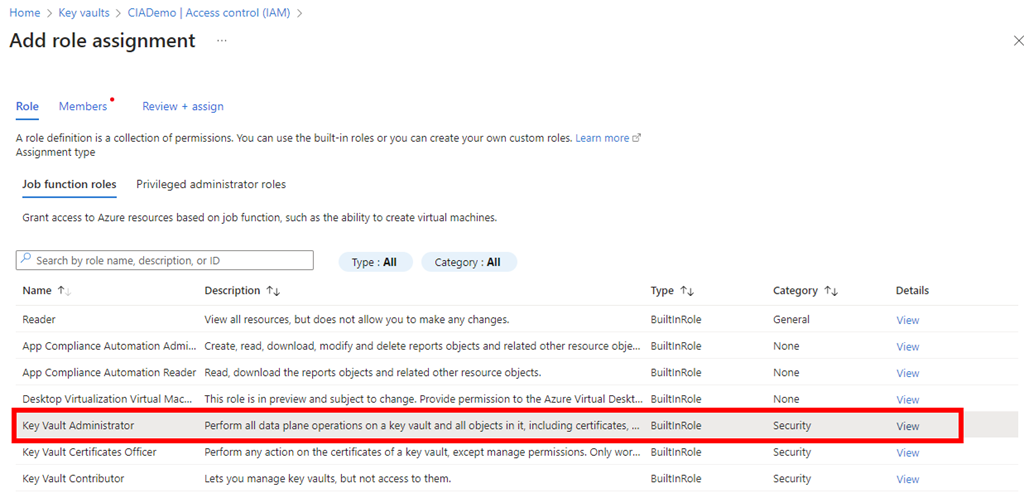
Locate and select the Key Vault Administrator job function role as shown.
Select Next at the bottom of the screen to continue.
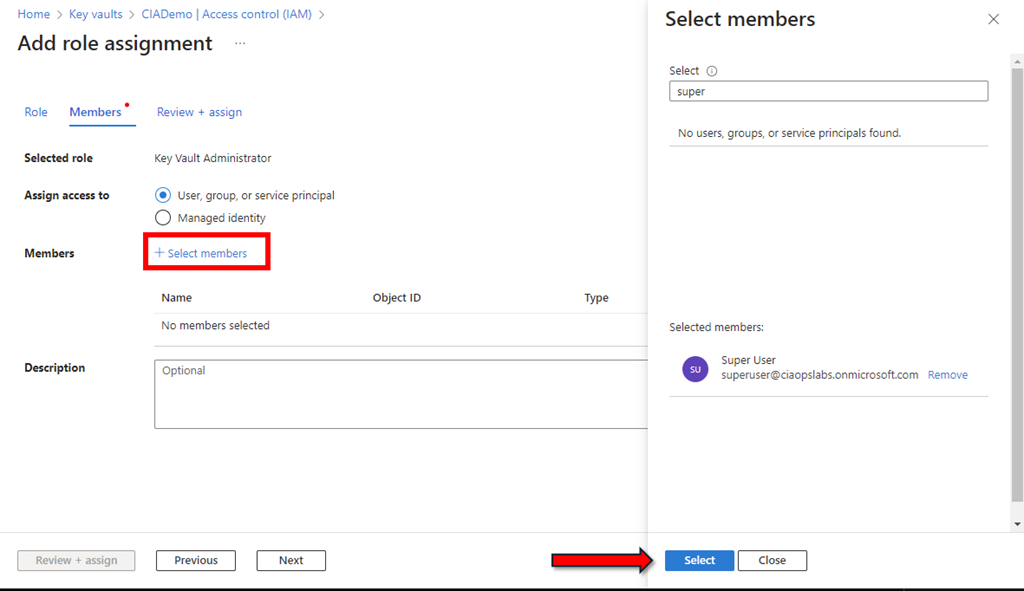
Click the +Select members hyperlink as shown above.
From the window that appears on the right, search for the user whom you want to have rights over the vault (typically the same user that is currently logged in). Press the Select button at the bottom of the window to continue.
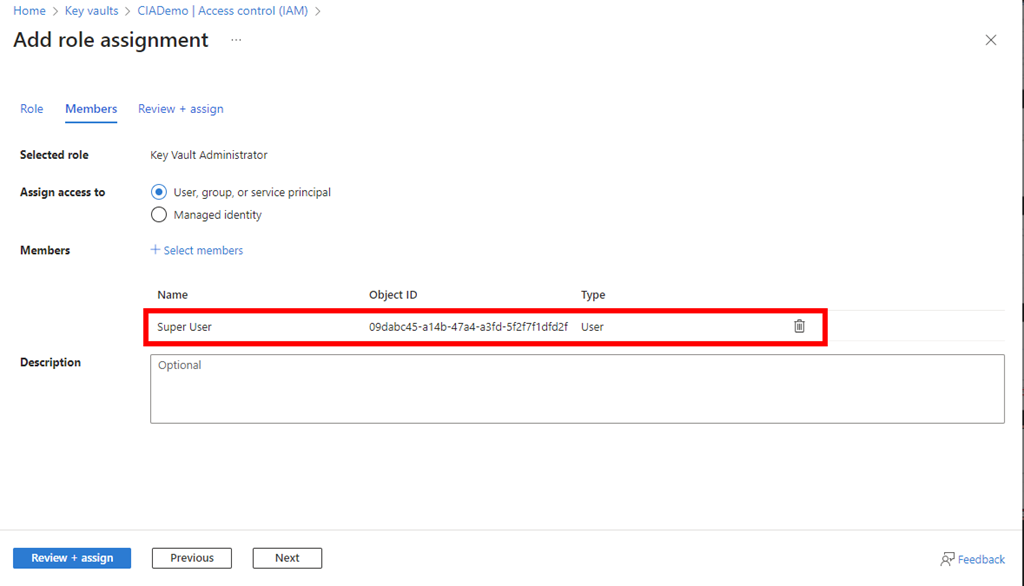
The selected user(s) should now appear under the Members section as shown above.
Press the Next button to continue.
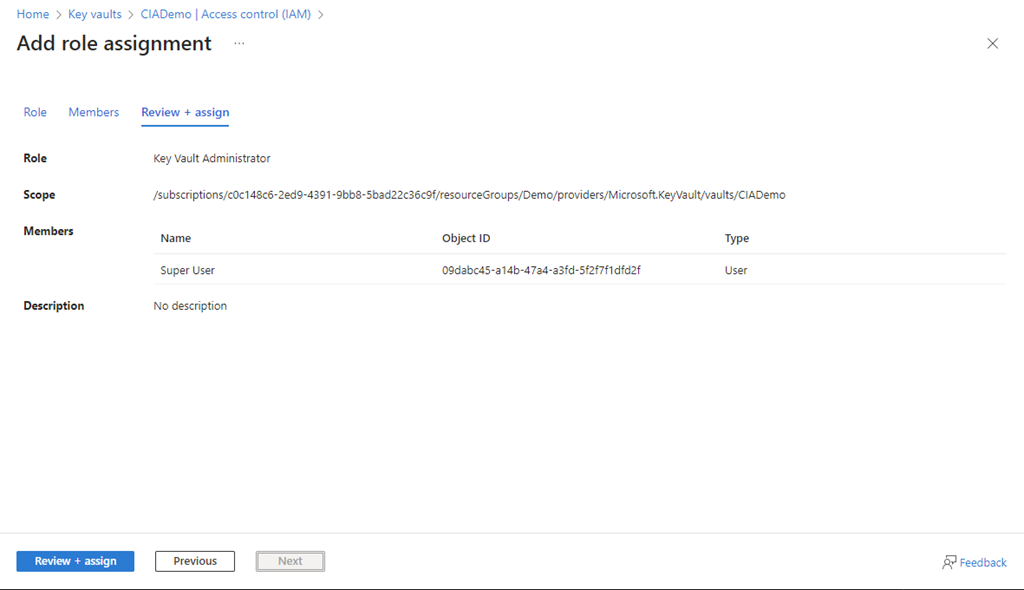
Select the Review + assign button at the bottom of the screen to complete the process.

If you now return to the Secrets area that displayed the original RBAC warning, after a minute or two, you should see that message is longer displayed. The user that you just added now has administrative rights to the vault.
If you want to learn more about what Azure Key Vaults are all about take a look at:
Azure Key Vault basic concepts
however, in essence they are going to place to store stuff you want kept secure, like configurations details, including passwords and then access them programmatically.
For a long while I used Power Automate to push out interesting stories around the Microsoft Cloud I found to Twitter (X now). Unfortunately, X changed the pricing of their API which made it prohibitively expensive to continue with this approach.
Given this, I’ve been thinking about what would be a suitable replacement. I initially considered an email list, as that is what all the cool kids do, but I also needed a process that was simple and easy for me, especially if I was going to do something weekly. The problem using a bulk email system like Mailchimp, is that I would need to format each blast using the Mailchimp website as well as send it from there. If I planned to do a weekly update of links I have found, that becomes time consuming and inconvenient, especially if I’m travelling.
Another reason I have not opted for an email list is that I am already on plenty that send updates weekly and honestly I don’t find that it is a very effective mechanism. Yes, I do read them all and yes, they provide value but I tend to put off reading them and deal with more important things in my inbox. I kind of need to be in the ‘mood’ to sit there and read through all the information and if I’m not then they tend to ‘backup’ as a to-do item.
I also considered doing a video update and posting it on YouTube as many others do. The downside to this method is it is a huge amount of work behind the scenes. My experience is also that a video of a whole bunch of screen shots or text really doesn’t appeal to people because when I tried it a while back by posting my podcasts with this content, the number of views simply didn’t reach acceptable minimums for the amount of invested effort.
Thus, I ruled out setting up an email list or using a video update as well as few other methods and instead have favoured posting the information here on my blog. The benefits of this is that it will be easy for me to quickly copy, paste and post the collection of stuff I find weekly. For those that do want emails there is the option to subscribe to my blog as email if you wish. The blog method however means you can simply read the post without having to give up your email if you choose and not have additional emails in your inbox, which is always a good thing. I also like that it will be searchable and publicly available.
I have created a tag on my blog called ‘CIA Brief’ which allows you to filter by just that tag. For example the feed will be:
https://blog.ciaops.com/tag/CIA-Brief/
that means you can simply follow the items I post with this tag the get the list of information I plan to post.
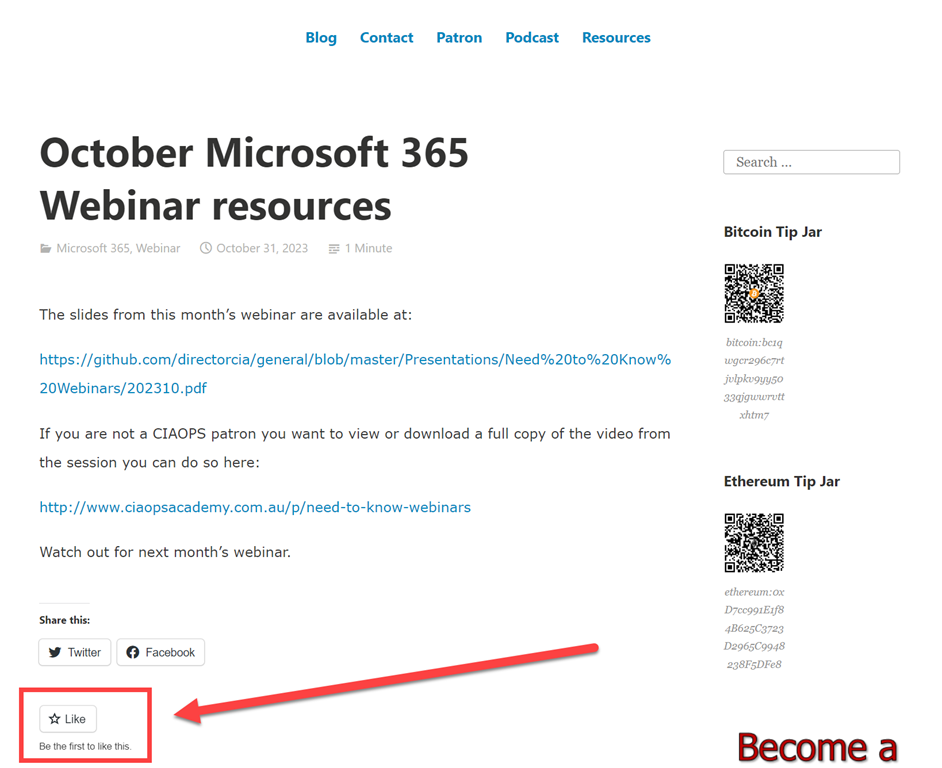
The ask I have of those that find value in the CIA Brief is to Like the post, as shown above at the bottom of each post. This way I know that the information is of value to people and provides an incentive for me to continue producing it. If you can Like each CIA Brief you see that would be very much appreciated.
Of course, I also welcome your feedback about how to make this concept even more valuable to people. I want something that is quick and easy to view on a weekly basis that will keep you up to date with the Microsoft Cloud. If you have any suggestions or feedback then I’m all ears.
That is the why and wherefores done. Stay tuned for the first CIA brief at the end of this week.
 CIAOPS