
In a previous article I covered off how to use Defender for Cloud Apps to monitor a break glass account. Typically, the alerts generated there will feed into Sentinel, however it is possible to configure Sentinel to perform a similar role.
The starting point is to use a KQL query like this:
SigninLogs
| where UserPrincipalName == “breakglass@domain.com”
| where OperationName == “Sign-in activity”
| project TimeGenerated, UserPrincipalName, ClientAppUsed, LocationDetails

If you run that query manually you’ll see a result like shown above. You will however also notice a New alert rule option in the top right of the window.
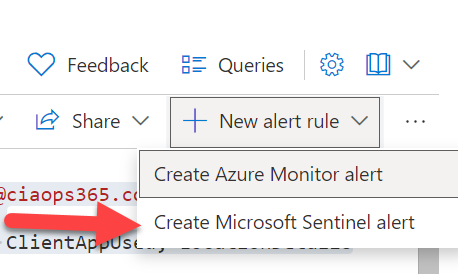
Selecting this will reveal two choices as shown above. Select Create Microsoft Sentinel alert to continue.
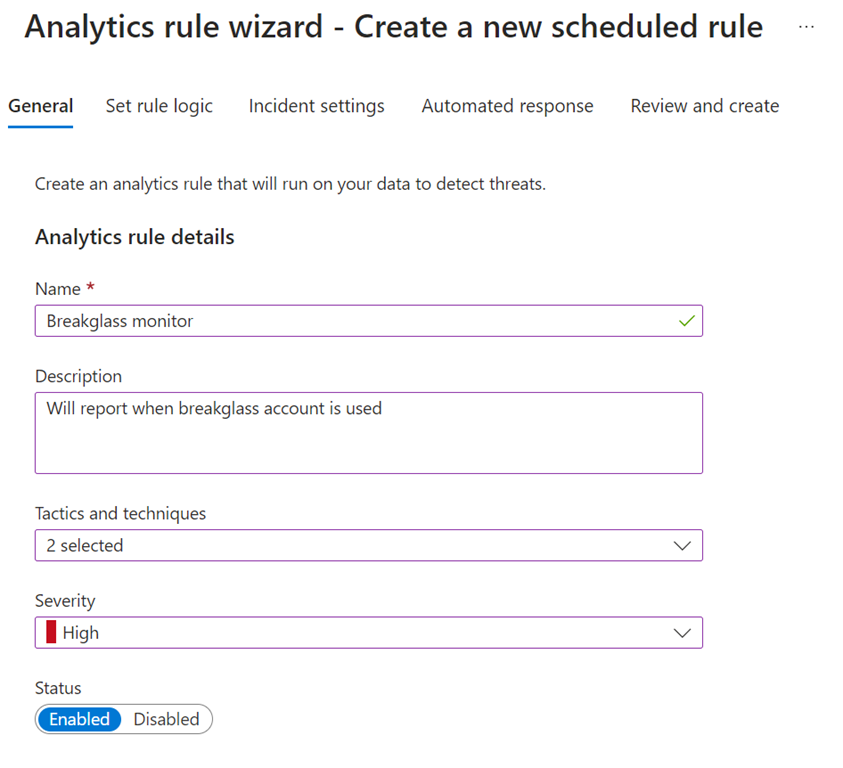
Make the appropriate settings in the General page, like shown above, and continue.
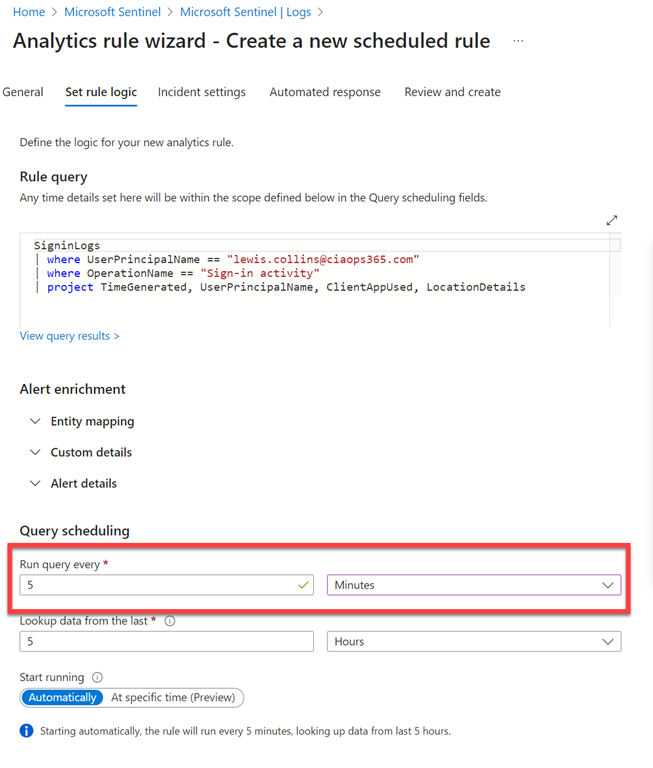
Here there are number of settings you can select but you will probably want to adjust how often the query is run as shown above. The important point to remember is that, as Azure is a consumption based billing model, there is a (very, very small charge) every time the query is run. Thus, the more often it runs the more it will cost.
When you have completed this section, move onto the Incident settings.
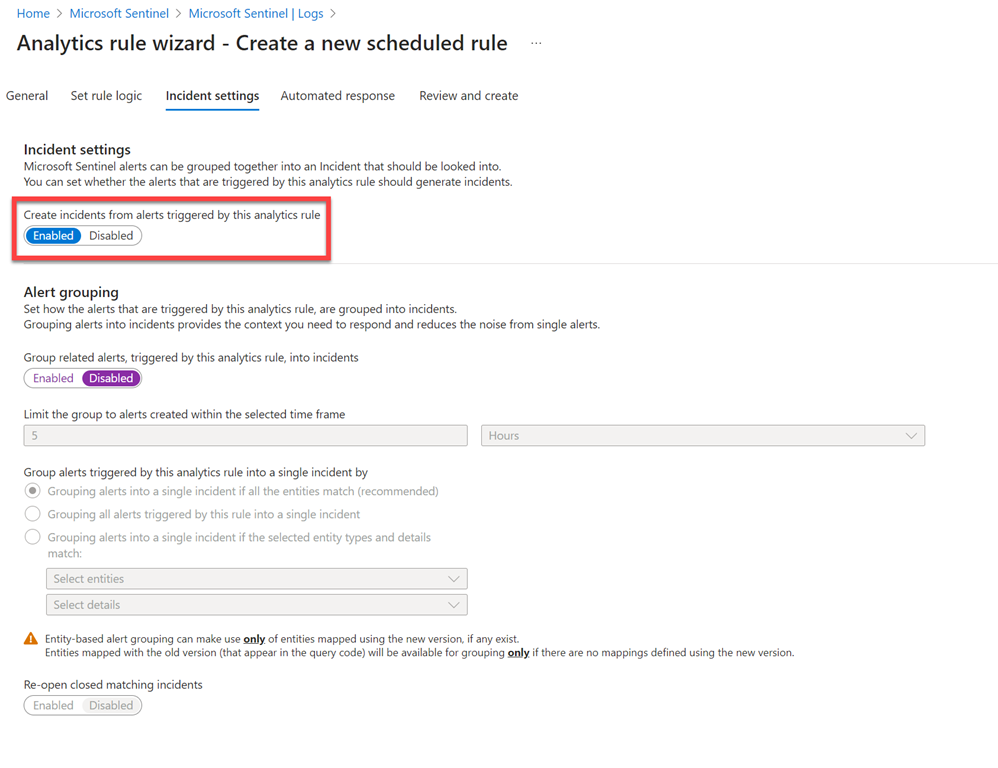
Here it is important to ensure that the option to Create incidents is Enabled as shown above.
Make any additional adjustments and move to Automated response.
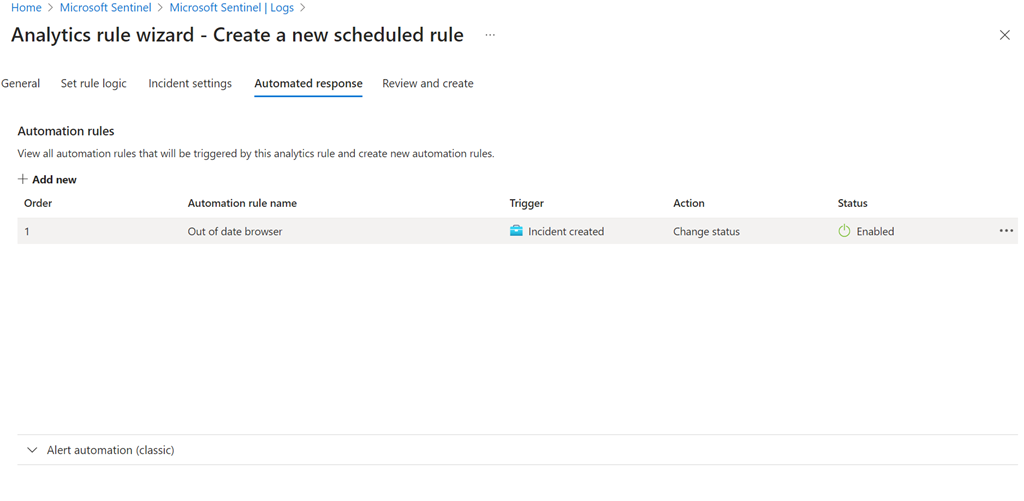
Here you can enable any automation action you wish by selecting from those already created, as shown above. You can always add additional automation later if desired.
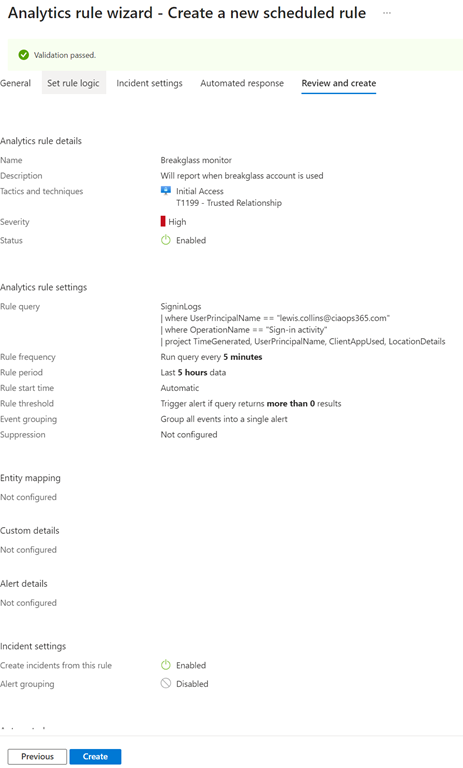
Finally, review and create the alert.
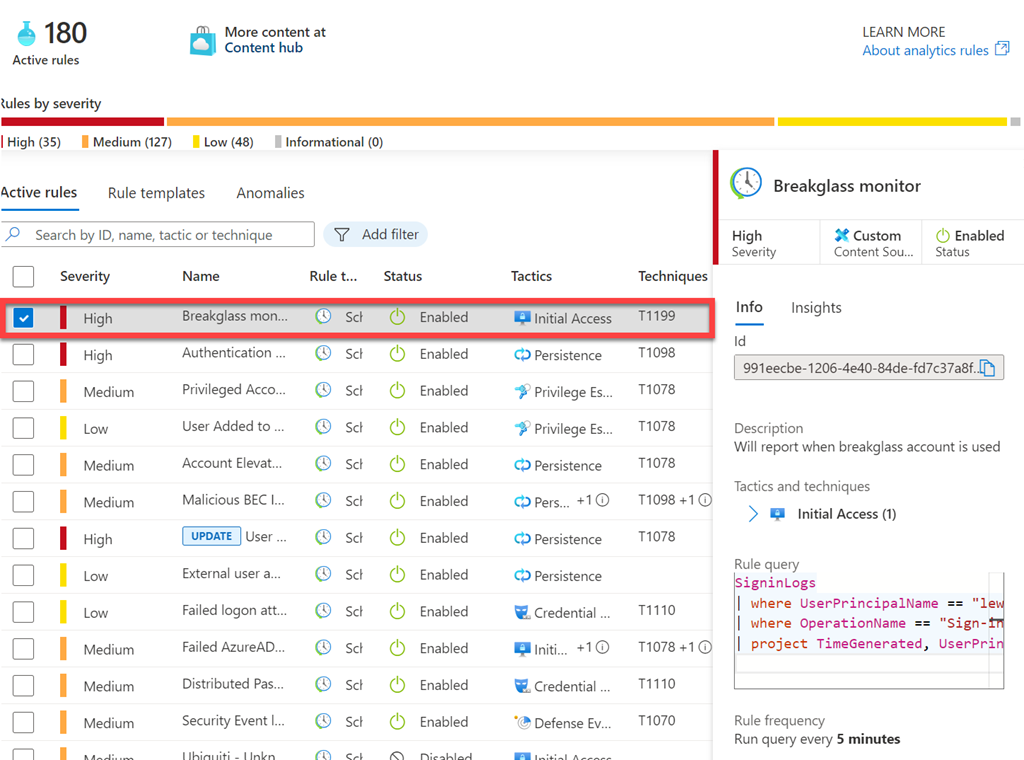
Verify that the alert you just created now appears in the list of Analytic rules for your environment as shown above.
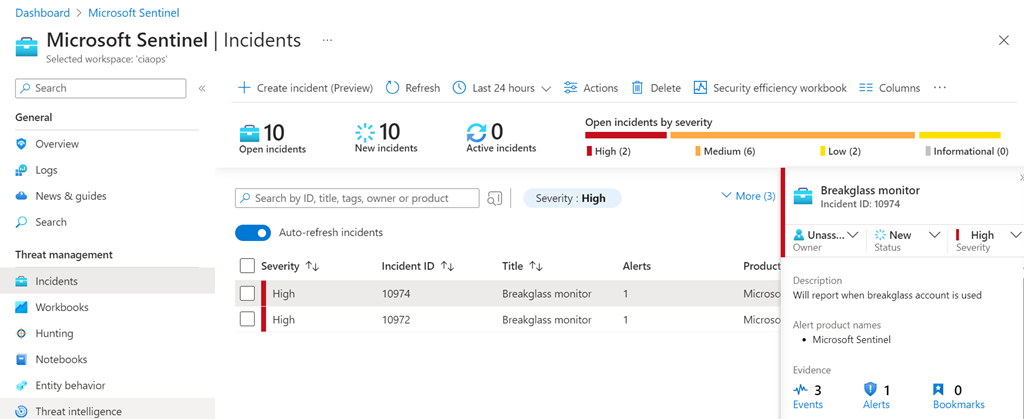
If you now test this by logging as your breakglass account you should an incident generated as shown above. Once again, it is important to remember that this incident doesn’t appear immediately. It will appear in a time period based on how often you set the alert to check.
Another important thing to remember is that by default, the incident will not send an email notification of the alert. You can configure that a variety of different ways if you wish, which I won’t cover here.
The differences with using Sentinel for custom alerts is that the billing is consumption based, but you have a lot more flexibility in how you configure the actual alerts as well as any automated response if desired. I would also say that Sentinel has more power around actually analysing signals as well which is handy to protect your breakglass account.
 CIAOPS