Policy that prevents you from granting iOS Accounts the permissions

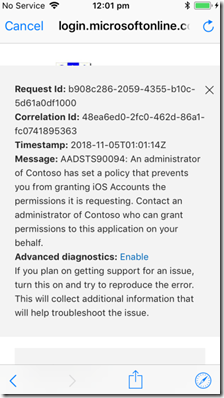
I was configuring an iPhone to access a Microsoft 365 Business tenant and when I attempted to add email to the native iOS email client I received the following error.
image

An administrator of Contoso has set a policy that prevents you from granting iOS Accounts the permissions it is requesting.

If I then closed that error message I was presented with:
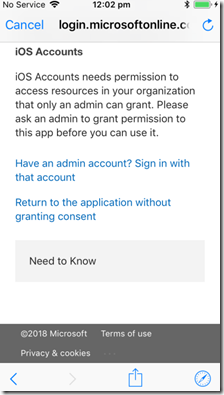
image

Strange, haven’t seen this one before.

Turns out that one of the best practice recommendations I use on tenants is to disable users being able to Outlook plugins which I detailed here:

Thwarting the ransomware cloud

The down side to preventing this is that it also prevents iOS adding an Office 365 email account when you have modern authentication enabled, which again is best practice.

So, to allow iOS to add an Office 365 email account in the native iOS app you’ll need to allow users to “consent to apps accessing company data”.

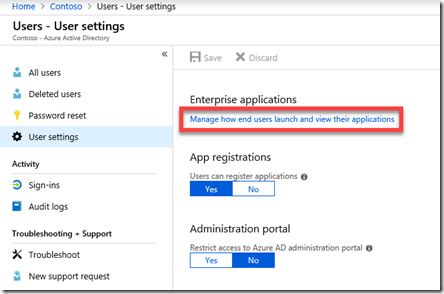
There are two methods to achieve this. You can firstly go to the Azure Portal as an administrator, locate Azure AD | Users | User settings as shown below:
image

Then select the hyperlink Manage how end users launch and view their applications as shown above.
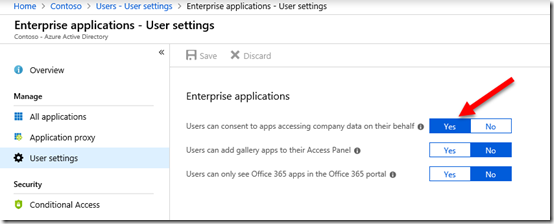
image

From here, set the option Users can consent to apps accessing company data on their behalf to Yes and Save the change.

The second method is to use PowerShell with the command:

set-MsolCompanysettings -UsersPermissionToUserConsentToAppEnabled $true

Remember, that enabling this option will also allow users to potentially accept malicious add-ins in their application like Outlook so you should disable it once your iOS devices have been configured.

It would be nice if there was a policy that could be configured to change this setting just for iOS, but alas that currently isn’t the case that I can see. You’ll therefore need to go through this disable-enable-disable sequence to maintain best practices and allow iOS devices to be added to your environment.

CIAOPS Patron price change

As mentioned in a previous update, I will raising the entry price for my CIAOPS Patron program from the 1st of January 2019. However, if you join before then you will be automatically grandfathered in at the existing rate.

You can find out more information and sign up here:

www.ciaopspatron.com

As an extra incentive to join before December 1 2018, I will be offering a free Yubikey to anyone who signs up prior to that date. Yubikeys can be used for MFA with Azure AD amongst other security configurations.


So sign up today to become a CIAOPS Patron and take advantage of this free Yubikey offer until the 1st of December.

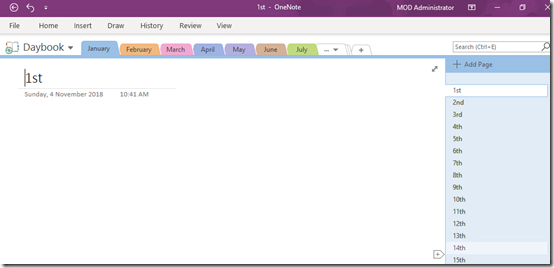
My OneNote daybook template

image

A while back I detailed how I use OneNote to replace my paper diary. You can read about that here:

One of the ways I use OneNote

The main benefits of a “daybook” for me are:

1. It is searchable

2. It is backed up

3. It is available on all my devices

This concept of a “daybook” is something that I use in my Office 365 adoption process. I have users create their very own “daybook” as part of learning how to use OneNote and OneDrive.

Creating a whole OneNote diary can be time consuming and many people simply want a completed “daybook” template that they can start using immediately. If you do, then I have uploaded to my GitHub repository for you here:

https://github.com/directorcia/general/blob/master/Daybook.onepkg

Simply download the file and open it with your favourite version of OneNote.

Go forth, save the trees and OneNote.

Adding an Apple Certificate to Intune

When you use Intune to manage your Apple devices you’ll need to add a push certification to allow control of the device. If you don’t do this, then you’ll get error messages about failing to join when you try and enrol the device using the Intune Company Portal App on the device.

image

To add a management certificate you’ll firstly need to login to the Azure portal as an administrator. You’ll then need to navigate to Intune.

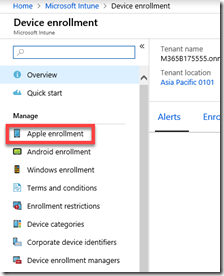
Once there, select Device enrollment from the menu.

image

Next select Apple enrollment from the new menu that appears.

image

When you do this a new window should appear on the right. Select the top option, Apple MDM Push certificate.

image

You will see the enrolment status at the top of the page. If this is a new tenant, the status will show Not set up as shown above.

image

Scroll down the windows to commence the set up process.

Place a check in the I agree box in section 1.

Then select Download your CSR from section 2.

image

Save this certificate file on your local machine. Make a note of this location as you’ll need to upload it soon.

image

Scroll down to section 3 and select the hyperlink Create your MDM push Certificate.

image

This will open a new browser window and ask you to login using an Apple ID. if you don’t have one of these yet, you’ll need to create one. If you are doing this on behalf of a company it is best practice to use an Apple ID that is linked to the business rather than the individual.

image

Once you have logged in, you’ll see any certificates that you have already created.

Select the Create Certificate button in the top right.

image

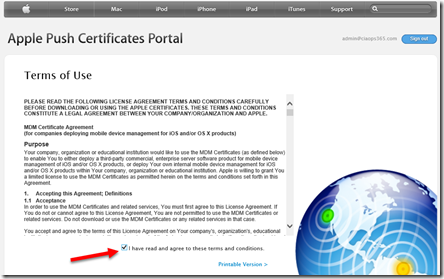
Accept the terms and conditions.

image

Browse to the location where you downloaded the certificate file from Intune previously. Select the file. Then select the Upload button.

image

In a moment you should now see that a new certificate has been created for you. It is important to note that certificate last for 12 months, after which time it will be required to be replaced or renewed.

Select the Download button to copy the new Apple management certificate to your machine.

image

Save this Apple management certificate on your local machine and remember where it is located.

image

Return to the Azure portal and the setup in Intune.

In section 4 enter the Apple ID that you used when you created the certificate.

In section 5 browse to the Apple management certificate you just downloaded.

When complete, select the Upload button at the bottom of the page.

image

In a few moments you see a message from the Azure portal indicating that the certificate has been successfully uploaded.

image

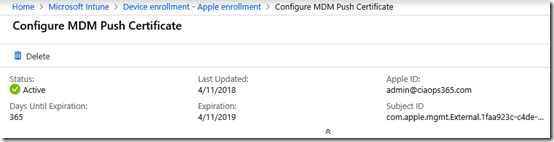
If you now scroll to the top of the page in Azure you should see that the status is now Active as shown above.

You have now successfully uploaded and configured an Apple management certificate into Intune. You can now proceed to enrol your Apple devices into Intune management. Just remember, that this certificate is valid for 12 months, after which time you’ll need to renew it.