Office 365 Collaboration, Skype and Backup


https://docs.com/d/embed/D25192961-2267-4946-0970-001023757425%7eMd4186d87-61d5-259a-4d26-00a8bd86cfff

https://docs.com/d/embed/D25192961-2098-0759-5380-001420694364%7eMd4186d87-61d5-259a-4d26-00a8bd86cfff

https://docs.com/d/embed/D25192961-1989-0156-9410-001012602264%7eMd4186d87-61d5-259a-4d26-00a8bd86cfff

Here are some recent presentations I gave around Office 365:

Collaboration

Skype for Business

and

Backup

In essence they all point to the opportunity Office 365 provides IT resellers to go out and build services on stuff other than email migrations.

In short, if you are not adding value then your days are numbers. And simply moving data from one location to another and doing nothing else is not adding value!

Sharing Documents with Internal users using OneDrive for Business

A very common thing people want to is share document from their own OneDrive for Business with others. You can break this down into sharing with two different audiences, internal and external.

Internal users are users inside the same Office 365 tenant. While external users are those outside the users Office 365 tenant. The above video shows you how to share documents from a user’s OneDrive for Business with internal users. Look out for another video coming soon that details the process of sharing with external users.

This tutorial shows you how to share files with other users in your Office 365 tenant. You’ll see how to share a file, respond to an  invite and co-author a document. You’ll also see how to quickly locate files that others have given you access to from their own OneDrive.

Enabling DLP for SharePoint and OneDrive for Business

DLP or Data Loss Prevention is a way inside Office 365 (E3 suites or above) that you can protect data from leaving the organisation. You can use DLP to protect not only email attachments but also files in SharePoint Online Team Sites and user’s OneDrive for Business.

Office 365 provides a number of standard templates for protecting standard information, such as credit card information as detailed here, but you can also customise the DLP policies to protect any custom data you wish.

image

The first step in using DLP is to set up and enforce the policies you wish to use. To do this you’ll need to login to the Office 365 portal as an administrator with the appropriate rights. You’ll then need to navigate to the tenant Admin area. From the menu on the left hand side of the screen expand the Admin centers option. From the options that appear select the Security & Compliance item.
image

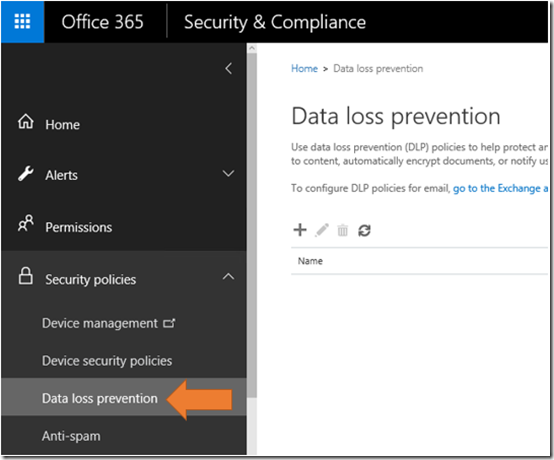
From the Security and Compliance console select Security policies on the left. From the options that then appear below this select Data loss prevention. If this menu item doesn’t appear then you current don’t have an Office 365 plan that supports DLP.

image

On the right hand side you will probably see that the list is empty. Select the Plus icon to create a new policy.

image

You can select from a number of templated policies if you wish but in this case select Custom and then the Next button.
image

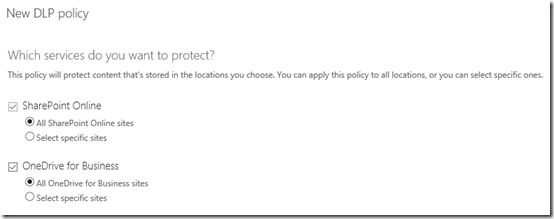
You now need to select the areas in which this policy will apply. You can specify unique locations but for this example we’ll simply select all locations and then continue.

image

At the next screen select the Plus icon to set the rules for which you wish to test.

image

In the new window that appears select the Add condition button.

image

From the pull down menu that appears select Content containing sensitive information.

image

Select the Plus icon that appears to enter the actual rules.
image

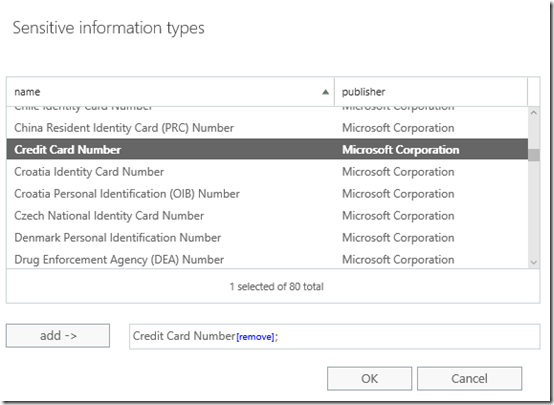
Scroll down the list that appears and select Credit Card Number. You can select other items here but in this case all we want this example DLP rule to test for is credit card numbers.

Select OK to continue.

image

You should now see the entry appear in the list as shown above. You can edit this entry if you wish by selecting it and then pressing the Pencil icon (edit).
image

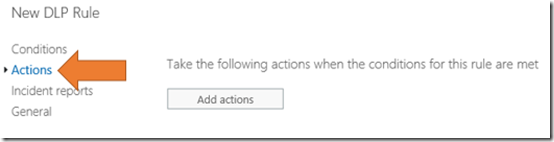
Select the Actions item from the menu on the left.

image

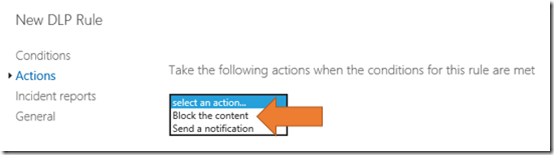
Select the Add actions button on the right.
image

In this example, select Block the content. This will prevent anything that matches this rule from being shared.
image

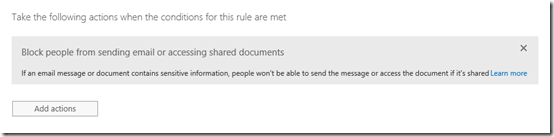
You should now see the blocking Action listed as shown above.

image

Select the Incident report option from the menu on the left. Enter the details if you wish to receive a report of any actions on this policy.
image

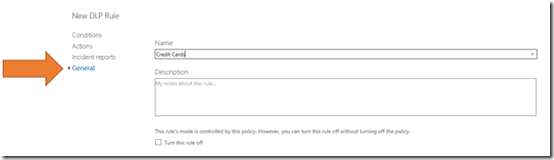
Select General from the menu on the left. Give this set of rules a name and save them.

image

You should now see the rules listing appear as shown above in the DLP policy you just created. You can create as many of these rules inside a single policy as you wish. However, best practice is always to keep it simple.
image

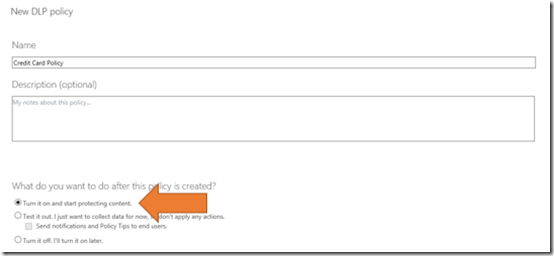
Give the DLP policy and name and select the option to Turn on the policy.

Select the Create to complete the policy creation process.
image

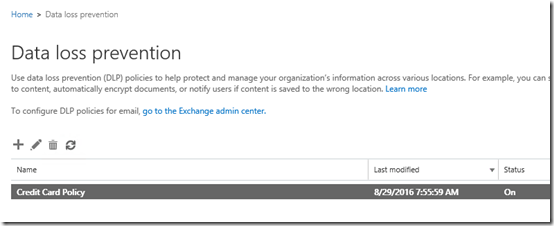
You should now see the policy listed in the DLP area as shown above. You should also see that the Status is set to On.

The DLP policy will not come into effect immediately. It will take a little while (15 – 30 minutes typically in my experience) to roll out through your tenant.

image

To test the policy, create a document in your OneDrive for Business that contains credit card numbers as shown above. The numbers used here are verified public ‘test’ card numbers.

image

Now create a public View link that requires no sign-in as shown above. This should allow anyone who clicks on that link direct access to the file without the need of a login or password.

image

When the DLP policy is active anyone trying to access that link will have the content blocked as shown above. This confirms that teh DLP policy is working as expected.

image

If you also elected to get alerts you should fine one in your inbox as shown above.

Thus, DLP is a way to protect your Office 365 information by examining the contents against a set of rules that you create. It can examine both email and file data then take actions which you determine.

DLP is part of the E3 or better suite in Office 365.

SharePoint Online Storage increased to 25TB!

This item was in a recent blog post from Microsoft:

New site collection limit

As more and more teams embrace the breadth of capabilities offered in SharePoint Online grows across team sites, Office 365 Video and portal sites, their content storage requirements are growing. To address this, we will increase the SharePoint Online site collection storage limit in the coming weeks from 1 TB to 25 TB. This increased limit will be immediately reflected in the official SharePoint Online boundaries and limits article.

which you’ll find here:

https://blogs.office.com/2016/08/31/new-capabilities-in-sharepoint-online-team-sites-including-integration-with-office-365-groups/

which also details the continued integration between Office 365 Groups and Team Sites.

This storage increase is BIG news for SharePoint Team Sites and is really great pro-active move by Microsoft as it places more and more focus on SharePoint and Groups in Office 365. It is clear (as well as in my experience) that more and more businesses are moving the the traditional on-premises data to SharePoint. To ease adoption and encourage people to use SharePoint more then the space for Team Sites must increase.

For a long time we were locked into a SharePoint Team Site storage capacity of 10GB. That jumped to 1TB about 6 months about and now we are going to soon see 25TB! All of that increase in space is provided free if you are an Office 365 customer. Again, the benefits of a cloud subscription model.

**** Correction Start ****

If you actually look at the SharePoint Online limits page (as I should have) you see this:

image

From – https://support.office.com/en-us/article/SharePoint-Online-software-boundaries-and-limits-8f34ff47-b749-408b-abc0-b605e1f6d498

So it appears that you don’t automatically get 25TB of storage you do however get the ability to scale a single Site Collection to 25TB which you couldn’t before.

That said, I can see the day in the not to distant future where certain plans will get 25TB storage starting storage. Clearly, you can’t offer that until the limits are raised as they have done now.

**** Correction End ****

I’m expecting even more ground breaking announcements around Office 365 and Azure very soon as the Microsoft Ignite conference approaches. But for now, if 1TB of Team Site storage felt a little limiting, now you have 25TG. Thanks Microsoft.

The complete CIAOPS Academy catalogue

image

I get a lot of people asking me for a simple way to access all the courses I create. So, in response to that request I have created an annual subscription plan to all my online courses that you can sign up for here:

Complete Course Catalogue

The cost is an annual recurring investment of USD $599 and includes access to EVERYTHING, now and into the future. Thus, as I add more courses to the CIAOPS Academy subscribers to the Complete Course Catalogue will automatically get access as part of their subscription.

If you are looking for online, on demand Office 365, Azure, etc training for a single annual cost then sign up to the new CIAOPS Academy Complete Course Catalogue. Of course, you can still buy courses singly or in bundles, just take a look at what’s there.

Keep you eyes peeled for more courses from me in the CIAOPS Academy.

The podcast shoe is on the other foot

Normally, it’s me asking the questions but recently I was a guest on Lisa Hendrickson’s podcast – Call that Girl’s Office 365 show. As you can see the show also includes video and is published to YouTube. Yes, I know I really have a face only for a podcast but hey, I was only the guest this time.

Lisa and I talked about SharePoint and collaboration in Office 365 and the struggles people have in coming to grips with the product.

Hopefully, I was able to pass along some helpful information for listeners and encourage anyone with further questions to hit me up via email (director@ciaops.com). I thank Lisa for the opportunity to be on her show and look forward to maybe doing another in the future.