Sugar-less

One of the things that I notice about the public in general (and IT resellers especially) is the the alarming amount of extra body weight many are carrying around. All the reading I have done on the subject tends to indicate that a major cause of this is due to the large amount of sugars in modern diets.

Don’t believe me? Stop and take a look at all the sugar you are consuming each day. You may think that you are doing a good thing but eating ‘lite’ and ‘fat-free’ food. The problem is that to make such food enticing the fat has been replaced with sugar and loads of it!

Why do I mention this? I see that there is a new documentary coming out very soon called Fed Up which focuses on the ‘sugar-issue’ and I would suggest that it is a must see for many. Here’s the trailer:

One of the things that you should appreciate as a small business operator is that if you can’t work you can’t earn a living. Thus, if your diet and lifestyle is making you unhealthy the sicker you are going to become, especially as you age.

If like me you are interested in trying to maintain a healthy lifestyle, it isn’t hard. However a very good starting point is the 4 Hour Body by Tim Ferriss.

image

I’d also recommend you getting something like a FitBit (which I have) and using that to track how active you are each day, how far you walk and your sleep patterns, which are all very important to your health. You can see my stats above since I got my FitBit recently for Christmas.

The first step in becoming more healthy, much like improving your business, is to start monitoring what is going on. I say start looking at your daily sugar intake and how active you are. I’d be surprised that if you reduced your sugar intake and increased your activity you wouldn’t become healthier.

Remember, you only have one life and it ticks away from you at every moment of every day, so make the most of it. If not for you then for the ones you love because you are an important part of their lives as well and you owe to them to look after yourself.

eDiscovery is part of OneDrive for Business stand alone plans

I have been looking at the OneDrive for Business Stand Alone plan recently to try and understand what it is all about. If you haven’t read my initial blog on this have a look at:

First look at the OneDrive for business stand alone plan

Upon reviewing what OneDrive for Business Stand Alone offered at:

https://onedrive.live.com/about/en-us/business/

I noted the fact that it includes eDiscovery as you can see below.

image

Now, the eDiscovery features is actually a part of SharePoint Online Plan 2 as you can see below:

image

The conclusion that I came to in my initial blog post on OneDrive for Business Stand Alone was that it was that it had the equivalent feature set of SharePoint Online Plan 1. Clearly, with the ability to have eDiscovery (which is an advanced SharePoint Online feature) that assumption is no longer correct it would seem.

image

So to test out the eDiscovery feature I logged into the OneDrive for Business Stand Alone Plan and went to the SharePoint admin center and created a new site collection.

image

When you create a new site collection you can select which template you wish that site based on. As you can see from the above screen shot, one of the options under the Enterprise tab is eDiscovery Center.

image

Once you have created the site and it has been provisioned you will see it appear in the list of site as shown above.

image

You can of course navigate to that site, as seen above, and start using the eDiscovery functionality of the OneDrive for Business Stand Alone plan.

This is interesting to me. Why? Because clearly OneDrive for Business Stand Alone is based on a SharePoint Plan 1 (as deduced in the previous blog post) but as you can see now it includes the advanced eDiscovery feature from SharePoint Online Plan 2. So that means what we effectively have here is another SharePoint Online plan here with a different feature set.

Those additional advanced features are great, don’t get me wrong, but they make understanding what each SharePoint Online plan offers far more confusing for people. For example, OneDrive for Business Stand Alone doesn’t include advanced features like form services but does include other advanced features like eDiscovery.

Having eDiscovery as part of OneDrive for Business Stand Alone is a huge bonus and real differentiator with other cloud storage products, however it also means that it is a lot more complicated than competing products. OneDrive for Business Stand Alone is clearly not aimed at end users as are other cloud storage products BUT is does means that people that use and implement OneDrive for Business Stand Alone are going to have to spend some time learning about the product (and specifically SharePoint Online) if they are going to get the most from it.

The great thing about OneDrive for Business Stand Alone is that has much more functionality and power than you expect. However, that could also be its disadvantage if all you are looking to do is save files to the cloud. I personally think the market is moving more to a product like OneDrive for Business Stand Alone for compliance reasons but we are not there yet for most smaller customers who want simplicity over just about everything else.

Office for iPad resources

Here are some resources for Office for iPad that I took from a recent webinar that are worthwhile.

First look at the OneDrive for business stand alone plan

With the move to OneDrive for Business from SkyDrive Pro Microsoft has also announced the availability of a stand alone OneDrive for Business plan. It is clearly aimed as a ‘Dropbox killer’ so I thought I’d take a look under the covers and see exactly what it is.

I signed up for a trial at:

https://onedrive.live.com/about/en-us/plans/

and for that I received

image

The sign up process is just like any other Office 365 plan.

image

You complete all the address details, create an admin login and password and then you are live. This trial was for 25 users of OneDrive for Business.

image

After creating the admin account you are immediately signed into the Office 365 Administration Portal which is identical to any other plan. However, you will note that the top menu has the items Newsfeed and Sites listed as shown above. These disappear after a short while (obviously some provisioning happening in the background).

image

When I checked the subscriptions I could see what I expected, 25 licenses of OneDrive for Business.

image

When you actually check the license assigned to the user you see they have rights to Office Online (the old Office Web Apps) and OneDrive for Business (Plan 1).

Now that’s interesting. Firstly you can remove the ability to view document in a browser by removing the Office Online license but even more interestingly what’s this (Plan 1) thing about? My thoughts on this further on.

image

Upon returning to the main administration page I saw that Newsfeed and Sites no longer appeared in the menu bar at the top of the page.

image

So being logged on as the administrator account I thought I’d next have a look at the SharePoint admin center.

image

To do this you select the Admin option from the menu bar across the top and then SharePoint from the menu that appears.

image

Doing so takes me to the familiar SharePoint admin center common to both Enterprise and Mid-sized Business plans. What you will also see is that I have three standard SharePoint Team Sites provisioned! Say what? So not only do I get personal a OneDrive for Business for each licenses user but I ALSO get a standard SharePoint Online shared Team Site. More importantly, via this interface I can also create more shared sites it would seem. Interesting.

image

The other thing to note here is that I have approximately 25GB of free pooled space I can allocate! So each user gets the standard 25GB for OneDrive for Business as you do with any SharePoint Online plan BUT you also seem to get additional shared space as a bonus.

image

With normal SharePoint Online plans as you find details at:

http://office.microsoft.com/en-au/office365-sharepoint-online-enterprise-help/sharepoint-online-software-boundaries-and-limits-HA102694293.aspx

You only get 0.5GB of additional shared storage per licensed user. Here with OneDrive for Business Stand Alone plan it seems you get 1GB per licensed user. That explains the additional 25GB of pooled space I am seeing. It also indicates to me that all SharePoint plans will soon change to add 1GB per user to shared storage (I wonder how long that will be? Not long I’ll bet).

image

If I now actually click on the OneDrive option from the menu I get a video to watch and I’m told to wait. This is very much like what happens with OneDrive for Business with any standard SharePoint Online plan.

image

After a few more moments I am deposited in the familiar OneDrive for Business web interface (like the old SkyDrive Pro in many ways). So this user now has 25GB of personal storage they can use to sync their files.

image

With the personal space set up I navigate to the shared Team Site and sure enough it comes up like any standard SharePoint Online shared Team Site as you can see above.

image

My next question is, ‘That’s great, but exactly which SharePoint Online plan is it? 1 or 2?’. To find out I edit the home page and look at the web parts available in the Business Data section shown above.

image

If I now look at the same location but on an E3 tenant (i.e. that includes SharePoint Online Plan 2), you’ll see there are lots more web parts available in the same area including those for Excel Web Access and Visio Web Access, both exclusive features of SharePoint Online Plan 2.

So, my conclusion is that OneDrive for Business Stand Alone plan is basically like (if not identical) to SharePoint Online Plan 1. Given that it also includes Office Online the plan that it is probably more identical to is Office Web Apps Plan 1.

Here’s where my thinking on what the license saying OneDrive for Business (Plan 1) Stand Alone is all about as I pointed out earlier. My guess would be that we are going to see a OneDrive for Business (Plan 2) Stand Alone that will perhaps include more storage and SharePoint Online Plan 2 as the default Team Site. Only speculation on my part, but it seems logical to me.

image

Now I do a double check on OneDrive for Business Stand Alone Plan including SharePoint Online Plan 1 by looking at the web parts in the Forms section.

image

In the same area on my E3 plan (that includes SharePoint Online Plan 2) I see the InfoPath Form Web Part as shown above. So, I’m now pretty confident that OneDrive for Business Stand Alone includes the full Office Web Apps Online Plan 1 in its offering. Bonus!

image

With other SharePoint Online plans you have a menu item called Sites at the top. When you select that you get a list of promoted sites and what you see is like that shown above from an E3 tenant.

image

Even though the Sites menu option is not displayed in the OneDrive for Business Stand Alone plan I manually entered in the appropriate URL but was greeted with a 403 Forbidden as you see above. So there is one difference, the Sites URL doesn’t work!
image

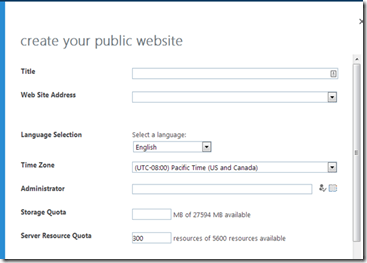
I then attempted to create a public website in the OneDrive for Business Stand Alone plan and it seemed to allow me. However, I couldn’t select a Web Site Address. It seems like that might be blocked but I’ll need to have a fiddle to see whether that is really the case or me just not doing something. But, it certainly seems possible.

image

There is a lot more to this OneDrive for Business Stand Alone plan than meets the eye and I’ll need to investigate further and report back. However, to round off I took a look at what happens when you want to actually convert the plan to a paid subscription. I had created 2 users and when I wanted to convert I was asked to pay for these two users as well as any additional space. Total cost would have been $5.00 ( 2 x $2.50 ) per month, on special ($10 normally). Pretty good value for what you are getting from what I see.

Summary

So it seems to me that OneDrive for Business Stand Alone on first glance:

– is almost identical to Office Web Apps Plan 1 that includes SharePoint Online Plan 1 and Office Online (the new Office Web Apps).

– provides each licensed user with a default of 25GB of personal storage in their own OneDrive for Business as with any other SharePoint Online plan

– can have additional pooled storage added that can be allocated to any existing users personal OneDrive for Business to take any personal OneDrive for Business up to a current maximum of 1024GB. Again, just like any existing SharePoint Online Plan.

– includes shared Team Sites accessible via the standard SharePoint admin center just like all E and M plans.

– seems to include an additional 1GB per licensed user of pooled storage that can be allocated to either the shared Team Site or an individual users OneDrive for Buiness. Other SharePoint Online plans currently only provide 0.5GB per licensed user (but I get the feeling that will change).

– seems that there maybe additional stand alone plans coming that include more storage and the features of SharePoint Online Plan 2 (i.e. Visio, Excel, Access services, etc).

For the cost, you get a lot of the features of SharePoint Online which is great. However, that still makes it a little more difficult for people to use when compared to other file syncing options like DropBox. However, if you want enterprise functionality and collaboration OneDrive for Business stand alone stands out.

I’ll be doing further deep dives into this OneDrive for Business Stand Alone plan very soon so stay tuned.

Getting Started With PowerShell for Office 365

I am please to announced the publication of the second edition of this book. It has been updated with the latest Office 365 information and downloads as well as including a number of additional helpful Office 365 PowerShell commands.

As always, the product is available for download in PDF, ePub and MOBI formats directly from my publications page at:

www.ciaops.com/publications

as well as good eBook resellers such as Lulu, iBooks, Nook and Amazon all for only $4.95.

Many people ask me why I make these books so cheap even though they take many, many hours of testing and writing. The reason is that provided enough people purchase my titles I can make it worth my while to keep creating these titles cheaply. I therefore ask you to support my work by either purchasing some titles or recommending them on to other who may find them of benefit.

Stay tuned for more new publications soon and remembers as always please feel free to send me feedback on any of my work to director@ciaops.com.

Activating Office 365 via Open

Now that Office 365 is available via Open licensing here in Australia I thought I’d do blog that takes you through the process. Thanks to Nigel from AMT for the screen shots. Remember, to obtain Open licensing you generally need to be a reseller who purchases from a software distributor. If you are an end user, you will need to speak with your IT company about obtaining Office 365 under Open licensing. See here for more details about Open licensing.

1. Via your favourite distributor purchase Office 365 under Open Licensing.

2. Once purchased you will receive an email with the details of the Open license.

3. Access the Licensing Service Center at:

https://www.microsoft.com/licensing/servicecenter

image

and add the Open License you received for Office 365 using the License and Activation number you received in the email.

4. Once you have activated the license you may need to wait 24 hours before you can obtain the license keys, however a more typical wait is only 1 hour.

image

5. Log back into the Licensing Service Center. Select the Download and Keys option from the menu and locate the new Office 365 license. Record the license key that is shown.

6. Browse to:

https://portal.microsoftonline.com/commerce/productkeystart.aspx

where you will see:

image

Check the I understand option and press the Start button.

7. Enter the license key you obtained from the Licensing Service Center

image

and press the next button. 

8. Verify the license details are correct.

image

Ensure that the displayed Office 365 plan matches the license you have purchased via Open Licensing.

If correct, press the done adding product keys button.

9. Now select start step 2 button.

image

10. Enter the Office 365 tenant details

image

Complete the form as you would for any normal Office 365 account sign up.

image

In the Country or region selection there now should be an option for Australia.

11. Select your tenant name and admin password

image

When you select your tenant name, remember that this will surface with plans including SharePoint Online. For example, the URL of your default private Team Site with SharePoint Online is:

http://tenant-name.sharepoint.com

and CANNOT be altered, so choose wisely.

12. Start using Office 365.

image

You can now use the admin account you just created to login to the Office 365 portal and start adding users and configuring services.

Press the start using Office 365 button to complete the sign up steps.

13. Once you have logged into the Office 365 Administration Portal check that the subscription details match what you expect.

image

You will find your license details under the license option from the menu on the left hand side of the Office 365 Administration Portal.

image

You can then click on the subscription name to get more details as shown in the previous screen shot.

14. Add the partner of record information for the new tenant.

image

Select the add hyperlink under the partner information heading in the bottom right of the screen.

image

Add the Microsoft partner ID you want associated with this account. If you are a Microsoft reseller doing this on behalf of a customer inserting your own ID will associate this customer with you Microsoft Partner account. Remember, you don’t receive any Partner of Record fees when you sell via Open because the reseller bills the customer directly for the Open licensing. However, if you are a reseller you should still associate your Partner ID with this account so Microsoft has a record.

There you are, all done. Pretty straight forward really.

OneDrive for Business

There is still a lot of confusion around OneDrive and OneDrive for Business. However, here is a nice video that explains much of the differences and capabilities.

It is perhaps a little long and gets a bit bogged down in some of the details but still very worthwhile if you want to better understand the differences in the OneDrive product.

Microsoft have also announced the availability of the stand alone OneDrive for Business plan:

OneDrive for Business now available as a stand alone service

It seems squarely aimed at competing with DropBox. Here is a comparison of the features available for OneDrive:

OneDrive Plans

And don’t forget that the OneDrive app is available on a number of different platforms, allowing you quick access (and in some cases local syncing ability) to your OneDrive files. You can download the clients apps from:

Download OneDrive

There is still a lot of confusion out there when it comes to OneDrive and OneDrive for Business but once you appreciate they are two completely different services then you can better appreciate the roles they can play. I’m sure I’ll be post a lot more about OneDrive and even updating my SkyDrivePro book to OneDrive but with things still changing so rapidly it doesn’t make sense just yet. Best to sit back and watch all the latest developments as they happen.