Selecting sites to include/exclude in Office 365 DLP

image

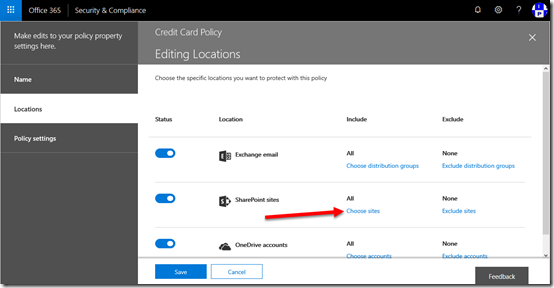
When you create a DLP policy you have the option to exclude or include certain SharePoint sites as shown above.

SNAGHTML6159fb77

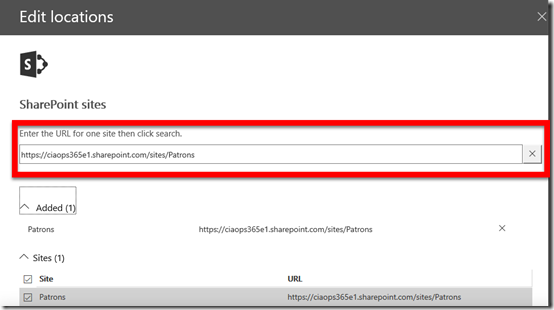
If the sites you wish to include or exclude are anything but the default team site (i.e. https://tenant.sharepoint.com) then you need to manually search for the URL.

Thus, if you are looking to include or exclude a SharePoint site that was created by Microsoft Teams then you need to explicitly search for it by URL to add it to your list as shown above.

Office 365 DLP Document Finger Printing

Data Loss Prevention (DLP) is a way of preventing sensitive information inside you organisation from being sent places you don’t want. Office 365 E3 and above have always included DLP but now Microsoft 365 Business also includes DLP.

There a number of different options you can configure when it comes to DLP inside Office 365. One of these ways is to use DLP is via Document Fingerprinting that allows Office 365 to check information against a template you provide.

Here’s how it works.

image

The first thing I do is create a template of the information I want to be fingerprinted against. Here I have created an invoice template as shown above. Thus, information being sent from my tenant will be checked (‘fingerprinted’) against this to prevent documents that ‘look like’ this template from being sent externally.
image

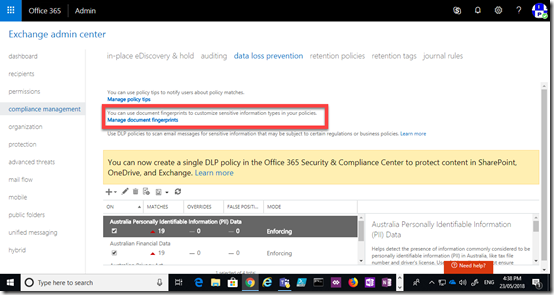
To configure DLP Document Fingerprinting you’ll need to navigate to the Exchange Admin Center and then the compliance management option on the left. You’ll then need to select the data loss prevention option at the top of the page on the right.

On this page you’ll need to select the Manage document fingerprints hyperlink in the top half of the page as shown above. 

image

Here you will see any document fingerprints already configured. Press the plus (+) key to add a new fingerprint document.

image

Simply give the fingerprint a name (in this case Invoice – DLP).

image

In the lower window you’ll need to select the plus (+) symbol and upload the template document that you have created. In my case, I’m going to upload the invoice template shown earlier.

Save you selections.

image

In the lower part of the data loss prevention page you’ll see a list of DLP policies in your tenant. Some of these policies may have been created elsewhere (like the Office 365 Security and Compliance Center). Locate the document fingerprint policies you just created (here called Check for Invoices), select it and then select the edit icon from the menu at the top as shown.

image

You can then further configure the DLP policy. Here I have elected to enable and enforce the policy but there are other options you can select.

Select the rules option from the menu on the left.

image

To create a new rule, select the plus (+) icon from the menu across the top.

image

Here is where you will create the outbound transport rule to check information sent via email. In this case, the rule will apply of the recipient is outside my Office 365 tenant.
image

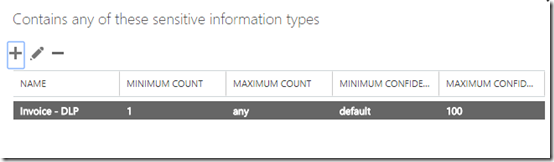
When I select the type of sensitive information I can now select from the document fingerprint I just created.

When there is a policy match, I then elect to block the document, notify the user via a policy tip and send a report to a nominated user.

image

With my new document fingerprinting DLP policy in place I now create a new invoice based on the original template as shown above that you can see is different from the original template but still similar in format.

image

As you can see above, when I attempt to attach this new document via Outlook on the desktop that looks like the previously configured fingerprint document, it activates my DLP policy and prevents the item being sent outside the organisation as desired.

image

I get a similar result if I try and do this using the Outlook Web Client (OWA).

image

I get a policy tip at the top of email as shown above.

image

and when I attempt to send the email I can’t. DLP in action!

This is one example of the DLP capabilities of suitably licensed Office 365 and Microsoft 365 tenants. DLP is great way to prevent standard information, like invoices, being accidentally or maliciously sent outside your organisation.

As I mentioned, DLP is now part of Microsoft 365 Business which means that it an even more enticing offering for SMB who are subject to compliance regulations.

Introduction to Office 365 Advanced Threat Protection (ATP)

Office 365 Advanced Threat Protection (ATP) is one of the recent offerings rolled into Microsoft 365 Business. See:

Microsoft 365 Business new feature comparison

I feel that ATP should be a mandatory add on for all Office 365 SKUs that don’t already include it. It is very cheap but really helps protect users from bad stuff coming in via emails.

One thing that many people fail to realise about ATP (and many other O365 security features in fact) is that you need to enable it or set up policies to control what you want the service to do. These generally aren’t there by default, so simply adding a license isn’t good enough. You actually need to go in and configure the policies.

The above video gives you and overview of how to set these policies and what options they involve. You’ll also see ATP in action protecting a mailbox from malware. This should give you a goo introduction to Office 365 ATP.

Learn how ATP will make you and your business safer.

CIAOPS Need to Know Office 365 Webinar–May

laptop-eyes-technology-computer

For this month’s webinar we are going to take a look at what Office 365 Data Loss Prevention (DLP) is and how it can be used to safeguard the information inside your organisation. You’ll learn what DLP is all about and how to implement it with Office 365. Of course, I’ll also bring you up to speed with all the latest news and updates in the world of Office 365 and Microsoft 365.

You can register for free at:

May Webinar Registrations

The details are:

CIAOPS Need to Know Webinar – May 2018
Friday 25th of May 2018
11am – 12am Sydney Time

All sessions are recorded and posted to the CIAOPS Academy.

There of course will also be open Q and A so make sure you bring your questions for me and I’ll do my best to answer them.

The CIAOPS Need to Know Webinars are free to attend but if you want to receive the recording of the session you need to sign up as a CIAOPS patron which you can do here:

http://www.ciaopspatron.com

or purchase them individually at:

http://www.ciaopsacademy.com/

Also feel free at any stage to email me directly via director@ciaops.com with your webinar topic suggestions.

I’d also appreciate you sharing information about this webinar with anyone you feel may benefit from the session.

Another great benefit of Office 365 Advanced Threat Protection

image

I recommend that any Office 365 tenant sold these days also include Office 365 Advanced Threat Protection (ATP), which costs around AU$2.50 per license.

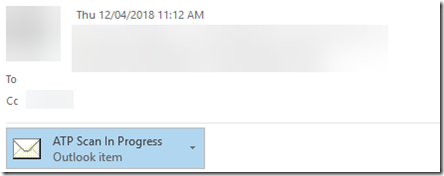
ATP does many things but of the things that I really like is that it takes a very deep look into attachments you receive, sandboxing them to see exactly what they do when opened. You can see an example above that I received.

In this case, I have set ATP to use dynamic delivery which means I get notified of the ATP scanning process with a place marker as shown above.

image

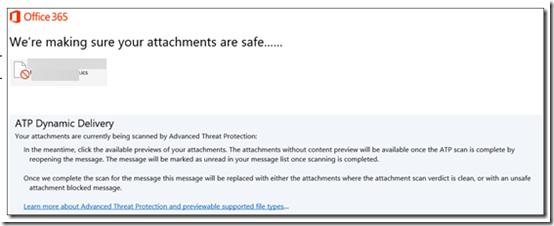
When I open that place marker I see the above which informs me that the attachment is being checked by ATP.

image

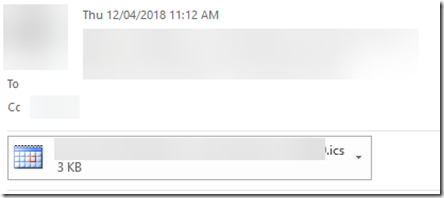
In a short period I see the attachment as normal once ATP has completed checking it for me.

ATP is included in E5 but is an add on for other plans but as I said, I consider it a mandatory add on if you are serious about security and minimising the risk of a dodgy attachment being delivered to your business.

March Office 365 Webinar Resources

Plenty of interest in security with legislation now making it even more important to protect information.

Slide from this month’s webinar are at:

https://www.slideshare.net/directorcia/ciaops-need-to-know-office-365-webinar-march-2018

If you are not a CIAOPS patron you want to view or download a full copy of the video from the session you can do so here:

http://www.ciaopsacademy.com.au/p/need-to-know-webinars

Watch out for next month’s webinar.

Advanced Office 365 Alerts

A while ago I wrote an article about the standard alerts in Office 365 that are common across all plans. You can read that article here:

Create Office 365 Alerts

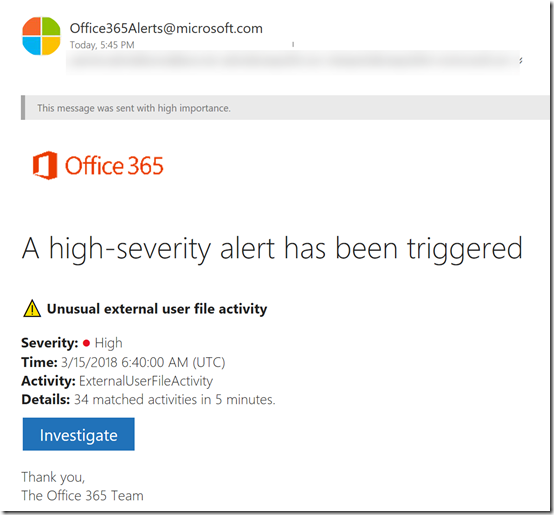
I also eluded to the fact that with the Enterprise Plans in Office 365 you get additional features and options. Here’s an example of one such alert that I have in place to warn me about potentially suspicious activity in my Enterprise E5 tenant.

SNAGHTML7347f58

A very common activity that should be investigated is a mass download of files from the tenant. This is also heightened when that activity comes from an external source as you can see in the email alert I received above.

Now, it’s time to investigate.

image

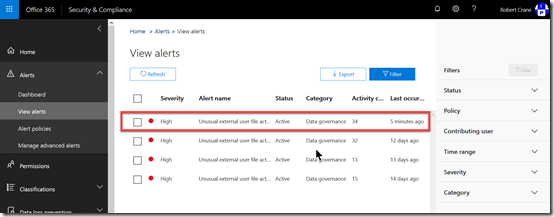
If I now go to the Office 365 Security and Compliance center and select Alerts from the menu on the left and then View Alerts from the options that appear I see a list of recent alerts on the right as shown above.

To view the alert to examine it in more detail, I simply select it from the list. In this case I will select the first one.

image

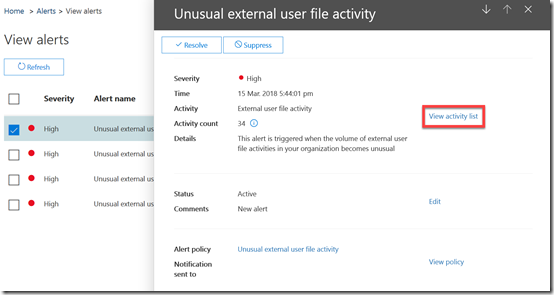
Information about the alert now appears in the right. You will see that there is also a hyper link, View activity list to given you even more detail.

image

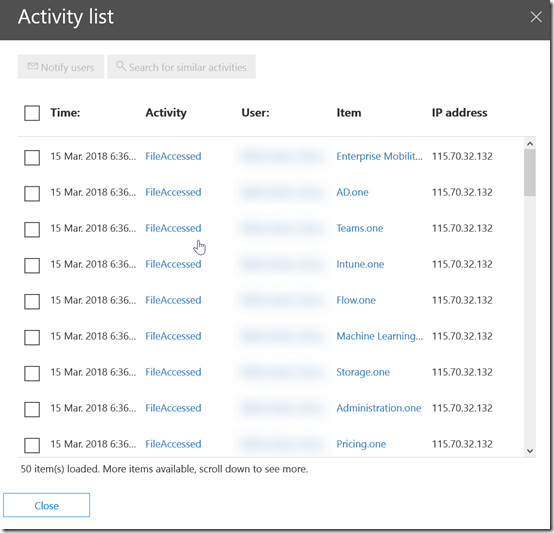
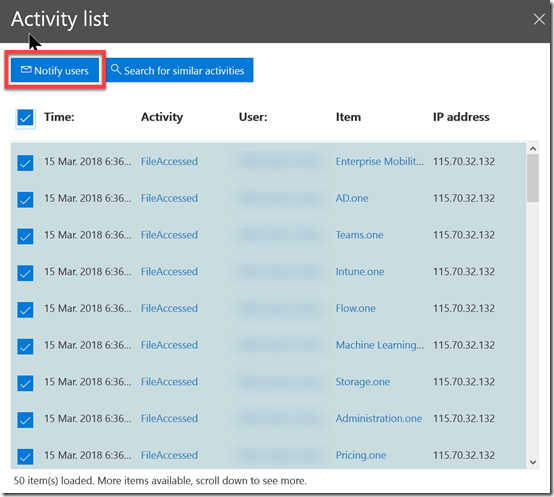
You see that selecting this option gives me the low level audit logs of the events that triggered this alarm. In this case I know that the external user is actually a member of my CIAOPS Patron community who is re-syncing the OneNote Codex that is part of their entitlements. So, I can now confirm that this was a know situation and I don’t need to investigate further.

image

I can however select any, or all, of the alerts and then select to Notify users using the button in the top left.

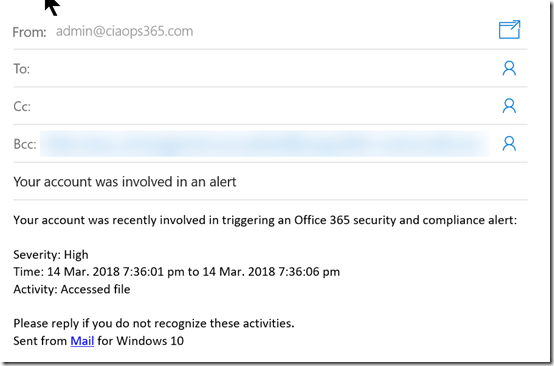
image

This will create an email like that shown above that you can send to the users in question.

When I’m finished looking at the alert activity I simply close that dialog.

image

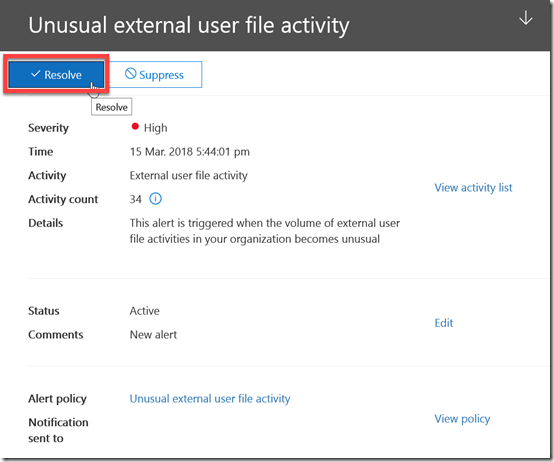
I can now mark this alert as resolved using the button in the top right.

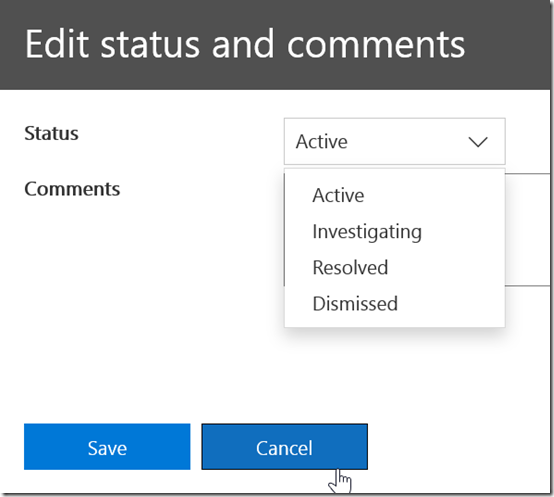
image

I do have a number of other options available to me when I mark this alert as shown above. However, in this case I’ll mark it as Resolved and Save it.

image

If I now re-examine an alert that has been resolved I’ll see the banner indicating that across the top of the page as shown.

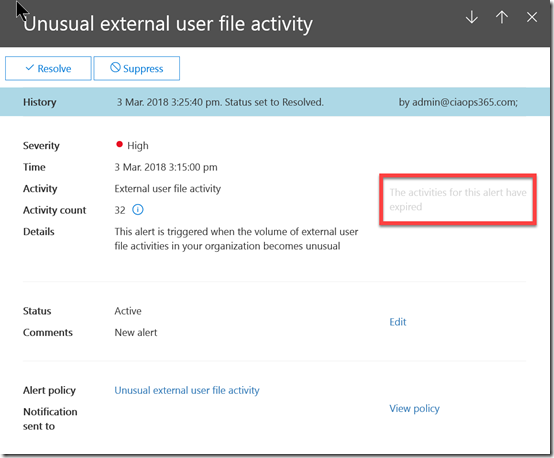
You should also note that the activity items are not retained forever. It is bit hard to read but the item highlighted on the right says “The activities for this alert have expired”.

Enterprise Office 365 plans have some much more security and compliance options available to you hopefully as you can see from the above. If you are serious about IT security, then I’d be encouraging you to look at what the Enterprise Office 365 plans offer.