Power BI content pack for Xero now available

image

Microsoft has just announced the ability to connect Xero accounting systems to Power BI:

https://powerbi.microsoft.com/en-us/blog/explore-and-analyze-your-xero-data-with-power-bi/

This means you can easily view and report on your business accounting analytics using Microsoft’s free Power BI dashboard reporting tool.

More and more software vendors are moving to using Power BI as their reporting tool rather than attempting to building their own reporting engine. Why? First, because Power BI is such a great analytics tool and secondly because Microsoft have made the base Power BI offering free.

That therefore means there is little reason not be using Power BI to analyse your accounts but there is also the massive opportunity for IT resellers to sell services to customers using Xero now thanks to Power BI.

If you haven’t see Power BI then check out my tutorial here:

and then start getting into the opportunity Power BI provides!
Configuring Project Madeira to Power BI

If you follow the documentation about connecting Project Madeira to Power BI you might get confused about locating the Web Service Access Key which acts as the password to connect to Power BI.

https://powerbi.microsoft.com/en-us/documentation/powerbi-content-pack-project-madeira/

Here’s the process of how to obtain that access key.

image

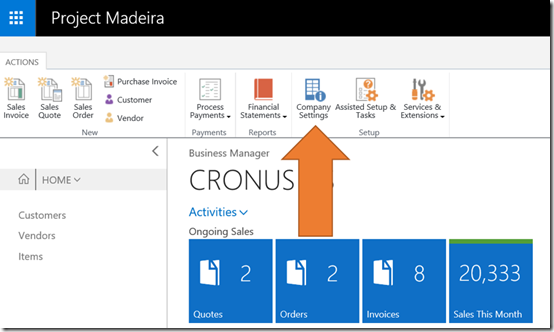
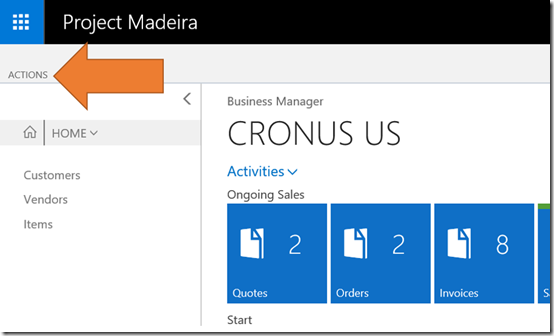
Navigate to your Project Madeira. Select Actions tab in the top left.

image

This will reveal a ribbon menu. From this ribbon menu select the Company Settings icon.

image

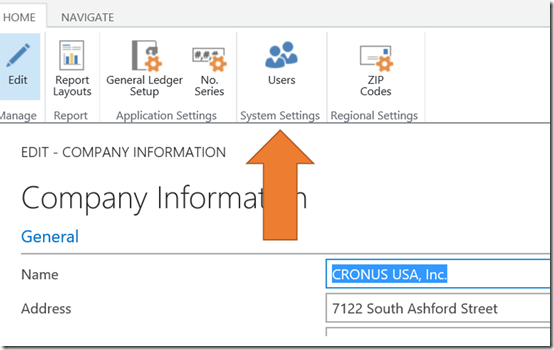
This will open a new dialog. From the ribbon menu now shown select Users.

image

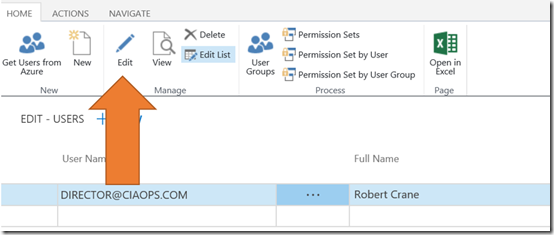
Again, another dialog will open. From the ribbon that now appears, ensure that the primary user is selected from the list and then select Edit.

image

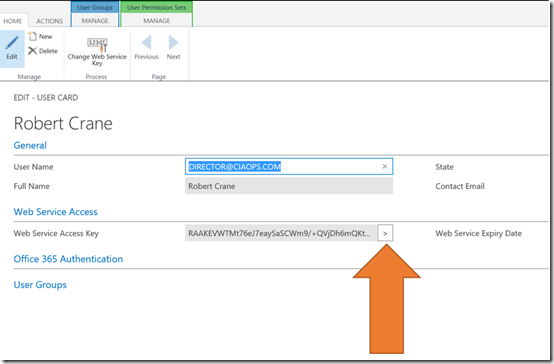
In the body of the page you’ll find a Web Services Access Key area. To generate a new key if one isn’t displayed select the arrow button to the right of the field.

Copy that access key and follow the documentation about connecting to Power BI. Also note the entry for User Name in the general area here, as you’ll also need this.

When you are asked for the login to the service select Basic as the Authentication Method.

Enter the User Name you noted from previous page and then the Web Access Key as the password. Select the Sign in button to complete the connection process.

image

After a few moments of configuration you should be greeted by a new Dashboard connect to Project Madeira as shown above.

How to present Office 365

I’m working on a new course for my online training academy that will give people a framework for successfully presenting Office 365 to prospects, clients and colleagues.

Having presented this material in face to face classroom sessions I was really looking to incorporate the “whiteboard” experience on screen. What I therefore decided to try was using the Windows 10 OneNote app on my Surface 3 along with the Surface pen to see how well it would work while obviusly recording the whole thing.

My trial attempt is shown above and I think it worked pretty well. Obviously, there will need to be some polishing done before I release the final version of the course material, which will also contain more tutorials on how to present each individual service such as Delve.

Have a look and let me know what you think at the rough draft of on screen “whiteboarding”. Also, if you have played with OneNote and a pen then I suggest you do as OneNote is a great hand notetaking tool as hopefully the video illustrates. Of course if you want to find out when the course on Presenting Office 365 becomes available then stay tuned here or sign up for free at my online academy:

www.ciaopsacademy.com