Defender for Office 365 Anti-phishing policies can protect externals as well!

image

My experience with most Microsoft 365 environments I see is that they fail to make use of all the features that are provided. None more so when it comes to security. For example, most people don’t seem to appreciate that the Defender for Office 365 (which is part of Business Premium) provides impersonation protection for internal AND external email addresses!  It just needs to be configured. The details are here:

Impersonation settings in anti-phishing policies in Microsoft Defender for Office 365

and as it says there:

You can use protected users to add internal and external sender email addresses to protect from impersonation.

but it is important to note:

User impersonation protection does not work if the sender and recipient have previously communicated via email. If the sender and recipient have never communicated via email, the message can be identified as an impersonation attempt.

This means, you want to get the configuration of important external email addresses in place as soon as possible so any impersonation against those users can be evaluated. It is too late to do after an internal user is communicating with a scam (impersonated) domain.

You will also see that you can also configure protection for external domains, rather than just specific email addresses, for impersonation evaluation.This means that if the users inside the tenant deal with an important business that has its own email email, that is NOT part of that tenant, you can enter that domain in here. Makes a lot sense when you are working with a business regularly that is doing stuff like invoicing, e-commerce or the like (honestly anything at all really).

Let’s say that I work with a business who’s domain is ciaops.com. By enabling this impersonation protection early, if users in the tenant receive email from c1aops.com then it is far more likely to be detected because the system is looking of for spoofing of that custom external domain I entered in the policy.

Thus, if you have Microsoft Defender for Office 365 in your environment (and you do if you have Microsoft 365 Business Premium), then you can provide an extra level of protection by configuring the Anti-Phishing policy for impersonation settings for both your important internal AND external usera and domains (i.e. people and businesses you work with regularly). You should do that as early as possible to provide the maximum protection the policy can provide. They key is that someone has to add in the unique email addresses or domains into the policy, they are not added automatically, even internal email address. They ALL have to be added to the policy.
image

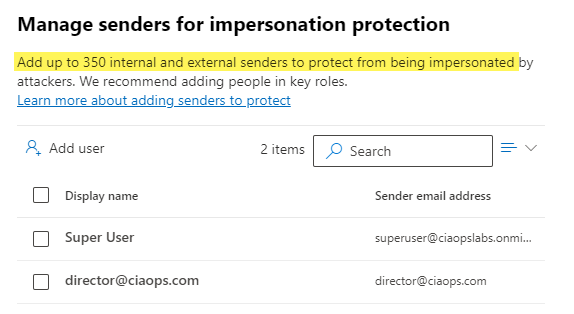
You can protect up to 350 unique email addresses and 50 unique domains, which is probably more that enough to cover everything a smaller business would need for internal and external users. Unfortunately, I rarely see this great capability enabled. It’s available if you have Microsoft Defender for Office 365 so go configure it and reduce the risk to the users in the tenant. Easy!

Blocking USB devices on Windows with an Intune Device Configuration profile

There are a number of ways to block USB storage devices using Intune. You can also complete:

Blocking USB devices on Windows with an Intune Endpoint Security policy

The following method is very similar but uses a Device Configuration profile.

image

Navigate to https://endpoint.microsoft.com and select Device from the menu on the left as shown above.

Then, select Windows on the right.

image

Select Configuration profiles from the menu on the left as shown.

image

Select Create profile.

Then select the Platform as Windows 10 and later.

Select the Profile type as Templates.

From the list of templates select Administrative Templates.

Select Create in the bottom right.

image

Give the policy a meaningful name and description.

Select Next to continue.

image

Select Computer configuration.

Then enter the following into the Search box ‘prevent installation of devices’ and Search.

Typically, the first item returned will be ‘Prevent installation of devices not described by any other policy. Select this.

Select the option Enabled.

Select OK.

Select Next to continue.

image

Assign the policy to a group. Here it is being assigned to all Windows devices.

Select Next to continue.

image

You will now see a summary. Ensure the Configuration settings has the above set before selecting the Create button to complete the policy.

image

You can also review these settings at any time by simply selecting the policy in the list and viewing its details as shown above.

image

You now need to wait until the policy is deployed successfully to devices. You can check the status of this by viewing the Device status for the policy as shown above.

Screenshot 2023-03-20 145033

If you now try and plug in an unknow USB storage device you may see the above warning. In other cases, you will see no warning but USB device storage will be blocked.

Some points to remember:

1. The above policy is only designed for Windows 10 and above

2. The above policy won’t prevent USB storage devices that have already been used on an endpoint. These need to be removed from the device manager on the device to be blocked in future.

3. Some USB devices that don’t appear as storage devices in fact have a small amount of storage on them (for video and projector drivers for example). These will also be blocked.

Blocking USB devices on Windows with an Intune Endpoint Security policy

There are a number of ways to block USB devices using Intune. The following method uses an Endpoint Security Policy.

image

Navigate to https://endpoint.microsoft.com and select Endpoint security from the menu on the left as shown above.

Then select Attack surface reduction from the options that appear on the right as shown above.

image

Select Create policy.

Select Platform as Windows 10 and later as shown.

Select Profile as Device Control as shown.

Select Create in the bottom right.

image

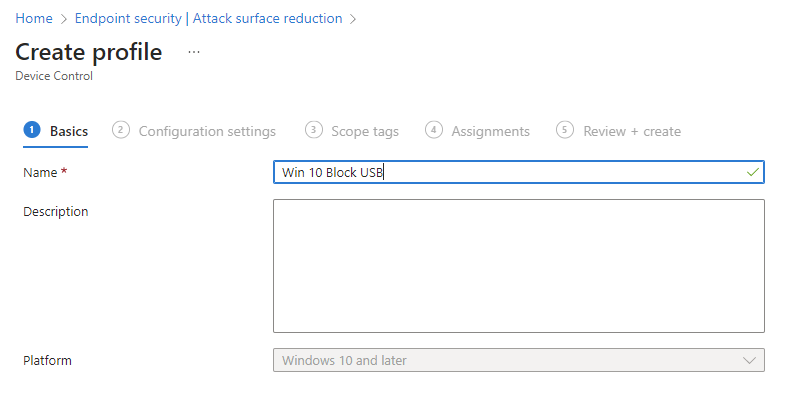
Give the policy a meaningful name and description.

Select Next to continue.

image

Under the System > Device Installation > Device Installation Restrictions heading locate the Prevent installation of removable devices item and set this to Enabled as shown above.

Select Next to continue.

image

Scroll down the list of available settings to locate the Device Control section as shown. To prevent ANY new USB from installing ensure this option is set to Not configured.

Select Next to continue.

image

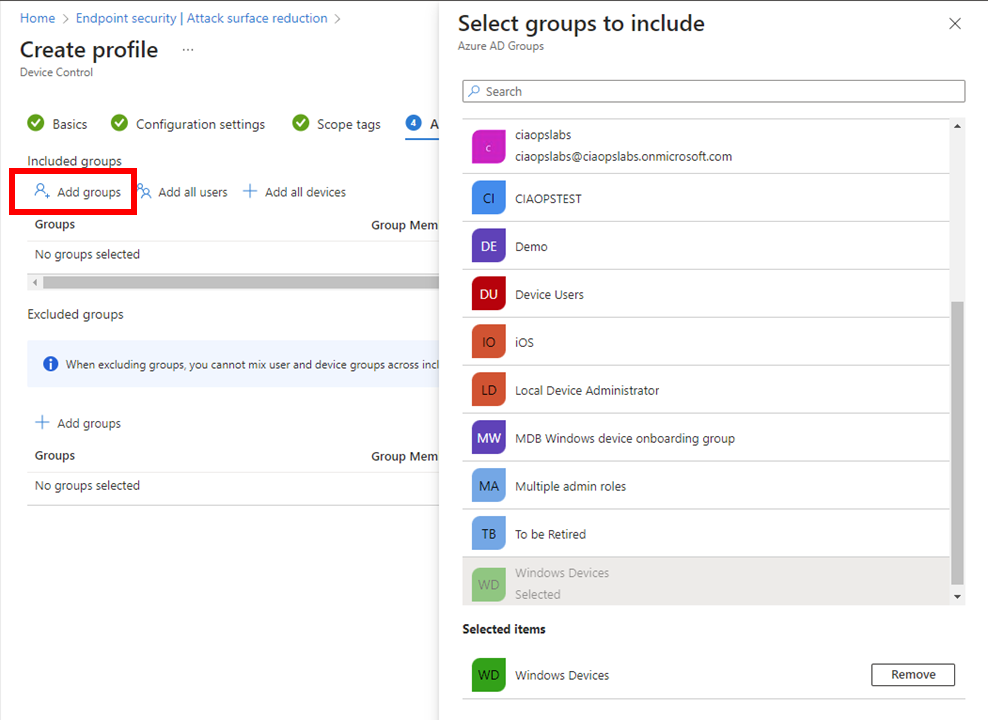
Assign the policy to a group. Here it is being assigned to all Windows devices.

Select Next to continue.

image

On the summary screen, expand the Administrative Templates option as shown. In here you should see that Prevent installation of removable devices is set to Enabled.

Select Create.

image

The created policy should now be listed as shown above. Click on it to view.

image

When the policy has been successfully applied to the devices the policy was assigned to you should see the status of devices as shown above.

Select View report button.

image

You should now see all the listed that have this policy applied to them as shown above.

Screenshot 2023-03-20 145033

If you now try and plug in an unknow USB storage device you may see the above warning. In other cases, you will see no warning but USB device storage will be blocked.

Some points to remember:

1. The above policy is only designed for Windows 10 and above

2. The above policy won’t prevent USB storage devices that have already been used on an endpoint. These need to be removed from the device manager on the device to be blocked in future.

3. Some USB devices that don’t appear as storage devices in fact have a small amount of storage on them (for video and projector drivers for example). These will also be blocked.

4. You can create exceptions to this policy via the device id if you wish.