Office 365 Group files interface change

image

If you have an Office 365 First Release tenant and you go and have a look at your Office 365 Group files you’ll see that the interface has been updated to the new look OneDrive for Business as you can see above.

This gives it a consistent look and feel with an individual’s OneDrive for Business which is a good thing. This and all the other changes that have surfaced in the last week or so give you an indication at how rapidly this product is evolving.

Delve should be the center of your Office 365 universe

How do you get Delve?

Delve is currently only available to Office 365 subscribers. Delve is included with all Office 365 suites that include SharePoint Online (Business Essentials, Business Premium, E1, E3 and E4). Users who are assigned a SharePoint Online license as part of the suite will also get Delve.

image

What is Delve?

Under the covers of Office 365 is something called Officegraph. It monitors interactions between people and the information they use. It then applies machine learning to these interactions in order to determine what is most relevant.

One of the ways that the results of this machine learning is surfaced to Office 365 users is via Delve (Clutter is another place). As you can see from the above video, Delve is simply another location users can navigate to in Office 365 from their App Launcher.

When a user navigates to Delve they are presented with information from Office 365 that is most relevant to them at that moment. This means they could see documents from Team Sites or OneDrive. They could see emails or conversations in Yammer or content from Skype for Business.

Delve does not change or negate permissions in Office 365, a user can only see in Delve what they can see elsewhere in Office 365. If they don’t have access to it elsewhere, Delve will not show it to them.

The more important the information that the machine learning in Officegraph determines something is, the higher it will rank in a users Delve.

Why use Delve?

If you think about the way most people work in a business these days, firstly, they dive into their emails, then they may jump across and access some files. Maybe they then have a phone or Skype call with some instant messaging thrown in. Then maybe they go out to a social network to catch up on what’s happening. They then of course repeat this process over and over again during their day.

Delve alleviates a lot of this service switching by providing a single ‘pane of glass’  at which a user can get an overview across all their information locations arranged in a manner that is most relevant to them. This means that documents they have recently been working appear at the top of the list in Delve.

From Delve, users can then simply select the information they want and be taken directly to that location where ever it is in Office 365. So let’s say that you are working on a document and you save it somewhere quickly to get on with other tasks. When you want to come back to that document later you may have forgotten exactly where you saved it. Was it in OneDrive? Maybe this Team Site? No. Maybe that Team Site? Now, what did I call it again so I can search for it? By using Delve instead, you’ll see that document listed near the top of your feed and by selecting it you’ll be taken directly to that location.

Inside a business it is important to remember that we do not work in isolation. We are generally part of many teams, large and small as well as many interactions. We therefore also need to collaborate with others, share information and gain insight from understanding what others in the business are working on. Once again, Delve provides benefits because it allows you to not only see what information is most relevant to you but also what information is relevant to others in your team. In essence, if you select a colleague in your Delve you’ll see their Delve (again remembering Delve respects security and permissions).

image

So if I login as a user and navigate to Delve I see something like that shown above, which is information about Me.

image

But if now select someone else under People menu on the left hand side you’ll that I see their Delve activity feed which is different to mine.

image

If I now select their Profile instead of their Activity I get information about them as shown above. On this page are direct links to their email address, phone and chat.
image

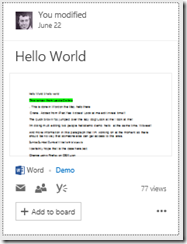
If you look closely at a Delve card you see that it has information about the user at the top of the card, which you can select, that will take you to their profile. If you click on document in the middle of the card, a new tab in browser will open and you’ll be taken directly to the location for that document wherever it is in Office 365.

image

At the bottom of the card you’ll see the location of the document (here in a SharePoint Team Site called Demo) as well as links to collaborate further on this document via email, or share it with others (like you do in SharePoint but here directly from Delve).

image

However, what I believe is a better way to share documents to gain feedback is via document conversations in Yammer. This occurs when you select the Yammer icon below the document. When you do this a pane will slide out from the right hand side of the window and you’ll we prompted to post a link to the document in Yammer as well as see any existing conversations around this document already in Yammer as shown above. This document conversation feature used to be part of SharePoint Online directly but has been deprecated as I indicated in a previous post here:

Document conversations deprecated

The final option available when it comes to sharing are Delve Boards.

Delve Boards basically allow you to ‘pin’ information from Delve to an ‘interest’ or topic. Imagine that your business is doing a project, you could create Delve Board with the project name and then ‘pin’ information to it

image

When you create a board and add something to it you are sharing that across your organisation so that everyone (with suitable permissions of course) can view what is on the board and pin their own stuff to it.

image

You will see, just under the board name you can elect to Follow/Unfollow the board as well as send a link to the board via email.

Why is Delve important?

The more that I see of Delve and the more I understand the direction Microsoft is taking with Office 365 the more important I believe Delve is to every business using Office 365. It’s ability to function as a ‘single pane’ of glass across all your content. It’s ability to show you what is most important to you, along with the ability to access and share information directly from there points to the direction your business should be heading with Office 365 I believe.

Yes, it is probably a very different way of working from the way you currently do BUT I am very confident that using it would provide major productivity benefits across any business if utilised appropriately. Remember, you don’t have to abandon the way you do things now to use Delve, you can start using it today and then judge for yourself, which is exactly what I’d encourage you to do. Try and see before making any judgement.

Too many times we become locked into a routine, into a comfortable way of doing things for purely emotional reasons. After we embrace something new that really works we wonder why we didn’t do it sooner. I think this is very much the case with Delve base on my interactions with resellers and users (more resellers tho’).

The common mentality is, because I don’t understand it I won’t use it, whereas a true business mentality should be let me see if this can provide me business benefit. Yes, Delve is a different way of going about your work but just because its different doesn’t mean it is worse, in fact I’d pretty much wager that it will make things better. A lot better.

Can I disable Delve?

image

Each user can disable Delve if they so desire. The do this by navigating to Delve and selecting the Cog in the top right corner. From the menu that appears they then select Sharing Activity.

image

They will then be given the option as shown above to disable Delve.

image

If you want to disable Delve across you whole organisation you’ll need to login as an administrator and visit the SharePoint admin center. There under Settings you find the above option for Officegraph which when disallowed will also disable Delve.

Conclusion

I certainly see Delve becoming more and more the center of the Office 365 universe. It will be the central place to access all your information. It will be the place to stay up to date with what’s happening across you whole organisation. It will be the place you go to share information with people inside and outside your business. And that is just for starters.

in short, it will make you and your business more productive and that’s why you should start using it today, because from what I have seen of the roadmap for Delve and Office 365 it is only going to get better and more powerful. (see Hey, workaholics: Microsoft Delve will track your ‘work life balance as an example of what’s coming).

References

What is Office Delve?

Office Delve for Office 365 admins

Are my document safe in Office Delve?

Office 365 Saturday–Sydney

O365 Saturday Australia

I have been lucky enough to be selected to speak at the Office 365 Saturday event in Sydney this weekend, the 13th June. My session is on the ‘Business of Yammer’ but I am also looking forward to a full day of Office 365 topics presented by some very knowledgeable people in the SharePoint and Office 365 space.

One of the sessions I am really keen to see is the one on PowerBI. So if you are interesting in attending you can register at:

http://www.o365saturdayaustralia.com/Pages/Sydney.aspx

O365 Saturday Sydney kicks off registrations at 8:30am on 13th June at Cliftons – 13/60 Margaret Street, Sydney NSW, 2000.

The whole day is free and great opportunity to do some networking and get those burning Office 365 questions answered. If you are planning on attending let me know and we can perhaps catch up.

I hope to see you there.

SharePoint Online Backups

I get lots of questions about how/if data is backed up with SharePoint Online. Remember, that SharePoint Online is composed of two items , Team Sites and OneDrive for Business. Both of these are SharePoint, OneDrive for Business is simply a very limited set of standard Team Site features, but it is STILL IS SharePoint.

As I say over and over and over again, SharePoint is a collaboration system not just a file share. It is very different from a traditional network share. Thus, the way that data is stored is very different to start out with.

Firstly, all of SharePoint’s data is stored in a database. Calendars, contacts, lists AND flies are all stored inside a database because they are objects. This means that when you upload a file to SharePoint Online it is wrapped inside an object that contains additional information not just the file. This information could be meta data, workflows, previous versions and more.

When a user deletes something from SharePoint Online it will generally be sent to their recycle bin. They can recover it from here themselves currently for a period of 93 days.

If in that 93 days the file is deleted from the users recycle bin it is moved to an administrator recycle bin for the remainder of those 93 days.

Points to remember with the recycle bin:

– Deleted items can be recovered up to 93 days after deletion

– Items in the users recycle bin count against the storage quote for that site. Items in the administrators recycle bin don’t count against the storage quota for the site.

– The administrator recycle bin can only be accessed by a Site Collection Administrator.

For more information about various recycle bins and how to recover see:

Manage the Recycle Bin of a SharePoint Online site collection

Document Libraries, i.e. where files are stored in SharePoint, have version history enabled by default and set to save 500 versions of a file. Each time a file is changed and save a new copy is retained. This versioning can be edited and disabled if required and also counts against your storage site quota.

For more on versioning see:

How does versioning work in a list or library?

Apart from that SharePoint Online

– Is backed up every 12 hours and kept for 14 days

– The only recovery option is a full site collection restore

– To perform a site collection restore you must contact technical support

– The restore location is the same as the source, so you will loose all data that is currently hosted there.

Further details are contained in this blog post:

Restore options in SharePoint Online

If none of these options are adequate then there are third party backup providers like:

Leaphq

and

CloudFinder

and others that can provide an alternate method of backing up SharePoint data.

With all SharePoint Online backup option, you need to understand that some allow recovery of any items (i.e. appointment, list item, contact, file etc) while some just allow recovery of files.

In my experience, with document library versioning now enabled by default and presence of a recycle bin, there is generally no need for a third party tool, however they are available if your needs are not adequately covered by the tolls built into SharePoint.

Troubleshooting OneDrive for Business links

Still working through all the recent Microsoft Ignite content but here are some handy links for troubleshooting OneDrive for Business that I’ll share.

Use the OneDrive for Business Sync Guide for initial setup – http://aka.ms/SetupOD4B

Make sure that the OneDrive for Business sync app is kept up-to-date – http://aka.ms/UpdateOD4B

Use valid file and folder names, and stay within file size, item count, and file path length limits – http://aka.ms/OD4BLimits

Resolve issues by following these best practices

First, try repairing the OneDrive for Business sync connection – http://aka.ms/RepairOD4B

Next, stop syncing and then restart syncing – http://aka.ms/StopOD4B and http://aka.ms/SyncOD4B

Next, try the OD4B Troubleshooter – http://aka.ms/TShootOD4B

Remember, the next gen sync client is due soon! See my previous post on the topic:

https://blog.ciaops.com/2015/05/more-onedrive-information-from-ignite.html

Revised bootcamp notes publication now available

As I detailed a while back I have now updated my Bootcamp products offering to include:

1. Latest version of my Office 365 bootcamp notes. This OneNote notebook is something I use everyday to capture information about Office 365. It is my reference ‘bible’ covering everything from Exchange to Sharepoint, Delve to Single Sign on as well as troubleshooting, best practices and a range of PowerShell scripts and third party solutions that work with Office 365.

2. Latest version of my Azure bootcamp notes. This OneNote notebook contains my daily brain dump about Azure. It contains links, information, tutorials and more. Again, this is something I use everyday and update constantly.

3. Exam cram notes for the Office 365 70-347 and 70-346 exam. It contains information and links to help you pass the exam. It also has a number of practice exam questions to give you an idea of what might be covered in an exam.

4. Five (5) supporting Office 365 checklists and templates that you can use for your Office 365 implementation. These documents are in various Office formats (Word, Excel, etc).

There are two ways to get access to this material:

1. You can join my Cloud Business Blueprint community via:

http://www.cloudbusinessblueprint.com/members-sign-up/

where you’ll get immediate access to the latest versions plus heaps of other unique on demand training, cheat sheets, re-brandable content, articles AND access to the members forums to converse with other cloud resellers.

2. You can purchase the existing Office 365 bootcamp notes via;

http://www.e-junkie.com/ciaops/product/488325.php

for AU $148. This purchase will also entitle you to a 12 monthly subscription for updates to these products (generally updated monthly).

Also, given that the 74-325 Office for SMB exam has been superseded I have made the OneNote exam cram notes I created for this available for free download with all my other free material at:

http://www.ciaops.com/downloads

If nothing else, those bootcamp notes are going to provide a centralised and searchable way to locate just about anything to do with Office 365 and Azure. This will save you inordinate amounts of time and easily pay for your outlay. You’ll also get free updates for to all of these for 12 months once you purchase. Like I said, I use these notebooks EVERY DAY.

If you want some testimonials about these bootcamps and information provided visit:

http://www.ciaops.com/bootcamp/

Please support this material so I can continue creating more.

Need to know podcast–Episode 83

In this episode I’m joined by a real SharePoint and Office 365 rockstar (who also happens to be an MVP) – Benjamin Niaulin.

Benjamin shares his insights and experiences from the recent Microsoft Ignite Conference. We then deep dive into the new Office 365 Groups and how important they are becoming to the service overall. Finally, I couldn’t let Benjamin escape with out providing some guidance around SharePoint migrations.

A huge amount of value in this episode from a doyen of the community, so don’t miss it. You can listen to the episode at:

http://ciaops.podbean.com/e/episode-83-benjamin-niaulin/

The podcast is also available on Stitcher at:

http://www.stitcher.com/podcast/ciaops/need-to-know-podcast?refid=stpr

Don’t forget to give the show a rating as well as send me any feedback or suggestions you may have for the show. I’m also on the hunt for some co-presenters so if you are interested on being a regular part of the show please contact me.

Resources

Microsoft Ignite on demand – http://channel9.msdn.com/events/Ignite/2015/

Blogging comes to Delve – https://blog.ciaops.com/2015/05/blogging-comes-to-delve.html

New OneDrive Sync client – https://blog.ciaops.com/2015/05/more-onedrive-information-from-ignite.html

Mobile device management – https://blog.ciaops.com/2015/05/mobile-device-management-has.html

Offline Azure backup – https://blog.ciaops.com/2015/05/offline-azure-backup.html

Sharegate – http://en.share-gate.com/

Sharegate blog – http://en.share-gate.com/blog/

Benjamin Niaulin – https://twitter.com/bniaulin

Webinar on Office 365 Groups – http://en.share-gate.com/blog/groups-for-office-365-webinar

Benjamin’s wrap up of Microsoft Ignite – http://en.share-gate.com/blog/ignite-collaboration-in-a-modern-workplace-transformed

More OneDrive information from Ignite

image

As I mentioned in a previous post, OneDrive news from Ignite, I am very happy to report the goods news revealed about OneDrive for Business. One of these improvements that can’t come soon enough for me is the selective sync as you see in the above screen shot from the session:

I Sync, Therefore I Am: A Deep Dive on OneDrive Sync capabilities and Roadmap

The great thing about this session was some more information from Microsoft but by far was the questions and answers towards the end. It was great to hear so many of the burning questions I’ve had about the sync client asked and then answered. Well worth a listen if you want more answers about OneDrive for Business.

image

The above screen shot taken from the presentation also gives us some more information around when the next generation sync client will be released.

I am happy now that the roadmap for OneDrive for Business is much clearer and I can’t wait to get my hands on the new sync client.

Stay tuned here to more updates from Ignite.