One of the ways I use OneNote

It probably won’t surprise regular readers of this blog that I’m a big note taker. Where did this start out? When I was at university doing my first degree in Electrical Engineering it was drummed into us during every lab session that lab notes don’t need to perfect, it is far, far more important to capture the information right then and there.

My first job required me to complete a regular journal of the work that I performed everyday and have that available at regular intervals for review. All of this reinforced the importance of getting stuff down on paper.

Years later I read the book “Getting Things Done” by David Allen and found that it really spoke to my inner scribe. His main premise is that the human brain is designed for creativity not storage, that’s why you need to write things down some where ‘safe’ so you can free up your mind for bigger things.

Of course the majority of the notes that I have taken have been paper based. I have used all sorts of time managers and recorders but normally defaulted to a simple blank notebook in which I could express myself in any manner. The down side with paper is firstly, I need to have my notebook on me at all time to capture what pops into my head (and good stuff can do this at the strangest moment). Secondly, I’d write stuff down to remember it and when I needed it I couldn’t find it because I’d written so many more notes since.

After a while I also started to accumulate a lot of notebooks which became painful to manage and one of the biggest problems was keeping track of stuff that I needed to do but was a lower priority. In many cases, I’d need to transfer that item to the current ‘to-do’ list on another page which is really just duplication isn’t it?

I figured that there must be a better way so I turned to technology. My first real success came with Evernote and what I liked about this digital notebook application was that it was free and worked on all platforms. What I didn’t like about it was the interface. I personally found it a little cumbersome to work around and navigate. I fully admit that perhaps I didn’t invest enough time with Evernote. However, where it really excelled was in the fact that it was supported by a web version. So if I was in front of server that had an error message I could do a screen capture and then paste that into the web version of Evernote (because of course, servers don’t have desktop apps installed on them now do they?). Now when I returned to my office and powered up Evernote on my desktop and the notebooks synced, I had a copy of the screen shot ready to do troubleshooting.

The problems with Evernote was that I needed something to manage my daily ‘to-do’ which I never really worked out how to do effectively for me. I tried apps like Remember the Milk but found they really didn’t support the Microsoft and Windows world in which I spent most of my time. That lead me to Wunderlist.

Wunderlist, which has recently been bought by Microsoft, worked wonders with my ‘to-do’ management, at least initially. It is available on all platforms, easy to use and allows a good overview of task ‘to-do’ and what has been done. Unfortunately, over time I found more and more friction using Wunderlist in the way I need to capture information. I needed something more comprehensive that just a ‘to-list’. I needed the flexibility of a paper notebook, combined with the digital advantages or Evernote but with the ‘to-do’ management of Wunderlist.

Enter OneNote. I had always been a user of OneNote but where it fell down for me was that it had no pure web version. Ah ha, Microsoft fixed that with Office Online available from OneDrive.com and Office 365. Microsoft then made OneNote available on all platforms, such as Mac, iOS and Android for free. That convinced me that I needed to revert back to OneNote as my main note taking medium. However, I still had the problem of my ‘to-do’ list to solve.

Here’s what I found works for me. You can do the same using OneDrive.com but I’m going to illustrate how to do this with Office 365 and OneDrive for Business.

clip_image001

Login to your Office 365 portal and navigate to OneDrive.

clip_image002

Select the New link just below the Documents heading. From the list that appears select OneNote notebook.

clip_image003

Give your new notebook a name. Since I am replacing my paper notebook here I call mine ‘Daybook’. You can of course have as many separate OneNote notebooks as you want and I do for all sorts of things.

Press OK to continue.

clip_image004

This will open a web version of the notebook as you can see above.

Now I will assume you already have the OneNote desktop app installed, most people do and they don;t know it and if they don’t it is a free download anyway.

clip_image005

In the centre of the page at the top you will find the text Open in OneNote, select this.

clip_image006

If you have multiple version of OneNote on your system you might receive a prompt like you see above asking you which version to use. Here, I’m going o use the full desktop version of OneNote that comes with Office on the desktop so I select OneNote 2016.
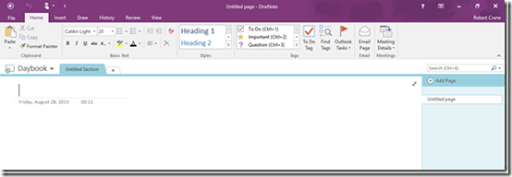
clip_image007

You should now see your Daybook notebook open on the desktop in OneNote as shown above.

There is plenty of ways to work with OneNote but here’s how I use it to create a replacement for a paper diary.

clip_image008

I create a section at the top for every month as shown above.

clip_image009

I then create a new page under each section for the day of the month (do these on the actual day). Thus, I now have a page for every day into which I dump everything instead of writing it down.

Every interesting web site, to do item, phone call, etc is recorded here. For example, if someone rings, since I have the OneNote open on my desktop I flip across to it during the call and record the conversation as it happens. After, I can get back to what i was doing safe in the knowledge that I have the information recorded.

clip_image010

At the top of every month I create a ‘Goals’ tab that holds things like when monthly bills are due, web sites that I find during the day that I want to file or look at in detail later. I also have my monthly ‘to-dos’ in here.

Now that I have my Daybook notebook up and running I ensure that I have it available on all my devices. That means any changes I make on any device are available immediately on every other nice. Nice.

Here’s another example of how I use it. Say I have a meeting to attend tomorrow. The night before I create a new page for that day. In there I put the address and the contact details of my meeting. I might also put a map to the exact location or whatever else I need. I’ll also record the train times I need to catch to ensure I make the meeting on time. I usually enter the preferred train but also the one before and the one after. Thus, if I am running late and miss my preferred train I know how long till the next one. Thus, when I get up the next morning I can review these notes and know what I need to do. Alternatively, if they meeting is in the middle of the day I know what time to leave.

Sure that same information is in my calendar but it is a good backup and also allows me to record a whole more information and access it faster I find.

With my Daybook notebook synced across all my device I can now attend a meeting with nothing more than my phone and know that everything I record will be available on my desktop when I return. I can record text, pictures, web clippings, audio and more directly into the page for that day as one big data dump and sort it out later, much like I did with my paper based notebook. The big advantages I now get is that firstly, everything I enter into my Daybook is searchable (can’t do that with paper) and secondly it is backed up in multiple places automatically thanks to Office 365 or OneDrive.com (again, can do that with paper).

From this basic start I now use things such as OneNote tags to categorise material to make it easier to find. I have also created a 13th section at the top called Annual where I have yearly goals or record books I want to read or movies to see. The list is endless of what you can achieve given how flexible OneNote is. That is why I like it, it is so flexible and easy to use.

However, what I have detailed here is only how to set it up for yourself. What if I told you, again thanks to OneDrive.com and Office 365, you can share you OneNote notebooks with others? You can allow them to just view or even edit in real time. How about a family OneNote where everyone can enter information about what they want at the shops for the next person who goes? What about a business OneNote where you keep track of a project with people inside and outside your business. All possible thanks to the wonders of OneNote.

And the best part for you? I’ll pretty much bet you already have OneNote on your desktop and didn’t even realise it. So what’s stopping you having a organised life? It certainly isn’t OneNote. Join me and get more done every day thanks to OneNote.

Need to Know podcast–Episode 91

Greg from PlumUC is back again and we are talking Skype for Business as well as a special upcoming webinar we are hosting. Greg and I talk about the updates happening with Skype for Business and the opportunities that brings all businesses.

There is going to be a lot happening around Skype for Business in next few months, so if you haven’t as yet taken a good look at what Skype for Business can do then now you should!

You’ll also get the usual update on Office 365 news and happenings so tune it and enjoy!

You can listen to this episode at:

http://ciaops.podbean.com/e/episode-91-greg-plum/

or subscribe to this and all episodes in iTunes at:

https://itunes.apple.com/au/podcast/ciaops-need-to-know-podcasts/id406891445?mt=2

The podcast is also available on Stitcher at:

http://www.stitcher.com/podcast/ciaops/need-to-know-podcast?refid=stpr

Don’t forget to give the show a rating as well as send me any feedback or suggestions you may have for the show. I’m also on the hunt for some co-presenters so if you are interested on being a regular part of the show please contact me.

Resources

Greg Plum
Principal
PlumUC
greg@plumUC.com
Twitter:  @channelmanager
LinkedIn:  http://www.linkedin.com/in/gregplum/
Blog:  http://www.gregplum.com
+1.302.514.PLUM (7586)

Cloud Business Blueprint

O365 Nation

Beyond the License webinar

Office IT Pro Deployment Script project

New Outlook on the web features

Office mobile apps for Windows 10

Send

Outlook on the web improvements

If you have a look at your Outlook on the web experience in office 365 you might notices some differences. Microsoft has introduced some changes to the interface as well as added new features.

clip_image001

If you now visit Outlook from your Office 365 web portal and select an email you will see a range of menu options now displayed across the top of the page.

clip_image002

You’ll also find new features inside the inbox including the ability to ‘pin’ messages to the top of the list.

clip_image003

A new option called Sweep allows you to more easily create rules to manage your inbox. You simply select the message to action on and the select the Sweep option from the menu across the top of the screen.

clip_image004

Not only do Sweep rules work like traditional inboxes rules but they also have the ability to run automatically if required keeping your inbox organized when you aren’t there or email are flowing in.

The full details about these changes can be found in a recent blog post from Microsoft:

New features coming to Outlook on the web

Which you should take a look at to see all the new features they are incorporating. Hopefully by now you should bee seeing these new features in your Outlook on web, if not, they will be rolling out to you soon.

Power BI achievement unlocked

clip_image002

I find that the best way to learn ‘stuff’ is to have an end goal in mind. Design a specific project, with specific outcomes rather than trying to ‘learn’ generically. Solving a problem using technology, I find, generally produces faster and better results because it provide focus.

Case in point. One of my ‘learning’ projects has been to get a report on the storage utilisation from a machine and then be able to display that in a dashboard tool that allows ad hoc querying and reporting on that information.

Luckily, Power BI has come to the rescue at the presentation end, the issue I had been struggling with was developing something to collect all the data. I had written a PowerShell script and imported the results it into Excel but hadn’t got much further.

Recently I came across the new:

Office IT Pro Deployment Script project

in there was a Check-DiskSpace project that basically used the new Excel 2016 graph types like TreeMap and Sunburst to graphically display data collected from the hard disk.

Inside the project was everything i needed, a PowerShell script to collect the raw data, an Excel spreadsheet to automatically pull the raw data into an Excel pivot table. All I needed to do now was save that data to a new clean spreadsheet and upload into Power BI.

Once the upload into Power BI was complete I was then able to not only view my data graphically but also use nature language querying to analyse it, all thanks Power BI.

The result is what you see in the screen show above. Sure it is simple but it has progressed me a long way along the path of turning this into an impressive integrated demonstration that I can show prospects. That is going to give them a much better idea of what Power BI can do for their business and potentially win me more consulting opportunities.

Sure there are easier ways to display hard usage BUT the aim of this was to firstly improve my knowledge of Power BI by solving a problem (CHECK) and at the same time come up with an end to end demonstration of how Power BI can produce valuable information from raw data (CHECK).

Thus, achievement unlocked and now I’m onto the next level.

Delve gets specific

image

I wrote a blog post recently that highlighted how Delve should be the center of your Office 365 universe. In essence, it is a single pane of glass across all your information sources. So instead of digging through your inbox, then documents, then social feeds you go to Delve and everything is presented in an order of its relevance to you automatically.

Microsoft has now added a new document type filter button when you visit the Me section of your Delve. When you select the Me link on the left you see your profile as shown above. However if you look on the right hand side you will see a new option I’m looking for.

image

If you select this you’ll be presented with a list of file types as shown above.

image

If for example select Excel then your Delve will be filtered to only show those file types as seen above.

This is a handy way to quickly locate the file type you are working using Delve. This new option is available now available to those on the first release program and will be rolled out to everyone else soon.

Are you going to Office 365 Nation?

image

Harry Brelsford has been running SMB reseller events for many years now. He continues this tradition with the Office 365 Nation event in Seattle from October 2 – 4, 2015 and you can get more details and register at:

http://fall2015.smbnation.com/

I have been lucky enough to again be selected to speak at the event this year. If you missed it, I also presented last year and here’s my summary of the whole event:

Review of office 365 Nation 2014

This year I’ll be presenting on a broad range of topics including:

– Office 365 Identity

– Yammer

– Office 365 Security and compliance

– Azure and Office 365 exam cram topics

– Office 365 for MAC

to name but a few. Chances are that I’ll also be doing a few impromptu sessions like I did last year.

But you know what the best thing about this event is? The networking. Catching up with peers and sharing experiences, gaining understanding and building relationships is something you can’t do as effectively in emails, social media or in forums.

I look forward to seeing everyone soon and if you aren’t registered then hop to it as I’m sure places are limited. Tell Harry I sent you.

Connecting Cortana to Office 365

Using speech to interact with technology is not only cool but it can also be very productive. It is generally much quicker to record a voice message than write something down or send an email. With that in mind, and the enhanced abilities of Cortana we are seeing in Windows 10, it make sense for all this to connect up to Office 365 as well.

To start with you are going to need to have a Windows 10 machine and Cortana already configured on your machine.

image

An Office 365 administrator will need to login to the admin center and select Cortana from under the Service Setting on the menu on the left. They will then need to ensure that Manage access for Cortana on the right is set to On.

image

On a Windows 10 machine with Cortana already configured simply click into the search box to ‘wake up’ Cortana. Doing so should reveal something like you see above.

image

If you now select the second icon under the hamburger menu on the left (i.e. the one under the Home icon) you should a list of configuration options for Cortana as shown above.

From here select the Connected Accounts option.

image

At the moment the only option that is available is Office 365 so select this and set it to On.

image

You should now see the option as On.

image

To actually use Cortana with your Office 365 information you’ll need to configure your Office 365 account in both the native Windows 10 email and calendar apps. You do this simply by adding the account and selecting the Office 365 option as shown above.

With all this connected up Cortana has access to your appointments and will prompt you when meetings are scheduled. You’ll also be able to make appointments and do other helpful things all thanks to the wonders of Cortana.

The power and integration of Cortana will continue to grow in both Windows 10 and Office 365, so remember this is still early days. However, I see speech as key technology going forward that is going to make using technology much easier for the average user. So jump on board today, configure Office 365 with Cortana and prepare for the future.

Ensuring external Skype for Business connectivity

I am big proponent of using tools like Skype for Business for improved business productivity. As such I encourage people to connect to with using my Skype for Business account of admin@ciaops365.com.

Why would I do that? My experience is generally that I get contacted via email in regards to some technical question. I then need to reply to get more details. The sender then replies again and I need to reply again and so it goes on, back and forth. This is very disruptive because it fragments getting a solution and the time required to resolve. The better method is to chat using Skype for Business and then potentially move into screen sharing so I can see exactly what is going on. I also have other tools like screen sharing and whiteboard available in Skype for Business. This generally means the issue gets resolved much faster and in a single session so I can focus on other things.

Unfortunately, what I have discovered is that many people who have Skype for Business via Office 365 don’t have ability to communicate with external parties enabled. Now having talked so many people through the process of enabling this it is time to do a blog post so I can simply point people in this direction in the future.

If you are having issues connecting to external parties with Skype for Business follow this procedure to ensure you have external communications enabled in your office 365 tenant.

image

Login to your Office 365 tenant as an Administrator and navigate to the Office 365 admin center.

image

From the menu options in the bottom left, under Admin, select the Skype for Business option as shown above.

image

In the Skype for Business admin center, select the organization option from the menu on the left.

image

From menu option across the top on the right select external communications.

image

If you want to be able to communicate with others outside your organisation that use Skype for Business quickly and easily best practice is to select the option On except for blocked domains in the external access area at the top of the page.

If you also want to be able to connect with consumer Skype users ensure you have check the option below this to Turn on communication with Skype users and users of other IM service providers.

image

Below this you can enter the domains you wish to block or allow depending your selection above. In my case I have nothing in there but if someone starts spamming me via Skype for Business I would add their domain here (you have been warned!).

Once you have made these change don’t forget to scroll right down to the bottom of the page and select the Save button to update your preferences.

image

Now you can add people from outside your organisation that are using Skype for Business as well as consumer Skype as you can see above. The designation External Network indicates they are Skype for Business users outside your own Office 365 environment.

If you change the external communications setting in the Skype for Business admin center it may take 15 – 30 minutes for these changes to flow through and allow you to connect with external parties, so be patient.

That hopefully makes it easy for you to configure your Office 365 tenant to make connections with other Office 365 and consumer Skype users. As I said, I encourage anyone to connect to me using Skype for Business (admin@ciaops365.com) and contact me directly.