CIAOPS Need to know Webinar – January 2017

Welcome to 2017. Our first webinar of the new year is ready to kick off shortly, so it’s time to register. As always, the event is free to attend and provides you with the latest news around Office 365 and the Microsoft Cloud as well as deep dive into a particular topic. This month we are going to have a close look at the automation options that are available to you in Office 365, including things such as SharePoint Designer and Microsoft Flow.

You can register now at:

January Webinar Registration

The details are:

CIAOPS Need to Know Webinar – January 2017
Thursday 19th of January 2017
11am – 12am Sydney Time

All sessions are recorded and posted to the CIAOPS Academy.

There of course will also be open Q and A so make sure you bring your questions for me and I’ll do my best to answer them.

The CIAOPS Need to Know Webinars are free to attend but if you want to receive the recording of the session you need to sign up as a CIAOPS patron (for only USD$10 per month) which you can do here:

https://www.patreon.com/ciaops

or purchase them individually at:

http://www.ciaopsacademy.com/

Also feel free at any stage to email me directly via director@ciaops.com with your webinar topic suggestions.

I’d also appreciate you sharing information about this webinar with anyone you feel may benefit from the session.

Joining Windows 10 machines to Office 365

image

One of the great things that Windows 10 Professional and above provide is the ability to connect directly to Azure AD. Hopefully, as you are aware Office 365 identity is built on Azure AD. Thus, if we connect Windows 10 to an Azure AD that is part of an Office 365 tenant we get simplified sign on. This basically means when users open Microsoft browsers (IE or Edge) and navigate to the Office 365 portal they are automatically logged on because their credentials are already part of Windows 10 thanks to Azure AD join. This simplified login also works with desktop applications like Word, Excel, PowerPoint etc plus some third party applications. In short, users get logged directly into applications once they login to their desktop thanks to Azure AD join.

Now there are a couple of ways of joining Windows 10 to Azure AD. I’ve previously covered how to basically ‘add’ your Azure AD/Office 365 credentials to an existing Windows 10 installation here:

Connect Windows 10 to Azure AD

That method isn’t quite as full featured as if you set up your Windows 10 machine to join Office 365 during the setup of Windows 10.

image

The process for doing that configuration, is that during the installation of Windows 10 onto a machine you’ll receive a prompt like that show above asking you to Join Azure Active Directory or Join a local Active Directory domain.

So what I’m going to assume here is that I want this Windows 10 machine to be only joined to Office 365/Azure AD because there no local AD. So I select the Join Azure Active Directory option.

image

I’m then prompted to enter my Azure AD credentials. Remember, these credentials are what you use to login to Office 365.

image

I enter the user’s Office 365 details and select Sign in. Now it is also important to note here that this new user will also be, by default, an administrator of the local Windows 10 machine. If you don’t want to allow your users to be administrators of the local desktop then you’ll need to remove this account after setup has completed.

image

The Windows 10 setup process will continue and eventually you’ll be prompted to login to the machine. You should login with your Office 365 credentials as shown when prompted.

image

The Windows 10 desktop will then do a little more setup as shown above.

image

In this case I’m also then prompted to create a 4 digit pin for this machine. I’ll show you more about why this happens shortly but basically because I am joining this machine to Office 365 the Mobile Device Management (MDM) policies I have established are now being applied to this device. One of the policies I have configured is to require a PIN.

image

If we dig into the local machine name as seen above,

image

We now see that same machine in the MDM for Office 365 as shown above.

image

This means it will have the MDM security policies applied to it that I have configured. In this case, as you can see from the above configuration, I require devices to have at least a 4 digit pin password.

Don’t forget that Office 365 MDM is a free and included part of the service.

image

If I now look at the properties of the user on the directly joined machine just set up, I see the above, basically a single user with an Office 365 identity.

image

If I then look in the work and school account I see that it is connected to my Azure AD as shown above. Therefore, here I have only one account that logs me into the local machine and my Office 365.

image

Compare that situation to when I already have a functioning Windows 10 machines and I associate it to Azure AD. When I do that I only see the local user as the identity as shown above. Thus, I am actually logging into this Windows 10 machine with a local account rather than my Office 365 account.

image

When I look in the work or school account area I again see a connection to my Azure AD. Thus, I login to this Windows 10 device with a local account which is then associated to an Office 365 account. Therefore I have two accounts in operation now, a local account and an Office 365 account.

The big difference here is that by using an Office 365 login during the installation of Windows 10 I get an Office 365 login to my box, whereas if I connect to Azure AD after my Windows 10 is installed I only get a local account login.

In both cases, when I visit a site in an Microsoft browser (IE or Edge) such as the Office 365 portal, I am not prompted to login because these credential are furnished directly from Windows 10.

It is my experience that having just the one Office 365 login associated with a Windows 10 device is more reliable when it comes to this same sign on than if you merely associate an Office 365 login with an existing Windows 10 box. The trade off is, of course, that you only get this single Office 365 login to the box if you install Windows 10 from scratch, which may not always be possible.

So can you add an Office 365 to an existing Windows 10 machine and achieve browser and application same sign on? Yes. However, I would suggest a better option is to actually setup Windows 10 from scratch using an Office 365 account. You’ll get much better same sign on and be prepared for further integration down the track. You also remove the complexity of multiple accounts on the one desktop.

The main reason that you want to join your Windows 10 machines to Office 365/Azure AD is probably to eliminate the need for any local AD. This will also mean the elimination of on premises equipment and ensuing cost savings.

The main reason for retaining a local AD these days is simply for group policy, but in my experience is that most of what needs to be done with group policy can either be done with Office 365 MDM (which is free) out of the box or upgrading to Windows Intune or Azure AD Domain Services. That, in essence, now suggests that there is no real need for a local domain controller on premises at all. It can easily be eliminated with the integration of Windows 10, Office 365 and Azure AD as shown.

The phone is the desktop

This is the sixth part of my presentation “Making money from the cloud”. You can find the full slides at:

https://doc.co/LyrxvF/qcihGm

and the previous parts are at:

We live in exponential times

Consider the following

Major Trends

Macro Trends

Software will eat the world

image

A sure sign that technology beliefs are rooted in the past is believing that desktops and servers are the most important user devices in a business. Unfortunately, nothing could be further from the truth as mobile devices, predominately phones but also tablets, continue to dominate the IT market.

The next wave of Internet adoption and opportunity will not come from places such as Australia and the US, it will come from places like India, China and Africa. It will come thanks to the growing accessibility of smart phones and mobile Internet access. The multiplication effect of Internet access across these large populations will be unprecedented.

However, even in places like Australia that already have high mobile penetration, look at how often people upgrade their phones. Most last no more than twelve months before they are relegated to the scrap heap. Why? Because, like early PCs, we are still at the dawn of what hardware can do for mobile devices. Faster processors, more memory, better screens, etc. are driving the turnover of mobile devices as people seek a better experience and, importantly, as people use their mobile devices more and more as their primary device to access the Internet.

With that in mind, ask yourself, how mobile friend is my business? How embracing is my business when it comes to mobile technology. Are we making a centre piece of our strategy to enable employees to work where they want and when they want? Or are we still ignoring the fact that our employees are using their phone with corporate data in a way that maybe inappropriate to our organisational needs?

Good employees desire the ability to work where and when suits them. They want to be able to drop their kids off at school in the morning as well as pick them up. They want to be able to run that small errand during the day. They want to be able to choose the environment that makes them most productive and for many (including myself) that is not an office. Mobile devices allow them to achieve all this and still remain productive. It allows them to continue working for the business while suiting themselves. Good employees are beginning to demand these conditions and smart businesses are enabling it to attract and retain the best talent.

The importance of the mobile device can easily be illustrated. Let’s say that you are in presentation session filled with people you don’t particularly know. How many of you would be comfortable unlocking your phone and handing to someone else randomly? Most people would be far from comfortable in doing that. Why? Because their mobile is now their identity. It has all their contacts, messages, notes, access to financial institutions and so on. It is such an important piece of what constitutes a person in today’s digital age that it should be given the respect it deserves.

A majority of Internet based transactions are now taking place via mobile devices. We are seeing the growth of mobile payment platforms thanks to Apple and Google. Doing things any other way is beginning to introduce more and more friction in the sales process. More friction simply means less sales, so smart businesses are embracing mobile payments as way to maintain but also attract new customers.

However, one of the things that doesn’t change when it comes to corporate mobile devices is the need for control. Security and compliance of information is still a requirement for most businesses no matter where their information is accessed from. In a world where information can be accessed from anywhere a new set of challenges arises as devices are no longer within the four walls of a business. In a world where your device is your identity, what protections do you have in place to protect information you are unwilling to openly share with others as illustrated previously? Although the mobile devices is something most ‘can’t live without’ few take any steps to protect actually it.

My experience is currently that few end user mobile devices have any sort of management at all. This is strange in a world where products like Office 365 include basic mobile device management out of the box. I think the main reason is that IT Professionals are lagging in their knowledge and acceptance of these mobile trends. The worm has turned and customers are now adopting technology at a much faster rate than IT Professionals, many of whom are still land locked with outdated concepts and beliefs of how technology is used.

The limited number of mobile devices currently under management should immediately raise the opportunity and threat flags for someone with a business mindset. The opportunity is clear. To focus on offering the ability to manage devices for businesses in a market where there is currently little competition. The risk is that if you don’t do it for your customers or users then you are vulnerable to your competition coming in and doing for them and potentially pushing you out as a provider in total.

Our modern technology world is ruled by mobile devices and this will only continue to grow. It is time for IT Professionals to embrace the changing landscape of mobility and provide the necessary security and compliance services they have always provided to keep business information secure. They have the experience, they simply need the skills. Services like Office 365 already provides these mobile device management tools, it simply comes down to implementing them.

Embracing mobility is the key to success going forward for both businesses and IT Professionals. It will provide yet another differentiation point between the old and new worlds with those who ‘get it’ reaping the benefits.

Enabling your Office 365 Azure AD access

Many don’t realise that Office 365 identity is built on top of Azure Active Directory. This means that every Office 365 tenant is using Azure Active Directory. What many also don’t realise is that you can easily access the Azure Active Directory by simply enabling it from your Office 365 Admin console. Here’s how you do this.

image

Login to Office 365 as a global administrator.

image

Navigate to the Office 365 Admin, in this case by selecting the Admin icon from the app launcher.

image

In the lower left of this window, under the Admin section, you should find the Azure AD link as shown above. Select this.

image

You’ll now be taken to a screen like that shown above, where you sign up to Azure.

image

You’ll need to enter your details (name, email, country, etc). You’ll also need to specific a mobile phone which a verification code can be sent to.

image

Once all the details are entered and you have complete the verification via mobile phone select the Sign up button.

You’ll notice here that you don’t need to put in any credit card details like you do when you sign up for a free trial. This is because you are getting the free Azure Active Directory Edition only.

image

You’ll see your request begin to process.

image

After a short while you should see a screen like that shown above. You can see that what you have signed up for is Access to Azure Active Directory.

image

It will take a few minutes to complete the provisioning.

image

When processing is complete you’ll see the above screen. Select the Start managing my service link to proceed.

image

You should then see the new Azure Resource management portal as shown above.

image

If you look in the billing area of this tenant you will see that you have no subscriptions as shown above. You can of course add a paid subscription to this to enable all the other Azure features. This is in fact the recommended way to deploy Azure IaaS services for SMB I would suggest. Office 365 first, and then add a paid Azure subscription to that free Azure tenant you get as part of Office 365. That way all the users and resources are in one location. Even if you plan to do Azure IaaS initially, always get an Office 365 subscription first. All you need is a single Exchange Online Plan 1 Kiosk license for around AU$3 to get the Azure tenant.

image

The only area that you can configure currently is the Azure Active Directory.

image

In there you should now see a list of your Office 365 users.

You can administer and work with tenant users from Azure or Office 365 (as well as PowerShell in both environments).

So you have now enabled the free Azure Active Directory Edition that comes as part of every Office 365 subscription. To read more about the different Azure Active Directory Editions see:

https://msdn.microsoft.com/en-us/library/azure/dn532272.aspx

You’ll also find the Microsoft documentation on this here:

Register your free Azure AD subscription

My software and services

Previously, I detailed the hardware that I used in my work:

My gear

In this article I’ll look at the software and services I use most.

To start with, I use Windows 10 professional on all my desktop machines and Windows Storage Server 2008 on my WD Sentinel DX4000 NAS. I have upgraded all my immediate families machines to Windows 10 without any issues as well. We are therefore a Windows 10 family through and through.

Unsurprisingly, I used Office 365 for things such as a email, OneDrive for Business, Skype, Office desktop software and the like. What maybe somewhat surprising is that, although I have access to a free Office 365 tenant from Microsoft as a partner, I don’t use this in production. I have a completely separate paid tenant for my business.

Why is that, you may ask? The main reason is that I use my Microsoft Office 365 tenant for demonstrations and testing. I don’t want production data appearing when I do demos to customers and prospects. Having to two separate tenants means complete separation of the data.

I of course use all the standard Microsoft Office desktop software such as Outlook, Word, Excel, PowerPoint, etc however, the key application from the suite for me is OneNote. OneNote is my go to Swiss Army knife for just about everything digital. I use it to capture all sort of data. I even use it as a diary as I have detailed previous here:

One of the ways I use OneNote

The reason OneNote is key is because:

1. Just about everything I put in there us searchable

2. It is freely available across all platforms.

3. All my information is synced and accessible on all devices.

4. It is available on the web or offline if needed.

Another key service I use everyday along with Office 365 and OneNote is Azure. Typically, I use it for running up virtual machines that I test various things with but I also use it to backup my local data as well as that of other members of my family using Azure Backup.

Azure desktop backup

There is just so much that can be done with Azure. I haven’t even scratched the surface of what I could use it for. I see Azure becoming a larger and large part of what I do every day.

I use Lastpass to keep my passwords and private information secure. It allows me to do things like generate and store unique passwords for each website that I sign up for. It is also available across all browsers on my machine (including Microsoft Edge).

For a subset of my local data that I wish to remain secure I use Truecrypt to create encrypted volumes. All my my Windows 10 machines run with full disk encryption thanks to Bitlocker, but stuff like financial and customer data I keep inside Truecrypt volumes for that extra layer of security. I understand that Truecrypt is no longer maintained and may have some very minor security flaws, but for how and why I use it, it is more than adequate.

To capture my desktop for my online training academy or my YouTube channel I use Camtasia.

To compose and publish blog articles I use Open Live Writer.

To keep track of where I spend my time on my desktops I use RescueTime.

For improved email productivity I use Microsoft FindTime and Boomerang.

For chat and web meetings I use Skype for Business from Office 365. I encourage anyone to connect up to me via my address = admin@ciaops365.com. Chat is generally always faster at resolving things than traditional email.

For protection, apart from the standard Windows 10 tools, I use Malware Bytes.

Inside my browsers I typically have the following plugins:

Lastpass which provides automated insertion of web site credentials.

Nosili which provides productivity enhancement thanks to background sounds. My favourite is rain.

Pushbullet which connects alerts from my Android phone to my dekstop browser and allow me to share information easily between them.

GetPocket which allows me to save and categorise websites URLs, which I then typically read at a later time. Has its own dedicated mobile that I can use on any device.

The Great Suspender which puts unused tabs in Chrome to ‘sleep’ to save memory.

I use the automation sites If This Then That and Zapier to automate many different tasks. A good example of one of these is automatically publishing to various social media sites.

For my Office 365 and Azure email newsletters I use Mailchimp.

My preferred public social networks for business, in order are:

1. Twitter

2. Linkedin

3. Facebook

I also use Yammer extensively but for more specialised roles and thus don’t consider it really a ‘public’ social network, more a private one.

YouTube is also something I use daily for business and pleasure. It use for both education and marketing as well as entertainment, thanks largely to the XBox YouTube app. Just wish they’d hurry up and bring the Amazon Prime Video app to the Xbox here in Australia so I can watch The Grand Tour from my bean bag.

I use a lot of other software and services but the above are the main ones I use pretty much everyday that I’m at my desk.

I am always looking for ways to improve my productivity and effectiveness with software and services. If you therefore have something you can recommend to me please don’t hesitate to let me know what it is.

MVP for 2017

It is with a great deal of humility and pride that I can report that Microsoft has once again recognised my community contributions with its Most Valuable Professional (MVP) award for 2017 in the Office Servers and Services.

This is now my sixth consecutive award and just as special as the first. This recognition is however not possible without the support of so people who follow and support what I do, especially those that take the time to read this blog. To each and every one of you I say thanks again.

I’ll be sure to work hard again to bring you more information about Office 365 and Azure. However, all of that wouldn’t be possible without Microsoft making such great products and making them available to people like me. I look forward eagerly to what they’ll be bringing out in 2017. It is going to be another very exciting year for Microsoft and being in the Microsoft ecosystem.

Being an MVP is great and unique honour. Being part of a community of really smart and passionate technology people who are also MVPs is truly inspiring and I hope to live up to their dedication and enthusiasm. I congratulate all those who where also awarded the same MVP recognition today.

But again, I thank Microsoft for this honour and will work hard to live up top the expectations it sets again for 2017.

Patience is a virtue

I was doing some shifting of domains and emails into Office 365 and came up against a few ‘unique’ issues I thought I’d share.

When I tried to move one domain into Office 365 I was told by the Office 365 DNS wizard that the domain was already in use by another Office 365 tenant! The message I received was:

domain.com was already added to a different Office 365 tenant domain.onmicrosoft.com.

Sign in to that account as an admin, and remove domain domain.com. Then come back here and try adding domain.com to this account again.

If you can’t sign in to domain.onmicrosoft.com as an admin, try resetting your admin password.

Say what?? How could this be I wondered? Then I remembered. I’d use that that email domain to send an Azure Rights Management document to. When the recipient attempted to open that document they were prompted to create a login in Azure Rights Management because the email account wasn’t already on Office 365. The login that they create for Rights Management is actually an Azure AD login. If it is the first time an email from this domain has logged into Rights Management then a new Azure AD tenant is established with this domain and the email address being the global administrator effectively.

This process of creating a ‘free’ Azure AD by a non-Office 365 email account is known as Azure Self Service signup and you can read more about what happens here:

What is Self-Service Signup for Azure?

Ok, so now I know how the domain came to already be associated with an Office 365 tenant but how the hell do I release it?

Luckily, I could remember the password for the Azure Rights Management user so I logged into the Office 365 console with that login. Sure enough, there was the custom domain. Easy enough to remove right? Not quite.

When I attempt to remove the custom domain from this tenant I get prompted that it is already in use by a user. Ok, ok. So I go back to the only user in the tenant (the one that set all this up for Azure Rights Management) and I swap the primary login back to domain.onmicrosoft.com. Good to go right?

Again, no so fast. Now I get, when trying to remove the domain, that the domain is as an alias or used with Skype. Hmm.. as this tenant has effectively no mailbox or Skype licences how do I check or change these?

PowerShell to the rescue! I use the script from the bottom of this post (thanks Bittitan):

https://community.bittitan.com/kb/Pages/How%20do%20I%20remove%20a%20domain%20from%20Office%20365.aspx

to quickly remove every alias that ends in domain.com.

Phew, now I can finally remove the domain from the ‘free’ Azure AD Rights Management tenant.

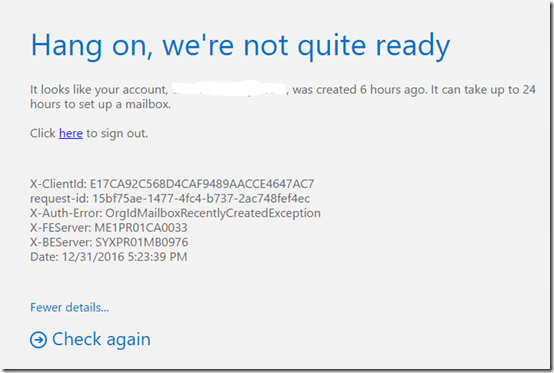
I now go through the normal process of adding the custom domain back into tenant with the Office 365 licenses I’m trying to build. All good so far. Now I license and create a user. Still all good. However, when I visit the new users mailbox on the web I’m greeted with a message like:
image

Hang on, we’re not quite ready

It looks like your account, user@domain.com, was created 1 hour ago. It can take up to 24 hours to set up a mailbox.

Click here to sign out.

X-Clientld: 2040134E67C145408AAEA2B206CE6183
request-id: ab7e2c74-b653-4f79-96d9-a5bca84f3a75
X-Auth-Error: OrgIdMaiIboxRecentlyCreatedException
X-FEServer: ME 1 PR01CA0033
X-BEServer: SYXPROI MB0976
Date: 12/31/2016 AM

Fewer details…

Check again

Hmmm..not good. Now I start wondering what’s going to happen to the inbound mail to this mailbox? I’ve shifted the DNS records so it will be flowing into the tenant, but will it end up in the mailbox? Lost? Or just be bounced? The unknown is freaking me out.

So I go into the Office 365 Administration area and check the user details and license. All good. I see that the mailbox exists in the Exchange admin area. All good. I turn on archiving for this mailbox and it works, however when I return to the mailbox on the web, same please wait message.

After about 10 minutes of clicking the Check again link I decided that a watched kettle never boils and I go away to do other things.

An hour later I return and get the same result when I try again. However, when I go into the usage statistics of the mailbox in I see that it actually has a small amount of data in it now. I assume this is inbound mail. My assumption is thus, that the mailbox is in fact accumulating inbound email even if I can’t get to it. A small ray of sunshine appears in the clouds of despair.

I also try and connect up a local version of Outlook 2016 to the mailbox, but no joy there either.

I then consider logging a support call via the portal, however when I attempt to do this the only option I’m given is for a phone call back. For some reason there is no email option?? Not wanting to inflict my impatience on others and risk being told to wait the period the message says in plain English in front of my eyes (i.e. the bleeding obvious), I defer logging a support call to further down the track, beyond the 24 hour period (but not a second beyond that!).

Deciding that the best thing is to do what the screen says and wait up to 24 hours and see if it sorts itself out, I head off to other distractions. That however doesn’t prevent me from checking the mailbox at the 3, 6 and 9 hour mark, all with the same result. Damm, this is not looking good!

At the 10 hour mark I try the mailbox again on the web and it looks like it is going to open (I get the ‘preparing Outlook’ screen) but alas same result. However, when I try to connect to the mailbox using my local version of Outlook now I get a connection and can see new emails! Yeah! Things are looking up. Thank you spirit of 2017.

With desktop Outlook connecting to my mailbox I begin to import the emails saved from the previous hosting configuration via PST. Although slow, the process is working. I now check the usage size of this mailbox and it is increasing. So two pluses there. A few minutes later I can now access the mailbox via the web browser. Halleluiah, technology be praised. Never doubted it for a second (rrrrrrright…..).

Thus, long story short. If you are moving an existing account from one Office 365 tenant to another (even if the original doesn’t have a mailbox) beware you may get the delay message shown previously when attempting to access the mailbox. Importantly if you do, don’t panic. Just wait it out. In my case it took 10 hours to come right, but like the message on the screen actually says, it could take up to 24 hours. However, if you check the usage of the mailbox in question and it is increasing, this would indicate that the mailbox is working an receiving emails and provide solace during your extended waiting period.

As they say, patience is a virtue and a virtue I am still perhaps yet to fully learn!

Need to Know podcast–Episode 124

Marc and I are join by another Mark in this episode (just in case things weren’t confusing enough on this podcast already!). Mark O’Shea joins us to talk about Microsoft Intune and where it fits into today’s IT landscape. Mark shares with us what Microsoft Intune is, how it can be purchased and what role it plays for IT Pros.

You’ll also get our latest Microsoft cloud news at the top of the show to keep you up to date with everything happening in the Microsoft Cloud-verse.

You can listen to this episode directly at:

http://ciaops.podbean.com/e/episode-124-mark-oshea/

or on Soundcloud here:  

or subscribe via iTunes at:

https://itunes.apple.com/au/podcast/ciaops-need-to-know-podcasts/id406891445?mt=2

The podcast is also available on Stitcher at:

http://www.stitcher.com/podcast/ciaops/need-to-know-podcast?refid=stpr

Don’t forget to give the show a rating as well as send us any feedback or suggestions you may have for the show.

Resources

Mark O’Shea – @Intunedin

Marc Kean – @marckean

Robert Crane – @directorcia

Marc’s Azure news

New CIAOPS VPN online course

Azure VPN performance

New OneDrive for Business client coming for all

Copy from OneDrive for Business to Team Sites now available

Integration of Flow and PowerApps into Team Sites

If This Then That

Zapier

New OneDrive for Business admin console rolling out

InTunedin

Microsoft Intune

Microsoft Intune features

Microsoft Intune pricing

Microsoft EMS