CIAOPS Need to Know Office 365 Webinar–February

laptop-eyes-technology-computer

In the February webinar we’ll take a closer look at using PowerApps as a way to capture information and create forms inside SharePoint. There will be the usual news, updates and Q & A on Office 365.

You can register for free at:

February Webinar Registrations

The details are:

CIAOPS Need to Know Webinar – February 2018
Thursday 22nd of February 2018
11am – 12am Sydney Time

All sessions are recorded and posted to the CIAOPS Academy.

There of course will also be open Q and A so make sure you bring your questions for me and I’ll do my best to answer them.

The CIAOPS Need to Know Webinars are free to attend but if you want to receive the recording of the session you need to sign up as a CIAOPS patron which you can do here:

http://www.ciaopspatron.com

or purchase them individually at:

http://www.ciaopsacademy.com/

Also feel free at any stage to email me directly via director@ciaops.com with your webinar topic suggestions.

I’d also appreciate you sharing information about this webinar with anyone you feel may benefit from the session.

Offline file conflicts with SharePoint Online

It has been over three years since I wrote an article about file conflicts in Office 365 –

Resolving OneDrive for Business file conflicts

and as you can appreciate a lot has changed since then. Probably the biggest change is that we now have File on Demand and the ability to sync SharePoint Document Libraries. However, there will always remain challenges around shared files going offline when multiple people continue to work on them.

I will preface all this by saying that it is best practice to ‘Check Out’ any files you wish to use prior to you going offline. Doing so will ensure you have exclusive write access to that file while you are offline and until you check that file back in.

Of course, not everyone is going to follow best practice and we are going to end up with the following scenario.
image

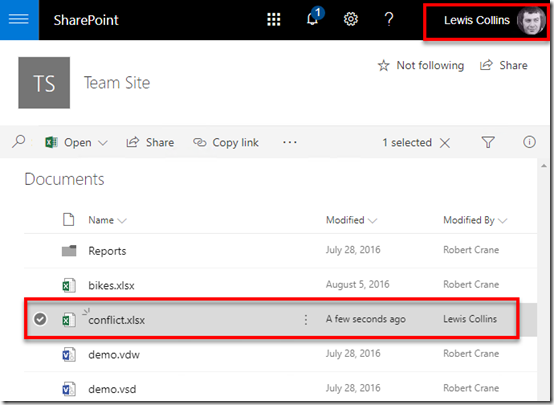
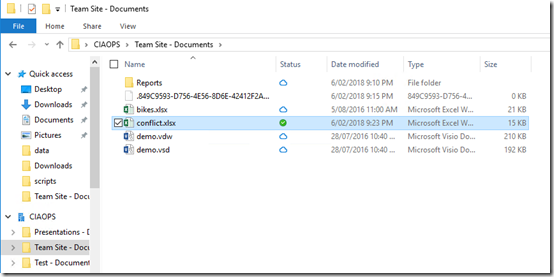
Let’s say that Lewis Collins (user 1) creates a new Excel spreadsheet called conflicts.xlsx in a SharePoint Document Library as shown above.
image

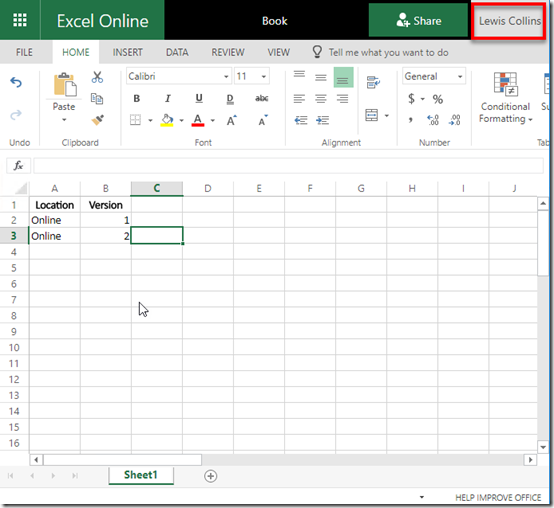
If Lewis opens that file using Excel Online and makes a change by adding the entry ‘Online 2’, as shown above, it is automatically saved back to the SharePoint Online Document Library.
image

A second user (Robert Crane – user 2) used OneDrive Files on Demand to sync a copy of that same file to their desktop as shown above.
image

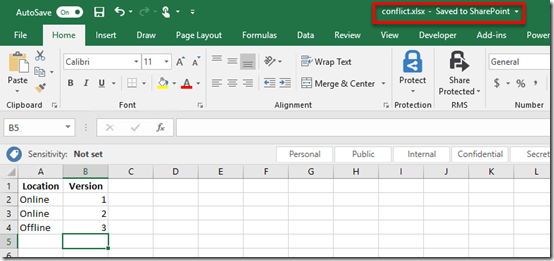
This second user (user 2) now opens the file using Excel on desktop and makes changes to the file by adding the entry ‘Offline 3’ as shown.

You can see that because the user is still connected to the Internet any changes are automatically synced back to the SharePoint Online Document Library.

So, while everyone is online all changes are updated into the one location.
image

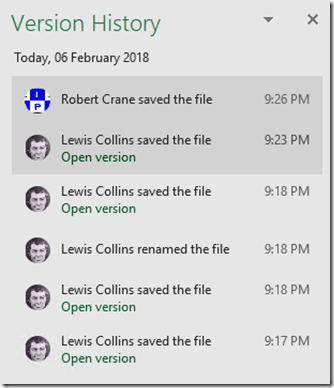
We can also look at the version history of the file and see all previous versions thanks to automatic version history in SharePoint Document Libraries. We can roll back or view any of these if we wish.

At this point, user 2 (Robert Crane), goes offline and is no longer connected to the Internet.
image

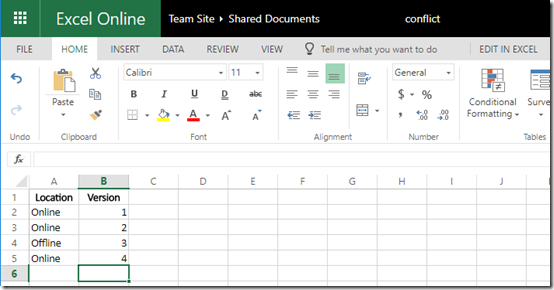
Now because user 2 didn’t check the file out prior to going offline, user 1 can continue to edit the file. They do so adding the entry ‘Online 4’ to the file, which is then immediately saved back to the SharePoint Document Library.
image

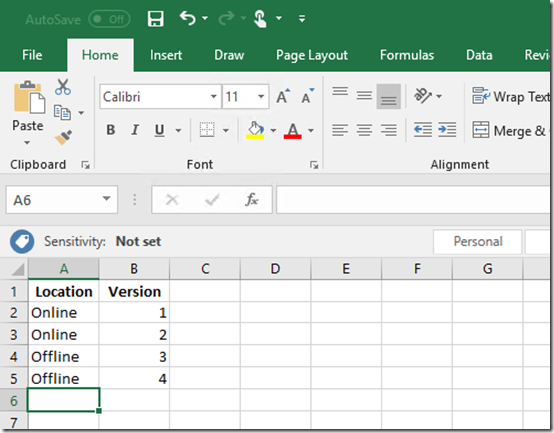
While offline, user 2 adds a new entry to their offline version of the same file. Here they create an entry ‘Offline 4’ as shown above.

Thus, we now have a situation where the file in SharePoint Online is different from the file on the users desktop. This will clearly create a conflict when user 2 return online.
image

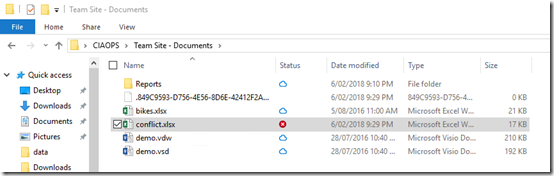
User 2 comes back online and at the next sync is informed of a conflict as noted in their file manager as shown above.
image

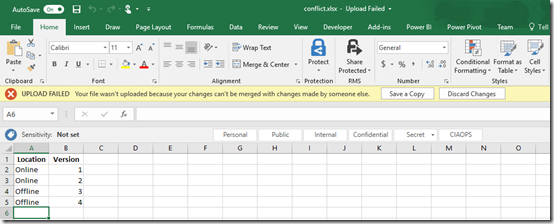
When user 2 attempts to open the file in conflict they are presented with the warning banner at the top as shown. They are given the option to either Save a Copy or Discard Changes.

If they select Discard Changes, any updates they have made to the file while they have been offline will be overwritten with what is currently in SharePoint Online. Once they select this, any updates they have made to the file while they are offline will be lost and the copy they have on their desktop will be the same as what is currently in SharePoint Online. In short, their local copy is overwritten with that from SharePoint Online. They can’t recover their original file after this happen because the file they changed was only saved to their desktop.

If they select Save a Copy, the file they have changed will be uploaded to SharePoint Online replacing the current version in SharePoint Online.
image

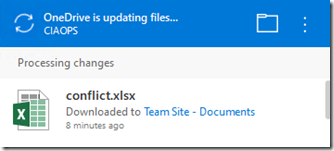
The OneDrive sync client will then kick in and copy the file from user 2’s desktop to SharePoint Online Document Library replacing the version that others have been working on and potentially removing changes they have made.
image

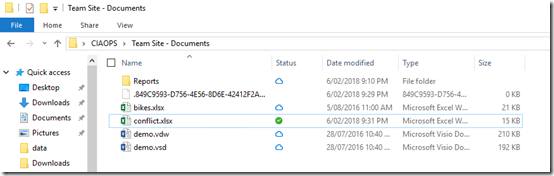
When the sync is complete, user 2 should see the same situation on their desktop, as shown above, prior to going offline.

Now, the file that was changed by user 2 while they were offline has become the primary file in SharePoint Online and on desktops. However, any changes that user 1 made while user 2 was offline are no longer in the most current version of the file.

Before we tackle that situation let’s look another experience for user 2 as they come back online with a different version of the file.

image

When user 2 comes back online with a different version of a file they will also see the system tray icon for their sync client display a warning as shown above.
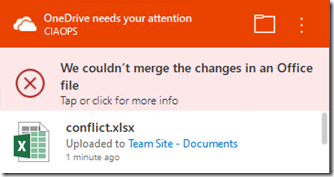
image

If they select this the sync client will open and display a conflict message as shown above.
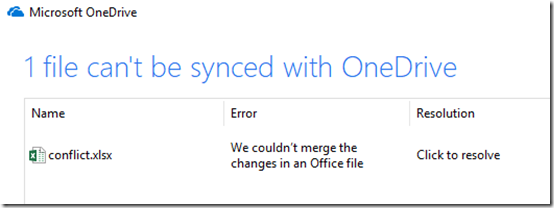
image

Clicking that message will show them greater detail on the conflict as shown above.
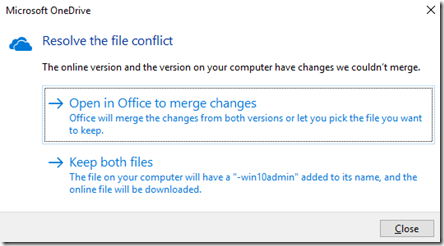
image

If they click to resolve the issue they will be presented with the above dialog providing two options.

The option Open in Office to merge changes will simply open Excel and take the user through the experience detailed above, i.e. save a copy or discard changes.

The second option Keep both files will rename the changed version on the desktop to conflicts-.xlsx. Thus, the original file they were working on offline will be renamed and the newer version that is in SharePoint Online will be downloaded to the original name on their desktop. The idea is basically to create a second copy of the file, rather than overwriting the original. Users would then need to open both files and manually merge any changes back to a single file. The end result here is two files with different names, each holding the unique changes made by each user.
image

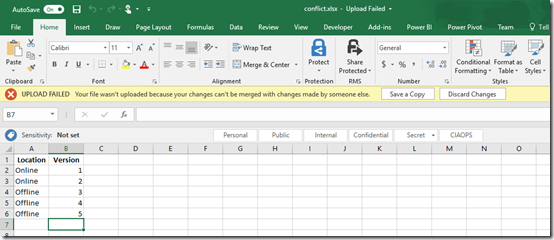
Let’s return to the situation where user 2, who was offline, comes back online, opens the file in conflict and selects to save their copy back into SharePoint Online by using the Save a Copy button.

This means that any changes user 1 made to the file while user was offline are ‘lost’ because user 2 has overwritten the file with their version.
image

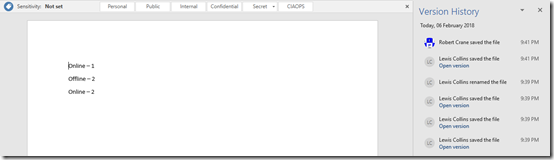
However, don’t forget that SharePoint Online Document Libraries include automatic versioning. This means that when user 2 uploaded their file, the file user 1 had been working on isn’t deleted, it is simply saved as a previous version. So, both files are still in SharePoint Online in full fidelity. One is current and one is the previous version.
image

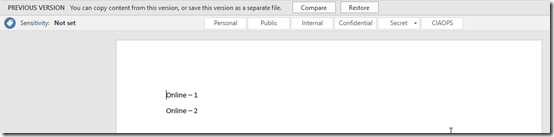
You have the ability to compare previous versions or restore previous versions if you wish.
image

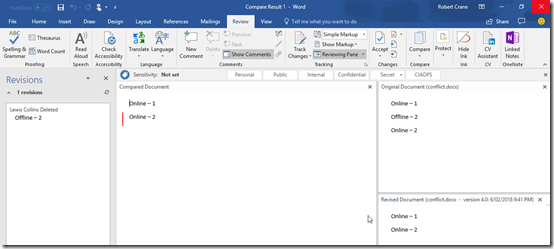
My experience is that Excel is a fairly complex program and in most cases you’ll have to manually merge any changes between the two documents. However, as you can see above, with Word the application can generally merge changes automatically for you using the revisions ability built into the program.

As I said at the beginning of this article, best practice is to check document out prior to going offline to avoid conflicts. If that doesn’t transpire, then you probably need to manually merge changes using versions in SharePoint Online. However, as you can hopefully see SharePoint Online will retain both versions of the file if you do go offline. I would suggest however, you have a play with exactly how this works in your environment prior to requiring it. SharePoint is magic but it doesn’t read minds, yet!


Enable activity auditing in Office 365

image

Here’s something I suggest you ensure is enabled in all Office 365 tenants.

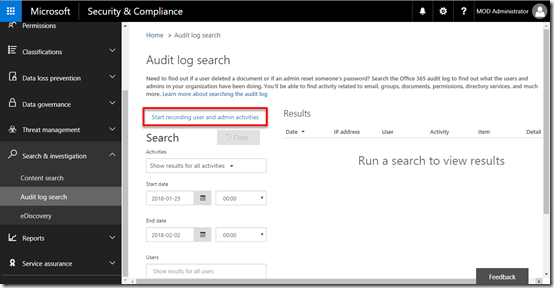
Visit the Office 365 Security and Compliance center as an administrator. From the menu on left, select the Search & investigation heading. From the items that appear select Audit log search.

If your audit logging hasn’t been enable you see a hyperlink on the right that says Start recording user and admin activity. If that link is visible, then select it as shown above.

image

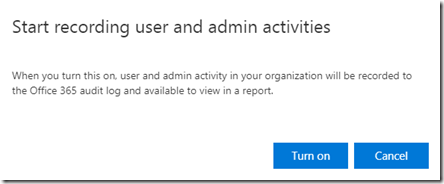
You will then receive the above confirmation. Select Turn on.

image

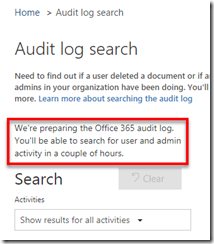
You’ll be taken back to the Audit log search page where you’ll see a message telling you that logging is being enabled.

image

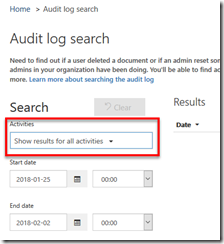
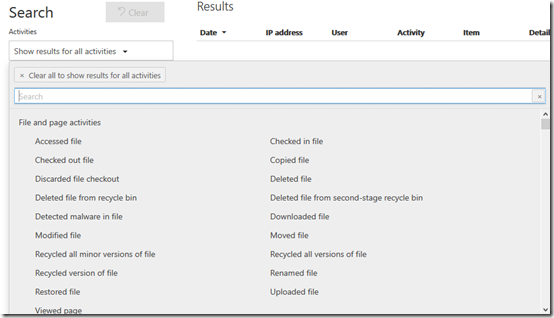
When that process is complete return to the Audit log search and select the Activities drop down.

image

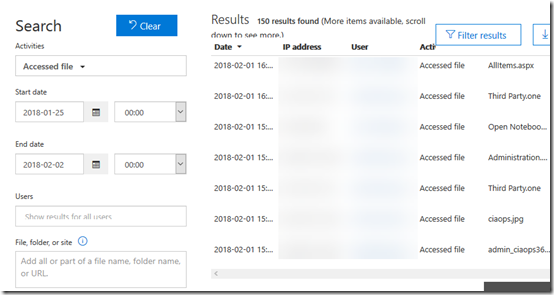
You’ll now be able to audit a huge range of activities and produce a report, like this –

image

Here, I’ve run a report to display any files that have been accessed. From the results I can see the user, IP address and the file that was accessed.

image

You can now also set up an alert on any of these activities.

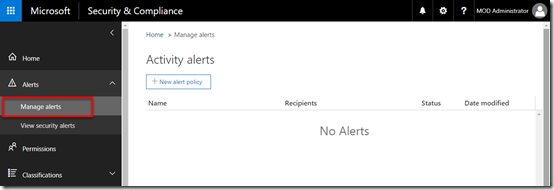
To do this, select the Alerts option on the left in the Security & Compliance center. From the items that appear select Manage alerts.

image

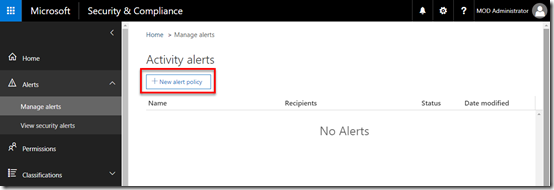
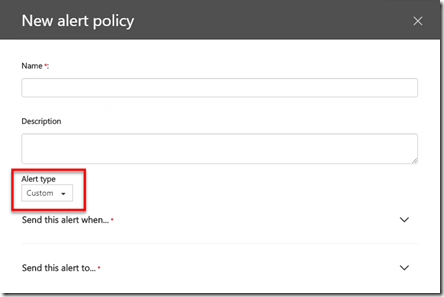
On the right select the + New alert policy button.

image

Set the Alert Type to Custom.

image

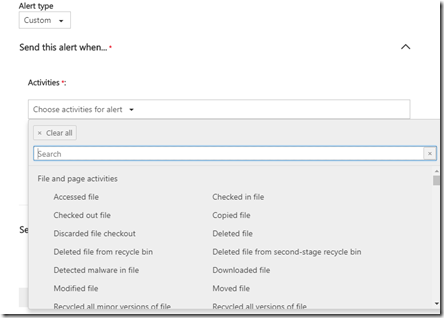
Select the Send this alert when… option and again choose the activity for the alert. The available options should be pretty much the same as you saw before with the audit logs.

image

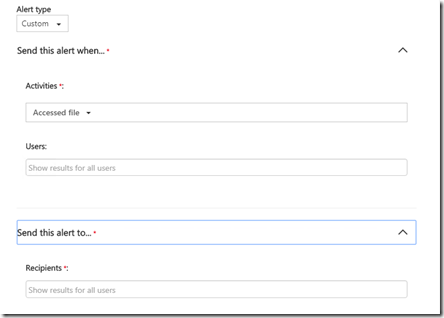
Then choose which users you wish the alert to apply to as well as an email address to send the alert to.

As with all alert settings ensure that you don’t make these too general because you’ll end up getting too many alerts and end up spamming yourself.

The important thing here is that auditing is no enabled by default. The best practice recommendation is therefore to go and turn it on so you can audit activity in your tenant.

Create a Safe Attachment policy with Office 365 ATP

image

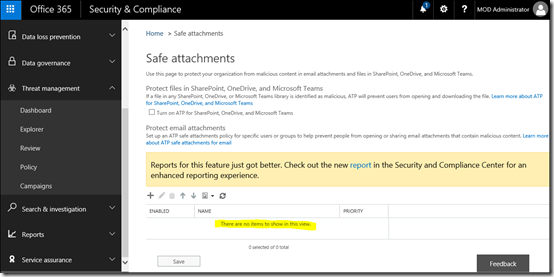
When you have Office 365 Advanced Threat Protection (ATP) you should ensure that you actually go in a create a Safe Attachments policy because I don’t believe one is created by default.

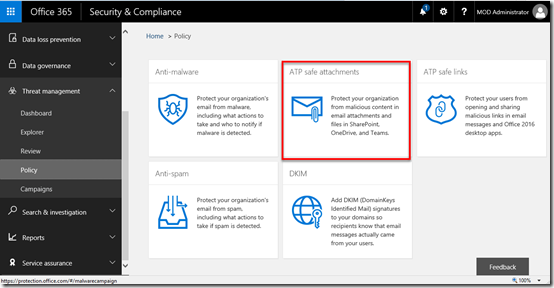
You’ll need to login to your Office 365 portal as an appropriate administrator and then navigate to the Security and Compliance portal as shown above.

From the menu on the left select Threat management. This should reveal a number of additional options. From those that appear, select Policy.

You should now see a number of options on the right hand side as shown above. Locate and select the ATP safe attachments option.

image

You should now be in the Safe attachments area as shown above.

image

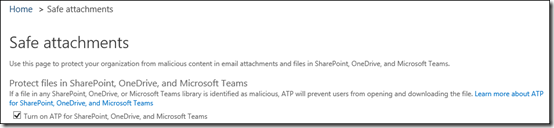
Starting at the top of the page, ensure you have the Turn on ATP for SharePoint OneDrive and Microsoft Teams checked as shown.

image

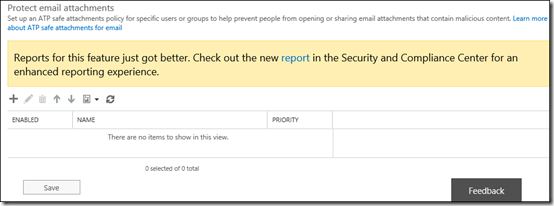
In the lower area you will see that no policies exist. To create a policy select the + (plus) icon.

image

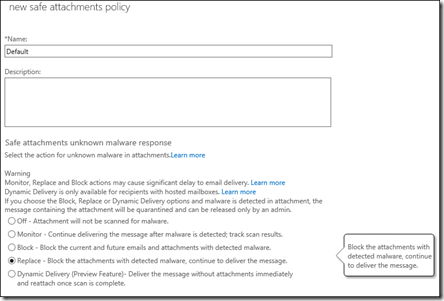
Give the new policy a name and select the action that will be taken from the options below. In this case I have selected the Replace option.

image

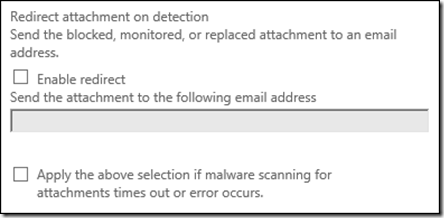
You can enable redirection if you wish.

image

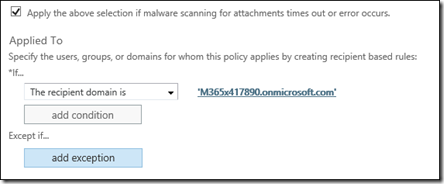
You now need to create the rules for this policy. if you want everything checked select the option The recipient domain is and then all the domains you have in your Office 365 tenant.

Save the configuration by using the button at the bottom of the screen.

image

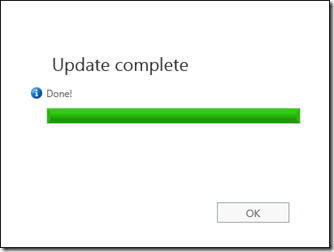
The update will be processed and applied.

image

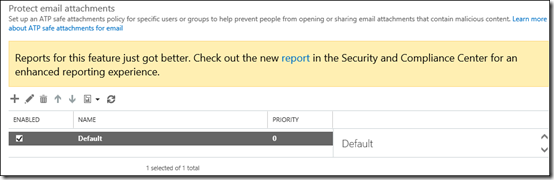
When you look at the Safe attachments page now you should the policy as shown in place.

To read more about safe attachments in Office 365 Advanced Threat Protection see:

Office 365 ATP safe attachments

January Office 365 Webinar Resources


The first webinar for the new year. Thanks to anyone who attended.

Slides from this months webinar are now available at:

https://www.slideshare.net/directorcia/ciaops-need-to-know-office-365-webinar-january-2018

If you are not a CIAOPS patron you want to view or download a full copy of the video from the session you can do so here:

http://www.ciaopsacademy.com.au/p/need-to-know-webinars

We looked at user management in this session.

Watch out for next month’s webinar.

Office 365 Cloud App Discovery

In today’s security environment it is really no longer possible for human beings to manage security, it typically needs to be out sourced to software. Signature based security is too slow to keep up with constantly changing attacks and the best way is to look for anomalies in behaviour patterns.

Office 365 Cloud App Security is service that is included in E5 licenses but also available as a separate stand alone purchase (called Microsoft Cloud App Security in the store). Unfortunately, you can’t add Office 365 Cloud App Security to Business plans only Enterprise plans.

Basically, Office 365 Cloud App Security allows you to configure policies that trigger alerts for specific activity as well as suspending accounts exhibiting suspicious activity. Let’s see how.

image

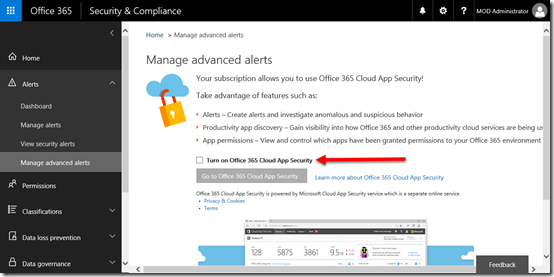
To get to Office 365 Cloud App Security you need to navigate to the Security & Compliance Center as an Office 365 administrator. Open the Alerts heading on the left and select Manage advanced alerts from the options that appear.

On the right you will see a check box to Turn on Office 365 Cloud App Security.

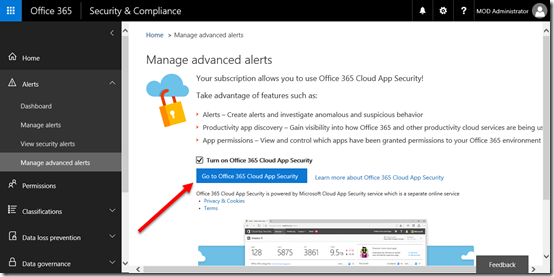
image

Once this has been selected you will be able to select the button to Go to Office 365 App Security.

image

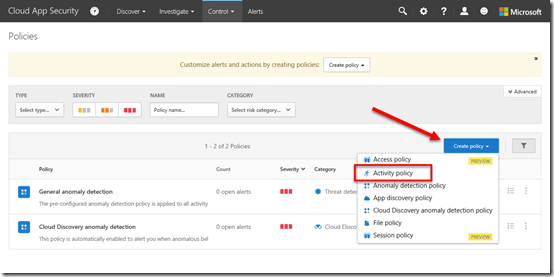
On this page you may see a number of policies in place already. Here, I’m going add a new policy. To get to this page again I select the Control option from the menu across the top of the page and then Policies from the items that appear.

To add a policy I now select the Create Policy button on the right as shown above, and then Activity policy from the items that appear. You may have less items in this list, it depends on what licenses you have in place for your tenant.

image

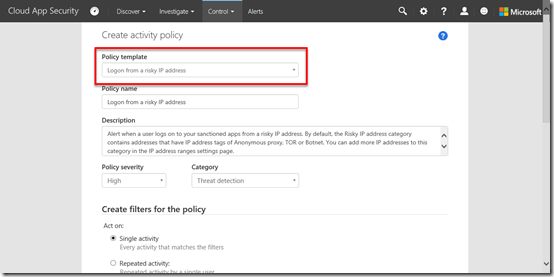
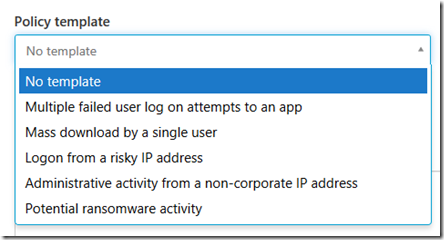
For the Policy Template option I am going to select from a list of pre existing templates and use the Logon from a risky IP address which is described as:

Alert when a user logs on to your sanctioned apps from a risky IP address. By default, the Risky IP address category contains addresses that have IP address tags of Anonymous proxy, TOR or Botnet. You can add more IP addresses to this category in the IP address ranges settings page. 

image

You can see the list of existing policy templates above and of course, you can create your own custom one.

image

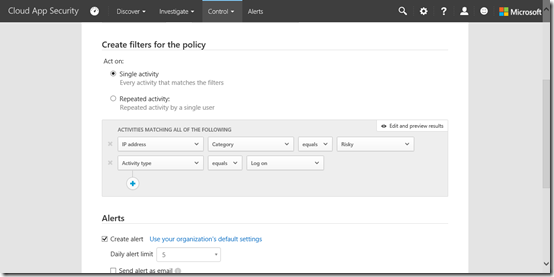
Once I have selected the policy I scroll down to the actual rules which appear in the Create filters for the policy section as shown above.

Basically you’ll see in this case that the rule looks at whether an IP is “risky” and the activity equals logon.

You can of course edit or define your own rules here if you want.

image

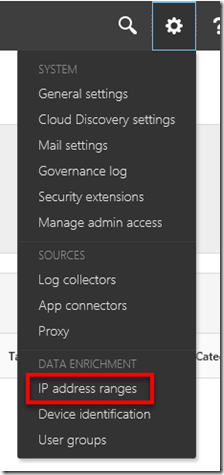
If you are wondering where the “risky” IP range is defined you’ll find these sorts of things in the upper left under the COG icon as shown above. In this case, look under the IP address ranges.

image

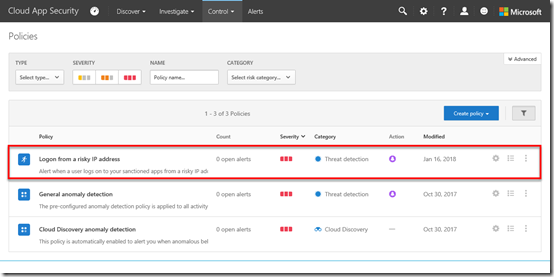
Once you save the settings you’ll be returned to the Policies page where you should now see the new policy as shown above.

image

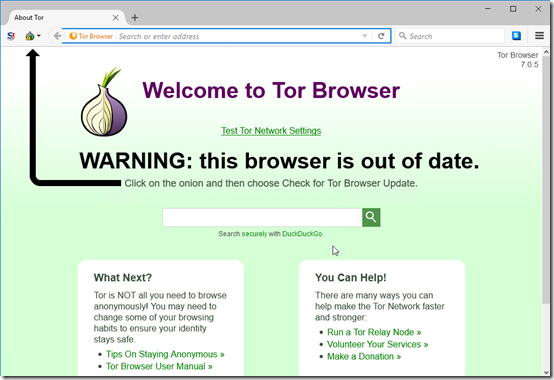
To test this policy, I’m going to fire up a Tor browser and login to Office 365.

image

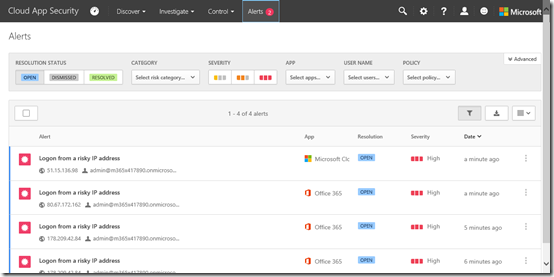
As expected, in a very short space of time (note it isn’t immediate. It may take a moment or two to appear) I get an alert and can view these by selecting the Alert option from the menu across the top of the page.

image

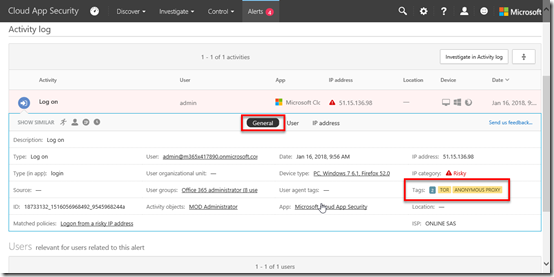
If I then click to open one of these alerts and select the General option in the middle of the page I get more information as shown above. You’ll see on the right that the IP category = “Risky” and this is because of a match to Tor and Anonymous proxy.

image

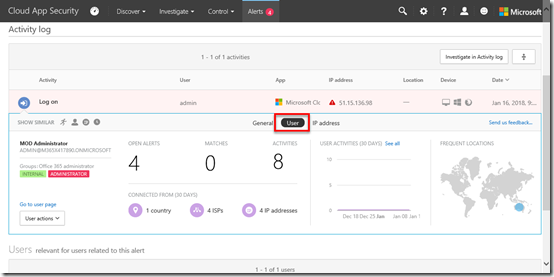
If I now select the User option in the middle of the page I get further information as to which user triggered this as shown above.

image

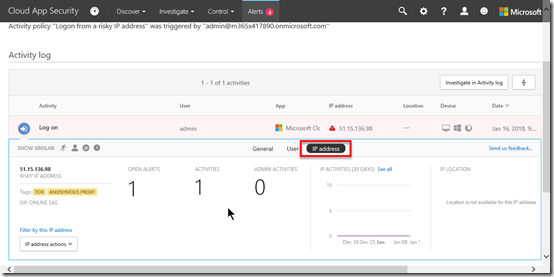
Likewise if I select the IP address option I get information about the networking in detail.

From here you can take actions on the alerts such as dismissing or digging deeper into the logs.

image

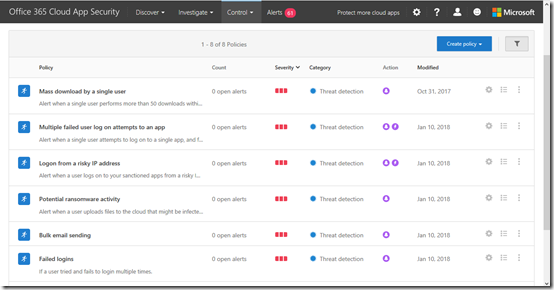
My advice would therefore be to enable all the default policy templates for your tenant as I have done for mine as shown above.

You’ll notice that I also have some custom policies in place as well. One of these is to provide an alert for repeated failed login attempts by a user.

image

Another policy is the one above that monitors logins by global administrators. You’ll see that I also restrict that policy to only apply when I am not on a corporate (i.e. office LAN) IP address.

My advice with custom policies is to start simply and broadly and tighten the rules up over time. There is nothing worse than setting a policy and getting deluged with alerts, so take it slow and increase restrictions over time to ensure you don’t overload yourself with false positives.

As I dig deeper into what is possible more I’m sure I’ll be adding additional policies to keep my tenant secure and provide a level of monitoring that no human could do. However, in today’s environment of increased attached I’d really recommend you look at adding Office 365 Cloud App Security to your tenant for enhanced protection.

Need to Know Podcast–Episode 173

A solo-cast from me this episode as Marc is busy doing his day job. A bit lonely for the first episode of 2018 but I’ll manage somehow. A quick episode to bring you up to date with what’s happening in the Microsoft Cloud as well as to introduce Microsoft 365 and what that is all about.

Take a listen and let us know what you think –feedback@needtoknow.cloud

You can listen directly to this episode at

https://ciaops.podbean.com/e/episode-173-marc-less/

Subscribe via iTunes at:

https://itunes.apple.com/au/podcast/ciaops-need-to-know-podcasts/id406891445?mt=2

The podcast is also available on Stitcher at:

http://www.stitcher.com/podcast/ciaops/need-to-know-podcast?refid=stpr

Don’t forget to give the show a rating as well as send us any feedback or suggestions you may have for the show.

Resources

@marckean

@directorcia

Outlook for Mac support creation of Office 365 Groups

Submit feedback request to Microsoft

SharePoint updates rolling out

Office customisation tool

Availability of Microsoft SharePoint Migration Tool

Azure site to site VPN

Azure Essentials

Apply labels to sensitive files

PowerShell V6 now available

American Kingpin by Nick Bilton

Introduction to Microsoft 365

Location of chat history in Microsoft Teams

image

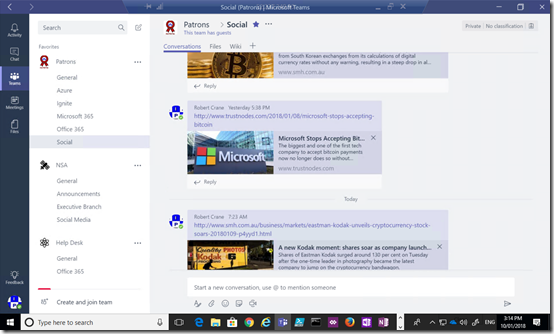
I have a Microsoft Team in my tenant called “Patrons”. In there is a channel called “Social”. In this area CIAOPS Patrons chat about things such a cryptocurrency as you can see.

As an administrator what I want to do is find out how I can view information that is shared by others in this chat location. In short, how do I see chat history in Microsoft Teams?

image

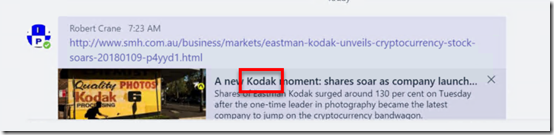
As an example, let’s say I want to find the term ‘kodak’ in these chats. You’ll see from the above that it is part of a link that was pasted into the chat.

image

All the chat history from Microsoft Teams is saved into a mailbox with the name of the Team. So I’m looking for a mailbox called “Patrons”.

Easiest way is to fire up trusty PowerShell and run:

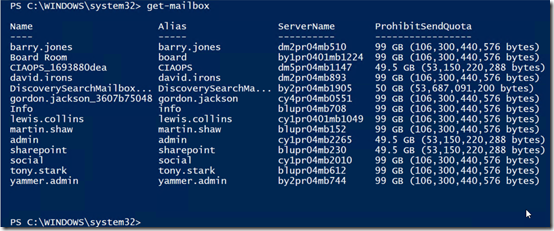
get-mailbox

and as you can see from the results above, I only see user mailboxes.

image

but if I run:

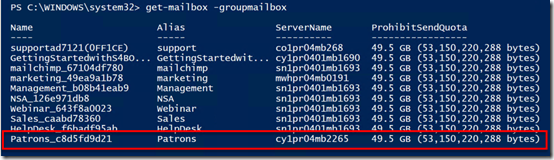
get-mailbox –groupmailbox

I see all the shared mailboxes in my tenant.

As you can see I find one called “Patrons” as shown above.

image

To get the details I run:

get-mailbox –groupmailbox patrons@ciaops365.com

and you can see that I again get all the information but just for that mailbox. So this is the one that is linked to my Microsoft Team.

image

If I now run:

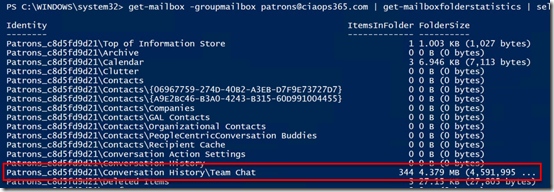
get-mailbox –groupmailbox patrons@ciaops365.com | get-mailboxstatistics | select-object identity, itemsinfolder, foldersize

I basically get a report of what is inside that Teams mailbox. In there I can see a folder:

\conversation history\team chat

this is indeed where the chats are located. You can see there is currently 344 items of 4.38 MB in size.

image

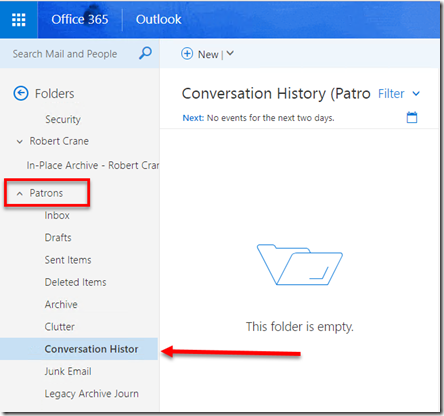
Now I can actually add this mailbox to my Outlook Web Access and view the contents as you can see above. However, I can’t get the folder \Conversation History\Team Chat because it is hidden and probably has other permissions associated with it.

image

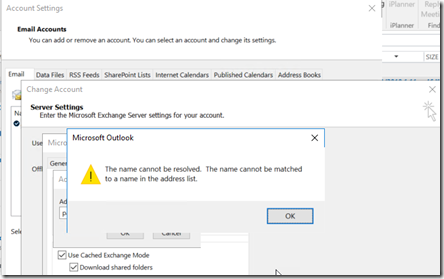
I can’t add this shared mailbox to Outlook 2016 on my desktop as you can see above.

image

So now if I try to view/change the permissions on the mailbox using:

get-mailbox –groupmailbox patrons@ciaops365.com | get-mailfolderpermission

I get the message that the mailbox doesn’t exist.

image

If I now try:

get-mailfolderpermission –identity patrons@ciaops.com:\inbox

I again get the message that the mailbox doesn’t exist.

image

If I use that same command on another ‘standard’ shared mailbox the command works. So I know my command does work, it just doesn’t work with a Microsoft Teams mailbox.

image

Again, just changing mailbox identity confirms that the command can’t even see the mailbox.

image

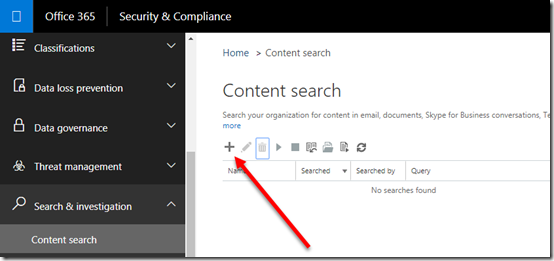
The way to actually see what the contents of the Teams chats are is to use the Content Discovery component of the Security & Compliance center in Office 365 which you’ll find under the Search & Investigation heading on left hand side. You need to be an administrator with appropriate rights to access this area.

You start by creating a new Content Search by pressing the + icon as shown above.

image

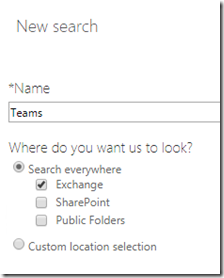
Give the new Content Search a title and select the locations where you wish to search. In this case I’ll simply look through all email data.

image

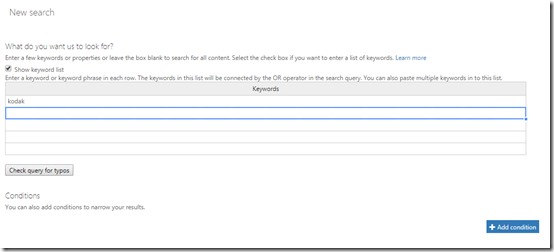
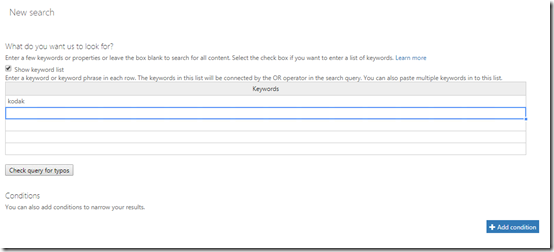
Next, I enter what I want to search for. Here, I’m only looking for the word ‘kodak’.

image

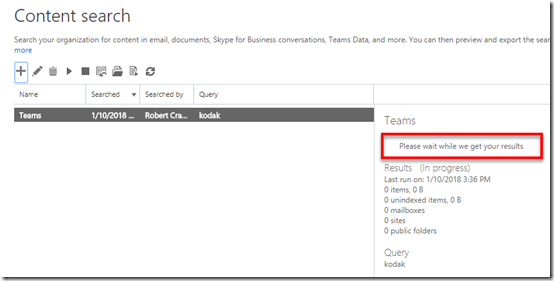
After I finish my configuration, the search commences and I need to wait a few moments while it searches all the nominated locations and generates the results.

image

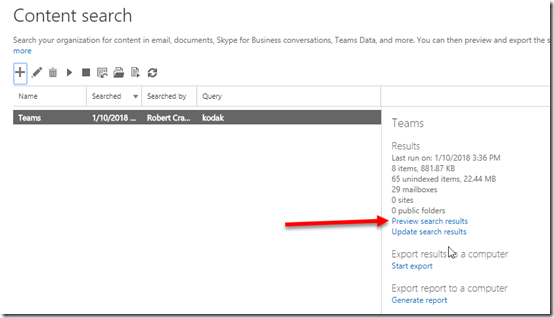
When the process is complete I select the Preview search results hyperlink on the right as shown above.

image

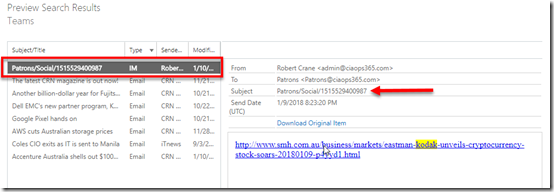
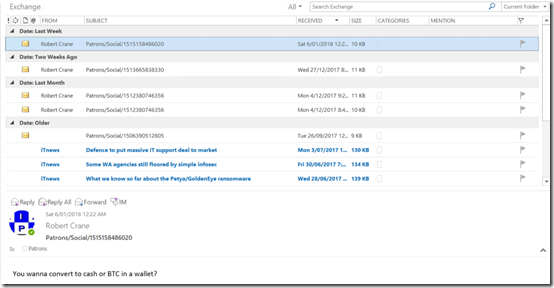
Another window opens and I can locate the item I’m after as the type is ‘IM’ as shown above. When I select that item on the left I see the full context on the right. I confirm that the search does display the link that is the Microsoft Team chat.

image

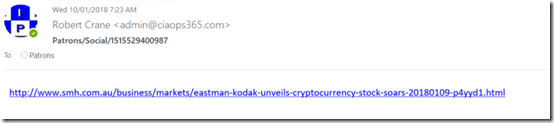
If I elect to download the item, it does so as an .EML file which I can open in any mail client as shown above. This indicates that each chat message appears to be a separate email in a sub folder in a shared mailbox in Exchange Online effectively.

image

So I went back in and changed the content search terms to make it broader to encompass more chats.

image

I ran the search and exported the data from the Security & Compliance center into a .PST file and then imported that into Outlook.

Thus, as you can see above, I can now view all the chats that match my search criteria as an administrator.

The problem with this is, from a pure ‘overwatch’ point of view, it is a very manual process to get to the information and secondly you can only look at things you specify in your content search. It would be nice to have the ability for an administrator to export the whole chat content from a Microsoft Teams channel into a single document that could then be viewed.

However, at the end of the day, rest assure that your Microsoft Teams chats are being saved and you can access them if you need to. Hopefully, the above has shown you how to do exactly that.